
Vivaldi earns its keep on Fedora when you actually use tab stacking, split-screen browsing, notes, mail, and the deeper UI customization that most Chromium browsers leave to extensions. To install Vivaldi on Fedora, add Vivaldi’s official RPM repository and choose either the stable browser for daily use or the snapshot build for earlier features.
Fedora does not ship Vivaldi in the default repositories. The official Vivaldi download page publishes Linux RPM packages, but the cleaner Fedora path is the RPM repository because DNF can handle installation, updates, and removal for both vivaldi-stable and vivaldi-snapshot.
Install Vivaldi Browser on Fedora
Start with a normal Fedora update, add the official Vivaldi repository, then install the channel that matches how stable or experimental you want the browser to be.
Update Fedora Before Installing Vivaldi
Refresh Fedora first so DNF works with current package metadata before you add the Vivaldi repository:
sudo dnf upgrade --refreshCommands that change system packages use
sudo. If your user is not in the sudoers file yet, add and manage sudo users on Fedora before continuing.
Add the Vivaldi RPM Repository on Fedora
Add Vivaldi’s official repository with Fedora’s DNF5 config-manager command:
sudo dnf config-manager addrepo --from-repofile=https://repo.vivaldi.com/stable/vivaldi-fedora.repoThis writes vivaldi-fedora.repo to /etc/yum.repos.d/. DNF imports Vivaldi’s signing key the first time you install a package from that repository. The repo file points Fedora at Vivaldi’s /archive/ RPM path, so seeing archive in later key-import messages is normal. Confirm Fedora can see the repo:
dnf repo list --enabled | grep -i '^vivaldi'vivaldi vivaldi
Compare Vivaldi RPM Builds on Fedora
The same repository exposes both Vivaldi channels, so the practical choice is whether you want the calmer release track or the faster-moving preview build.
| Build | Package | Update Pace | Best For | Profile Directory |
|---|---|---|---|---|
| Stable | vivaldi-stable | Least frequent | Daily browsing and normal work | ~/.config/vivaldi |
| Snapshot | vivaldi-snapshot | More frequent | Testing upcoming features and UI changes | ~/.config/vivaldi-snapshot |
For most Fedora systems, install the stable build. Snapshot is useful when you want to test newer changes without replacing the stable profile.
Vivaldi versions move quickly. Use the package and version checks in the install sections to read the current build on your system instead of matching a fixed version number from an article.
Install Vivaldi Stable with DNF on Fedora
Install the stable browser if you want the normal release channel with the least disruption:
sudo dnf install vivaldi-stableCheck that the stable package is installed:
rpm -q --queryformat '%{NAME}\n' vivaldi-stablevivaldi-stable
To see the exact browser build installed today, run vivaldi --version. The output changes as Vivaldi publishes new stable releases.
Install Vivaldi Snapshot with DNF on Fedora
Install the snapshot package when you want earlier access to new features and can tolerate the occasional regression:
sudo dnf install vivaldi-snapshotThe snapshot build installs alongside the stable browser and uses its own configuration directory, so you can keep both channels on the same Fedora system. Check the package after installation:
rpm -q --queryformat '%{NAME}\n' vivaldi-snapshotvivaldi-snapshot
Use vivaldi-snapshot --version when you need the exact snapshot build number. Snapshot releases move faster than stable releases, so the number should be treated as current-system output.
Launch Vivaldi Browser on Fedora
Launch Vivaldi on Fedora from the Terminal
Use the launcher that matches the package you installed. Starting Vivaldi from a terminal is also the easiest way to catch startup errors:
vivaldi
vivaldi-snapshot
Launch Vivaldi on Fedora from Activities
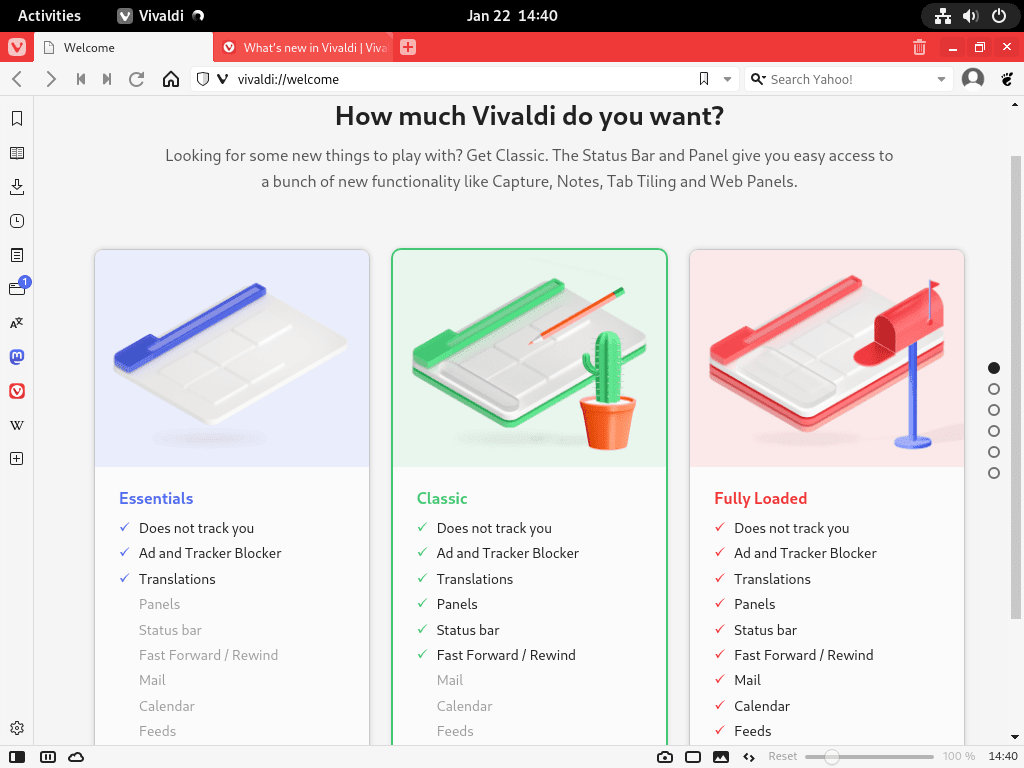
For the graphical launcher, open Activities and search for the browser entry you installed:
- Open Activities.
- Type Vivaldi to find the stable browser, or search for Vivaldi Snapshot if you installed the preview build.
- Click the matching launcher to open the browser.

Update or Remove Vivaldi Browser on Fedora
Update Vivaldi on Fedora with DNF
Once the repository is configured, Vivaldi updates with the rest of the system through DNF:
sudo dnf upgrade --refreshIf you prefer unattended updates, the guide on DNF Automatic on Fedora covers scheduled background upgrades.
Remove Vivaldi Packages on Fedora
Remove only the channel you installed. If you kept both side by side, remove both packages:
sudo dnf remove vivaldi-stable
sudo dnf remove vivaldi-snapshot
Removing the browser package does not remove the Vivaldi repository files or your profile data. Installing both Vivaldi channels can leave vivaldi-fedora.repo, vivaldi.repo, and vivaldi-snapshot.repo in /etc/yum.repos.d/ until you delete them manually.
Check the package state after removal:
rpm -q vivaldi-stable
rpm -q vivaldi-snapshot
package vivaldi-stable is not installed package vivaldi-snapshot is not installed
If you intentionally kept one channel installed, that line will still return its version instead of the not installed message.
Remove the Vivaldi Repository on Fedora
Delete the Vivaldi repo files if you no longer want Fedora checking them during updates:
sudo rm -f /etc/yum.repos.d/vivaldi*.repoVerify that no enabled Vivaldi repository entries remain:
dnf repo list --enabled | grep -i '^vivaldi' || echo "Repository is not enabled"Repository is not enabled
The confirmation means Fedora no longer has an enabled Vivaldi repository entry.
Remove the Vivaldi RPM Signing Key on Fedora
DNF imports Vivaldi’s RPM signing key during the first package install. If you removed every Vivaldi package and repo file, check whether the current Vivaldi key remains:
vivaldi_key='8d1fa52aef58a09d889dd4221256c34716bd9233'
rpm -q gpg-pubkey --qf '%{VERSION}-%{RELEASE}\n' | grep -i "^${vivaldi_key}-" || echo "No Vivaldi RPM signing key is installed"
Remove the Vivaldi key only when no Vivaldi packages or repositories remain on the system:
vivaldi_key='8d1fa52aef58a09d889dd4221256c34716bd9233'
mapfile -t vivaldi_keys < <(rpm -q gpg-pubkey --qf '%{VERSION}\n' | grep -i "^${vivaldi_key}$" || true)

if ((${#vivaldi_keys[@]})); then
  sudo rpmkeys --delete "${vivaldi_keys[@]}"
else
  echo "No Vivaldi RPM signing key is installed"
fi
Remove Vivaldi Profile Data on Fedora
The main browser data lives in the per-user configuration directories that Vivaldi creates for each channel.
Deleting the profile directories permanently removes bookmarks, saved passwords, browsing history, extensions, and site data stored in your Vivaldi profiles. Export anything you want to keep before you continue.
rm -rf ~/.config/vivaldi ~/.config/vivaldi-snapshotIf you only used one channel, the missing directory is skipped automatically. To clear temporary cache directories too, list any Vivaldi-related cache paths first instead of guessing names:
find ~/.cache -maxdepth 1 -type d \( -name 'vivaldi*' -o -name '.vivaldi*' \)Troubleshoot Vivaldi on Fedora
DNF Shows an Unknown Argument --add-repo Error on Fedora
This happens when older DNF4 syntax is copied into Fedora’s DNF5 config-manager workflow. Use the addrepo subcommand instead:
Unknown argument "--add-repo=https://repo.vivaldi.com/stable/vivaldi-fedora.repo" for command "config-manager". Add "--help" for more information about the arguments.
sudo dnf config-manager addrepo --from-repofile=https://repo.vivaldi.com/stable/vivaldi-fedora.repoIf config-manager itself is missing on a trimmed-down Fedora install, add it with sudo dnf install dnf5-plugins and run the command again. The DNF5 install examples for Fedora are useful when you want a broader look at current DNF5 package and repository syntax.
DNF Reports a Vivaldi GPG Verification Error on Fedora
If DNF refuses to install or update Vivaldi because the signing key is missing or out of sync, import the current key directly from the same URL used by the repo file:
sudo rpm --import https://repo.vivaldi.com/archive/linux_signing_key.pubThen verify that Fedora sees Vivaldi’s current key fingerprint:
vivaldi_key='8d1fa52aef58a09d889dd4221256c34716bd9233'
rpm -q gpg-pubkey --qf '%{VERSION}-%{RELEASE}\n' | grep -i "^${vivaldi_key}-"
8d1fa52aef58a09d889dd4221256c34716bd9233-676419e4
Check Whether the Vivaldi Repository Is Reachable
If updates fail and you want to confirm the repository file itself is online, request only the HTTP headers:
curl -fsSI https://repo.vivaldi.com/stable/vivaldi-fedora.repoRelevant output includes:
HTTP/2 200
content-type: application/octet-stream
A 200 OK response means the repo file is reachable. If you get timeouts or DNS failures instead, check your network path first. The curl command guide covers additional request options if you want deeper checks.
Vivaldi Browser Will Not Open on Fedora
If the launcher flashes and disappears, start the same channel from a terminal first so you can see the error instead of guessing:
vivaldi
vivaldi-snapshot
If the problem looks profile-related, rename the affected profile directory rather than deleting it immediately:
backup_suffix=$(date +%Y%m%d-%H%M%S)

if [ -d ~/.config/vivaldi ]; then
  mv ~/.config/vivaldi "$HOME/.config/vivaldi-backup-$backup_suffix"
fi

if [ -d ~/.config/vivaldi-snapshot ]; then
  mv ~/.config/vivaldi-snapshot "$HOME/.config/vivaldi-snapshot-backup-$backup_suffix"
fi
Start the browser again after renaming the profile. If Vivaldi opens normally, copy back only the bookmarks or other data you still want to keep.
Conclusion
Vivaldi is running on Fedora with DNF handling browser updates through the official RPM repository. If you are still comparing Chromium-based options, you can also install Google Chrome on Fedora, install Opera on Fedora, or install Chromium on Fedora.


‘sudo dnf config-manager --add-repo https://repo.vivaldi.com/stable/vivaldi-fedora.repo’
throws error “Unknown argument “–add-repo” for command “config-manager”. Add “–help” for more information about the arguments.”
It has to be rewritten or changed to:
‘sudo dnf-3 config-manager --add-repo https://repo.vivaldi.com/stable/vivaldi-fedora.repo’
https://github.com/rpm-software-management/dnf5/issues/1537
Thanks for the detailed report and GitHub issue link, alex. You were absolutely right. The article had the old DNF4 syntax when you commented in September, and the
--add-repoflag no longer works in DNF5. The article has been updated with the correct syntax for current Fedora releases.The correct command for current Fedora releases with DNF5 is:
Your
dnf-3 config-manager --add-repoworkaround was the right solution during the transition period and still works if you have the DNF4 compatibility packages installed.