
You do not need a separate IDLE download on Ubuntu. You can install IDLE Python on Ubuntu from the default repositories, and the package gives you Python’s built-in editor plus an interactive shell for quick experiments, small scripts, and light debugging.
The package names shift slightly across Ubuntu 26.04 (Resolute Raccoon), 24.04 (Noble Numbat), and 22.04 (Jammy Jellyfish). You can install the package from a normal terminal or SSH session, but opening the IDLE window still requires an active graphical desktop session.
Install IDLE Python on Ubuntu
Ubuntu keeps IDLE in the standard repositories, so the normal path is APT rather than a manual .deb download. Use the idle meta-package when you want the default Python release for your Ubuntu version, or install a version-specific idle-python* package when you need a particular interpreter branch.
| Ubuntu Release | Default Package Pulled by idle | Other Package Names You May See | Notes |
|---|---|---|---|
| Ubuntu 26.04 (Resolute Raccoon) | idle-python3.14 | No separate older Python 3 IDLE package | Tracks Ubuntu’s current default Python line. |
| Ubuntu 24.04 (Noble Numbat) | idle-python3.12 | idle3 | The transitional idle3 package points back to the Python 3 package family. |
| Ubuntu 22.04 (Jammy Jellyfish) | idle-python3.10 | idle3, idle-python2.7 | Use the Python 3 packages for supported Ubuntu setups. |
If you just want the standard launcher and menu entry, start with the meta-package. If you are matching a specific Python branch, search the idle-python* packages first and install the exact name Ubuntu offers on your release.
On Ubuntu 24.04 and 22.04, idle3 is a transitional package name for the Python 3 IDLE package family. Use idle for the portable install command because Ubuntu 26.04 does not offer an idle3 package name in the default repositories.
IDLE comes from Ubuntu’s
universecomponent on 26.04, 24.04, and 22.04. Most desktop installs already have it enabled, but minimal or customized systems can returnUnable to locate package idleuntil you enable Universe and Multiverse in Ubuntu; onlyuniverseis required for this package.
Update Ubuntu Before Installing IDLE Python
Refresh APT metadata and install pending upgrades before you add new packages.
sudo apt update && sudo apt upgrade -yThese commands use
sudofor package-management tasks. If your account is not in the sudoers file yet, follow the guide to add a new user to sudoers on Ubuntu first.
Install the Default IDLE Package on Ubuntu
The meta-package is the easiest option because it tracks Ubuntu’s default Python version and creates the generic idle launcher automatically.
sudo apt install idle -yConfirm the package version Ubuntu installed:
dpkg-query -W idleidle 3.14.3-0ubuntu2
Ubuntu 24.04 reports 3.12.3-0ubuntu2.1 here, and Ubuntu 22.04 reports 3.10.4-0ubuntu2. The package name stays the same, but the bundled IDLE branch follows the Python version shipped by each LTS release.
Then confirm the launcher path:
command -v idle/usr/bin/idle
Install a Specific IDLE Python Version on Ubuntu
If you need IDLE for a particular Python branch, search the available package names first instead of guessing the suffix.
apt-cache search '^idle-python'The leading ^ keeps the search focused on package names that start with idle-python, which cuts out unrelated results.
idle-python3.14 - IDE for Python (v3.14) using Tkinter
On Ubuntu 24.04, the same search returns idle-python3.12. On Ubuntu 22.04, it returns idle-python3.10 plus the old idle-python2.7 package. For Ubuntu 26.04, 24.04, and 22.04, stay with the Python 3 package names.
After you identify the package name, install it directly. On Ubuntu 26.04, for example, the command is:
sudo apt install idle-python3.14 -yA version-specific package keeps its own launcher name, such as
idle-python3.14. Install theidlemeta-package instead if you want the genericidlecommand.
Verify the package that was installed:
dpkg-query -W idle-python3.14idle-python3.14 3.14.4-1
Then confirm the versioned launcher path:
command -v idle-python3.14/usr/bin/idle-python3.14
Launch IDLE Python on Ubuntu
Once the package is installed, start IDLE from the desktop menu or from a terminal inside a graphical session. Installing the package on Ubuntu Server or over SSH is fine, but the application itself is still a GUI program.
Launch IDLE Python from the Terminal on Ubuntu
Use the generic launcher if you installed the meta-package.
idleUse the versioned launcher if you installed a package such as idle-python3.14.
idle-python3.14Launch IDLE Python from the Applications Menu on Ubuntu
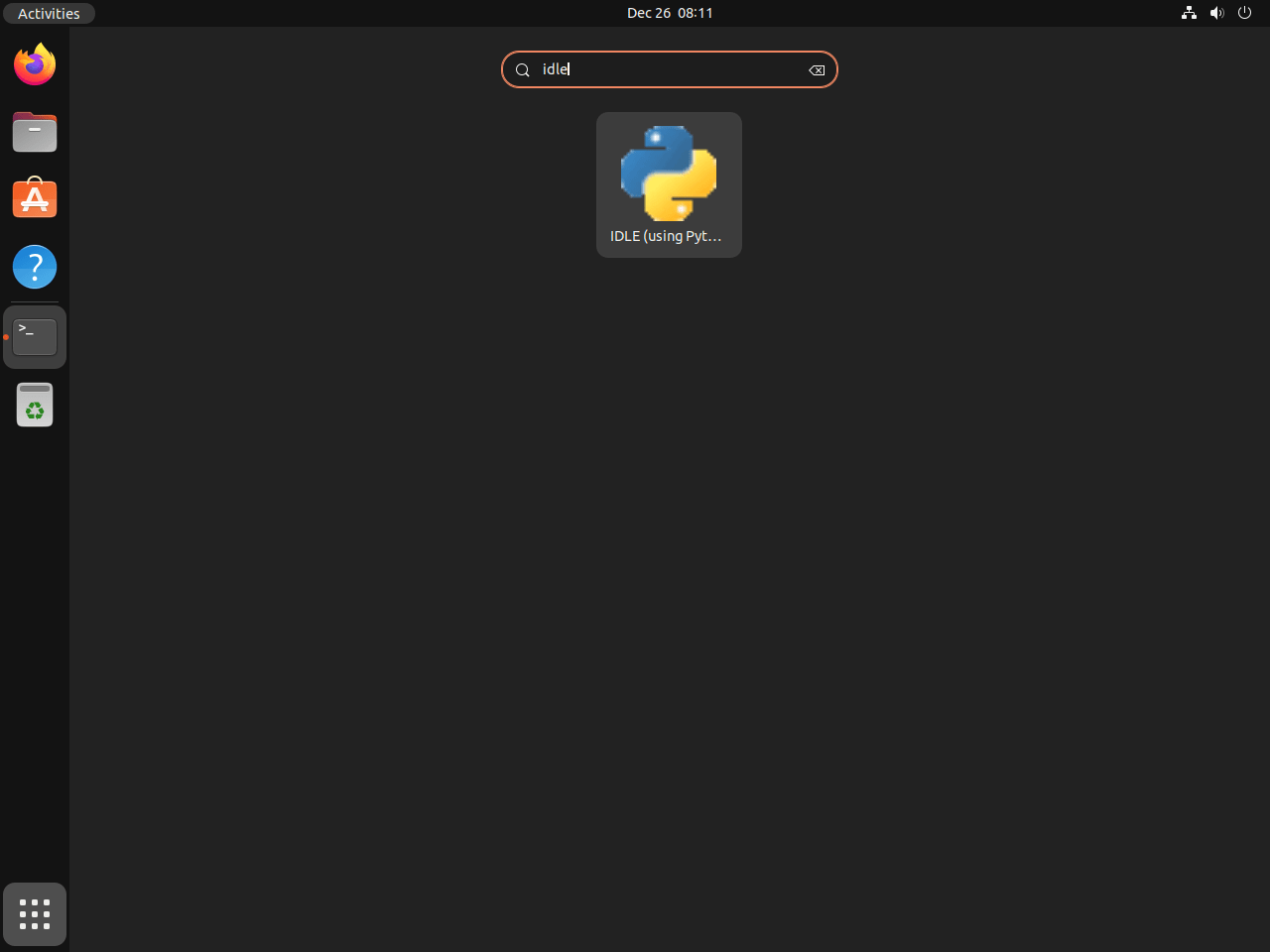
Ubuntu adds an IDLE menu entry automatically, so desktop users can open it without typing a terminal command.
- Click Activities in the top-left corner of the desktop.
- Type IDLE in the search field, or open Show Applications.
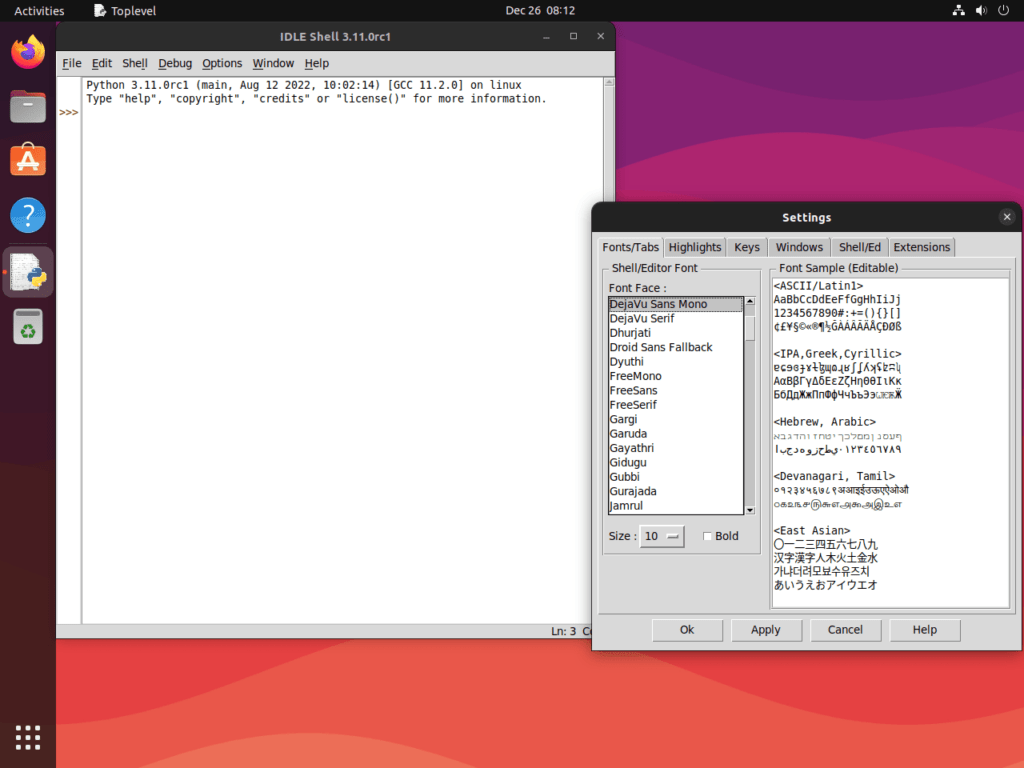
- Select the IDLE icon to open the shell window.
Get Started with IDLE Python on Ubuntu
IDLE opens with the Python Shell window, which lets you test expressions immediately and run scripts from a separate editor window. These shortcuts cover the first few tasks most readers want.
- Create a new script: Press
Ctrl+Nto open a new editor window. - Run the current script: Press
F5to execute the open file in the shell. - Trigger completions: Press
Ctrl+Spacewhen you want IDLE to suggest names. - Open the debugger: Use Debug > Debugger from the menu when you need breakpoints or step-by-step execution.
For isolated project dependencies, create Python virtual environments on Ubuntu before you start adding third-party packages. When you need libraries from PyPI, install Python pip on Ubuntu and keep those packages inside the virtual environment. The official IDLE documentation explains menu options, debugging tools, and .idlerc settings in more detail.
Troubleshoot IDLE Python on Ubuntu
Most IDLE install issues on Ubuntu come from disabled repository components, older package names, or trying to launch the graphical shell from a non-graphical session.
Fix Unable to Locate Package idle on Ubuntu
If APT returns Unable to locate package idle, install the repository helper when needed, enable the universe component, and refresh package metadata before installing again.
sudo apt install software-properties-common -y
sudo add-apt-repository -y universe
sudo apt update
After that, repeat the standard install command:
sudo apt install idle -yUse the Correct IDLE Package Name on Ubuntu
Ubuntu uses idle for the default package and idle-python3.14, idle-python3.12, or idle-python3.10 for release-specific package names. Ubuntu does not use python3-idle as the package name on these supported releases, so run apt-cache search '^idle-python' when older instructions mention a different name.
Understand the .idlerc Settings Folder on Ubuntu
IDLE stores user preferences, key bindings, color themes, and saved breakpoint data in ~/.idlerc. The directory is user-specific and normally appears after you change IDLE settings or save debugger breakpoints, so deleting it resets IDLE preferences without removing the Ubuntu package.
Update or Remove IDLE Python on Ubuntu
IDLE updates through the same Ubuntu packages as the rest of your system, and removal is straightforward once you know which package name you installed.
Update IDLE Python on Ubuntu
Upgrade the meta-package directly when you use the default idle install path.
sudo apt install --only-upgrade idle -yIf you installed a version-specific package instead, replace idle with that exact name, such as idle-python3.14.
Check the installed revision after the upgrade:
dpkg-query -W idleidle 3.14.3-0ubuntu2
Remove IDLE Python on Ubuntu
Remove the package name you actually installed. Start with the meta-package if you used the standard Ubuntu path.
sudo apt remove idle -yFor a version-specific install, remove that package directly instead.
sudo apt remove idle-python3.14 -yPreview orphaned dependency cleanup before you run it because autoremove can remove packages that were left behind by other software, not only IDLE-related packages.
sudo apt autoremove --dry-runIf the preview only lists packages you no longer need, run autoremove without auto-confirming the cleanup.
sudo apt autoremoveIDLE stores saved preferences, themes, key bindings, and breakpoint data in
~/.idlerc. A fresh package install does not create that directory by itself, so remove it only when you actually want to clear saved IDLE settings.
If you want to remove those saved settings as well, delete the user configuration directory manually.
if [ -d ~/.idlerc ]; then
    rm -r ~/.idlerc
fi
Verify that the package is no longer installed:
dpkg-query -W -f='${db:Status-Abbrev} ${binary:Package}\n' idle 2>/dev/null | grep '^ii' || echo 'idle is not installed'idle is not installed
Clear the shell command cache before checking the launcher path, especially if the same terminal previously ran IDLE.
hash -r
command -v idle || echo 'idle launcher not found'
idle launcher not found
Conclusion
IDLE is ready on Ubuntu for quick scripts, experiments, and teaching work, with the package track already matched to your system Python. If you outgrow that lightweight workflow and want a fuller project workspace, install PyCharm on Ubuntu or install Visual Studio Code on Ubuntu.


Formatting tips for your comment
You can use basic HTML to format your comment. Useful tags currently allowed in published comments:
<code>command</code>command<strong>bold</strong><em>italic</em><blockquote>quote</blockquote>