
Install Snap on Debian when you need the Snap Store catalog, automatic snap refreshes, or a package format that stays separate from Debian’s APT packages. Debian 13 (Trixie), Debian 12 (Bookworm), and Debian 11 (Bullseye) all provide snapd in the default repositories, but Debian does not normally install it by default. The current Debian flow is to install the APT package first, then install the snapd snap so snapd can update itself through Snap’s re-execution support.
Snap can coexist with APT and Flatpak on Debian. Use Snap when a publisher maintains the snap you need or when the App Center / Snap Store is the package source you want to manage.
Update Debian Package Metadata
Refresh APT metadata before installing the Debian package:
sudo apt updateThe commands use
sudofor administrative access. If your user account is not in the sudo group, use how to add a user to sudoers on Debian before continuing.
Install Snapd on Debian via APT
The APT package installs the snap command, systemd units, and socket activation needed to communicate with snapd. The packaged branch differs by Debian release:
| Debian Release | Codename | APT Snapd Branch | Release Status |
|---|---|---|---|
| Debian 13 | trixie | 2.68.x | Current stable |
| Debian 12 | bookworm | 2.57.x | Oldstable |
| Debian 11 | bullseye | 2.49.x | Oldoldstable LTS |
Install the package:
sudo apt install snapdPress Y when APT asks for confirmation.
Install the Current Snapd Snap on Debian
Canonical’s Debian Snap instructions recommend installing the snapd snap after the APT package. This lets Debian use the current snapd runtime even when the APT package branch is older:
sudo snap install snapdDuring installation, snapd may print a message about waiting for an automatic restart. That restart is normal. Log out and back in, or reboot, before relying on /snap/bin shortcuts for newly installed snap applications.
Verify Snapd on Debian
Check the active snapd runtime:
snap versionExample output from Debian 13 after installing the snapd snap:
snap          2.75.2
snapd         2.75.2
series        16
debian        13
kernel        6.12.88+deb13-amd64
architecture  amd64
The version and kernel lines will change as Debian and snapd update. The important checks are that both snap and snapd report a version, and that the debian line matches your release.
Confirm socket activation is enabled and active:
systemctl is-enabled snapd.socket
systemctl is-active snapd.socket
Expected output:
enabled
active
If the socket is inactive, start and enable it:
sudo systemctl enable --now snapd.socketInstall and Manage Snap Packages on Debian
Use these commands for day-to-day snap management:
| Task | Command | Example |
|---|---|---|
| Install a snap | sudo snap install <name> | sudo snap install vlc |
| Run a snap app reliably | snap run <name> | snap run vlc |
| Remove a snap without saving a snapshot | sudo snap remove --purge <name> | sudo snap remove --purge vlc |
| Update a specific snap | sudo snap refresh <name> | sudo snap refresh vlc |
| Update all snaps manually | sudo snap refresh | |
| List installed snaps | snap list | |
| Search for a snap | snap find "<term>" | snap find "media player" |
| View snap details | snap info <name> | snap info vlc |
| View task history | snap changes | |
| Revert to the previous revision | sudo snap revert <name> | sudo snap revert vlc |
| Check app connections | snap connections <name> | snap connections vlc |
Snaps refresh automatically by default. The canonical** marker in snap output means Canonical’s store account is verified; it is not a general guarantee that every snap is maintained by the upstream application project.
Manage Snap Updates on Debian
Check the current refresh schedule:
snap refresh --timeRefresh snaps immediately when you do not want to wait for the automatic window:
sudo snap refreshSet a narrower refresh window if automatic updates should happen outside your normal desktop hours:
sudo snap set system refresh.timer=4:00-7:00,19:00-22:10Hold one snap temporarily when a new revision causes a regression:
sudo snap refresh --hold=24h <snap-name>Remove the hold after you are ready to receive updates again:
sudo snap refresh --unhold <snap-name>Install App Center or Snap Store on Debian
The graphical store is optional. Install it only when you want a desktop interface for browsing, installing, and updating snaps. The
snapcommand works without it.
The package name remains snap-store. The current Snapcraft listing calls the application App Center, while some desktop launchers and older cached entries may still show Snap Store:
sudo snap install snap-storeOn amd64 and arm64 systems, the default command installs the current 2/stable App Center branch. If Snap reports that the channel is unavailable, check the channels for your architecture:
snap info snap-storeIf 2/stable is not listed, install the older latest/stable Snap Store branch instead:
sudo snap install snap-store --channel=latest/stableVerify the installed snap:
snap list snap-storeThe output should show snap-store tracking 2/stable for the default branch or latest/stable when you used the fallback channel.
Launch App Center or Snap Store on Debian
Start it from a terminal session with:
snap run snap-storeYou can also open the application launcher and search for App Center or Snap Store, depending on the installed revision and desktop cache.
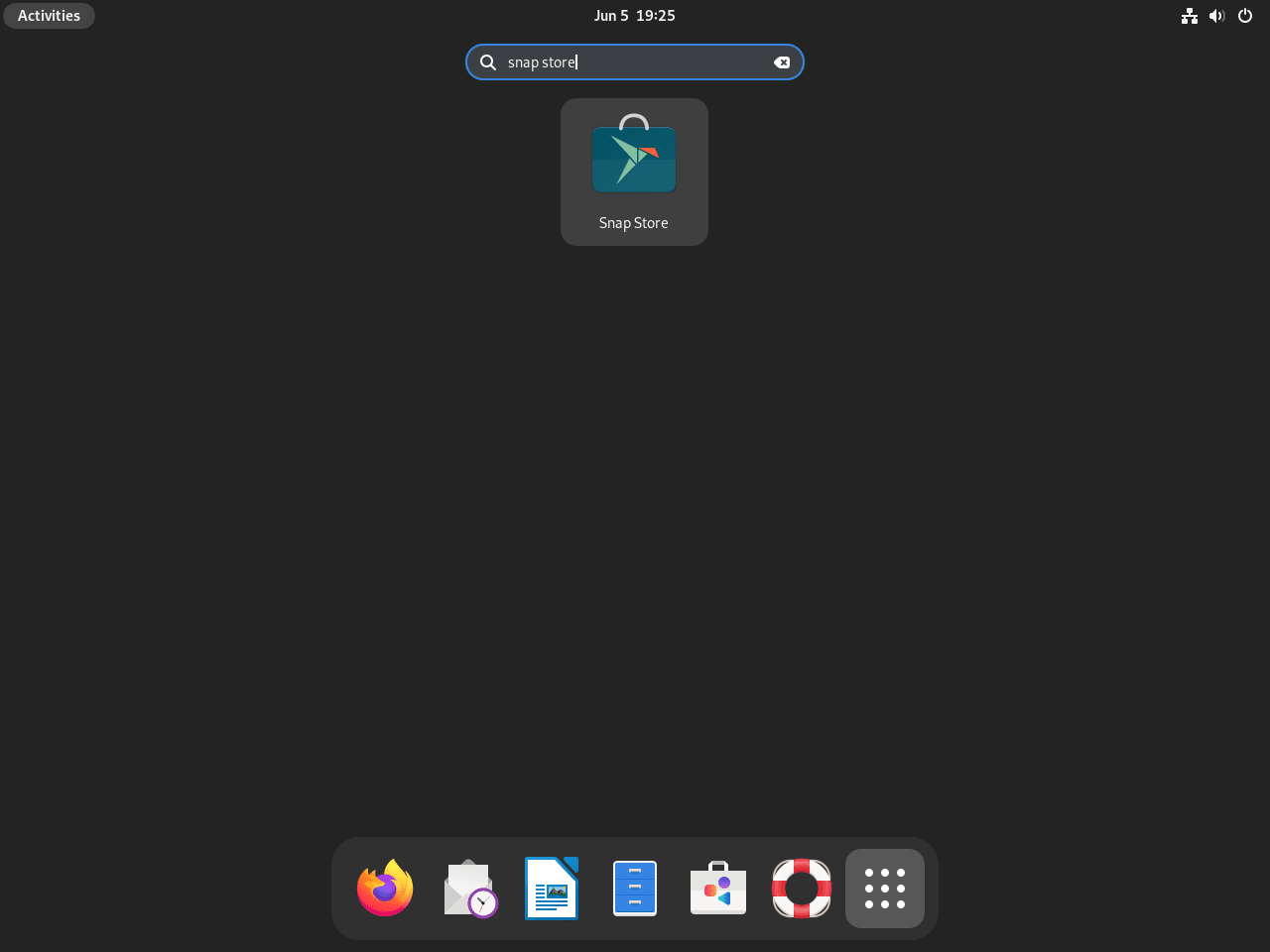
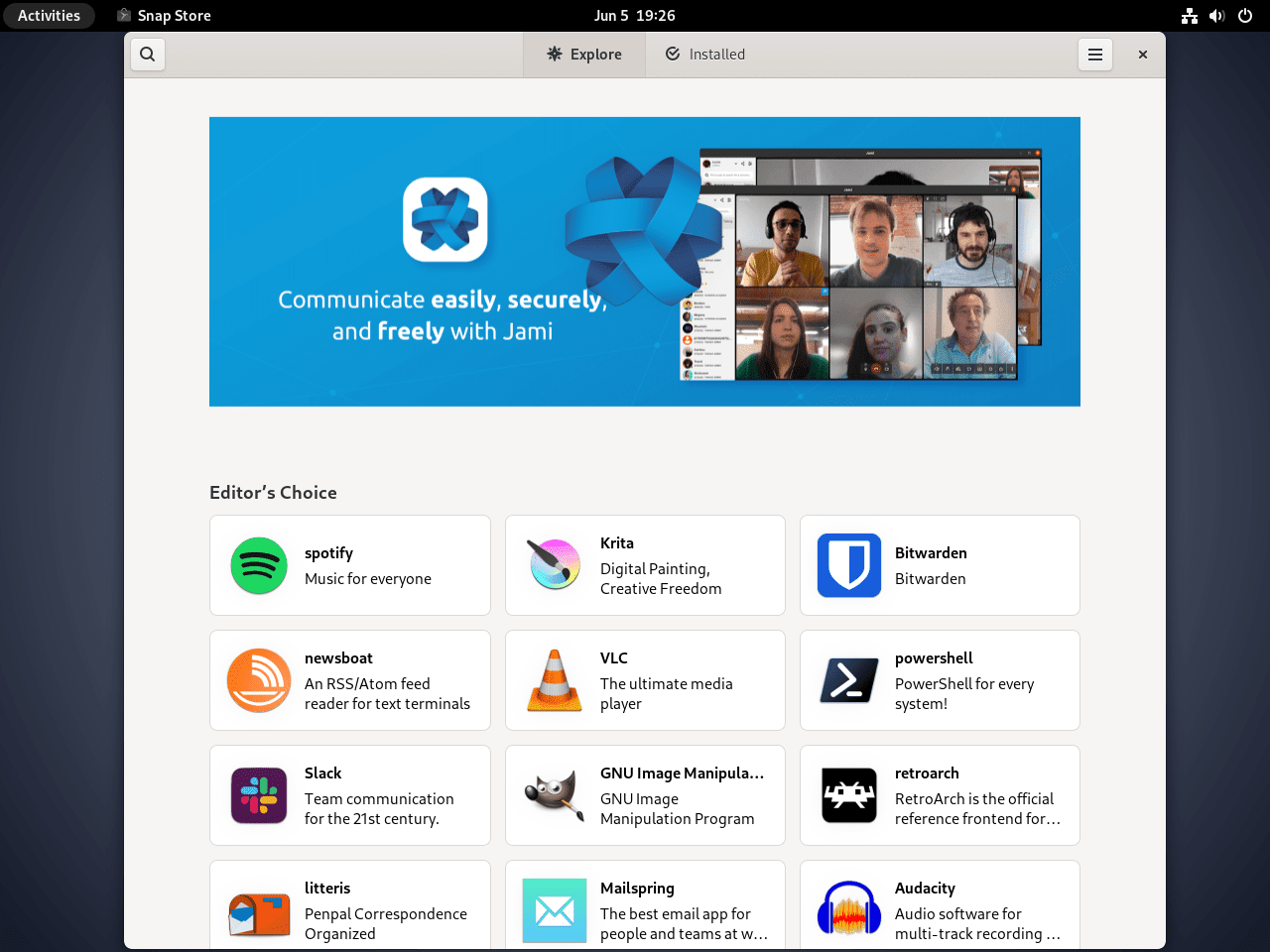
The store interface lets you browse categories, inspect publisher details, and install snap packages without typing package names:
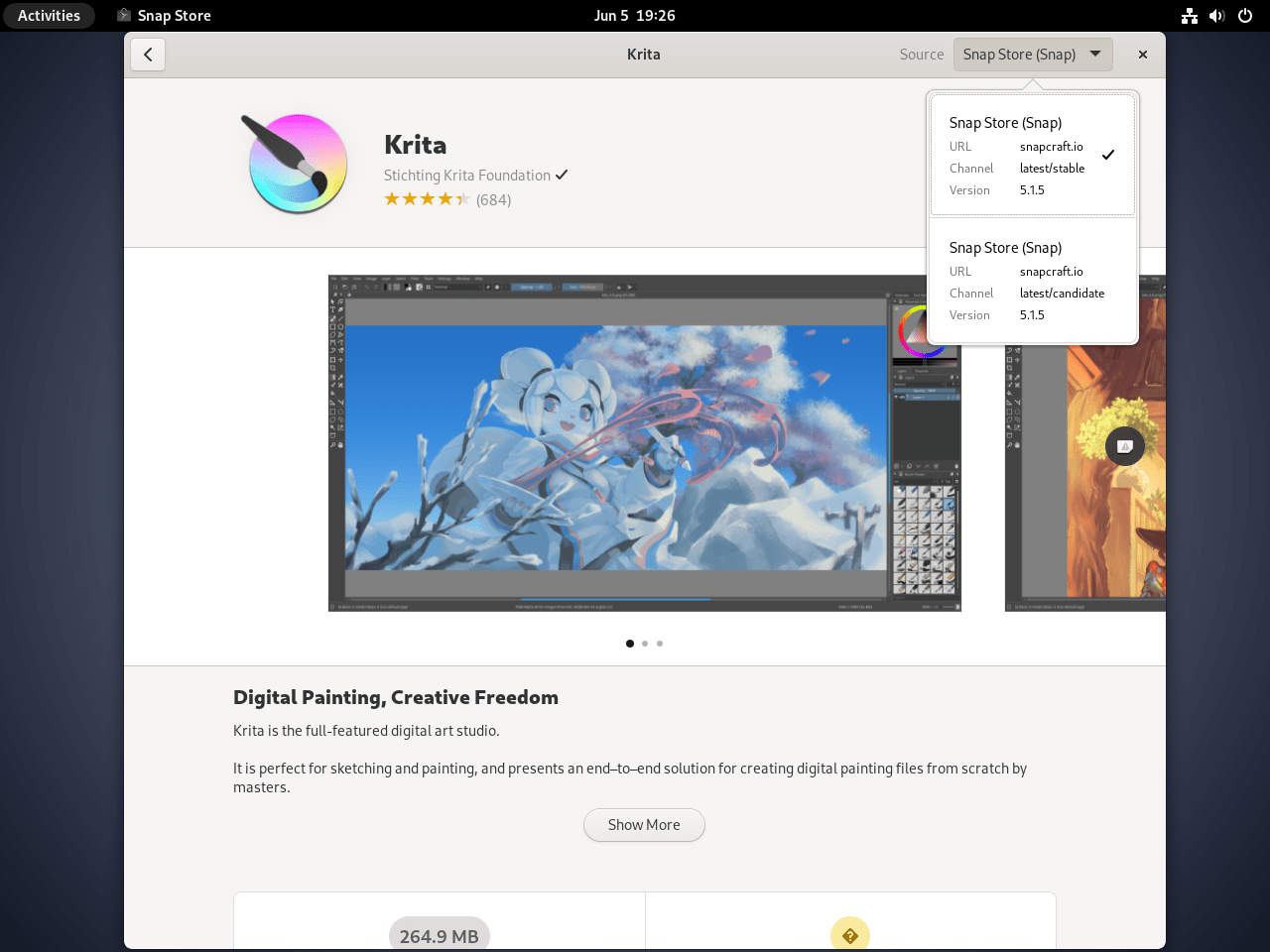
When installing an app, check the source or package indicator so you know the selected application is coming from Snap:
Troubleshoot Snap on Debian
Fix “snap: command not found” on Debian
Check whether the snap command exists:
command -v snapExpected output after installing the APT package:
/usr/bin/snap
If the command is missing, install snapd and refresh the shell’s command cache:
sudo apt update
sudo apt install snapd
hash -r
Fix Snap Apps Missing from PATH
The snap command lives under /usr/bin, but installed snap applications normally use shortcuts under /snap/bin. Check whether your current session sees that directory:
echo "$PATH" | tr ':' '\n' | grep '^/snap/bin$'Expected output:
/snap/bin
If there is no output, log out and back in, or reboot. Until the session PATH updates, use the reliable snap launch form:
snap run <snap-name>Fix Missing Snap Application Icons on Debian
If a snap app starts with snap run but does not appear in the desktop menu, confirm that the session can see snap desktop entries:
echo "$XDG_DATA_DIRS" | tr ':' '\n' | grep '^/var/lib/snapd/desktop$'Expected output:
/var/lib/snapd/desktop
If the path is missing, log out and back in, then check the launcher again. Desktop sessions usually read the snap desktop path during login.
Fix Snapd Socket Connection Errors
If snap commands report that they cannot communicate with /run/snapd.socket, check the socket state:
systemctl is-active snapd.socketStart the socket if it is inactive:
sudo systemctl enable --now snapd.socket
sudo snap wait system seed.loaded
Fix Unsupported Snap Feature Errors
Some snaps may require newer snapd features or a base runtime that is not present yet. Refresh snapd first, then install or refresh core when an error mentions unsupported features:
sudo snap refresh snapd
sudo snap install core
sudo snap refresh core
Remove Snapd from Debian
Start by listing installed snaps so you can remove application snaps before removing snapd itself:
snap listRemove application snaps you installed, including the graphical store if present. Base and platform snaps can stay in place because the Debian package removal handles the runtime cleanup:
sudo snap remove --purge snap-store
sudo snap remove --purge <snap-name>
Remove the Debian snapd package:
sudo apt purge snapdReview optional APT cleanup before accepting removals:
sudo apt autoremove --dry-runIf the dry run only lists dependencies you no longer need, run:
sudo apt autoremoveCheck for active snap mounts before deleting leftover directories:
findmnt -R /snap || echo "No active snap mounts"If active mounts remain, reboot and rerun the mount check before deleting paths:
sudo rebootPrint leftover snap directories for review:
for path in /snap /var/snap /var/lib/snapd /var/cache/snapd "$HOME/snap"; do
    [ -e "$path" ] && printf '%s\n' "$path"
done
The cleanup command permanently deletes snap application data, cached snaps, snapshots, and user-specific settings under
$HOME/snap. Back up anything you may need before removing these paths.
Delete the system-level directories, then remove the current user’s snap data separately:
sudo rm -rf /snap /var/snap /var/lib/snapd /var/cache/snapd
rm -rf "$HOME/snap"
Verify the package and command are gone:
hash -r 2>/dev/null || true
dpkg -l snapd | grep '^ii' || echo "snapd package removed"
command -v snap || echo "snap command removed"
Expected output after removal:
snapd package removed
snap command removed
Conclusion
Debian now has snapd installed from APT, the current snapd runtime available through the snapd snap, and optional App Center / Snap Store access through snap-store. Use snap refresh --time to review automatic update timing, snap run when a desktop app is not yet in PATH, and the removal sequence when you want a clean reset.


Hello!
When I ran the command `sudo snap install snap-store`, it didn’t install. After running the command:
`sudo snap install snap-store --channel=latest/stable`, it installed.
Good catch, Hilel. I retested this and added a channel fallback note to the App Center / Snap Store section. The normal command now resolves to
2/stableon amd64/arm64, butlatest/stableis still a valid older Snap Store branch when the current channel is unavailable:Use two regular hyphens before
channelif typing it manually. Thanks for reporting it.