
Handwritten notes and PDF markup are much easier to manage when the app understands pens, page backgrounds, pressure input, and export workflows instead of treating every annotation as a generic image edit. To install Xournal++ on Ubuntu, choose between Ubuntu’s repository package, the stable Launchpad PPA for older LTS releases, or a GitHub AppImage helper that follows the latest stable upstream release.
Ubuntu 26.04, 24.04, and 22.04 all carry the xournalpp package in Universe, but the version differs by release. The official Xournal++ Linux install page also points Ubuntu users toward a stable PPA and direct release assets; current GitHub release metadata marks Xournal++ 1.3.4 as the latest stable release.
Install Xournal++ on Ubuntu
Choose a Xournal++ Installation Method
Pick one method so updates, launchers, and removal stay predictable.
| Method | Source or Channel | Update Behavior | Best For | Trade-offs |
|---|---|---|---|---|
| Ubuntu APT package | Ubuntu Universe | Normal Ubuntu package updates | Most users who want the simplest package-managed install | Ubuntu 26.04 has a recent build, while 24.04 and 22.04 carry older branches |
| Stable PPA | ppa:apandada1/xournalpp-stable | Updates through APT | Ubuntu 24.04 and 22.04 users who want Xournal++ 1.3.4 through APT | Third-party PPA; current Ubuntu 26.04 PPA package fails dependency resolution |
| GitHub AppImage helper | GitHub stable releases | Run update-xournalpp-appimage | Users who want the latest stable release without keeping a PPA enabled | User-local AppImage install with a helper-managed launcher, icon, and launch command |
Use Ubuntu APT when you want low maintenance and do not need the newest branch immediately. Use the PPA only on Ubuntu 24.04 or 22.04. Use the GitHub AppImage helper when the latest stable release matters across all three LTS releases.
Update Ubuntu Package Metadata
Refresh APT metadata before using any package-managed method:
sudo apt updateThese package commands use
sudofor administrator tasks. If your account cannot run sudo commands yet, configure access with the Ubuntu sudoers guide before continuing.
Install Xournal++ from Ubuntu Repository
The Ubuntu repository package is the cleanest default because APT owns the package, desktop launcher, icon, file associations, updates, and removal.
sudo apt install xournalppVerify the installed package version:
dpkg-query -W -f='${binary:Package} ${Version}\n' xournalppUbuntu 26.04 currently reports:
xournalpp 1.3.3-1
Current Ubuntu repository candidates are 1.3.3 on Ubuntu 26.04, 1.2.2 on Ubuntu 24.04, and 1.1.1 on Ubuntu 22.04. These packages come from the Universe component, so minimal or customized systems may need the Ubuntu Universe repository enabled before APT can find xournalpp.
Install Xournal++ from the Stable PPA
The stable PPA is useful on Ubuntu 24.04 and 22.04 because it publishes Xournal++ 1.3.4 packages for those releases. Skip this method on Ubuntu 26.04 for now: the PPA publishes a Resolute package, but the current package depends on liblua5.3-0 and libxml2 in a way that does not resolve cleanly on Ubuntu 26.04.
Install the repository helper if it is missing:
sudo apt install software-properties-commonAdd the PPA only when the current Ubuntu release is supported for this method:
. /etc/os-release

case "$VERSION_CODENAME" in
  noble|jammy)
    sudo add-apt-repository ppa:apandada1/xournalpp-stable -y
    sudo apt update
    ;;
  resolute)
    printf 'The stable Xournal++ PPA currently does not install cleanly on Ubuntu 26.04. Use Ubuntu APT or the GitHub AppImage method instead.\n'
    ;;
  *)
    printf 'This PPA method is documented for Ubuntu 24.04 and 22.04, not %s.\n' "$VERSION_CODENAME"
    ;;
esac
If the command prints an unsupported-release message, stop this PPA method and choose the Ubuntu package or GitHub AppImage helper instead. On Ubuntu 24.04, the PPA candidate should appear above Ubuntu’s package:
apt-cache policy xournalppxournalpp:
Installed: (none)
Candidate: 1.3.4-1~ubuntu24.04.1
Version table:
1.3.4-1~ubuntu24.04.1 500
500 https://ppa.launchpadcontent.net/apandada1/xournalpp-stable/ubuntu noble/main amd64 Packages
1.2.2-2build3 500
500 http://archive.ubuntu.com/ubuntu noble/universe amd64 Packages
Install Xournal++ from the PPA after the candidate appears:
sudo apt install xournalppVerify the PPA package version:
dpkg-query -W -f='${binary:Package} ${Version}\n' xournalppxournalpp 1.3.4-1~ubuntu24.04.1
Install the Latest Stable Xournal++ AppImage
The GitHub AppImage method downloads the latest non-prerelease Xournal++ AppImage, verifies the SHA-256 digest published by GitHub release metadata, stores the AppImage under ~/Applications, extracts the app icon, creates a user-local launcher, and installs the xournalpp-appimage terminal command. Reruns reuse the current AppImage when the checksum still matches, then refresh the launcher and icon metadata.
Install the helper prerequisites. The helper uses curl for downloads, jq for GitHub JSON parsing, desktop-file-utils for launcher validation, the Ubuntu FUSE 2 compatibility package for normal AppImage launching, and libjack-jackd2-0 for the libjack.so.0 library used by the current upstream AppImage. For broader AppImage behavior, use the AppImage on Ubuntu guide.
. /etc/os-release

case "$VERSION_CODENAME" in
  resolute|noble)
    sudo apt install curl ca-certificates jq desktop-file-utils libfuse2t64 libjack-jackd2-0
    ;;
  jammy)
    sudo apt install curl ca-certificates jq desktop-file-utils libfuse2 libjack-jackd2-0
    ;;
  *)
    printf 'This AppImage method is documented for Ubuntu 26.04, 24.04, and 22.04, not %s.\n' "$VERSION_CODENAME"
    ;;
esac
Create the reusable updater helper and AppImage launch command:
sudo tee /usr/local/bin/update-xournalpp-appimage > /dev/null <<'EOF'
#!/usr/bin/env bash
set -euo pipefail

if [ "$(id -u)" -eq 0 ]; then
	echo "Run this helper as your normal user, not with sudo." >&2
	exit 1
fi

for cmd in curl jq sha256sum install desktop-file-validate update-desktop-database mktemp uname; do
	if ! command -v "$cmd" >/dev/null 2>&1; then
		echo "Missing required command: $cmd" >&2
		exit 1
	fi
done

case "$(uname -m)" in
x86_64) app_arch="x86_64" ;;
aarch64 | arm64) app_arch="aarch64" ;;
*)
	echo "Unsupported CPU architecture: $(uname -m)" >&2
	exit 1
	;;
esac

cache_root="${XDG_CACHE_HOME:-$HOME/.cache}"
mkdir -p "$cache_root"
workdir=$(mktemp -d "${cache_root}/xournalpp-update.XXXXXX")
trap 'rm -rf "$workdir"' EXIT

release_json=$(curl -fsSL https://api.github.com/repos/xournalpp/xournalpp/releases/latest)
tag=$(printf '%s' "$release_json" | jq -r '.tag_name // ""')
prerelease=$(printf '%s' "$release_json" | jq -r 'if has("prerelease") then .prerelease else true end')

case "$tag" in
v[0-9]*) ;;
*)
	echo "Could not resolve a stable Xournal++ release tag." >&2
	exit 1
	;;
esac

if [ "$prerelease" != "false" ]; then
	echo "Refusing prerelease Xournal++ tag: $tag" >&2
	exit 1
fi

asset_info=$(printf '%s' "$release_json" | jq -r --arg app_arch "$app_arch" 'first(.assets[] | select(.name | test("^xournalpp-[0-9].*-" + $app_arch + "\\.AppImage$")) | [.name, .browser_download_url, (.digest // "")] | @tsv) // ""')
if [ -z "$asset_info" ]; then
	echo "No Xournal++ AppImage asset found for $app_arch." >&2
	exit 1
fi

IFS=$'\t' read -r asset_name download_url digest <<<"$asset_info"
expected_sha=${digest#sha256:}
if ! [[ "$expected_sha" =~ ^[0-9a-f]{64}$ ]]; then
	echo "GitHub did not provide a SHA-256 digest for $asset_name." >&2
	exit 1
fi

app_dir="$HOME/Applications"
desktop_dir="$HOME/.local/share/applications"
icon_dir="$HOME/.local/share/icons/hicolor/256x256/apps"
appimage_path="$app_dir/$asset_name"
stable_path="$app_dir/Xournal++.AppImage"
desktop_file="$desktop_dir/xournalpp-appimage.desktop"
icon_path="$icon_dir/xournalpp-appimage.png"
have_current_asset=0

mkdir -p "$app_dir" "$desktop_dir" "$icon_dir"

echo "Latest stable tag: $tag"
if [ -f "$appimage_path" ]; then
	if printf '%s  %s\n' "$expected_sha" "$appimage_path" | sha256sum -c - >/dev/null 2>&1; then
		have_current_asset=1
	else
		echo "Existing AppImage did not match the expected SHA-256 digest; replacing it."
	fi
fi

if [ "$have_current_asset" -eq 1 ]; then
	echo "Existing AppImage matches expected SHA-256: $appimage_path"
else
	echo "Download asset: $asset_name"
	curl -fL --progress-bar -o "$workdir/$asset_name" "$download_url"
	printf '%s  %s\n' "$expected_sha" "$workdir/$asset_name" | sha256sum -c -
	install -m 0755 "$workdir/$asset_name" "$appimage_path"
fi

if [ -e "$stable_path" ] && [ ! -L "$stable_path" ]; then
	echo "$stable_path exists and is not the helper-managed symlink. Move it aside before rerunning this helper." >&2
	exit 1
fi
ln -sfn "$asset_name" "$stable_path"

(
	cd "$workdir"
	"$appimage_path" --appimage-extract usr/share/xournalpp/ui/pixmaps/com.github.xournalpp.xournalpp.png >/dev/null
)

if [ -f "$workdir/squashfs-root/usr/share/xournalpp/ui/pixmaps/com.github.xournalpp.xournalpp.png" ]; then
	install -m 0644 "$workdir/squashfs-root/usr/share/xournalpp/ui/pixmaps/com.github.xournalpp.xournalpp.png" "$icon_path"
fi
if [ ! -s "$icon_path" ]; then
	echo "Could not extract the Xournal++ application icon from the AppImage." >&2
	exit 1
fi

cat >"$desktop_file" <<DESKTOP_EOF
[Desktop Entry]
Type=Application
Name=Xournal++
Comment=Take handwritten notes and annotate PDF files
Exec=$stable_path %f
Icon=$icon_path
Terminal=false
Categories=Office;GTK;
MimeType=application/x-xoj;application/x-xojpp;application/x-xopp;application/x-xopt;application/pdf;
StartupWMClass=com.github.xournalpp.xournalpp
StartupNotify=true
DESKTOP_EOF

desktop-file-validate "$desktop_file"
update-desktop-database "$desktop_dir"

echo "Installed AppImage: $stable_path"
"$stable_path" --appimage-version
EOF

sudo tee /usr/local/bin/xournalpp-appimage > /dev/null <<'EOF'
#!/usr/bin/env bash
set -euo pipefail

appimage="$HOME/Applications/Xournal++.AppImage"

if [ ! -x "$appimage" ]; then
	echo "Xournal++ AppImage is not installed for this user. Run update-xournalpp-appimage first." >&2
	exit 1
fi

exec "$appimage" "$@"
EOF

sudo chmod 0755 /usr/local/bin/update-xournalpp-appimage /usr/local/bin/xournalpp-appimage
command -v update-xournalpp-appimage
command -v xournalpp-appimage
/usr/local/bin/update-xournalpp-appimage /usr/local/bin/xournalpp-appimage
Run the helper as your normal user:
update-xournalpp-appimageRelevant output includes the stable tag, chosen AppImage asset, and AppImage runtime version. Cache paths and home-directory paths can differ between systems:
Latest stable tag: v1.3.4
Download asset: xournalpp-1.3.4-x86_64.AppImage
AppImage runtime version: https://github.com/AppImage/type2-runtime/commit/3d17002
A different temporary cache directory is normal. Confirm the stable launcher symlink points at the versioned AppImage, the terminal command is installed, and the extracted launcher icon exists:
command -v xournalpp-appimage
readlink "$HOME/Applications/Xournal++.AppImage"
desktop-file-validate "$HOME/.local/share/applications/xournalpp-appimage.desktop"
test -s "$HOME/.local/share/icons/hicolor/256x256/apps/xournalpp-appimage.png" && echo "AppImage icon installed"
/usr/local/bin/xournalpp-appimage xournalpp-1.3.4-x86_64.AppImage AppImage icon installed
Launch Xournal++ on Ubuntu
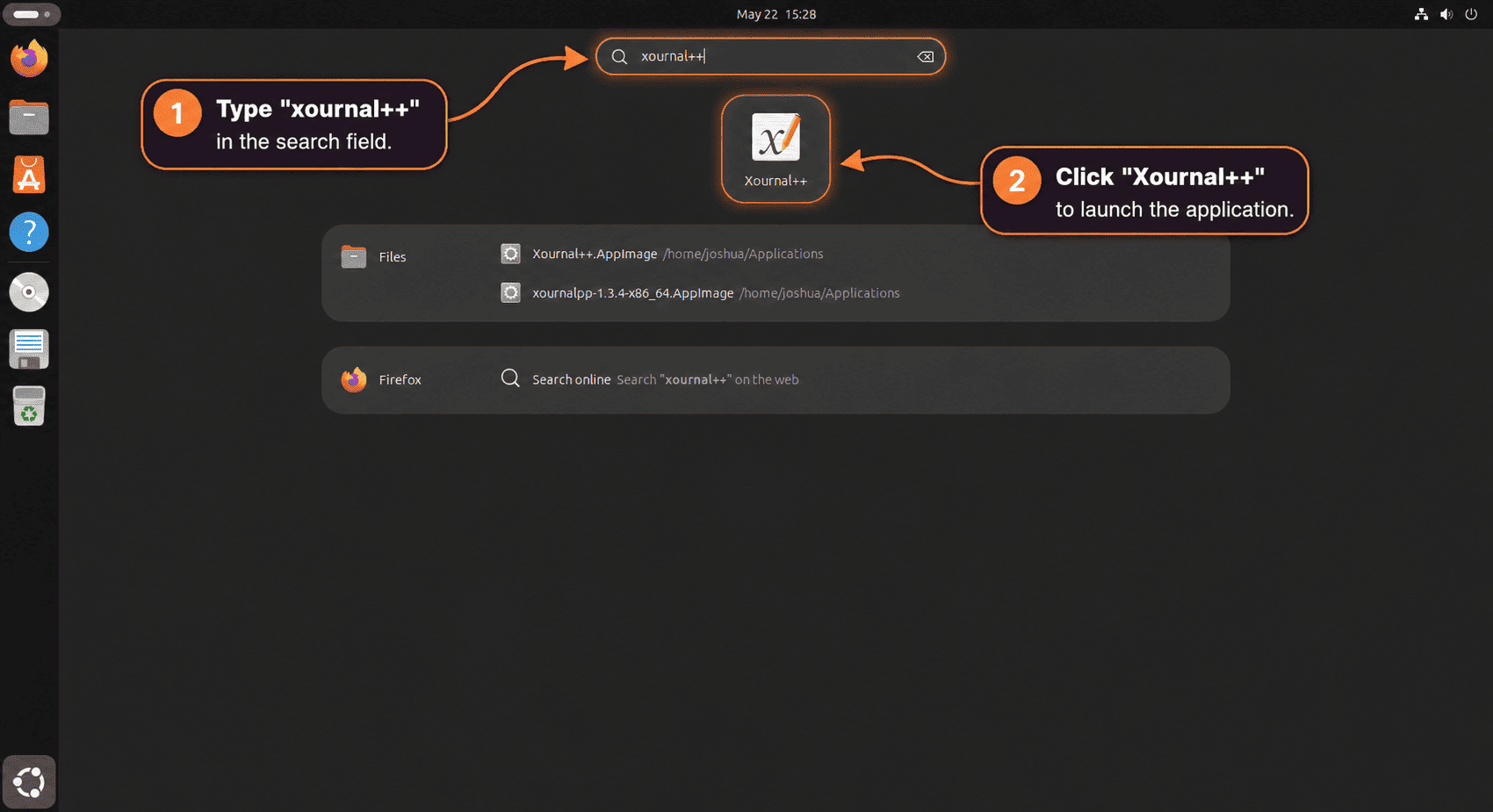
Launch Xournal++ from the App Menu
Open the Ubuntu application menu, search for Xournal++, and select the launcher. APT, PPA, and AppImage installs all create a desktop entry and application icon. The AppImage helper also sets StartupWMClass so the running window groups under the same Xournal++ icon in the Ubuntu dock. If the AppImage launcher appears with a generic icon in Activities or the dock immediately after installation, sign out and back in so GNOME reloads the user-local desktop entry.
Launch Xournal++ from the Terminal
Use the command that matches your installation method.
APT or PPA package:
xournalppGitHub AppImage helper:
xournalpp-appimageGet Started with Xournal++
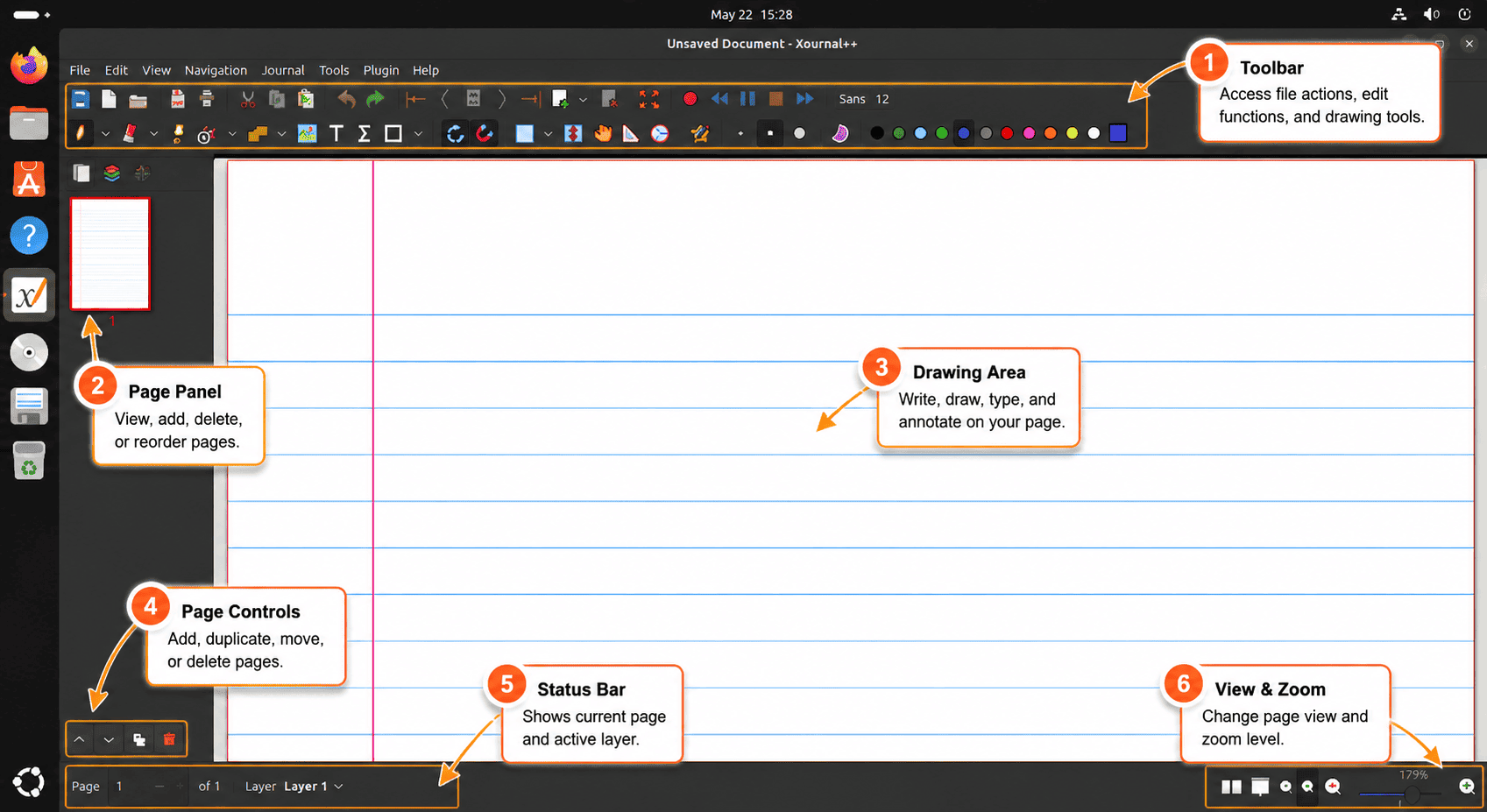
Start with a blank notebook when you want handwritten notes, or open a PDF when your goal is highlighting, margin notes, or signing. Save editable work as an .xopp file so layers and strokes remain editable, then export to PDF when you need a shareable copy.
- Use the pen, highlighter, eraser, and selection tools for normal annotation work.
- Use page backgrounds such as ruled, graph, or plain paper before long note-taking sessions.
- Check input settings if your tablet pressure, stylus button, or touch scrolling does not behave as expected.
- Use PDF export after editing if the recipient does not need the original Xournal++ project file.
Update or Remove Xournal++ on Ubuntu
Update Xournal++
Use the update path that matches the install method.
Ubuntu APT or stable PPA:
sudo apt update && sudo apt install --only-upgrade xournalppGitHub AppImage helper:
update-xournalpp-appimageThe helper reuses the existing AppImage when it already matches the current release checksum, then refreshes the desktop launcher, icon, and terminal launch wrapper.
Remove Xournal++
Remove the package if you installed Xournal++ through Ubuntu APT or the stable PPA:
sudo apt remove xournalppIf you added the stable PPA, remove the PPA source and refresh package metadata:
sudo add-apt-repository --remove ppa:apandada1/xournalpp-stable -y
sudo apt update
On older systems or after a failed PPA attempt, remove leftover generated PPA files if they remain:
sudo rm -f /etc/apt/sources.list.d/apandada1-ubuntu-xournalpp-stable-*.list
sudo rm -f /etc/apt/sources.list.d/apandada1-ubuntu-xournalpp-stable-*.sources
sudo rm -f /etc/apt/keyrings/apandada1-ubuntu-xournalpp-stable.gpg
sudo rm -f /etc/apt/trusted.gpg.d/apandada1-ubuntu-xournalpp-stable.gpg /etc/apt/trusted.gpg.d/apandada1-ubuntu-xournalpp-stable.gpg~
sudo apt update
For the AppImage helper method, remove the AppImage, launcher, extracted icon, helper command, and launch wrapper:
rm -f "$HOME/Applications"/xournalpp-*.AppImage
rm -f "$HOME/Applications/Xournal++.AppImage"
rm -f "$HOME/.local/share/applications/xournalpp-appimage.desktop"
rm -f "$HOME/.local/share/icons/hicolor/256x256/apps/xournalpp-appimage.png"
sudo rm -f /usr/local/bin/update-xournalpp-appimage /usr/local/bin/xournalpp-appimage
update-desktop-database "$HOME/.local/share/applications"
Personal notebooks, settings, autosaves, crash logs, and recent-file history can remain in your home directory after app removal. Check the Xournal++ configuration and cache paths before deleting local data:
find "$HOME/.config/xournalpp" "$HOME/.cache/xournalpp" -maxdepth 2 -print 2>/dev/nullThis permanently deletes Xournal++ preferences, metadata, palettes, autosaves for unsaved documents, and crash logs for the current user. Back up anything you may need before running the cleanup command.
rm -rf "$HOME/.config/xournalpp" "$HOME/.cache/xournalpp"Troubleshoot Xournal++ on Ubuntu
APT Cannot Locate the Xournal++ Package
The Ubuntu package lives in Universe. If sudo apt install xournalpp reports that the package cannot be located, enable Universe, refresh APT, and retry the install:
sudo add-apt-repository -y universe
sudo apt update
sudo apt install xournalpp
Stable PPA Fails on Ubuntu 26.04
The current stable PPA candidate for Ubuntu 26.04 can fail before installation because its dependency metadata does not match the current Ubuntu 26.04 package set. Relevant lines include:
xournalpp : Depends: liblua5.3-0 but it is not going to be installed
            Depends: libxml2 (>= 2.0.0) but it is not installable
E: Unable to satisfy dependencies. Reached two conflicting assignments:
   1. xournalpp:amd64=1.3.4-1~ubuntu26.04.1 is selected for install
   2. xournalpp:amd64=1.3.4-1~ubuntu26.04.1 Depends libxml2 (>= 2.0.0)
      but none of the choices are installable:
      [no choices]
Remove the PPA if you already added it, then use the Ubuntu repository package or GitHub AppImage helper on Ubuntu 26.04. The separate guide to remove a PPA from Ubuntu covers the broader cleanup workflow.
AppImage Reports a FUSE Error
Most Xournal++ AppImage launch failures on Ubuntu come from the missing FUSE 2 compatibility package. Install the package that matches your release, then rerun the helper or launch the AppImage again:
. /etc/os-release

case "$VERSION_CODENAME" in
  resolute|noble) sudo apt install libfuse2t64 ;;
  jammy) sudo apt install libfuse2 ;;
esac
AppImage Exits With Status 127
If the AppImage mounts and then prints Exited with error status: 127, confirm the JACK runtime library is visible. The current upstream AppImage needs libjack.so.0 during startup:
ldconfig -p | grep 'libjack.so.0' || printf 'libjack.so.0 not found\n'If the check prints libjack.so.0 not found, install the runtime package and launch Xournal++ again:
sudo apt install libjack-jackd2-0GitHub Helper Refuses a Release
The helper intentionally stops if GitHub marks the latest release as a prerelease, omits a matching AppImage for your CPU architecture, or does not expose a SHA-256 digest. Use Ubuntu APT until the stable release metadata is complete instead of forcing a nightly or unchecked download.
Conclusion
Xournal++ is installed on Ubuntu with a package source that matches your update preference: Ubuntu APT for the simplest maintenance, the stable PPA on 24.04 or 22.04, or the GitHub AppImage helper for the latest stable upstream build. Next, open a PDF or blank notebook, confirm your pen or touch input, and keep editable work in .xopp format before exporting final PDFs.


Formatting tips for your comment
You can use basic HTML to format your comment. Useful tags currently allowed in published comments:
<code>command</code>command<strong>bold</strong><em>italic</em><a href="https://example.com">link</a><blockquote>quote</blockquote>