Encrypted file containers are still useful on Debian when a laptop, USB drive, or shared workstation could expose sensitive files. To install VeraCrypt on Debian, use the official upstream Debian package because Debian’s default APT sources do not publish the veracrypt package.
The current upstream release provides packages for Debian 13 (Trixie), Debian 12 (Bookworm), and Debian 11 (Bullseye). The default path installs the GUI package, verifies the SHA256 checksum, and registers the result in Debian’s package database with apt.
Install VeraCrypt on Debian
VeraCrypt publishes Debian packages on the official VeraCrypt Downloads page. Debian still handles dependency resolution during the local package install, but updates come from a checked manual download instead of a persistent APT repository.
Choose the VeraCrypt package for Debian
Most desktop users should install the GUI package named veracrypt. Terminal-only systems can use veracrypt-console from the same release assets, but the screenshots and launcher steps apply to the GUI package.
| Package | What It Installs | Best For | Update Behavior |
|---|---|---|---|
veracrypt | Graphical VeraCrypt app, desktop launcher, and /usr/bin/veracrypt | Debian desktop systems that create and mount encrypted volumes from the GUI | Manual upstream package download or the updater helper |
veracrypt-console | Terminal-oriented package that still exposes the veracrypt command | Headless, SSH-only, or minimal systems that do not need a desktop launcher | Same upstream release assets and updater helper when that package is installed |
A plain sudo apt install veracrypt against default Debian sources fails because Debian does not package VeraCrypt. The local package command uses ./$PACKAGE_FILE so APT installs an upstream file while still resolving dependencies from Debian repositories.
The resolver checks your Debian release and CPU architecture before downloading. If upstream does not publish a matching asset, stop and use the Downloads page rather than reusing a package built for another Debian release.
Refresh APT and install download tools
Refresh package metadata and install the tools used to query release metadata, download the package, and parse the JSON response. Minimal Debian installations often include neither curl nor jq.
sudo apt update
sudo apt install ca-certificates curl jq -y
These commands use
sudofor root-owned package operations. If your account is not in the sudoers file yet, run them as root or use how to add a user to sudoers on Debian.
Download and verify the latest VeraCrypt package
Resolve the latest stable VeraCrypt release, match it to your Debian version and architecture, download the package, and verify it against the upstream SHA256 list. Keep the same terminal open because the install step reuses $PACKAGE_FILE.
PACKAGE_BASENAME="${PACKAGE_BASENAME:-veracrypt}"

resolve_veracrypt_deb() {
  DEBIAN_RELEASE="$(. /etc/os-release && printf '%s' "$VERSION_ID")"
  ARCH="$(dpkg --print-architecture)"
  RELEASE_JSON="$(curl -fsSL https://api.github.com/repos/veracrypt/VeraCrypt/releases/latest)"

  PACKAGE_FILE="$(printf '%s\n' "$RELEASE_JSON" | jq -r --arg package "$PACKAGE_BASENAME" --arg release "$DEBIAN_RELEASE" --arg arch "$ARCH" '[.assets[].name | select(test("^" + $package + "-[0-9.]+-Debian-" + $release + "-" + $arch + "\\.deb$"))][0] // empty')"
  CHECKSUM_FILE="$(printf '%s\n' "$RELEASE_JSON" | jq -r '[.assets[].name | select(test("^veracrypt-[0-9.]+-sha256sum\\.txt$"))][0] // empty')"

  if [ -z "$PACKAGE_FILE" ] || [ -z "$CHECKSUM_FILE" ]; then
    printf 'No matching VeraCrypt package was found for Debian %s (%s).\n' "$DEBIAN_RELEASE" "$ARCH" >&2
    return 1
  fi

  PACKAGE_URL="$(printf '%s\n' "$RELEASE_JSON" | jq -r --arg file "$PACKAGE_FILE" '.assets[] | select(.name == $file) | .browser_download_url')"
  CHECKSUM_URL="$(printf '%s\n' "$RELEASE_JSON" | jq -r --arg file "$CHECKSUM_FILE" '.assets[] | select(.name == $file) | .browser_download_url')"

  printf 'Package: %s\nChecksum file: %s\n' "$PACKAGE_FILE" "$CHECKSUM_FILE"
}

if resolve_veracrypt_deb; then
  curl -fL --progress-bar -o "$PACKAGE_FILE" "$PACKAGE_URL"
  curl -fsSLo "$CHECKSUM_FILE" "$CHECKSUM_URL"
  tr -d '\r' < "$CHECKSUM_FILE" | awk -v file="$PACKAGE_FILE" '$2 == file {print; found=1} END {exit found ? 0 : 1}' | sha256sum -c -
fi
Example output on Debian 13 includes:
Package: veracrypt-1.26.24-Debian-13-amd64.deb
Checksum file: veracrypt-1.26.24-sha256sum.txt
######################################################################## 100.0%
veracrypt-1.26.24-Debian-13-amd64.deb: OK
The checksum list can use Windows line endings, so the verification pipeline strips carriage returns before passing the matching package line to sha256sum. A final OK means the downloaded file matches upstream’s published SHA256 value.
To install the terminal-only package instead, run
PACKAGE_BASENAME=veracrypt-consolebefore resolving the package. Keep the GUI package for normal desktop use because it includes the desktop launcher.
Inspect the VeraCrypt Debian package
Check the local package metadata before installing. This confirms the package name, version, architecture, and dependency family that APT will resolve.
dpkg-deb -f "$PACKAGE_FILE" Package Version Architecture DependsExample output on Debian 13 includes:
Package: veracrypt
Version: 1.26.24-1~deb13-1
Architecture: amd64
Depends: libwxgtk3.2-1t64, libayatana-appindicator3-1, libfuse2t64, dmsetup, sudo
Debian 13 uses the newer t64 library names for the GUI dependencies. Debian 12 and Debian 11 use older dependency names such as libfuse2 and their matching wxWidgets packages, but the package install command remains the same.
Install the VeraCrypt package with APT
Install the checked local package with APT. The leading ./ tells APT to install the file in the current directory instead of searching Debian’s repositories for a package with that name.
sudo apt install -y "./$PACKAGE_FILE"Verify VeraCrypt on Debian
Confirm that Debian registered the package, the binary can load its runtime libraries, and the expected command or desktop file is present.
dpkg-query -W -f='${db:Status-Abbrev} ${binary:Package} ${Version}\n' "$PACKAGE_BASENAME"
veracrypt --version
dpkg -L "$PACKAGE_BASENAME" | grep -E '/usr/bin/veracrypt$|/usr/share/applications/.*veracrypt.*desktop$'
Example output on Debian 13 with the GUI package includes:
ii  veracrypt 1.26.24-1~deb13-1
VeraCrypt 1.26.24
/usr/bin/veracrypt
/usr/share/applications/veracrypt.desktop
The console package prints veracrypt-console in the package-status line and does not include a desktop launcher. Both packages expose the same veracrypt command path.
Launch VeraCrypt on Debian
The GUI package adds both the desktop launcher and the normal terminal command. Start the graphical interface from a logged-in desktop session; a plain SSH shell usually has no display server for the window.
Launch VeraCrypt from the terminal
Start VeraCrypt from a desktop terminal with the normal command.
veracryptFor terminal-driven workflows, use VeraCrypt’s text mode and the official VeraCrypt command line usage for Unix reference for mount, unmount, and create options.
Launch VeraCrypt from the applications menu
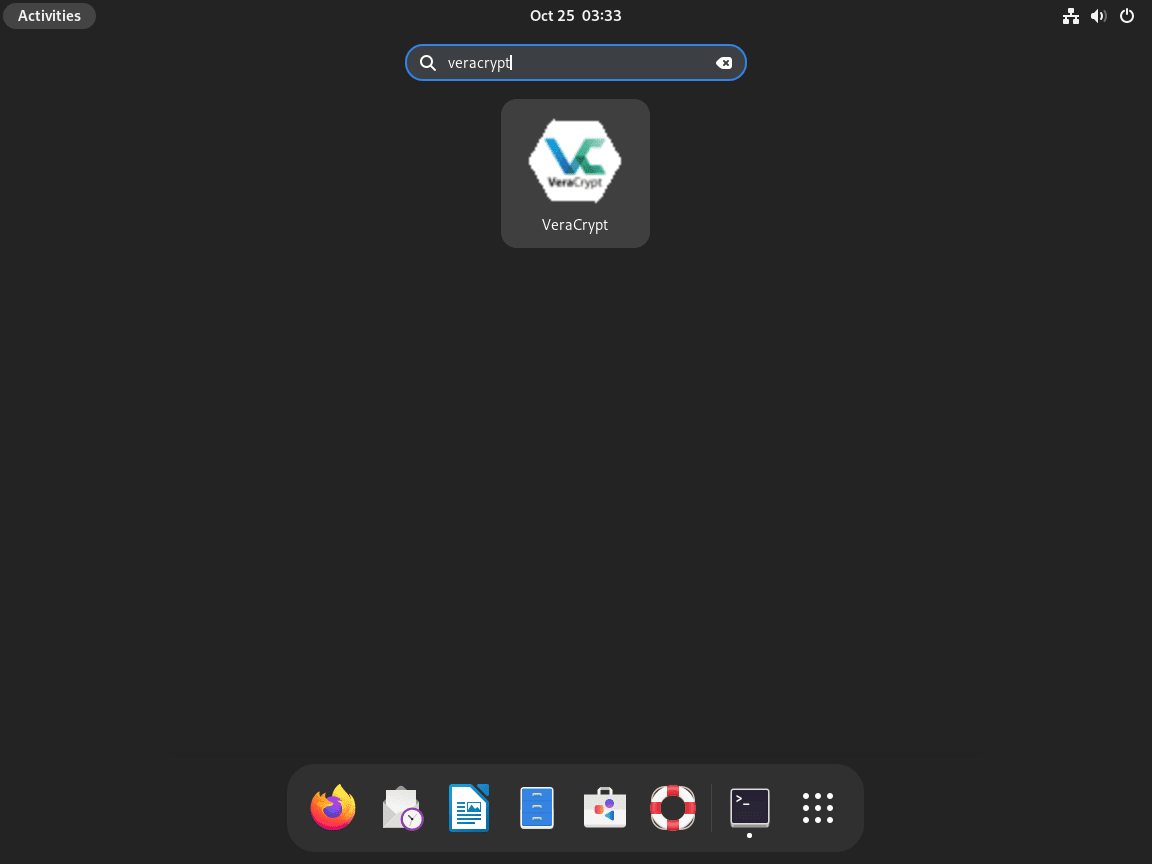
Desktop users can also open the applications grid and search for VeraCrypt.
Activities > Show Applications > VeraCrypt
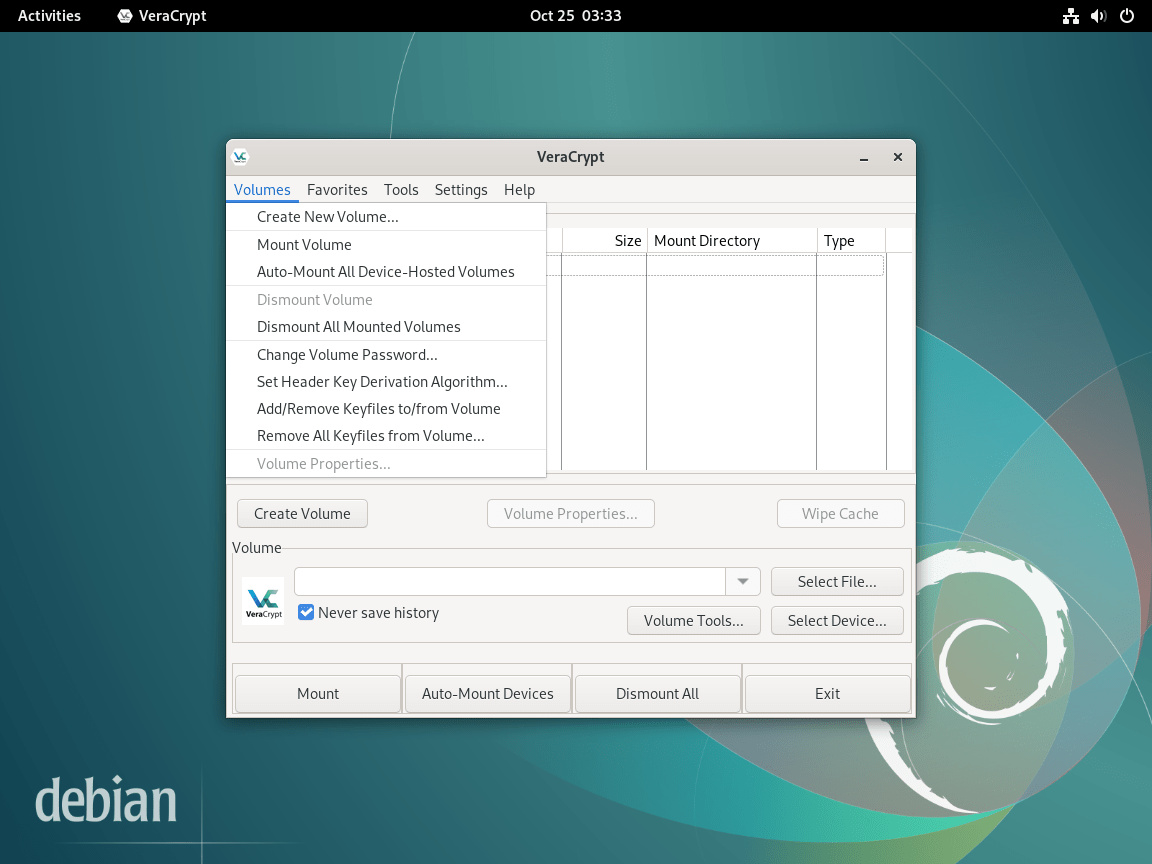
Create and Mount a VeraCrypt Volume on Debian
A VeraCrypt file container behaves like an encrypted virtual disk. It is a practical first project because you can store it in your home directory, copy it to another system, or back it up like a regular file while keeping the contents encrypted when it is not mounted.
Create your first encrypted file container
- Click Create Volume in the main VeraCrypt window.
- Select Create an encrypted file container, then continue to the next screen.
- Choose Standard VeraCrypt volume unless you deliberately need a hidden-volume layout.
- Click Select File and choose a new container path, such as
~/Documents/private.hc. - Keep AES unless you have a specific reason to choose another encryption algorithm.
- Set the volume size based on the files you plan to store. A small test container is easier to practice with before moving important data.
- Create a strong password and store recovery information somewhere safe. VeraCrypt cannot recover a forgotten volume password.
- Move the mouse inside the window when prompted for randomness, then format the container.
Do not use the only copy of important files as your first VeraCrypt test. Create a small practice container first, then move real data after you understand mounting, unmounting, and backup behavior.
Mount and unmount a VeraCrypt container
To mount the container later, select an empty slot, click Select File, choose the container file, and then mount it with the password. Debian’s file manager should show the mounted volume like another drive while VeraCrypt keeps the backing file encrypted on disk.
When you finish using the files, close any programs that opened data from the volume and unmount it from VeraCrypt before shutting down, copying the container, or unplugging removable storage. Unmounting flushes pending writes and returns the container to its encrypted-at-rest state.
Encrypted containers protect the files inside the mounted volume, not the rest of the operating system. If you are changing system packages or reorganizing important data, install Timeshift on Debian for system snapshots as a separate safety layer.
Update or Remove VeraCrypt on Debian
The official package path does not add a Debian repository, so routine apt upgrade does not fetch future VeraCrypt releases. Use a small updater helper when you want to check upstream, verify the checksum, and install a newer package only when the installed version is behind.
Create a VeraCrypt update helper
Create a reusable command under ~/.local/bin. The helper detects whether veracrypt or veracrypt-console is installed, resolves the matching upstream package, checks the SHA256 sum, and installs the package with apt-get for automation-friendly dependency handling.
mkdir -p "$HOME/.local/bin"

cat > "$HOME/.local/bin/update-veracrypt-debian" <<'EOF'
#!/usr/bin/env bash
set -euo pipefail

require_cmd() {
  command -v "$1" >/dev/null 2>&1 || {
    printf 'Error: %s is required.\n' "$1" >&2
    exit 1
  }
}

for cmd in apt-get awk curl dpkg-query grep jq mkdir rm sha256sum sudo tr veracrypt; do
  require_cmd "$cmd"
done

is_installed() {
  dpkg-query -W -f='${db:Status-Abbrev}' "$1" 2>/dev/null | grep -q '^ii'
}

if is_installed veracrypt; then
  PACKAGE_NAME="veracrypt"
elif is_installed veracrypt-console; then
  PACKAGE_NAME="veracrypt-console"
else
  printf 'Error: VeraCrypt is not installed.\n' >&2
  printf 'Install veracrypt or veracrypt-console first.\n' >&2
  exit 1
fi

DEBIAN_RELEASE="$(. /etc/os-release && printf '%s' "${VERSION_ID:-}")"
ARCH="$(dpkg --print-architecture)"
CURRENT_VERSION="$(veracrypt --version 2>/dev/null | awk '{print $2; exit}')"

if [ -z "$DEBIAN_RELEASE" ] || [ -z "$ARCH" ]; then
  printf 'Error: Could not determine Debian release or architecture.\n' >&2
  exit 1
fi

if [ -z "$CURRENT_VERSION" ]; then
  CURRENT_VERSION="unknown"
fi

printf 'Checking latest VeraCrypt release for Debian %s (%s)...\n' "$DEBIAN_RELEASE" "$ARCH"
release_json="$(curl -fsSL https://api.github.com/repos/veracrypt/VeraCrypt/releases/latest)"
PACKAGE_FILE="$(printf '%s\n' "$release_json" | jq -r --arg package "$PACKAGE_NAME" --arg release "$DEBIAN_RELEASE" --arg arch "$ARCH" '[.assets[].name | select(test("^" + $package + "-[0-9.]+-Debian-" + $release + "-" + $arch + "\\.deb$"))][0] // empty')"
CHECKSUM_FILE="$(printf '%s\n' "$release_json" | jq -r '[.assets[].name | select(test("^veracrypt-[0-9.]+-sha256sum\\.txt$"))][0] // empty')"

if [ -z "$PACKAGE_FILE" ] || [ -z "$CHECKSUM_FILE" ]; then
  printf 'Error: Could not find a matching %s package for Debian %s (%s).\n' "$PACKAGE_NAME" "$DEBIAN_RELEASE" "$ARCH" >&2
  exit 1
fi

PACKAGE_URL="$(printf '%s\n' "$release_json" | jq -r --arg file "$PACKAGE_FILE" '.assets[] | select(.name == $file) | .browser_download_url')"
CHECKSUM_URL="$(printf '%s\n' "$release_json" | jq -r --arg file "$CHECKSUM_FILE" '.assets[] | select(.name == $file) | .browser_download_url')"
LATEST_VERSION="${PACKAGE_FILE#"${PACKAGE_NAME}"-}"
LATEST_VERSION="${LATEST_VERSION%%-Debian-*}"

printf 'Installed package: %s\n' "$PACKAGE_NAME"
printf 'Current version: %s\n' "$CURRENT_VERSION"
printf 'Latest version: %s\n' "$LATEST_VERSION"

if [ "$CURRENT_VERSION" = "$LATEST_VERSION" ]; then
  printf '\nVeraCrypt is already up to date.\n'
  exit 0
fi

DOWNLOAD_DIR="$HOME/Downloads/veracrypt-update"
mkdir -p "$DOWNLOAD_DIR"
cd "$DOWNLOAD_DIR"
rm -f ./"$PACKAGE_NAME"-*.deb ./veracrypt-*-sha256sum.txt

printf '\nDownloading %s...\n' "$PACKAGE_FILE"
curl -fL --progress-bar -o "$PACKAGE_FILE" "$PACKAGE_URL"
curl -fsSLo "$CHECKSUM_FILE" "$CHECKSUM_URL"
tr -d '\r' < "$CHECKSUM_FILE" | awk -v file="$PACKAGE_FILE" '$2 == file {print; found=1} END {exit found ? 0 : 1}' | sha256sum -c -

printf 'Installing %s...\n' "$PACKAGE_FILE"
sudo apt-get install -y "./$PACKAGE_FILE"

printf '\nUpdate complete.\n'
dpkg-query -W -f='${db:Status-Abbrev} ${binary:Package} ${Version}\n' "$PACKAGE_NAME"
veracrypt --version
EOF

chmod +x "$HOME/.local/bin/update-veracrypt-debian"
Debian’s default user profile commonly adds ~/.local/bin after the directory exists. Add it to the current shell if needed, then confirm that the helper is discoverable.
case ":$PATH:" in
  *":$HOME/.local/bin:"*) ;;
  *) export PATH="$HOME/.local/bin:$PATH" ;;
esac

command -v update-veracrypt-debian
Run the helper whenever you want to check for a newer upstream package.
update-veracrypt-debianIf a fresh shell does not resolve the shortcut, run the same helper by its full path.
"$HOME/.local/bin/update-veracrypt-debian"/home/user/.local/bin/update-veracrypt-debian Checking latest VeraCrypt release for Debian 13 (amd64)... Installed package: veracrypt Current version: 1.26.24 Latest version: 1.26.24 VeraCrypt is already up to date.
Manual execution is a better fit for security software than a silent background job. You can read VeraCrypt release notes, confirm the package name, and catch checksum or dependency errors before a partial update affects encrypted-volume access.
Remove VeraCrypt from Debian
Remove whichever VeraCrypt package is installed. The package removal does not delete encrypted container files, mounted-volume contents, or the updater helper you created in your home directory.
if dpkg-query -W -f='${db:Status-Abbrev}' veracrypt 2>/dev/null | grep -q '^ii'; then
  sudo apt remove veracrypt
elif dpkg-query -W -f='${db:Status-Abbrev}' veracrypt-console 2>/dev/null | grep -q '^ii'; then
  sudo apt remove veracrypt-console
else
  echo "VeraCrypt package not installed"
fi
Preview auto-removable dependencies before accepting cleanup. If the preview lists only packages you no longer need, run the real autoremove command.
apt-get -s autoremoveAfter reviewing the preview, remove orphaned dependencies only when the package list is safe for your system.
sudo apt autoremoveConfirm that neither VeraCrypt package remains installed and that the command no longer resolves in the current shell.
dpkg-query -W -f='${db:Status-Abbrev} ${binary:Package}\n' veracrypt veracrypt-console 2>/dev/null | grep '^ii' || echo "VeraCrypt packages not installed"
hash -r
command -v veracrypt || echo "veracrypt command not found"
VeraCrypt packages not installed veracrypt command not found
Removing these helper files deletes only the updater script and its downloaded update cache. Keep any encrypted container files unless you are certain you no longer need the data inside them.
rm -f "$HOME/.local/bin/update-veracrypt-debian"
rm -rf "$HOME/Downloads/veracrypt-update"
Troubleshoot VeraCrypt on Debian
Most installation failures come from missing helper tools, an unsupported release or architecture combination, or network problems while reaching GitHub release metadata.
Fix missing curl or jq before downloading VeraCrypt
If the resolver prints curl: command not found or jq: command not found, install the download and JSON parsing tools first.
sudo apt update
sudo apt install ca-certificates curl jq -y
command -v curl
command -v jq
/usr/bin/curl /usr/bin/jq
Fix no matching VeraCrypt package on Debian
A no-matching-package message means the latest upstream release does not contain an asset for your exact Debian version, architecture, and package family. Check those values before trying a different file manually.
. /etc/os-release && printf '%s\n' "$VERSION_ID"
dpkg --print-architecture
printf '%s\n' "${PACKAGE_BASENAME:-veracrypt}"
13 amd64 veracrypt
The GitHub release metadata used by the resolver currently exposes Debian 13 packages for amd64 and arm64. Debian 12 and Debian 11 currently expose amd64, arm64, and i386 through that path. The official Downloads page also lists Raspberry Pi armhf packages for Debian 12 and Debian 11, so use that page directly when you need an asset that the resolver cannot see.
Fix curl DNS errors during VeraCrypt downloads
If curl reports Could not resolve host for api.github.com or a GitHub download URL, the problem is DNS or network resolution rather than the VeraCrypt package. Confirm basic connectivity first, then use the DNS troubleshooting guide if name resolution is still failing.
curl -I https://api.github.comPersistent resolver failures can be diagnosed with fix curl could not resolve host errors on Linux.
Fix VeraCrypt not opening from SSH or a minimal system
The GUI package needs a graphical desktop session. If you installed VeraCrypt over SSH on a minimal Debian system, launch it later from the desktop or use the veracrypt-console package for terminal-only workflows.
Conclusion
VeraCrypt is installed on Debian from the official upstream package, with checksum verification, package-state checks, desktop launch guidance, and a reusable update path in place. Create a small test container first, practice mounting and unmounting it, then move important files only after your backup and recovery plan is clear.


Seems not to work for armhf and arm64…
thank you very much. really helped me out. though I could not get the following command to be accepted: curl lsb-release ca-certificates -y
error message: curl: option -y: requires parameter
so after looking at man page I tried: curl lsb-release ca-certificates -y 300
error message: curl: (6) Could not resolve host: lsb-release
curl: (6) Could not resolve host: ca-certificates
I just blundered on with the rest of the commands and veracrypt started right up
Also in the remove veracrypt section, maybe your command should be remove or purge instead of install?
Thank you for your feedback! I’m glad the guide helped you.
Regarding the command issue, it seems there was a small misunderstanding. The correct command is:
sudo apt install dirmngr software-properties-common apt-transport-https curl lsb-release ca-certificates -yThis command installs several packages, including curl, lsb-release, and ca-certificates. It looks like the apt install part might have been missed, which caused the error with curl.
As for the removal section, you’re absolutely right; the command should be remove or purge instead of install. I’ve updated the guide to correct this.
Thank you again for pointing these out!