
VSCodium provides the same code editing experience as Visual Studio Code but without Microsoft’s telemetry and proprietary licensing. Whether you write Python scripts for automation, develop web applications with JavaScript frameworks, or manage server configuration files across your Debian infrastructure, VSCodium delivers IntelliSense, integrated debugging, and Git support while respecting your privacy. This guide covers three ways to install VSCodium on Debian, along with commands for launching, updating, and completely removing the editor including its user data.
Choose Your VSCodium Installation Method on Debian
The table below compares the three installation methods available on Debian so you can choose the approach that fits your workflow.
| Method | Channel | Version | Updates | Best For |
|---|---|---|---|---|
| Extrepo (Recommended) | Debian Extrepo | Latest stable | Automatic via apt upgrade | Most users; quick setup with minimal configuration |
| APT Repository | VSCodium APT Repo | Latest stable | Automatic via apt upgrade | Scripted deployments or custom configurations |
| Flatpak | Flathub | Latest stable | Automatic via flatpak update | Users who prefer sandboxed applications |
For most users, the Extrepo method is recommended because it handles GPG key management and repository configuration automatically through Debian’s official tooling. Choose the manual APT repository method if you need explicit control over the repository configuration, or select Flatpak if you specifically need application sandboxing.
Install VSCodium via Extrepo on Debian
Extrepo simplifies third-party repository management by using Debian’s curated repository definitions. This method handles both the GPG key and repository configuration automatically, making it ideal for most users.
Update System Packages
First, refresh the package index and upgrade any outdated packages to ensure your system has the latest security patches:
sudo apt update && sudo apt upgradeIf your Debian user account does not have
sudoprivileges, see how to add a user to sudoers on Debian before continuing.
Install and Configure Extrepo
Install the extrepo package from Debian’s repositories:
sudo apt install extrepo -yThe extrepo package includes curated repository definitions for many popular third-party applications. Enable the VSCodium repository:
sudo extrepo enable vscodiumThis single command downloads the GPG key and creates the repository configuration automatically. You can verify what extrepo configured:
extrepo search vscodiumFound vscodium: --- description: VS Codium repository - FLOSS binaries of VS code. policy: main source: Architectures: amd64 arm64 Components: main Suites: vscodium Types: deb URIs: https://paulcarroty.gitlab.io/vscodium-deb-rpm-repo/debs/
Complete the Installation
After enabling the repository, refresh APT and install VSCodium:
sudo apt update && sudo apt install codium -yVerify the installation:
codium --version1.x.x xxxxxxxxx x64
Extrepo configures the same upstream VSCodium repository as the manual APT method. The difference is that Extrepo manages the GPG key and repository file through Debian’s official tooling, which some administrators prefer for consistency.
Install VSCodium via APT Repository on Debian
The VSCodium project maintains an official APT repository with frequent updates that track upstream VS Code releases closely. This method gives you the most control over the repository configuration.
Install Prerequisites
Install curl and gpg for downloading and verifying the repository key:
sudo apt install curl gpg -yThe -y flag automatically confirms the installation prompt.
Import the GPG Key
Download and convert the VSCodium signing key to binary format:
curl -fsSL https://gitlab.com/paulcarroty/vscodium-deb-rpm-repo/raw/master/pub.gpg | sudo gpg --dearmor --yes -o /usr/share/keyrings/vscodium-archive-keyring.gpgThis command fetches the ASCII-armored key from GitLab and converts it to binary GPG format. The --yes flag ensures the command succeeds even if the key file already exists from a previous attempt.
Add the VSCodium Repository
Create the repository configuration using the modern DEB822 format:
cat <<EOF | sudo tee /etc/apt/sources.list.d/vscodium.sources
Types: deb
URIs: https://paulcarroty.gitlab.io/vscodium-deb-rpm-repo/debs
Suites: vscodium
Components: main
Architectures: amd64 arm64
Signed-By: /usr/share/keyrings/vscodium-archive-keyring.gpg
EOF
Debian 13 and 12 default to DEB822
.sourcesfor APT entries. Debian 11 fully supports.sourcesformat as well, though legacy.listfiles remain common on older installations. The repository supports both amd64 and arm64 architectures.
Verify Repository Configuration
After adding the repository, refresh the package cache to verify the new source is recognized:
sudo apt updateIn the output, look for lines referencing the VSCodium repository:
Get:1 https://paulcarroty.gitlab.io/vscodium-deb-rpm-repo/debs vscodium InRelease
Get:2 https://paulcarroty.gitlab.io/vscodium-deb-rpm-repo/debs vscodium/main amd64 Packages
If these lines appear, APT successfully connected to the VSCodium repository. Confirm the package is available:
apt-cache policy codiumcodium:
Installed: (none)
Candidate: 1.x.x
Version table:
1.x.x 500
500 https://paulcarroty.gitlab.io/vscodium-deb-rpm-repo/debs vscodium/main amd64 Packages
The output displays the candidate version and confirms APT recognizes the VSCodium repository as the package source. Your actual version number will differ since VSCodium releases frequently.
Install VSCodium Package
With the repository configured, install VSCodium:
sudo apt install codium -yOnce installation completes, verify it by checking the version:
codium --version1.x.x xxxxxxxxx x64
This output displays the version number, commit hash, and architecture. Your version will differ since VSCodium tracks upstream VS Code releases closely.
Install VSCodium via Flatpak on Debian
Alternatively, Flatpak provides a sandboxed installation that isolates VSCodium from your system. If you have not configured Flatpak yet, follow the Flatpak setup guide for Debian first to install the Flatpak framework and add the Flathub repository (this typically takes under five minutes).
Then, install VSCodium from Flathub:
flatpak install flathub com.vscodium.codium -yAfterward, verify the installation:
flatpak info com.vscodium.codiumVSCodium - Code Editing. Redefined.
ID: com.vscodium.codium
Ref: app/com.vscodium.codium/x86_64/stable
Arch: x86_64
Branch: stable
Origin: flathub
Commit: xxxxxxxx
Version: 1.x.x
To launch the Flatpak version from the terminal:
flatpak run com.vscodium.codiumFlatpak sandboxing restricts direct file system access. To grant VSCodium access to directories outside your home folder, use Flatseal or the command
flatpak override --user --filesystem=/path/to/dir com.vscodium.codium.
Launch VSCodium on Debian
For APT or Extrepo installations, launch VSCodium from the terminal:
codiumSimilarly, you can open a specific file or directory as a workspace:
codium /path/to/projectIn addition, desktop users can find VSCodium in their application menu. On GNOME, press the Super key and search for “VSCodium” in the Activities overview.
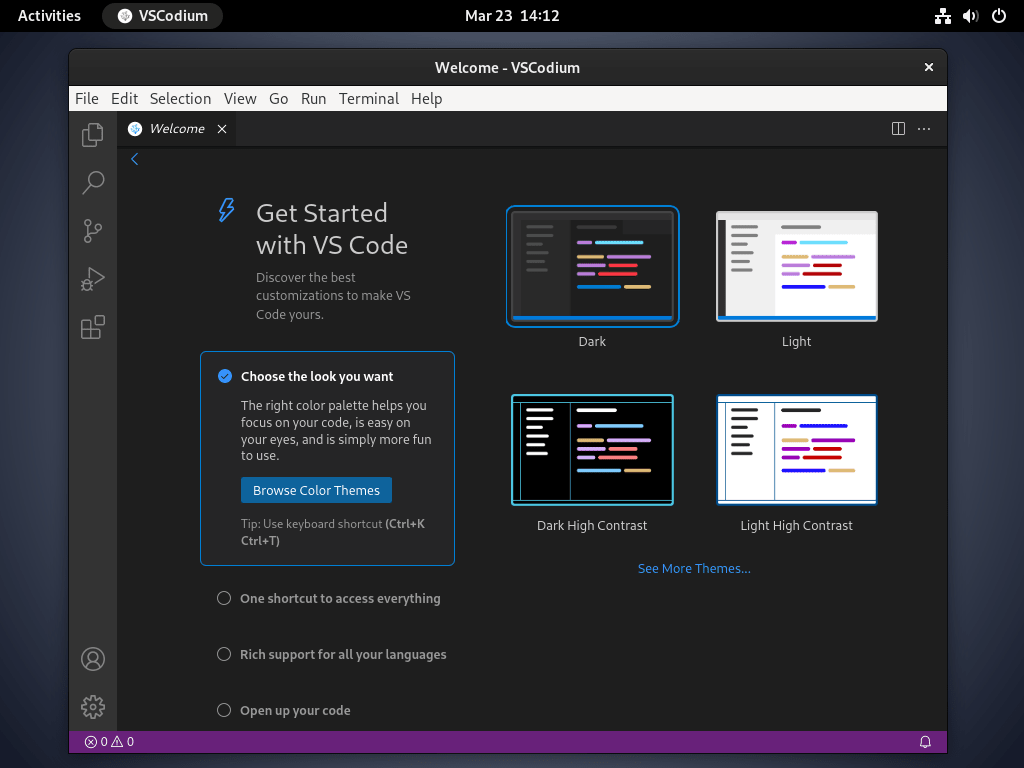
Notably, VSCodium uses the Open VSX Registry for extensions instead of Microsoft’s Visual Studio Marketplace. While most popular extensions are available, some Microsoft-specific extensions (Remote SSH, Live Share, Pylance) require workarounds or alternatives. Therefore, check the VSCodium extension documentation if you need a specific extension that appears unavailable.
Manage VSCodium on Debian
Update VSCodium
For APT or Extrepo installations, update VSCodium without upgrading your entire system:
sudo apt update && sudo apt install --only-upgrade codiumcodium is already the newest version (1.x.x).
This command updates only the VSCodium package. Standard system updates (apt upgrade) also include VSCodium when new versions become available.
For Flatpak installations:
flatpak update com.vscodium.codiumRemove VSCodium (APT or Extrepo)
To remove the APT or Extrepo installation, first uninstall the VSCodium package and remove orphaned dependencies:
sudo apt remove codium && sudo apt autoremoveNext, remove the repository file and GPG key to stop future update checks:
sudo rm /etc/apt/sources.list.d/vscodium.sources
sudo rm /usr/share/keyrings/vscodium-archive-keyring.gpg
If you installed via Extrepo, disable the repository with
sudo extrepo disable vscodium. For a complete cleanup, also remove the configuration file:sudo rm -f /etc/apt/sources.list.d/extrepo_vscodium.sources.
Finally, refresh APT and verify the package is no longer available from the repository:
sudo apt update && apt-cache policy codiumIf the command returns no output or shows only codium: with empty version information, the repository removal completed successfully. APT no longer recognizes the package as installable from any source.
Remove VSCodium (Flatpak)
Alternatively, uninstall the Flatpak version with:
flatpak uninstall com.vscodium.codiumRemove unused Flatpak runtimes that were only needed for VSCodium:
flatpak uninstall --unusedRemove VSCodium User Data
Regardless of installation method, VSCodium stores settings, extensions, and cached data in your home directory. These files persist after uninstalling the package.
The following commands permanently delete your VSCodium settings, installed extensions, and cached data. If you plan to reinstall VSCodium later or want to preserve your configuration, skip this section or back up these directories first using Timeshift or a manual copy.
For APT or Extrepo installations, remove the configuration directory containing settings and profiles:
rm -rf ~/.config/VSCodiumThen, delete the installed extensions:
rm -rf ~/.vscode-ossFinally, clear the cached data:
rm -rf ~/.cache/VSCodiumFor Flatpak installations, VSCodium stores its data in a sandboxed location. Remove all Flatpak-specific VSCodium data:
rm -rf ~/.var/app/com.vscodium.codiumTroubleshoot VSCodium on Debian
Repository GPG Key Errors
If APT reports signature verification errors when updating, the GPG key may be corrupted or outdated. Re-download the key:
curl -fsSL https://gitlab.com/paulcarroty/vscodium-deb-rpm-repo/raw/master/pub.gpg | sudo gpg --dearmor --yes -o /usr/share/keyrings/vscodium-archive-keyring.gpgThen refresh APT:
sudo apt updateExtension Marketplace Shows No Results
VSCodium uses the Open VSX Registry by default. If the extension marketplace appears empty or fails to load, check your internet connection and verify the registry is accessible:
curl -I https://open-vsx.org/HTTP/2 200 content-type: text/html ...
A 200 status confirms the registry is reachable. If the registry is down, wait a few minutes and try again. For extensions only available on Microsoft’s marketplace (Remote SSH, Live Share), consult the VSCodium extension documentation for workarounds.
VSCodium Conflicts with VS Code
VSCodium and VS Code can coexist since they use different binary names (codium vs code) and configuration directories. However, if you experience conflicts, verify which editor is running:
which codium && which code/usr/bin/codium /usr/bin/code
If both editors appear, you can safely use either. Extensions and settings remain separate between the two applications.
VSCodium uses the same source code as Visual Studio Code but is compiled without Microsoft’s telemetry, tracking, or proprietary licensing. The editor interface, extension support, and core features are identical, though VSCodium connects to the Open VSX Registry for extensions instead of Microsoft’s Visual Studio Marketplace.
Most VS Code extensions are available through the Open VSX Registry that VSCodium uses by default. Some Microsoft-specific extensions like Remote SSH, Live Share, and Pylance are not available on Open VSX, but the VSCodium documentation provides workarounds for accessing the Microsoft marketplace when needed.
Yes. VSCodium installs as codium and stores configuration in ~/.config/VSCodium, while VS Code installs as code and uses ~/.config/Code. The two editors use separate binaries, configuration directories, and extension folders, so they do not conflict.
Conclusion
You now have VSCodium installed on Debian through Extrepo for simplified repository management, the manual APT repository for direct configuration control, or Flatpak for sandboxed isolation. The APT and Extrepo methods provide automatic updates through standard apt upgrade commands, while Flatpak users run flatpak update periodically. For project-specific workflows, consider setting up Docker on Debian for containerized development environments, GitHub Desktop on Debian for visual Git management, or PyCharm on Debian for Python-focused development.

Formatting tips for your comment
You can use basic HTML to format your comment. Useful tags currently allowed in published comments:
<code>command</code>command<strong>bold</strong><em>italic</em><blockquote>quote</blockquote>