
LibreOffice is a free, open-source office suite that handles documents, spreadsheets, presentations, and databases. Writer opens and saves Microsoft Word files, Calc manages complex spreadsheets with formulas and pivot tables, and Impress creates presentations compatible with PowerPoint. For better document compatibility when exchanging files with Microsoft Office users, consider installing Microsoft fonts on Linux Mint. By the end of this guide, you will have LibreOffice installed on Linux Mint with your choice of release stream and the knowledge to keep it updated.
Most Linux Mint installations already include LibreOffice from the default repositories. Mint 22 ships LibreOffice 24.2.x while Mint 21 ships the older 7.3.x series. If you removed it, want to reinstall a clean build, or need a newer version than your system provides, this guide covers multiple installation methods: the default Mint repository, the official LibreOffice PPAs (Fresh, Still, and Pre-release), and Flatpak from Flathub.
LibreOffice Installation Methods for Linux Mint
The table below compares installation methods. Most users should stick with the default Mint repository for automatic security updates with no extra configuration.
| Method | Channel | Version | Updates | Best For |
|---|---|---|---|---|
| Mint Repository (default) | Ubuntu Packages | Still branch (distro-tested) | Automatic via apt upgrade | Most users who want stability and minimal maintenance |
| Fresh PPA | Launchpad PPA | Latest stable Fresh release | Automatic via apt upgrade | Users who need new features as soon as they ship |
| Still PPA | Launchpad PPA | Still branch from upstream | Automatic via apt upgrade | Production systems that need security patches without feature changes |
| Pre-release PPA | Launchpad PPA | Alpha and beta builds | Automatic via apt upgrade | Testers validating upcoming LibreOffice releases |
| Flatpak | Flathub | Latest stable | Automatic via flatpak update | Users who want sandboxed apps or the newest version without PPAs |
Consider the Fresh PPA if you need recent features, or Flatpak for sandboxed applications. Add only one PPA at a time to keep upgrades predictable.
Installing LibreOffice on Linux Mint
Update Your System Before Installing LibreOffice
Before installing or upgrading LibreOffice, update your package lists to ensure you get the latest available versions. Open a terminal from the applications menu and run:
sudo apt update && sudo apt upgradeThis refreshes your package index and upgrades any outdated packages. If you have many pending updates, this may take a few minutes.
Check Your Current LibreOffice Version
Linux Mint inherits LibreOffice from the Ubuntu LTS base. Mint 22 ships LibreOffice 24.2.x while Mint 21 ships the older 7.3.x series. Check what version you currently have before deciding whether to add a PPA:
libreoffice --versionIf LibreOffice is not installed, this command returns an error. To see the candidate version available from your repositories:
apt-cache policy libreofficeExample output on Linux Mint 22:
libreoffice:
  Installed: (none)
  Candidate: 4:24.2.7-0ubuntu0.24.04.4
Example output on Linux Mint 21:
libreoffice:
  Installed: (none)
  Candidate: 1:7.3.7-0ubuntu0.22.04.10
The Candidate line shows the version that would be installed. If you are satisfied with this version, skip the PPA sections and proceed directly to installation.
Add the LibreOffice Repository That Matches Your Choice
Use the commands below to apply the release stream you selected in the comparison table. Linux Mint already tracks the Still branch from Ubuntu, so run this step only when you want a different cadence. Add only one LibreOffice PPA at a time so upgrades stay predictable.
If the stock Mint repository already meets your needs, skip the PPA steps and continue with the cache refresh. You can always revisit this section later to switch streams.
Option A: Fresh Version (Latest Stable Features)
The Fresh stream carries the newest stable point release. It balances up-to-date features with reliability, so choose it when you want quicker access to improvements than the Mint repository provides.
sudo add-apt-repository ppa:libreoffice/ppa -yOption B: Pre-release Builds (Testing Upcoming Changes)
Use this stream when you need access to alpha or beta builds ahead of general release. Expect occasional rough edges.
sudo add-apt-repository ppa:libreoffice/libreoffice-prereleases -yOption C: Still Version (Long-Term Stability)
Choose the Still branch when you want a thoroughly tested, slower-moving build. It receives critical security and stability fixes without frequent feature changes, making it ideal for production desktops.
sudo add-apt-repository ppa:libreoffice/libreoffice-still -yRefresh Your System’s Package Cache
After adding the chosen repository, update the package list so your system recognizes the newly available LibreOffice versions:
sudo apt updateRunning this command prepares your system for the installation or upgrade process.
Install LibreOffice
Next, install or upgrade LibreOffice using the following command:
sudo apt install libreofficeIf LibreOffice is already installed, this command upgrades it to the latest version from the repository. For new installations, it downloads all required files and dependencies.
Verify the Installation
Confirm the installation succeeded by checking the installed version:
libreoffice --versionExpected output (version number varies based on your installation method):
LibreOffice 24.2.7.2 450(Build:2)
If you installed from a PPA, the version will be higher than the default repository version shown earlier.
Install LibreOffice via Flatpak (Alternative)
Linux Mint includes Flatpak by default, making this a convenient alternative to PPAs. Flatpak applications run in a sandbox and receive updates directly from Flathub, independent of your system’s apt repositories.
Install LibreOffice from Flathub:
flatpak install flathub org.libreoffice.LibreOfficeVerify the Flatpak installation:
flatpak run org.libreoffice.LibreOffice --versionIf you previously installed LibreOffice via apt and then switch to Flatpak, remove the apt version first to avoid confusion between the two installations. Flatpak apps appear in your applications menu alongside native packages.
How to Launch LibreOffice After Installation on Linux Mint
Once you have installed LibreOffice, you can easily launch its applications using either the terminal or the graphical user interface (GUI). Here’s how you can get started with both methods:
Launching from the Terminal
Open the terminal and run the following command to launch the main LibreOffice suite:
libreofficeThis command opens the suite directly.
Launching via the Applications Menu
The process for launching LibreOffice via the applications menu can vary slightly depending on your specific desktop environment:
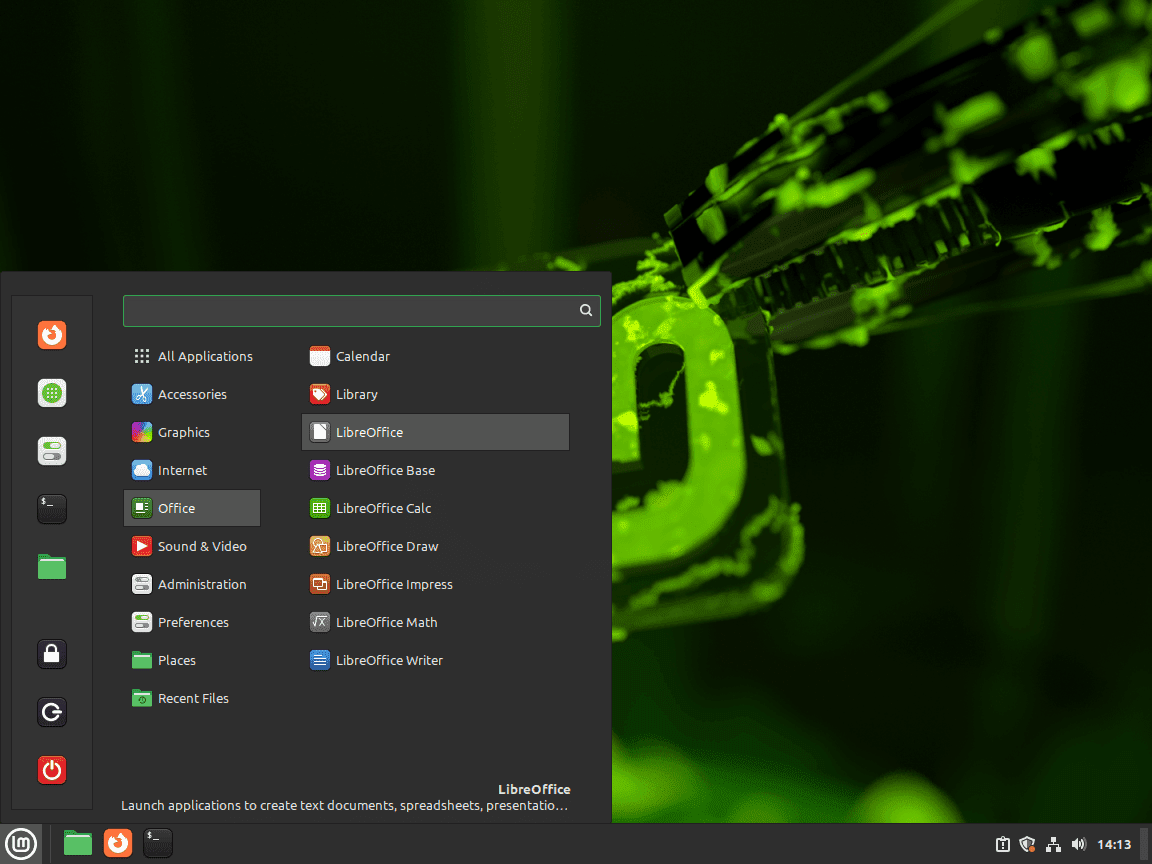
- In Cinnamon: Open the Applications Menu from the bottom-left corner of your screen, search for “LibreOffice,” and select the desired application, such as Writer or Calc.
- With MATE: Click on the Menu in the bottom-left corner, navigate to the Office category, and choose the specific LibreOffice tool you want to open.
- On Xfce desktops: Use the Whisker Menu typically found in the bottom-left corner, search for “LibreOffice,” or browse under the Office category to find the suite.
First-Time User Tips for LibreOffice on Linux Mint
Now that you’ve successfully installed LibreOffice on Linux Mint, here are some fundamental tips to help you get started. This section simplifies your initial experience, whether you’re new to LibreOffice or just need a quick refresher.
You can launch a specific LibreOffice application directly from the terminal using the pattern libreoffice --[application_name]. Use the commands below for the most common apps, then navigate to File > Save in the menu bar and choose your desired directory and filename.
libreoffice --writer
libreoffice --calc
LibreOffice Writer: Efficient Word Processing
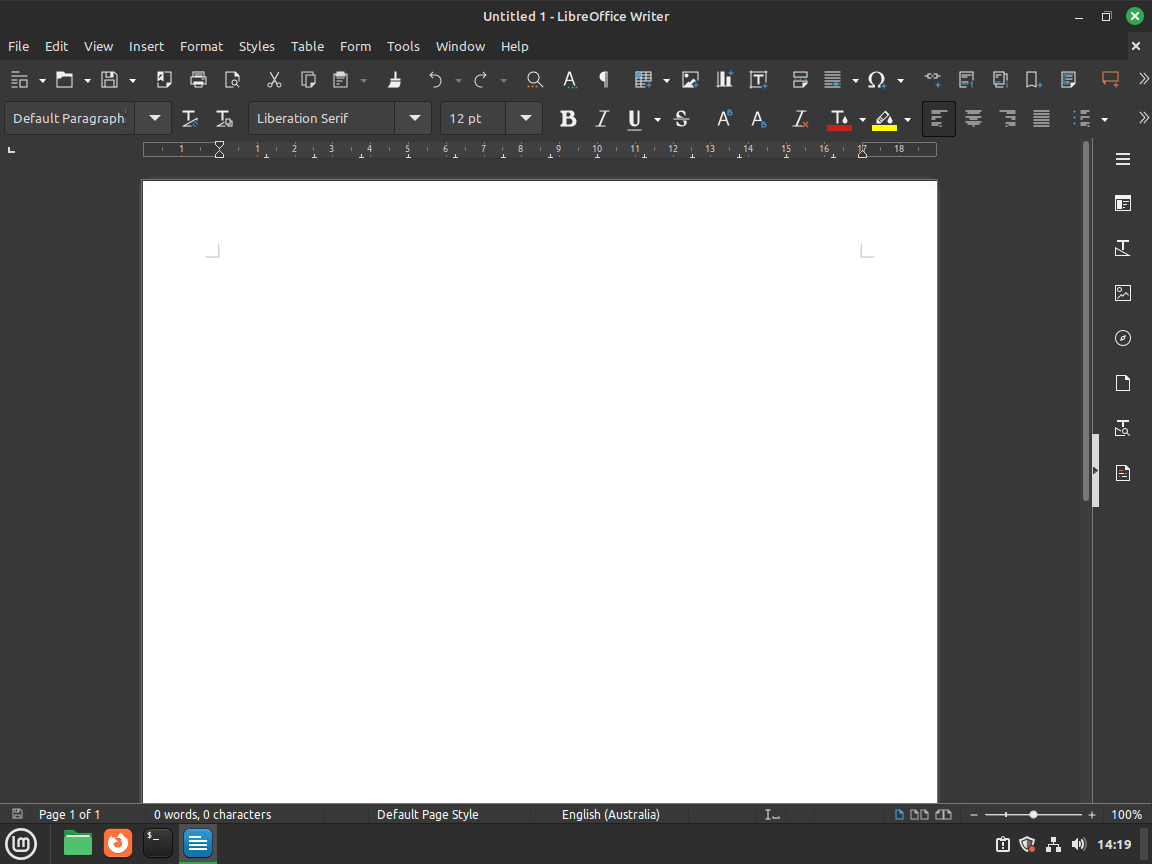
LibreOffice Writer is your go-to application for all word processing tasks. Here’s a quick rundown:
- Create Documents: Start a new text document by selecting File > New > Text Document.
- Formatting Text: Use the intuitive toolbar to adjust font styles, sizes, and alignment for optimal clarity and presentation.
LibreOffice Calc: Comprehensive Data Management
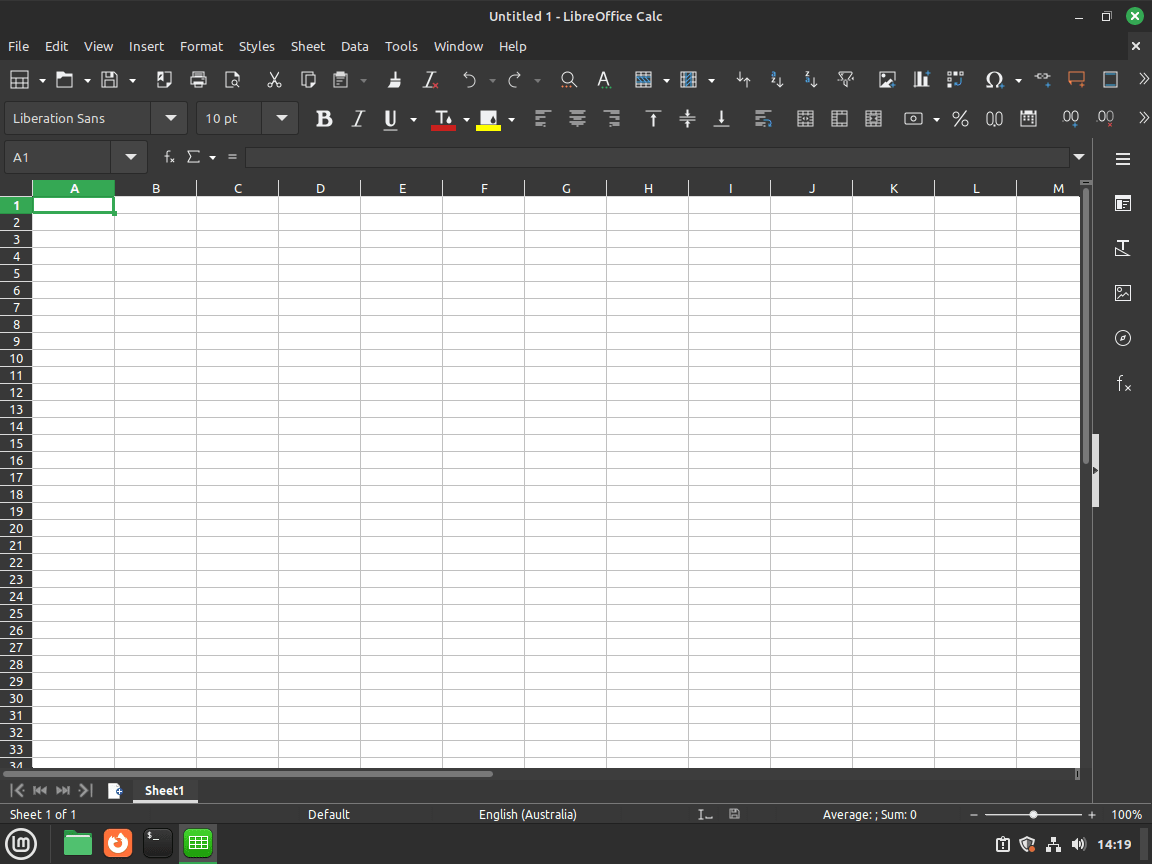
For spreadsheet tasks, LibreOffice Calc provides robust tools. Key capabilities include:
- Create Spreadsheets: Start a new spreadsheet by selecting File > New > Spreadsheet.
- Data Management: Use its wide array of functions, formulas, and charts to effectively organize and analyze your data.
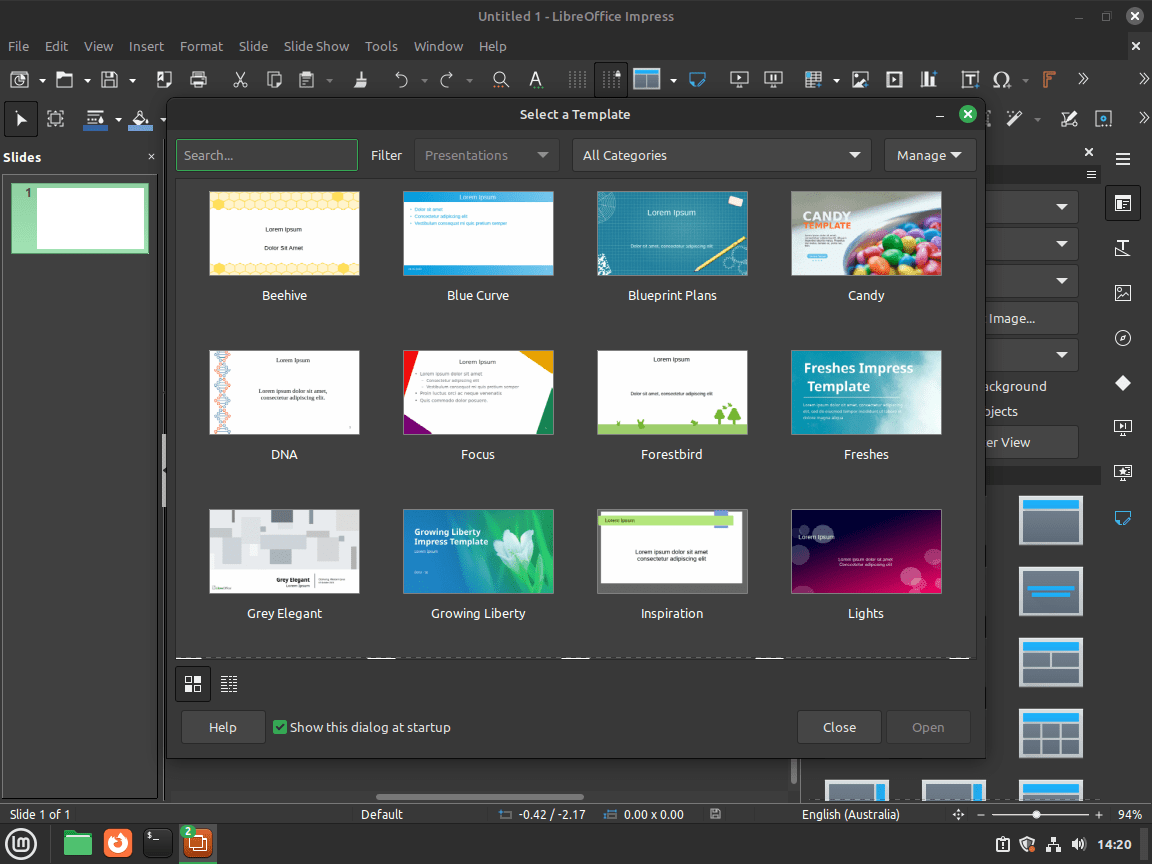
LibreOffice Impress: Professional Presentations
When you need to create compelling slideshows, LibreOffice Impress is the application you should use. Its key actions include:
- Create Presentations: Start a new presentation via File > New > Presentation.
- Design Slides: Impress allows you to add various multimedia elements like text, images, and videos to enhance your slides.
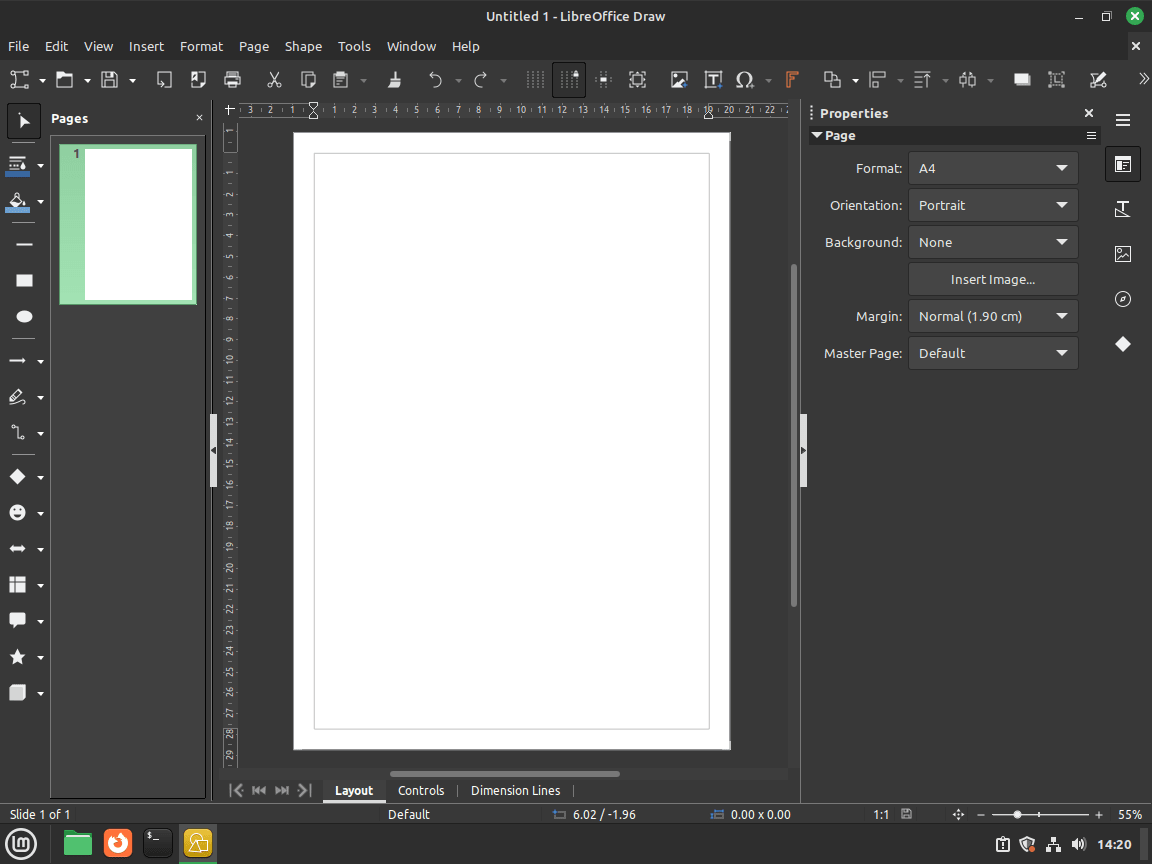
LibreOffice Draw: Precision in Vector Graphics
LibreOffice Draw excels when you are creating vector graphics. To get started with Draw:
- Create Drawings: Begin a new drawing by selecting File > New > Drawing. You can then add shapes, lines, and text to your design.
- Export Your Work: Draw allows you to save or export your design in various formats, including PDF.
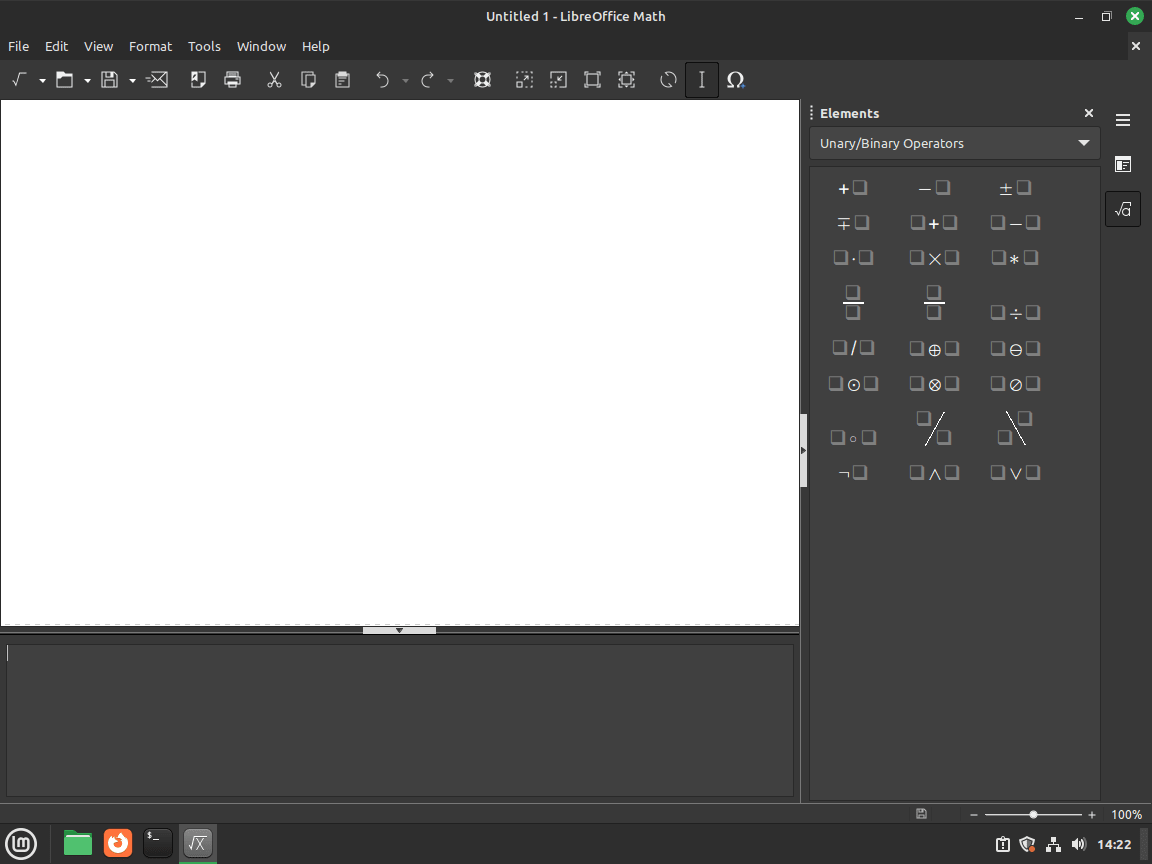
LibreOffice Math: Mathematical Formula Creation
For mathematical and scientific notations, LibreOffice Math is essential. Here’s how you can use it:
- Create Formulas: Use Insert > Object > Formula to build complex mathematical expressions.
- Symbol Selection: Math’s extensive operator library helps in handling even the most complex equations.
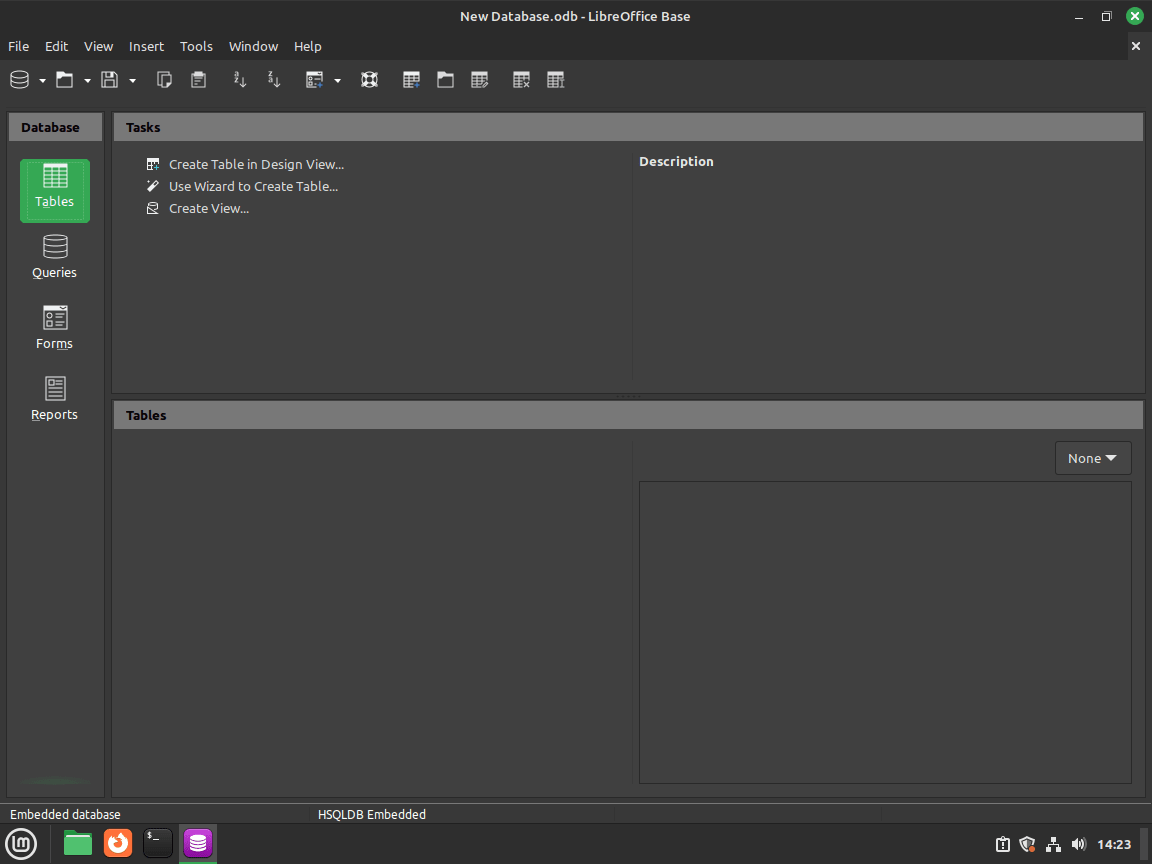
LibreOffice Base: Database Management Simplified
LibreOffice Base offers tools for effective database management. Its key functionalities involve:
- Create Databases: Create a new database by selecting File > New > Database. Base also allows you to connect to existing databases or build your own from scratch.
- Manage Tables: You can easily add, edit, or delete tables to organize your data efficiently.
How to Update LibreOffice on Linux Mint
Keeping LibreOffice updated ensures you have the latest features, performance improvements, and security fixes. Follow these steps to update LibreOffice on your Linux Mint system.
Update Your System’s Package Index
Update the list of available software packages and their versions on your system. This ensures your system recognizes any pending updates for LibreOffice and other installed software:
sudo apt updateUpgrade LibreOffice Packages
To upgrade only LibreOffice without affecting other packages, use the --only-upgrade flag:
sudo apt install --only-upgrade libreofficeThis upgrades LibreOffice if a newer version is available without installing it fresh if it’s missing. Use sudo apt install libreoffice instead if you want to both install and upgrade.
Update Flatpak Version
If you installed LibreOffice via Flatpak, update it separately from apt packages:
flatpak update org.libreoffice.LibreOfficePerform a Full System Upgrade (Recommended Alternative)
If you prefer to update all software on your system at once, including LibreOffice and all its dependencies, use the following command:
sudo apt full-upgradeThis approach updates all installed software on your system, including LibreOffice and any dependencies that require updating. It’s the recommended method for keeping your entire Linux Mint system secure and current.
Remove LibreOffice from Linux Mint
If you no longer need LibreOffice or want to switch to a different office suite, follow these steps to remove it completely from your Linux Mint system.
Uninstall LibreOffice
Remove LibreOffice and purge its system configuration files:
sudo apt purge libreoffice*The wildcard removes all LibreOffice packages, including language packs and help files. Follow up with autoremove to clear orphaned dependencies:
sudo apt autoremoveRemove LibreOffice PPAs
If you added a LibreOffice PPA during installation, remove it to prevent version conflicts when reinstalling later. Run the command that matches the PPA you added:
# Remove Fresh PPA
sudo add-apt-repository --remove ppa:libreoffice/ppa -y

# Remove Still PPA
sudo add-apt-repository --remove ppa:libreoffice/libreoffice-still -y

# Remove Pre-release PPA
sudo add-apt-repository --remove ppa:libreoffice/libreoffice-prereleases -y
Update the package cache after removing any PPA:
sudo apt updateRemove Flatpak Version
If you installed LibreOffice via Flatpak instead of apt, uninstall it with:
flatpak uninstall org.libreoffice.LibreOfficeRemove unused Flatpak runtimes to reclaim disk space:
flatpak uninstall --unusedDelete User Configuration Data
LibreOffice stores personal settings, custom templates, and extensions in your home directory. Remove this folder to start fresh on a future reinstall:
This command permanently deletes all LibreOffice user settings including custom dictionaries, templates, and macros. Back up the folder first if you want to preserve any customizations.
rm -rf ~/.config/libreoffice/Useful Links for LibreOffice
Explore these official resources for additional LibreOffice documentation, downloads, and community support:
- LibreOffice Official Website — Download page, release notes, and project news
- LibreOffice Launchpad PPAs — Fresh, Still, and Pre-release repository archives
- LibreOffice Documentation — User guides, tutorials, and reference manuals
- Ask LibreOffice Forum — Community Q&A for troubleshooting and tips
Troubleshooting Common LibreOffice Installation Issues
While LibreOffice installation on Linux Mint is generally smooth, you might encounter occasional issues. Here are solutions to common problems:
PPA Conflicts or Version Mismatches
If you previously added multiple LibreOffice PPAs or switched between Fresh, Still, and Pre-release streams, you might see version conflicts. Remove all LibreOffice PPAs first, then add only the one you want:
sudo add-apt-repository --remove ppa:libreoffice/ppa -y
sudo add-apt-repository --remove ppa:libreoffice/libreoffice-still -y
sudo add-apt-repository --remove ppa:libreoffice/libreoffice-prereleases -y
sudo apt update
Then add your preferred PPA and reinstall LibreOffice.
GPG Key Errors
If you see GPG key errors when adding a PPA, remove it and re-add to refresh the key. Run these commands to remove and re-add the Fresh PPA:
sudo add-apt-repository --remove ppa:libreoffice/ppa -y
sudo add-apt-repository ppa:libreoffice/ppa -y
sudo apt update
The add-apt-repository command automatically fetches the correct GPG key. If you still see errors, check that software-properties-common is installed:
sudo apt install software-properties-commonMissing Dependencies
If installation fails with dependency errors, force dependency resolution:
sudo apt --fix-broken install
sudo apt install libreoffice
LibreOffice Won’t Launch from GUI
If LibreOffice applications don’t appear in your desktop menu after installation, the desktop database may need refreshing. First ensure the required package is installed:
sudo apt install desktop-file-utilsThen refresh the system-wide application database:
sudo update-desktop-database /usr/share/applications/Log out and back in, or restart your desktop environment to refresh the menu.
Frequently Asked Questions
Fresh is the latest stable release with the newest features, updated roughly every month. Still is the previous major release that receives only bug fixes and security patches, making it more predictable for production environments. Most home users are fine with Fresh; organizations that need maximum stability often prefer Still.
Yes. Linux Mint’s default Cinnamon, MATE, and Xfce editions include LibreOffice from the Ubuntu repositories. You only need to install manually if you removed it, want a different version stream, or are using a minimal ISO that omits office software.
Yes. LibreOffice Writer, Calc, and Impress can open and save .docx, .xlsx, and .pptx formats. Complex documents with advanced formatting, macros, or embedded objects may not convert perfectly. For best results when collaborating with Microsoft Office users, install Microsoft fonts and test formatting before sending important documents.
PPAs integrate with your system and share libraries with other applications, keeping disk usage lower. Flatpak runs LibreOffice in a sandbox with its own runtime, which uses more space but isolates it from system updates. Choose PPA if you want tighter system integration; choose Flatpak if you prefer sandboxed applications or want to avoid adding third-party repositories.
Technically yes, but it causes confusion. Both versions appear in your applications menu with similar names, and file associations may point to either one unpredictably. Remove the APT version before installing the Flatpak version, or vice versa, to avoid duplicate entries and ensure consistent behavior.
Conclusion
You now have LibreOffice installed on Linux Mint, giving you a complete office suite for documents, spreadsheets, and presentations. Whether you chose the default repository, a PPA for newer releases, or Flatpak for sandboxed updates, you can verify your installation, launch applications from the terminal or menu, and keep the suite updated. Explore templates, extensions, and the configuration options in each LibreOffice application to customize your workflow.

I’ve bookmarked your site based on the page on updating Libreoffice for Linuxmint. This is my first go at Linux and your page led me easily and clearly through the steps despite my trying to “read ahead” and getting into trouble and backing up and following your steps fully. Great job to the writers for this page. And I’m sure I’ll find similar clear and easy to follow steps for other setup tasks. THANK YOU HEAPS! ! ! !
Thank you, this was extremely useful since I currently am new Linux Mint and LibreOffice. I previously used Windows 10 and Microsoft productivity suite.