

Linux Mint does not ship a current SeaMonkey package. The suite still fills a useful niche when you want browsing, mail, IRC, and Composer in one application instead of four separate installs. If you want to install SeaMonkey on Linux Mint, the practical path is the Ubuntuzilla APT repository, which works on Mint 22.x and 21.x and keeps updates inside normal package management.
Ubuntuzilla packages the suite as seamonkey-mozilla-build, while the launcher and menu entry stay seamonkey. Once the repository is in place, everything else stays in APT, from installation and updates to troubleshooting and removal.
Install SeaMonkey on Linux Mint
Open a terminal from the applications menu, then work through this single APT method. The repository layout is version-agnostic, so the same commands apply to Linux Mint 22.x and 21.x.
Check for an existing SeaMonkey install
Check whether SeaMonkey is already available before you add a third-party source:
command -v seamonkey && seamonkey --versionInstalled systems return a binary path and version string like this. No output usually means SeaMonkey is not installed yet.
/usr/bin/seamonkey
Mozilla SeaMonkey 2.53.23
If you see that output, you can skip ahead to the update or launch sections.
Prepare Linux Mint for the SeaMonkey repository
Refresh package metadata first so the key and repository packages resolve cleanly:
sudo apt update && sudo apt upgradeThis guide uses
sudofor commands that need administrator privileges. If your Linux Mint account is not in the sudoers file yet, follow the guide on how to create and add users to sudoers on Linux Mint before continuing.
Next, install the packages needed for HTTPS certificate trust, keyserver communication, and GnuPG key management:
sudo apt install ca-certificates dirmngr gpgImport the Ubuntuzilla signing key
Ubuntuzilla signs its packages, so import the repository key into a dedicated keyring under /usr/share/keyrings/. The --no-default-keyring and --keyring flags keep this key out of your personal GnuPG setup, which makes future cleanup easier.
sudo gpg --batch --yes --no-default-keyring --keyring /usr/share/keyrings/ubuntuzilla.gpg --keyserver keyserver.ubuntu.com --recv-keys 2667CA5Cgpg: keybox '/usr/share/keyrings/ubuntuzilla.gpg' created gpg: key B7B9C16F2667CA5C: public key "Daniel Folkinshteyn (Ubuntuzilla signing key) <nanotube@users.sourceforge.net>" imported gpg: Total number processed: 1 gpg: imported: 1
This keeps the Ubuntuzilla key separate from your personal GnuPG keyring, which makes later cleanup simpler.
Add the Ubuntuzilla repository for SeaMonkey
Create a dedicated APT source file for the SeaMonkey package:
printf '%s\n' 'deb [signed-by=/usr/share/keyrings/ubuntuzilla.gpg] https://downloads.sourceforge.net/project/ubuntuzilla/mozilla/apt all main' | sudo tee /etc/apt/sources.list.d/ubuntuzilla.listThis uses tee because plain > redirection would still run as your regular user and fail to write under /etc/apt/sources.list.d/. The all main component is intentional because Ubuntuzilla publishes one generic repository layout, so you do not need separate Mint 22.x or 21.x source files.
Refresh APT and confirm the SeaMonkey package candidate before you install it:
sudo apt update
apt-cache policy seamonkey-mozilla-build
seamonkey-mozilla-build:
Installed: (none)
Candidate: 2.53.23-0ubuntu1
Version table:
2.53.23-0ubuntu1 500
500 https://downloads.sourceforge.net/project/ubuntuzilla/mozilla/apt all/main amd64 Packages
APT refers to the package as seamonkey-mozilla-build, but the command and desktop launcher stay seamonkey.
Install the SeaMonkey package
Once APT sees the package candidate, install SeaMonkey from the Ubuntuzilla repository:
sudo apt install seamonkey-mozilla-buildVerify the SeaMonkey installation
Confirm that the binary is on your path and that the installed build responds normally:
command -v seamonkey && seamonkey --version/usr/bin/seamonkey Mozilla SeaMonkey 2.53.23
Launch SeaMonkey on Linux Mint
SeaMonkey adds a menu launcher and can also be started from the terminal when you want to see startup messages directly.
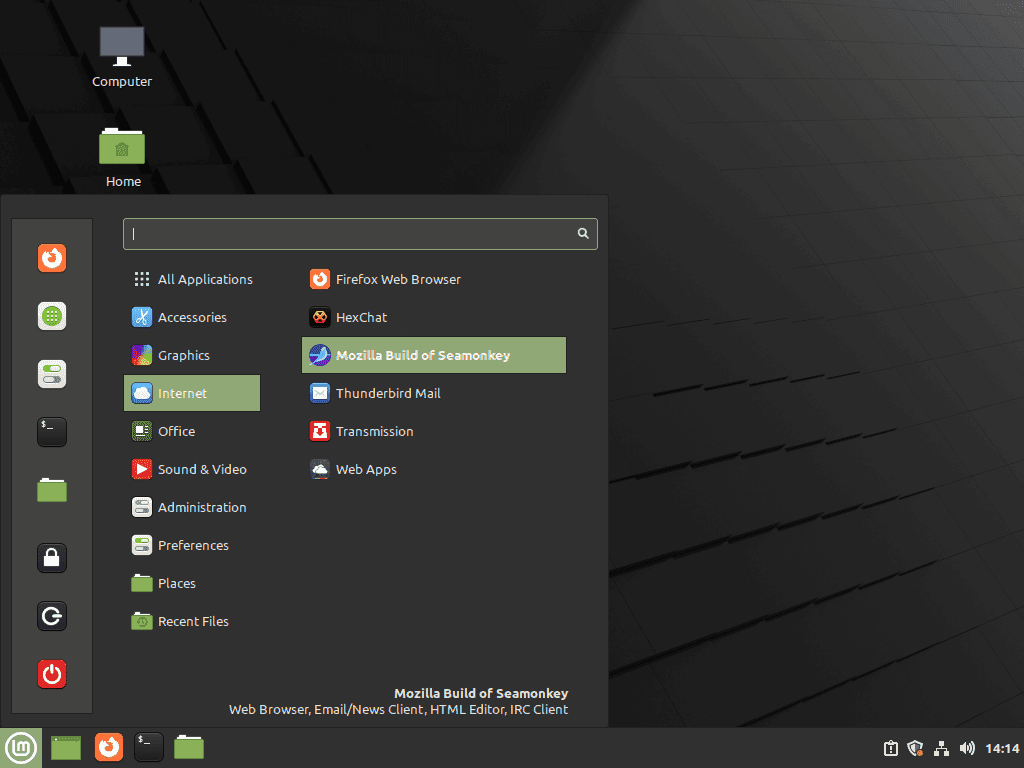
Open SeaMonkey from the Linux Mint menu
Open the application menu, search for SeaMonkey, and launch the suite from there if you prefer the normal desktop workflow.
Open SeaMonkey from the terminal
The terminal launch path is useful when you are testing profile changes or want to catch startup errors in the shell:
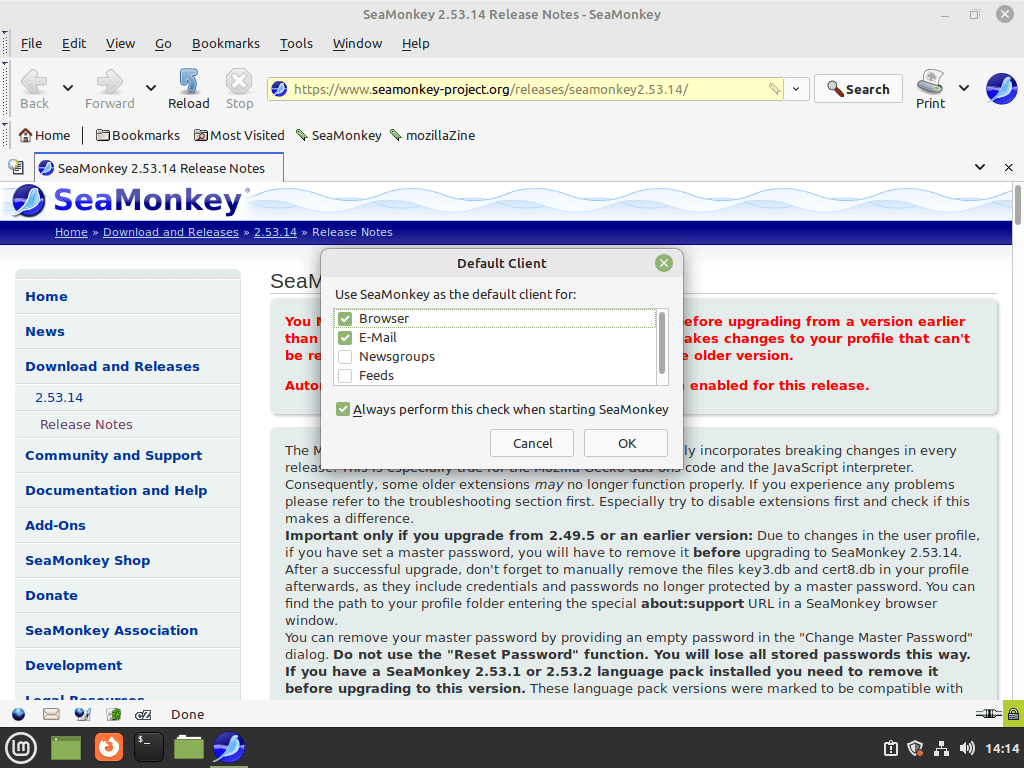
seamonkeyThe first successful start creates your profile under ~/.mozilla/seamonkey, which is also the directory you back up or remove later.
Use SeaMonkey’s Built-In Tools on Linux Mint
SeaMonkey still bundles several classic Mozilla tools in one profile. That matters if you want the browser, Mail and Newsgroups, ChatZilla, and Composer living in the same application instead of as separate installs.
Set up SeaMonkey Mail and Newsgroups
Open Window > Mail & Newsgroups to start account setup. SeaMonkey supports IMAP, POP3, SMTP, and newsgroups, and modern providers such as Gmail or Outlook usually expect an app-specific password rather than your regular account password. Keep SSL or TLS enabled in the account settings so mail traffic stays encrypted.
Open SeaMonkey Composer on Linux Mint
Open Window > Composer when you want the built-in HTML editor. Composer is still useful for quick static pages, email templates, or light HTML and CSS edits when opening a full IDE would be overkill.
Back up the SeaMonkey profile directory
SeaMonkey stores bookmarks, mail data, account settings, and other profile content in ~/.mozilla/seamonkey. If you rely on the suite for mail or saved logins, back up that directory before major upgrades or before testing an upstream tarball build.
Update SeaMonkey on Linux Mint
Once Ubuntuzilla is configured, SeaMonkey updates like any other APT-managed package. Use a targeted upgrade when you want to refresh SeaMonkey without upgrading everything else at the same time:
Upgrade SeaMonkey with APT
sudo apt install --only-upgrade seamonkey-mozilla-buildCheck the version afterward if you want to confirm the current build:
seamonkey --versionMozilla SeaMonkey 2.53.23
Remove SeaMonkey from Linux Mint
Removing SeaMonkey cleanly takes three parts: purge the package, remove the Ubuntuzilla repository, and delete the profile directory if you do not want to keep personal data.
Purge the SeaMonkey package
Start by removing the package itself:
sudo apt purge seamonkey-mozilla-buildThis removes the installed program and system-side package data, but it does not touch your personal SeaMonkey profile.
Remove the Ubuntuzilla repository
Delete the repository file and key so future apt update runs stop querying Ubuntuzilla:
sudo rm -f /etc/apt/sources.list.d/ubuntuzilla.list
sudo rm -f /usr/share/keyrings/ubuntuzilla.gpg
sudo apt updateDelete SeaMonkey user data
This step permanently deletes your local SeaMonkey data, including bookmarks, mail, account settings, and saved profile content. Back up
~/.mozilla/seamonkeyfirst if you want to keep any of it.
rm -rf ~/.mozilla/seamonkeyVerify SeaMonkey removal
The clearest final check is confirming that the SeaMonkey binary is gone from your shell path:
command -v seamonkey || echo "seamonkey not found"seamonkey not found
Troubleshoot SeaMonkey on Linux Mint
Most SeaMonkey install problems on Linux Mint come down to key import failures, an inactive Ubuntuzilla source file, or a broken profile. These checks help isolate each case quickly.
Fix Ubuntuzilla keyserver errors
If the default keyserver returns no data or times out, make sure the GnuPG helper packages are installed and retry through the TLS endpoint on port 443:
sudo apt install dirmngr gpg
sudo gpg --batch --yes --no-default-keyring --keyring /usr/share/keyrings/ubuntuzilla.gpg --keyserver hkps://keyserver.ubuntu.com:443 --recv-keys 2667CA5Cgpg: keybox '/usr/share/keyrings/ubuntuzilla.gpg' created gpg: key B7B9C16F2667CA5C: public key "Daniel Folkinshteyn (Ubuntuzilla signing key) <nanotube@users.sourceforge.net>" imported gpg: Total number processed: 1 gpg: imported: 1
The hkps:// endpoint on port 443 is useful on networks that block the older keyserver ports but still allow normal HTTPS traffic.
Fix missing SeaMonkey package candidates
If apt says it cannot locate seamonkey-mozilla-build, verify that the repository file is present and that APT can still see the package candidate:
cat /etc/apt/sources.list.d/ubuntuzilla.list
apt-cache policy seamonkey-mozilla-builddeb [signed-by=/usr/share/keyrings/ubuntuzilla.gpg] https://downloads.sourceforge.net/project/ubuntuzilla/mozilla/apt all main
seamonkey-mozilla-build:
  Installed: (none)
  Candidate: 2.53.23-0ubuntu1
  Version table:
     2.53.23-0ubuntu1 500
        500 https://downloads.sourceforge.net/project/ubuntuzilla/mozilla/apt all/main amd64 Packages
Reset a broken SeaMonkey profile
If SeaMonkey opens with a corrupted profile or the first-run setup never finishes cleanly, move the old profile out of the way and let SeaMonkey generate a fresh one:
mv ~/.mozilla/seamonkey ~/.mozilla/seamonkey.backupRelaunch SeaMonkey after that move. If the application starts normally, you can copy specific mail or bookmark data back from the backup directory instead of restoring the whole broken profile.
Frequently Asked Questions
No. Linux Mint does not provide a current SeaMonkey package in its default repositories, so APT will not find it until you add the Ubuntuzilla source.
Use Ubuntuzilla when you want APT-managed installs, upgrades, and removal. Use the official Linux x64 downloads only if you prefer a manual tarball install and do not mind handling future updates yourself.
SeaMonkey does not start a listening service or open inbound ports by default. It only makes outbound connections when you browse the web or configure mail and IRC, so the usual traffic is HTTPS, HTTP, IMAP, POP3, SMTP, and IRC client connections.
Yes. The same SeaMonkey install still includes the browser, Mail and Newsgroups, ChatZilla, and Composer, so you get the classic integrated suite rather than just a standalone browser.
Conclusion
SeaMonkey is installed on Linux Mint with APT-managed updates and one shared suite for browsing, mail, IRC, and Composer. If you want a second browser for testing, privacy work, or site compatibility checks, you can also install Chromium Browser on Linux Mint or install Tor Browser on Linux Mint.

Formatting tips for your comment
You can use basic HTML to format your comment. Useful tags currently allowed:
<code>command</code>command<strong>bold</strong><em>italic</em><blockquote>quote</blockquote>