

Some browsers keep moving toward heavier interfaces and tighter service integration, which is why Pale Moon still appeals when you want a traditional desktop browser. If you need to install Pale Moon on Ubuntu, the practical path is the upstream Linux tarball because Pale Moon is not packaged in Ubuntu’s default repositories and the official download page does not offer an Ubuntu .deb.
The upstream archive workflow stays simple on current Ubuntu LTS releases: download the x86_64 GTK3 build, extract it into your home directory, then add launcher and icon integration. Pale Moon still needs a graphical desktop session to open after installation, even though you can download and unpack it from a terminal or over SSH.
Update Ubuntu Before Installing Pale Moon
Refresh APT metadata and install pending package updates before you add a manual browser install under your home directory.
sudo apt update && sudo apt upgrade -yThese commands use
sudofor package-management tasks. If your account does not have sudo access yet, follow the guide on how to add a new user to sudoers on Ubuntu or run the commands as root.
Install Pale Moon on Ubuntu
Pale Moon’s official Linux downloads are published as archive files instead of APT packages. This workflow resolves the current x86_64 GTK3 tarball, extracts it into ~/palemoon, and adds the local system links that make the browser easier to launch.
The official upstream tarball is the safest baseline here. Pale Moon’s contributed builds page lists endorsed third-party distro packages, but those can lag behind the main Linux archive.
Install Pale Moon Prerequisites on Ubuntu
Install the download, archive, and runtime packages before you pull the tarball. The libdbus-glib-1-2 package covers the missing libdbus-glib-1.so.2 startup error that current Pale Moon builds hit on Ubuntu if the library is absent.
sudo apt install curl xz-utils libdbus-glib-1-2 -yThe archive lookup uses curl -fsSL so HTTP failures stop the command, normal output stays quiet, and redirects are followed automatically. That same download pattern also shows up in the curl command in Linux reference.
Resolve the Latest Pale Moon Tarball on Ubuntu
Resolve the current major and point release first so the download URL stays current after future Pale Moon updates. The filters rely on the grep command in Linux plus sort -V to pull the newest version directory from the archive listing.
MAJOR=$(curl -fsSL https://archive.palemoon.org/palemoon/ | grep -Eo 'href="[0-9]+\.x/' | grep -Eo '[0-9]+' | sort -n | tail -1)
VERSION=$(curl -fsSL "https://archive.palemoon.org/palemoon/${MAJOR}.x/" | grep -Eo "href=\"${MAJOR}\.[0-9.]+/" | grep -Eo "${MAJOR}\.[0-9.]+" | sort -V | tail -1)
ARCH=$(uname -m)
printf 'Architecture: %s\nVersion: %s\n' "$ARCH" "$VERSION"
Expected output:
Architecture: x86_64
Version: 34.0.1
The current official Linux archive publishes x86_64 GTK2 and GTK3 tarballs. If
uname -mprints something other thanx86_64, stop here and check the endorsed alternatives on the contributed builds page before reusing the commands below.
Download Pale Moon on Ubuntu
Keep using the same terminal session so the variables from the previous step stay available while you build the final URL and save the tarball.
DOWNLOAD_URL="https://archive.palemoon.org/palemoon/${MAJOR}.x/${VERSION}/Linux/palemoon-${VERSION}.linux-${ARCH}-gtk3.tar.xz"
printf '%s\n' "$DOWNLOAD_URL"
Download the tarball after you confirm the URL looks correct.
curl -fL --output /tmp/palemoon.tar.xz "$DOWNLOAD_URL"
ls -lh /tmp/palemoon.tar.xz
Expected output:
https://archive.palemoon.org/palemoon/34.x/34.0.1/Linux/palemoon-34.0.1.linux-x86_64-gtk3.tar.xz
-rw-r--r-- 1 your-user your-user 37M ... /tmp/palemoon.tar.xz
Extract Pale Moon on Ubuntu
Extract the tarball into your home directory. The follow-up file check confirms that the browser binary, updater files, and bundled icons are all present before you start creating launchers.
rm -rf "$HOME/palemoon"
tar -xf /tmp/palemoon.tar.xz -C "$HOME"
ls "$HOME/palemoon/updater" "$HOME/palemoon/update-settings.ini" "$HOME/palemoon/browser/chrome/icons/default/default16.png" "$HOME/palemoon/browser/icons/mozicon128.png"
Expected output:
/home/your-user/palemoon/browser/chrome/icons/default/default16.png
/home/your-user/palemoon/browser/icons/mozicon128.png
/home/your-user/palemoon/updater
/home/your-user/palemoon/update-settings.ini
Create Pale Moon Desktop Integration on Ubuntu
Create the launcher symlink, icon links, and desktop file so Pale Moon behaves like a normal desktop application instead of a bare extracted archive. If you want more detail on what the ln -s command is doing, the guide on how to create symbolic links in Ubuntu explains the underlying command.
sudo ln -sf "$HOME/palemoon/palemoon" /usr/local/bin/palemoonInstall the bundled icons next so the launcher keeps a proper application icon instead of falling back to a generic placeholder.
sudo mkdir -p /usr/share/icons/hicolor/16x16/apps /usr/share/icons/hicolor/32x32/apps /usr/share/icons/hicolor/48x48/apps /usr/share/icons/hicolor/128x128/apps
sudo ln -sf "$HOME/palemoon/browser/chrome/icons/default/default16.png" /usr/share/icons/hicolor/16x16/apps/palemoon.png
sudo ln -sf "$HOME/palemoon/browser/chrome/icons/default/default32.png" /usr/share/icons/hicolor/32x32/apps/palemoon.png
sudo ln -sf "$HOME/palemoon/browser/chrome/icons/default/default48.png" /usr/share/icons/hicolor/48x48/apps/palemoon.png
sudo ln -sf "$HOME/palemoon/browser/icons/mozicon128.png" /usr/share/icons/hicolor/128x128/apps/palemoon.png
The desktop entry uses sudo tee because a plain > redirection would not write into a root-owned location like /usr/share/applications/ with elevated privileges.
sudo tee /usr/share/applications/palemoon.desktop > /dev/null <<EOF
[Desktop Entry]
Version=1.0
Name=Pale Moon Web Browser
Comment=Browse the World Wide Web
Keywords=Internet;WWW;Browser;Web;Explorer
Exec=/usr/local/bin/palemoon %u
Terminal=false
Type=Application
Icon=palemoon
Categories=Network;WebBrowser;Internet
MimeType=text/html;text/xml;application/xhtml+xml;application/xml;application/rss+xml;application/rdf+xml;image/gif;image/jpeg;image/png;x-scheme-handler/http;x-scheme-handler/https;x-scheme-handler/ftp;x-scheme-handler/chrome;video/webm;application/x-xpinstall;
StartupNotify=true
EOF
Refresh the icon cache once the launcher files are in place so new menu icons are picked up immediately on desktop environments that cache them aggressively.
sudo gtk-update-icon-cache -f /usr/share/icons/hicolorRegister Pale Moon as a Browser on Ubuntu
Register Pale Moon with Ubuntu’s browser alternatives only if you want it to appear as a selectable default for applications that call x-www-browser or gnome-www-browser.
sudo update-alternatives --install /usr/bin/x-www-browser x-www-browser /usr/local/bin/palemoon 100
sudo update-alternatives --install /usr/bin/gnome-www-browser gnome-www-browser /usr/local/bin/palemoon 100
update-alternatives --query x-www-browser | sed -n '1,8p'
Expected output:
Name: x-www-browser
Link: /usr/bin/x-www-browser
Status: auto
Best: /usr/local/bin/palemoon
Value: /usr/local/bin/palemoon
Verify Pale Moon Installation on Ubuntu
Confirm that the launcher path, desktop entry, icon, and browser binary are all in place before you try to open the graphical app.
command -v palemoon
ls /usr/share/applications/palemoon.desktop /usr/share/icons/hicolor/128x128/apps/palemoon.png
palemoon -v
Expected output:
/usr/local/bin/palemoon
/usr/share/applications/palemoon.desktop
/usr/share/icons/hicolor/128x128/apps/palemoon.png
Moonchild Productions Pale Moon 34.0.1
The exact version changes as new releases land in the archive, but the verified output format stays the same.
Launch Pale Moon on Ubuntu
The browser can be downloaded and unpacked from any shell, but it still needs a graphical desktop session when you actually launch it.
Launch Pale Moon from the Applications Menu on Ubuntu
Search for Pale Moon Web Browser in Activities or your desktop launcher and open it there. If the icon does not appear immediately, sign out and back in so the desktop session reloads the new launcher metadata.
Launch Pale Moon from Terminal on Ubuntu
Use the launcher command from any graphical terminal after the desktop session is running.
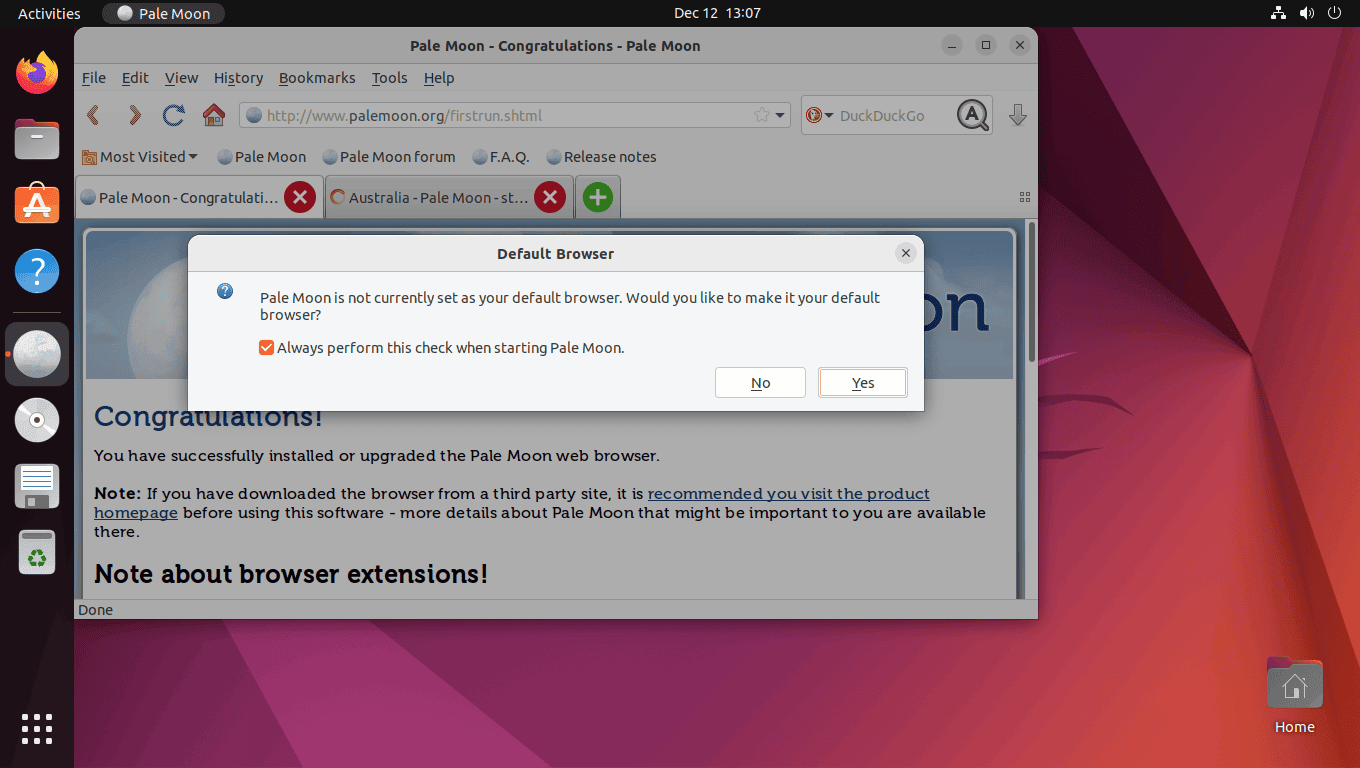
palemoon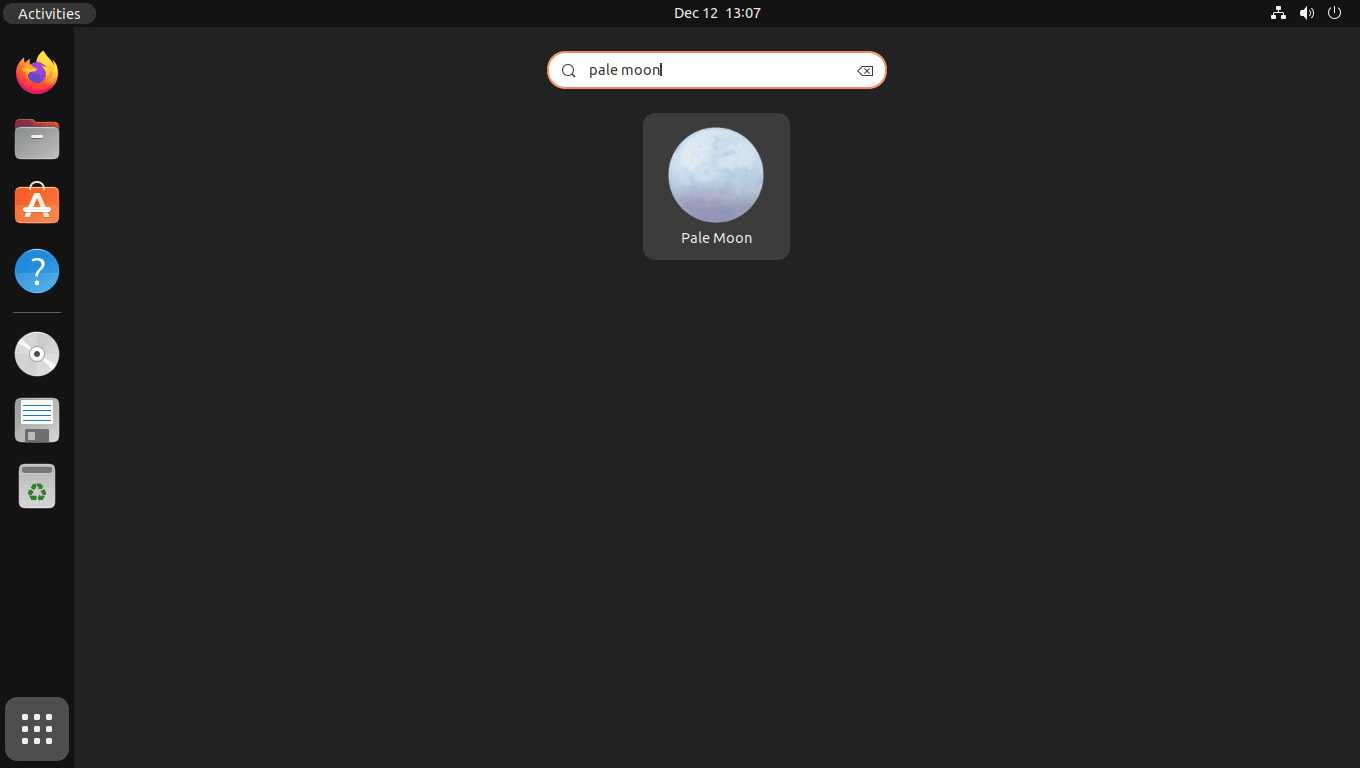
Manage Pale Moon on Ubuntu
The official tarball stays outside Ubuntu’s package database, so updates and cleanup are a little different from an apt install workflow.
Update Pale Moon on Ubuntu
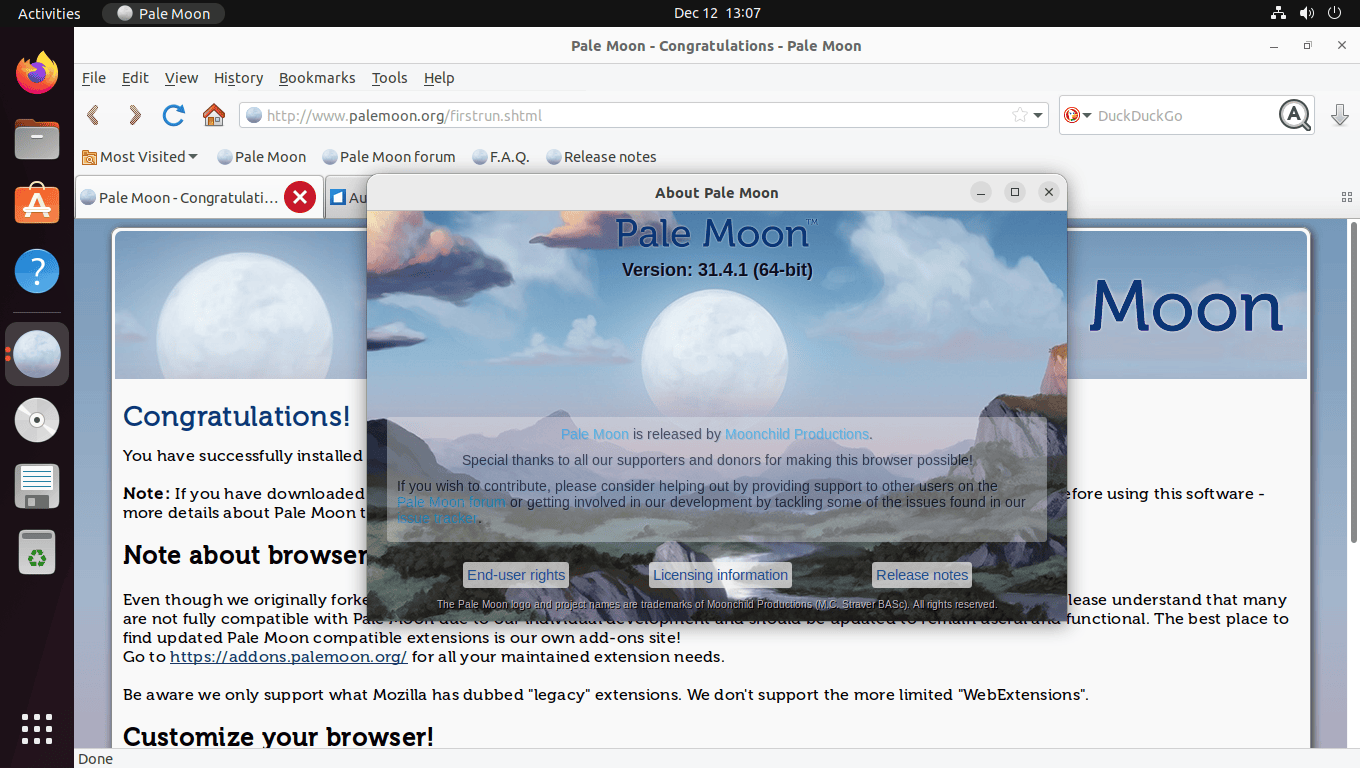
This tarball install does not move with apt upgrade. Pale Moon ships updater files inside the archive, so the normal check runs from Help > About Pale Moon inside the browser.
If you want a manual fallback that refreshes the same install without reopening the article later, create a small update-palemoon command. The command below resolves the latest archive version, downloads the current GTK3 tarball, and swaps the extracted tree in only after the new files are ready.
- Use Help > About Pale Moon for the normal in-browser update check.
- Create
update-palemoonif you want a memorable fallback command from any terminal directory. - Close Pale Moon before running the manual updater so files are not replaced while the browser is still open.
Create the update-palemoon Command on Ubuntu
Install the updater command into /usr/local/bin so you can run update-palemoon from any directory. The script resolves the active install path from the /usr/local/bin/palemoon launcher you created earlier, which keeps the update command pointed at the same browser tree.
sudo tee /usr/local/bin/update-palemoon > /dev/null <<'EOF'
#!/usr/bin/env bash
set -euo pipefail

# Resolve the existing Pale Moon install directory from the launcher symlink.
LAUNCHER_TARGET=$(readlink -f /usr/local/bin/palemoon 2>/dev/null || true)
if [ -z "$LAUNCHER_TARGET" ] || [ ! -x "$LAUNCHER_TARGET" ]; then
  echo "Could not resolve the installed Pale Moon launcher at /usr/local/bin/palemoon." >&2
  exit 1
fi

INSTALL_DIR=$(dirname "$LAUNCHER_TARGET")

# Pale Moon's official Linux archive currently publishes x86_64 GTK tarballs.
ARCH=$(uname -m)
if [ "$ARCH" != "x86_64" ]; then
  echo "This script expects the official x86_64 Pale Moon Linux tarball." >&2
  exit 1
fi

# Resolve the current release automatically instead of hardcoding a version.
MAJOR=$(curl -fsSL https://archive.palemoon.org/palemoon/ | grep -Eo 'href="[0-9]+\.x/' | grep -Eo '[0-9]+' | sort -n | tail -1)
VERSION=$(curl -fsSL "https://archive.palemoon.org/palemoon/${MAJOR}.x/" | grep -Eo "href=\"${MAJOR}\.[0-9.]+/" | grep -Eo "${MAJOR}\.[0-9.]+" | sort -V | tail -1)
URL="https://archive.palemoon.org/palemoon/${MAJOR}.x/${VERSION}/Linux/palemoon-${VERSION}.linux-${ARCH}-gtk3.tar.xz"

TMPDIR=$(mktemp -d)
trap 'rm -rf "$TMPDIR"' EXIT

echo "Updating Pale Moon in $INSTALL_DIR..."
echo "Downloading Pale Moon $VERSION..."
curl -fL --output "$TMPDIR/palemoon.tar.xz" "$URL"
tar -xf "$TMPDIR/palemoon.tar.xz" -C "$TMPDIR"

if [ ! -d "$TMPDIR/palemoon" ]; then
  echo "Pale Moon archive did not extract to a palemoon directory." >&2
  exit 1
fi

BACKUP_DIR="${INSTALL_DIR}.previous"

if [ -d "$INSTALL_DIR" ]; then
  rm -rf "$BACKUP_DIR"
  mv "$INSTALL_DIR" "$BACKUP_DIR"
fi

if mv "$TMPDIR/palemoon" "$INSTALL_DIR"; then
  rm -rf "$BACKUP_DIR"
  printf 'Updated to %s\n' "$VERSION"
else
  if [ -d "$BACKUP_DIR" ]; then
    mv "$BACKUP_DIR" "$INSTALL_DIR"
  fi
  echo "Update failed, previous Pale Moon install restored." >&2
  exit 1
fi
EOF
Make the command executable and confirm that Ubuntu can find it from your shell.
sudo chmod +x /usr/local/bin/update-palemoon
command -v update-palemoon
Expected output:
/usr/local/bin/update-palemoon
Run
update-palemoonas your regular user, not withsudo. The command updates the browser files under your home directory, and keeping that tree owned by your account avoids permission problems later.
Use this as a manual refresh tool, not a cron job. Replacing the browser directory while Pale Moon is open is an easy way to create a broken update or a locked file problem.
Run the command whenever you want a manual refresh:
update-palemoonExpected output:
Updating Pale Moon in /home/your-user/palemoon...
Downloading Pale Moon 34.0.1...
Updated to 34.0.1
Your existing symlink, icons, and desktop launcher stay valid because the command replaces the same Pale Moon directory the launcher already points to.
Use Pale Moon Extensions on Ubuntu
Pale Moon has its own add-on ecosystem at the Pale Moon Add-ons Site, including extensions, themes, language tools, dictionaries, and search plugins. Pale Moon’s technical details page also notes compatibility with many legacy Firefox XUL extensions, but modern Firefox WebExtensions are not a drop-in match, so start with Pale Moon’s own add-on catalog first.
Open Pale Moon Profile Manager on Ubuntu
Pale Moon’s current help output uses an uppercase -P flag, not lowercase -p. Use the profile manager when you want a clean browsing profile for testing, separate accounts, or extension troubleshooting.
palemoon --ProfileManagerTo launch a specific profile directly, use:
palemoon -P profile-nameRemove Pale Moon on Ubuntu
Remove the browser alternatives first if you registered them, then delete the launcher, menu entry, icons, extracted browser directory, and the optional update-palemoon command.
sudo update-alternatives --remove gnome-www-browser /usr/local/bin/palemoon
sudo update-alternatives --remove x-www-browser /usr/local/bin/palemoon
Remove the launcher files and extracted browser directory next.
sudo rm -f /usr/local/bin/palemoon /usr/local/bin/update-palemoon /usr/share/applications/palemoon.desktop
sudo rm -f /usr/share/icons/hicolor/16x16/apps/palemoon.png
sudo rm -f /usr/share/icons/hicolor/32x32/apps/palemoon.png
sudo rm -f /usr/share/icons/hicolor/48x48/apps/palemoon.png
sudo rm -f /usr/share/icons/hicolor/128x128/apps/palemoon.png
sudo gtk-update-icon-cache -f /usr/share/icons/hicolor
rm -rf "$HOME/palemoon"
rm -rf "$HOME/palemoon.previous"
Verify that the launcher and extracted files are gone:
if [ ! -e /usr/local/bin/palemoon ] && [ ! -e "$HOME/palemoon" ]; then
  echo "Pale Moon files removed"
fi
Expected output:
Pale Moon files removed
Remove Pale Moon User Data on Ubuntu
This permanently deletes Pale Moon bookmarks, saved passwords, browsing history, and extensions. Export anything you want to keep first.
Check for Pale Moon profile directories under your home folder before you delete anything. This is safer than assuming the profile path already exists on every Ubuntu desktop.
find "$HOME" -maxdepth 2 -type d -iname '*moonchild*'If that command returns ~/.moonchild productions, remove it along with any per-user desktop entries Pale Moon created.
rm -rf ~/.moonchild\ productions
rm -f ~/.local/share/applications/userapp-Pale\ Moon-*.desktop
Troubleshoot Pale Moon on Ubuntu
Most Pale Moon issues on Ubuntu come from missing runtime libraries, stale menu metadata, or relying on Ubuntu’s package manager for a tarball-based install.
Fix libdbus-glib-1.so.2 Errors for Pale Moon on Ubuntu
If Pale Moon fails immediately from the terminal, check for the missing libdbus-glib-1.so.2 library first. This is the startup failure the current tarball throws when libdbus-glib-1-2 is missing.
$HOME/palemoon/palemoon -vError output looks like this when the runtime library is missing:
XPCOMGlueLoad error for file /home/your-user/palemoon/libxul.so:
libdbus-glib-1.so.2: cannot open shared object file: No such file or directory
Couldn't load XPCOM.
Install the missing package, then rerun the version check:
sudo apt install libdbus-glib-1-2 -y
palemoon -v
Expected output after the fix:
Moonchild Productions Pale Moon 34.0.1
Refresh Pale Moon Menu Icons on Ubuntu
If the browser launches from the terminal but not from the menu, make sure the desktop file and icon were written where the desktop environment expects them.
ls /usr/share/applications/palemoon.desktop /usr/share/icons/hicolor/128x128/apps/palemoon.pngExpected output:
/usr/share/applications/palemoon.desktop
/usr/share/icons/hicolor/128x128/apps/palemoon.png
Refresh the icon cache if those files exist but the menu entry still has not appeared:
sudo gtk-update-icon-cache -f /usr/share/icons/hicolorAfter that, sign out and back in so the desktop session reloads the launcher metadata.
Use the update-palemoon Command on Ubuntu
If Help > About Pale Moon stops applying updates, rerun update-palemoon instead of rebuilding the refresh workflow by hand.
update-palemoonPale Moon on Ubuntu FAQ
No. Pale Moon’s official download page points Linux users to the upstream tarball and to endorsed contributed builds for distro-specific packages. The upstream tarball is the direct path to Moonchild Productions’ main Linux archive.
Pale Moon’s official download page does not list a Flatpak build. If you decide to test community packaging later, treat it as a separate unofficial workflow instead of a replacement for the upstream tarball.
Pale Moon supports its own add-on catalog plus many legacy Firefox XUL extensions. Modern Firefox WebExtensions are not generally drop-in compatible, so use the Pale Moon Add-ons Site first when you need extensions, themes, language packs, or search plugins.
Use palemoon --ProfileManager to open the profile chooser, or palemoon -P profile-name to start a specific profile directly. Pale Moon’s current help output uses an uppercase -P, not lowercase -p.
Conclusion
Pale Moon is installed on Ubuntu with a working launcher, menu entry, icon set, and a manual refresh path if the built-in updater ever stalls. If you want a second browser that stays closer to Ubuntu’s package flow, try install Firefox ESR on Ubuntu, and if you later decide to test community sandboxed packaging, start with install Flatpak on Ubuntu.

palemoon no longer present in this repo, Sep 2024.
Thanks for pointing this out. It seems Steven has removed all Debian and Ubuntu builds and is now only supporting MX Linux, which he uses and contributes to, based on information from the Pale Moon forums. I’ll update the guide soon with alternative methods.