
Ubuntu already gives you workable ways to run OpenShot, a timeline-based video editor for quick cuts, titles, and multi-track projects. You can install OpenShot on Ubuntu with the distro package, an upstream-managed PPA, or a sandboxed Flathub build, and Ubuntu 26.04 already ships the 3.4.x branch while 24.04 and 22.04 still trail behind.
OpenShot also publishes an official AppImage on its download page, but managed installs are easier to update and remove on Ubuntu. Ubuntu 26.04, 24.04, and 22.04 all support these managed paths, and each one keeps updates and cleanup straightforward.
Install OpenShot on Ubuntu
The Ubuntu package is the easiest place to start. Switch to the stable PPA when Ubuntu 24.04 or 22.04 needs the current 3.4.x branch, and use Flatpak when sandboxing matters more than absolute version freshness.
| Method | Channel | Version | Updates | Best For |
|---|---|---|---|---|
| Ubuntu repository | Ubuntu Universe | Distribution default | Via APT updates | Lowest maintenance, especially on Ubuntu 26.04 |
| OpenShot stable PPA | Launchpad PPA | Upstream stable packages | Via APT updates | Ubuntu 24.04 or 22.04 users who want 3.4.x |
| Flatpak | Flathub | Flathub stable build | Via Flatpak updates | Sandboxed desktop installs |
Update Ubuntu Before Installing OpenShot
Refresh the package index first so APT sees the current Ubuntu or PPA metadata.
sudo apt updateThese commands use
sudofor package management tasks. If your account does not have sudo access yet, follow the guide to add a new user to sudoers on Ubuntu Linux or run the commands from a root shell.
Install OpenShot from Ubuntu Repositories
The Ubuntu package is the lowest-maintenance option, and on Ubuntu 26.04 it already tracks OpenShot 3.4.x. Ubuntu installs the package as openshot-qt, while the desktop launcher appears as OpenShot Video Editor.
sudo apt install -y openshot-qtThe -y flag accepts the APT confirmation prompt automatically. After the install finishes, verify the package source and version with:
apt-cache policy openshot-qtopenshot-qt:
Installed: 3.4.0+dfsg1-2
Candidate: 3.4.0+dfsg1-2
Version table:
*** 3.4.0+dfsg1-2 500
500 http://au.archive.ubuntu.com/ubuntu resolute/universe amd64 Packages
100 /var/lib/dpkg/status
Ubuntu 24.04 reports 3.1.1+dfsg1-1 from the default repository, and Ubuntu 22.04 reports 2.5.1+dfsg1-2ubuntu0.1. If you want OpenShot 3.4.x on those older LTS releases, move to the stable PPA.
Install OpenShot from the OpenShot Stable PPA
The stable PPA tracks OpenShot’s official Debian-based packages and is the easiest way to move Ubuntu 24.04 or 22.04 to the current 3.4.x series. On Ubuntu 26.04 it only gives you a newer packaging revision, not a newer major branch.
sudo add-apt-repository ppa:openshot.developers/ppa -yUpdate APT after adding the PPA so Ubuntu pulls the new package index. Ubuntu 24.04 shows the new source like this, and Ubuntu 22.04 or 26.04 use the same URL with their own codenames.
sudo apt updateHit:5 https://ppa.launchpadcontent.net/openshot.developers/ppa/ubuntu noble InRelease
Install the PPA build once the new source appears.
sudo apt install -y openshot-qtCheck the candidate package again to confirm APT is preferring the PPA.
apt-cache policy openshot-qtopenshot-qt:
Installed: 3.4.0+dfsg2+1744+202512180311~ubuntu24.04.1
Candidate: 3.4.0+dfsg2+1744+202512180311~ubuntu24.04.1
Version table:
*** 3.4.0+dfsg2+1744+202512180311~ubuntu24.04.1 500
500 https://ppa.launchpadcontent.net/openshot.developers/ppa/ubuntu noble/main amd64 Packages
100 /var/lib/dpkg/status
3.1.1+dfsg1-1 500
500 http://au.archive.ubuntu.com/ubuntu noble/universe amd64 Packages
Ubuntu 22.04 shows the same 3.4.0 package family with a ~ubuntu22.04.1 suffix, and Ubuntu 26.04 shows the same upstream branch with a ~ubuntu26.04.1 suffix. OpenShot also publishes ppa:openshot.developers/libopenshot-daily for testers, but that branch can change between commits and is not a good default install path.
Install OpenShot via Flatpak
Flatpak keeps OpenShot isolated from the rest of the system and works the same on every supported Ubuntu LTS. Version freshness is not guaranteed, though, so use this path for sandboxing rather than for the newest release.
Ubuntu does not install Flatpak on a standard setup. If you need it first, follow the guide to install Flatpak on Ubuntu Linux and come back once
flatpakis available.
Add Flathub as a system remote if it is not already present.
sudo flatpak remote-add --if-not-exists flathub https://flathub.org/repo/flathub.flatpakrepoThe --if-not-exists flag skips the add step when Flathub is already configured, so the command is safe on systems that already use Flatpak. Confirm the remote scope before installing the app:
flatpak remotesflathub system
Install OpenShot from Flathub once the remote is available.
sudo flatpak install -y flathub org.openshot.OpenShotThe Flatpak app ID is org.openshot.OpenShot. Verify the installed build with:
flatpak info org.openshot.OpenShotOpenShot Studios, LLC - An easy to use, quick to learn, and surprisingly powerful video editor
ID: org.openshot.OpenShot
Ref: app/org.openshot.OpenShot/x86_64/stable
Arch: x86_64
Branch: stable
Version: 3.3.0
License: GPL-3.0-or-later
Origin: flathub
That version check matters because Flathub can lag behind Ubuntu 26.04 and the stable PPA. If you want the newest OpenShot release more than you want sandboxing, stick with Ubuntu 26.04’s package, the stable PPA, or the official AppImage.
Compare OpenShot Versions on Ubuntu
OpenShot version differences are large enough across Ubuntu LTS releases that the default package choice can change what you see in the editor. Ubuntu 26.04 already carries the current 3.4.x branch, while older LTS releases still benefit from an upstream-managed package source.
| Ubuntu Release | Default OpenShot | Repository Status | Best Fit |
|---|---|---|---|
| Ubuntu 26.04 | 3.4.x | Current distro branch | Stay with the Ubuntu package unless you specifically want another format |
| Ubuntu 24.04 | 3.1.x | One branch behind upstream stable | Use the stable PPA if you want 3.4.x features with APT updates |
| Ubuntu 22.04 | 2.5.x | Older long-lived package | Use the stable PPA or AppImage if new editor features matter |
Flathub sits outside that Ubuntu release matrix, but its current OpenShot build is still 3.3.0. That makes Flatpak a compatibility and sandboxing choice, not the fastest route to the newest upstream release.
Launch OpenShot on Ubuntu
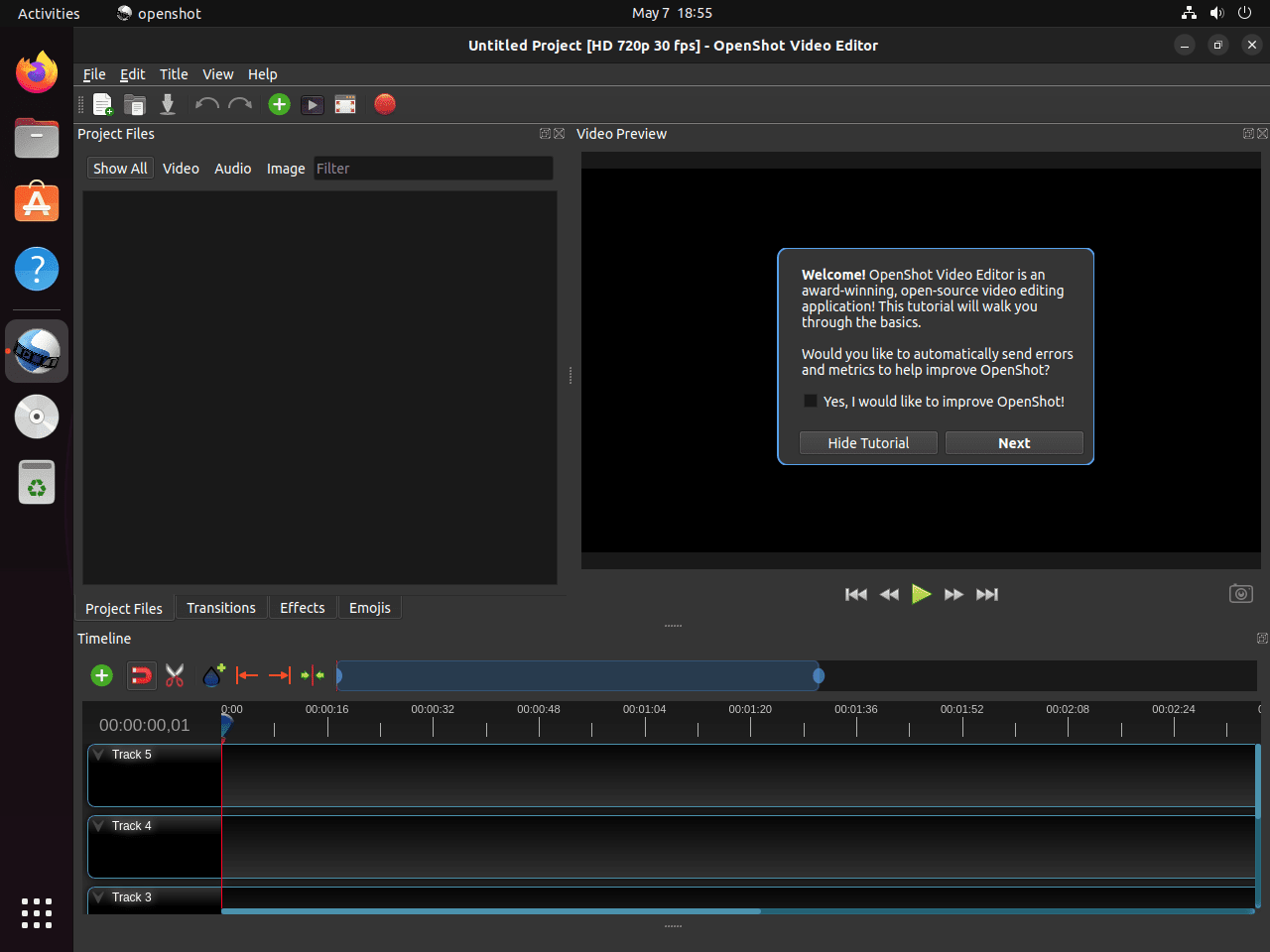
OpenShot launches the same way after a repository install or a stable PPA install because both methods provide the same desktop entry and binary name. The first launch also creates ~/.openshot_qt, which stores your settings and recovery data.
Launch OpenShot from the Ubuntu Desktop
Open the Activities overview or your applications menu, search for OpenShot Video Editor, and start it from the Graphics or Sound & Video category, depending on your desktop environment.
Launch OpenShot from Terminal
Use the terminal launcher when you want to start the editor directly or watch startup messages.
APT or stable PPA install:
openshot-qtFlatpak install:
flatpak run org.openshot.OpenShotUpdate or Remove OpenShot on Ubuntu
Use the same package channel for updates and removal that you used for installation. Keeping the maintenance path consistent avoids stale sources and makes cleanup much easier later.
Update OpenShot on Ubuntu
APT and stable PPA installs update through the normal package manager. The APT command below only upgrades OpenShot and leaves unrelated packages alone.
sudo apt update && sudo apt install --only-upgrade openshot-qtUpdate the Flatpak build through the same system-scope remote you used for installation.
sudo flatpak update org.openshot.OpenShotRemove the APT Version of OpenShot on Ubuntu
Remove the Ubuntu or PPA package first, then let APT clear any orphaned dependencies that only OpenShot needed.
sudo apt remove -y openshot-qt && sudo apt autoremove -yIf you installed the stable PPA and no longer want it on the system, remove that source after the package is gone.
sudo add-apt-repository --remove ppa:openshot.developers/ppa -yRefresh APT and confirm the package is no longer installed.
sudo apt update && apt-cache policy openshot-qtopenshot-qt:
Installed: (none)
Candidate: 3.4.0+dfsg1-2
Version table:
3.4.0+dfsg1-2 500
500 http://au.archive.ubuntu.com/ubuntu resolute/universe amd64 Packages
Removing the package does not clear OpenShot’s user data. APT removal leaves
~/.openshot_qtand~/.local/share/openshotbehind.
Delete those directories only if you want a full reset of preferences, logs, and recovery files.
rm -rf ~/.openshot_qt ~/.local/share/openshotRemove the Flatpak Version of OpenShot on Ubuntu
Remove the Flatpak app with the same system scope you used during installation.
sudo flatpak uninstall -y --delete-data org.openshot.OpenShotUninstall complete.
Even with
--delete-data, OpenShot can still leave~/.var/app/org.openshot.OpenShotand~/.openshot_qtbehind after the first launch. Remove them manually if you want a full cleanup.
rm -rf ~/.var/app/org.openshot.OpenShot ~/.openshot_qtTroubleshoot OpenShot on Ubuntu
Most OpenShot problems on Ubuntu come down to stale local settings, limited disk space during exports, or expecting one packaging method to behave like another. Start with the quick checks below before you reinstall the editor.
Reset OpenShot Settings on Ubuntu
If OpenShot hangs at launch or keeps reusing broken preferences, inspect the settings directory first.
ls -lah ~/.openshot_qt.lock openshot.settings libopenshot.log
Remove the saved settings file and let the next launch build a fresh one.
rm -f ~/.openshot_qt/openshot.settingsFix OpenShot Export Problems on Ubuntu
When exports fail, start with free space before you blame codecs or GPU settings. Large projects create preview files and temporary render data quickly.
df -h "$HOME"Filesystem Size Used Avail Use% Mounted on /dev/sda2 123G 12G 106G 10% /
If free space is tight, clear preview caches or export to a larger volume. When storage is fine but a preset still fails, retry with a common H.264 MP4 preset and use install FFmpeg on Ubuntu Linux if you want a wider codec toolchain for testing clips outside OpenShot.
OpenShot on Ubuntu FAQ
Yes. Ubuntu ships openshot-qt in Universe on all supported LTS releases. Ubuntu 26.04 already carries OpenShot 3.4.x, Ubuntu 24.04 carries 3.1.x, and Ubuntu 22.04 carries 2.5.x.
Usually no. Ubuntu 26.04 already ships the 3.4.x branch, so the stable PPA mainly matters for Ubuntu 24.04 and 22.04 users who want the same current release family. If you need nightly builds, OpenShot also publishes the separate ppa:openshot.developers/libopenshot-daily branch for testers.
No matching Snap package is listed in the Snap Store. On Ubuntu, the practical managed choices are the default repository, the OpenShot stable PPA, or the Flathub Flatpak build. Upstream also provides an AppImage on the official download page.
Yes. OpenShot publishes an official AppImage download for Linux, and the upstream installation guide still documents that direct-download path. It is useful for portable installs, but it does not follow normal APT or Flatpak update workflows.
Conclusion
OpenShot is installed on Ubuntu with an update path that matches your release and your tolerance for change. If you also record footage, install OBS Studio on Ubuntu next; for batch transcoding from a GUI, install Videomass on Ubuntu and keep the heavier conversions outside the editor.

Tried Method 1, option 2: from stable PPA. But I get the error: “wrong version of libopenshot detected”. Seems not so stable…
Thanks for reporting this, Al. The “wrong version of libopenshot detected” error typically occurs when OpenShot’s Python bindings expect a different library version than what’s installed. The article now includes a troubleshooting section that addresses this issue.
First, check the actual error details:
Then reinstall OpenShot with all dependencies to resolve version mismatches:
If the issue persists after reinstalling, the stable PPA may have a temporary packaging issue. In that case, you can switch back to the Ubuntu repository version (which uses older but thoroughly tested library versions) or wait for the PPA maintainers to resolve the dependency conflict.