
LibreOffice and web browsers on Fedora substitute Liberation Sans for Arial and Liberation Serif for Times New Roman, but the metrics never match perfectly and documents still shift when you open them. The msttcore-fonts-installer package from the mscorefonts2 project fixes that by pulling the original Microsoft TrueType fonts (Arial, Times New Roman, Calibri, Consolas, and the rest of the Core Fonts and ClearType collections) straight from SourceForge and registering them system-wide.
An optional second method grabs the complete Cambria font family (including Cambria Regular, which the installer skips) from an archived PowerPoint Viewer on Archive.org.
| Method | Channel | Fonts Included | Best For |
|---|---|---|---|
| msttcore-fonts-installer (recommended) | SourceForge | Core Fonts + most ClearType fonts (Calibri, Consolas, Candara, Constantia, Corbel) | Most users needing Microsoft font compatibility |
| Archive.org PowerPoint Viewer | Archive.org | Complete ClearType fonts including Cambria Regular and Meiryo (Japanese) | Users needing the full Cambria font family or updated 2010 font versions |
Install Microsoft Fonts on Fedora via msttcore-fonts-installer
This is the recommended method. The package grabs every font from SourceForge during install and drops them into /usr/share/fonts/msttcore/, so every application on the system picks them up immediately.
Update Fedora before installing Microsoft fonts
Refresh package metadata and install pending updates so the dependency packages come from a current repository state. Open your terminal by searching for “Terminal” in Activities:
sudo dnf upgrade --refreshYour user account must have sudo privileges. If
sudocommands return permission errors, see how to add a user to sudoers on Fedora.
Install msttcore-fonts-installer Dependencies
The font installer requires tools to download and extract Microsoft cabinet archive files. Desktop Fedora Workstation installations typically include these packages by default, while minimal server installations or containers require manual installation:
sudo dnf install curl cabextract xorg-x11-font-utils fontconfigcurl handles the download, cabextract unpacks the Microsoft .cab archives inside the installer, and fontconfig registers the new fonts with your system. The xorg-x11-font-utils package supplies legacy X11 font tools that the installer script calls during setup.
Nobara users: Nobara is Fedora-based, so every
dnfandrpmcommand in this guide works without changes. Fedora Atomic users (Bazzite, Silverblue, Kinoite): Userpm-ostree install curl cabextract xorg-x11-font-utils fontconfiginstead ofdnf install, then reboot before proceeding.
Download and Install msttcore-fonts-installer
The msttcore-fonts-installer package version 2.6 includes both classic Core Fonts and modern ClearType fonts. Download the package from SourceForge:
curl -LO https://downloads.sourceforge.net/project/mscorefonts2/rpms/msttcore-fonts-installer-2.6-1.noarch.rpmDNF5 (Fedora 41+) rejects this community package because it lacks proper digest signatures. Install it with rpm directly, bypassing the signature checks:
sudo rpm -ivh --nodigest --nofiledigest msttcore-fonts-installer-2.6-1.noarch.rpmThe --nodigest and --nofiledigest flags skip the signature checks that DNF5 expects but this older community package never included. The font files themselves are identical to what Microsoft originally distributed.
Microsoft retains the license for these fonts. You may use them to create and view documents (including commercial work), but you cannot redistribute the font files or embed them in software without proper licensing. The install phase needs an active internet connection because the package pulls font data from SourceForge. Version 2.6-1 was current at publication. Check the mscorefonts2 project page for newer releases, and verify integrity with
sha1sum msttcore-fonts-installer-2.6-1.noarch.rpm(expected:0cd8fc72921f917ce27b2e639da6fe25eaa736b4).
Fedora Atomic Users (Bazzite, Silverblue, Kinoite): Immutable systems cannot use standard rpm installation. Install the local RPM with
sudo rpm-ostree install ./msttcore-fonts-installer-2.6-1.noarch.rpm, then reboot to apply the layered package.
Fonts Included in msttcore-fonts-installer 2.6
The package pulls two collections from SourceForge:
Classic Core Fonts (1990s):
- Andale Mono, Arial (with Bold, Italic, Bold Italic), Arial Black
- Comic Sans MS (with Bold), Courier New (with Bold, Italic, Bold Italic)
- Georgia (with Bold, Italic, Bold Italic), Impact
- Times New Roman (with Bold, Italic, Bold Italic), Trebuchet MS (with Bold, Italic, Bold Italic)
- Verdana (with Bold, Italic, Bold Italic), Webdings, Tahoma
Modern ClearType Fonts (Office 2007+):
- Calibri (Regular, Bold, Italic, Bold Italic): the default document font in Microsoft Office since 2007
- Cambria (Bold, Italic, Bold Italic only): a serif font for headings. Cambria Regular requires the Archive.org method below.
- Consolas (Regular, Bold, Italic, Bold Italic): a monospace font popular for programming
- Candara (Regular, Bold, Italic, Bold Italic): a humanist sans-serif
- Constantia (Regular, Bold, Italic, Bold Italic): a serif with wedge-shaped serifs
- Corbel (Regular, Bold, Italic, Bold Italic): a sans-serif for on-screen display
The installation downloads approximately 30 MB of font data and takes 30 to 90 seconds depending on your internet connection.
Verify Microsoft Fonts Installation on Fedora
Expected Installation Output
The installer pulls each font archive from SourceForge, unpacks it into /usr/share/fonts/msttcore/, and rebuilds the font cache. A successful run looks like this:
Preparing...                          ########################################
Updating / installing...
msttcore-fonts-installer-2.6-1        ########################################
### Using tmp directory /tmp/refresh-msttcore-fonts-XXXXXX
### Downloading andale32.exe from http://downloads.sourceforge.net/corefonts
### cab file andale32.exe successfully downloaded
### extracting fonts from andale32.exe directly into /usr/share/fonts/msttcore
...
### Downloading PowerPointViewer.exe from http://downloads.sourceforge.net/mscorefonts2
### cab file PowerPointViewer.exe successfully downloaded
### extracting fonts from PowerPointViewer.exe directly into /usr/share/fonts/msttcore
...
### Indexing the new fonts for Xft
/usr/bin/fc-cache-64: succeeded
The final line /usr/bin/fc-cache-64: succeeded means all fonts are registered and ready to use. You may also see mkfontscale: command not found or xset: command not found warnings, which are cosmetic and do not affect the fonts.
Verify Microsoft Fonts with fc-list
Pipe fc-list through grep to check for specific font families:
fc-list | grep -iE 'Arial|Times|Calibri|Consolas'Successful installation shows font paths in /usr/share/fonts/msttcore/:
/usr/share/fonts/msttcore/arial.ttf: Arial:style=Regular
/usr/share/fonts/msttcore/arialbd.ttf: Arial:style=Bold
/usr/share/fonts/msttcore/times.ttf: Times New Roman:style=Regular
/usr/share/fonts/msttcore/timesbd.ttf: Times New Roman:style=Bold
/usr/share/fonts/msttcore/calibri.ttf: Calibri:style=Regular
/usr/share/fonts/msttcore/calibrib.ttf: Calibri:style=Bold
/usr/share/fonts/msttcore/consola.ttf: Consolas:style=Regular
If you see entries for Arial, Times New Roman, Calibri, and Consolas, the installation completed successfully. All 56 fonts from both the classic and modern collections are now available system-wide.
Verify Fonts in GNOME Fonts
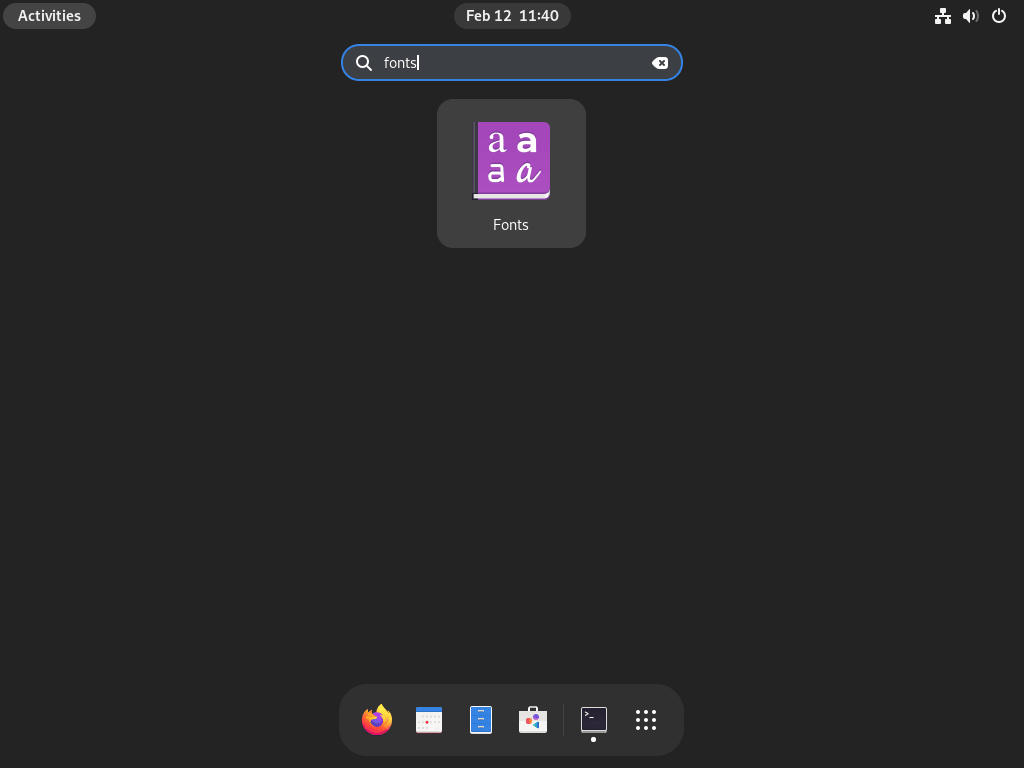
You can also check visually with the GNOME Fonts app. Search for “Fonts” in Activities to open it.
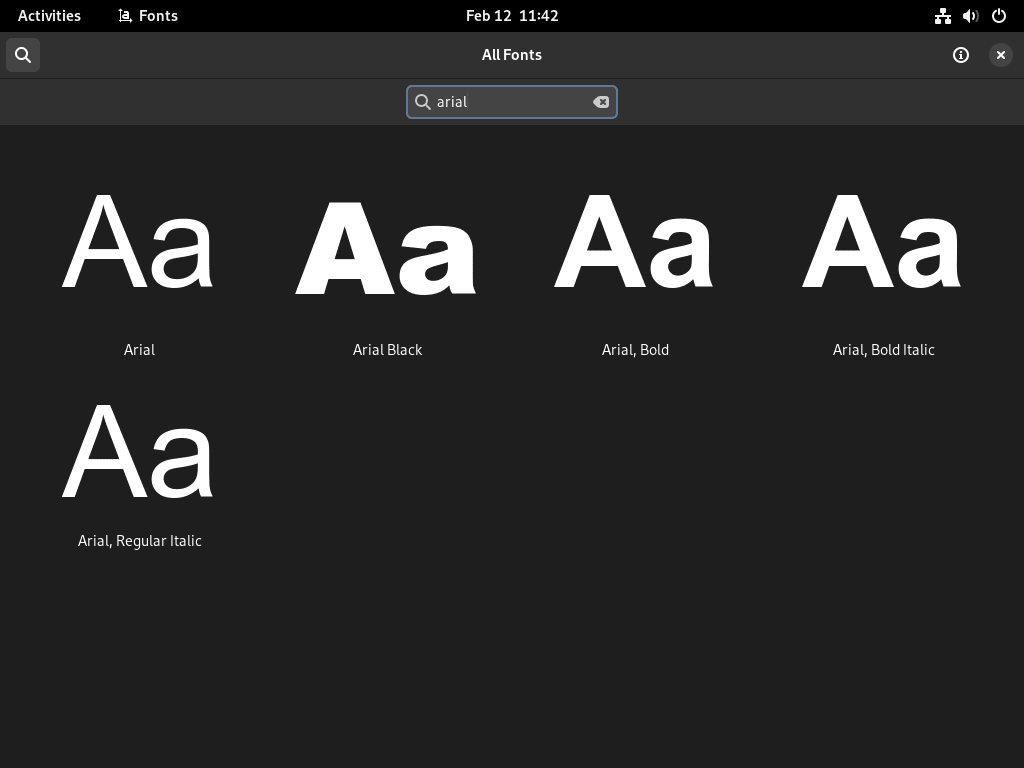
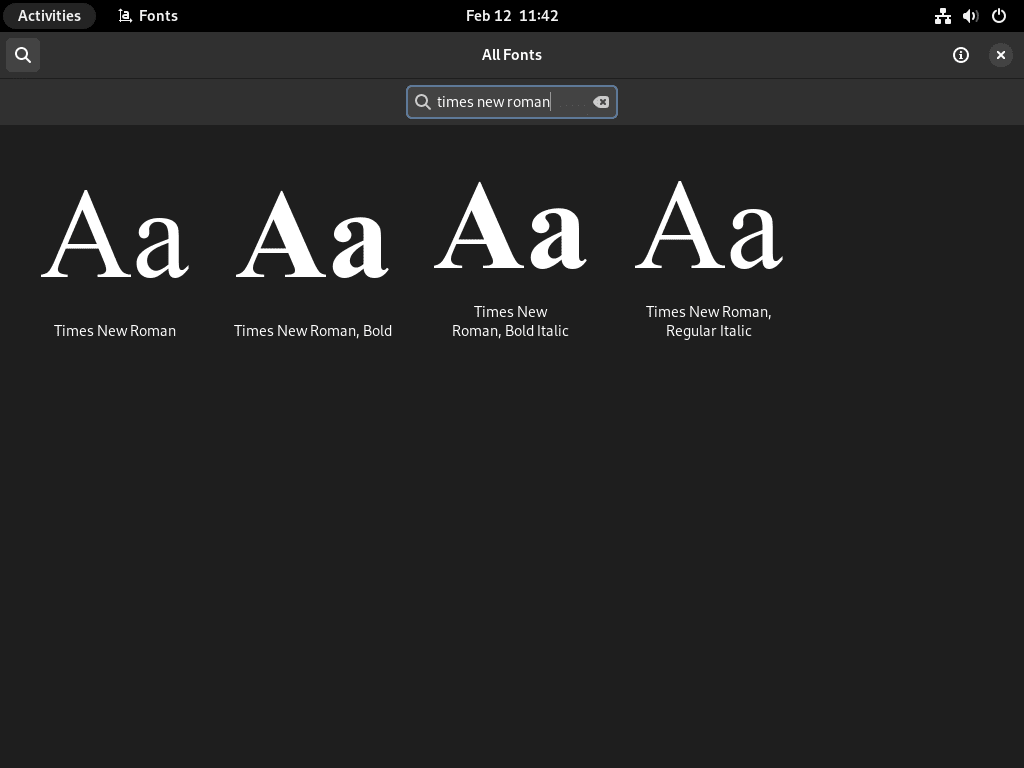
Search for “Arial,” “Calibri,” or “Times New Roman” to confirm these fonts appear in your system library. Each font family displays all its style variants (Regular, Bold, Italic, Bold Italic) separately.
Test Microsoft Fonts in LibreOffice on Fedora
Open LibreOffice Writer and check that Microsoft fonts actually show up in the font dropdown:
- Search for “LibreOffice Writer” in Activities and open the application.
- Type a sentence, highlight it, and select a Microsoft font (Arial, Calibri, or Times New Roman) from the font dropdown.
- Verify the text changes to the selected font without substitution warnings.
Documents that specify Microsoft fonts now render with the correct typefaces instead of Linux alternatives like Liberation Sans or Liberation Serif.
Install Complete Cambria Font Family on Fedora (Optional)
The installer grabs Cambria Bold, Italic, and Bold Italic, but skips Cambria Regular because the Regular weight is buried inside a TrueType Collection file (CAMBRIA.TTC) that the script does not unpack. If your documents need Cambria Regular or you want the newer 2010 font builds, pull them manually from the archived PowerPoint Viewer.
These fonts are extracted from Microsoft’s discontinued PowerPoint Viewer archived on Archive.org. While commonly used for personal document compatibility, the fonts remain Microsoft property. For commercial or enterprise use, verify your licensing obligations.
Cambria and Meiryo Fonts from PowerPoint Viewer
The Archive.org PowerPoint Viewer (63 MB) contains updated 2010 versions of fonts and includes:
- Cambria Regular (via CAMBRIA.TTC): the missing Regular style not extracted by msttcore-fonts-installer
- Cambria Math: included in the same TTC file, useful for mathematical documents
- Meiryo: Japanese fonts (Regular and Bold) for CJK document support
- Updated ClearType fonts: 2008-2010 versions with larger file sizes than the 2006 versions in msttcore-fonts-installer
Download and Install Cambria Fonts on Fedora
The cabextract utility should already be installed from the earlier steps. If not, install it:
sudo dnf install cabextractDownload the PowerPoint Viewer from Archive.org and verify its checksum:
cd /tmp
curl -o PowerPointViewer.exe -fsSL "https://archive.org/download/PowerPointViewer_201801/PowerPointViewer.exe"

# Verify the download integrity
EXPECTED="249473568eba7a1e4f95498acba594e0f42e6581add4dead70c1dfb908a09423"
ACTUAL=$(sha256sum PowerPointViewer.exe | cut -d' ' -f1)
if [ "$ACTUAL" = "$EXPECTED" ]; then
    echo "Checksum verified successfully"
else
    echo "ERROR: Checksum mismatch. Expected: $EXPECTED"
    echo "       Actual:   $ACTUAL"
    exit 1
fi
You should see “Checksum verified successfully.” If the checksum fails, delete the file and try again.
Extract the fonts from the cabinet archive:
cabextract -q PowerPointViewer.exe -F ppviewer.cab
cabextract -q ppviewer.cab -F '*.TTF' -F '*.TTC'
You may see a warning about “extra bytes at end of file” during extraction. This is expected and does not affect the font files.
Create a directory for the fonts in your home directory and move them into place:
mkdir -p ~/.local/share/fonts/microsoft
mv *.TTF *.TTC ~/.local/share/fonts/microsoft/
Installing fonts to ~/.local/share/fonts/ makes them available only to your user account, which is appropriate for fonts with licensing restrictions.
Update the font cache:
fc-cache -fVerify the complete Cambria font family is available:
fc-list | grep -i cambriaExpected output showing Regular style from the TTC file:
/home/username/.local/share/fonts/microsoft/CAMBRIA.TTC: Cambria:style=Regular
/home/username/.local/share/fonts/microsoft/CAMBRIA.TTC: Cambria Math:style=Regular
/home/username/.local/share/fonts/microsoft/CAMBRIAB.TTF: Cambria:style=Bold
/home/username/.local/share/fonts/microsoft/CAMBRIAI.TTF: Cambria:style=Italic
/home/username/.local/share/fonts/microsoft/CAMBRIAZ.TTF: Cambria:style=Bold Italic
Clean up the temporary files:
rm -f /tmp/PowerPointViewer.exe /tmp/ppviewer.cabTroubleshoot Microsoft Fonts Issues on Fedora
Most problems come from SourceForge being temporarily unreachable, the ClearType portion of the download failing silently, or DNF5 rejecting the package outright. Each scenario is covered below with the exact error you will see and how to fix it.
SourceForge Download Failures
If the installer fails during the font download phase, you see error messages like:
### Downloading andale32.exe from http://downloads.sourceforge.net/corefonts
Could not download andale32.exe
Failed to download andale32.exe from http://downloads.sourceforge.net/corefonts
This indicates SourceForge mirrors are temporarily unavailable. Verify your internet connection:
ping -c 3 sourceforge.netIf the network is reachable, wait a few minutes and retry by removing then reinstalling the package. The installer tries multiple mirror servers, so transient failures often resolve on retry:
sudo dnf remove msttcore-fonts-installer
sudo rpm -ivh --nodigest --nofiledigest msttcore-fonts-installer-2.6-1.noarch.rpm
ClearType Fonts Missing After Installation
If classic fonts (Arial, Times New Roman) are present but modern fonts (Calibri, Consolas) are missing, the PowerPointViewer.exe download likely failed during installation. Check for placeholder files:
ls -la /usr/share/fonts/msttcore/calibri.ttfIf the file size is only 7 bytes (showing “filler” content), the ClearType fonts failed to download. Remove and reinstall the package:
sudo dnf remove msttcore-fonts-installer
sudo rpm -ivh --nodigest --nofiledigest msttcore-fonts-installer-2.6-1.noarch.rpm
A successful installation shows Calibri.ttf at approximately 350 KB.
msttcore-fonts-installer “does not verify: no digest” Error
Attempting to install the package with DNF directly produces this error:
Transaction failed: Rpm transaction failed.
Warning: skipped OpenPGP checks for 1 package from repository: @commandline
  - package msttcore-fonts-installer-2.6-1.noarch does not verify: no digest
This confirms the package lacks DNF5-compatible digest signatures. Use the rpm -ivh --nodigest --nofiledigest installation method documented above. This is expected behavior for community packages not rebuilt with current tooling.
Fonts Not Appearing in Applications
If fonts do not appear in applications after installation, verify the font files exist:
ls /usr/share/fonts/msttcore/ | grep -E 'arial|times|calibri'Expected output:
arial.ttf
arialbd.ttf
ariali.ttf
calibri.ttf
calibrib.ttf
calibrii.ttf
times.ttf
timesbd.ttf
If files exist but applications do not show them, rebuild the font cache manually:
sudo fc-cache -fvThe output should include /usr/share/fonts/msttcore: caching, new cache contents: 56 fonts. Restart open applications to reload their font lists.
Remove Microsoft Fonts from Fedora
How you remove the fonts depends on which method you used to install them.
Remove msttcore-fonts-installer Package
DNF handles the cleanup. The package’s post-uninstall script deletes the font files from /usr/share/fonts/msttcore/ and rebuilds the cache automatically:
sudo dnf remove msttcore-fonts-installerVerify the fonts are removed:
fc-list | grep -iE 'Arial|Times|Calibri'This command should return no output. Applications will fall back to Liberation Sans (Arial substitute) and Liberation Serif (Times New Roman substitute) for documents that previously specified Microsoft fonts.
Optionally, remove dependency packages installed earlier if no other software requires them:
sudo dnf autoremoveRemove Archive.org Fonts
The Archive.org fonts sit in your home directory, so removal is a simple delete and cache refresh.
The following command permanently deletes all fonts in
~/.local/share/fonts/microsoft. If you added other fonts to this location, back them up first.
rm -rf ~/.local/share/fonts/microsoft
fc-cache -f
Verify the fonts are removed:
fc-list | grep -i cambriaThis command should return no results. Restart open applications to reload their font lists.
Frequently Asked Questions
No. Microsoft’s core fonts (Arial, Times New Roman, Calibri) are proprietary and cannot be distributed with Fedora. Fedora ships Liberation fonts as metrically compatible substitutes that preserve document layout, but visual differences remain. Installing Microsoft fonts through the msttcore-fonts-installer package resolves these rendering discrepancies.
Yes. The msttcore-fonts-installer package is recorded in the RPM database and persists through dnf system-upgrade to a new Fedora release. The font files in /usr/share/fonts/msttcore/ and user-installed fonts in ~/.local/share/fonts/ are not affected by system upgrades.
No. The msttcore-fonts-installer package downloads a fixed set of font files during installation and does not receive automatic updates. If a new version of the installer is released on SourceForge, you must manually download and install the updated RPM.
DNF5 on Fedora 41 and later enforces RPM digest checks that the msttcore-fonts-installer package does not include. The fix is to download the RPM with curl and install it with rpm -ivh --nodigest --nofiledigest instead of using dnf install.
Yes. Wine reads system fonts from /usr/share/fonts/, so fonts installed by msttcore-fonts-installer are available to Windows applications running under Wine without any extra configuration.
Yes. Install the dependencies with rpm-ostree install curl cabextract xorg-x11-font-utils fontconfig, reboot, then layer the font package with rpm-ostree install ./msttcore-fonts-installer-2.6-1.noarch.rpm and reboot again.
Conclusion
Arial, Times New Roman, Calibri, and the rest of the Microsoft font library are registered in your Fedora font cache. Documents and web pages that previously fell back to Liberation substitutes now render with the original typefaces. If you also run Wine on Fedora for Windows applications, these same fonts carry over automatically. For an alternative office suite that benefits from proper Microsoft font support, try OnlyOffice on Fedora.

That worked great. For other Windows fonts this didn’t install, I found a way to copy them from Windows to Linux, manually:
Copy from Windows (Direct Method):
If copying to the location in /usr, that needs to be done from the terminal.
Thanks for the feedback.
Thanks, worked well. The only hiccup was that it got stuck downloading PowerPointViewer.exe from sourgeforge.net for a while.
Trying to do this on Bazzite results in the following:
sudo rpm -ivh –nodigest –nofiledigest msttcore-fonts-installer-2.6-1.noarch.rpm
[sudo] password for [myusername]:
error: can’t create transaction lock on /usr/share/rpm/.rpm.lock (Success)
Thanks for reporting this, Blarg. Bazzite is an immutable Fedora Atomic variant, so
/usris read-only andrpmcannot create/usr/share/rpm/.rpm.lock, which triggers that error.Download the RPM as shown in the article, then layer it with
rpm-ostreeand reboot to apply the change:After reboot, the fonts should be in
/usr/share/fonts/msttcore/and available to applications.Hello, I can’t get the installation of the pre-requisite (curl cabextract xorg-x11-font-utils fontconfig) to work.
For some background, I’m trying it on Bazzite (Fedora Atomic)
ERROR: Feodra Atomic utilize rpm-ostree instead
Thanks for reporting this, Arthur. You are correct that the prerequisites command does not work on Bazzite or other Fedora Atomic variants (Silverblue, Kinoite, etc.). These immutable systems use
rpm-ostreeinstead ofdnffor base system packages.For Bazzite and Fedora Atomic systems, you have two options to install the Microsoft Fonts prerequisites:
Option 1: Layer packages with rpm-ostree (requires reboot)
After running that command, reboot your system to apply the layered packages. Then proceed with the font installation steps from the article.
Option 2: Install fonts to your user directory (no reboot needed)
Download the font installer RPM to your Downloads folder, then extract and install the fonts manually to your user font directory:
Note that the extraction script may require
cabextractto be available. If you encounter errors, layeringcabextractwith rpm-ostree is the most reliable approach. After fonts are installed, rebuild your font cache withfc-cache -fv.The article focuses on standard Fedora Workstation, but I will consider adding a note about Fedora Atomic variants for future readers.
Thank you very much that is very kind of you indeed. I am still getting acquainted with commands.
I managed to find an alternative way by copying over my Windows fonts .rtf files and by installing them using KDE options.
But the ‘rpm-ostree install’ instead of ‘dnf instal’ will come in handy. Have an excellent day.
doesn’t work december 2025, can’t install package
Thanks for reporting this, Joe. You were absolutely right. The article had the old DNF installation method that fails on Fedora 43 due to DNF5’s stricter package signature verification. The guide has been updated today with the working method.
The corrected installation uses two commands instead of one:
DNF5 in Fedora 43 rejects packages without proper digest signatures, so the installation requires using
rpmdirectly with the--nodigestand--nofiledigestflags. The fonts will install successfully and register with your system font cache. After installation, verify the fonts withfc-list | grep -i Arialto confirm they are available.Instructions were much easier than doing it by hand. Thanx
thanks worked for me
Worked perfectly. Thank you very much.
Thanks, there are no good tutorials to install the fonts on my Fedora. Post for those who do not have the app to check the font, run this command to install it “sudo dnf install gnome-font-viewer”
Thanks for sharing this, Fabian! That is a great tip for anyone running a minimal Fedora setup or a desktop environment that does not include the Fonts app by default.
If the Font Viewer is missing, install it with:
After installing
gnome-font-viewer, you can follow the steps in the “Verify via Fonts Application” section to check Arial, Verdana, Times New Roman, and the other Microsoft fonts visually. This is especially helpful alongside the terminal check withfc-list.