
Broken Word layouts, missing Arial, and unexpected font substitutions usually come down to one thing: Debian does not ship Microsoft’s core typefaces in the default main repository. To install Microsoft fonts on Debian for LibreOffice documents, shared office templates, and browser mockups, the simplest path is Debian’s ttf-mscorefonts-installer package, with an optional Calibri add-on for newer Office files.
Debian 13, Debian 12, and Debian 11 all work here. The main install only needs the contrib archive component for Arial, Times New Roman, Verdana, and Arial Black, then the later sections handle Calibri and Cambria, verification, troubleshooting, and clean removal.
Microsoft fonts are proprietary. Debian packages the installer script in
contrib, then downloads the font files during installation from SourceForge mirrors.
Install Microsoft Fonts on Debian
Start with the Microsoft Core Fonts package if you need the classic Windows families most documents still rely on. Add the PowerPoint Viewer fonts only when a file specifically needs Calibri, Cambria, Consolas, or the other post-Office 2007 families.
Install Microsoft Core Fonts on Debian
The ttf-mscorefonts-installer package lives in Debian contrib. You do not need non-free or non-free-firmware for this specific package, although our guide on how to enable contrib and non-free repositories on Debian covers the broader repository layout if you want the background.
The ttf-mscorefonts-installer package downloads and installs these Microsoft TrueType Core Fonts:
- Andale Mono
- Arial (including Bold, Italic, Bold Italic)
- Arial Black
- Comic Sans MS (including Bold)
- Courier New (including Bold, Italic, Bold Italic)
- Georgia (including Bold, Italic, Bold Italic)
- Impact
- Times New Roman (including Bold, Italic, Bold Italic)
- Trebuchet MS (including Bold, Italic, Bold Italic)
- Verdana (including Bold, Italic, Bold Italic)
- Webdings
Enable Debian contrib for Microsoft Fonts
Refresh your current package metadata before editing the Debian archive entries:
sudo apt updateThese commands use
sudofor system changes. If your account does not have sudo access yet, follow how to add a user to sudoers on Debian.
The ttf-mscorefonts-installer package only requires contrib. Use the command that matches your APT layout:
If your system uses a DEB822 file such as /etc/apt/sources.list.d/debian.sources, add contrib to the Components: line:
sudo sed -i '/^Components:/ {/\bcontrib\b/! s/^Components: main/Components: main contrib/}' /etc/apt/sources.list.d/debian.sourcesIf your system still keeps the Debian mirrors in /etc/apt/sources.list, add contrib there instead:
sudo sed -i '/^deb / {/\bcontrib\b/! s/ main/ main contrib/}' /etc/apt/sources.listBoth commands use sed to edit the active Debian source line in place. They keep any existing non-free or non-free-firmware entries intact and only insert contrib when it is missing. After editing the file, refresh APT and confirm the package is now available:
sudo apt update
apt-cache policy ttf-mscorefonts-installer
Expected output:
ttf-mscorefonts-installer:
  Installed: (none)
  Candidate: 3.8.x
  Version table:
     3.8.x 500
        500 http://deb.debian.org/debian [your-release]/contrib amd64 Packages
Debian 12 and Debian 13 currently show version
3.8.1. Debian 11 currently shows3.8. The release name in the repository URL matches your system codename, such asbullseye,bookworm, ortrixie.
Install ttf-mscorefonts-installer on Debian
Preseed the Microsoft EULA if you are installing over SSH or in automation. This avoids the interactive debconf screen that otherwise waits for a keyboard response:
echo "ttf-mscorefonts-installer msttcorefonts/accepted-mscorefonts-eula select true" | sudo debconf-set-selectionsThis writes the accepted EULA answer into Debian’s debconf database, so APT can finish without stopping for an interactive prompt later.
If you are sitting at a local desktop and want to read the license prompt first, skip the preseeding command and accept the EULA when Debian shows it.
Install the Microsoft Core Fonts package:
sudo apt install ttf-mscorefonts-installerAPT downloads the Microsoft cabinet files from SourceForge, extracts them into /usr/share/fonts/truetype/msttcorefonts/, and refreshes the font cache automatically. A successful install ends with output similar to:
Extracting cabinet: arial32.exe
  extracting Ariali.TTF
  extracting Arialbd.TTF
  extracting Arialbi.TTF
  extracting Arial.TTF
All done, no errors.
All fonts downloaded and installed.
Processing triggers for fontconfig (2.x.x) ...
Confirm the package installed correctly:
dpkg -l ttf-mscorefonts-installer | grep '^ii'Expected output:
ii ttf-mscorefonts-installer 3.8.x all Installer for Microsoft TrueType core fonts
Verify Microsoft Fonts on Debian
Check both fontconfig and the graphical font browser so you know the Microsoft families are visible to terminal tools and desktop apps.
Check Microsoft Fonts in the Debian Terminal
Most desktop Debian installs already have the fontconfig tools. If fc-match or fc-list is missing on a minimal system, install fontconfig first:
sudo apt install fontconfigfc-match asks fontconfig which file Debian will actually hand to an application when it requests a font family. It is the fastest way to tell whether you are getting the real Microsoft file or a fallback replacement.
Confirm that fontconfig resolves the Microsoft families correctly:
fc-match Arial
fc-match "Arial Black"
Expected output:
Arial.ttf: "Arial" "Regular"
Arial_Black.ttf: "Arial Black" "Regular"
If you want the actual file paths, list the Arial Black entries directly. The grep -i filter keeps the output focused on Arial Black and ignores letter case.
fc-list | grep -i "Arial Black"Example output:
/usr/share/fonts/truetype/msttcorefonts/ariblk.ttf: Arial Black:style=Regular,Normal
/usr/share/fonts/truetype/msttcorefonts/Arial_Black.ttf: Arial Black:style=Regular,Normal
If fc-match resolves to LiberationSans, DejaVuSans, or another fallback family instead, Debian is still using substitute fonts and the cache needs rebuilding.
Check Microsoft Fonts in the Fonts Application
Open the Fonts application from the applications menu, then search for Arial or Times New Roman. GNOME Tweaks on Debian can browse the same installed families if you already use it for desktop tuning.
Type Arial into the search bar to confirm one of the most common Microsoft families appears with its preview and style variants:
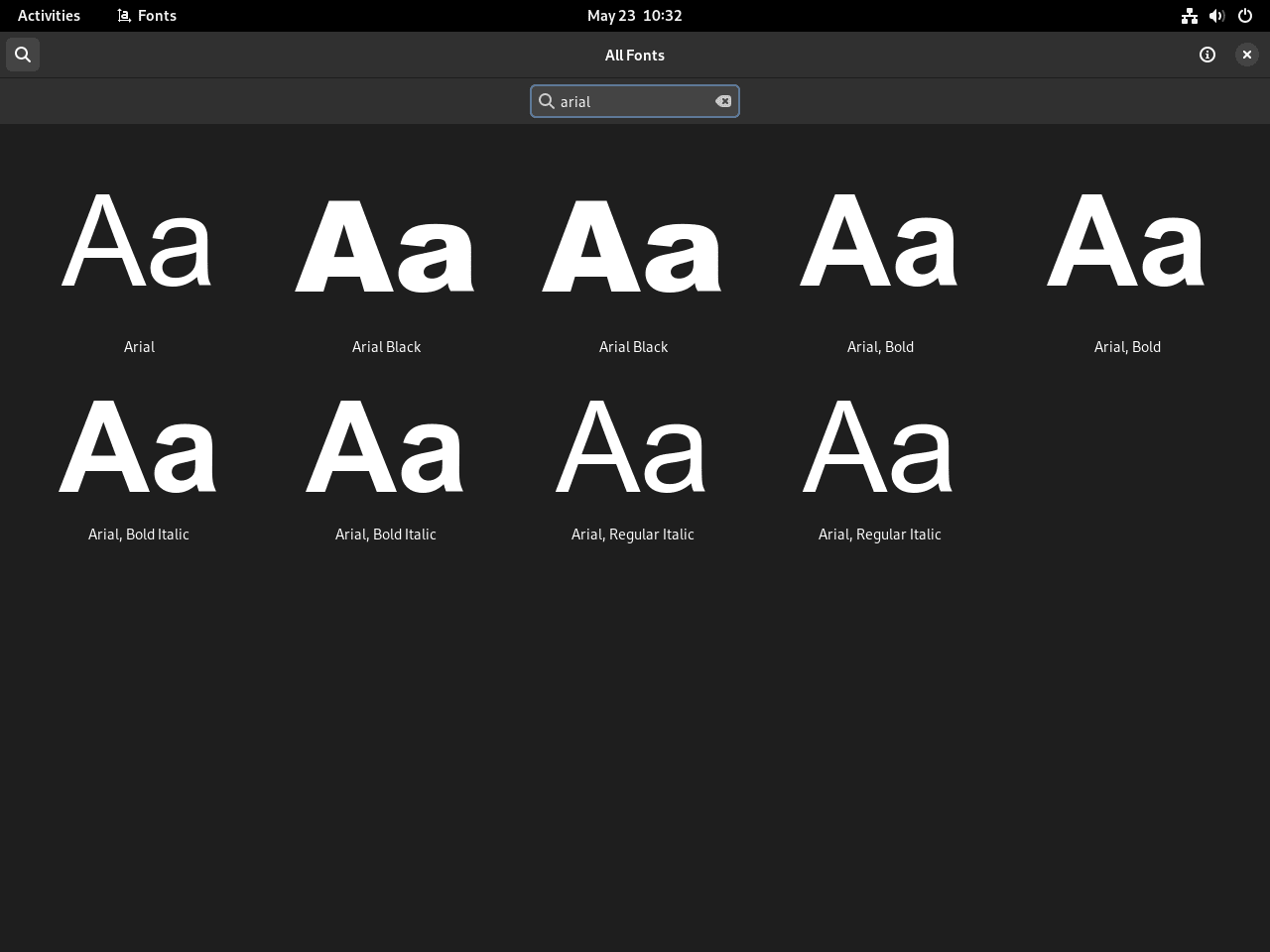
A visible preview for Arial, Times New Roman, or Arial Black confirms the fonts are available to GUI applications such as LibreOffice on Debian, Firefox on Debian, and GIMP on Debian.
Install Modern Microsoft Fonts on Debian (Calibri, Cambria, Consolas)
The core package handles the older Windows staples, but many current Office files still expect Calibri, Cambria, and Consolas. PowerPoint Viewer was an official Microsoft release that shipped those fonts, and Archive.org still hosts a copy.
These fonts still belong to Microsoft. The method works well for personal document compatibility, but commercial or enterprise use should follow your own licensing review.
Microsoft Fonts Included in PowerPoint Viewer
The PowerPoint Viewer includes the ClearType font collection introduced with Windows Vista and Office 2007:
- Calibri: the default document font in Microsoft Office since 2007
- Cambria: a serif font designed for on-screen reading and headings
- Consolas: a monospace font popular for programming and code
- Candara: a humanist sans-serif font
- Constantia: a serif font with wedge-shaped serifs
- Corbel: a sans-serif font designed for on-screen display
Download and Install the PowerPoint Viewer Fonts
Install the two helper tools first. cabextract opens Microsoft’s cabinet archives, while wget pulls the viewer executable into the current directory:
sudo apt install cabextract wgetDownload the archive with wget, then confirm the checksum before extracting anything:
cd /tmp
wget https://archive.org/download/PowerPointViewer_201801/PowerPointViewer.exe
sha256sum PowerPointViewer.exe
Expected output:
249473568eba7a1e4f95498acba594e0f42e6581add4dead70c1dfb908a09423 PowerPointViewer.exe
If the hash matches, extract the font cabinet:
cabextract PowerPointViewer.exe -F ppviewer.cab
cabextract ppviewer.cab -F '*.TTF' -F '*.TTC'
The first command opens the viewer executable and pulls out ppviewer.cab. The second opens that cabinet and extracts the actual font files.
You may see ppviewer.cab: WARNING; possible 5968 extra bytes at end of file. during extraction. That warning is expected for this archive and does not affect the font files. The extraction should look like:
Extracting cabinet: PowerPointViewer.exe
  extracting ppviewer.cab

All done, no errors.
Extracting cabinet: ppviewer.cab
  extracting CALIBRI.TTF
  extracting CALIBRIB.TTF
  extracting CAMBRIA.TTC
  extracting CAMBRIAB.TTF
  extracting CANDARA.TTF
  extracting CONSOLA.TTF
Move the extracted fonts into your local font directory, rebuild the cache, and clean up the temporary files:
mkdir -p ~/.local/share/fonts/microsoft
mv *.TTF *.TTC ~/.local/share/fonts/microsoft/
fc-cache -f
rm -f /tmp/PowerPointViewer.exe /tmp/ppviewer.cab
Verify the installation by checking for Calibri:
fc-list | grep -i calibri | head -n 4Expected output:
/home/username/.local/share/fonts/microsoft/CALIBRI.TTF: Calibri:style=Regular
/home/username/.local/share/fonts/microsoft/CALIBRIB.TTF: Calibri:style=Bold
/home/username/.local/share/fonts/microsoft/CALIBRII.TTF: Calibri:style=Italic
/home/username/.local/share/fonts/microsoft/CALIBRIZ.TTF: Calibri:style=Bold Italic
Alternative: Use Liberation Fonts on Debian
If Microsoft’s license terms are a non-starter, Liberation fonts are the practical fallback. They keep widths, line breaks, and pagination close to the Microsoft originals, which is usually enough to stop Office documents from coming apart.
The package name changes across Debian releases even though the font families stay the same:
# Debian 13
sudo apt install fonts-liberation

# Debian 12 or Debian 11
sudo apt install fonts-liberation2
Debian 12 and Debian 11 still ship fonts-liberation2 as the direct Liberation 2 package. Debian 13 folds that content into fonts-liberation and keeps fonts-liberation2 only as a transitional dummy package.
Liberation fonts are metric-compatible with their Microsoft counterparts, so document layouts stay close even though the actual letterforms differ slightly:
| Microsoft Font | Liberation Equivalent | Compatibility |
|---|---|---|
| Arial | Liberation Sans | Metric-compatible |
| Times New Roman | Liberation Serif | Metric-compatible |
| Courier New | Liberation Mono | Metric-compatible |
Verify the Liberation families are available:
fc-match "Liberation Sans"
fc-match "Liberation Serif"
Expected output:
LiberationSans-Regular.ttf: "Liberation Sans" "Regular"
LiberationSerif-Regular.ttf: "Liberation Serif" "Regular"
LibreOffice and other desktop apps usually substitute Liberation automatically. For pixel-perfect visual matching, the Microsoft Core Fonts remain the better fit.
Compare Microsoft Font Options on Debian
If you just want the short version, this table lays out the trade-offs quickly:
| Method | Fonts Covered | Extra Requirement | Best For |
|---|---|---|---|
| ttf-mscorefonts-installer | Arial, Arial Black, Times New Roman, Verdana, Courier New, Georgia, Comic Sans MS, Impact, Trebuchet MS, Webdings, Andale Mono | Enable Debian contrib | Most readers who need strong document compatibility |
| PowerPoint Viewer extraction | Calibri, Cambria, Consolas, Candara, Constantia, Corbel | Download and unpack the archived viewer manually | Office 2007+ documents that rely on newer Microsoft defaults |
| Liberation fonts | Liberation Sans, Liberation Serif, Liberation Mono | Use fonts-liberation on Debian 13 or fonts-liberation2 on Debian 12/11 | Readers who want metric-compatible open-source replacements |
- Use
ttf-mscorefonts-installerif you mainly want Word, Excel, or PowerPoint files to stop substituting classic Windows fonts. - Add the PowerPoint Viewer fonts when documents still call for Calibri, Cambria, or Consolas after the core package is installed.
- Choose Liberation fonts when you want compatible spacing without accepting Microsoft’s license terms.
For most Debian systems, install the core Microsoft package first, then add the PowerPoint Viewer fonts only when a document still asks for Calibri, Cambria, or Consolas.
Remove Microsoft Fonts from Debian
Remove PowerPoint Viewer Fonts from Debian
The PowerPoint Viewer fonts live only in your user profile, so removing them is just a matter of deleting the local font directory and refreshing the cache:
The following command permanently deletes everything in
~/.local/share/fonts/microsoft. If you stored any other custom fonts there, move them somewhere safe first.
rm -rf ~/.local/share/fonts/microsoft
fc-cache -f
Verify the user-level Office fonts are gone:
fc-list | grep -i calibriExpected output:
(no output)
No output means the PowerPoint Viewer fonts were removed successfully.
Remove ttf-mscorefonts-installer from Debian
Purge the package if you no longer need the classic Microsoft core fonts. Debian removes the downloaded files and refreshes fontconfig during the purge:
sudo apt purge ttf-mscorefonts-installer
sudo apt autoremove
Expected output:
Removing ttf-mscorefonts-installer (3.8.x) ...
Removing the downloaded fonts...
Processing triggers for fontconfig (2.x.x) ...
Verify the Microsoft families no longer resolve:
fc-list | grep -i "Arial Black\|Calibri"Expected output:
(no output)
No output means the Microsoft fonts are gone and Debian is back to its fallback families.
Revert Debian contrib Changes on Debian
If you enabled contrib only for this package and do not want to keep that archive component available, remove it again after the fonts are installed or after you purge them.
For DEB822 source files such as /etc/apt/sources.list.d/debian.sources:
sudo sed -i '/^Components:/ { s/ contrib//; s/ */ /g; s/ $//; }' /etc/apt/sources.list.d/debian.sourcesFor legacy /etc/apt/sources.list layouts:
sudo sed -i '/^deb / { s/ contrib//; s/ */ /g; s/ $//; }' /etc/apt/sources.listRefresh APT and confirm the package is no longer available:
sudo apt update
apt-cache policy ttf-mscorefonts-installer
Expected output:
ttf-mscorefonts-installer:
  Installed: (none)
  Candidate: (none)
Troubleshoot Microsoft Font Installation on Debian
If the Microsoft fonts installer fails or fonts do not appear after installation, work through these diagnostic steps to identify and resolve the issue.
ttf-mscorefonts-installer Hangs or Fails
Symptom: The installation process stalls during download with no progress indicators, or APT reports download failures.
Diagnosis: ttf-mscorefonts-installer pulls the actual font archives from SourceForge during package setup. Mirror redirects, captive portals, or filtered outbound HTTPS traffic can break that handoff even when apt update works normally. Check the download path directly with wget --spider, which tests the URL without saving the file:
wget --spider https://downloads.sourceforge.net/corefonts/arial32.exeExpected output:
HTTP request sent, awaiting response... 301 Moved Permanently
HTTP request sent, awaiting response... 302 Found
HTTP request sent, awaiting response... 200 OK
Length: 554208 (541K) [application/octet-stream]
Remote file exists.
Fix: If that request fails, purge the partial install and retry when the mirror path works again. On restricted networks, rerunning the package configuration can be enough after connectivity is restored:
sudo apt purge ttf-mscorefonts-installer
sudo apt install ttf-mscorefonts-installer
sudo dpkg-reconfigure ttf-mscorefonts-installer
Verification: Once the mirror responds normally, fontconfig should resolve the installed family again:
fc-match ArialExpected output:
Arial.ttf: "Arial" "Regular"
Microsoft Fonts Missing in Debian Applications
Symptom: Microsoft fonts do not appear in application font menus (LibreOffice, GIMP, Inkscape) even though installation succeeded.
Diagnosis: Desktop apps read fontconfig caches, not just the files on disk. If the fonts were installed while LibreOffice or another app was already open, or the cache rebuild did not finish cleanly, the menu can stay stale. Confirm the package actually placed the files where Debian expects them:
ls /usr/share/fonts/truetype/msttcorefonts | grep -Ei 'arial|times|verdana'Expected output:
Arial.ttf
Arial_Bold.ttf
Arial_Black.ttf
Times_New_Roman.ttf
Verdana.ttf
If the files are present, rebuild the cache and then fully close any app that still shows the old list.
Fix: Rebuild the system-wide font cache to register the newly installed fonts:
sudo fc-cache -f -vThe -f flag forces a full rebuild, and -v shows each directory as it is processed. After that, restart any open applications so they refresh their font menus.
Verification: Query the cache directly for one of the families that often goes missing in menus:
fc-match "Arial Black"Expected output:
Arial_Black.ttf: "Arial Black" "Regular"
ttf-mscorefonts-installer EULA Prompt Issues
Symptom: Installation hangs on a blue debconf screen in headless or non-interactive environments (SSH sessions without pseudo-terminal, Docker containers, automation scripts).
Diagnosis: The installer requires interactive EULA acceptance unless preseeded. In non-interactive environments, the debconf prompt cannot be answered, causing the installation to hang indefinitely.
Fix: Cancel the stalled installation, purge the package, preseed the EULA acceptance, and reinstall:
sudo apt purge ttf-mscorefonts-installer
echo "ttf-mscorefonts-installer msttcorefonts/accepted-mscorefonts-eula select true" | sudo debconf-set-selections
sudo apt install ttf-mscorefonts-installer
Verification: The installation should proceed without prompts. Confirm successful installation:
dpkg -l ttf-mscorefonts-installer | grep '^ii'Expected output showing installed status:
ii ttf-mscorefonts-installer 3.8.x all Installer for Microsoft TrueType core fonts
The ii prefix confirms the package installed cleanly and the EULA prompt is no longer blocking package configuration.
ttf-mscorefonts-installer Has No Installation Candidate
Symptom: Running sudo apt install ttf-mscorefonts-installer returns E: Package 'ttf-mscorefonts-installer' has no installation candidate.
Diagnosis: The contrib archive component is not enabled in your APT sources. The ttf-mscorefonts-installer package resides in contrib, not main, so a default Debian installation will not find it.
Fix: Add contrib to the Debian source file you use, then refresh the package metadata and check the candidate again. You do not need non-free for this package.
sudo apt update
apt-cache policy ttf-mscorefonts-installer
Verification: The apt-cache policy output should list the package with a version number and a repository URL containing contrib:
ttf-mscorefonts-installer:
  Installed: (none)
  Candidate: 3.8.x
  Version table:
     3.8.x 500
        500 http://deb.debian.org/debian [your-release]/contrib amd64 Packages
Frequently Asked Questions
Yes. Arial Black is part of the Microsoft Core Fonts set. After installation, fc-match "Arial Black" usually resolves to Arial_Black.ttf, while fc-list may also show the legacy ariblk.ttf filename in the same directory.
ttf-mscorefonts-installer only adds the classic Microsoft Core Fonts such as Arial, Times New Roman, and Verdana. Calibri, Cambria, and Consolas are not part of that package, so newer Office documents can still substitute fonts until you install the PowerPoint Viewer font set or use compatible alternatives.
You only need the contrib component. The ttf-mscorefonts-installer package lives in contrib because the installer is free software but it downloads proprietary Microsoft font files during setup. The non-free component is not required for this package.
Debian 13 uses fonts-liberation as the current package. Debian 12 and Debian 11 still ship fonts-liberation2 as the direct Liberation 2 package. Debian 13 keeps fonts-liberation2 only as a transitional dummy package, so use the package name that matches your release.
Conclusion
Microsoft fonts on Debian are now ready for LibreOffice documents, browser previews, and shared Office files without the usual layout damage. If that work lives inside a broader Microsoft workflow, pair the font setup with Wine on Debian or Microsoft Edge on Debian so rendering stays predictable from download to edit.

Gracias! funcionó perfecto.
Thank you both Joshua James for this article and Gerard for the comment on the comparison between the MS and the free fonts! This article and comments made my work on my old Macbook running AntiX much easier 🙂
Thanks, it worked perfectly for me
Thank you for the feedback.
Joshua,
Personally, I would not recommend to a new Linux user to install Microsoft Fonts for at least 3, maybe 4 reasons… which I do not have time to explain here.
Linux has capability to choose a similar and font-metric compatible alternative to unknown or uninstalled font. You mentioned Times New Roman, Arial, and Verdana. So, on my system:
$ fc-match Verdana
NotoSans-Regular.ttf: “Noto Sans” “Regular”
$ fc-match Arial
LiberationSans-Regular.ttf: “Liberation Sans” “Regular”
$ fc-match “Times New Roman”
LiberationSerif-Regular.ttf: “Liberation Serif” “Regular”
and when you visit wikipedia pages on these fonts, you will be able to read:
”
This means that the characters of each Liberation font are identical in width and height to those of each corresponding Monotype font. It allows the Liberation fonts to serve as free, open-source replacements of the proprietary Monotype fonts without changing the document layout. (…)
Liberation Serif is metrically identical to Times New Roman.
”
https://en.wikipedia.org/wiki/Liberation_fonts#Characteristics
If you click the “Comparison of Liberation Sans with Arial” link, you will even be able to view each glyph of each font and see how similar they are.
If you do a search with “open-source metric-compatible font”, you will find several equivalence between free and non-free fonts.
Websites and websites creators over-excessively and too frequently want to force particular and specific fonts (thanks to embedding webfonts: woff and woff2 types) for unnecessary reasons. This increases download, process and rendering times and bandwidth.
Thanks for sharing this perspective, Gérard. You raise valid points about Liberation fonts and metric compatibility. They absolutely work well as substitutes for many users.
This guide targets a specific scenario: users who need exact font matching for professional document workflows, publisher templates, or cross-platform collaboration where clients or employers explicitly require Microsoft fonts. When opening .docx files with embedded formatting or working with design specs that reference Arial by name, Liberation Sans renders similarly but metadata mismatches can trigger substitution warnings in LibreOffice or formatting shifts in PDF exports.
Your
fc-matchoutput demonstrates fontconfig’s fallback behavior perfectly. Liberation fonts are the system default substitutes. That works seamlessly for personal documents and general browsing. However, enterprise environments, legal documentation, or collaborative editing often mandate exact font matching to preserve layout fidelity across Windows, Linux, and macOS systems.The guide includes removal instructions precisely because this isn’t a universal recommendation. Users who don’t need strict cross-platform font consistency should absolutely stick with Liberation fonts or other open alternatives. For those who do need Microsoft fonts (law firms exchanging court filings, marketing teams matching brand guidelines, developers testing web rendering against Windows defaults), the
ttf-mscorefonts-installerpackage provides a straightforward path.Appreciate you highlighting the metric-compatible alternatives. Readers evaluating whether they truly need proprietary fonts will benefit from understanding Liberation fonts cover most use cases without the licensing overhead.