
Ubuntu 22.04 LTS (Jammy Jellyfish) offers five years of standard support until June 2027, making it a reliable choice for users upgrading from Ubuntu 20.04 LTS. This release brings GNOME 42, an updated Linux kernel with improved hardware compatibility, and continued security updates through the support window. By the end of this guide, you will have successfully upgraded your system to Ubuntu 22.04 LTS using the graphical Update Manager.
Ubuntu 26.04 LTS (Resolute Raccoon) is now the current LTS release as of 2026. Users on 22.04 LTS should plan to upgrade to Ubuntu 24.04 LTS before targeting 26.04 LTS, as Ubuntu only supports direct upgrades between consecutive LTS releases.
Before proceeding with any major system upgrade, create a full backup of your important data. System upgrades modify core packages and can occasionally encounter issues. Consider using Timeshift to create a system snapshot that allows you to restore your system if something goes wrong during the upgrade process.
Update Ubuntu Before Upgrading to Ubuntu 22.04
Preparing Your System for Upgrade
To ensure a smooth and conflict-free upgrade to Ubuntu 22.04, it’s critical to start by updating your current system. This step is essential to align your system with the latest updates and minimize potential issues during the upgrade process.
Updating Package Lists and Upgrading Packages
Execute the following command to update the package lists for upgrades:
sudo apt updateThis command fetches the list of available updates from configured repositories. It’s a crucial step to ensure that your system knows about all the latest available software.
Next, proceed to upgrade all your installed packages to their latest versions with:
sudo apt upgrade -yThe -y flag automatically confirms the installation of updates, streamlining the process. This upgrade step is vital to ensure that all your current software is up-to-date and provides a stable foundation for the upgrade to Ubuntu 22.04.
Performing a Distribution Upgrade
As an optional but recommended step, run the following command:
sudo apt dist-upgradeThe dist-upgrade command intelligently handles changes with new versions of packages and resolves any conflicts. It’s an advanced version of the upgrade command, capable of smartly managing package dependencies. This step is particularly important for a major system upgrade, as it ensures that all packages are in their best possible state, aligning with the system’s requirements for Ubuntu 22.04 LTS.
Run the Upgrade Manager to Proceed to Ubuntu 22.04
Initiating the Upgrade Process
To begin upgrading to Ubuntu 22.04, open a terminal window. You can find the Terminal application by searching for “Terminal” in the Activities menu. Once the terminal is open, type the following command:
sudo update-managerThis command launches the Update Manager, which manages Ubuntu updates and upgrades.
Using the -d Flag for LTS Upgrades
If the Update Manager does not show an upgrade option, use the -d flag to prompt it to check for the next available release:
sudo update-manager -dThe -d flag instructs the Update Manager to search for newer releases. On LTS systems using the default LTS-to-LTS upgrade setting, this shows the next available LTS version. If you are running 20.04 LTS, this command should display the option to upgrade to 22.04 LTS.
Ensuring Update Manager Core is Installed
If the Update Manager fails to launch, verify that you have the update-manager-core package. Ubuntu includes this package by default, but you can install it manually if necessary:
sudo apt install update-manager-core -yThe -y flag automatically confirms the installation, making the process smoother.
Upgrade Prompt
With a stable internet connection, the Update Manager window should appear within a minute.
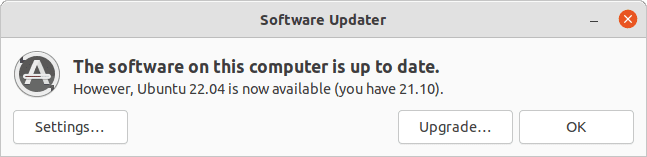
Once the window opens, click on the Upgrade… button to start the upgrade process.
Troubleshooting the Upgrade Prompt
If the upgrade prompt does not appear, several factors may be preventing it. First, ensure your system is fully updated by running sudo apt update && sudo apt upgrade before trying again. The Update Manager requires all current packages to be up-to-date before offering a new release.
Additionally, check that your release upgrade settings use LTS upgrades. Open the file /etc/update-manager/release-upgrades and verify the Prompt line shows lts:
cat /etc/update-manager/release-upgrades[DEFAULT] Prompt=lts
If Prompt shows never, the system will not offer upgrades. Change it to lts to receive LTS upgrade notifications.
Upgrade to Ubuntu 22.04 Jammy Jellyfish
Step 1: Reviewing Release Notes
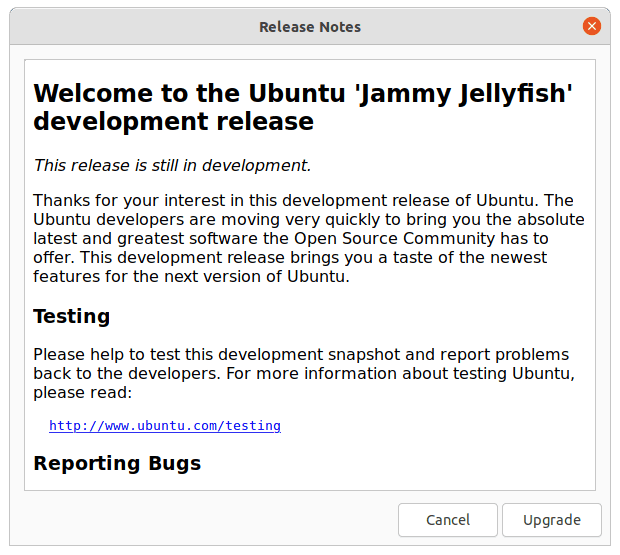
The upgrade process begins with the release notes. You can read through them or proceed directly by clicking the Upgrade button.
Step 2: Confirming Upgrade Details
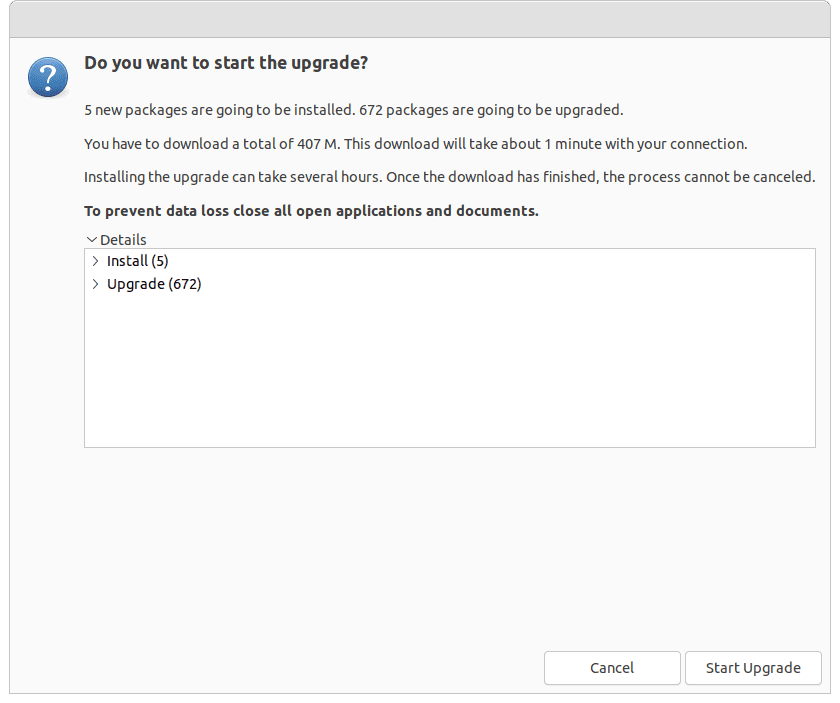
After moving past the release notes, you will encounter a screen detailing the upgrade’s specifics. This includes information about new installations, obsolete packages, and updates. Review this information carefully to understand what changes the upgrade will make to your system.
To start the upgrade, click Start the Upgrade.
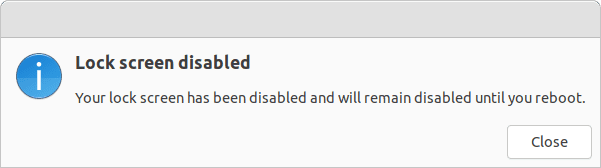
Disabling Screen Lock Notification
During the upgrade, you will receive a notification indicating that Ubuntu has disabled the screen lock. This prevents interruptions during the upgrade process.
Step 3: Removing Obsolete Packages
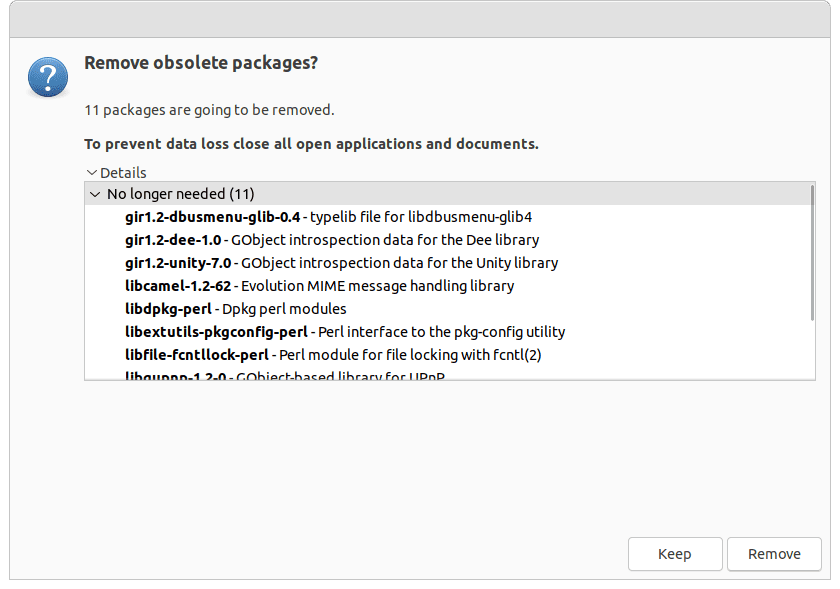
Upon completing the upgrade, you will see a prompt asking whether to remove old packages that you no longer need. Most users should select Remove. However, if you have specific reasons to retain these packages, choose Keep.
Step 4: Completing the Installation
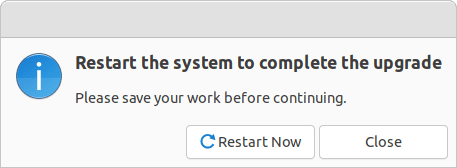
After the package removal decision, the upgrade will finalize. To complete the process, restart your system by clicking Restart Now.
Step 5: Verifying the Upgrade
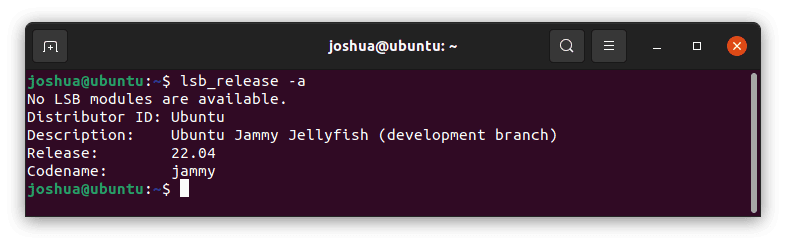
Once your system reboots, Ubuntu 22.04 Jammy Jellyfish should be operational. To verify the upgrade, open the terminal by searching for “Terminal” in the Activities menu and run:
lsb_release -aThis command confirms the successful installation of Ubuntu 22.04 Jammy Jellyfish. The output should display version information similar to the following:
Distributor ID: Ubuntu
Description:    Ubuntu 22.04.5 LTS
Release:        22.04
Codename:       jammy
Optional – Remove Old Obsolete Packages From Ubuntu 22.04
Cleaning Up Post-Upgrade
If you chose to keep obsolete packages during the upgrade, you can remove them later once you have confirmed everything works correctly. Removing these outdated packages helps keep your system efficient and frees up disk space.
Using the Autoremove Command
To clean your system, use the following command:
sudo apt autoremove --purgeThis command removes packages that APT automatically installed as dependencies but that your system no longer requires. The --purge option also removes associated configuration files, which helps free up additional disk space.
Conclusion
You have successfully upgraded to Ubuntu 22.04 LTS Jammy Jellyfish, which provides standard support until June 2027. After using your upgraded system, regularly run sudo apt update && sudo apt upgrade to receive security patches and bug fixes. When you are ready for the next LTS release, follow the same upgrade process to move to Ubuntu 24.04 LTS, and eventually to Ubuntu 26.04 LTS for continued long-term support.