

Zoom is not available in Ubuntu’s default APT repositories, but it runs natively on Ubuntu as a desktop client for video meetings, webinars, and screen sharing. You can install Zoom on Ubuntu through three methods covered below, each with different approaches to updates, system integration, and sandboxing.
The commands below work identically across Ubuntu 26.04, 24.04, and 22.04 LTS releases. After installation, Zoom will be ready for video calls, with instructions for launching, updating, and removing the client included.
Install Zoom on Ubuntu
Three installation paths exist, each with different strengths in update frequency, system integration, and disk usage.
| Method | Channel | Version | Updates | Best For |
|---|---|---|---|---|
| .deb Package | Zoom Downloads | Latest stable | Manual re-download and reinstall | Users who prefer manual control and minimal disk usage |
| Snap | Snapcraft | Community repack | Automatic via Snap daemon | Users who want hands-off automatic updates |
| Flatpak | Flathub | Latest stable (community wrapper) | Automatic via Flatpak | Users prioritizing application sandboxing and isolation |
For most users, the .deb method is recommended because it provides official vendor packages directly from Zoom with full control over when updates happen. Snap offers automatic updates but uses an unofficial community repack (maintained by Oliver Grawert) that may lag behind official releases. Flatpak runs Zoom in a secure sandbox, isolating it from system files, which is ideal for security-conscious users but uses more disk space.
Method 1: Install Zoom on Ubuntu via .deb Package
Update Ubuntu Before Zoom Installation
Update your system first to prevent package conflicts and ensure all dependencies are current:
sudo apt update && sudo apt upgradeThis guide uses
sudofor commands that need root privileges. If your user is not in the sudoers file yet, follow the guide on how to add a new user to sudoers on Ubuntu.
Download the Zoom .deb Package
Zoom is not available in Ubuntu’s default repositories, so you download the .deb package directly from Zoom’s servers. This gives you the latest version with manual control over updates.
Zoom only publishes a 64-bit .deb package. On ARM or 32-bit systems, use the Snap or Flatpak builds or the web client instead.
Download the package using wget on Linux. The -O flag (capital letter O, not zero) specifies the output filename:
wget -O zoom_amd64.deb https://zoom.us/client/latest/zoom_amd64.debThe download saves to your current directory as zoom_amd64.deb.
Install Zoom via APT
With the .deb file downloaded, install it using APT so dependencies resolve automatically:
sudo apt install ./zoom_amd64.debVerify the installed Zoom package version:
dpkg -s zoom | grep VersionVersion: 6.7.5.6891
Method 2: Install Zoom on Ubuntu via Snap
Snap delivers automatic background updates without user intervention, making it a hands-off management option. Ubuntu includes Snap by default on standard desktop and server installations.
The Snap version is a community repack maintained by Oliver Grawert, not an official Zoom build. It typically lags behind official releases by one or more versions. If you prefer vendor-provided packages, use the .deb method instead.
If Snap is missing (minimal installations, WSL, or containers), install it first:
sudo apt install snapdInstall Zoom from the Snap Store:
sudo snap install zoom-clientVerify the Zoom Snap installation:
snap info zoom-client | grep installedinstalled: 6.6.11.6052 (275) 507MB -
Method 3: Install Zoom on Ubuntu via Flatpak
Flatpak runs Zoom in a sandboxed environment, isolating it from your system files for enhanced security. This method is ideal for security-focused users or those who prefer application isolation.
Flatpak is not pre-installed on Ubuntu. If you have not set it up yet, follow our install Flatpak on Ubuntu guide for detailed setup including Flathub configuration, then return here.
For a quick setup, install Flatpak and the GNOME Software plugin:
sudo apt install flatpak gnome-software-plugin-flatpakAdd the Flathub Zoom Repository
Flathub is the repository hosting Flatpak applications. Add it to your system (only needed once per machine) with:
sudo flatpak remote-add --if-not-exists --system flathub https://flathub.org/repo/flathub.flatpakrepoThis adds Flathub to your Flatpak configuration. Install Zoom system-wide:
sudo flatpak install --system flathub us.zoom.Zoom -yVerify the Zoom Flatpak installation using grep to filter output:
flatpak list | grep -i zoomZoom us.zoom.Zoom stable system
The Flathub Zoom package is a community wrapper, not an official Zoom build. It may lag slightly behind the .deb version.
Launch Zoom on Ubuntu
Launch Zoom from the terminal using the command that matches your installation method:
| Method | Launch Command |
|---|---|
| .deb package | zoom |
| Snap | snap run zoom-client |
| Flatpak | flatpak run us.zoom.Zoom |
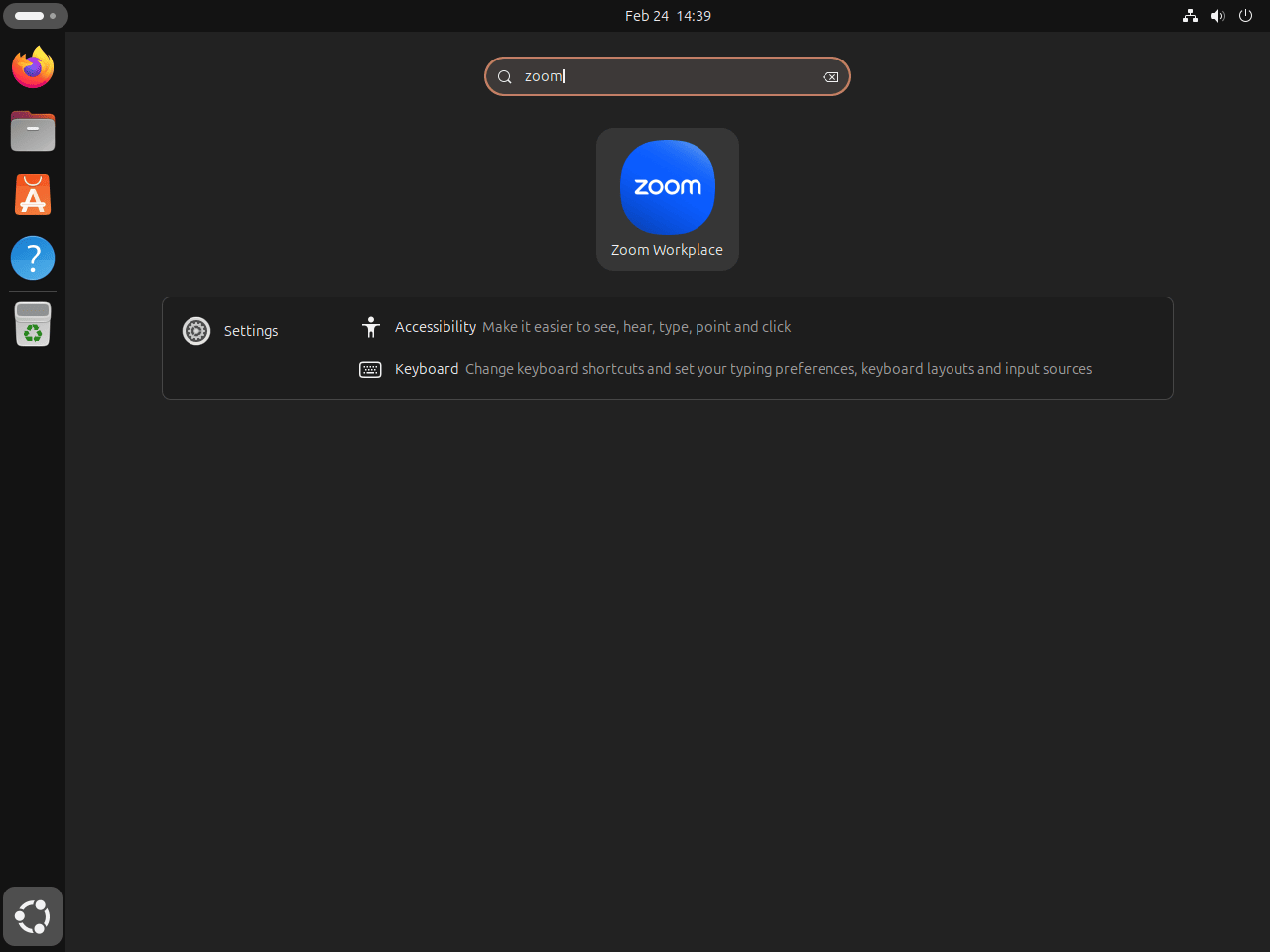
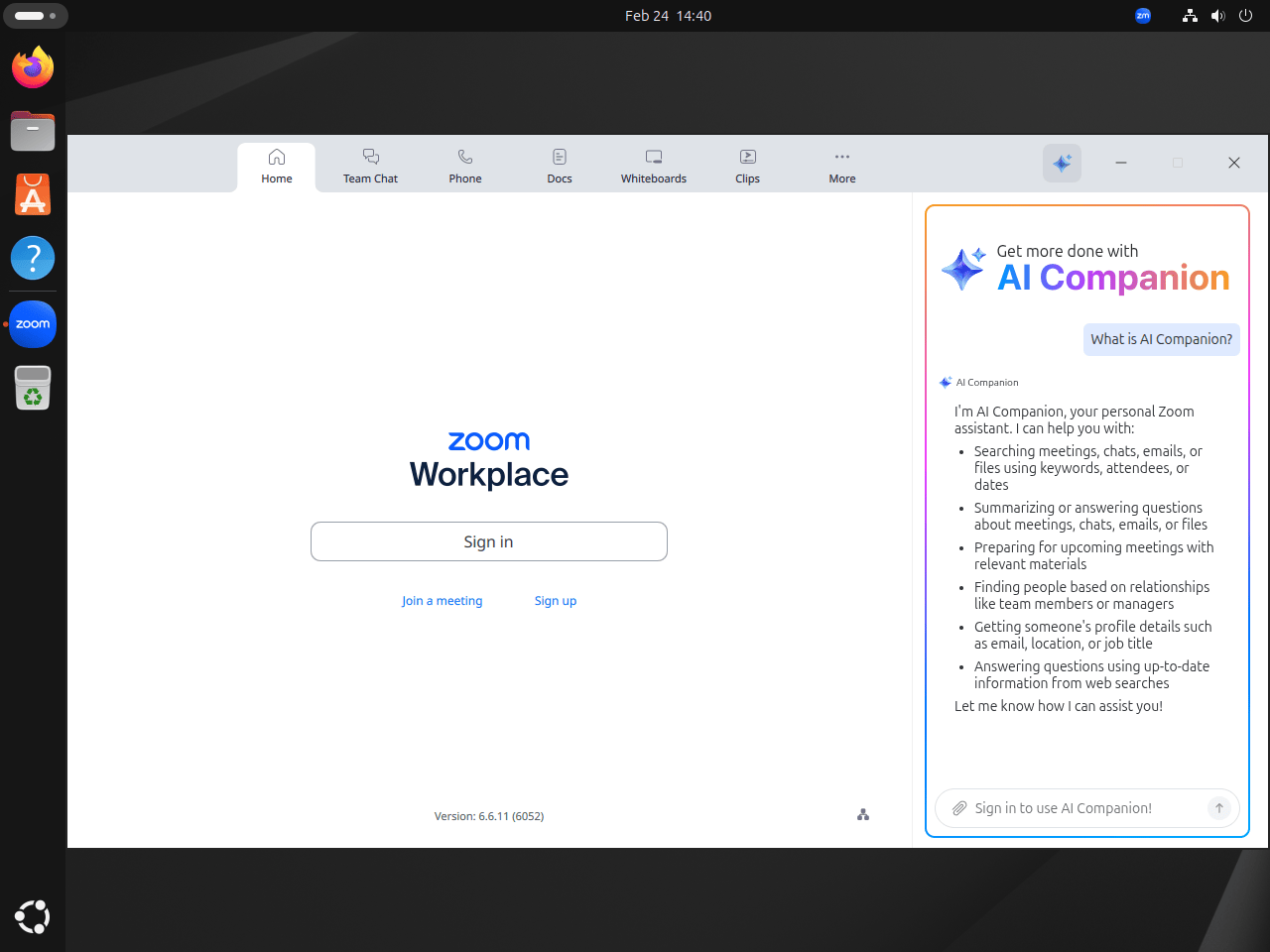
Zoom is also available through the Activities overview. Search for “Zoom” and click the result to launch from the desktop. The first launch prompts you to sign in or join a meeting.
Update Zoom on Ubuntu
Update Zoom .deb Package
The .deb method requires a manual update. Download the latest version and reinstall. APT handles the upgrade automatically when you install a newer package over an existing one. For more details on APT package management, see our guide on how to update packages on Ubuntu:
wget -O zoom_amd64.deb https://zoom.us/client/latest/zoom_amd64.deb
sudo apt install ./zoom_amd64.deb
Update Zoom Snap Package
Snap updates Zoom automatically in the background. To force an immediate refresh:
sudo snap refresh zoom-clientUpdate Zoom Flatpak Package
Flatpak updates Zoom automatically. To manually check for and apply updates:
sudo flatpak update --system us.zoom.ZoomRemove Zoom from Ubuntu
Use the commands that match your Zoom installation method to remove the application. For a broader look at package removal, see how to remove packages on Ubuntu.
Remove Zoom .deb Package
sudo apt remove zoom
sudo apt autoremove
The autoremove step cleans up orphaned dependencies installed alongside Zoom. Verify removal:
dpkg -s zoomdpkg-query: package 'zoom' is not installed and no information is available
Remove Zoom Snap Package
sudo snap remove zoom-clientRemove Zoom Flatpak Package
sudo flatpak uninstall --system us.zoom.ZoomRemove Zoom User Data (Optional)
Uninstalling Zoom leaves behind user configuration and cached data. To fully clean up after removal, delete the remaining directories.
The commands below permanently delete your Zoom settings, meeting history, and any local recordings stored in these directories. Back up important recordings before proceeding. This does not affect recordings saved to Zoom’s cloud storage.
.deb and Snap Zoom user data:
rm -rf ~/.zoom ~/.config/zoomus.conf ~/.config/zoom* ~/.cache/zoom*Flatpak Zoom user data:
rm -rf ~/.var/app/us.zoom.ZoomTroubleshoot Zoom on Ubuntu
Zoom .deb Dependency Errors
If sudo apt install ./zoom_amd64.deb fails with unmet dependency errors, resolve them with:
sudo apt --fix-broken installRe-run the install command after dependencies are resolved:
sudo apt install ./zoom_amd64.debZoom Audio or Video Not Working
If Zoom cannot access your microphone or camera, check that pulseaudio (or pipewire on Ubuntu 24.04+) is running:
pactl info | grep "Server Name"Server Name: PulseAudio (on PipeWire x.x.x)
If no audio server is running, install and start PipeWire:
sudo apt install pipewire pipewire-pulse
systemctl --user restart pipewire pipewire-pulse
For Flatpak, audio and camera access requires the correct Flatpak permissions. Verify they are enabled:
flatpak info --show-permissions us.zoom.Zoom | grep -E "pulseaudio|devices"Zoom Screen Sharing on Wayland
Ubuntu 22.04+ defaults to Wayland. If Zoom screen sharing shows a black screen, set the XDG_SESSION_TYPE variable before launching:
XDG_SESSION_TYPE=x11 zoomAlternatively, log out and select “Ubuntu on Xorg” from the gear icon on the login screen for a full X11 session. Zoom’s Wayland support has improved in recent versions, so test screen sharing on Wayland first before switching.
Frequently Asked Questions About Zoom on Ubuntu
No. Zoom is proprietary software maintained by Zoom Video Communications and is not packaged in Ubuntu’s APT repositories. Download the official .deb from zoom.us, or use the Snap Store or Flathub community builds.
The official .deb package from zoom.us is the best option for most users. It receives updates first, uses approximately 200 MB of disk space (compared to 500+ MB for Snap), and integrates directly with system audio and video devices. Snap is convenient if you want zero-effort updates. Flatpak is best when you want application sandboxing.
Yes, Zoom runs on Wayland sessions. Screen sharing may show a black screen on older Zoom versions. Update to the latest version first. If the issue persists, launch Zoom with XDG_SESSION_TYPE=x11 or switch to an Xorg session at the login screen.
Download the latest .deb from zoom.us/client/latest/zoom_amd64.deb with wget, then run sudo apt install ./zoom_amd64.deb. APT handles the upgrade automatically when a newer package is installed over the existing one.
Conclusion
Zoom is now installed on Ubuntu, ready for video meetings, webinars, and screen sharing. The .deb package delivers the latest official release with manual update control, Snap handles updates automatically through a community repack, and Flatpak adds sandboxed security isolation. You can switch between methods at any time by removing one and installing another. For other communication tools on Ubuntu, see the guides for install Discord on Ubuntu, install Slack on Ubuntu, install Microsoft Teams on Ubuntu, install Signal on Ubuntu, or install Telegram on Ubuntu.

I installed zoom from the Debian package, and it crashed.
I then installed the Snap package, and it said there was an update.
The link took me to the Zoom site, where I could download the Debian package.
I re-installed from the Debian package, and Zoom worked.
Yes, but the .deb file has basically permission to do anything on your system
I’ll try with the Flatpak instead
Thanks for sharing this, a. A vendor .deb runs with the same broad permissions as any package you install, so only use it when you trust the source. Flatpak keeps Zoom in a sandbox and lets you decide mic and camera access.
If you stick with Flatpak and run into audio or video issues, check its permissions for your webcam and microphone. Appreciate the feedback.
Thanks for reporting this, Patrick. A crash with the .deb followed by a stable Snap install usually means the Snap pulled a dependency or fix the .deb missed. The Snap linking to Zoom’s download page is expected because the maintainer repackages Zoom’s official .deb.
Reinstalling the latest .deb from Zoom put you on the stable build. If the .deb crashes again, clean up APT errors before retrying, and fall back to the Flatpak if needed.