

Vivaldi browser offers deep customization for tab management, workspaces, and interface layout that most browsers only achieve through extensions. Split-screen browsing, tab stacking, built-in notes, and screenshot capture all ship natively. Both the official APT repository and Flatpak make it straightforward to install Vivaldi browser on Debian 11, 12, and 13 with automatic updates.
Choose Your Vivaldi Installation Method for Debian
Vivaldi is available through multiple channels on Debian. The comparison table below outlines each method’s trade-offs for updates, sandboxing, and system integration.
| Method | Channel | Version | Updates | Best For |
|---|---|---|---|---|
| APT Repository | Vivaldi Official Repo | Stable and Snapshot | Automatic via apt upgrade | Most users who want native integration |
| Flatpak | Flathub | Stable | Automatic via flatpak update | Users who prefer sandboxed applications |
The APT repository method is recommended for most users because it provides direct system integration and automatic security updates through the standard Debian package manager. Flatpak is a good alternative if you prefer application sandboxing or want to avoid adding third-party repositories.
Install Vivaldi Browser on Debian
Update Debian Before Installing Vivaldi
Update your existing packages to ensure compatibility and reduce potential conflicts before adding new repositories:
sudo apt update && sudo apt upgradeThis guide uses
sudofor commands that need root privileges. If your user is not in the sudoers file yet, run the commands as root or follow the guide on how to add and manage sudo users on Debian.
Install the required packages for downloading and verifying the repository:
sudo apt install curl gpg ca-certificates -yImport the Vivaldi GPG Key and APT Repository
Download and store Vivaldi’s GPG signing key, which APT uses to verify package authenticity. The curl command fetches the key and pipes it through gpg --dearmor for APT compatibility:
curl -fsSL https://repo.vivaldi.com/archive/linux_signing_key.pub | sudo gpg --dearmor -o /usr/share/keyrings/vivaldi.gpgNext, add the Vivaldi repository using the DEB822 .sources format:
cat <<EOF | sudo tee /etc/apt/sources.list.d/vivaldi.sources
Types: deb
URIs: https://repo.vivaldi.com/stable/deb/
Suites: stable
Components: main
Architectures: amd64 arm64 armhf
Signed-By: /usr/share/keyrings/vivaldi.gpg
EOF
The Vivaldi repository uses
Suites: stablerather than Debian codenames, so this configuration works across Debian 11, 12, and 13 without modification.
Refresh the package index to make Vivaldi packages available:
sudo apt updateVerify that APT recognizes the Vivaldi repository:
apt-cache policy vivaldi-stableExpected output confirming the repository is active:
vivaldi-stable:
  Installed: (none)
  Candidate: 7.x.xxxx.xx-1
  Version table:
     7.x.xxxx.xx-1 500
        500 https://repo.vivaldi.com/stable/deb stable/main amd64 Packages
The version number shown is a placeholder. Your output will display the current Vivaldi release version available at the time of installation.
Install Vivaldi Stable or Snapshot on Debian
Install the stable release for daily use:
sudo apt install vivaldi-stableAlternatively, install the snapshot (development) version to test upcoming features:
sudo apt install vivaldi-snapshotYou can install both versions simultaneously. Use the stable version for regular browsing. The snapshot version may contain bugs, so avoid it for sensitive tasks.
Verify the installation by checking the version:
vivaldi --versionExpected output:
Vivaldi 7.x.xxxx.xx stable
If you installed the snapshot version instead:
vivaldi-snapshot --versionExpected output:
Vivaldi 7.x.xxxx.x snapshot
Install Vivaldi via Flatpak on Debian
Flatpak provides Vivaldi in a sandboxed environment that runs independently of your system packages. If you do not have Flatpak configured, see how to install Flatpak on Debian first.
Install Vivaldi from Flathub:
sudo flatpak install flathub com.vivaldi.Vivaldi -yThe -y flag automatically confirms the installation prompt. Using sudo installs Vivaldi system-wide, making it available to all users on the machine.
Verify the Flatpak installation:
flatpak info com.vivaldi.VivaldiExpected output showing the installed application:
Vivaldi - Feature-packed web browser

          ID: com.vivaldi.Vivaldi
         Ref: app/com.vivaldi.Vivaldi/x86_64/stable
        Arch: x86_64
      Branch: stable
     Version: 7.x.xxxx.xx
     License: LicenseRef-proprietary
      Origin: flathub
  Collection: org.flathub.Stable
To launch the Flatpak version from the terminal, use
flatpak run com.vivaldi.Vivaldi. Alternatively, find Vivaldi in your applications menu as described in the next section.
Launch Vivaldi Browser on Debian
Launch Vivaldi from Terminal
To run Vivaldi directly from the command line:
vivaldiOr, if you installed the snapshot version:
vivaldi-snapshotLaunch Vivaldi from Applications Menu
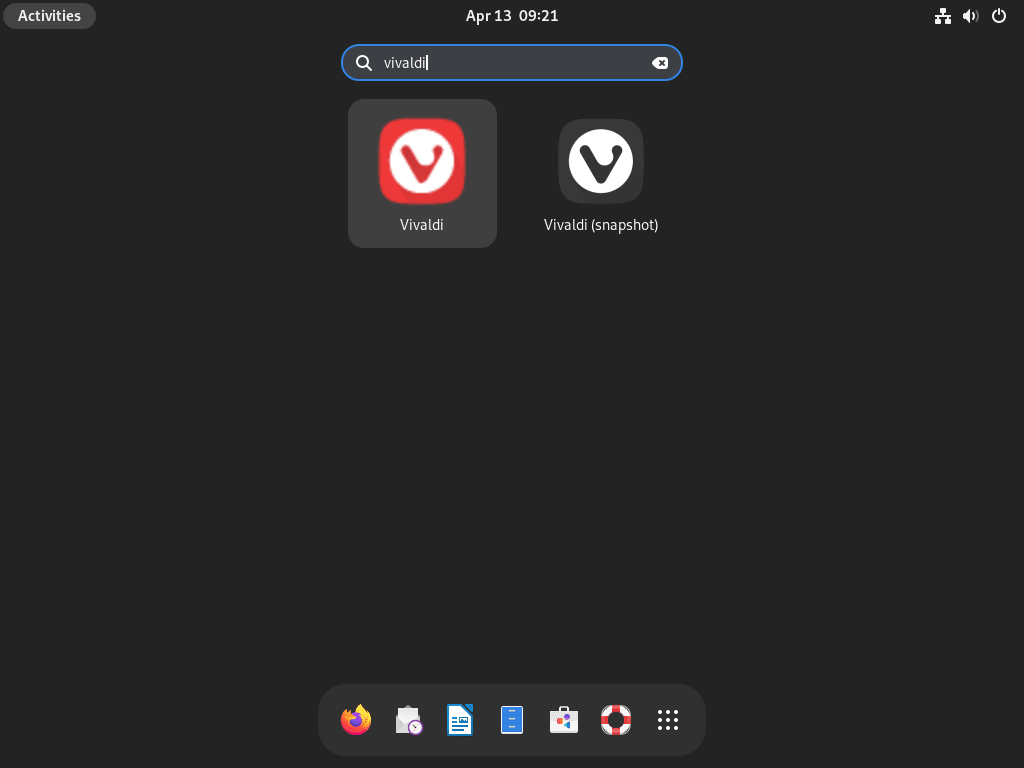
Open your desktop environment’s application menu and search for “Vivaldi.” The exact location varies by desktop environment:
- GNOME: Click Activities in the top-left corner, then search for “Vivaldi”
- KDE Plasma: Open the Application Launcher and search for “Vivaldi”
- Xfce: Open the Whisker Menu or Applications Menu and look under Internet
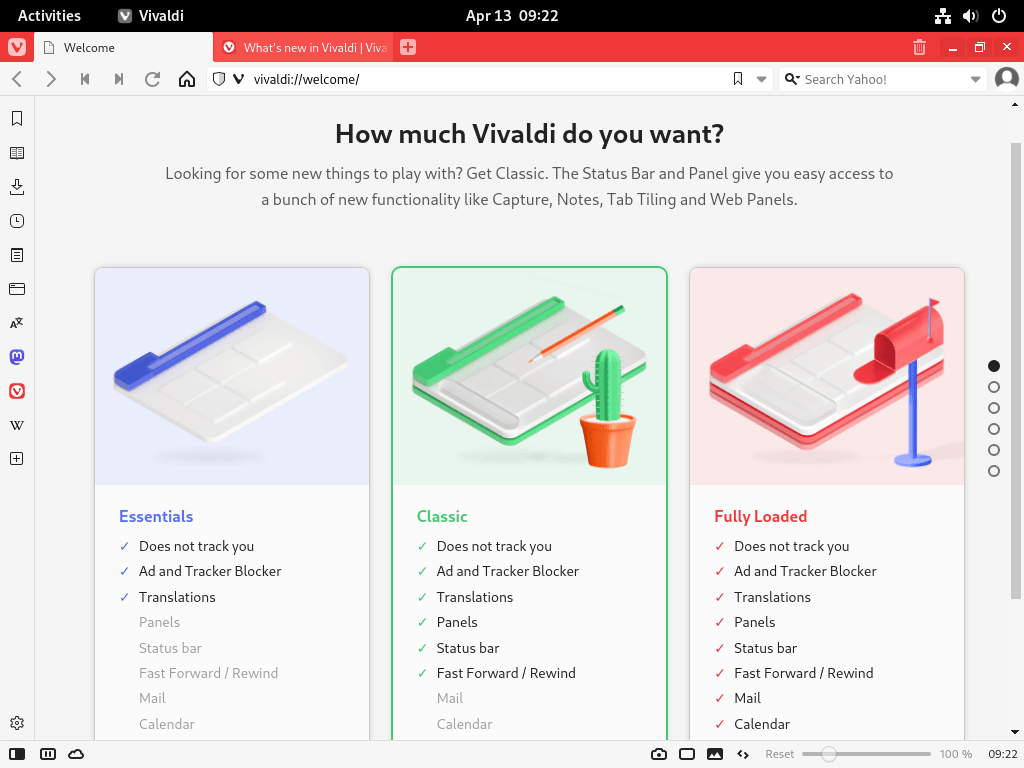
Click the Vivaldi icon to launch the browser. If you installed both versions, you will see separate entries for Vivaldi and Vivaldi Snapshot.
Manage Vivaldi Browser on Debian
Update Vivaldi Browser on Debian
Vivaldi receives updates through the standard system update process. For fully automatic security patches, see how to configure unattended upgrades on Debian. To update all packages including Vivaldi manually:
sudo apt update && sudo apt upgradeTo update only Vivaldi without upgrading other packages:
sudo apt update && sudo apt install --only-upgrade vivaldi-stableIf you installed the Flatpak version, update it with:
sudo flatpak update com.vivaldi.VivaldiRemove Vivaldi Browser from Debian
To uninstall the Vivaldi stable version:
sudo apt remove vivaldi-stable && sudo apt autoremoveFor the snapshot version:
sudo apt remove vivaldi-snapshot && sudo apt autoremoveFor the Flatpak version:
sudo flatpak uninstall com.vivaldi.VivaldiOptionally remove unused runtimes that Flatpak installed as dependencies:
sudo flatpak uninstall --unusedRemove the Vivaldi Repository and GPG Key
If you no longer need the Vivaldi repository, remove it along with the GPG key. The installer may have created both .sources and .list files, so remove both:
sudo rm -f /etc/apt/sources.list.d/vivaldi.sources /etc/apt/sources.list.d/vivaldi.list
sudo rm -f /usr/share/keyrings/vivaldi.gpg
Refresh the package index to confirm the repository is removed:
sudo apt updateVerify that APT no longer recognizes the repository:
apt-cache policy vivaldi-stableExpected output confirming removal:
N: Unable to locate package vivaldi-stable
Remove Vivaldi User Data
The following commands permanently delete your Vivaldi profile data, including bookmarks, saved passwords, browsing history, and custom settings. Export any data you want to keep before proceeding.
To remove configuration and cache directories for the APT-installed version:
rm -rf ~/.config/vivaldi ~/.config/vivaldi-snapshot
rm -rf ~/.cache/vivaldi ~/.cache/vivaldi-snapshot
For Flatpak installations, remove the sandboxed data directory:
rm -rf ~/.var/app/com.vivaldi.VivaldiMigrate Browser Data to Vivaldi
Vivaldi can import bookmarks, browsing history, and saved passwords from other browsers through its built-in import wizard at File → Import from Applications or Files. Compatible sources include Firefox on Debian, Chromium on Debian, Google Chrome on Debian, and other Chromium-based browsers.
Troubleshoot Vivaldi Browser on Debian
Proprietary Media Codecs Warning
When launching Vivaldi from the terminal, you may see a message about proprietary media support:
'Proprietary media' support is not installed. Attempting to fix this now.
Typically, Vivaldi attempts to download the necessary codecs automatically. However, if the automatic download fails, install xz-utils first:
sudo apt install xz-utilsAfterward, restart Vivaldi. The browser will attempt the codec download again on launch.
Duplicate Repository Sources Warning
After installing Vivaldi, you may see warnings during apt update about duplicate sources:
W: Target Packages (main/binary-amd64/Packages) is configured multiple times in /etc/apt/sources.list.d/vivaldi.list:3 and /etc/apt/sources.list.d/vivaldi.sources:1
This occurs because Vivaldi’s installer automatically creates a vivaldi.list file during installation, even when you have already configured vivaldi.sources. To fix this, remove the redundant file:
sudo rm /etc/apt/sources.list.d/vivaldi.listVerify the fix:
sudo apt updateRegular package upgrades (
apt upgrade) do not regenerate this file. Only a fresh install or reinstall would recreate it, so this is a one-time fix.
Hardware Acceleration Issues
If you experience graphics glitches or poor video performance, your system may lack proper hardware acceleration configuration. First, check the status by navigating to vivaldi://gpu in the address bar.
NVIDIA users should install the proprietary drivers. See how to install NVIDIA drivers on Debian for detailed instructions.
As a workaround, temporarily disable hardware acceleration by launching Vivaldi with:
vivaldi --disable-gpuFor the Flatpak version, pass the flag through the runtime:
flatpak run com.vivaldi.Vivaldi --disable-gpuVivaldi Does Not Launch
If Vivaldi fails to start, launch it from the terminal to check for error output:
vivaldiFor the Flatpak version:
flatpak run com.vivaldi.VivaldiIf the output mentions missing libraries or sandbox errors, confirm the package installed correctly:
apt-cache policy vivaldi-stableA missing or broken installation shows Installed: (none). Reinstall with sudo apt install vivaldi-stable to resolve it.
Frequently Asked Questions
No. Vivaldi is proprietary software that is not packaged in Debian’s main, contrib, or non-free repositories. You need to add the official Vivaldi APT repository or install the Flatpak from Flathub.
Vivaldi stable receives thoroughly tested updates suitable for daily browsing. Vivaldi snapshot is the development channel with newer features that may contain bugs. Both can be installed side by side from the same repository.
.list file after installation on Debian?
Vivaldi’s installer automatically generates a vivaldi.list file regardless of existing repository configuration. If you already configured a .sources file, this creates a duplicate source warning. Remove the .list file with sudo rm /etc/apt/sources.list.d/vivaldi.list to resolve it.
Yes. Vivaldi provides direct .deb downloads at vivaldi.com/download. Install with sudo dpkg -i vivaldi-stable_*.deb followed by sudo apt install -f to resolve dependencies. However, this method does not configure a repository, so you must download new .deb files manually for each update. The APT repository method is recommended for automatic updates.
Yes. Both the official Vivaldi APT repository and the Flatpak from Flathub work on Debian 13. The repository uses a stable suite independent of Debian codenames, so no configuration changes are needed when upgrading between Debian versions.
Conclusion
Vivaldi browser is running on Debian with automatic updates through either the official APT repository or Flatpak. The APT method provides direct system integration, while Flatpak offers application sandboxing. Explore Vivaldi’s settings for tab stacking, workspaces, and the sidebar panel to tailor the browser to your workflow. For alternative browsers, see Brave on Debian or Firefox on Debian.

Formatting tips for your comment
You can use basic HTML to format your comment. Useful tags currently allowed:
<code>command</code>command<strong>bold</strong><em>italic</em><blockquote>quote</blockquote>