
VeraCrypt creates encrypted volumes and performs full disk encryption using AES, Serpent, and Twofish algorithms. Whether you need to protect sensitive documents, create portable encrypted containers, or implement plausible deniability with hidden volumes, VeraCrypt provides the tools to keep your data secure. By the end of this guide, you will have a working VeraCrypt installation on Debian, ready to create and mount encrypted volumes.
Choose Your VeraCrypt Installation Method
VeraCrypt is not available in Debian’s default repositories, so this guide covers two installation methods: a community-maintained APT repository for automatic updates, and source compilation for users who prefer building from the official VeraCrypt GitHub repository.
| Method | Channel | Version | Updates | Best For |
|---|---|---|---|---|
| APT Repository (Recommended) | notesalexp.org | Latest stable | Automatic via apt upgrade | Most users who want simple installation and updates |
| Source Compilation | GitHub | Latest development | Manual recompilation | Users who need the newest features or custom builds |
For most users, the APT repository method is recommended because it provides automatic security updates and requires minimal maintenance. Only compile from source if you need features unavailable in the repository version or want to audit the build process yourself.
This guide covers Debian 13 (Trixie), Debian 12 (Bookworm), and Debian 11 (Bullseye). The notesalexp.org repository provides packages for all three releases. Commands work identically across supported versions unless noted otherwise.
Update Debian Before Installation
Update your system to ensure all existing packages are current. This step prevents dependency conflicts during installation:
sudo apt update && sudo apt upgradeInstall VeraCrypt from APT Repository
This method uses a community-maintained repository that provides VeraCrypt packages for Debian. The repository maintainer, Alex P, has provided packages for Debian and Ubuntu users for many years through the notesalexp.org repository.
Install Prerequisite Packages
Install the packages required to securely add the external repository:
sudo apt install curl ca-certificates gnupg lsb-release -yThese packages provide file downloading (curl), SSL certificate validation (ca-certificates), GPG key handling (gnupg), and release detection (lsb-release). The lsb-release package is particularly important on minimal or container installations where it may not be present by default.
Import the GPG Key
Download and install the repository’s GPG key to verify package authenticity:
curl -fsSL https://notesalexp.org/debian/alexp_key.asc | sudo gpg --dearmor -o /usr/share/keyrings/alexp_key.gpgAdd the Repository
Add the repository using the modern DEB822 .sources format:
cat <<EOF | sudo tee /etc/apt/sources.list.d/alexp.sources
Types: deb
URIs: https://notesalexp.org/debian/$(lsb_release -cs)/
Suites: $(lsb_release -cs)
Components: main
Architectures: $(dpkg --print-architecture)
Signed-By: /usr/share/keyrings/alexp_key.gpg
EOF
The
$(lsb_release -cs)command automatically detects your Debian release (bullseye, bookworm, or trixie) and configures the correct repository URL. This repository uses a non-standard flat structure where the codename appears in both the URI path and the Suites field.
Install VeraCrypt
Refresh the package cache and install VeraCrypt:
sudo apt update
sudo apt install veracrypt
Verify that VeraCrypt installed correctly:
veracrypt --versionExpected output:
VeraCrypt 1.26.24
The version number reflects the latest release available in the repository at the time of writing. Your output may show a newer version as the repository receives updates.
Install VeraCrypt from Source
Source compilation gives you complete control over the build process and provides access to the latest development version. This method requires more steps but allows customization and verification of the source code.
Choose either the APT repository method or source compilation. Do not install both, as they place the
veracryptbinary in different locations (/usr/bin/vs/usr/local/bin/) and can cause version confusion.
Install Build Dependencies
Install the development tools and libraries required to compile VeraCrypt. The wxWidgets package name differs between Debian versions:
Debian 13 (Trixie) and Debian 12 (Bookworm):
sudo apt install build-essential yasm pkg-config libwxgtk3.2-dev libfuse-dev git libpcsclite-dev -yDebian 11 (Bullseye):
sudo apt install build-essential yasm pkg-config libwxgtk3.0-gtk3-dev libfuse-dev git libpcsclite-dev -yThese packages provide the compiler toolchain (build-essential), x86 assembly support (yasm), library detection (pkg-config), the wxWidgets GUI framework (libwxgtk), FUSE filesystem mounting (libfuse-dev), version control (git), and smart card support (libpcsclite-dev).
Clone and Build VeraCrypt
Clone the official VeraCrypt repository from GitHub. For more information on using Git, see our Git installation guide for Debian:
git clone --depth 1 https://github.com/veracrypt/VeraCrypt.git ~/VeraCryptNavigate to the source directory and compile the application:
cd ~/VeraCrypt/src
make
The compilation process takes several minutes depending on your system hardware. Once complete, the executable is located at ~/VeraCrypt/src/Main/veracrypt.
Install the Binary and Desktop File
Copy the compiled binary to a system-wide location:
sudo cp ~/VeraCrypt/src/Main/veracrypt /usr/local/bin/To make VeraCrypt appear in your desktop applications menu, install the icon and create a modified desktop entry that points to the correct binary location:
sudo cp ~/VeraCrypt/src/Resources/Icons/VeraCrypt-256x256.xpm /usr/share/pixmaps/veracrypt.xpm
sed 's|/usr/bin/veracrypt|/usr/local/bin/veracrypt|' ~/VeraCrypt/src/Setup/Linux/veracrypt.desktop | sudo tee /usr/share/applications/veracrypt.desktop > /dev/null
Verify the installation:
veracrypt --versionExpected output:
VeraCrypt 1.26.27
The source-compiled version (1.26.27 at the time of writing) may be newer than the repository package (1.26.24) because source compilation builds from the latest development state.
Launch VeraCrypt
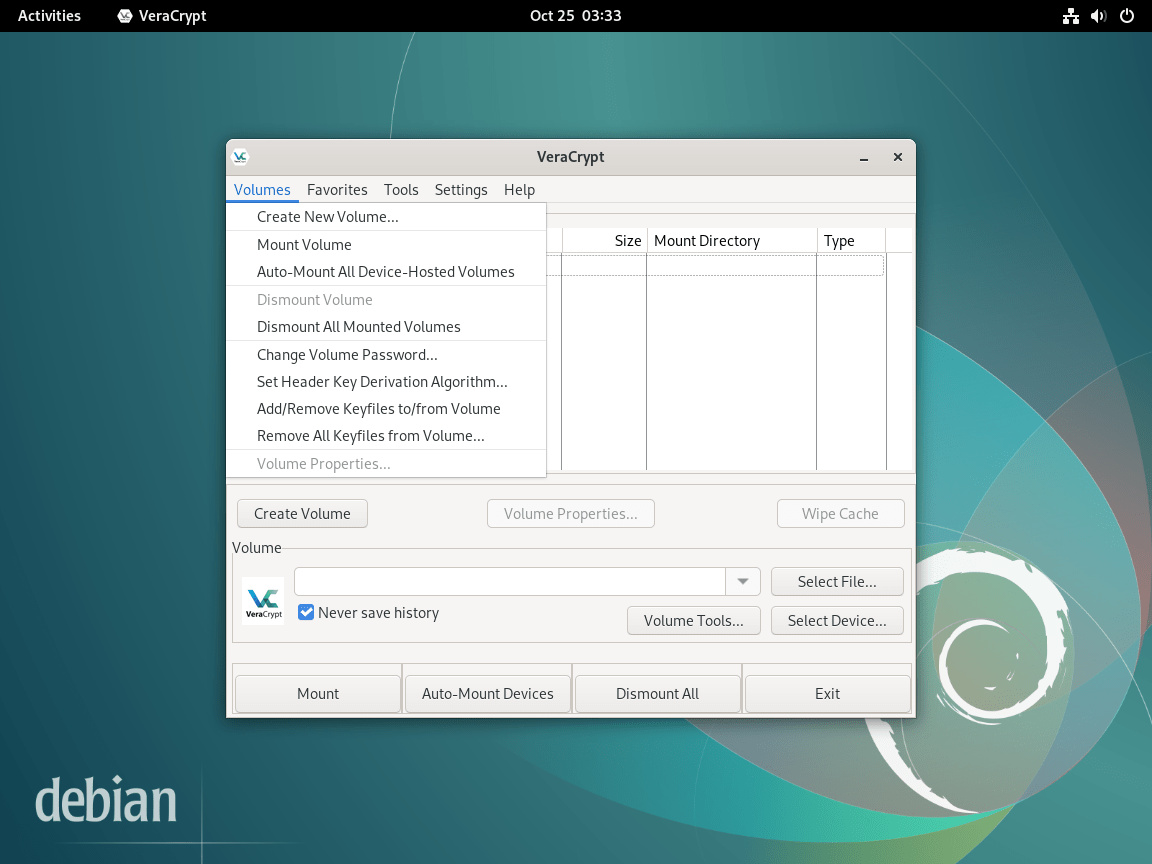
Launch VeraCrypt using either the terminal or the desktop environment.
Launch from Terminal
Open the VeraCrypt graphical interface:
veracryptLaunch from Applications Menu
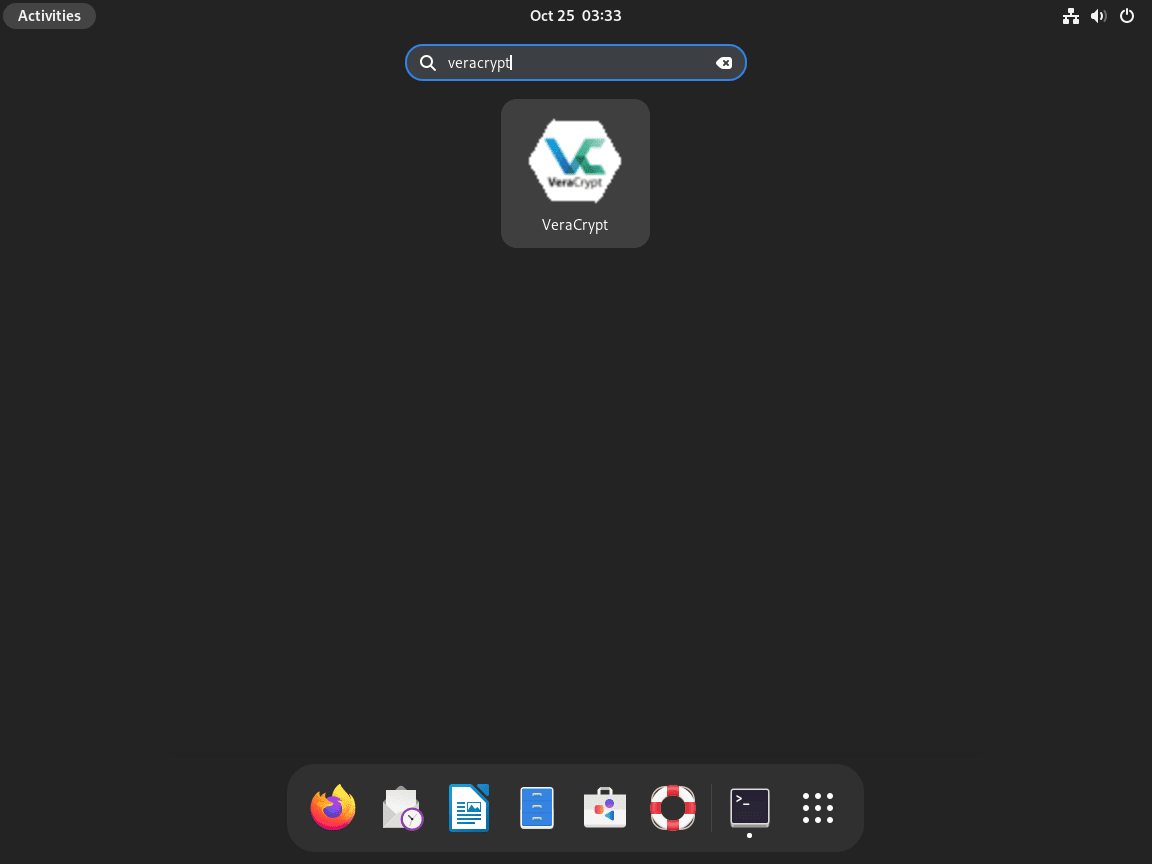
Desktop users can find VeraCrypt in the applications menu. Open the applications grid and search for VeraCrypt, or navigate using the menu path:
Activities > Show Applications > VeraCrypt
Create Your First Encrypted Volume
With VeraCrypt installed, create an encrypted container to store sensitive files.
To create a new encrypted volume:
- Click Create Volume in the main VeraCrypt window.
- Select Create an encrypted file container and click Next.
- Choose Standard VeraCrypt volume for basic encryption.
- Click Select File and choose a location and filename for your container (for example,
~/encrypted-container). - Select your encryption algorithm (AES is recommended for most users) and click Next.
- Set the volume size based on your storage needs.
- Create a strong password with 20 or more characters, mixing uppercase, lowercase, numbers, and symbols.
- Move your mouse randomly to generate encryption keys, then click Format.
To mount your encrypted volume, select an available slot in the main window, click Select File, choose your container, and click Mount. Enter your password when prompted, and the volume appears as a mounted drive.
For additional data protection, consider using Timeshift on Debian to create system snapshots before making major changes to your encrypted volumes.
Manage VeraCrypt
Update VeraCrypt (APT Method)
If you installed VeraCrypt via the APT repository, update it alongside your other packages:
sudo apt update && sudo apt upgradeTo update only VeraCrypt without upgrading other packages:
sudo apt update
sudo apt install --only-upgrade veracrypt
Update VeraCrypt (Source Method)
For source-compiled installations, pull the latest code and recompile:
cd ~/VeraCrypt
git pull
cd src && make clean && make
sudo cp Main/veracrypt /usr/local/bin/
For convenience, save this update process as a reusable script. Create the script file:
nano ~/update-veracrypt.shAdd the following content:
#!/bin/bash
# VeraCrypt Source Update Script

set -e

VERACRYPT_DIR="$HOME/VeraCrypt"

# Check if source directory exists
if [[ ! -d "$VERACRYPT_DIR" ]]; then
    echo "Error: VeraCrypt source directory not found at $VERACRYPT_DIR"
    echo "Clone the repository first: git clone https://github.com/veracrypt/VeraCrypt.git $VERACRYPT_DIR"
    exit 1
fi

# Get current version
CURRENT_VERSION=$(veracrypt --version 2>/dev/null | awk '{print $2}' || echo "not installed")

echo "Checking for VeraCrypt updates..."
echo "Current installed version: $CURRENT_VERSION"

cd "$VERACRYPT_DIR"
git fetch origin

# Check if updates are available
LOCAL=$(git rev-parse HEAD)
REMOTE=$(git rev-parse origin/master)

if [[ "$LOCAL" == "$REMOTE" ]]; then
    echo "VeraCrypt is already up to date."
    exit 0
fi

echo "Updates available. Pulling latest changes..."
git pull origin master

echo ""
read -p "Continue with recompilation? (y/n) " -n 1 -r
echo ""

if [[ ! $REPLY =~ ^[Yy]$ ]]; then
    echo "Update cancelled."
    exit 0
fi

echo "Compiling VeraCrypt (this may take several minutes)..."
cd src
make clean
make

echo "Installing updated binary (requires sudo password)..."
sudo cp Main/veracrypt /usr/local/bin/

NEW_VERSION=$(veracrypt --version 2>/dev/null | awk '{print $2}')
echo ""
echo "Update complete!"
echo "VeraCrypt $NEW_VERSION"
Save the file by pressing Ctrl+O, then Enter, then exit with Ctrl+X. Make the script executable:
chmod +x ~/update-veracrypt.shRun the script whenever you want to check for and apply updates:
~/update-veracrypt.shExpected output when updates are available:
Checking for VeraCrypt updates...
Current installed version: 1.26.27
Updates available. Pulling latest changes...

Continue with recompilation? (y/n) y
Compiling VeraCrypt (this may take several minutes)...
Installing updated binary (requires sudo password)...
[sudo] password for user:

Update complete!
VeraCrypt 1.26.28
Remove VeraCrypt
The removal process depends on your installation method.
For APT repository installations:
sudo apt remove veracrypt
sudo apt autoremove
If you no longer need any packages from the notesalexp.org repository, remove the repository configuration and GPG key:
sudo rm /etc/apt/sources.list.d/alexp.sources
sudo rm /usr/share/keyrings/alexp_key.gpg
sudo apt update
Only remove the repository and GPG key if you have no other applications installed from notesalexp.org. Verify with
apt-cache policy | grep notesalexpto see which packages use this repository.
For source-compiled installations:
sudo rm /usr/local/bin/veracrypt
sudo rm /usr/share/pixmaps/veracrypt.xpm
sudo rm /usr/share/applications/veracrypt.desktop
rm -rf ~/VeraCrypt
Verify the removal:
which veracryptNo output confirms VeraCrypt is removed from your system.
Troubleshooting
FUSE Module Not Loaded
If VeraCrypt reports that it cannot mount volumes, the FUSE kernel module may not be loaded. Load it manually:
sudo modprobe fuseVerify the module loaded successfully:
lsmod | grep fuseExpected output:
fuse 212992 1
To load FUSE automatically at boot, add it to the modules list:
echo "fuse" | sudo tee -a /etc/modulesPermission Denied When Mounting
If you receive permission errors when mounting volumes as a regular user, VeraCrypt may need elevated privileges. Launch VeraCrypt with sudo:
sudo veracryptFor a permanent fix, enable the user_allow_other option in /etc/fuse.conf to allow non-root users to access mounted volumes:
sudo sed -i 's/#user_allow_other/user_allow_other/' /etc/fuse.confGPG Key Import Fails
If the GPG key import fails with a connection error, verify the URL is accessible:
curl -I https://notesalexp.org/debian/alexp_key.ascA successful response shows HTTP/2 200. If the connection fails, check your network settings and firewall configuration. Users behind restrictive firewalls should ensure outbound HTTPS connections on port 443 are allowed.
Volume Fails to Mount After System Update
If volumes that previously worked no longer mount after a kernel update, the FUSE module may need to be reloaded for the new kernel. Reboot your system, or reload the module:
sudo modprobe -r fuse
sudo modprobe fuse
Source Compilation Fails with Missing Headers
If compilation fails with errors about missing wxWidgets headers, verify you installed the correct development package for your Debian version. Check which wxWidgets packages are available:
apt-cache search libwxgtk | grep devOn Debian 12 and 13, install libwxgtk3.2-dev. On Debian 11, install libwxgtk3.0-gtk3-dev. If you installed the wrong package, remove it and install the correct one:
sudo apt remove libwxgtk3.0-gtk3-dev
sudo apt install libwxgtk3.2-dev
Clean the build directory and recompile:
cd ~/VeraCrypt/src
make clean
make
YASM Errors on ARM Architecture
The yasm assembler is only required for x86 and x64 architectures. If you are compiling on ARM (Raspberry Pi, ARM-based cloud instances), yasm is not needed and VeraCrypt will use fallback assembly routines. Check your architecture:
dpkg --print-architectureIf the output shows arm64 or armhf, you can omit yasm from the dependency installation.
Conclusion
You now have VeraCrypt installed on Debian, ready to create encrypted volumes and protect sensitive data. Whether you chose the APT repository for automatic updates or compiled from source for maximum control, your system can create encrypted containers, mount encrypted volumes, and implement full-disk encryption using industry-standard algorithms.

Seems not to work for armhf and arm64…
thank you very much. really helped me out. though I could not get the following command to be accepted: curl lsb-release ca-certificates -y
error message: curl: option -y: requires parameter
so after looking at man page I tried: curl lsb-release ca-certificates -y 300
error message: curl: (6) Could not resolve host: lsb-release
curl: (6) Could not resolve host: ca-certificates
I just blundered on with the rest of the commands and veracrypt started right up
Also in the remove veracrypt section, maybe your command should be remove or purge instead of install?
Thank you for your feedback! I’m glad the guide helped you.
Regarding the command issue, it seems there was a small misunderstanding. The correct command is:
sudo apt install dirmngr software-properties-common apt-transport-https curl lsb-release ca-certificates -yThis command installs several packages, including curl, lsb-release, and ca-certificates. It looks like the apt install part might have been missed, which caused the error with curl.
As for the removal section, you’re absolutely right; the command should be remove or purge instead of install. I’ve updated the guide to correct this.
Thank you again for pointing these out!