
To install Telegram Desktop on Linux Mint, use the Atareao PPA for an APT-managed install or Flatpak from Flathub for a sandboxed build. Both methods cover all supported Mint releases. Telegram is the official messaging client with voice and video calls, file sharing, and group chats with up to 200,000 participants. Secret Chats provide end-to-end encryption for private one-on-one conversations; standard chats use server-side encryption.
Telegram Installation Methods for Linux Mint
Telegram is no longer available through the default Linux Mint software repositories or Software Manager. The two supported installation methods are the Atareao PPA (APT-managed) and Flatpak from Flathub, both of which work across all supported Mint releases.
| Method | Channel | Mint 22.x | Mint 21.x | Best For |
|---|---|---|---|---|
| Atareao PPA | Third-party PPA | 6.5.1.x | 6.5.1.x | All supported Mint versions; APT-managed with current releases |
| Flatpak | Flathub | 6.5.1.x | 6.5.1.x | All users; sandboxed with automatic updates |
Install Telegram on Linux Mint via APT
Update Linux Mint Before Installing Telegram
Run a system update to ensure packages are current before installing:
sudo apt update && sudo apt upgradeNew to sudo? See our guide on adding a user to sudoers on Linux Mint before proceeding.
Install Telegram via the Atareao PPA
The Atareao PPA provides current Telegram releases for both Linux Mint 21.x (Ubuntu 22.04 jammy) and Mint 22.x (Ubuntu 24.04 noble). Add the PPA:
sudo add-apt-repository ppa:atareao/telegram -yThe Atareao PPA publishes packages for both Ubuntu 22.04 jammy (Mint 21.x) and Ubuntu 24.04 noble (Mint 22.x). You can verify active builds per series using the Launchpad series filter before adding any PPA.
Update the package cache to include the newly added PPA:
sudo apt updateInstall Telegram from the PPA:
sudo apt install telegramThe correct package name is
telegram, nottelegram-desktop. Thetelegram-desktoppackage was part of Ubuntu’s default repositories and is not available on current Mint releases. Usetelegramwhen working with this PPA.
Verify the installation completed successfully:
apt-cache policy telegramtelegram: Installed: 6.5.1-0ubuntu0 Candidate: 6.5.1-0ubuntu0
Install Telegram on Linux Mint via Flatpak
Flatpak is pre-installed on Linux Mint with Flathub enabled by default. This method installs the latest Telegram release directly from Flathub. For more on managing Flatpak applications, see our guide on upgrading Flatpak on Linux Mint.
Enable Flathub Repository
Flathub should already be enabled, but run this command to confirm:
sudo flatpak remote-add --if-not-exists flathub https://flathub.org/repo/flathub.flatpakrepoThe --if-not-exists flag skips adding Flathub if it is already configured, so this command is safe to run even on a fresh Mint install.
Install Telegram with Flatpak on Linux Mint
Install Telegram from Flathub:
flatpak install flathub org.telegram.desktop -yVerify the Flatpak installation:
flatpak list | grep telegramTelegram Desktop org.telegram.desktop 6.5.1 stable flathub
Launch Telegram on Linux Mint
Launch Telegram from Terminal
For PPA installations, the binary is in /opt/telegram/, which is not added to PATH. Launch using the full path:
/opt/telegram/TelegramFor Flatpak installations, use:
flatpak run org.telegram.desktopLaunch Telegram from Applications Menu
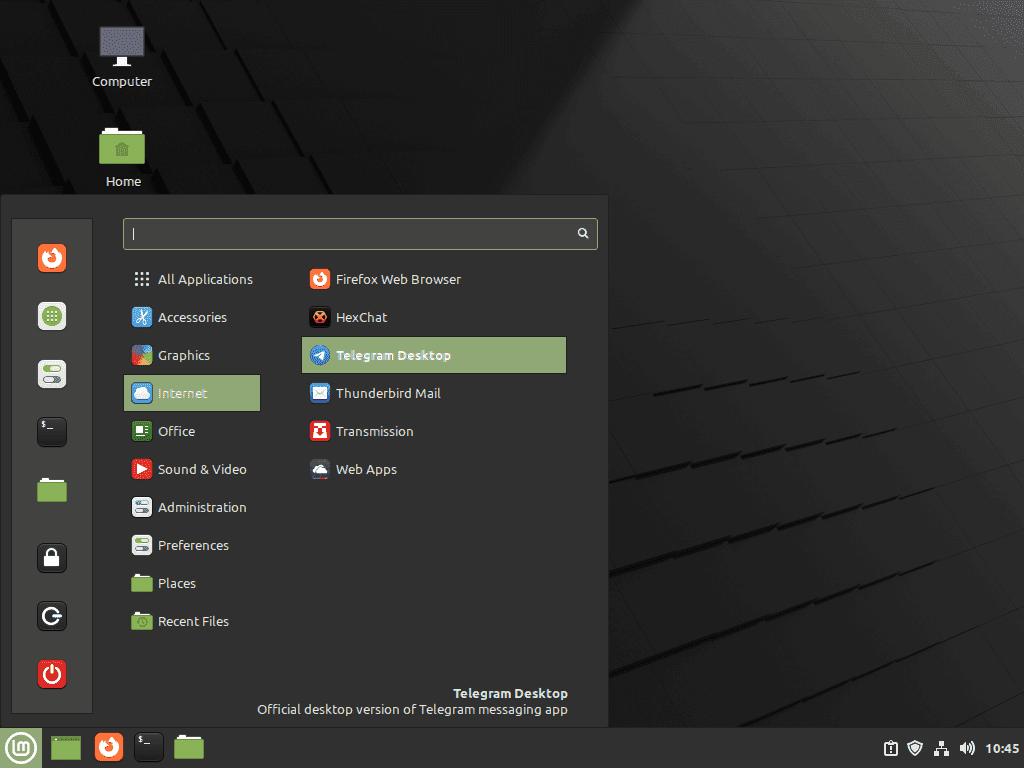
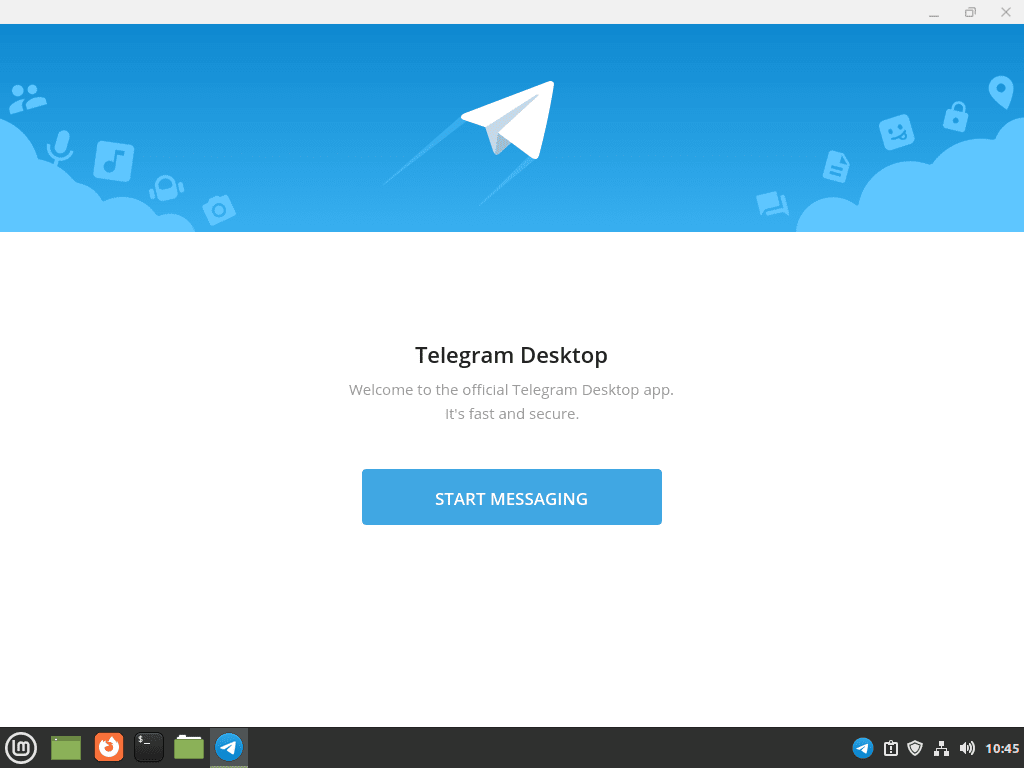
Open your applications menu and navigate to Internet, then click Telegram Desktop. Alternatively, search for “Telegram” in the menu search bar.
Manage Telegram on Linux Mint
Update Telegram
Update Telegram via APT
For PPA installations, refresh the cache and upgrade Telegram only:
sudo apt update && sudo apt install --only-upgrade telegramUpdate Telegram via Flatpak
flatpak updateConfigure Autostart on Login
To have Telegram start automatically when you log in, open Telegram and navigate to Settings, then Advanced, then enable Launch Telegram when system starts. Alternatively, add Telegram to your startup applications through Linux Mint’s Session and Startup settings.
Remove Telegram
Remove Telegram via APT
Remove the Telegram package:
sudo apt remove telegramTo also remove the PPA so it no longer appears in future updates, run:
sudo add-apt-repository --remove ppa:atareao/telegram -yRemove Telegram via Flatpak
For Flatpak installations, this command removes the application and its sandboxed data:
flatpak remove --delete-data org.telegram.desktop -yRemove User Data
Uninstalling Telegram does not automatically remove your chat history, downloaded files, or settings. To completely remove all Telegram data from your system, delete the configuration directories.
The following commands permanently delete your Telegram chat history, downloaded media, login sessions, and settings. Export any important conversations or files before proceeding.
For PPA installations:
rm -rf ~/.local/share/TelegramDesktopFor Flatpak installations, if you did not use the --delete-data flag:
rm -rf ~/.var/app/org.telegram.desktopTroubleshoot Telegram on Linux Mint
Desktop Notifications Not Working
If Telegram notifications do not appear, the XDG desktop portal may be missing. This commonly affects Flatpak installations.
Check if the portal package is installed:
dpkg -l | grep xdg-desktop-portal-gtkIf no output appears, the package is not installed. Add it:
sudo apt install xdg-desktop-portal-gtkLog out and back in for changes to take effect. Also verify notifications are enabled within Telegram by opening Settings, then Notifications and Sounds, and confirm Desktop notifications is enabled.
Telegram Does Not Start After Installation
If Telegram fails to launch from the applications menu, run it from the terminal to see error messages.
For PPA installations:
/opt/telegram/Telegram 2>&1 | head -20For Flatpak installations:
flatpak run org.telegram.desktop 2>&1 | head -20If you have both the PPA and Flatpak versions installed simultaneously, conflicts can occur. Check which are installed:
dpkg -l | grep -i telegram && flatpak list | grep telegramIf both are present and Telegram is not starting reliably, remove one installation method and keep the other.
Frequently Asked Questions
Yes. The Atareao PPA (ppa:atareao/telegram) publishes telegram 6.5.1-0ubuntu0 for both Ubuntu 22.04 jammy (Mint 21.x base) and Ubuntu 24.04 noble (Mint 22.x base). Both series are actively maintained. You can verify current builds per series on the Launchpad page before adding the PPA.
It depends on the installation method. PPA installations update when you run sudo apt update && sudo apt install --only-upgrade telegram. Flatpak installations update with flatpak update, but do not run automatically in the background unless you enable automatic updates in Software Manager. Telegram’s built-in auto-update (visible in Settings > Advanced) does not apply to system-managed packages installed via APT or Flatpak.
Telegram Desktop is no longer included in the default Linux Mint software repositories or Software Manager. Install it using the Atareao PPA (supported on both Mint 21.x and Mint 22.x) or Flatpak from Flathub, which works on all supported Mint releases.
Conclusion
Telegram Desktop is installed on Linux Mint via the Atareao PPA or Flatpak. Both methods support Mint 21.x and 22.x and deliver current releases. To upgrade, use the commands in the Manage Telegram section. For private conversations, enable Secret Chats in Telegram to activate end-to-end encryption.

Thanks Joshua