
Live syscall tracing helps when CPU graphs, process lists, and logs still do not explain what a process actually did. Before you install Sysdig on Ubuntu, choose the package source carefully: Ubuntu’s Universe package is simpler, while the official repository provides Sysdig 0.41.4 for amd64 and arm64 systems across Ubuntu 26.04, 24.04, and 22.04.
The sysdig package is also the Sysdig CLI package: it installs the sysdig command and the matching csysdig terminal interface. Sysdig loads a DKMS-built kernel module for live captures, so the install also needs headers for your running kernel and a cleanup path that handles the module state correctly.
Prepare Ubuntu Before Installing Sysdig
Refresh package metadata first so APT resolves Sysdig, DKMS, and kernel-header dependencies against the enabled Ubuntu repositories:
sudo apt update && sudo apt upgradeThese commands use
sudofor tasks that need root privileges. If your account is not in the sudoers file yet, follow the guide on how to add a new user to sudoers on Ubuntu.
Install Sysdig on Ubuntu
Ubuntu 26.04, 24.04, and 22.04 all provide a Sysdig package through Universe, but the official Sysdig repository carries Sysdig 0.41.4 across the same supported LTS scope.
Sysdig is distributed for Ubuntu through APT package sources rather than a standalone archive. The official path pulls packages from Sysdig’s maintained download repository, while the alternate path stays with Ubuntu’s own repositories.
| Method | Package version | Best fit |
|---|---|---|
| Official Sysdig APT repository | 0.41.4 on amd64 and arm64 for Ubuntu 26.04, 24.04, and 22.04 | Recommended when you want Sysdig’s upstream APT package and the same version across supported LTS releases. |
| Ubuntu Universe repository | 0.40.0 on Ubuntu 26.04, 0.36.0 on Ubuntu 24.04, and 0.27.1 on Ubuntu 22.04 | Best when you prefer Ubuntu-managed packages and do not need Sysdig 0.41.4. |
Install Sysdig from the Official Repository
Use the official repository when you want the upstream Sysdig build instead of the older package shipped by a specific Ubuntu release. The upstream project is maintained at the Sysdig GitHub repository. Install the setup tools first:
sudo apt install ca-certificates curl gpg ncurses-term dkms -ycurl downloads the repository key, gpg converts it into APT’s keyring format, ca-certificates validates HTTPS, ncurses-term helps csysdig avoid terminal-definition errors, and dkms rebuilds the Sysdig module when your kernel changes. The guide on how to use the curl command in Linux explains the download flags in the key command.
Download the Sysdig signing key and store the converted keyring file under /usr/share/keyrings/:
curl -fsSL https://download.sysdig.com/DRAIOS-GPG-KEY.public | sudo gpg --dearmor --yes -o /usr/share/keyrings/sysdig.gpgAdd the Sysdig repository with a DEB822 .sources file:
arch="$(dpkg --print-architecture)"

case "$arch" in
  amd64|arm64)
    printf '%s\n' \
      'Types: deb' \
      'URIs: https://download.sysdig.com/stable/deb' \
      "Suites: stable-${arch}/" \
      "Architectures: ${arch}" \
      'Signed-By: /usr/share/keyrings/sysdig.gpg' \
      | sudo tee /etc/apt/sources.list.d/sysdig.sources > /dev/null
    ;;
  *)
    printf 'This Sysdig repository method supports amd64 and arm64 Ubuntu systems.\n' >&2
    false
    ;;
esac
The
Suites:line ends with a slash because Sysdig publishes a flat repository layout. The architecture guard writes the source only foramd64andarm64, the repository indexes that carry Sysdig 0.41.4. Thesudo teecommand writes the root-owned source file because a plain shell redirect would not.
Refresh APT so Ubuntu reads the new Sysdig source:
sudo apt updateRelevant output includes the Sysdig metadata fetch:
Get:6 https://download.sysdig.com/stable/deb stable-amd64/ InRelease [1,390 B]
Get:7 https://download.sysdig.com/stable/deb stable-amd64/ Packages [59.8 kB]
Confirm that APT now prefers the official Sysdig package:
apt-cache policy sysdigOn Ubuntu 26.04, the official package has priority over the Ubuntu Universe package:
sysdig:
  Installed: (none)
  Candidate: 0.41.4
  Version table:
     0.41.4 500
        500 https://download.sysdig.com/stable/deb stable-amd64/ Packages
     0.40.0+repack-3 500
        500 http://archive.ubuntu.com/ubuntu resolute/universe amd64 Packages
Your Ubuntu mirror hostname may differ, but the Sysdig repository line and the version ordering should match.
Install Sysdig with headers for the running kernel so DKMS can build the capture module immediately:
sudo apt install linux-headers-$(uname -r) sysdig -yThe header package must match the kernel shown by uname -r. If you recently installed a new kernel but have not rebooted, reboot first so the running kernel and available headers line up. For a deeper package-name walkthrough, use the guide to install Linux kernel headers on Ubuntu.
A successful official-repository install builds the scap DKMS module:
Setting up sysdig (0.41.4) ...
Loading new scap-8.1.0+driver DKMS files...
Building for 7.0.0-22-generic
Building initial module for 7.0.0-22-generic
Done.

scap.ko.zst:
 - Installation
   - Installing to /lib/modules/7.0.0-22-generic/updates/dkms/
depmod....
Install Sysdig from Ubuntu Repositories
Use Ubuntu’s package when you want the simpler distro-managed install and do not need Sysdig 0.41.4 from the upstream repository. This method works only from Ubuntu’s repositories, so skip it on systems where the official Sysdig source is already enabled.
The Ubuntu package lives in the Universe component. Standard desktop installs often have Universe enabled already, but minimal or customized systems may need the guide on how to enable Universe and Multiverse on Ubuntu before APT can locate
sysdig.
Install the Ubuntu package, matching kernel headers, and the terminal definitions used by csysdig:
sudo apt install linux-headers-$(uname -r) sysdig ncurses-term -yUbuntu 26.04 and 24.04 build a scap DKMS module for the distro package. Ubuntu 22.04 uses the older sysdig_probe module name, so module checks need to allow both names.
Verify Sysdig on Ubuntu
Check the main binary and confirm that csysdig is available:
sysdig --version
command -v csysdig
The official repository returns:
sysdig version 0.41.4
/usr/bin/csysdig
Ubuntu’s own packages return release-specific versions instead: 0.40.0 on Ubuntu 26.04, 0.36.0 on Ubuntu 24.04, and 0.27.1 on Ubuntu 22.04.
Check the DKMS module state next:
dkms status | grep -E 'scap|sysdig'For the official package, the output shows the scap driver installed for your active kernel:
scap/8.1.0+driver, 7.x.x-generic, x86_64: installed
The grep -E filter keeps the DKMS output focused on Sysdig-related module names. The grep command examples in Linux cover that extended-regex mode if you want the filter syntax explained.
Run a simple process snapshot to confirm Sysdig can read live system events:
sudo sysdig -c psRelevant output starts with a process table similar to this:
TID     PID     USER        VIRT       RES        FDLIMIT   CMD
1       1       root        22.58M     14.23M     1048576   systemd
367     367     root        65.54M     18.18M     524288    systemd-journal
Use Sysdig on Ubuntu
Sysdig can summarize live events through built-in chisels or show raw syscall-level activity with filters. Start with the commands most readers need first.
Launch csysdig on Ubuntu
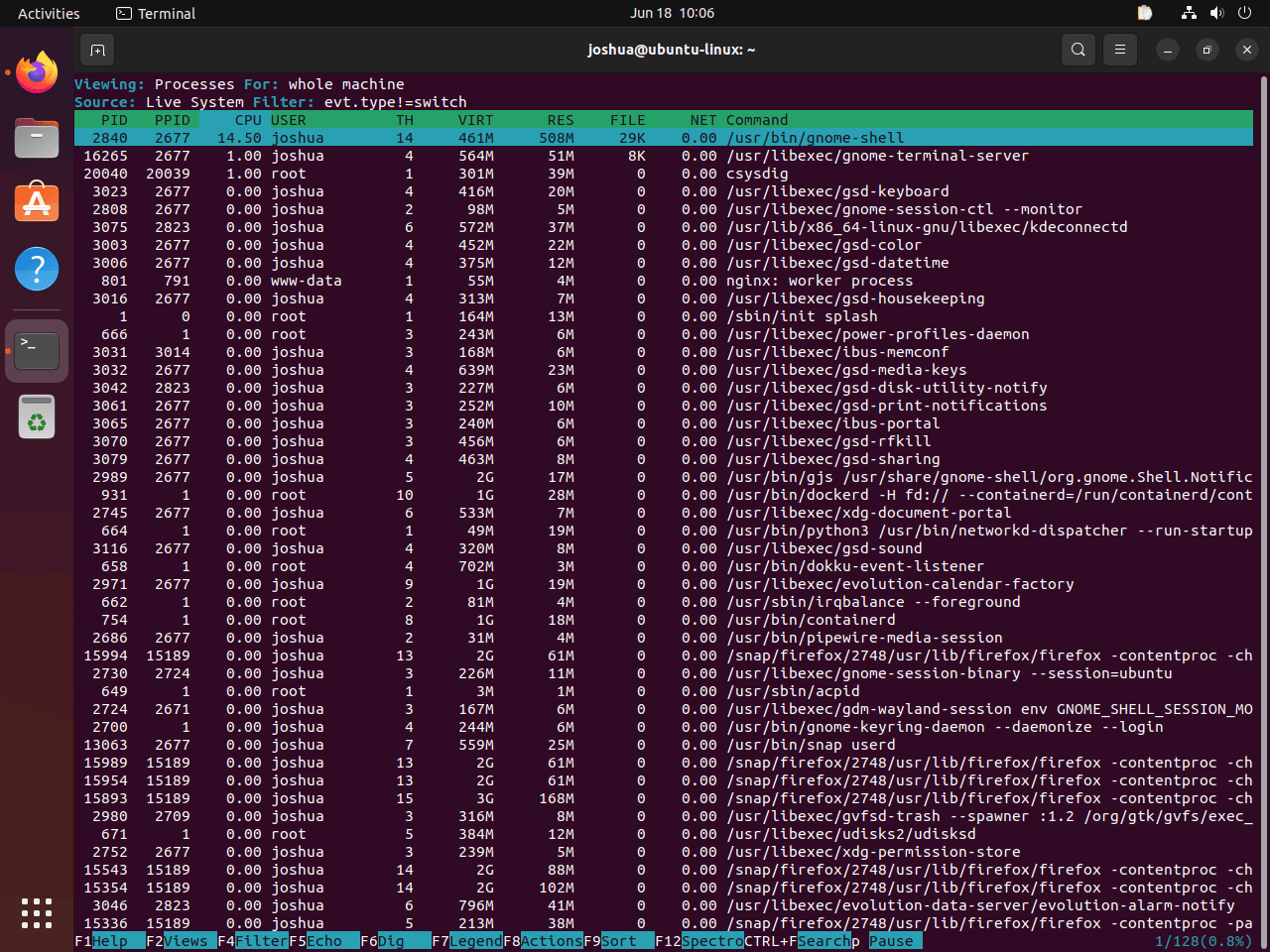
Start the ncurses interface with root privileges so it can read kernel-level events:
sudo csysdigcsysdig opens a top-like view for processes, containers, connections, and files. Press F2 to switch views, use the arrow keys to navigate, and press q to quit.
View Top Processes with Sysdig
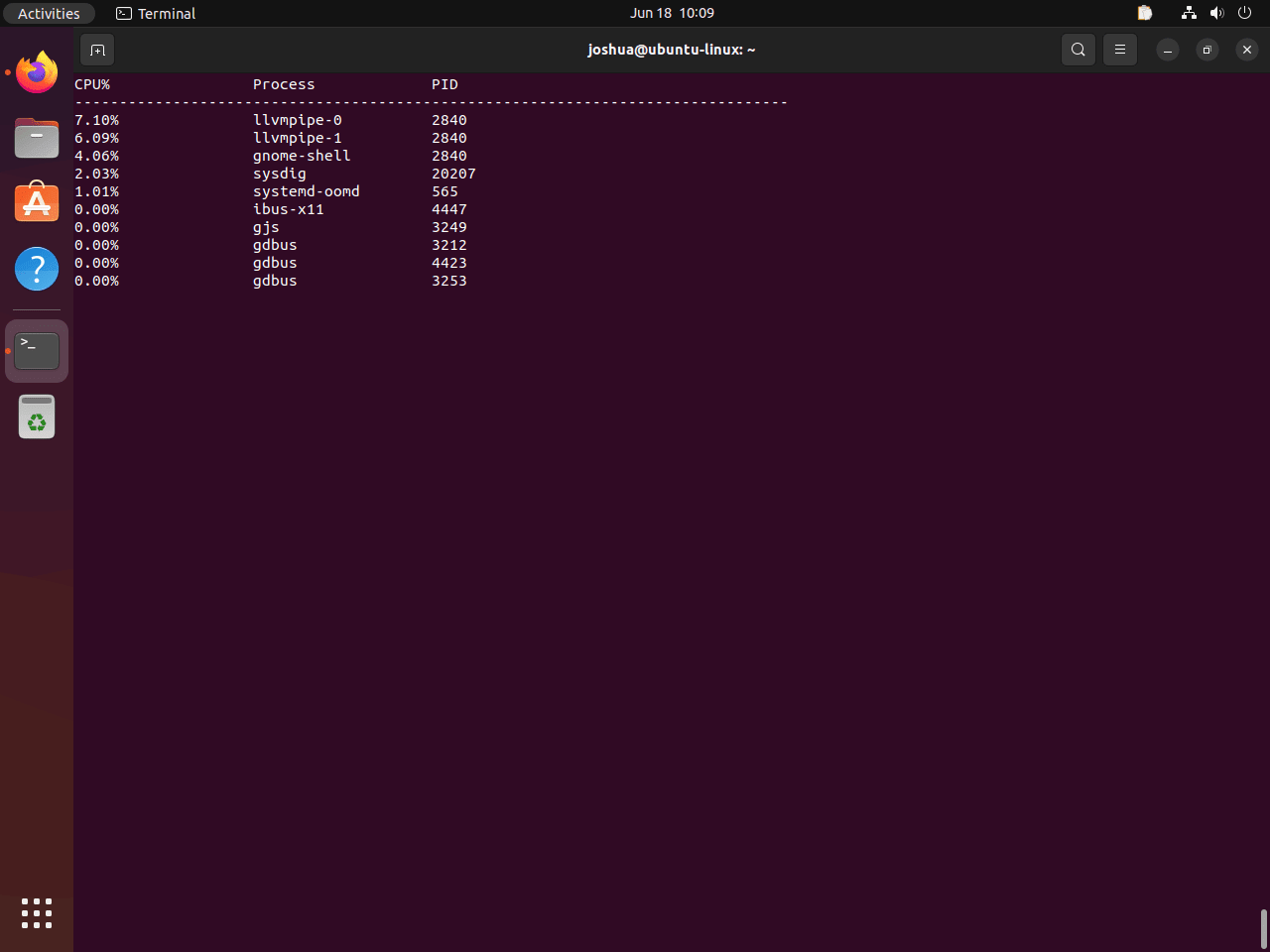
Use the topprocs_cpu chisel to show processes ranked by CPU usage:
sudo sysdig -c topprocs_cpuThe display updates continuously until you press Ctrl+C. For basic process monitoring without syscall tracing, install htop on Ubuntu as a lighter companion tool.
Display Network Connections with Sysdig
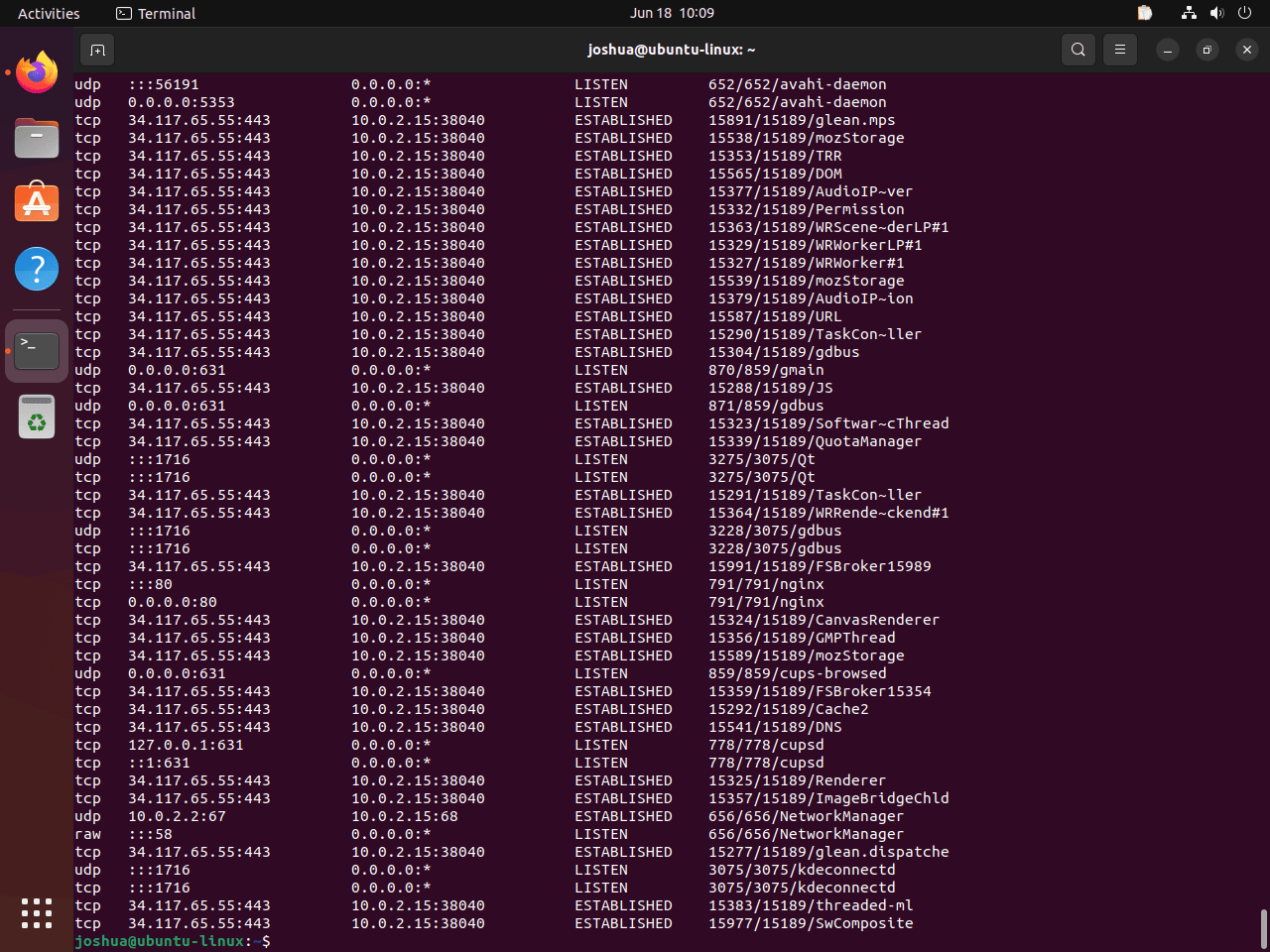
Use the netstat chisel to summarize active TCP and UDP connections:
sudo sysdig -c netstatThe output shows connection states, local addresses, and remote addresses from Sysdig’s event stream.
List Processes with Sysdig
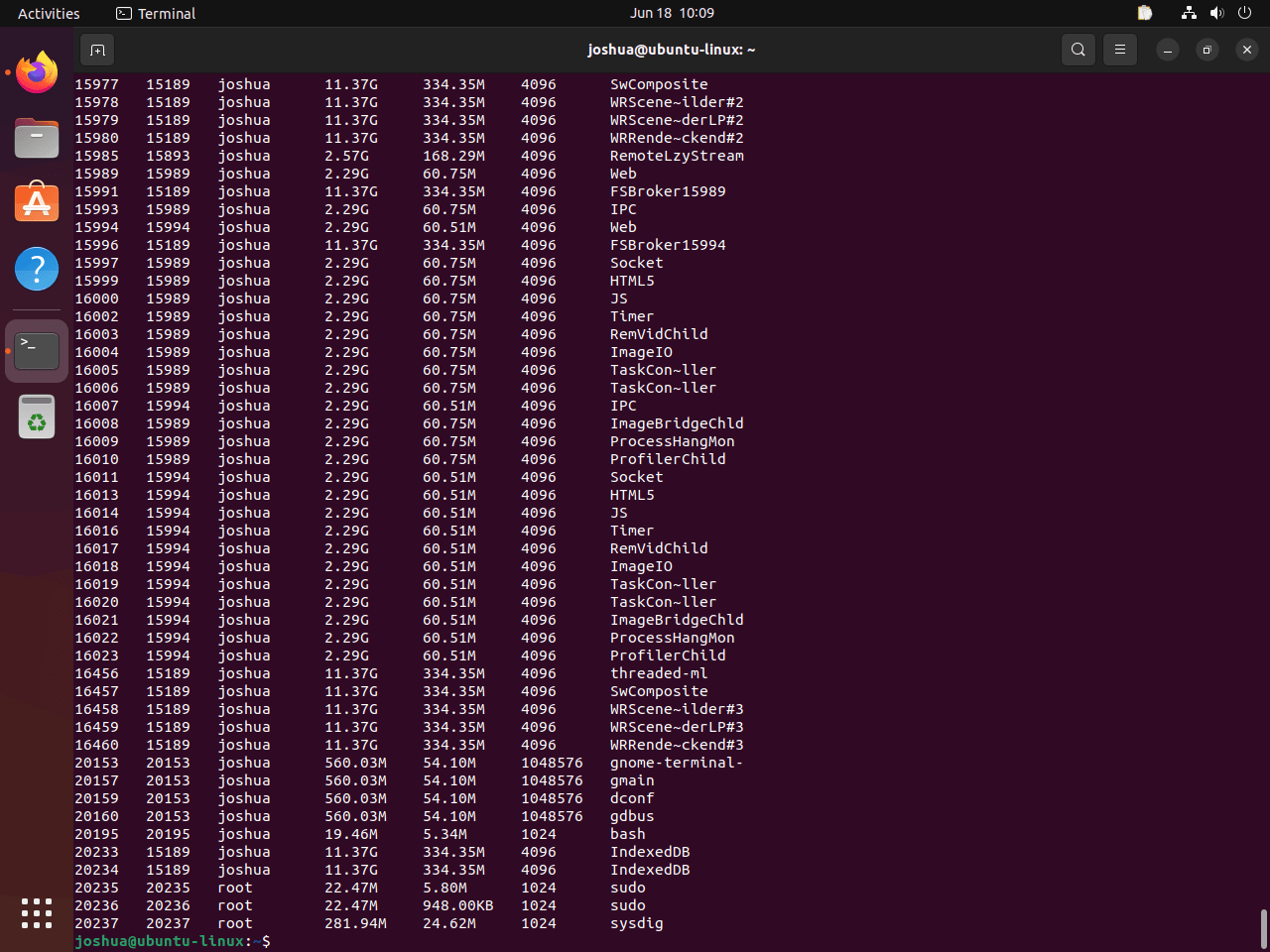
Capture a process snapshot with the ps chisel:
sudo sysdig -c psThis view is similar to ps aux, but Sysdig builds it from the same event source used for deeper filters and chisels.
Explore Available Sysdig Chisels
List built-in chisels when you need a view for files, network activity, containers, errors, or security events:
sysdig -clRelevant output begins with grouped categories:
Category: Application
---------------------
httplog.lua     HTTP requests log
httptop.lua     Top HTTP requests
memcachelog.lua memcached requests log

Category: CPU Usage
-------------------
spectrogram.lua Visualize OS latency in real time.
Useful starting points include topfiles_bytes for file I/O, topconns for network bandwidth, and spy_users for interactive user activity.
Troubleshoot Sysdig on Ubuntu
Most Sysdig failures come from terminal definitions, missing kernel headers, or running capture commands without elevated privileges.
Fix the xterm-256color Error in csysdig
If csysdig cannot find your terminal definition, it may show this error:
Error opening terminal: xterm-256color
Install ncurses-term, then launch csysdig again:
sudo apt install ncurses-term
sudo csysdig
Fix Sysdig Kernel Module Errors
If Sysdig reports a missing or unloaded probe, check DKMS first:
dkms status | grep -E 'scap|sysdig'A missing result usually means the module did not build for the running kernel. If you copied a Debian header command, Ubuntu may show this package-name error:
E: Package 'linux-headers-amd64' has no installation candidate
Use Ubuntu’s running-kernel header package instead, then rerun DKMS:
sudo apt install linux-headers-$(uname -r)
sudo dkms autoinstall
Retest the module state and a simple live capture after the rebuild:
dkms status | grep -E 'scap|sysdig'
sudo sysdig -c ps
If APT ends with the generic Sub-process /usr/bin/dpkg returned an error code message during Sysdig setup, treat it as a package-script failure and check the DKMS state first. The real cause is usually earlier in the APT output.
Official Sysdig packages and Ubuntu 26.04/24.04 packages use scap. Ubuntu 22.04’s distro package uses sysdig_probe, so older-release troubleshooting output can show that module name instead.
Fix Sysdig Permission Errors
Live captures need root privileges. If a capture command fails as a regular user, rerun it with sudo:
sudo sysdig -c psThe same rule applies to the interactive interface, so use sudo csysdig for full host visibility.
Update or Remove Sysdig on Ubuntu
Update Sysdig with APT like any other package, then remove the package, repository files, and loaded module state only when you no longer need live tracing.
Update Sysdig on Ubuntu
Upgrade only the Sysdig package after refreshing package metadata:
sudo apt update && sudo apt install --only-upgrade sysdig -yConfirm the version afterward:
sysdig --versionRemove Sysdig from Ubuntu
Remove the main package first:
sudo apt remove sysdig -yIf you used Ubuntu’s repository package and want to remove the matching DKMS helper package too, use the package name for your release.
Ubuntu 26.04 and 24.04:
sudo apt remove falcosecurity-scap-dkms -yUbuntu 22.04:
sudo apt remove sysdig-dkms -yPackage removal deletes the DKMS files, but a module that was already loaded can remain in the running kernel until you unload it. Check for a loaded Sysdig module:
lsmod | grep -E '^(scap|sysdig_probe)' || echo 'No loaded Sysdig module found'If the command shows scap, unload it:
sudo rmmod scapIf the command shows sysdig_probe, unload that older module name instead:
sudo rmmod sysdig_probeIf you added the official Sysdig repository, remove its source file and keyring:
sudo rm -f /etc/apt/sources.list.d/sysdig.sources
sudo rm -f /usr/share/keyrings/sysdig.gpg
sudo apt update
Verify that the package is not installed and that the official 0.41.x candidate is gone:
apt-cache policy sysdig
dkms status | grep -E 'scap|sysdig' || echo 'No Sysdig DKMS modules remain'
After removing the official repository, Ubuntu’s own package may still appear as a candidate. On Ubuntu 26.04, that looks like this:
sysdig:
  Installed: (none)
  Candidate: 0.40.0+repack-3
  Version table:
     0.40.0+repack-3 500
        500 http://archive.ubuntu.com/ubuntu resolute/universe amd64 Packages
No Sysdig DKMS modules remain
Run
sudo apt autoremoveonly after reviewing APT’s proposed removals. Sysdig installs compiler and DKMS dependencies, but reused systems can also have unrelated old kernels or desktop helpers marked as autoremovable.
Conclusion
Sysdig is ready on Ubuntu for syscall tracing, container inspection, and quick csysdig exploration. The official repository keeps the package on the 0.41.x branch, while Ubuntu’s package remains available for simpler distro-managed installs. For broader container work after Sysdig is running, install Docker on Ubuntu.


Formatting tips for your comment
You can use basic HTML to format your comment. Useful tags currently allowed in published comments:
<code>command</code>command<strong>bold</strong><em>italic</em><a href="https://example.com">link</a><blockquote>quote</blockquote>