
Large local music libraries are harder to manage when the player treats everything like a disposable stream instead of a collection you actually maintain. That is what makes it useful to install Strawberry on Ubuntu, because Strawberry Music Player focuses on library management, MusicBrainz lookups, smart playlists, and bit-perfect playback.
Strawberry is a fork of Clementine, which explains why that older name still shows up in search results and forum threads. Ubuntu 26.04 and 24.04 ship Strawberry in Universe, while Ubuntu 22.04 needs the Strawberry PPA or Flatpak. The official Strawberry downloads page lists direct Ubuntu packages for selected releases, but the package-managed routes here are easier to update and remove cleanly across Ubuntu 26.04, 24.04, and 22.04.
Install Strawberry on Ubuntu
Three installation paths make sense on current Ubuntu LTS releases. The default Ubuntu package is the simplest route when it exists, the Strawberry PPA keeps the app in APT while offering newer builds than Ubuntu 24.04, and Flatpak gives you the current Flathub build across every supported release.
| Method | Source | Current Candidate | Updates | Best Fit |
|---|---|---|---|---|
| Ubuntu repositories | Ubuntu Universe | 26.04: 1.2.18; 24.04: 1.0.23; 22.04: none | Native APT updates | The shortest package-managed install on Ubuntu 26.04 and 24.04 |
| Strawberry PPA | Jonas Kvinge Launchpad PPA | 26.04/24.04: 1.2.19; 22.04: 1.1.3 | APT-managed updates | APT users who want the newer branch on 26.04 or 24.04, or any APT build on 22.04 |
| Flatpak | Flathub | Flathub stable 1.2.19 | Flatpak app and runtime updates | Desktop users who want the same current app branch across supported Ubuntu releases |
- Use the Ubuntu repositories on 26.04 or 24.04 when you want the shortest APT workflow.
- Use the Strawberry PPA on 22.04, or when you want the PPA’s 1.2.19 build through APT on 26.04 or 24.04.
- Use Flatpak when you want the same current Strawberry release on every supported Ubuntu version through Flathub.
Ubuntu 26.04 and 24.04 include Strawberry in Universe, while Ubuntu 22.04 returns no default package candidate and needs the PPA or Flatpak instead. All three methods install cleanly from a terminal, but Strawberry still needs an active graphical session to launch the desktop interface.
Update Ubuntu before installing Strawberry
Refresh APT first so the package index and any pending base-system updates are out of the way before you add or install anything else.
sudo apt update && sudo apt upgradeThese commands use
sudofor root privileges. If your account does not have sudo access yet, follow the guide to add a new user to sudoers on Ubuntu before continuing.
Install Strawberry from Ubuntu repositories
The default APT package is the easiest path on Ubuntu 26.04 and 24.04. Ubuntu 26.04 ships a 1.2.x build close to the current upstream branch, Ubuntu 24.04 stays on the older 1.0.x package, and Ubuntu 22.04 has no Strawberry package in the default repositories.
Strawberry comes from Universe on the releases that package it. Standard Ubuntu installs usually have that component enabled already, but trimmed images can disable it, so use the guide to enable Universe and Multiverse in Ubuntu if the policy check shows no candidate on 26.04 or 24.04.
| Ubuntu release | Default Strawberry | Availability |
|---|---|---|
| Ubuntu 26.04 | Strawberry 1.2.x | Available in Universe |
| Ubuntu 24.04 | Strawberry 1.0.x | Available in Universe |
| Ubuntu 22.04 | Not packaged | Use the Strawberry PPA or Flatpak |
Check the package policy before installing so you can see which candidate your release exposes.
apt-cache policy strawberrystrawberry:
Installed: (none)
Candidate: 1.2.18-1
Version table:
1.2.18-1 500
500 http://archive.ubuntu.com/ubuntu resolute/universe amd64 Packages
Ubuntu 24.04 shows Candidate: 1.0.23-1build3 from noble/universe. Ubuntu 22.04 shows Installed: (none) and Candidate: (none), which is your cue to use the PPA or Flatpak method instead.
Install the package with APT when the policy output shows a candidate on your release.
sudo apt install strawberry -yVerify the installed package version after APT finishes.
dpkg-query -W strawberrystrawberry 1.2.18-1
On Ubuntu 24.04, the same command returns strawberry 1.0.23-1build3. If you want the newer 1.2.x branch there, use the PPA or Flatpak method instead.
Install Strawberry from the PPA on Ubuntu
The stable PPA is the better APT option when you want Strawberry 1.2.19 on Ubuntu 26.04 or 24.04, or when you need an APT package on Ubuntu 22.04. The Jammy PPA package is older at 1.1.3, so use Flatpak instead on 22.04 if you want the current 1.2.19 app release. Standard Ubuntu installs already include add-apt-repository, and stripped-down images can add it by installing software-properties-common first if the command is missing.
Add the stable PPA maintained by Jonas Kvinge.
sudo add-apt-repository ppa:jonaski/strawberry -yRefresh APT so the new Launchpad source is visible before you install the package.
sudo apt updateHit:5 https://ppa.launchpadcontent.net/jonaski/strawberry/ubuntu resolute InRelease Get:6 https://ppa.launchpadcontent.net/jonaski/strawberry/ubuntu resolute/main amd64 Packages [784 B] Reading package lists...
Use a package-policy check before installing so you can confirm the PPA has taken priority.
apt-cache policy strawberrystrawberry:
Installed: (none)
Candidate: 1.2.19-resolute
Version table:
1.2.19-resolute 500
500 https://ppa.launchpadcontent.net/jonaski/strawberry/ubuntu resolute/main amd64 Packages
1.2.18-1 500
500 http://archive.ubuntu.com/ubuntu resolute/universe amd64 Packages
Ubuntu 24.04 currently shows 1.2.19-noble from the PPA with a higher priority than the older 1.0.23-1build3 Ubuntu package. Ubuntu 22.04 shows 1.1.3-jammy from the PPA and still has no default-repository fallback.
Install Strawberry once the policy output shows the PPA candidate you want.
sudo apt install strawberry -yVerify both the package version and the application version string after installation.
dpkg-query -W strawberry && strawberry --versionstrawberry 1.2.19-resolute Strawberry 1.2.19
On Ubuntu 24.04, the package line ends in 1.2.19-noble. On Ubuntu 22.04, the stable PPA currently installs 1.1.3-jammy and prints Strawberry 1.1.3.
Install Strawberry from Flatpak on Ubuntu
Flatpak is the easiest way to keep Strawberry 1.2.19 across Ubuntu 26.04, 24.04, and 22.04. Ubuntu does not ship Flatpak by default, so add it first if your system does not already provide the flatpak command.
If Flatpak is not set up yet, install Flatpak on Ubuntu first so the base package, the Flathub remote, and the desktop integration pieces are already in place before you add Strawberry.
Add Flathub at system scope so the install, update, and removal steps all use the same scope.
sudo flatpak remote-add --if-not-exists flathub https://dl.flathub.org/repo/flathub.flatpakrepoVerify that the Flathub remote exists before you install the application.
flatpak remotes --columns=name,options | grep -E '^flathub[[:space:]]'flathub system
Install Strawberry from Flathub.
sudo flatpak install flathub org.strawberrymusicplayer.strawberry -yThe first Flatpak install on a system can also pull shared runtimes, so the initial download is often larger than the app itself.
Flathub lists Strawberry with broad desktop-player permissions, including network and audio access, device access, Wayland and X11 sockets, MPRIS D-Bus entries, and file access to xdg-music, /media, /mnt, and /run/media. That makes Flatpak useful for consistent packaging and updates, but it is not a strict-isolation choice here.
Confirm that the Flatpak app is installed and note the current version.
flatpak list --app --columns=application,version,branch,origin | grep -F org.strawberrymusicplayer.strawberryorg.strawberrymusicplayer.strawberry 1.2.19 stable flathub
Launch Strawberry on Ubuntu
Strawberry is a desktop application, so launching it still requires a graphical session even if you installed it from a remote shell. Once you are back at the Ubuntu desktop, use the command or menu entry that matches your install method.
Launch Strawberry from the terminal on Ubuntu
APT installs use the regular launcher name.
strawberryFlatpak installs use the application ID through flatpak run.
flatpak run org.strawberrymusicplayer.strawberryLaunch Strawberry from the applications menu on Ubuntu
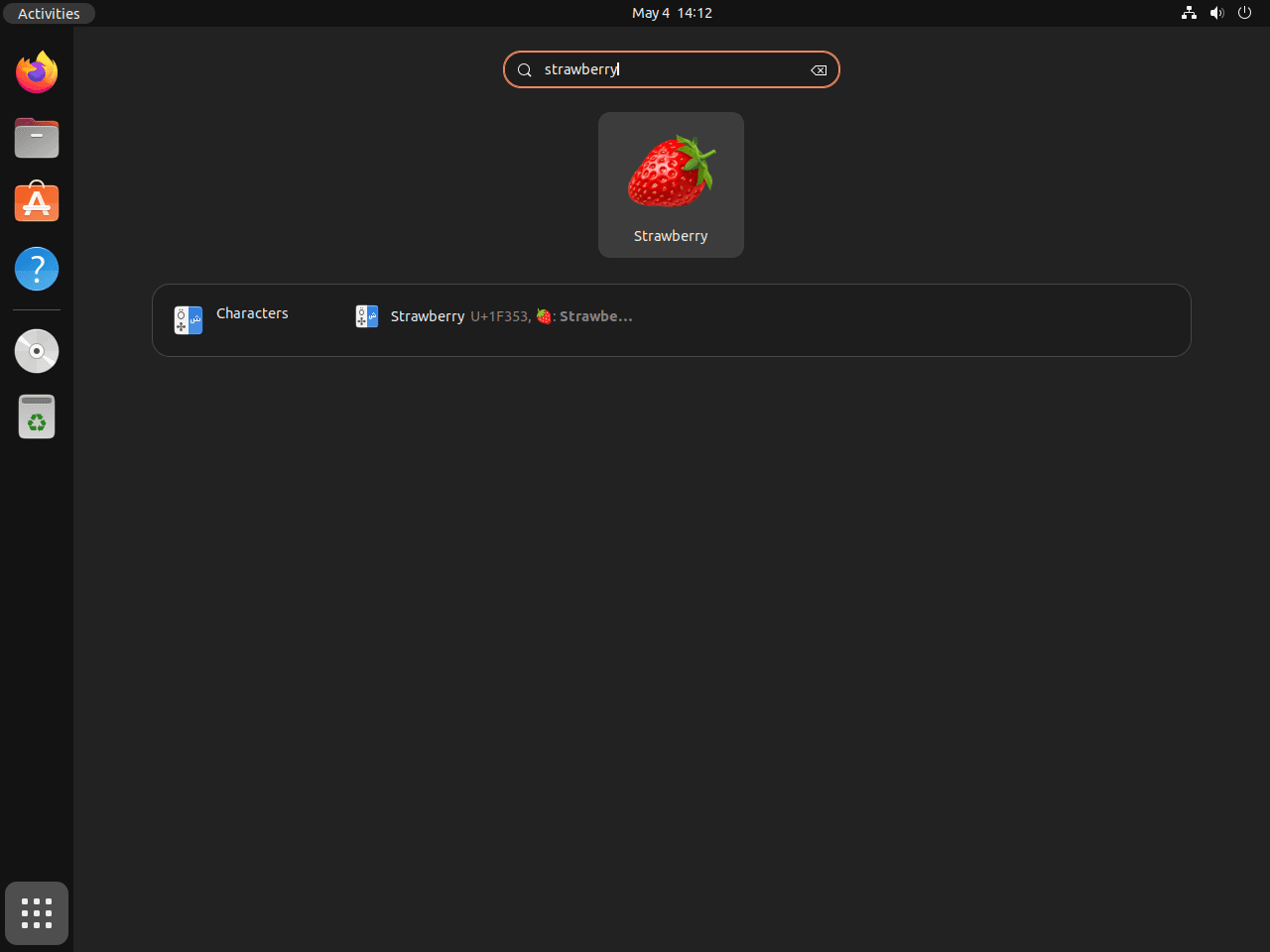
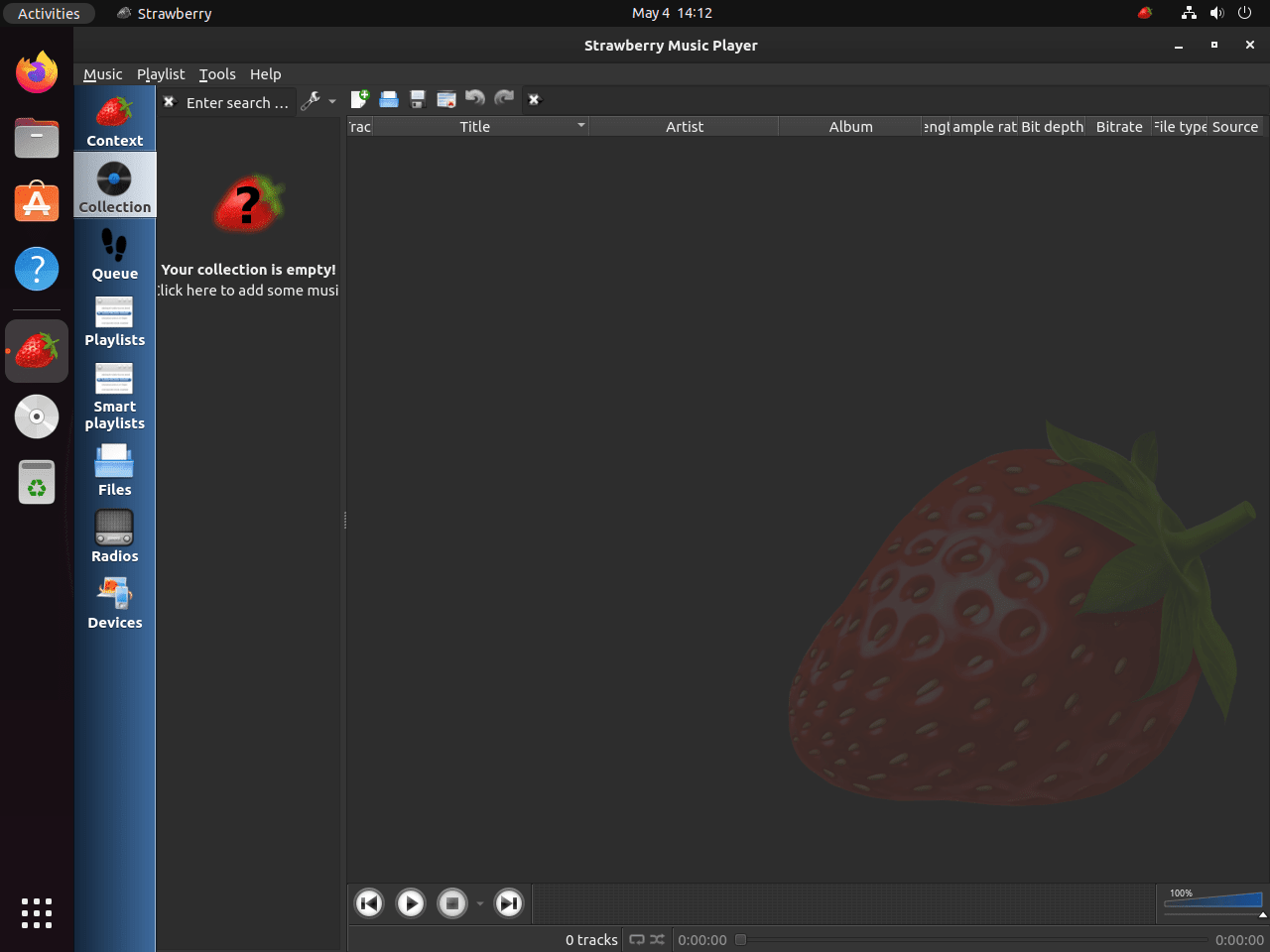
The desktop entry appears as Strawberry in the application grid for both APT and Flatpak installs.
- Open Activities.
- Select Show Applications.
- Search for Strawberry and launch it from the results.
Start Using Strawberry on Ubuntu
After launch, add your music folders from Strawberry’s interface and let the library scanner index the collection. The app’s own feature set covers tag editing, MusicBrainz tag retrieval, lyrics from multiple sources, smart playlists, and bit-perfect playback on Linux, so these core player features do not require a separate Ubuntu package.
Do not choose an install method from a generic RAM-use number alone. Memory use varies with library size, cover-art cache, active playback features, and whether shared Flatpak runtimes are already loaded, so compare after Strawberry has indexed your own collection.
Update or Remove Strawberry on Ubuntu
The update and removal path depends on whether Strawberry came from APT or Flatpak. Keep the package-manager cleanup and any optional source cleanup as separate steps so you can see what changed.
Update an APT-installed Strawberry package on Ubuntu
Use APT to refresh the package list, then upgrade only Strawberry without pulling unrelated packages.
sudo apt update && sudo apt install --only-upgrade strawberry -yUpdate the Strawberry Flatpak on Ubuntu
Use the same system scope you used during installation when you update the Flatpak build.
sudo flatpak update org.strawberrymusicplayer.strawberry -yRemove an APT-installed Strawberry package on Ubuntu
Remove the package first. This step is the same whether you installed Strawberry from Ubuntu’s repositories or from the PPA.
sudo apt remove strawberry -yVerify that the package itself is gone before you clean up any optional repository source.
dpkg-query -W -f='${db:Status-Abbrev} ${binary:Package}\n' strawberry 2>/dev/null | grep '^ii' || echo "strawberry package not installed"strawberry package not installed
If you want to remove orphaned dependencies afterward, preview the cleanup first. Continue only when the preview lists packages you intentionally want to remove, because autoremove can also include unrelated packages that were already orphaned before Strawberry was installed.
sudo apt autoremove --dry-runRun the cleanup interactively after reviewing the preview.
sudo apt autoremoveIf you used the stable PPA, remove the source afterward and refresh APT so the candidate falls back to Ubuntu’s own repositories when they provide one.
sudo add-apt-repository --remove ppa:jonaski/strawberry -y && sudo apt updateConfirm the source cleanup with another policy check.
apt-cache policy strawberrystrawberry:
Installed: (none)
Candidate: 1.2.18-1
Version table:
1.2.18-1 500
500 http://archive.ubuntu.com/ubuntu resolute/universe amd64 Packages
After stable-PPA cleanup, Ubuntu 24.04 falls back to 1.0.23-1build3 from noble/universe. Ubuntu 22.04 shows Candidate: (none) because its default repositories still do not ship Strawberry.
Remove the Strawberry Flatpak on Ubuntu
Remove the system-scope Flatpak app with the same scope used during installation.
sudo flatpak remove org.strawberrymusicplayer.strawberry -yCheck the installed-app list afterward instead of relying on flatpak info, which is less reliable after the app has already been removed.
flatpak list --app --columns=application | grep -Fx org.strawberrymusicplayer.strawberry || echo "Flatpak app not installed"Flatpak app not installed
Strawberry may not create its user-data directories until you actually launch the desktop app, so do not delete config paths by guesswork. If you want a full cleanup, inspect
~/.config/strawberry,~/.cache/strawberry,~/.local/share/strawberry,~/.var/app/org.strawberrymusicplayer.strawberry, and~/.strawberry, then remove only the directories that actually exist.
Conclusion
After installing Strawberry on Ubuntu, use it for local libraries, tag cleanup, smart playlists, and lossless playback. If you want better metadata hygiene next, install MusicBrainz Picard on Ubuntu. When the same collection also includes video files or network streams, install VLC Media Player on Ubuntu as well.


Formatting tips for your comment
You can use basic HTML to format your comment. Useful tags currently allowed in published comments:
<code>command</code>command<strong>bold</strong><em>italic</em><a href="https://example.com">link</a><blockquote>quote</blockquote>