Spotify still makes sense on a Linux desktop when you want the full app instead of a browser tab, with media keys, notifications, and offline listening for Premium accounts. You can install Spotify on Ubuntu without leaving the terminal, but the desktop app still needs a graphical session to open after the package is in place.
Spotify is not in Ubuntu’s default repositories, so the real choice is between a Spotify-published APT package, the Spotify Snap, and the Flathub build. Ubuntu 26.04 and 24.04 can use the APT package, while Ubuntu 22.04 needs Snap or Flatpak because the current spotify-client package depends on libc6 >= 2.39.
Install Spotify on Ubuntu
Spotify is not available from Ubuntu’s default repositories, so sudo apt install spotify-client only works after you add Spotify’s own repository on Ubuntu 26.04 or 24.04. Spotify’s Linux page lists Snap and Debian/Ubuntu APT instructions, but it does not publish a separate one-off .deb download link for Ubuntu.
| Method | Channel | Release Cadence | Updates | Best For |
|---|---|---|---|---|
| APT (Spotify Repo) | Spotify for Linux | Current Spotify stable package | APT-managed updates | Ubuntu 26.04 and 24.04 users who want the Debian package workflow |
| Flatpak | Flathub | Flathub stable branch | Manual via Flatpak | All supported Ubuntu LTS releases if you prefer Flathub packaging or need a non-APT fallback |
| Snap | Snapcraft | Snap Store latest/stable channel | Automatic background refreshes | All supported Ubuntu LTS releases with a Spotify-published package |
- Use APT on Ubuntu 26.04 or 24.04 if you want Spotify managed through the Debian package workflow.
- Use Flatpak on any supported Ubuntu LTS if you already use Flathub or want a fallback package format that does not depend on Ubuntu’s
libc6version. - Use Snap on any supported Ubuntu LTS, especially 22.04, if you want Spotify’s published Snap package and automatic background updates.
The current APT package works on Ubuntu 26.04 and 24.04, but not on 22.04. Flatpak and Snap work on all supported Ubuntu LTS releases, and every method installs from a shell even though Spotify itself still needs a desktop session to launch. Spotify for Linux is also not supported at the same level as Spotify’s Windows and macOS desktop clients.
Install Spotify from Spotify’s APT Repository
Spotify’s APT package fits Ubuntu’s normal package-manager workflow, but it currently works only on Ubuntu 26.04 and 24.04 because the package now requires a newer libc6 than Ubuntu 22.04 ships.
Start by refreshing APT and upgrading any pending packages:
sudo apt update && sudo apt upgrade -yThese commands use
sudofor tasks that need root privileges. If your account is not in the sudoers file yet, follow the guide to add a new user to the sudoers file on Ubuntu or switch to a user that already has sudo access.
Install the download and keyring tools next. The gpg package provides the gpg --dearmor command used to convert Spotify’s ASCII-armored signing key into an APT keyring file, and the next step is a practical example of using the curl command in Linux for a repository key download.
sudo apt install curl gpg -yAdd Spotify’s signing key and repository only on Ubuntu 26.04 or 24.04. The release check keeps Ubuntu 22.04 from creating a repository file that APT can read but cannot install from.
. /etc/os-release

if [ "$VERSION_CODENAME" = "resolute" ] || [ "$VERSION_CODENAME" = "noble" ]; then
  curl -fsSL https://download.spotify.com/debian/pubkey_5384CE82BA52C83A.asc | sudo gpg --dearmor --yes -o /usr/share/keyrings/spotify-archive-keyring.gpg
  printf '%s\n' \
  'Types: deb' \
  'URIs: https://repository.spotify.com' \
  'Suites: stable' \
  'Components: non-free' \
  'Architectures: amd64' \
  'Signed-By: /usr/share/keyrings/spotify-archive-keyring.gpg' \
  | sudo tee /etc/apt/sources.list.d/spotify.sources > /dev/null
else
  printf '%s\n' "Use the Snap or Flatpak method on this Ubuntu release; Spotify's APT package currently requires libc6 >= 2.39."
fi
This uses the same upstream repository and signing key as Spotify’s Linux page, but stores the source as a DEB822 .sources file for easier auditing and cleanup. The sudo tee command writes the root-owned file, while the final > /dev/null only keeps tee from printing the file contents twice.
If the previous command printed the Snap or Flatpak message, skip the rest of the APT method. Otherwise, check the saved file before you refresh APT so you can catch paste mistakes early:
cat /etc/apt/sources.list.d/spotify.sourcesTypes: deb URIs: https://repository.spotify.com Suites: stable Components: non-free Architectures: amd64 Signed-By: /usr/share/keyrings/spotify-archive-keyring.gpg
Refresh APT and confirm that Spotify’s repository is visible before you install the package. The package name is spotify-client, but the launcher command is spotify.
sudo apt updateapt-cache policy spotify-clientspotify-client:
Installed: (none)
Candidate: 1:1.2.86.502.g8cd7fb22
Version table:
1:1.2.86.502.g8cd7fb22 500
500 https://repository.spotify.com stable/non-free amd64 Packages
Install the client once the repository check looks correct:
sudo apt install spotify-client -yVerify that APT now shows the installed version and the package status entry:
apt-cache policy spotify-clientspotify-client:
Installed: 1:1.2.86.502.g8cd7fb22
Candidate: 1:1.2.86.502.g8cd7fb22
Version table:
*** 1:1.2.86.502.g8cd7fb22 500
500 https://repository.spotify.com stable/non-free amd64 Packages
100 /var/lib/dpkg/status
Spotify’s current Debian package recreates
/etc/apt/sources.list.d/spotify.listand a package-owned key under/etc/apt/trusted.gpg.d/during package script runs, even if you already createdspotify.sources. If a laterapt updatewarns about duplicate Spotify targets, delete the legacy.listfile and keep the DEB822 source file.
Fix Spotify APT Dependency Errors on Ubuntu 22.04
Ubuntu 22.04 can read Spotify’s repository metadata, but the current APT package cannot install because Jammy ships libc6 2.35. If APT shows the dependency error below, do not replace Ubuntu’s core C library to force the package; install Spotify with Snap or Flatpak instead.
spotify-client : Depends: libc6 (>= 2.39) but 2.35-0ubuntu3.13 is to be installed
Install Spotify from Flatpak
Flatpak installs Spotify from Flathub and works on Ubuntu 26.04, 24.04, and 22.04, which makes it a practical fallback when the APT package will not install on 22.04. Use APT or Snap instead when you specifically want a Spotify-published package, because Flathub does not currently show verified-publisher metadata for this app.
Flatpak is not pre-installed on Ubuntu. If the
flatpakcommand is missing, first install Flatpak on Ubuntu and sign out once so desktop launchers appear normally.
Add Flathub at system scope if you have not enabled it already:
sudo flatpak remote-add --if-not-exists flathub https://dl.flathub.org/repo/flathub.flatpakrepoflatpak remotes --columns=name,options | grep -E '^flathub[[:space:]]'flathub system
Install Spotify from Flathub with its full application ID:
sudo flatpak install flathub com.spotify.Client -yVerify the installed Flatpak afterwards. The current build uses the org.freedesktop.Platform 25.08 runtime and keeps Spotify’s file access limited to read-only music and picture folders, while still allowing normal network, audio, display, GPU, media-key, and session-bus integration.
flatpak info com.spotify.ClientSpotify - Online music streaming service
ID: com.spotify.Client
Ref: app/com.spotify.Client/x86_64/stable
Arch: x86_64
Branch: stable
Version: 1.2.84.475.ga1a748ff
License: LicenseRef-proprietary=https://www.spotify.com/us/legal/end-user-agreement/
Origin: flathub
Installation: system
Install Spotify from Snap
Spotify’s Snap is published by Spotify and works on all supported Ubuntu LTS releases. Standard Ubuntu desktop installs already include Snap, but server and minimal images may need sudo apt install snapd first.
Install the Spotify snap with one command:
sudo snap install spotifyspotify 1.2.84.475.ga1a748ff from Spotify** installed
Confirm that the snap is installed from the stable channel:
snap list spotifyName Version Rev Tracking Publisher Notes spotify 1.2.84.475.ga1a748ff 93 latest/stable spotify** -
Launch Spotify on Ubuntu
All three methods install from a terminal, but Spotify still needs a graphical desktop session to open. Use the launcher that matches your package format if you prefer starting it from a terminal.
Launch Spotify from the Terminal
Run the command that matches the package format you installed. These commands still launch the same desktop app, not a terminal-only Spotify client.
# APT
spotify

# Flatpak
flatpak run com.spotify.Client

# Snap
snap run spotify
Launch Spotify from the Applications Menu
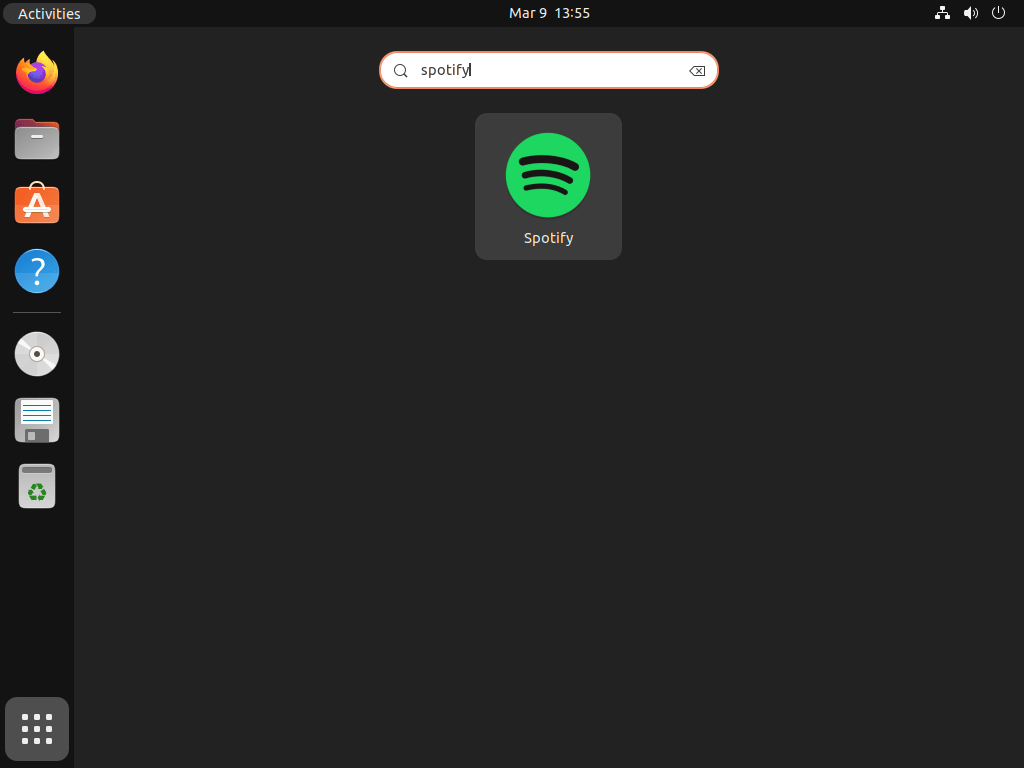
Ubuntu also adds Spotify to the Applications overview automatically. Open Activities, search for Spotify, and launch it from there like any other desktop app.

Update or Remove Spotify on Ubuntu
Package updates and cleanup depend on the format you chose.
Update Spotify APT Installation
APT-managed Spotify updates through the normal package manager. Use --only-upgrade if you want to refresh Spotify without upgrading unrelated packages at the same time.
sudo apt update && sudo apt install --only-upgrade spotify-client -yIf Spotify recreates /etc/apt/sources.list.d/spotify.list during an upgrade and apt update warns about duplicate targets, remove the legacy file and keep the DEB822 source:
sudo rm /etc/apt/sources.list.d/spotify.list
sudo apt update
Update Spotify Flatpak Installation
Flatpak updates the Spotify app without touching the rest of your system packages:
sudo flatpak update com.spotify.Client -yUpdate Spotify Snap Installation
Snap refreshes itself automatically in the background, but you can force a manual check whenever you want:
sudo snap refresh spotifysnap "spotify" has no updates available
Remove Spotify APT Installation
Remove the package first. If you think you may reinstall Spotify later, you can stop after this first block and keep the repository configured.
sudo apt remove spotify-client -yPreview orphaned dependency cleanup separately. Continue only if the preview lists Spotify-only dependencies and not unrelated packages from other work on the system.
sudo apt autoremove --dry-runRun the real cleanup only after that preview is safe:
sudo apt autoremoveVerify that the package itself is gone before you decide whether to remove the repository too:
dpkg -l spotify-client 2>/dev/null | grep '^ii' || echo not-installednot-installed
If you also want to stop APT from checking Spotify’s repository in future updates, remove the source files and both Spotify keyring locations after the package is gone:
sudo rm -f /etc/apt/sources.list.d/spotify.sources /etc/apt/sources.list.d/spotify.list /usr/share/keyrings/spotify-archive-keyring.gpg /etc/apt/trusted.gpg.d/spotify-2025-11-21-5384CE82BA52C83A.gpg /etc/apt/trusted.gpg.d/spotify.gpg
sudo apt update
After the optional repository cleanup, apt-cache policy spotify-client should no longer show a live candidate from Spotify’s repository:
apt-cache policy spotify-client | grep -F repository.spotify.com || echo spotify-repo-not-activespotify-repo-not-active
Remove Spotify Flatpak Installation
Use --delete-data to let Flatpak remove data tied to this app uninstall. If you used Spotify before removing it, check your home directory afterwards because user profile data can still be worth reviewing separately.
sudo flatpak remove --delete-data com.spotify.Client -ysudo flatpak list --app --columns=application | grep -F com.spotify.Client || echo not-installednot-installed
Remove Spotify Snap Installation
Remove the snap package with --purge when you want a clean app removal without Snap’s recovery snapshot:
sudo snap remove --purge spotifysnap list | grep -F spotify || echo not-installednot-installed
Find Leftover Spotify Data on Ubuntu
Spotify only creates per-user settings after the first launch, so package removal is usually enough if you never opened the app. If you did use Spotify and want to look for leftover home-directory data, search first and delete only the paths you recognize from the output.
The final filter is a small example of using the grep command in Linux to keep the results limited to Spotify-related paths. This command only lists matches, it does not delete anything.
find ~/.config ~/.cache ~/.local/share ~/snap ~/.var/app -maxdepth 3 2>/dev/null | grep -i spotify || echo no-local-spotify-data-foundno-local-spotify-data-found
Conclusion
Spotify is ready on Ubuntu with the package format that fits your release, from Spotify’s APT repository on 26.04 and 24.04 to the Spotify Snap or Flathub build on 22.04. If you also want a stronger player for local files and network streams, install VLC Media Player on Ubuntu. For trimming recordings or podcast audio, install Audacity on Ubuntu.


Formatting tips for your comment
You can use basic HTML to format your comment. Useful tags currently allowed in published comments:
<code>command</code>command<strong>bold</strong><em>italic</em><a href="https://example.com">link</a><blockquote>quote</blockquote>