

This guide walks you through installing Snapd and the optional Snap Store GUI on Debian, giving you access to thousands of containerized applications that auto-update independently of APT. Throughout the guide, you’ll configure the Snap daemon, install the core runtime, and learn essential command-line commands for tasks like installing browsers such as Firefox on Debian and Chromium on Debian or reverting problematic updates. By the end, you’ll have a working Snap environment alongside your existing Flatpak setup or APT packages.
Update Debian Packages Before Snapd Installation
Before installing Snapd, first ensure your Debian system is up-to-date with the latest package updates and security patches. You can accomplish this by running the following command:
sudo apt update && sudo apt upgradeThe sudo apt update command syncs your local package database with the official Debian repositories, making it aware of the latest package updates and changes. Then, sudo apt upgrade upgrades all the upgradable packages on your Debian system.
Install Snapd via APT Command
Since Snapd is available in Debian’s default repositories, installation requires only a single command:
sudo apt install snapdAPT will install snapd along with its dependencies. When prompted, press Y to confirm the installation.
Verify Snapd Installation
After installation completes, verify that Snapd is working correctly. First, check the installed version:
snap versionExpected output:
snap    2.x.x
snapd   2.x.x
series  16
debian  12
The version numbers shown are placeholders. Your output will display the actual installed versions and your Debian release number (bullseye for Debian 11, bookworm for Debian 12, or trixie for Debian 13).
Next, verify the status of the Snapd socket. This step ensures that Snapd is running and ready to manage Snap packages.
Check the systemctl status with the following command:
systemctl status snapd.socketExpected output showing the socket is active:
● snapd.socket - Socket activation for snappy daemon
     Loaded: loaded (/lib/systemd/system/snapd.socket; enabled; preset: enabled)
     Active: active (listening) since [timestamp]
   Triggers: ● snapd.service
     Listen: /run/snapd.socket (Stream)
             /run/snapd-snap.socket (Stream)
Snapd uses socket activation: the
snapd.servicemay showinactive (dead)until you run your first snap command. This is normal. The socket triggers the service on-demand. Checksnapd.socketinstead to verify the system is ready.
If the socket shows inactive, enable it for automatic startup:
sudo systemctl enable --now snapd.socketExpected output:
Created symlink /etc/systemd/system/sockets.target.wants/snapd.socket → /lib/systemd/system/snapd.socket.
Install Snap Core
Snap Core is an essential component for running Snap packages. Therefore, install it using the following command:
sudo snap install coreThe core snap provides the runtime environment required for other snap applications. Note that installation may take a minute as it downloads approximately 100MB.
Afterward, verify the installation with:
snap listExpected output:
Name  Version    Rev    Tracking       Publisher   Notes
core  16-x.xx.x  xxxxx  latest/stable  canonical✓  core
The version number and revision are placeholders. Your output will show the actual installed core snap version.
Enable Classic Confinement for Snap Packages
Some snap applications use “classic” confinement, which grants broader system access similar to traditionally packaged software. As a result, these snaps require /snap to be a symbolic link pointing to /var/lib/snapd/snap.
To begin, check the current state of /snap:
ls -ld /snapOn Debian 11 and 12, snapd creates /snap as an empty directory. Consequently, you need to replace it with a symlink:
drwxr-xr-x 2 root root 4096 [date] /snap
Now, remove the empty directory and create the required symlink:
sudo rmdir /snap
sudo ln -s /var/lib/snapd/snap /snap
Then, verify the symlink was created correctly:
ls -ld /snapYou should see output showing the symlink:
lrwxrwxrwx 1 root root 19 [date] /snap -> /var/lib/snapd/snap
You must log out and back in (or reboot) for the PATH changes to take effect. After that, classic-confined snaps like VS Code, Slack, and development tools will function correctly.
Basic Snap Command-Line Commands
This section explores some fundamental Snap command-line interface (CLI) commands. By understanding these commands, you will be able to manage your Snap applications efficiently.
Install a Snap Package
To install a Snap package, use the snap install command followed by the package name. For instance, if you want to install the VLC media player, use:
sudo snap install vlcRemove a Snap Package
Conversely, the snap remove command lets you uninstall a Snap package. For example, to remove the VLC media player, run:
sudo snap remove vlcUpdate a Snap Package
By default, Snapd automatically updates your Snap packages in the background. However, if you wish to update a specific package manually, use snap refresh instead. For example:
sudo snap refresh vlcList Installed Snap Packages
Additionally, to display a list of all installed Snap packages, use the snap list command:
snap listFind Available Snap Packages
When searching for a specific Snap package in the Snap Store, use the snap find command followed by your search term. For example, to find media players, run:
snap find "media player"Check Information About a Snap Package
Similarly, to display detailed information about a specific Snap package, use the snap info command. For instance, to get information about the VLC media player, run:
snap info vlcView Snap Task History
Furthermore, the snap changes command lets you view the history of Snap tasks, including installations, updates, and removals:
snap changesRevert a Snap to a Previous Version
If a new version of a Snap package isn’t working as expected, you can use the snap revert command to roll back to the previous version. As an example:
sudo snap revert vlcCheck Snap Interfaces
Finally, the snap interfaces command provides an overview of your Snap packages and the system resources to which they have access:
snap interfacesTogether, these basic commands form the foundation of Snap package management. In the following section, we look at how to install Snap-Store for Debian desktop users.
Install Snap Store on Debian
Install Snap Store via Snap Command
The Snap Store GUI is optional. If you prefer managing packages exclusively through the command line, skip this section. All snap commands work without it.
The Snap Store provides a graphical interface for browsing and installing snap packages, similar to GNOME Software or KDE Discover. To install it, run:
sudo snap install snap-storeThis command instructs Snapd to download and install the snap-store package, thereby introducing a graphical dimension to your Snap package management.
Launching the Snap Store
Once the installation process completes, the Snap Store can be launched in several ways.
One direct method while operating in the terminal is to execute the following command:
snap run snap-storeThis command triggers Snapd to run the Snap Store application. However, using the terminal each time to open the Snap Store might not be the most practical method.
Alternatively, for more intuitive access to the Snap Store, navigate through your desktop environment: Activities > Show Applications > Snap Store.
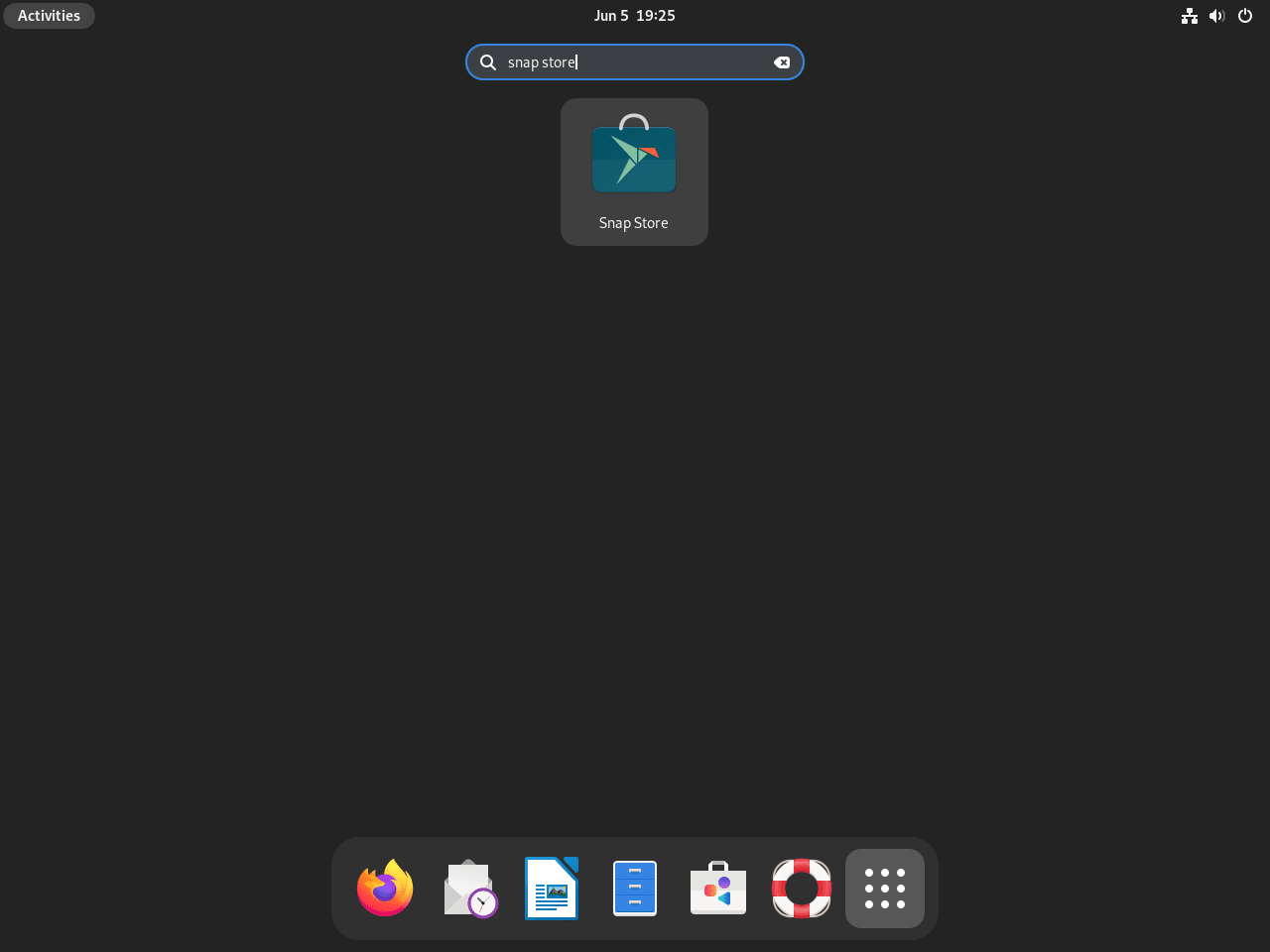
This pathway guides you to the Snap Store through your graphical user interface, thus offering a more traditional and user-friendly means of accessing and managing your Snap packages.
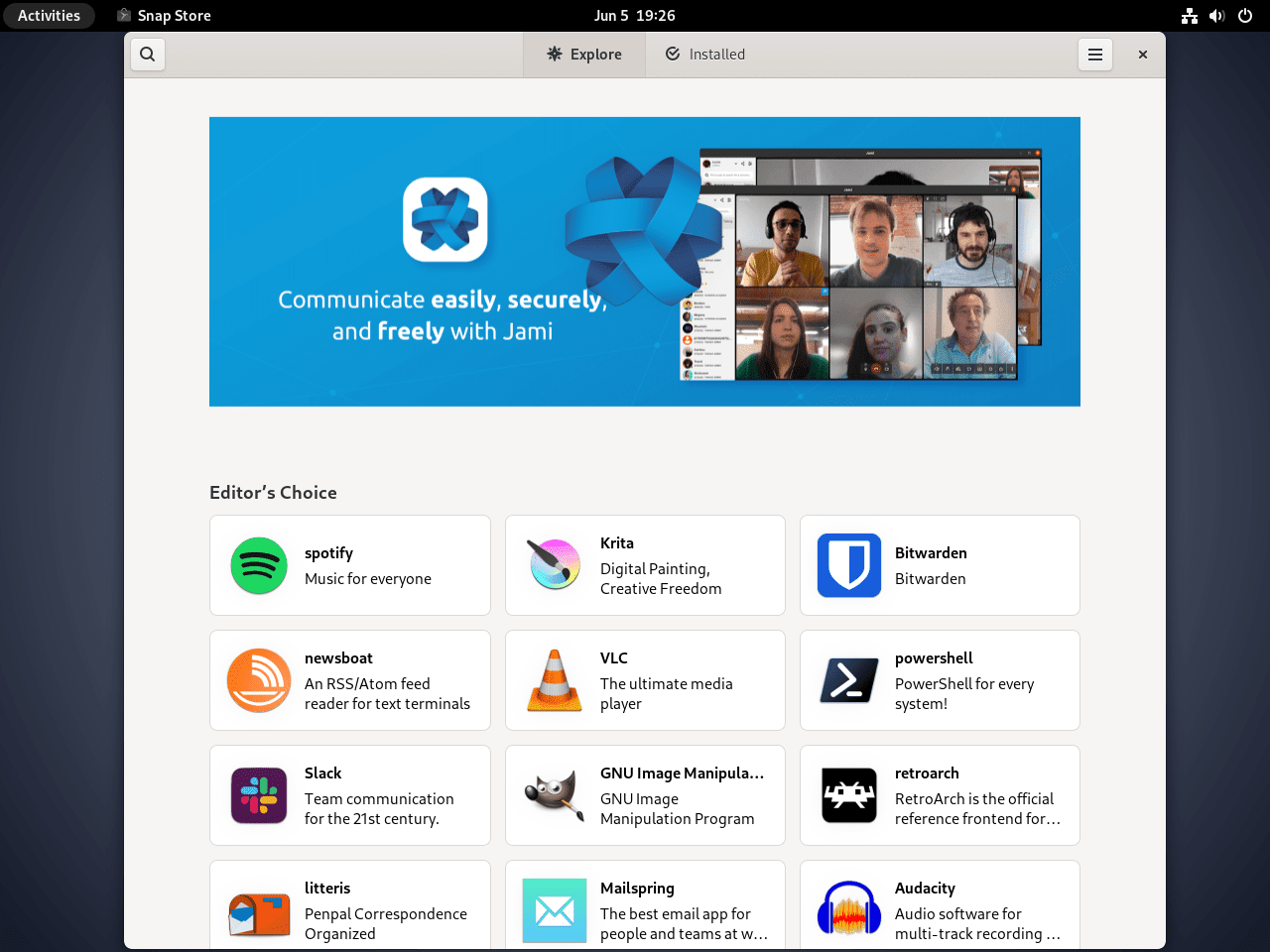
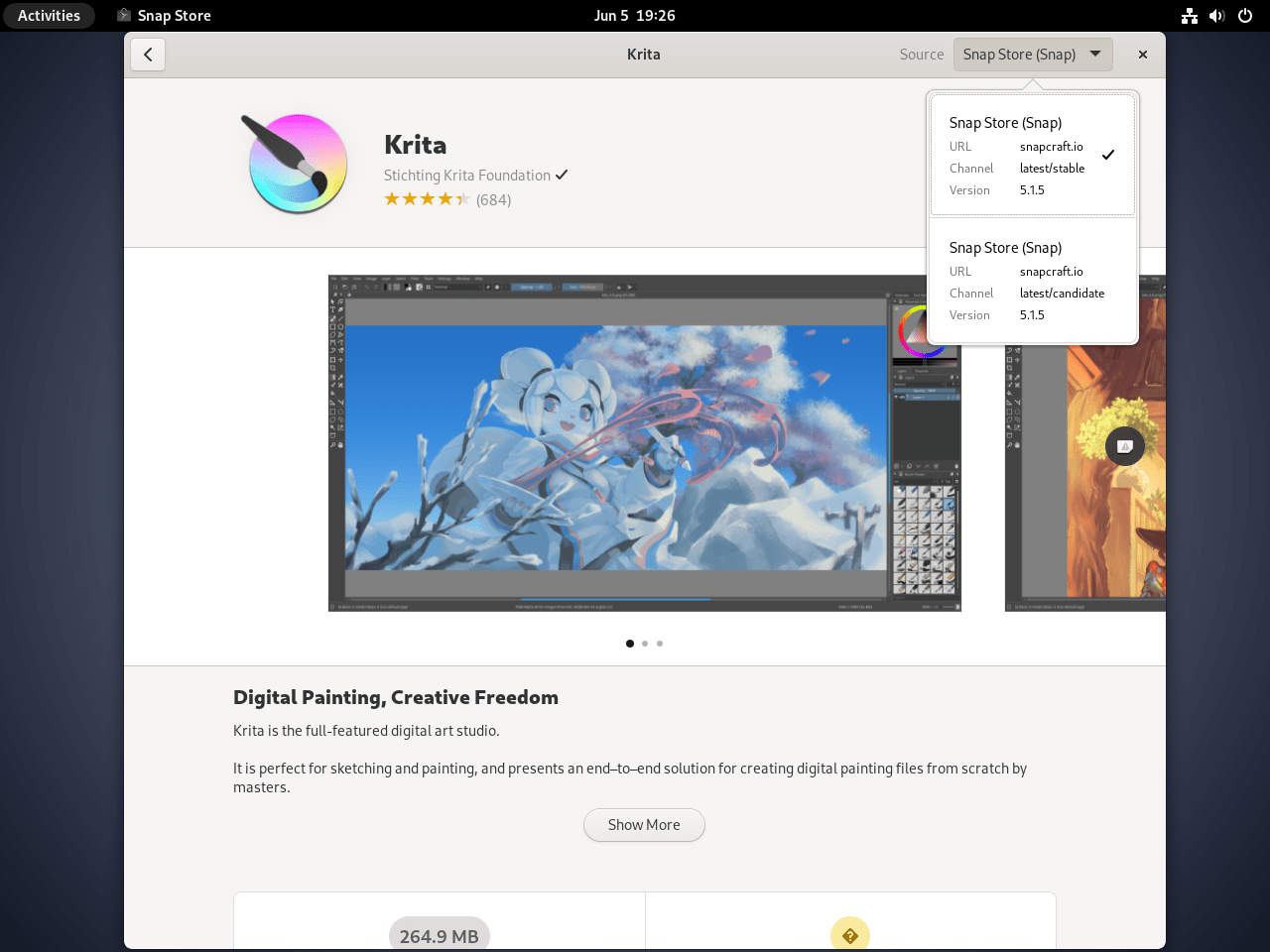
As an example, below is a quick demonstration of installing Krita with Snap Store on Debian, which you can see in the following image in the right-hand corner where the “source:” is located.
Troubleshoot Snap on Debian
Fix Missing Snap Application Icons
Symptom: Installed snap applications don’t appear in your desktop environment’s application menu, even though they run correctly from the terminal.
Cause: Typically, the snap binary path (/snap/bin) isn’t included in your session’s PATH variable, which prevents the desktop from finding .desktop files.
Solution: First, create a symbolic link to ensure X sessions load the snap path:
sudo ln -s /etc/profile.d/apps-bin-path.sh /etc/X11/Xsession.d/99snapAfter that, add /snap/bin to the system-wide PATH by editing /etc/login.defs:
sudo nano /etc/login.defsAppend this line at the end of the file:
ENV_PATH PATH=/usr/local/sbin:/usr/local/bin:/usr/sbin:/usr/bin:/sbin:/bin:/snap/bin
Save with CTRL+O, exit with CTRL+X, and then reboot:
sudo rebootVerification: After rebooting, check that snap applications appear in your application menu. Verify the PATH includes /snap/bin:
echo $PATH | tr ':' '\n' | grep '^/snap/bin$'Expected output if configured correctly:
/snap/bin
If there is no output, this means the PATH change didn’t take effect. In that case, verify the /etc/login.defs edit and reboot again.
Remove Snapd from Debian
Removing snapd automatically uninstalls all snap packages, so you don’t need to remove them individually first.
To begin, remove snapd and clean up orphaned dependencies:
sudo apt remove snapd && sudo apt autoremoveNext, refresh the package cache and verify removal:
sudo apt update
apt-cache policy snapd
Expected output showing snapd is not installed:
snapd:
  Installed: (none)
  Candidate: 2.x.x
  Version table:
     2.x.x 500
        500 http://deb.debian.org/debian bookworm/main amd64 Packages
The version number and release name are placeholders. Your output will show the actual candidate version and your Debian codename (bullseye, bookworm, or trixie).
Warning: The following command permanently deletes all snap application data, including
/var/snap(system-wide snap data),/snap(mounted snap packages and symlink), and~/snap(user-specific settings, cache, and app data). This action cannot be undone. Only proceed if you do not plan to reinstall snapd and no longer need any data from previously installed snap applications.
To remove all snap data directories:
sudo rm -rf /var/snap /snap ~/snapConclusion
At this point, you’ve installed Snapd on Debian, configured classic confinement, and learned the core command-line commands for managing snap packages. From here, explore the Snap Store for applications like LibreOffice, Spotify, or development tools. Snaps auto-update by default, but you can control timing with snap set system refresh.timer= to schedule updates during off-hours. For example, snap set system refresh.timer=4:00-7:00,19:00-22:00 restricts updates to early morning and evening windows. In addition, for alternative packaging options, consider setting up Flatpak on Debian.
