
Retro gaming on Ubuntu is easier when the frontend, cores, and update path all stay in one place, and that is exactly where RetroArch helps. You can install RetroArch on Ubuntu from the default repository, the Libretro stable PPA, Snap, or Flatpak, so you do not need to chase a separate manual download unless you specifically want the upstream project files from the official RetroArch site.
Supported Ubuntu LTS releases here are 26.04, 24.04, and 22.04. Ubuntu 26.04 already ships RetroArch 1.22.2 from Universe, while Ubuntu 24.04 and 22.04 still benefit from the Libretro PPA if you want a newer APT build than the distro package.
Install RetroArch on Ubuntu
All four methods below work on supported Ubuntu LTS releases, but they solve slightly different problems. The default Ubuntu package is the simplest route, the PPA keeps APT users on a newer build for older LTS releases, and the Snap and Flatpak packages suit readers who already prefer sandboxed application formats.
| Method | Channel | Version | Updates | Best For |
|---|---|---|---|---|
| Ubuntu repository | Ubuntu Universe | Distribution default | Via APT | The simplest package-managed install |
| Libretro stable PPA | Launchpad | Latest stable APT build | Via APT | A newer APT build on 24.04 and 22.04 |
| Snap | Snapcraft | Latest stable | Automatic | Readers who want automatic sandboxed updates |
| Flatpak | Flathub | Latest stable | Via Flatpak | Readers who already use Flathub |
Right now that means RetroArch 1.22.2 from Ubuntu Universe on 26.04, RetroArch 1.18.0 from Universe on 24.04, RetroArch 1.7.3 from Universe on 22.04, and RetroArch 1.22.x from the Libretro stable PPA on 24.04 or 22.04.
- Use the Ubuntu repository on 26.04 when you want the simplest APT install and Ubuntu already ships the same upstream RetroArch release as the PPA.
- Use the Libretro stable PPA on 24.04 or 22.04 when you want a newer APT build than Ubuntu ships in Universe.
- Use the Snap when you want automatic updates through Ubuntu’s snap tooling.
- Use the Flatpak when you already keep desktop apps in Flathub and want the same app build across distributions.
On Ubuntu 26.04, 24.04, and 22.04, sudo apt install retroarch installs the Ubuntu-packaged build from Universe. Ubuntu 26.04 already matches the current 1.22.2 upstream release, while Ubuntu 24.04 and 22.04 still trail behind enough that the Libretro stable PPA remains useful for readers who want a newer APT package. You can install RetroArch from a terminal on any supported Ubuntu setup, but launching it still requires an active graphical session.
Update Ubuntu Before Installing RetroArch
Start with a normal package refresh so APT sees the current Ubuntu repository metadata before you choose a RetroArch method.
sudo apt update && sudo apt upgrade -yThese commands use
sudofor tasks that need root privileges. If your account does not have sudo access yet, follow the guide on how to add a new user to sudoers on Ubuntu before continuing.
Install RetroArch from the Ubuntu Repository
This is the cleanest APT path and it now works across Ubuntu 26.04, 24.04, and 22.04. It is the best fit when you want RetroArch integrated with Ubuntu’s own package set and you do not need a newer build than the release in Universe.
RetroArch is packaged in Ubuntu’s Universe component. If
apt-cache policy retroarchshows no candidate on your system, enable Universe first with our Ubuntu Universe and Multiverse guide. Only Universe is required for this package.
sudo apt install retroarch -yConfirm that APT installed the package and that Ubuntu is now using the expected repository candidate.
apt-cache policy retroarchretroarch:
Installed: 1.22.2+dfsg-2build1
Candidate: 1.22.2+dfsg-2build1
Version table:
*** 1.22.2+dfsg-2build1 500
500 http://archive.ubuntu.com/ubuntu resolute/universe amd64 Packages
100 /var/lib/dpkg/status
Ubuntu 24.04 and 22.04 show older Universe candidates, which is where the Libretro stable PPA becomes useful if you want a newer APT build without switching to Snap or Flatpak.
Install RetroArch from the Libretro Stable PPA
Use the Libretro stable PPA when you want a newer RetroArch package on Ubuntu 24.04 or 22.04 while staying on APT. On Ubuntu 26.04, the PPA also offers RetroArch 1.22.2, so the extra repository usually is not worth adding unless you specifically want the Libretro packaging.
Minimal Ubuntu installs can miss the add-apt-repository helper even though the RetroArch package itself is available. If that command is missing on your system, install software-properties-common first, then continue with the PPA setup.
sudo add-apt-repository ppa:libretro/stable -ysudo apt updateRelevant output includes:
Get:5 https://ppa.launchpadcontent.net/libretro/stable/ubuntu noble InRelease [24.9 kB]
Check that APT now prefers the Launchpad build before you install it. On Ubuntu 24.04, the candidate should move from the older Universe package to the newer PPA package.
apt-cache policy retroarchretroarch:
Installed: (none)
Candidate: 1.22.2+ppa1.1-1~ubuntu24.04.1
Version table:
1.22.2+ppa1.1-1~ubuntu24.04.1 500
500 https://ppa.launchpadcontent.net/libretro/stable/ubuntu noble/main amd64 Packages
1.18.0+dfsg-1 500
500 http://au.archive.ubuntu.com/ubuntu noble/universe amd64 Packages
Once the newer candidate appears, install RetroArch from the PPA with the usual APT command.
sudo apt install retroarch -yAfter the package finishes installing, rerun apt-cache policy retroarch. The installed and candidate versions should both show the newer PPA build instead of Ubuntu’s older Universe package on 24.04 or 22.04.
Install RetroArch from Snap
The Snap package suits readers who want automatic updates and already use Ubuntu’s snap tooling for desktop apps. Standard Ubuntu desktop installs already include Snap support, so there is no extra repository setup here.
sudo snap install retroarchUse snap list to confirm the installed channel and revision.
snap list retroarchName Version Rev Tracking Publisher Notes retroarch 1.22.2 3843 latest/stable libretro -
Install RetroArch from Flatpak
The Flatpak build is a good fit when you already use Flathub for desktop apps and want the same sandboxed package across distributions.
Flatpak is not pre-installed on Ubuntu. If you have not enabled it yet, follow the guide on how to install Flatpak on Ubuntu before adding Flathub and RetroArch.
sudo flatpak remote-add --if-not-exists flathub https://dl.flathub.org/repo/flathub.flatpakrepoVerify that Flathub exists at system scope before you install RetroArch from it.
flatpak remotesflathub system
sudo flatpak install flathub org.libretro.RetroArch -yCheck the installed Flatpak metadata to confirm the app ID, branch, origin, and runtime.
flatpak info org.libretro.RetroArchRetroArch - Frontend for emulators, game engines and media players
ID: org.libretro.RetroArch
Ref: app/org.libretro.RetroArch/x86_64/stable
Arch: x86_64
Branch: stable
Version: 1.22.2
Origin: flathub
Installation: system
Launch and Use RetroArch on Ubuntu
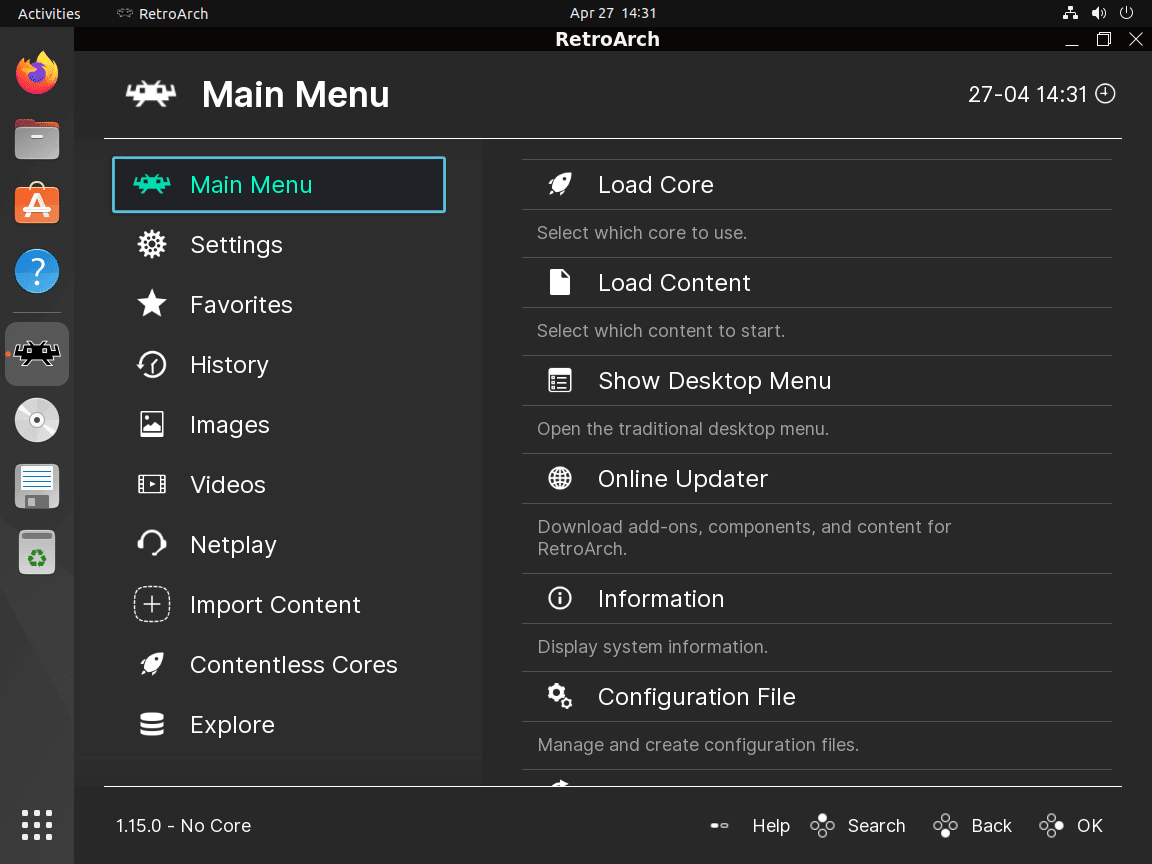
RetroArch can be launched from the terminal or from the desktop menu once the package install completes. After the first start, you can download the emulator cores you need and build playlists from your ROM directories.
Launch RetroArch from the Terminal
The Ubuntu repository, PPA, and Snap packages all install the same launcher command.
retroarchThe Flatpak build uses the application ID instead of the shorter launcher name.
flatpak run org.libretro.RetroArchLaunch RetroArch from the Applications Menu
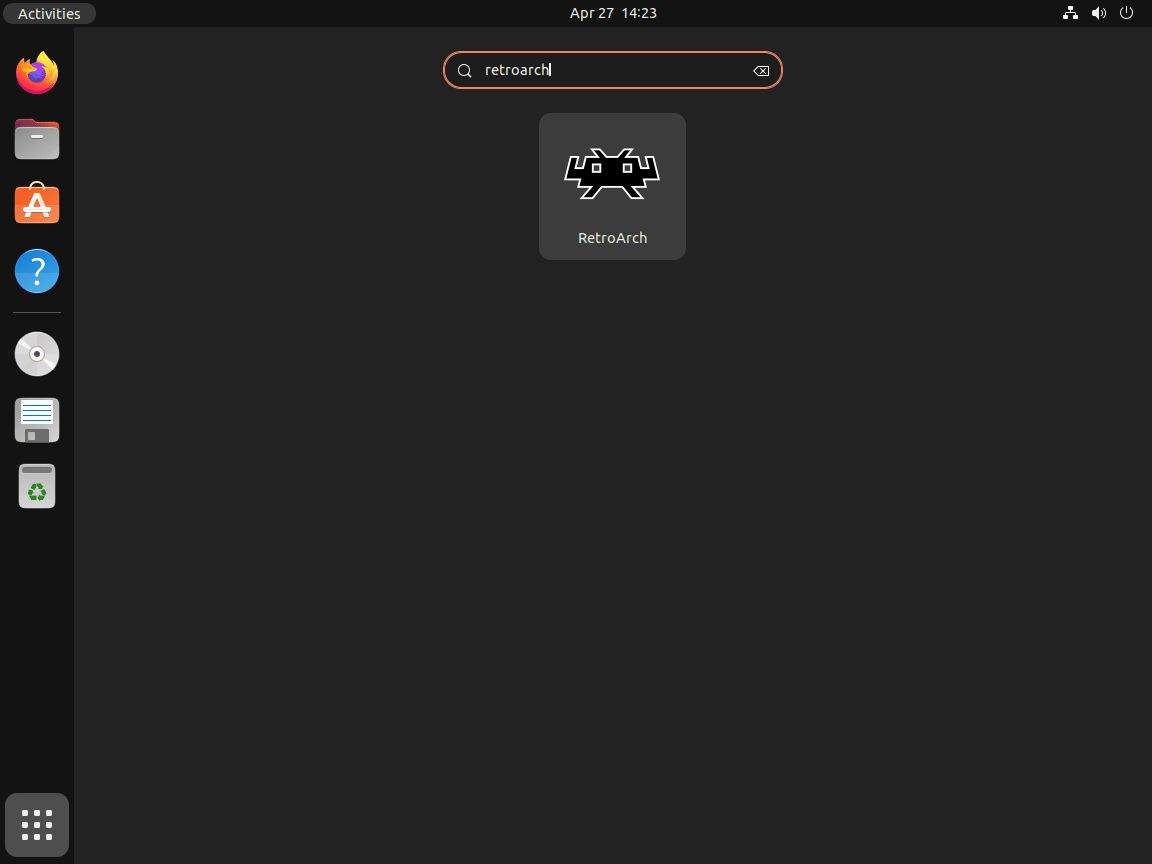
Desktop users can also open the app from the Ubuntu applications menu by searching for RetroArch.
Download RetroArch Cores on Ubuntu
RetroArch itself is the frontend, so your next step is downloading the cores you actually want to use. It does not include commercial game files, so you still need your own legally obtained ROMs or other game data before the playlists become useful. Open Main Menu > Online Updater > Core Downloader, then install only the systems you plan to emulate instead of pulling everything at once.
Import Games into RetroArch on Ubuntu
Use Import Content > Scan Directory when you want RetroArch to build playlists from a ROM folder, or use Main Menu > Load Content for one-off launches. If RetroArch has more than one suitable core, it asks you to choose the emulator backend before starting the game.
Update RetroArch on Ubuntu
The update command depends on the package format you chose. Use the same tool that originally installed RetroArch so the package manager updates the correct build.
Update RetroArch from Ubuntu APT or the Libretro PPA
APT can update just the RetroArch package without upgrading everything else on your system.
sudo apt install --only-upgrade retroarch -yUpdate RetroArch from Snap on Ubuntu
The Snap package usually updates automatically, but you can refresh it manually whenever you want to pull the current stable revision right away.
sudo snap refresh retroarchUpdate RetroArch from Flatpak on Ubuntu
Use the app ID to update only the RetroArch Flatpak instead of every Flatpak app on the system.
sudo flatpak update org.libretro.RetroArch -yRemove RetroArch on Ubuntu
Use the removal path that matches the package format you installed. Package removal and user-data cleanup are separate on Ubuntu, so remove the app first and then decide whether you also want to delete your local RetroArch settings.
Remove APT or PPA RetroArch on Ubuntu
This removes the RetroArch package and any dependencies that were installed only for it.
sudo apt remove --autoremove retroarch -yAfter removal, apt-cache policy should show that the package is no longer installed.
apt-cache policy retroarchretroarch:
Installed: (none)
Candidate: 1.22.2+dfsg-2build1
Version table:
1.22.2+dfsg-2build1 500
500 http://archive.ubuntu.com/ubuntu resolute/universe amd64 Packages
100 /var/lib/dpkg/status
Remove the Libretro PPA on Ubuntu
Only PPA users need this extra cleanup step. If you want a broader walkthrough for Launchpad sources, see our guide on how to remove a PPA from Ubuntu.
sudo add-apt-repository --remove ppa:libretro/stable -y && sudo apt updateCheck that the Launchpad source no longer appears under your APT source files.
grep -R "ppa.launchpadcontent.net/libretro/stable" /etc/apt/sources.list.d || echo "PPA removed"PPA removed
Remove the RetroArch Snap on Ubuntu
Snap removal is a separate step from APT or Flatpak cleanup.
sudo snap remove retroarchConfirm that Snap no longer lists the package.
snap list retroarch || trueerror: no matching snaps installed
Remove the RetroArch Flatpak on Ubuntu
Use the Flatpak application ID for removal so you only remove RetroArch and not every app from Flathub.
sudo flatpak remove org.libretro.RetroArch -yConfirm that the app no longer appears in the installed Flatpak application list.
flatpak list --app | grep -F org.libretro.RetroArch || echo "not-installed"not-installed
Remove Remaining RetroArch Settings on Ubuntu
RetroArch keeps settings under your home directory, and those locations can vary by package format and whether you launched the app yet. Find the actual paths on your account first, then delete only the directories you really want to remove.
These commands permanently delete local RetroArch settings, save locations, and any other directories the search finds under your home folder. Back up anything you still need before removing those paths.
find "$HOME" -maxdepth 4 \( -path "$HOME/.config/retroarch" -o -path "$HOME/.local/share/retroarch" -o -path "$HOME/.cache/retroarch" -o -path "$HOME/.var/app/org.libretro.RetroArch" -o -path "$HOME/snap/retroarch" \) 2>/dev/nullRelevant output included:
/home/linuxcapable/.config/retroarch
If your results only show the standard Ubuntu package directory, remove it with:
rm -rf ~/.config/retroarchTroubleshoot RetroArch on Ubuntu
Most RetroArch issues on Ubuntu come down to missing assets, missing cores, or audio settings that need a quick adjustment after the first launch.
Fix Missing RetroArch Assets on Ubuntu
If RetroArch opens with missing icons, incomplete menus, or broken fonts, refresh the packaged assets from inside the app. Open Main Menu > Online Updater > Update Assets, let the download finish, then restart RetroArch so it reloads the refreshed files.
Fix RetroArch Audio Crackling on Ubuntu
Audio stutter usually improves after switching the output backend or raising the latency slightly. Open Settings > Audio, try pipewire or pulse as the audio driver, then increase the latency a little if the sound still crackles under load.
Install Missing RetroArch Cores on Ubuntu
If a game opens with a no-core message, download the matching emulator backend from Main Menu > Online Updater > Core Downloader. After that, load the game again through Main Menu > Load Content or rescan the folder from Import Content so RetroArch can match the file with the correct core.
RetroArch on Ubuntu FAQ
No. RetroArch installs the frontend and then lets you add emulator cores, but you still need your own legally obtained ROMs or other game data. The app does not ship commercial games with the Ubuntu repository, PPA, Snap, or Flatpak packages.
Use the Libretro stable PPA on Ubuntu 24.04 or 22.04 when you want a newer APT build than Ubuntu ships in Universe. On Ubuntu 26.04, the distro repository already carries RetroArch 1.22.2, so the extra PPA usually does not give you a newer upstream release.
Choose Snap if you want automatic updates through Ubuntu’s snap tooling. Choose Flatpak if you already use Flathub for desktop apps or prefer its runtime and sandbox model. Both package formats currently deliver RetroArch 1.22.2, so the decision is mostly about which app ecosystem you already use on Ubuntu.
RetroArch can run the systems covered by the cores you install, including common options such as NES, SNES, Game Boy, PlayStation, Sega, and arcade boards. The exact list depends on which cores you download from the Online Updater and whether a given system also needs BIOS files.
Conclusion
RetroArch is ready on Ubuntu with the package source that best fits your release and update preference, whether that is the default repository on 26.04, the Libretro PPA on 24.04 or 22.04, or a sandboxed Snap or Flatpak build. For a broader Linux gaming setup, install Steam on Ubuntu for Proton titles. If you still need Windows launchers outside Steam, install Wine on Ubuntu as the next step.

Formatting tips for your comment
You can use basic HTML to format your comment. Useful tags currently allowed:
<code>command</code>command<strong>bold</strong><em>italic</em><blockquote>quote</blockquote>