
QMPlay2 handles local video, music, internet streams, and YouTube playback in one lightweight desktop player, with FFmpeg providing broad codec support. That makes it a clean way to install QMPlay2 on Ubuntu when you want wide format coverage without a larger media suite. On Ubuntu 26.04 (resolute), 24.04 (noble), and 22.04 (jammy), the install commands run fine in a terminal, but the player itself still needs an active graphical session to open. Ubuntu 24.04 and 22.04 can use the QMPlay2 PPA or Flathub, while Ubuntu 26.04 currently needs the Flathub build because the PPA does not publish a resolute Release file.
Compare QMPlay2 Installation Methods on Ubuntu
Two installation paths make sense here: the native PPA for Ubuntu 24.04 and 22.04, or the Flathub package for consistent cross-release coverage.
| Method | Channel | Version | Updates | Best For |
|---|---|---|---|---|
| APT PPA | tomtomtom PPA | Latest stable | APT updates | Ubuntu 24.04 and 22.04 users who want a native package |
| Flatpak | Flathub | Latest stable | Flatpak updates | Ubuntu 26.04 users, or anyone who prefers Flathub |
The PPA is the cleaner fit on Ubuntu 24.04 and 22.04 if you want standard APT integration. Flatpak is the right choice on Ubuntu 26.04 and the simpler cross-release option if you already keep desktop apps in Flathub.
Launchpad publishes QMPlay2 packages for noble and jammy, but Ubuntu 26.04 rejects the PPA because there is no resolute Release file. Keep that split in mind before choosing a method.
Install QMPlay2 on Ubuntu with the PPA
Use this method on Ubuntu 24.04 (noble) or 22.04 (jammy) when you want QMPlay2 integrated into APT and the standard desktop menu. Ubuntu 26.04 (resolute) should skip to the Flatpak method because APT cannot use this PPA there.
Refresh Ubuntu Package Metadata Before Installing QMPlay2
Refresh the package index first so APT works with current repository metadata.
sudo apt updateIf you are signing in with a fresh non-admin account, first add a new user to sudoers on Ubuntu or switch to an account that already has
sudo.
Add the QMPlay2 PPA on Ubuntu
Add the PPA next so APT can see the QMPlay2 package for your Ubuntu release. The -y flag accepts the repository prompt automatically.
sudo add-apt-repository ppa:tomtomtom/qmplay2 -yRefresh APT once more so you can confirm Ubuntu is reading the Launchpad source.
sudo apt updateOn Ubuntu 24.04, expect output like this:
Hit:5 https://ppa.launchpadcontent.net/tomtomtom/qmplay2/ubuntu noble InRelease
Ubuntu 22.04 shows jammy instead of noble.
Install QMPlay2 from the PPA on Ubuntu
Install the native package after the PPA is available.
sudo apt install -y qmplay2Verify the APT QMPlay2 Installation on Ubuntu
Check the installed package state to confirm QMPlay2 came from the PPA.
apt-cache policy qmplay2On Ubuntu 24.04, expect output like this:
qmplay2:
  Installed: 1:25.09.11-1~ppa~noble
  Candidate: 1:25.09.11-1~ppa~noble
  Version table:
 *** 1:25.09.11-1~ppa~noble 500
        500 https://ppa.launchpadcontent.net/tomtomtom/qmplay2/ubuntu noble/main amd64 Packages
        100 /var/lib/dpkg/status
Ubuntu 22.04 shows the same version string with a ~ppa~jammy suffix. The package also adds the lowercase qmplay2 command to your PATH and the QMPlay2 desktop launchers under /usr/share/applications/.
Install QMPlay2 on Ubuntu with Flatpak
Use the Flathub build on Ubuntu 26.04, or choose it on any supported Ubuntu release if you prefer a sandboxed package. The current Flatpak manifest already includes home and removable-media access for normal playback, so typical desktop use does not need extra override commands.
If Flatpak is not installed yet, first install Flatpak on Ubuntu. This workflow adds Flathub at system scope, so the install, update, and removal steps keep
sudothroughout.
Add Flathub for QMPlay2 on Ubuntu
Add the Flathub remote first. The --if-not-exists flag skips a duplicate-remote error if Flathub is already configured.
sudo flatpak remote-add --if-not-exists flathub https://flathub.org/repo/flathub.flatpakrepoVerify the Flathub Remote on Ubuntu
Confirm that Flathub is available at system scope before you install the application.
flatpak remotesThe output should include:
flathub system
Install QMPlay2 from Flathub on Ubuntu
Install QMPlay2 from Flathub with its application ID.
sudo flatpak install -y flathub io.github.zaps166.QMPlay2Verify the Flatpak QMPlay2 Installation on Ubuntu
Query the Flatpak metadata after the install so you can confirm the app ID, branch, version, and scope.
flatpak info io.github.zaps166.QMPlay2On Ubuntu 26.04, expect output like this:
QMPlay2 - Video and audio player

          ID: io.github.zaps166.QMPlay2
         Ref: app/io.github.zaps166.QMPlay2/x86_64/stable
        Arch: x86_64
      Branch: stable
     Version: 25.09.11
      Origin: flathub
Installation: system
Launch QMPlay2 on Ubuntu
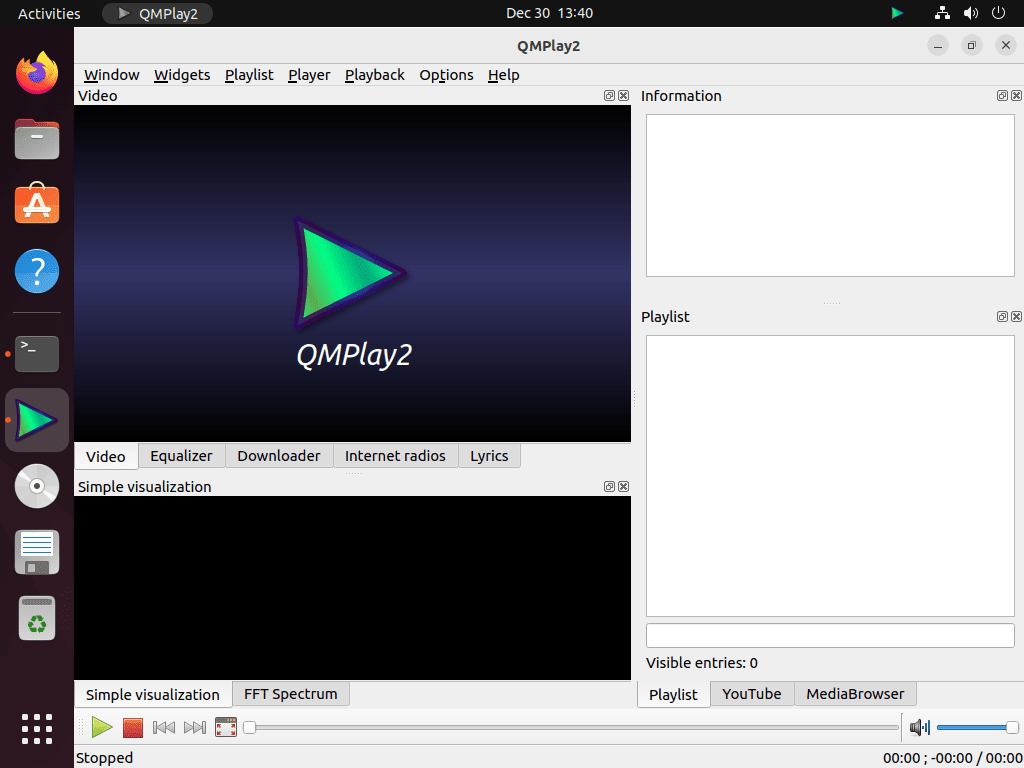
Both methods install correctly from the terminal, but QMPlay2 is still a desktop application and needs a logged-in graphical session for real playback. Without that session, the app may create its configuration directory but it will not provide a usable player window.
Launch QMPlay2 from the Terminal on Ubuntu
The native package adds the lowercase qmplay2 command to your PATH, while the Flatpak build keeps the full app ID launcher.
qmplay2For the Flatpak build, start it with:
flatpak run io.github.zaps166.QMPlay2Launch QMPlay2 from the Applications Menu on Ubuntu
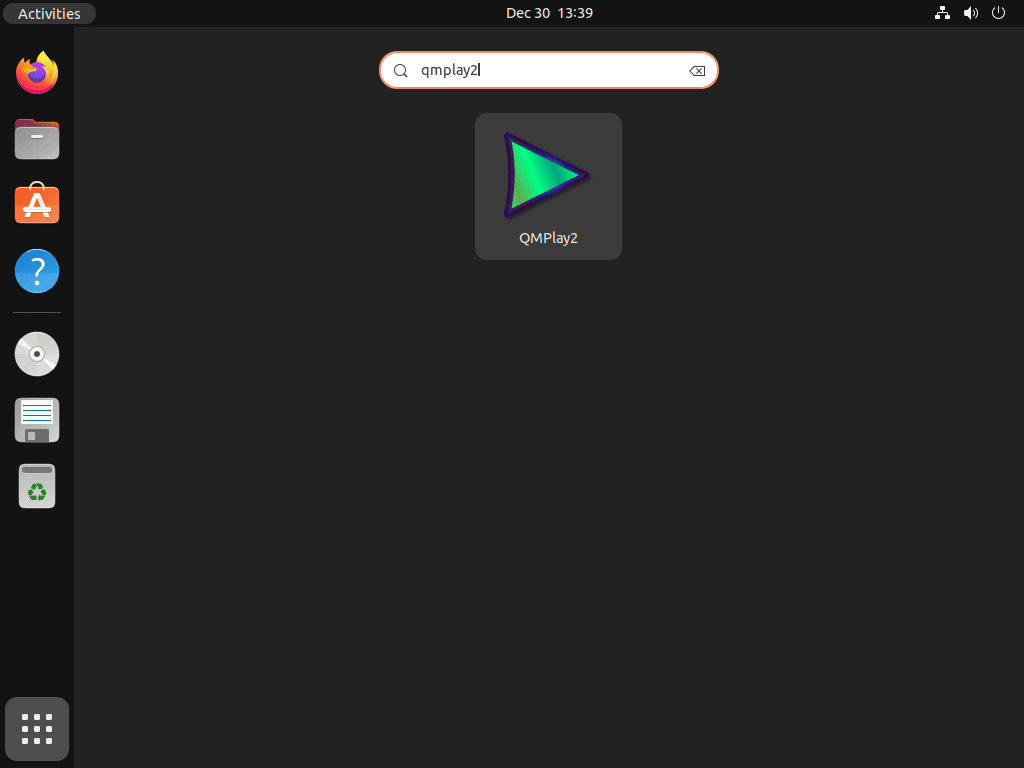
Open the desktop launcher when you want the normal graphical startup path.
- Open the Activities overview in the top-left corner of the desktop.
- Click Show Applications, the grid icon at the bottom of the dock.
- Search for QMPlay2, then click the icon to open the player.
Update or Remove QMPlay2 on Ubuntu
Keep the update and removal commands at the same scope you used during installation.
Update the APT QMPlay2 Package on Ubuntu
Refresh the package lists, then upgrade only the QMPlay2 package.
sudo apt update && sudo apt install --only-upgrade qmplay2Update the Flatpak QMPlay2 Package on Ubuntu
Update the Flathub build with the same system scope used during installation.
sudo flatpak update io.github.zaps166.QMPlay2Remove the APT QMPlay2 Package on Ubuntu
Remove the package first, then clear any dependencies that were installed only for it.
sudo apt remove -y qmplay2
sudo apt autoremove -y
Confirm the package is gone before you remove the repository.
apt-cache policy qmplay2On Ubuntu 24.04, expect output like this while the PPA is still present:
qmplay2:
  Installed: (none)
  Candidate: 1:25.09.11-1~ppa~noble
  Version table:
     1:25.09.11-1~ppa~noble 500
        500 https://ppa.launchpadcontent.net/tomtomtom/qmplay2/ubuntu noble/main amd64 Packages
Remove the PPA only if you no longer want QMPlay2 updates from that source.
sudo add-apt-repository --remove ppa:tomtomtom/qmplay2 -y
sudo apt update
After the PPA is gone, APT should show:
apt-cache policy qmplay2qmplay2: Installed: (none) Candidate: (none) Version table:
To wipe saved settings as well, remove
~/.config/QMPlay2. This permanently deletes playlists, preferences, and window state.
rm -rf ~/.config/QMPlay2Remove the Flatpak QMPlay2 Package on Ubuntu
Use the system-scope uninstall command if you installed QMPlay2 from Flathub with sudo.
sudo flatpak uninstall -y --delete-data io.github.zaps166.QMPlay2Confirm the Flatpak app is gone after the uninstall finishes.
flatpak info io.github.zaps166.QMPlay2The expected output is:
error: io.github.zaps166.QMPlay2/*unspecified*/*unspecified* not installed
After QMPlay2 has been launched at least once, the system-scope uninstall can still leave per-user data under
~/.var/app/io.github.zaps166.QMPlay2. Remove it manually only if you want a full cleanup.
rm -rf ~/.var/app/io.github.zaps166.QMPlay2Troubleshoot QMPlay2 on Ubuntu
Most QMPlay2 problems on Ubuntu come down to helper tools for online playback or the wrong audio backend inside the player.
Fix QMPlay2 YouTube Playback on Ubuntu
The APT package relies on the system yt-dlp binary for YouTube playback, so confirm that helper is present first.
which yt-dlp || echo "yt-dlp not installed"If yt-dlp is installed, the command returns a path like this:
/usr/bin/yt-dlp
If the command prints yt-dlp not installed, add it with:
sudo apt install -y yt-dlpThe Flathub build bundles its own copy, so updating QMPlay2 with sudo flatpak update io.github.zaps166.QMPlay2 is the better first fix there.
Fix QMPlay2 Audio Output on Ubuntu
When video plays but audio stays silent, change the audio backend inside QMPlay2 instead of reinstalling the whole package.
Open Settings -> Playback settings -> Modules and switch the audio output between PipeWire and PulseAudio. Ubuntu 26.04 and 24.04 desktop installs normally use PipeWire, while Ubuntu 22.04 more often still uses PulseAudio.
QMPlay2 on Ubuntu FAQ
The PPA does not publish a resolute Release file, so APT rejects it on Ubuntu 26.04. Use the Flathub package there instead of trying to point APT at an older Ubuntu series.
Use the PPA on Ubuntu 24.04 or 22.04 when you want native APT updates and standard desktop integration. Use Flatpak on Ubuntu 26.04, or on any release when you prefer a sandboxed package that stays separate from system libraries.
The APT package uses the system yt-dlp binary for YouTube playback, so install or update yt-dlp if embedded browsing stops working. The Flathub build bundles its own copy, so updating the Flatpak package is usually the first fix there.
Conclusion
QMPlay2 on Ubuntu is ready to use, with the PPA covering 24.04 and 22.04 and Flathub covering 26.04. If you want a broader all-in-one media stack, install VLC media player on Ubuntu. If you prefer keyboard-first playback, install mpv media player on Ubuntu.

Formatting tips for your comment
You can use basic HTML to format your comment. Useful tags currently allowed:
<code>command</code>command<strong>bold</strong><em>italic</em><blockquote>quote</blockquote>