
PowerShell is Microsoft’s cross-platform scripting framework that runs natively on Linux, including Ubuntu. Unlike Bash, PowerShell uses a structured object-oriented pipeline, making it powerful for parsing complex data, automating Azure resources, and managing Windows and Linux systems with identical scripts. If you work in mixed environments, administer cloud infrastructure, or want to leverage your Windows automation skills on Linux, PowerShell provides a consistent experience across all platforms. This guide walks through installing PowerShell on Ubuntu 22.04 LTS and 24.04 LTS using Microsoft’s official repository.
This guide covers Ubuntu 22.04 LTS and 24.04 LTS installations. Microsoft’s PowerShell repository officially supports these two LTS versions only. Ubuntu 26.04 LTS is not yet supported by Microsoft’s package repository; this guide will be updated once the PowerShell team adds a dedicated package branch for Ubuntu 26.04 (resolute). Commands shown work identically on both supported releases.
Update Ubuntu Before PowerShell Installation
Before installing any new software, update your package index and upgrade existing packages. This ensures your system has the latest security patches and prevents dependency conflicts during installation. Open a terminal and run:
sudo apt update && sudo apt upgradeSpecifically, the apt update command refreshes the list of available packages from your configured repositories, while apt upgrade installs newer versions of packages you already have. As a result, running both commands together keeps your system current before adding new software.
Install Required Packages
Microsoft’s repository setup requires several utilities that may not be present on minimal Ubuntu installations or Docker containers. Install these prerequisites first:
sudo apt install ca-certificates curl gpg lsb-release -yIn particular, these packages serve specific purposes in the installation process:
ca-certificatesprovides the root certificates needed to verify HTTPS connections to Microsoft’s serverscurldownloads the GPG key from Microsoft’s key server (for more options, see our curl command guide)gpgconverts the ASCII-armored key to binary format for APTlsb-releasedetects your Ubuntu version for the correct repository configuration
On standard Ubuntu desktop and server installations, most of these packages are already present. Additionally, the -y flag automatically confirms the installation without prompting.
Add Microsoft PowerShell Repository
Microsoft provides a GPG-signed APT repository containing PowerShell and other Microsoft products for Linux. Setting up this repository involves two steps: importing the signing key and creating the repository configuration file.
Import the GPG Key
First, download Microsoft’s package signing key and convert it to the binary format APT expects. This key verifies that packages genuinely come from Microsoft:
curl -fsSL https://packages.microsoft.com/keys/microsoft.asc | sudo gpg --dearmor -o /usr/share/keyrings/powershell.gpgThis single command downloads the ASCII-armored key, converts it to binary format using gpg --dearmor, and then saves it directly to the system keyrings directory. Meanwhile, the -fsSL flags make curl fail silently on errors while following redirects.
Create the Repository Configuration
Next, create a DEB822-format repository file that tells APT where to find PowerShell packages. This modern format is more readable than legacy one-line entries and fully supported on Ubuntu 22.04 and later:
cat <<EOF | sudo tee /etc/apt/sources.list.d/powershell.sources
Types: deb
URIs: https://packages.microsoft.com/ubuntu/$(lsb_release -rs)/prod
Suites: $(lsb_release -cs)
Components: main
Architectures: $(dpkg --print-architecture)
Signed-By: /usr/share/keyrings/powershell.gpg
EOF
Importantly, the command uses shell variables to automatically detect your Ubuntu version. Here’s what each field does:
$(lsb_release -rs)outputs your version number (22.04 or 24.04), used in the repository URL path$(lsb_release -cs)outputs your codename (jammy or noble), used as the suite name$(dpkg --print-architecture)detects your CPU architecture (amd64 for most systems)Signed-Bypoints to the GPG key you imported, ensuring only Microsoft-signed packages install
Microsoft’s repository URL structure requires the version number (22.04, 24.04) in the path, not the codename. The
lsb_release -rscommand correctly provides this. If you see 404 errors duringapt update, verify your Ubuntu version is supported by checking the repository exists athttps://packages.microsoft.com/ubuntu/YOUR_VERSION/prod.
Refresh the Package List
After adding the repository, update APT’s package index to include the newly available PowerShell packages:
sudo apt updateAt this point, you should see output indicating APT is fetching package lists from packages.microsoft.com. If you encounter GPG or 404 errors at this stage, see the troubleshooting section below.
Install PowerShell with APT
With the repository configured, install PowerShell using the standard package manager:
sudo apt install powershellDuring this process, APT downloads the PowerShell package and its dependencies (primarily the .NET runtime libraries). The installation typically takes a minute or two depending on your connection speed.
Verify PowerShell Installation
Once the installation completes, confirm it succeeded by launching PowerShell:
pwshPowerShell starts and displays its version banner followed by the PS> prompt, indicating you’re now in a PowerShell session:
PowerShell 7.5.4
Copyright (c) Microsoft Corporation.

https://aka.ms/powershell
Type 'help' to get help.

PS /home/user>
The version number confirms PowerShell installed correctly. In addition, your current working directory appears after PS, showing Linux-style paths. To return to your normal Bash shell, simply type exit and press Enter.
Alternatively, you can verify the installation without entering an interactive session by checking the version directly:
pwsh --versionPowerShell 7.5.4
Getting Started with PowerShell on Linux
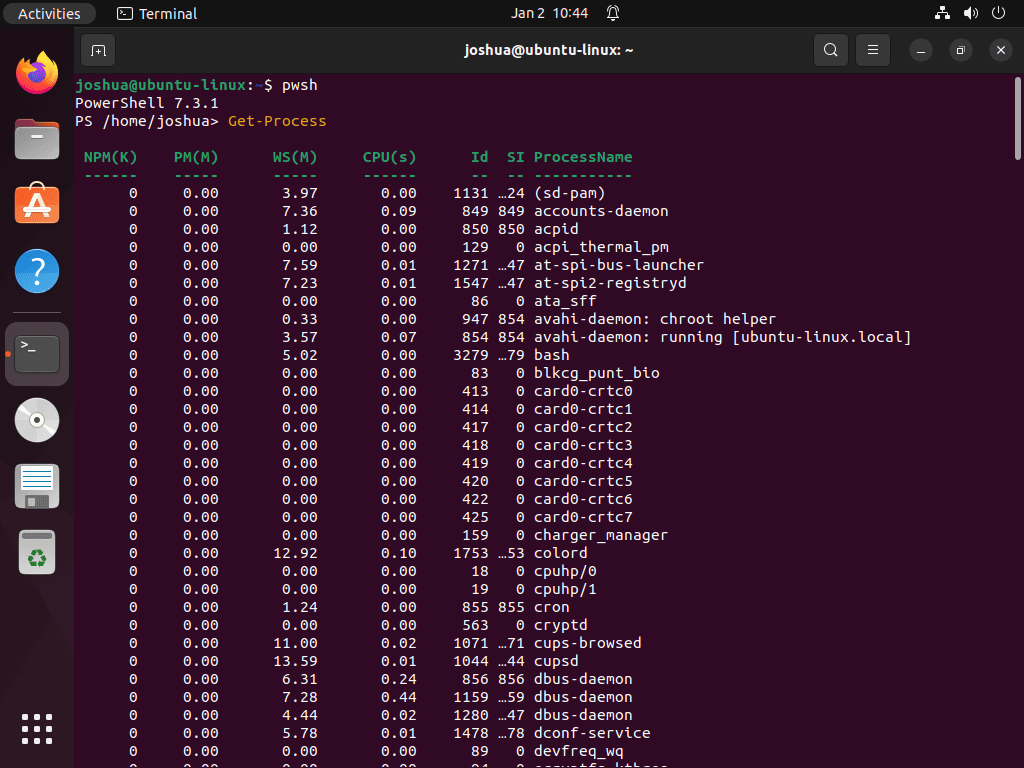
PowerShell cmdlets follow a consistent Verb-Noun naming convention (like Get-Process, Set-Location, Remove-Item) that makes commands discoverable and predictable. While many Linux administrators continue using Bash for system tasks, PowerShell excels particularly at structured data handling, remote management, and cross-platform automation.
Access Built-in Help
PowerShell includes comprehensive documentation accessible directly from the shell. For example, use Get-Help followed by any cmdlet name to see its syntax, parameters, and examples:
Get-Help Get-ProcessOn the first run, PowerShell may prompt you to update help files. Accept this to download the latest documentation. Alternatively, type help for an overview of the help system itself.
Navigate the Filesystem
PowerShell uses Get-ChildItem to list directory contents, similar to ls in Bash. However, unlike ls, PowerShell returns structured objects with properties you can filter and format:
Get-ChildItemAs you can see, the output shows file and directory information in a structured format:
    Directory: /home/user

Mode                 LastWriteTime         Length Name
----                 -------------         ------ ----
d----           01/02/2026  2:45 PM                Documents
d----           01/02/2026  1:30 PM                Downloads
-a---           01/01/2026 10:22 AM          2048 notes.txt
Additionally, to include hidden files (those starting with a dot) and recurse into subdirectories:
Get-ChildItem -Force -RecurseView System Processes
Furthermore, PowerShell’s pipeline lets you chain commands to filter and sort data. For instance, this example lists the top 5 processes by CPU usage:
Get-Process | Sort-Object CPU -Descending | Select-Object -First 5The command pipes process objects through a sort operation, then selects the top entries. Consequently, this object-oriented approach differs from Bash’s text-based piping and makes complex data manipulation more reliable.
Search File Contents
Similarly, the Select-String cmdlet works like grep, searching for patterns in files:
Get-Content /var/log/syslog | Select-String "error"This command reads the syslog file and filters for lines containing “error”. On systems using journald without a traditional syslog, substitute with /var/log/auth.log or another available log file instead.
Cross-Platform Script Example
One of PowerShell’s primary advantages is script portability. The following command displays disk usage and works identically on Ubuntu, Windows, and macOS:
Get-PSDrive -PSProvider FileSystem | Select-Object Name, @{N='Used(GB)';E={[math]::Round($_.Used/1GB,2)}}, @{N='Free(GB)';E={[math]::Round($_.Free/1GB,2)}}On Ubuntu, this shows mounted filesystems like / and /home. In contrast, the same script on Windows would show drive letters instead. This abstraction makes PowerShell valuable for teams managing mixed infrastructure.
For comprehensive PowerShell learning resources, visit the official PowerShell documentation.
Manage PowerShell Updates
Because PowerShell installs from Microsoft’s APT repository, you receive updates through Ubuntu’s standard package management. When Microsoft releases a new PowerShell version, it appears in your regular system updates.
To update PowerShell specifically without upgrading all system packages:
sudo apt update && sudo apt install --only-upgrade powershellIn practice, the --only-upgrade flag ensures APT only upgrades the package if it’s already installed, preventing accidental installation if you’ve removed it previously.
Alternatively, updating all packages includes PowerShell:
sudo apt update && sudo apt upgradeUninstall PowerShell
If you no longer need PowerShell, remove it along with the repository configuration and GPG key. First, uninstall the package:
sudo apt remove powershellNext, remove any automatically installed dependencies that are no longer needed:
sudo apt autoremoveThen remove the repository configuration file and GPG signing key:
sudo rm /etc/apt/sources.list.d/powershell.sources
sudo rm /usr/share/keyrings/powershell.gpg
After that, refresh the package cache to clear references to the removed repository:
sudo apt updateFinally, verify the package is completely removed:
apt-cache policy powershellIf successful, the output should show that no installation candidate exists:
N: Unable to locate package powershell
PowerShell stores user configuration and command history in
~/.config/powershell/and~/.local/share/powershell/. These directories remain after uninstallation. For a complete cleanup, delete them manually withrm -rf ~/.config/powershell ~/.local/share/powershell.
Troubleshooting Common Issues
Installation problems typically stem from repository configuration errors or package conflicts. Below are solutions for the most common issues.
Repository 404 Errors During apt update
If apt update returns 404 Not Found errors for the Microsoft repository, verify your Ubuntu version is supported:
lsb_release -rsThe output must be 22.04 or 24.04. Microsoft does not provide packages for interim releases (23.04, 23.10, etc.) or versions before 22.04. If you’re running an unsupported version, consider upgrading to an LTS release or using the manual .deb installation method from the PowerShell GitHub releases page.
Also verify the repository file was created correctly:
cat /etc/apt/sources.list.d/powershell.sourcesSpecifically, the URIs line should contain your version number (like 22.04 or 24.04), not a codename. If you see a codename in the URL path, recreate the file using the command in the repository configuration section.
GPG Key Errors
If APT reports signature verification failures, the GPG key may not have imported correctly. In this case, re-import it:
curl -fsSL https://packages.microsoft.com/keys/microsoft.asc | sudo gpg --dearmor -o /usr/share/keyrings/powershell.gpgAfterward, verify the key file exists and has content:
file /usr/share/keyrings/powershell.gpgThe output should indicate a GPG keyring file:
/usr/share/keyrings/powershell.gpg: OpenPGP Public Key Version 4, Created Wed Oct 28 23:21:48 2015, RSA (Encrypt or Sign, 2048 bits); User ID; Signature; OpenPGP Certificate
Otherwise, if the file is empty or missing, check your network connection and ensure curl and gpg are installed.
.NET Package Conflicts
In some cases, Ubuntu’s default repositories include .NET packages that may conflict with those from Microsoft’s repository. If you encounter dependency resolution errors mentioning .NET packages, you may need to configure APT priorities.
First, identify which repository provides the conflicting packages:
apt-cache policy dotnet-runtime-8.0If both Microsoft and Ubuntu repositories appear, consult Microsoft’s documentation on resolving .NET package conflicts for detailed guidance on setting repository priorities.
PowerShell Fails to Start
If pwsh exits immediately or shows library errors, a dependency may be missing or corrupted. Reinstall the package:
sudo apt reinstall powershellFor persistent issues, check the PowerShell GitHub repository’s issue tracker for known problems with your specific Ubuntu version.
Conclusion
PowerShell on Ubuntu provides the same scripting environment used on Windows, enabling consistent automation across your Linux and Windows systems. Your installation uses Microsoft’s official repository, which delivers security updates and new releases through standard APT upgrades. Whether you’re managing Azure resources, automating hybrid infrastructure, or simply prefer PowerShell’s structured object pipeline, you now have a fully functional PowerShell environment on Ubuntu.
For related Microsoft development tools, see our guide on installing Visual Studio Code on Ubuntu.
Useful Links
The following resources provide additional information for working with PowerShell on Linux:
- PowerShell Documentation: Microsoft’s comprehensive reference covering cmdlets, scripting, and module development
- PowerShell GitHub Releases: Download page for manual installations, preview versions, and release notes
- Microsoft’s Ubuntu Installation Guide: Official installation instructions from Microsoft