

Plex Media Server turns a Linux Mint machine into a streaming hub that serves your personal video, music, and photo libraries to phones, smart TVs, and browsers on any network. Automatic metadata fetching adds cover art and descriptions, transcoding converts files on the fly for each client device, and remote access lets you watch from anywhere with an internet connection. You can install Plex Media Server on Linux Mint through the official APT repository, which delivers updates directly from Plex as new versions ship.
Once the APT repository is in place, you open firewall ports for local and remote streaming, set file permissions so Plex can read your media directories, and optionally configure an SSH tunnel for headless servers or an Nginx reverse proxy with Let’s Encrypt SSL.
Plex Media Server is also available through Snap and Flatpak, but the official APT repository receives updates directly from Plex and typically ships new releases faster than either third-party format.
Install Plex Media Server on Linux Mint
Update Linux Mint
Start by updating your system to ensure all existing packages are current. This prevents dependency conflicts during the Plex installation:
sudo apt update && sudo apt upgradeIf your user account does not have sudo privileges, see how to create and add users to sudoers on Linux Mint.
Import the Plex APT Repository
Add the official Plex repository so your system receives updates directly from Plex. First, import the GPG signing key that verifies package authenticity:
curl -fsSL https://downloads.plex.tv/plex-keys/PlexSign.key | sudo gpg --dearmor -o /usr/share/keyrings/plex.gpgThis downloads the key and converts it to binary format in /usr/share/keyrings/. The Signed-By directive in the repository definition limits this key to Plex packages only, so no other repository can use it.
Create a DEB822-format repository definition. This modern format is cleaner than legacy .list files and bundles the signing key path directly in the configuration:
printf '%s\n' 'Types: deb' 'URIs: https://downloads.plex.tv/repo/deb' 'Suites: public' 'Components: main' 'Signed-By: /usr/share/keyrings/plex.gpg' | sudo tee /etc/apt/sources.list.d/plexmediaserver.sources > /dev/nullThis printf and sudo tee pattern writes the file immediately with root permissions, so the terminal returns to the prompt as soon as the command finishes. The Plex repository uses a universal public suite that works across all Linux Mint and Ubuntu versions without version-specific codenames.
Install the Plex Media Server Package
Refresh the package index to include the new Plex source:
sudo apt updateConfirm APT can see the Plex package before installing it:
apt-cache policy plexmediaserverplexmediaserver:
Installed: (none)
Candidate: 1.42.x.xxxxx-xxxxxxxxx
Version table:
1.42.x.xxxxx-xxxxxxxxx 500
500 https://downloads.plex.tv/repo/deb public/main amd64 Packages
If the candidate is missing, re-run the repository command and make sure /etc/apt/sources.list.d/plexmediaserver.sources exists before continuing.
Install Plex Media Server:
sudo apt install plexmediaserver -yDuring installation, you may see a prompt asking whether to replace the repository configuration. Type N to keep your DEB822 .sources file, which already contains the correct Signed-By path. The Plex installer creates a commented-out legacy .list file at /etc/apt/sources.list.d/plexmediaserver.list. It does not cause conflicts since the entries are disabled, but you can remove it for a cleaner setup:
sudo rm -f /etc/apt/sources.list.d/plexmediaserver.listVerify Plex Media Server Installation on Linux Mint
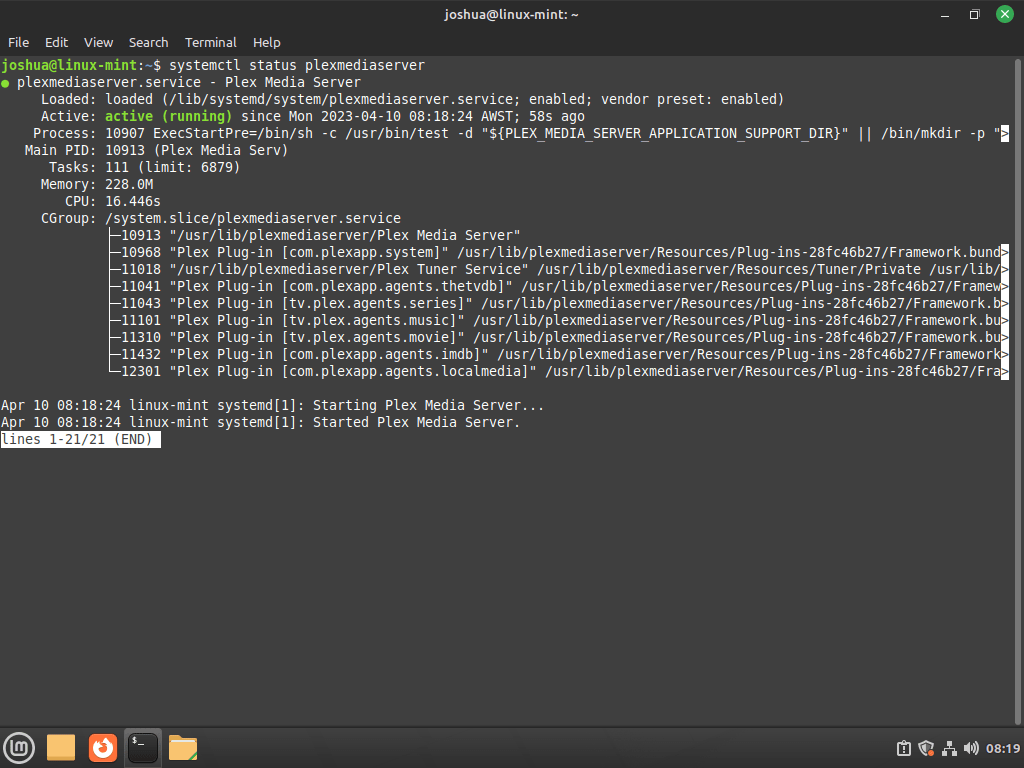
The Plex Media Server service starts automatically after installation. Confirm it is running:
systemctl status plexmediaserverA healthy service displays Active: active (running) in the output:
● plexmediaserver.service - Plex Media Server
     Loaded: loaded (/usr/lib/systemd/system/plexmediaserver.service; enabled; preset: enabled)
     Active: active (running)
If the service shows as inactive or failed, start it manually:
sudo systemctl start plexmediaserverThe installer also enables Plex to start automatically on boot. Verify this:
systemctl is-enabled plexmediaserverenabled
If the service is not enabled, configure it for automatic startup with sudo systemctl enable plexmediaserver. To apply configuration changes or restart Plex after updates:
sudo systemctl restart plexmediaserverConfigure UFW Firewall for Plex on Linux Mint
Plex Media Server listens on TCP port 32400 by default. If you access Plex from other devices on your network or remotely, open that port in UFW (Uncomplicated Firewall). For a broader UFW walkthrough, see how to install and configure UFW on Ubuntu (compatible with Linux Mint).
Enable UFW
UFW is usually pre-installed on Linux Mint but may not be active. Ensure it is installed:
sudo apt install ufw -yIf you access this system remotely via SSH, allow SSH before enabling UFW. Skipping this step locks you out immediately and may require physical console access to recover.
Allow SSH (if connecting remotely) and enable the firewall:
sudo ufw allow OpenSSH
sudo ufw enable
Confirm the firewall is active:
sudo ufw statusStatus: active To Action From -- ------ ---- OpenSSH ALLOW Anywhere
Add Plex Media Server Port Rules
The primary Plex web interface runs on port 32400. Allow incoming connections on this port:
sudo ufw allow 32400Configure Plex Discovery and Companion Ports
Plex uses several additional ports for device discovery and client communication. These ports enable features like Plex Companion (controlling playback from your phone), DLNA streaming to smart TVs, and local server discovery:
sudo ufw allow 1900/udp
sudo ufw allow 3005/tcp
sudo ufw allow 5353/udp
sudo ufw allow 8324/tcp
sudo ufw allow 32410:32414/udp
Here is what each port provides:
- 1900/udp: SSDP discovery, allowing clients to find your Plex server on the local network.
- 3005/tcp: Plex Companion, which lets you control playback from the Plex mobile app.
- 5353/udp: Bonjour/Avahi (mDNS) for device discovery on Apple devices and other mDNS clients.
- 8324/tcp: Roku control channel for communicating with Roku devices on your network.
- 32410:32414/udp: GDM (network discovery) for local network streaming and server identification.
These additional ports are optional if you only access Plex through the web interface or remote streaming. Enabling them improves the experience for smart TV apps and mobile devices on your local network.
Configure SSH Tunnel for Plex on a Remote Linux Mint Server
If you installed Plex Media Server on a remote headless server or a desktop without local monitor access, you need an SSH tunnel for the initial setup. Plex restricts first-time configuration to connections from localhost as a security measure, so the tunnel makes the remote server appear local. For SSH setup details, see how to install OpenSSH on Linux Mint.
Set Up the SSH Tunnel
From your local workstation, create a tunnel that forwards port 8888 to the server’s Plex port. Replace youruser with your Linux username and server-ip with the server’s actual IP address:
ssh -L 8888:localhost:32400 youruser@server-ipKeep the SSH session open during initial setup. Closing it breaks the tunnel and disconnects you from Plex.
If SSH is not installed on the server yet, install and enable it:
sudo apt install openssh-server -y
sudo systemctl enable ssh --now
Verify SSH is running:
systemctl status ssh● ssh.service - OpenBSD Secure Shell server
Loaded: loaded (/lib/systemd/system/ssh.service; enabled)
Active: active (running)
Access Plex via SSH Tunnel
Open the following address in your web browser to access Plex through the tunnel:
http://localhost:8888/web
If that does not work, try the explicit setup path:
http://localhost:8888/web/index.html#!/setup
The SSH tunnel redirects the request to http://localhost:32400/web on the remote server.
Access Plex Remotely After Initial Setup
Once you finish the initial setup, access Plex Media Server from any device on your LAN:
http://server-ip:32400
You can also connect through Plex’s relay at app.plex.tv, which terminates on a trusted plex.direct hostname.
Complete Plex Media Server Initial Setup
Open your browser and navigate to the Plex web interface:
http://127.0.0.1:32400/web
If that does not load, try:
http://localhost:32400/web/index.html#!/setup
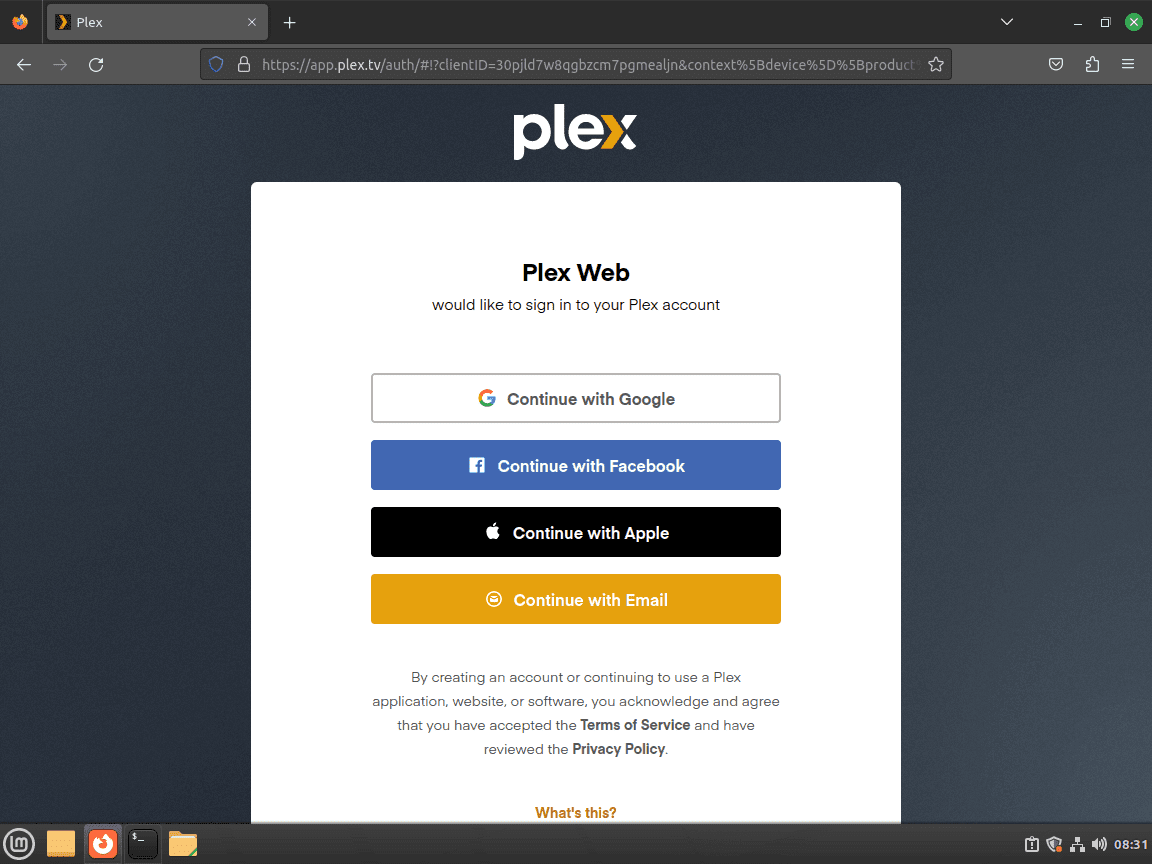
Log in with an existing social media account or register a new Plex account with your email.
Walk Through the Plex Welcome Screen
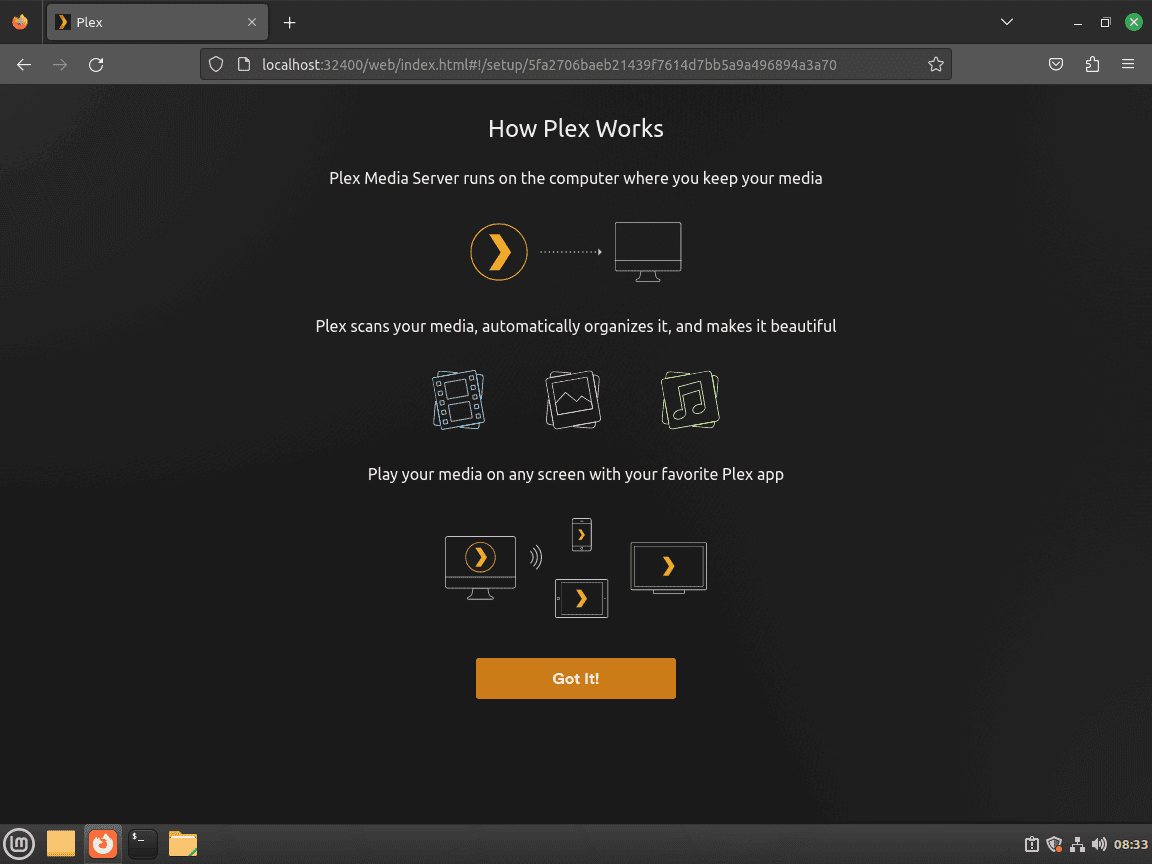
The first configuration page explains what Plex is and how it works. Click GOT IT! to continue.
Firefox users may see a message prompting them to enable DRM. Approve it so the Plex Web UI can display video previews correctly.
Evaluate Plex Pass (Optional)
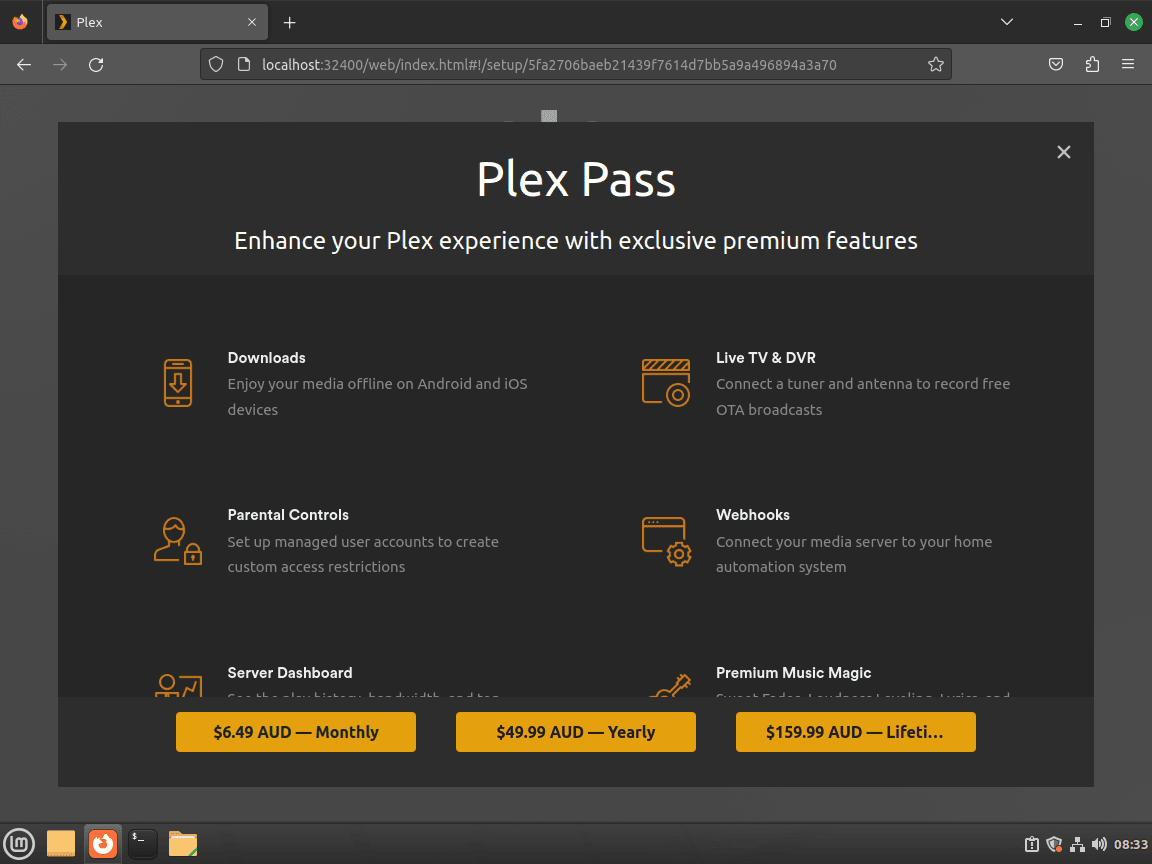
Plex offers a Plex Pass subscription that unlocks mobile sync, HDR tone mapping, and early access builds. Click the X in the corner if you are not ready to subscribe.
Name the Plex Server and Enable Remote Access
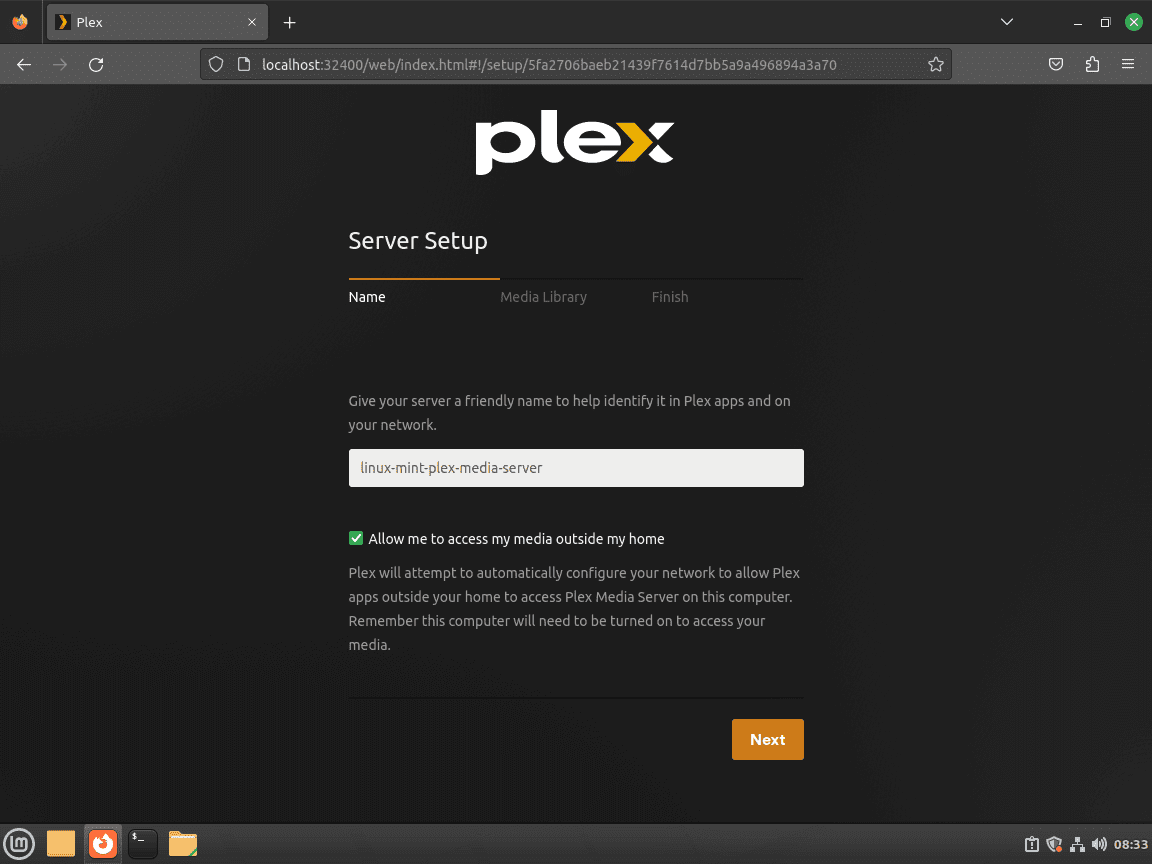
Give the server a recognizable name. You also have the option to disable Allow me to access my media outside my home. Leaving it on lets Plex broker connections through its relay service; disable it if you prefer to rely strictly on your own reverse proxy or VPN.
Click NEXT to continue.
Add or Skip Plex Media Libraries
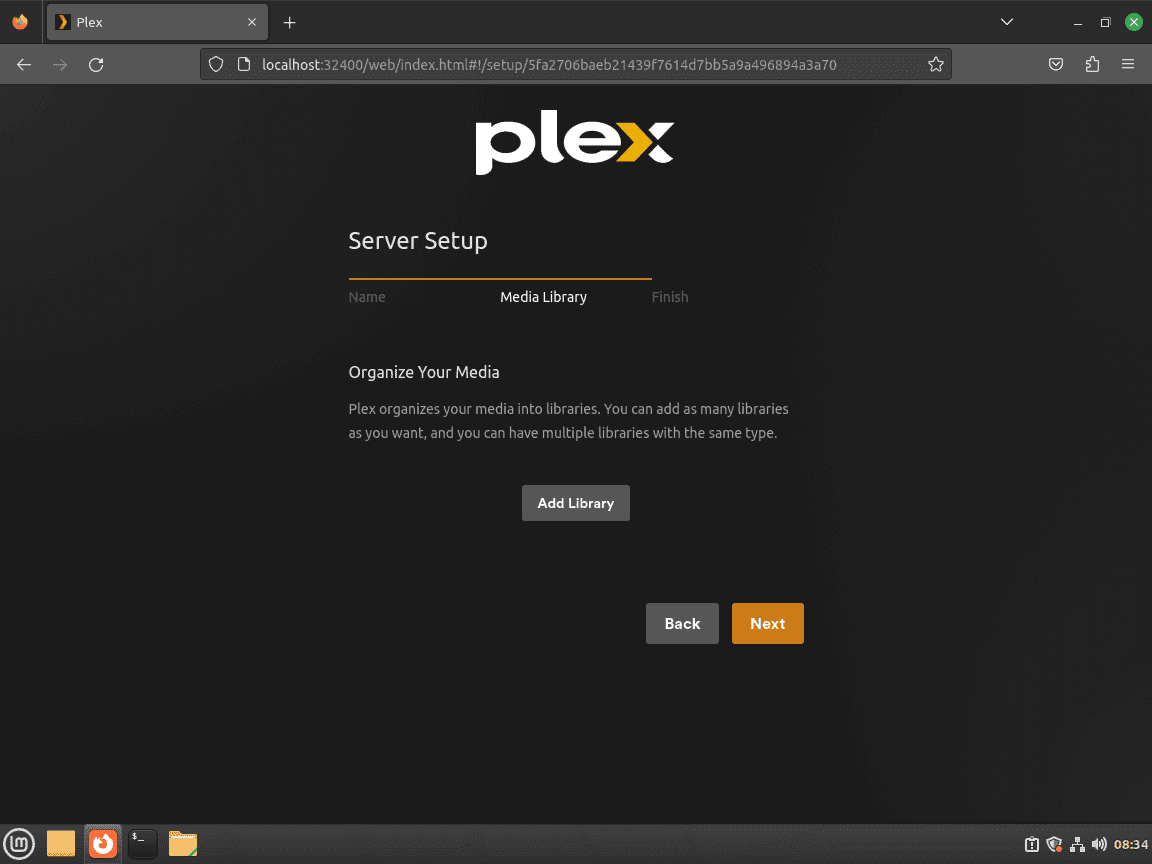
You can pre-load media folders now or skip and return later from the dashboard. Click ADD LIBRARY when you are ready.
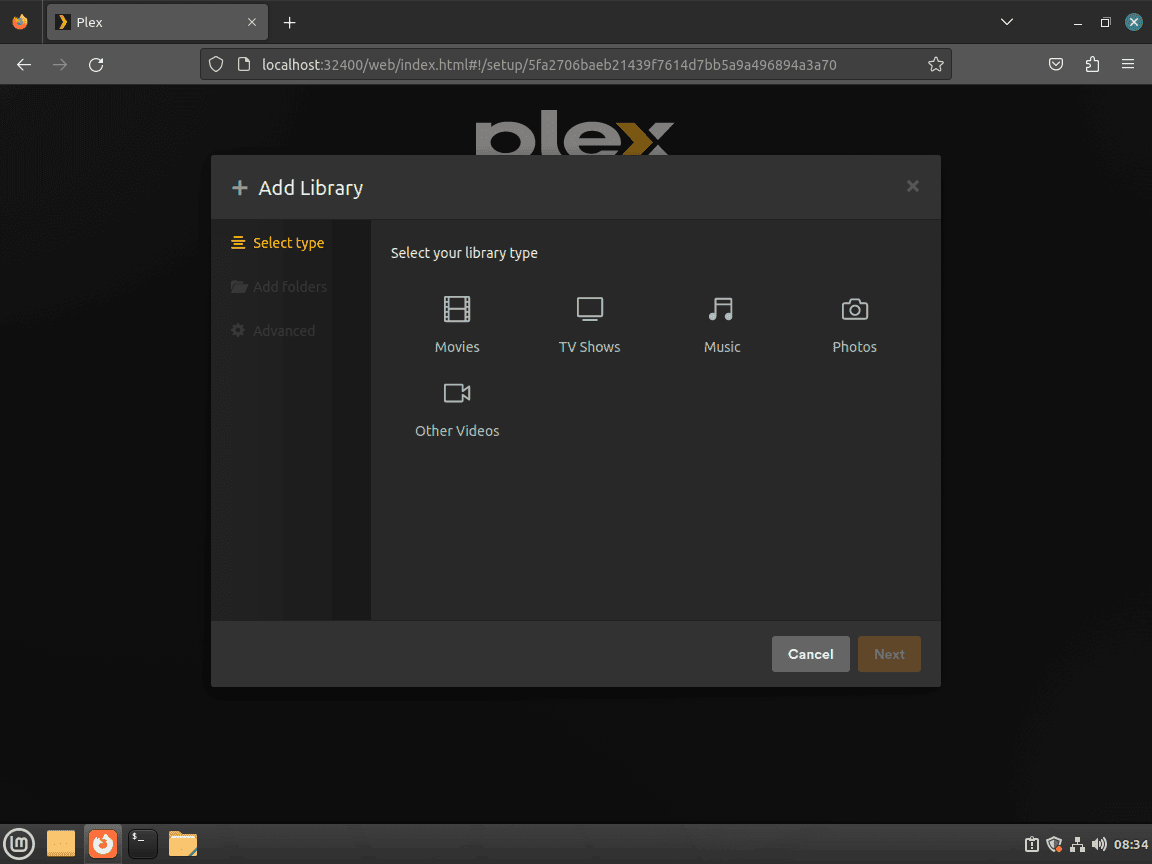
Select the type of media you want the folder organized as (TV shows, movies, music, etc.) and click NEXT.
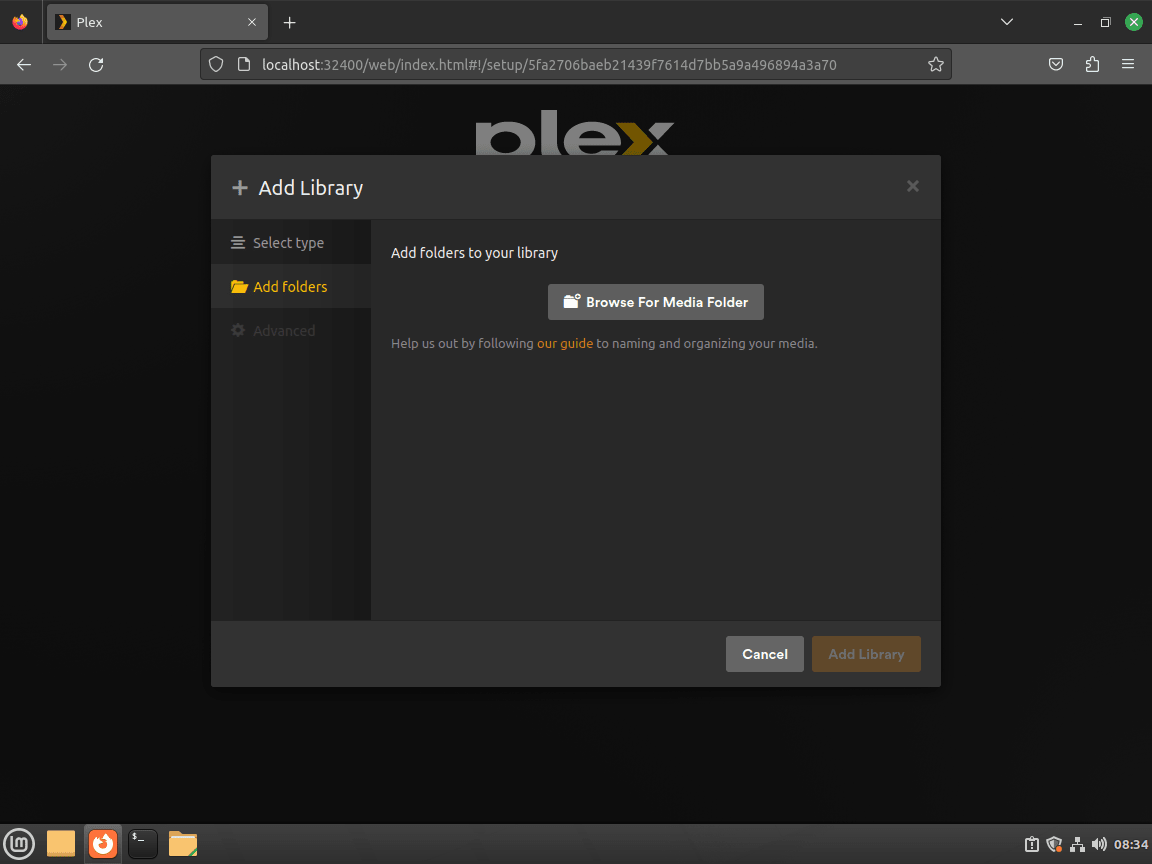
Click BROWSE FOR MEDIA FOLDER and select the media directory.
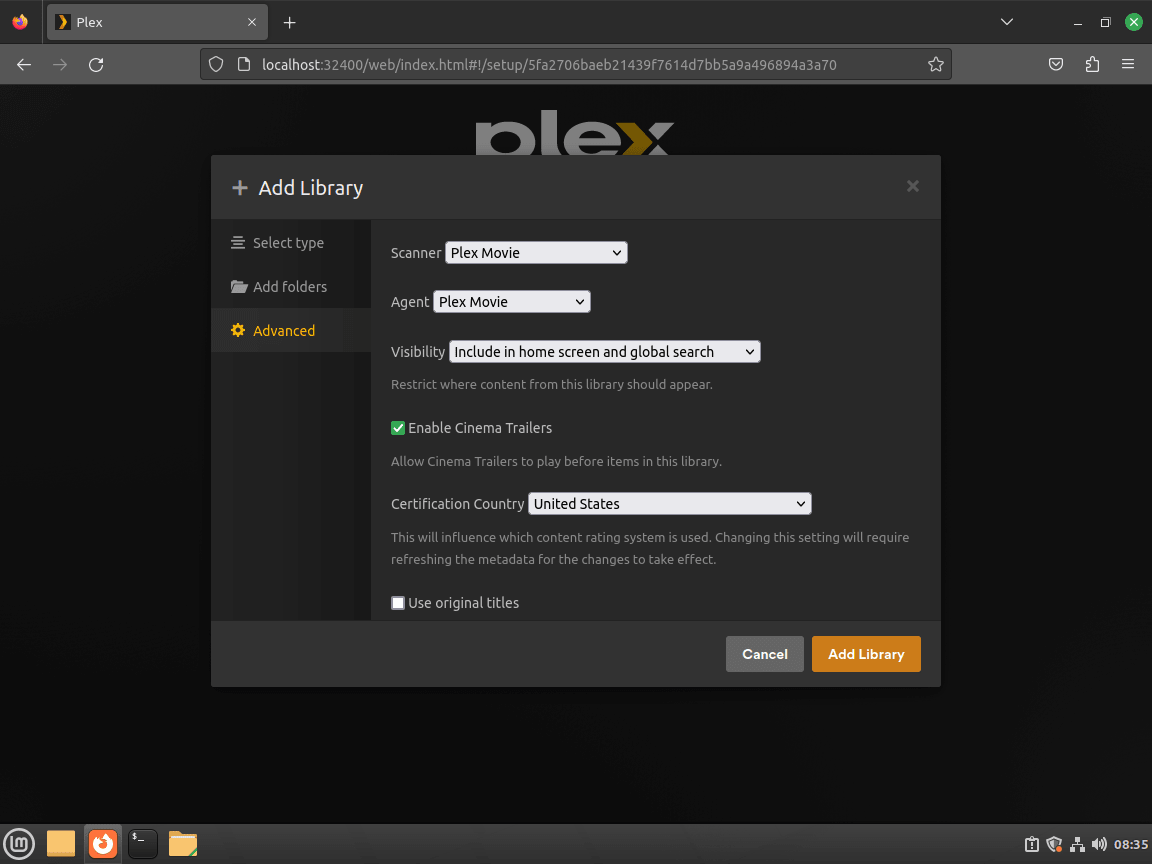
Once the folder is added, the Advanced options appear for further customization. Click ADD LIBRARY to finish adding this library.
Finish the Plex Setup Wizard
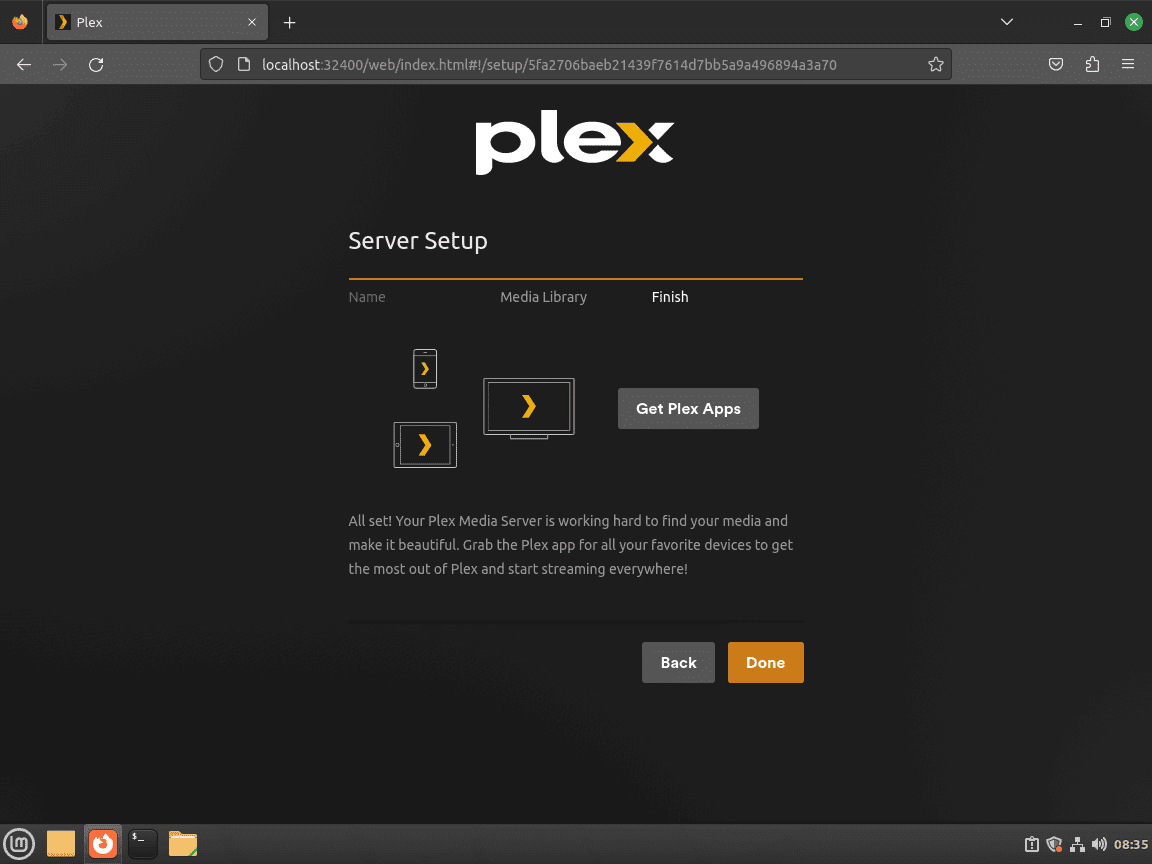
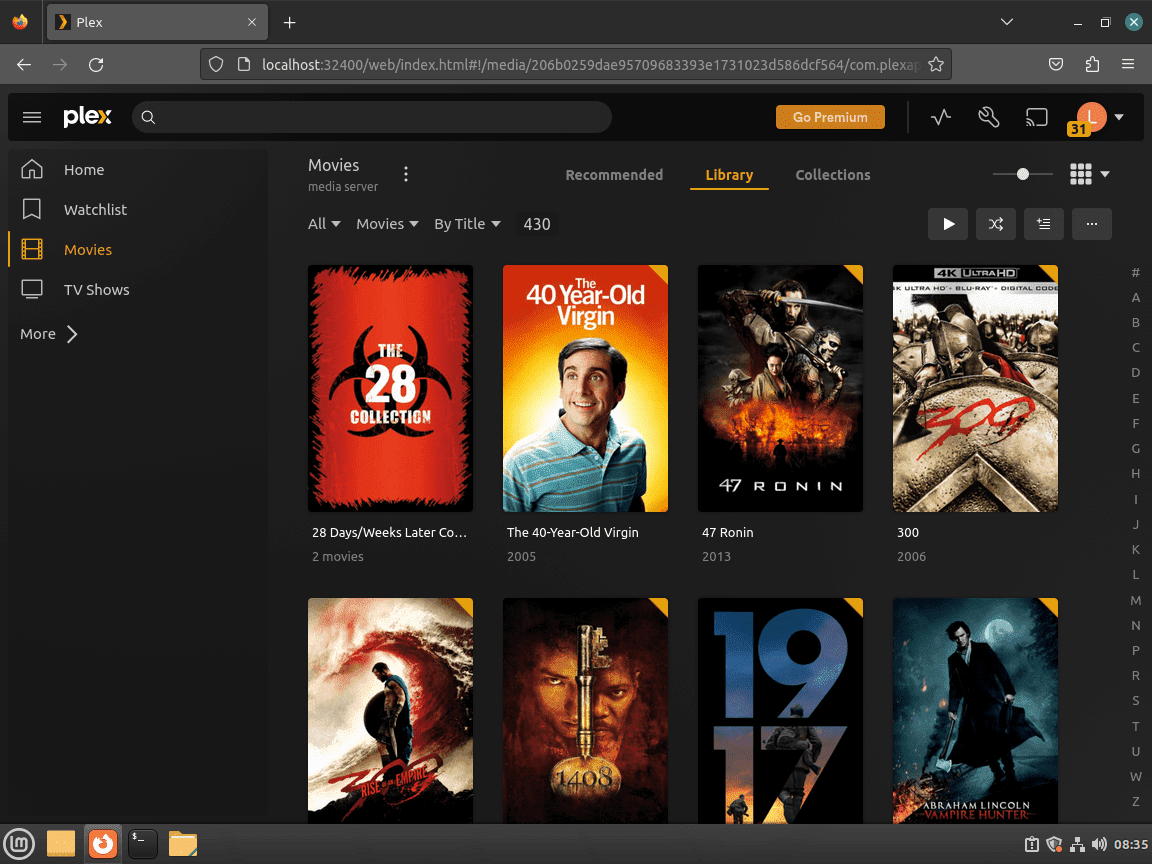
Click NEXT to finish the initial setup, with or without adding a media library. The next screen confirms everything is configured. Click DONE to reach the Plex Dashboard.
Set Media Directory Permissions for Plex on Linux Mint
Plex runs as a dedicated plex user account, which needs read and execute permission on your media directories. If your libraries appear empty despite files being present, permissions are the most common cause.
Two approaches work: setfacl grants Plex access without changing file ownership (best for shared drives where other users also need access), while chown transfers ownership entirely to Plex.
Grant Plex Access with setfacl
Grant read and execute access to the plex user without changing ownership:
sudo setfacl -R -m u:plex:rx /media/yourfolder/
sudo setfacl -R -m u:plex:rx /media/yourfolder/tv
sudo setfacl -R -m u:plex:rx /media/yourfolder/movies
Verify the permissions:
getfacl /media/yourfolder/# file: media/yourfolder/ # owner: yourusername # group: yourusername user::rwx user:plex:r-x group::r-x mask::r-x other::r-x default:user::rwx default:user:plex:r-x default:group::r-x default:mask::r-x default:other::r-x
Set a default ACL so any new files added to the directory inherit Plex permissions automatically:
sudo setfacl -d -m u:plex:rx /media/yourfolder/Transfer Ownership to Plex with chown
If Plex should fully own the media directories:
sudo chown -R plex:plex /media/yourfolder/To set ownership on individual folders within a shared drive:
sudo chown -R plex:plex /media/yourfolder/tv
sudo chown -R plex:plex /media/yourfolder/movies
Verify ownership:
ls -la /media/yourfolder/drwxr-xr-x 4 plex plex 4096 Nov 28 10:00 . drwxr-xr-x 3 root root 4096 Nov 28 09:00 .. drwxr-xr-x 2 plex plex 4096 Nov 28 10:00 movies drwxr-xr-x 2 plex plex 4096 Nov 28 10:00 tv
Install ACL Package (If Needed)
If setfacl is not found, install the ACL package:
sudo apt install acl -yConfigure Nginx Reverse Proxy for Plex on Linux Mint
A reverse proxy lets you access Plex from outside your network using a custom domain with SSL encryption. For more Nginx configuration options, see how to create a reverse proxy in Nginx.
Install Nginx on Linux Mint
Install Nginx:
sudo apt install nginx -yNginx should start and enable automatically. If it is not active:
sudo systemctl enable nginx --nowVerify Nginx is running:
systemctl status nginx● nginx.service - A high performance web server and a reverse proxy server
Loaded: loaded (/lib/systemd/system/nginx.service; enabled)
Active: active (running)
Create a Plex Nginx Server Block
Create a new server block configuration file. You need an active domain with DNS records pointing to your server IP:
sudo nano /etc/nginx/conf.d/plex.confAdd the following configuration, replacing plex.example.com with your actual subdomain:
server {
    listen 80;
    server_name plex.example.com;

    location / {
        proxy_http_version 1.1;
        proxy_pass http://127.0.0.1:32400;
        proxy_set_header Host $host;
        proxy_set_header X-Real-IP $remote_addr;
        proxy_set_header X-Forwarded-For $proxy_add_x_forwarded_for;
        proxy_set_header X-Forwarded-Proto $scheme;
        proxy_set_header Upgrade $http_upgrade;
        proxy_set_header Connection "Upgrade";
        proxy_read_timeout 3600;
    }
}
The proxy_read_timeout value of 3600 seconds prevents long transcoding sessions from timing out. Save the file (CTRL+O), then exit (CTRL+X).
Test and Reload Nginx
Test the configuration for syntax errors:
sudo nginx -tnginx: the configuration file /etc/nginx/nginx.conf syntax is ok nginx: configuration file /etc/nginx/nginx.conf test is successful
Reload Nginx to apply the changes:
sudo systemctl reload nginxSecure the Plex Reverse Proxy with Let’s Encrypt SSL
For production use, add an SSL certificate from Let’s Encrypt. Certbot automates the process:
sudo apt install python3-certbot-nginx -yObtain a certificate and configure Nginx for HTTPS redirects automatically:
sudo certbot --nginx --agree-tos --redirect --email you@example.com -d plex.example.comReplace the email and domain with your own values. After completion, your Plex server is accessible at https://plex.example.com with automatic HTTP-to-HTTPS redirection.
Verify Automatic SSL Certificate Renewal
Certbot installs a systemd timer that handles automatic renewal. Verify it is active:
sudo systemctl status certbot.timer● certbot.timer - Run certbot twice daily
Loaded: loaded (/lib/systemd/system/certbot.timer; enabled; preset: enabled)
Active: active (waiting)
Test that the renewal process works correctly:
sudo certbot renew --dry-runCongratulations, all simulated renewals succeeded: /etc/letsencrypt/live/plex.example.com/fullchain.pem (success)
The timer checks for renewal twice daily and renews certificates within 30 days of expiration. No manual cron job is required.
Troubleshoot Common Plex Media Server Issues on Linux Mint
Plex Cannot Find Media Files
If Plex shows empty libraries despite media files being present, the plex user likely lacks read permissions.
Check current permissions:
ls -la /media/yourfolder/If the folders are owned by your user (not plex):
drwxr-xr-x 4 youruser youruser 4096 Nov 28 10:00 .
drwxr-xr-x 2 youruser youruser 4096 Nov 28 10:00 movies
drwxr-xr-x 2 youruser youruser 4096 Nov 28 10:00 tv
Grant Plex access:
sudo setfacl -R -m u:plex:rx /media/yourfolder/Verify Plex now has access:
getfacl /media/yourfolder/ | grep plexuser:plex:r-x
After fixing permissions, rescan the library in the Plex WebUI: Settings, Libraries, select library, Scan Library Files.
Plex Service Fails to Start
If Plex does not start after installation or reboot, check the service status:
sudo systemctl status plexmediaserverA failed service looks like:
● plexmediaserver.service - Plex Media Server
     Loaded: loaded (/usr/lib/systemd/system/plexmediaserver.service; enabled)
     Active: failed (Result: exit-code)
Check the journal for specific error messages:
sudo journalctl -xeu plexmediaserver --no-pager | tail -30A common cause is port 32400 already in use. Check what process is using it:
sudo ss -tulpn | grep 32400If another service occupies port 32400, stop it or reconfigure Plex to use a different port in /etc/default/plexmediaserver. After resolving the conflict:
sudo systemctl restart plexmediaserverVerify the service started:
systemctl status plexmediaserver | grep ActiveActive: active (running)
Plex Remote Access Not Available
If the Plex Remote Access page shows Not available outside your network, the server cannot receive incoming connections on port 32400.
Verify your public IP and that the port is open:
curl -4 ifconfig.me
sudo ss -tulpn | grep 32400
sudo ufw status numbered
The first command shows your public IP (confirm it matches what Plex reports). The second confirms Plex is listening locally. The third verifies UFW allows port 32400. If all checks pass, log into your router and forward TCP 32400 to the Plex server’s LAN IP, then refresh the Remote Access page in Plex.
Manage Plex Media Server on Linux Mint
Update Plex Media Server
Because you installed Plex from the official APT repository, updates arrive through the package manager alongside regular system updates. Refresh the package index first:
sudo apt updateTo upgrade only Plex without affecting other packages:
sudo apt install --only-upgrade plexmediaserverAlternatively, update Plex as part of a full system upgrade:
sudo apt upgradeRemove Plex Media Server from Linux Mint
To uninstall Plex and clean up its repository configuration, follow these steps.
Stop and remove the Plex package along with orphaned dependencies:
sudo apt remove plexmediaserver
sudo apt autoremove
Remove the repository file and GPG signing key to prevent APT errors during future updates:
sudo rm /etc/apt/sources.list.d/plexmediaserver.sources
sudo rm /usr/share/keyrings/plex.gpg
Refresh the package cache after removing the repository:
sudo apt updateThe following command permanently deletes all Plex configuration, metadata, and library data. Export any playlists or settings you want to keep before running it.
To remove all Plex server data including metadata and preferences:
sudo rm -rf /var/lib/plexmediaserverVerify Plex is fully removed:
apt-cache policy plexmediaserverN: Unable to locate package plexmediaserver
Remove the Nginx Reverse Proxy (If Applicable)
If you set up the Nginx reverse proxy, remove the configuration and reload Nginx:
sudo rm /etc/nginx/conf.d/plex.conf
sudo systemctl reload nginx
If you no longer need Nginx at all:
sudo systemctl disable nginx --now
sudo apt remove nginxFirst-Time Plex Media Server Tips for Linux Mint
Organize Your Plex Media Library
Plex’s metadata agents rely on consistent file naming to fetch posters, descriptions, and episode data. Follow these naming conventions:
- Movies:
/media/movies/Movie Name (Year)/Movie Name (Year).mkv - TV Shows:
/media/tv/Show Name/Season 01/Show Name - S01E01.mkv - Music:
/media/music/Artist Name/Album Name/01 - Track Name.mp3
Including the year for films and season/episode numbers for TV shows gives Plex enough context to match metadata correctly.
Control Plex Library Scan Behavior
Open Settings, Library in the Plex dashboard to customize how Plex watches for new content:
- Scan my library automatically: Reacts immediately when files sync over network shares.
- Run a partial scan when changes are detected: Uses inotify to rescan only affected folders, saving time on large collections.
- Update my library periodically: Runs a scheduled rescan for content added via download managers or scripts.
Disable CPU-heavy extras like Generate video preview thumbnails on older hardware until your initial library import completes.
Optimize Plex Transcoding Performance
Transcoding converts high-bitrate media into streams each device can handle. Keep sessions smooth with these adjustments:
- Enable hardware acceleration in Settings, Transcoder if your CPU or GPU supports Intel Quick Sync, AMD VCN, or NVIDIA NVENC. Linux Mint users with NVIDIA cards can follow how to install NVIDIA drivers on Linux Mint for hardware transcoding support.
- Point the transcoding temporary directory to SSD storage so Plex does not stall on slower spinning disks.
- Ask remote users to select appropriate quality presets in the Plex app to avoid unnecessary 4K to 1080p conversions.
Plex Media Server on Linux Mint FAQ
Plex Media Server uses TCP port 32400 for its web interface by default. This is the port you open in your firewall and use to access the Plex dashboard at http://your-server-ip:32400/web. Additional ports for device discovery and companion features include 1900/udp, 3005/tcp, 5353/udp, 8324/tcp, and 32410-32414/udp.
Yes. Plex Media Server runs on Linux Mint through the official APT repository, and both Mint 22.x (Ubuntu 24.04 base) and Mint 21.x (Ubuntu 22.04 base) are fully supported. Plex handles transcoding, metadata fetching, and remote streaming on Mint the same way it does on Ubuntu or any other Debian-based distribution.
Plex is proprietary with a free tier and optional Plex Pass subscription for features like hardware transcoding and mobile sync. Jellyfin is fully open-source with no paid tier or account requirement. Both serve media to clients on your network, but Plex has broader smart TV and mobile app support out of the box. If you prefer an open-source alternative, see how to install Jellyfin Media Server on Linux Mint.
The Plex installer creates a legacy .list file at /etc/apt/sources.list.d/plexmediaserver.list during installation. If you set up the DEB822 .sources file first, both files point to the same repository. The .list file is commented out by default and does not cause conflicts, but you can remove it with sudo rm -f /etc/apt/sources.list.d/plexmediaserver.list for a cleaner configuration.
Conclusion
Plex Media Server is running on Linux Mint with automatic updates from the official APT repository, UFW firewall rules for port 32400 and discovery services, and file permissions configured for your media directories. For hardware transcoding, install NVIDIA drivers on Linux Mint. To manage downloads, try installing qBittorrent on Linux Mint, or explore Jellyfin Media Server on Linux Mint as a fully open-source alternative.

tried this, failed
Import Plex APT Repository did nothing
the 2nd part of this actually just sat there doing nothing. had to force quit terminal to end it.
Gaz, you were right. The repository step could look like it was hanging because it used a heredoc. I have updated the guide today with a one-line replacement:
This writes
plexmediaserver.sourcesimmediately and returns you to the prompt instead of waiting for more input. After that, runsudo apt updateand continue with the install step. Good catch.Great tutorial. Only one thing missing. And that is how to configure plex server to use on dynamic address that would be nice to add.
Thank you. Followed the steps and it worked perfectly.
What a fantastic blow-by-blow detail of how to get the Plex media server going on Mint! As a newbie this is just what I want; all I have to do now is try it out!! Many Thanks!
I will try this as I am stuck on getting Plex to see my files. Why is it so complicated? The installer should do all this stuff.