
Okular is a versatile document viewer developed by KDE that handles PDF, EPUB, DjVu, XPS, Comic Book archives, and many other formats from a single application. If you need to read technical documentation, annotate research papers, or manage an ebook collection, Okular provides highlighting, bookmarks, and text extraction tools that make working with documents efficient. By the end of this guide, you will have Okular installed on Fedora and ready to open your first document.
Choose Your Okular Installation Method
Fedora offers two straightforward ways to install Okular. The DNF method pulls the package directly from Fedora’s repositories, providing tight system integration and automatic updates through standard system maintenance. Alternatively, Flatpak installs Okular in an isolated sandbox from Flathub, which sometimes offers newer releases and keeps the application separate from system libraries. The following table summarizes the key differences.
| Method | Channel | Version | Updates | Best For |
|---|---|---|---|---|
| DNF | Fedora Repos | Distribution default | Automatic via dnf upgrade | Most users who want native integration |
| Flatpak | Flathub | Latest stable | Automatic via flatpak update | Users who prefer sandboxing or need newer features |
Most users should choose the DNF method because it integrates seamlessly with Fedora’s KDE libraries and receives updates alongside regular system maintenance. However, choose Flatpak if you specifically need the latest upstream release or prefer application sandboxing.
Install Okular via DNF
Refresh Fedora Packages Before Installation
Before installing new software, refresh your package metadata and apply any pending updates. This step ensures you install the latest available version and avoids potential dependency conflicts.
sudo dnf upgrade --refreshInstall Okular via DNF Command
With your system updated, install Okular from Fedora’s default repositories. DNF automatically resolves and installs all required KDE libraries.
sudo dnf install okularVerify the DNF Installation
After installation completes, confirm Okular is properly registered on your system by checking the installed package version.
rpm -q okularExpected output showing the installed version:
okular-25.x.x-1.fc43.x86_64
The version number will vary depending on when you install, but seeing the package name confirms Okular is ready to use.
Install Okular via Flatpak
Flatpak provides an alternative installation method that runs Okular in a sandboxed environment. While Fedora Workstation includes Flatpak by default, you must explicitly activate Flathub (the community repository with the broadest application selection) before installing applications from it.
Verify Flatpak Is Available
First, confirm Flatpak is installed on your system. If you are running Fedora Workstation, Flatpak already comes pre-installed. However, minimal or server installations may require installing it first.
sudo dnf install flatpak -yEnable Flathub Repository
Flathub hosts thousands of applications, including Okular. Add the Flathub remote to make these packages available for installation.
sudo flatpak remote-add --if-not-exists flathub https://dl.flathub.org/repo/flathub.flatpakrepoThe --if-not-exists flag prevents errors if you have already enabled Flathub previously.
Install Okular from Flathub
With Flathub enabled, install Okular using the Flatpak command.
sudo flatpak install flathub org.kde.okular -yVerify the Flatpak Installation
Once installation completes, confirm Okular appears in your Flatpak application list.
flatpak list | grep -i okularExpected output:
Okular org.kde.okular stable system
Troubleshoot Disabled Flathub Remote
If you encounter the following error when attempting to install Okular, someone may have previously disabled the Flathub remote on your system.
error: Unable to load summary from remote flathub: Can't fetch summary from disabled remote 'flathub'
This typically happens when Flathub was previously added but later disabled. Re-enable the remote with the following command.
sudo flatpak remote-modify --enable flathubAfter enabling Flathub, retry the installation command.
Launch Okular
Launch Okular from Terminal
If you installed Okular via DNF, launch it directly from the terminal.
okularFor Flatpak installations, use the Flatpak run command instead.
flatpak run org.kde.okularYou can also pass a file path directly to open a specific document, for example: okular ~/Documents/manual.pdf.
Launch Okular from Applications Menu
For desktop users, Okular appears in your application menu after installation. Search for “Okular” in Activities or your application launcher and click the icon to open it.
Activities > Show Applications > Okular
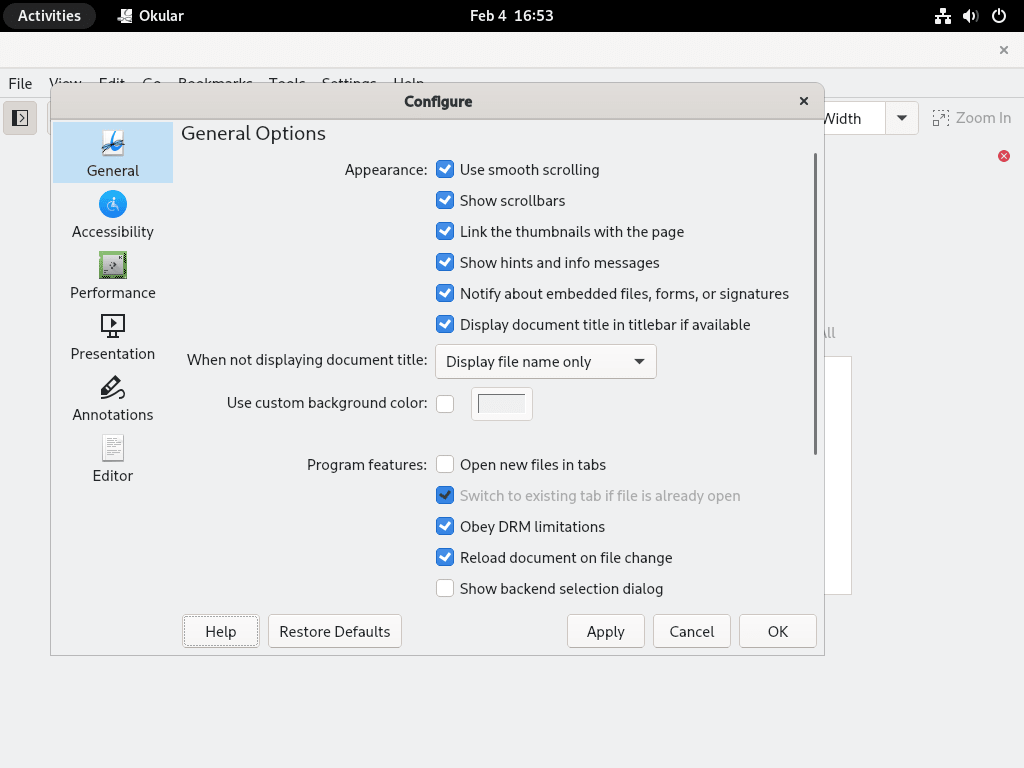
Manage Okular
Update Okular
Keeping Okular updated ensures you receive the latest features, format support improvements, and security patches. The update method depends on how you installed the application.
DNF installations:
sudo dnf upgrade --refreshThis command updates all system packages, including Okular. As a result, DNF checks for updates and applies them automatically.
Flatpak installations:
sudo flatpak updateSimilarly, Flatpak checks all installed applications for available updates and applies them.
Remove Okular
If you no longer need Okular, remove it using the command that matches your installation method.
Remove DNF installation:
sudo dnf remove okularNext, clean up any orphaned dependencies that the system installed alongside Okular.
sudo dnf autoremoveThen, verify the removal by checking that Okular is no longer installed.
rpm -q okularExpected output confirming removal:
package okular is not installed
Remove Flatpak installation:
sudo flatpak remove --delete-data org.kde.okularThe --delete-data flag removes application data stored in the Flatpak sandbox, providing a clean uninstall.
Verify Okular was removed from your Flatpak applications.
flatpak list | grep -i okularIf removal succeeded, this command returns no output.
Okular stores user configuration in
~/.config/okularrcand~/.config/okularpartrc. These files persist after uninstallation and contain your viewing preferences and recent file history. Consequently, if you reinstall Okular later, the application restores these settings automatically.
For a complete removal, delete these configuration files.
rm ~/.config/okularrc ~/.config/okularpartrcConclusion
You now have Okular installed on Fedora, giving you a capable document viewer that handles PDF, EPUB, DjVu, and numerous other formats. The DNF method provides seamless KDE integration and automatic updates, while the Flatpak option offers sandboxing and potentially newer releases. For managing ebook libraries alongside Okular, consider installing Calibre on Fedora to organize and convert your documents. If you are setting up a KDE-focused desktop environment, the KDE Plasma installation guide for Fedora walks through the complete desktop setup. Additionally, you may find our guides on installing VLC Media Player on Fedora and installing Transmission on Fedora useful for building a complete desktop media workflow.