
Windows includes Arial, Times New Roman, and Verdana by default, but Ubuntu ships with metric-compatible open-source alternatives (Liberation Sans, Liberation Serif) that closely approximate Microsoft’s originals. When you open Microsoft Office documents on Ubuntu without the actual Microsoft fonts, you see formatting shifts, misaligned text, and broken layouts because the substitute fonts do not match pixel-for-pixel. The ttf-mscorefonts-installer package delivers Microsoft’s core TrueType fonts, ensuring LibreOffice documents, presentations, and web pages display identically whether viewed on Ubuntu or Windows systems.
This guide covers installing the classic Microsoft Core Fonts (Arial, Times New Roman, Verdana) through Ubuntu’s default repository, accepting the required End User License Agreement during setup, and verifying the installation. For full Office document compatibility, you can also install modern ClearType fonts like Calibri, Cambria, and Consolas using an optional extraction method. Finally, the guide explains how to remove these fonts if you no longer need them.
Why Ubuntu Does Not Include Microsoft Fonts by Default
Ubuntu ships with open-source Liberation and DejaVu font families that provide metric-compatible alternatives to Arial, Times New Roman, and Courier New. However, these substitutes do not match Microsoft’s original fonts pixel-for-pixel, which causes formatting shifts when opening Windows-created documents. Microsoft’s core fonts require EULA acceptance and cannot be redistributed freely under open-source licenses, so Ubuntu provides the ttf-mscorefonts-installer package as a legal download mechanism that fetches fonts directly from Microsoft-approved SourceForge mirrors during installation.
| Microsoft Font | Ubuntu Default | Metric Compatible? |
|---|---|---|
| Arial | Liberation Sans | Yes |
| Times New Roman | Liberation Serif | Yes |
| Courier New | Liberation Mono | Yes |
| Georgia | DejaVu Serif | Partial |
| Verdana | DejaVu Sans | Partial |
Metric compatibility means Liberation fonts match the spacing and line heights of Microsoft fonts, reducing layout shifts. However, subtle differences in character shapes and kerning can still affect document appearance, especially with Georgia and Verdana where compatibility is only partial. If you work with documents created in Microsoft Office, installing the actual Microsoft fonts eliminates these inconsistencies entirely.
These steps cover Ubuntu 22.04 LTS, 24.04 LTS, and 26.04 LTS. The commands are identical across all supported LTS releases.
Update System Before Installation
Before installing the Microsoft Fonts package, open the Terminal from the applications menu and use the Advanced Package Tool (APT) to refresh package metadata. This step ensures you download the latest version of the font installer package:
sudo apt update && sudo apt upgradeInstall Microsoft Core Fonts
The ttf-mscorefonts-installer package is available in Ubuntu’s multiverse repository, which Ubuntu enables by default. Install the package with the following command:
sudo apt install ttf-mscorefonts-installerThe installation requires an active internet connection since the installer downloads fonts directly from SourceForge mirrors during setup.
What Fonts Does This Package Include?
The package downloads and installs the original Microsoft Core Fonts for the Web collection. Microsoft released these fonts in the late 1990s for free redistribution, and they remain widely used in documents and websites today:
- Andale Mono: a monospace font for technical documents and code
- Arial (including Arial Black and Bold variants): the standard sans-serif font for business documents
- Comic Sans MS: an informal sans-serif font
- Courier New: a monospace font commonly used in code and formal documents
- Georgia: a serif font optimized for screen readability
- Impact: a heavy sans-serif display font for headlines
- Times New Roman: the standard serif font for academic papers and formal documents
- Trebuchet MS: a sans-serif font popular in presentations
- Verdana: a sans-serif font designed for screen readability
- Webdings: a symbol font for web graphics and decorative elements
This package does not include newer Microsoft fonts like Calibri, Cambria, or Consolas. If you need these modern typefaces for document compatibility, see the Install Modern Microsoft Fonts section below.
Accept the Microsoft EULA
During installation, you encounter prompts to read and accept Microsoft’s End User License Agreement (EULA). The first prompt displays the license terms for review.
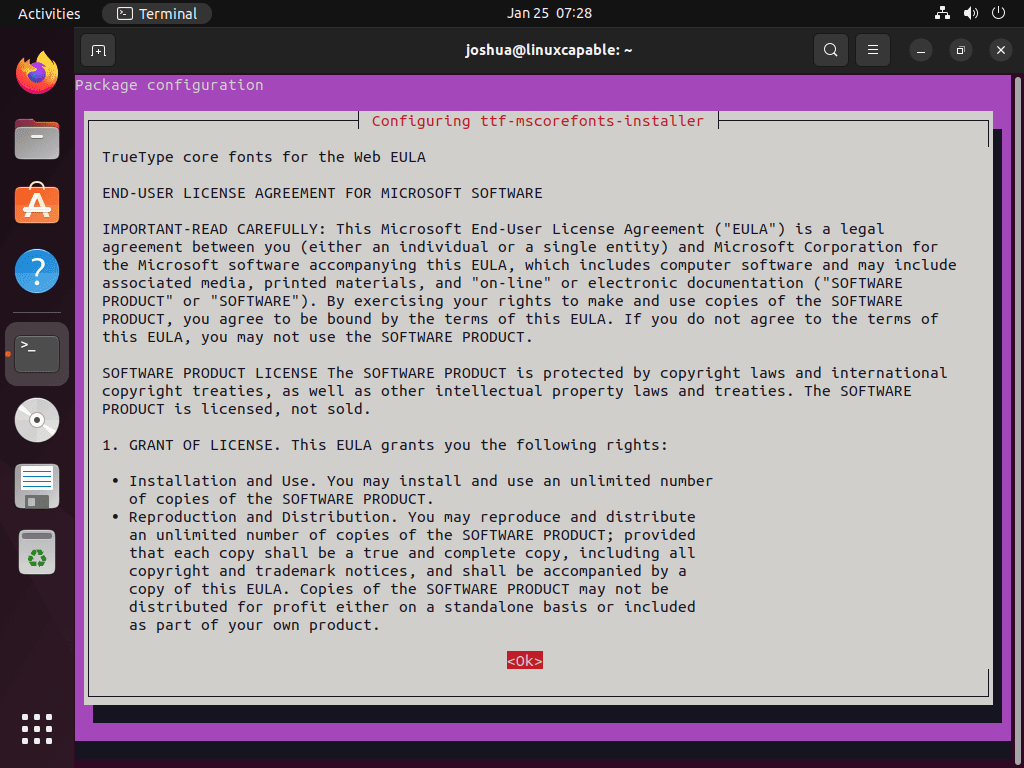
Press the <TAB> key to select <Ok>, then press <ENTER> to proceed.
Next, accept the license terms to continue. You must accept the EULA to install and use the Microsoft Fonts package. If you decline, the installation halts immediately.
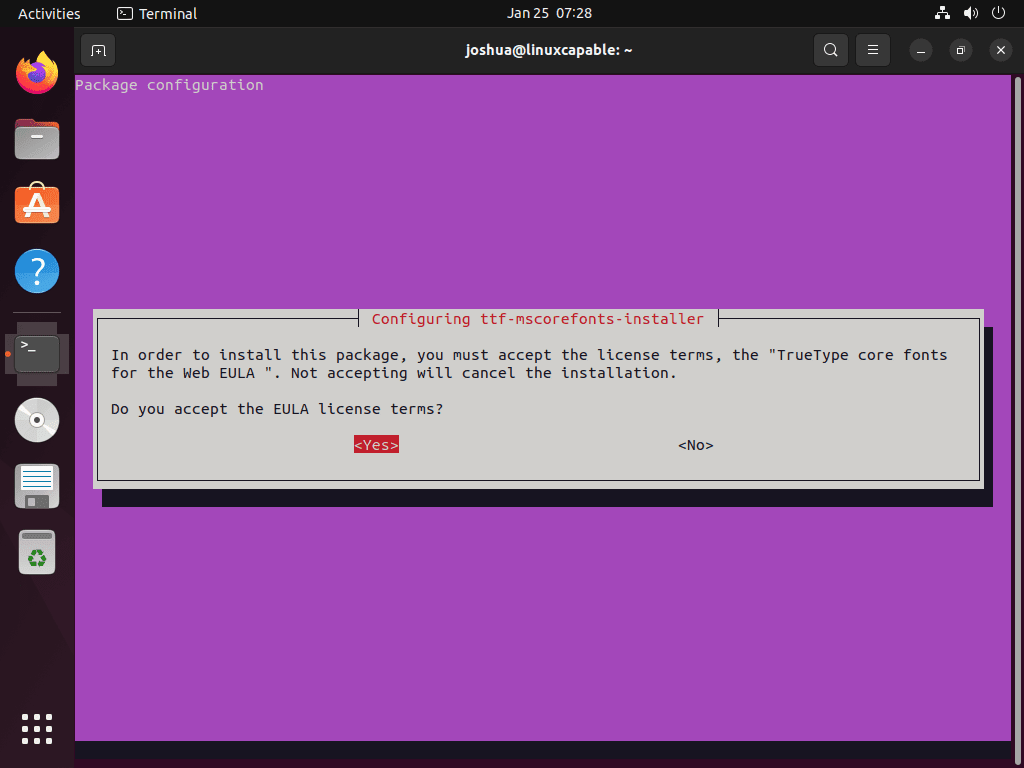
Press the <TAB> key to select <Yes>, then press <ENTER> to accept.
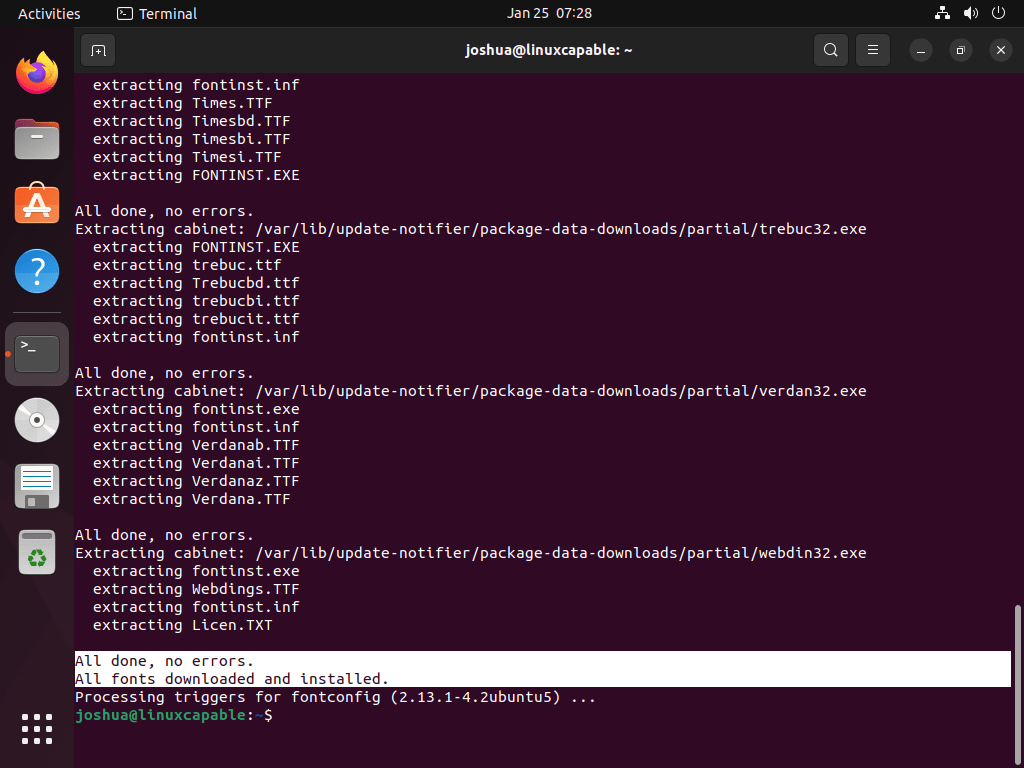
Once the installation completes, your terminal displays confirmation output showing the fonts have been downloaded and installed successfully.
Rebuild the Font Cache
If applications do not immediately recognize the new fonts, rebuild the font cache. This step forces the system to scan all font directories and update its internal font index:
sudo fc-cache -fvThe -f flag forces a cache rebuild even if files appear unchanged, and -v provides verbose output so you can see which directories are scanned. This process typically completes in seconds and ensures all applications detect the newly installed Microsoft fonts without restarting.
Verify Font Installation
After installation, verify that the fonts are available on your system using the fc-list command combined with grep to filter results:
fc-list | grep -iE "arial|times|verdana|georgia|trebuchet"If the installation succeeded, you see output showing the installed font files:
/usr/share/fonts/truetype/msttcorefonts/Arial_Bold.ttf: Arial:style=Bold
/usr/share/fonts/truetype/msttcorefonts/Arial.ttf: Arial:style=Regular
/usr/share/fonts/truetype/msttcorefonts/Times_New_Roman.ttf: Times New Roman:style=Regular
/usr/share/fonts/truetype/msttcorefonts/Verdana.ttf: Verdana:style=Regular
/usr/share/fonts/truetype/msttcorefonts/Georgia.ttf: Georgia:style=Regular
/usr/share/fonts/truetype/msttcorefonts/trebuc.ttf: Trebuchet MS:style=Regular
Verify Fonts in the Fonts Application
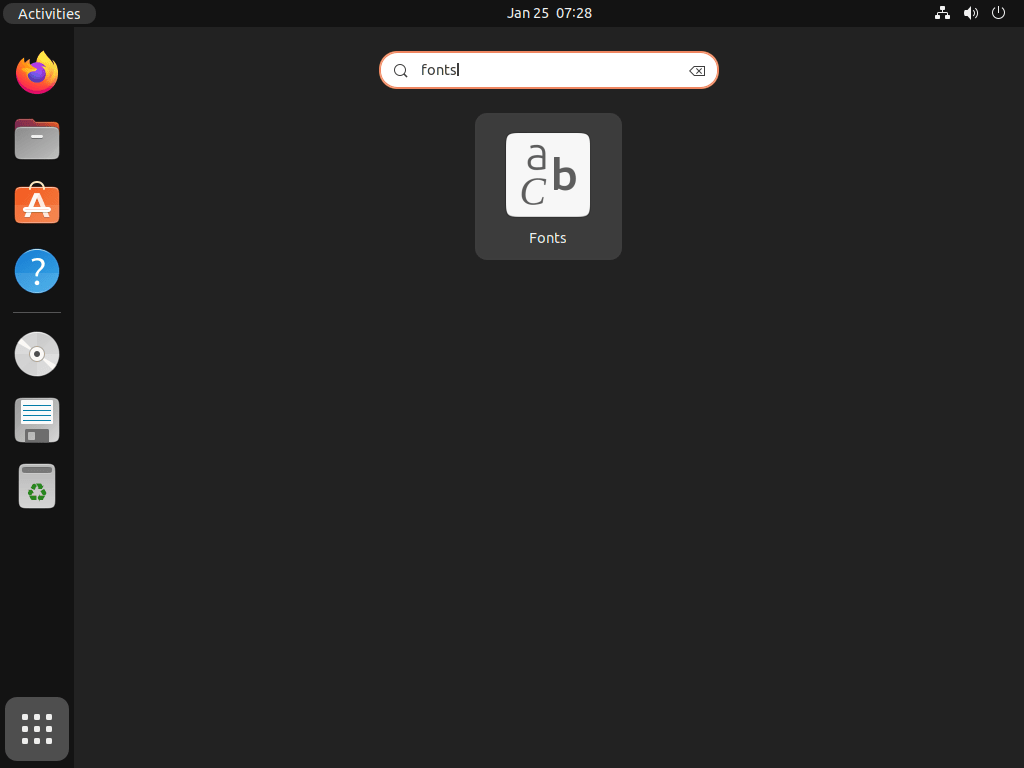
You can also verify the installation through the graphical Fonts application. Open the application menu, search for “Fonts,” and launch the Fonts application.
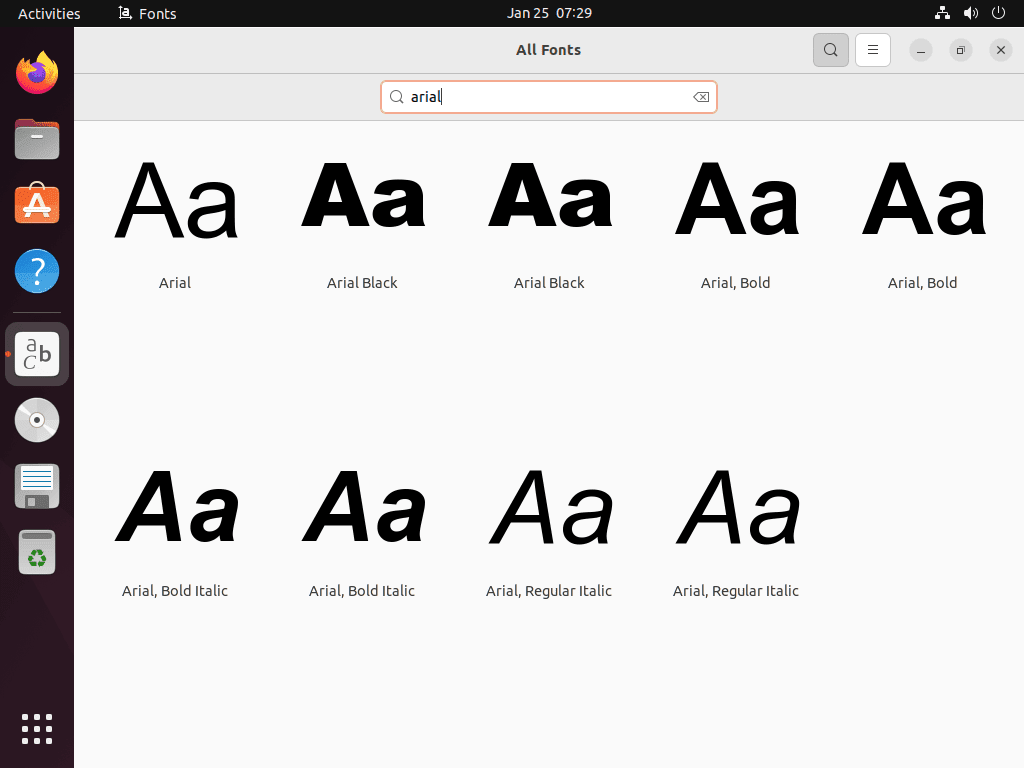
The Fonts application displays all system-installed fonts, including the newly added Microsoft fonts like Arial and Times New Roman. You can use the search function to find specific fonts by name.
Test Microsoft Fonts in LibreOffice Writer
To confirm the fonts work correctly in LibreOffice Writer, follow these steps:
- Open LibreOffice Writer from the application menu or run
libreoffice --writerin the terminal - Type sample text such as “Testing Microsoft Fonts on Ubuntu”
- Select the text with your mouse
- Click the font dropdown menu in the toolbar (default shows “Liberation Sans”)
- Scroll through the font list and select “Arial” or “Times New Roman”
- Verify the font applies to your selected text and appears correctly
If Microsoft fonts appear in the dropdown and apply correctly to text, the installation succeeded. Documents you create with these fonts will now maintain consistent formatting when shared with Windows users.
Common Use Cases for Microsoft Fonts
Installing Microsoft fonts solves practical cross-platform compatibility challenges in several scenarios:
LibreOffice document sharing: Documents created in LibreOffice Writer using Arial or Times New Roman maintain identical formatting when opened in Microsoft Word on Windows. Headers, footers, page breaks, and table layouts remain pixel-perfect across platforms, eliminating the need to adjust formatting after file transfer.
Web development and testing: CSS declarations like font-family: Arial, sans-serif; render accurately during local development and browser testing. Designers can preview websites exactly as Windows users see them, ensuring consistent typography across operating systems without requiring separate Windows testing environments.
Professional document submissions: Resumes, CVs, and business proposals created with standard Microsoft fonts display correctly when reviewed by HR departments and hiring managers using Windows. Page counts, line breaks, and section spacing remain stable, preventing formatting surprises during document review.
Print shop and PDF workflows: Documents exported to PDF with embedded Microsoft fonts guarantee consistent output whether printed from Ubuntu or Windows systems. Professional printing services receive files with industry-standard fonts already embedded, reducing prepress issues and revision requests.
Business presentations: PowerPoint files with corporate templates using Arial or Verdana open correctly in LibreOffice Impress without font substitution warnings. Slide layouts, text boxes, and bullet points maintain intended positioning when presenting or editing files received from Windows colleagues.
Install Modern Microsoft Fonts (Calibri, Cambria, Consolas)
The core fonts package installs fonts from the 1990s, but many modern Office documents use newer typefaces like Calibri (the default font since Office 2007), Cambria, and Consolas. These fonts were bundled with Microsoft’s discontinued PowerPoint Viewer application, which has been archived and remains available for download.
These fonts are extracted from a legitimate Microsoft product archived on Archive.org. While this method is commonly used for personal document compatibility, the fonts remain Microsoft property. For commercial or enterprise use, verify your licensing obligations.
What Fonts Does the PowerPoint Viewer Include?
The PowerPoint Viewer includes the ClearType font collection introduced with Windows Vista and Office 2007:
- Calibri: the default document font in Microsoft Office since 2007
- Cambria: a serif font designed for on-screen reading and headings
- Consolas: a monospace font popular for programming and code
- Candara: a humanist sans-serif font
- Constantia: a serif font with wedge-shaped serifs
- Corbel: a sans-serif font designed for on-screen display
Download and Install the Modern Fonts
First, install cabextract if it is not already present. This utility extracts files from Microsoft cabinet archives:
sudo apt install cabextractNext, download the PowerPoint Viewer from Archive.org using wget, verify its checksum for integrity, and extract the fonts. The following commands handle the entire process:
cd /tmp
wget -q "https://archive.org/download/PowerPointViewer_201801/PowerPointViewer.exe"

# Verify the download integrity
EXPECTED="249473568eba7a1e4f95498acba594e0f42e6581add4dead70c1dfb908a09423"
ACTUAL=$(sha256sum PowerPointViewer.exe | cut -d' ' -f1)
if [ "$ACTUAL" = "$EXPECTED" ]; then
    echo "Checksum verified successfully"
else
    echo "Checksum verification failed - aborting"
    rm -f PowerPointViewer.exe
    exit 1
fi
If the checksum verifies successfully, extract the fonts from the cabinet archive:
cabextract -q PowerPointViewer.exe -F ppviewer.cab
cabextract -q ppviewer.cab -F '*.TTF' -F '*.TTC'
You may see a warning about “extra bytes at end of file” during extraction. This is expected and does not affect the font files.
Create a directory for the fonts and move them into place:
mkdir -p ~/.local/share/fonts/microsoft
mv *.TTF *.TTC ~/.local/share/fonts/microsoft/
Update the font cache to make the new fonts available:
fc-cache -fClean up the temporary files from the download directory:
cd /tmp && rm -f PowerPointViewer.exe ppviewer.cab *.TTF *.TTCVerify the installation by checking for Calibri:
fc-list | grep -i calibriIf the installation succeeded, you see output similar to:
/home/username/.local/share/fonts/microsoft/CALIBRI.TTF: Calibri:style=Regular
/home/username/.local/share/fonts/microsoft/CALIBRIB.TTF: Calibri:style=Bold
/home/username/.local/share/fonts/microsoft/CALIBRII.TTF: Calibri:style=Italic
/home/username/.local/share/fonts/microsoft/CALIBRIZ.TTF: Calibri:style=Bold Italic
Remove the PowerPoint Viewer Fonts
To remove these fonts, delete the font directory and refresh the cache.
The following command permanently deletes all fonts in the
~/.local/share/fonts/microsoftdirectory. If you have added other fonts to this location, back them up first.
rm -rf ~/.local/share/fonts/microsoft
fc-cache -fTroubleshooting Common Issues
If the installation fails or encounters problems, the following solutions address the most common issues.
SourceForge Download Failures
The installer downloads fonts from SourceForge mirrors during setup. If downloads fail due to network issues or mirror unavailability, wait a few minutes and retry the installation. The package uses standard download tools to fetch files automatically, so verify your internet connection works properly before retrying.
EULA Navigation Problems
If the terminal becomes unresponsive during EULA prompts, press <TAB> to highlight the <Ok> button, then press <ENTER>. If the terminal remains frozen, press <CTRL+C> to cancel, then restart the installation.
Interrupted Installation
If the installation stops mid-process, reconfigure the package to restart the download and installation:
sudo dpkg-reconfigure ttf-mscorefonts-installerThis command re-runs the font download process without reinstalling the entire package. Accept the EULA when prompted, and the fonts download and install properly.
Fonts Not Appearing in Applications
Some applications cache font lists and may not immediately detect new fonts. Close and reopen the application, or rebuild the system font cache:
sudo fc-cache -fvAfter rebuilding the cache, restart the application. If fonts still do not appear, log out and log back in to refresh the desktop environment’s font list.
Remove Microsoft Core Fonts
If you no longer need the Microsoft fonts, remove them with the following commands:
sudo apt remove ttf-mscorefonts-installer && sudo apt autoremoveThe first command removes the font installer package and deletes the downloaded fonts from /usr/share/fonts/truetype/msttcorefonts/. The second command removes orphaned dependencies like cabextract and xfonts-utils that were installed to support the font extraction process.
After removal, update the font cache so applications no longer display the removed fonts:
sudo fc-cache -fVerify the fonts are removed by running:
fc-list | grep -i arialIf the command returns no output, the Microsoft fonts have been successfully removed from your system.
Conclusion
Your Ubuntu system now has Microsoft fonts installed for cross-platform document compatibility. The core fonts package provides classic typefaces like Arial and Times New Roman, while the optional PowerPoint Viewer extraction adds modern fonts like Calibri, Cambria, and Consolas for full Office 2007+ document support. These fonts integrate with all applications that use the system font directory, including LibreOffice, web browsers, and image editors. You can use the Fonts application to preview and manage your installed typefaces or adjust application font settings directly when needed.

Hi 4D,
Thanks for sharing the issue! The error you’re encountering happens because the
ttf-mscorefonts-installerpackage downloads fonts from SourceForge, and if the server connection fails, the installation can’t complete. No worries—you can manually download and install the fonts on Ubuntu by following these steps:The fonts provided by Microsoft are packaged in `.exe` files on SourceForge. These `.exe` files are self-extracting archives that contain the font files. Visit the SourceForge Corefonts page to download the font you need: SourceForge Corefonts For example, download
andale32.exefor Andale Mono orarial32.exefor Arial.Linux cannot run `.exe` files directly, but you can extract the font files using a tool like
cabextract. First, install it on your system:Navigate to the directory where you downloaded the `.exe` file and run the following command to extract the contents:
This will extract the font files (e.g.,
.ttf) into the current directory.After extracting the fonts, move the
.ttffiles to the system fonts directory:Once the fonts are in the correct directory, update the font cache to make them available system-wide:
This method bypasses the automated installer and lets you install the fonts manually. It’s a bit more hands-on, but it works even if the SourceForge server is unresponsive.
Let me know if this solves your issue or if you need more help!
Gives error on Ubuntu 24.04:
ttf-mscorefonts-installer: processing…
ttf-mscorefonts-installer: downloading http://downloads.sourceforge.net/corefont
s/andale32.exe
Ign:1 http://downloads.sourceforge.net/corefonts/andale32.exe
Ign:1 http://downloads.sourceforge.net/corefonts/andale32.exe
Ign:1 http://downloads.sourceforge.net/corefonts/andale32.exe
Err:1 http://downloads.sourceforge.net/corefonts/andale32.exe
Could not connect to cyfuture.dl.sourceforge.net:80 (49.50.119.27), connection
timed out
E: Failed to fetch http://cyfuture.dl.sourceforge.net/project/corefonts/the%20fo
nts/final/andale32.exe?viasf=1 Could not connect to cyfuture.dl.sourceforge.net
:80 (49.50.119.27), connection timed out
E: Download Failed
Processing triggers for fontconfig (2.15.0-1.1ubuntu2) …