
Microsoft Edge provides a Chromium-based browser optimized for Microsoft 365 integration, with sync across Windows, macOS, Android, and Linux devices. Common use cases include accessing Microsoft Teams directly from the browser sidebar, syncing passwords and bookmarks with Edge on other platforms, and testing web applications against Chromium rendering. By the end of this guide, you will have Microsoft Edge installed with automatic updates through APT, understand the differences between stable, beta, and dev release channels, and know how to cleanly remove the browser if needed. If you are exploring Chromium-based browsers, other options include Chromium, Google Chrome, Brave, and Vivaldi.
Microsoft Edge is not available through Flathub or Snapcraft. The only supported installation method is Microsoft’s official APT repository, which works identically on Ubuntu 22.04 LTS, 24.04 LTS, and 26.04 LTS. If you prefer sandboxed applications, see our Flatpak installation guide for browsers that support it.
Install Microsoft Edge on Ubuntu
This section walks through adding Microsoft’s official repository, importing the GPG signing key, and installing Edge through APT. The process takes a few minutes and provides automatic security updates.
Update Your System
Refresh your package lists and apply pending updates before adding external repositories:
sudo apt update && sudo apt upgradeInstall Required Packages
Install the tools needed for secure downloads and GPG key management:
sudo apt install curl ca-certificates gpg -yThis installs curl for downloading the GPG key, ca-certificates for HTTPS verification, and gpg for key conversion. These packages may already be present on desktop systems, but minimal or server installations may lack them.
Import the Microsoft GPG Key
Import Microsoft’s GPG signing key to verify package authenticity:
curl -fsSL https://packages.microsoft.com/keys/microsoft.asc | sudo gpg --dearmor -o /usr/share/keyrings/microsoft-edge.gpgThis command downloads the ASCII-armored key from Microsoft, converts it to binary format using gpg --dearmor, and writes it to the keyrings directory. APT uses this key to verify that Edge packages are signed by Microsoft before installation.
Add the Microsoft Edge Repository
Create a DEB822 sources file that points to the Microsoft Edge repository:
sudo tee /etc/apt/sources.list.d/microsoft-edge.sources > /dev/null << 'EOF'
Types: deb
URIs: https://packages.microsoft.com/repos/edge
Suites: stable
Components: main
Signed-By: /usr/share/keyrings/microsoft-edge.gpg
Architectures: amd64
EOF
This creates a dedicated microsoft-edge.sources file in the modern DEB822 format. The Signed-By field links the repository to the GPG key you imported, ensuring APT only accepts packages signed by Microsoft. The repository uses a universal stable suite that works across all Ubuntu versions without codename-specific URLs.
Verify Repository Access
Update your package cache to include the newly added repository:
sudo apt updateVerify that APT can access Microsoft Edge packages:
apt-cache policy microsoft-edge-stableThe output confirms the repository is working correctly:
microsoft-edge-stable:
  Installed: (none)
  Candidate: 143.0.3650.139-1
  Version table:
     143.0.3650.139-1 500
        500 https://packages.microsoft.com/repos/edge stable/main amd64 Packages
Install Microsoft Edge
Install the stable version of Microsoft Edge:
sudo apt install microsoft-edge-stable -yVerify the browser is working:
microsoft-edge --versionMicrosoft Edge 143.0.3650.139
Remove Duplicate Repository File
Microsoft Edge creates a legacy .list file during installation, even when you have already configured a .sources file. This causes duplicate source warnings during apt update. Remove the duplicate file:
sudo rm -f /etc/apt/sources.list.d/microsoft-edge.listThis is a one-time fix. The file will not reappear during future updates because the package only generates it on first install. Verify the duplicate is gone:
sudo apt updateThe output should complete without duplicate source warnings.
Install Additional Microsoft Edge Versions
The Microsoft Edge repository provides three release channels with different update frequencies and stability levels. You can install any or all of them alongside each other.
| Factor | Stable | Beta | Dev |
|---|---|---|---|
| Updates | Monthly security + features | Weekly feature previews | Daily experimental builds |
| Stability | Production-ready | Generally stable, some bugs | Unstable, frequent issues |
| Use Case | Everyday browsing | Testing upcoming features | Development and feedback |
| Package Name | microsoft-edge-stable | microsoft-edge-beta | microsoft-edge-dev |
| Command | microsoft-edge | microsoft-edge-beta | microsoft-edge-dev |
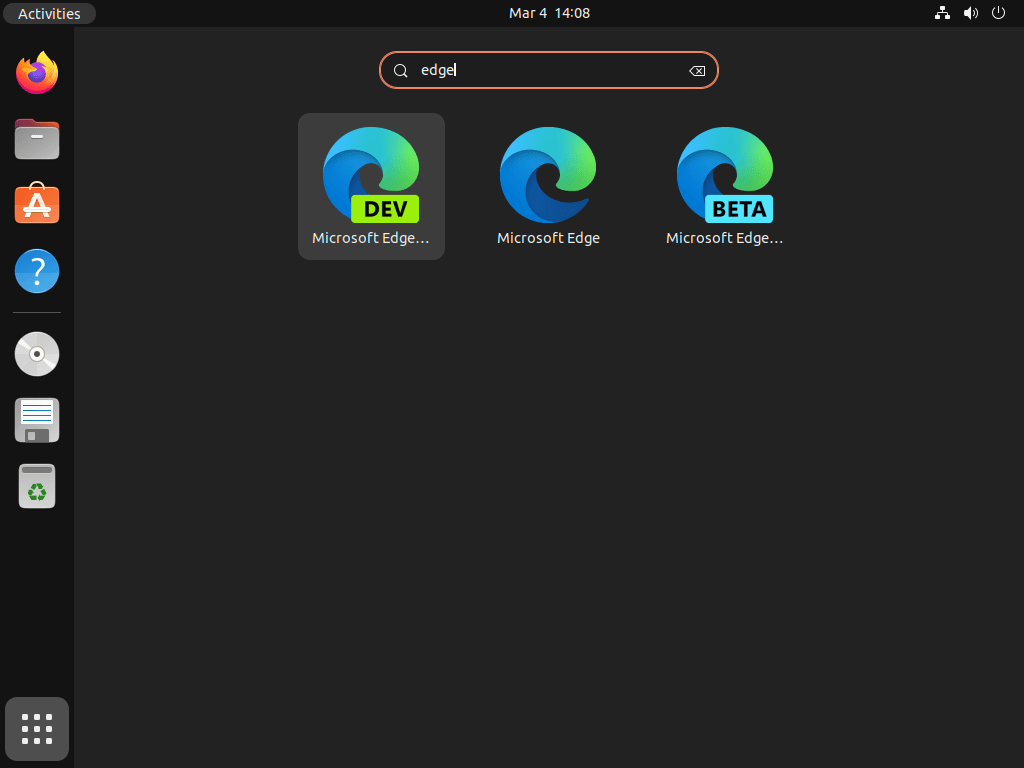
All three versions run simultaneously with separate launcher icons and independent profiles, so installing beta or dev does not affect your stable installation.
Install the Beta Version
The beta channel provides early access to upcoming features with weekly updates. This version may include experimental features and can be less stable than the stable release.
sudo apt install microsoft-edge-betaVerify the installation:
microsoft-edge-beta --versionInstall the Dev Version
The dev channel provides daily updates with the latest experimental features. This version is intended for web developers and users who want to test early builds and provide feedback to Microsoft.
sudo apt install microsoft-edge-devVerify the installation:
microsoft-edge-dev --versionLaunch Microsoft Edge
After installation, launch the browser from either the terminal or the graphical interface.
Launch from the Terminal
Stable version:
microsoft-edgeBeta version:
microsoft-edge-betaDev version:
microsoft-edge-devTerminal launch is useful for troubleshooting startup issues since error messages appear directly in the console.
Launch from the Applications Menu
Open the Applications menu on your Ubuntu desktop, search for Microsoft Edge, and click the icon to launch the browser. If you installed multiple versions, each appears as a separate entry.
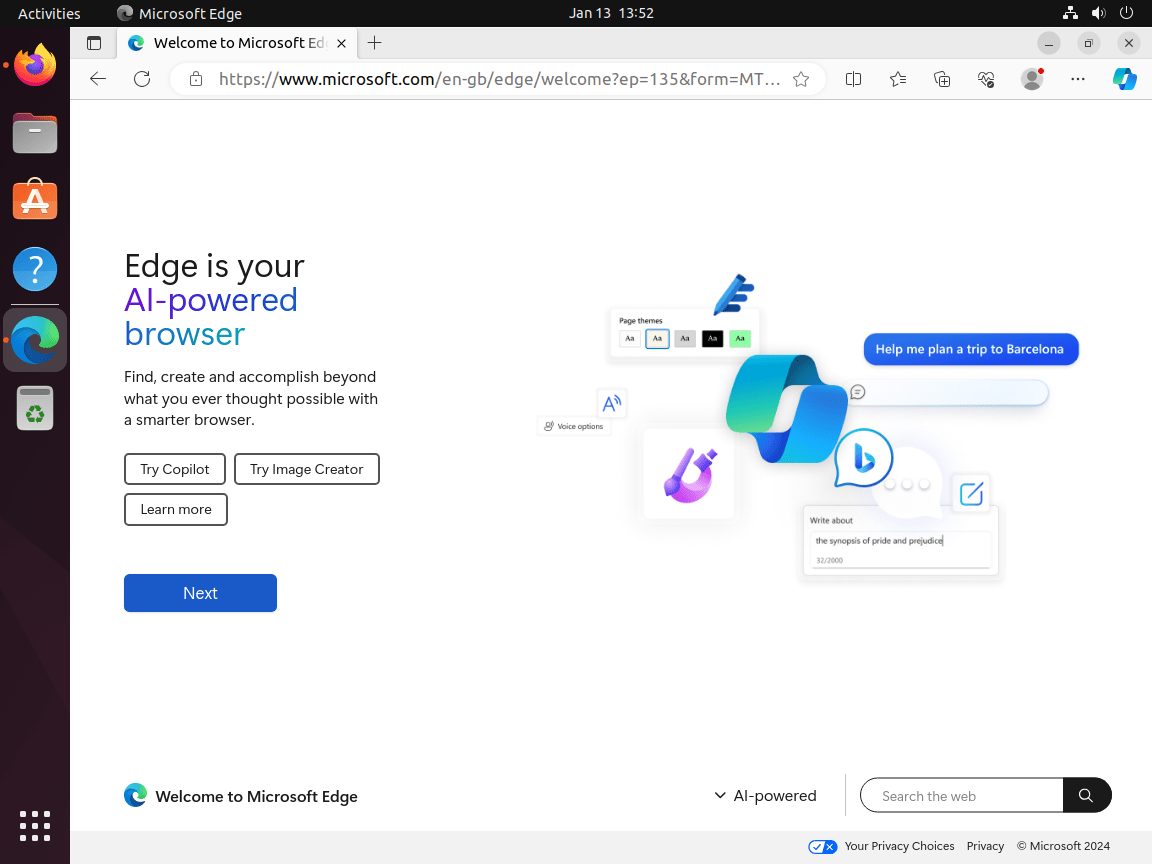
On first launch, you can optionally sign in with your Microsoft account to sync bookmarks, extensions, and settings across devices.
Post-Installation Configuration
After installation, you can configure Edge as your default browser and customize initial settings.
Set Edge as Default Browser
Ubuntu uses the update-alternatives system to manage default applications. Set Microsoft Edge as your default web browser:
sudo update-alternatives --config x-www-browserThe command displays a numbered list of installed browsers. Enter the number corresponding to Microsoft Edge:
There are 3 choices for the alternative x-www-browser (providing /usr/bin/x-www-browser).

  Selection    Path                              Priority   Status
------------------------------------------------------------
* 0            /usr/bin/firefox                   40        auto mode
  1            /usr/bin/firefox                   40        manual mode
  2            /usr/bin/microsoft-edge-stable     200       manual mode
  3            /usr/bin/google-chrome-stable      200       manual mode

Press <enter> to keep the current choice[*], or type selection number: 2
Type 2 (or the appropriate number for your system) and press Enter to set Edge as the default browser.
Initial Browser Setup
When you first launch Microsoft Edge, the browser prompts you to complete initial setup:
- Microsoft account sync: Sign in to sync bookmarks, passwords, and settings across devices. This is optional, as Edge works without an account.
- Import data: Transfer bookmarks, passwords, and browsing history from Firefox, Chrome, or other installed browsers.
- Privacy settings: Choose tracking prevention level (Basic, Balanced, or Strict). Balanced is recommended for most users.
- Search engine: Set your preferred default search engine. Edge defaults to Bing but supports Google, DuckDuckGo, and others.
These settings can be changed later through Edge’s Settings menu (edge://settings/).
Update Microsoft Edge
Keeping Microsoft Edge up-to-date ensures you have the latest security patches and features. Updates are delivered through APT like any other system package.
Update All System Packages
The simplest approach updates all software on your system, including Microsoft Edge:
sudo apt update
sudo apt upgrade
sudo apt updaterefreshes the package list to include the latest available versions from all configured repositories.sudo apt upgradeapplies updates to all installed software, including Microsoft Edge, if an update is available.
This approach keeps your entire system current, minimizing security vulnerabilities and software conflicts.
Update Microsoft Edge Only
To update only Microsoft Edge without upgrading other software, refresh your package lists and update the specific package:
sudo apt updateStable version:
sudo apt install --only-upgrade microsoft-edge-stableBeta version:
sudo apt install --only-upgrade microsoft-edge-betaDev version:
sudo apt install --only-upgrade microsoft-edge-devThe --only-upgrade flag updates the package only if it is already installed, leaving other system packages unchanged.
Remove Microsoft Edge
To uninstall Microsoft Edge completely, remove the packages, user data, and repository configuration.
Remove Microsoft Edge Packages
Uninstall the Edge packages for the versions installed on your system:
Stable version:
sudo apt remove microsoft-edge-stableBeta version:
sudo apt remove microsoft-edge-betaDev version:
sudo apt remove microsoft-edge-devClean up orphaned dependencies no longer needed by any installed software:
sudo apt autoremoveRemove Microsoft Edge User Data
Uninstalling the package leaves residual user data such as browsing history, bookmarks, cookies, and cached files. To completely delete this data:
The following commands permanently delete your Microsoft Edge browsing data, including bookmarks, passwords, and browsing history. Back up any data you want to keep before proceeding.
rm -rf ~/.config/microsoft-edgeIf you installed other Edge versions, delete their respective directories:
rm -rf ~/.config/microsoft-edge-beta
rm -rf ~/.config/microsoft-edge-dev
Remove cached files used by the browser:
rm -rf ~/.cache/microsoft-edge*Remove the Microsoft Edge Repository
Remove the repository configuration to prevent APT from attempting to access Microsoft Edge packages in the future:
sudo rm -f /etc/apt/sources.list.d/microsoft-edge.sources
sudo rm -f /usr/share/keyrings/microsoft-edge.gpg
Verify the repository was removed by refreshing the package cache:
sudo apt updateConfirm the Microsoft Edge repository is no longer recognized:
apt-cache policy microsoft-edge-stableThe output should show no repository URLs, confirming complete removal:
microsoft-edge-stable:
  Installed: (none)
  Candidate: (none)
  Version table:
Troubleshoot Common Issues
If you encounter problems installing or running Microsoft Edge, these solutions address the most common issues.
Repository Authentication Failures
If apt update fails with GPG errors about the Microsoft Edge repository, the GPG key may be missing or corrupted:
Err:1 https://packages.microsoft.com/repos/edge stable InRelease
  The following signatures couldn't be verified because the public key is not available: NO_PUBKEY EB3E94ADBE1229CF
Re-import the Microsoft GPG key to fix authentication:
curl -fsSL https://packages.microsoft.com/keys/microsoft.asc | sudo gpg --dearmor -o /usr/share/keyrings/microsoft-edge.gpg
sudo apt update
Dependency Installation Errors
If Microsoft Edge installation fails with unmet dependency errors, broken packages in your system may be blocking installation:
The following packages have unmet dependencies:
 microsoft-edge-stable : Depends: libnss3 (>= 3.26) but it is not installable
Fix broken packages before retrying installation:
sudo apt --fix-broken install
sudo apt update
sudo apt install microsoft-edge-stable
Edge Won’t Launch
If Microsoft Edge installs successfully but fails to start, check for missing library dependencies or graphics driver issues by launching from the terminal:
microsoft-edgeIf the terminal shows library errors, reinstall the package to ensure all dependencies are present:
sudo apt install --reinstall microsoft-edge-stableFor graphics-related crashes, try launching Edge with software rendering disabled:
microsoft-edge --disable-gpuIf Edge launches successfully with --disable-gpu, the issue is related to your graphics drivers. Update your GPU drivers or consider using software rendering permanently by adding the flag to Edge’s desktop launcher.
Conclusion
Microsoft Edge provides a Chromium-based browsing experience on Ubuntu with strong Microsoft service integration and wide extension support. The browser installs and updates through APT on Ubuntu 22.04 LTS, 24.04 LTS, and 26.04 LTS using Microsoft’s official repository. You can run stable, beta, and dev builds simultaneously depending on whether you prioritize stability or early access to new features.
When Edge no longer fits your workflow, remove the packages, configuration directories, cache, and repository files to return your system to a clean state. If you are looking for alternative browsers, consider Ungoogled Chromium for privacy-focused browsing without Google services, or revisit the Chromium-based options mentioned in the introduction.
Useful Links
- Microsoft Edge Official Website
Download links, feature highlights, and documentation for Microsoft Edge across all platforms. - Edge Insider Community Forums
Discuss beta and dev builds, report bugs, and connect with other Edge users and Microsoft developers. - Microsoft Feedback Portal
Submit feedback or feature requests directly to the Microsoft Edge team.