Microsoft Edge is useful on Ubuntu when your browser needs to match a Microsoft 365, Entra ID, SharePoint, or Edge Sync workflow instead of using a generic Chromium build. You can install Microsoft Edge on Ubuntu through Microsoft’s official APT repository, then choose the stable, beta, or dev channel without changing repository setup. If you are comparing Chromium-based browsers, other options include Chromium, Google Chrome, Brave, and Vivaldi.
The APT repository path below targets Ubuntu 26.04, 24.04, and 22.04 on amd64 systems. Microsoft’s Edge APT repository currently publishes Edge packages only for amd64; its arm64 and armhf package indexes are empty. These steps use Microsoft’s vendor APT repository, not a Launchpad PPA, and the stable package name is
microsoft-edge-stable, notedge. If you searched for an Edge download, the APT method still downloads Microsoft’s package while keeping update tracking in place. A Flatpak on Flathub exists, but Flathub labels it as a wrapper that is not verified by, affiliated with, or supported by Microsoft. Microsoft Edge is not available through Snapcraft. If you prefer sandboxed applications, see our Flatpak installation guide to set up Flatpak on Ubuntu first.
Install Microsoft Edge on Ubuntu
Adding Microsoft’s official repository and GPG signing key enables installation and regular package updates through APT.
Update Your System
Refresh your package lists and apply pending updates before adding external repositories:
sudo apt update && sudo apt upgradeIf you need to set up a user with
sudoprivileges before continuing, see our guide on adding a sudo user on Ubuntu.
Install Required Packages
Install the tools needed for secure downloads and GPG key management:
sudo apt install curl ca-certificates gpg -yThis installs curl for downloading the GPG key, ca-certificates for HTTPS verification, and gpg for key conversion. These packages may already be present on desktop systems, but minimal or server installations may lack them.
Import the Microsoft GPG Key
Import Microsoft’s GPG signing key to verify package authenticity:
curl -fsSL https://packages.microsoft.com/keys/microsoft.asc | sudo gpg --dearmor --yes -o /usr/share/keyrings/microsoft-edge.gpgThis command uses curl to download the ASCII-armored key from Microsoft, converts it to binary format using gpg --dearmor, and writes it to the keyrings directory. APT uses this key to verify that Edge packages are signed by Microsoft before installation.
Add the Microsoft Edge Repository
Create a DEB822 sources file that points to the Microsoft Edge repository:
printf '%s\n' \
'Types: deb' \
'URIs: https://packages.microsoft.com/repos/edge' \
'Suites: stable' \
'Components: main' \
'Signed-By: /usr/share/keyrings/microsoft-edge.gpg' \
'Architectures: amd64' |
sudo tee /etc/apt/sources.list.d/microsoft-edge.sources > /dev/null
This creates a dedicated microsoft-edge.sources file in the modern DEB822 format. The Signed-By field links the repository to the GPG key you imported, ensuring APT only accepts packages signed by Microsoft. The repository uses a universal stable suite that works across supported Ubuntu LTS releases without codename-specific URLs. The Architectures: amd64 line prevents APT from trying empty Microsoft Edge package indexes on non-amd64 Ubuntu systems.
Verify Microsoft Edge Repository Access
Update your package cache to include the newly added repository:
sudo apt updateIf Ubuntu reports that the Microsoft Edge release file is not valid yet, check the troubleshooting section for clock and repository timestamp guidance before retrying.
Verify that APT can access Microsoft Edge packages:
apt-cache policy microsoft-edge-stableThe exact version number changes as Microsoft publishes Edge updates. The important signs are a non-empty Candidate line and the Microsoft repository URL:
microsoft-edge-stable:
  Installed: (none)
  Candidate: 147.x.xxxx.xx-1
  Version table:
     147.x.xxxx.xx-1 500
        500 https://packages.microsoft.com/repos/edge stable/main amd64 Packages
Install Microsoft Edge
Install the stable version of Microsoft Edge:
sudo apt install microsoft-edge-stable -yVerify the browser is working. Your version number may be newer than this example:
microsoft-edge --versionMicrosoft Edge 147.x.xxxx.xx
Clean Up Generated Microsoft Edge Sources
The Edge packages can create extra source files during installation. The stable package may create a legacy microsoft-edge.list, and the beta or dev packages may create their own .sources files and keyrings. The single microsoft-edge.sources file created earlier already provides all three packages, so remove the generated duplicates after installing the channels you want:
sudo rm -f /etc/apt/sources.list.d/microsoft-edge.list
sudo rm -f /etc/apt/sources.list.d/microsoft-edge-beta.sources
sudo rm -f /etc/apt/sources.list.d/microsoft-edge-dev.sources
sudo rm -f /usr/share/keyrings/microsoft-edge-beta.gpg
sudo rm -f /usr/share/keyrings/microsoft-edge-dev.gpg
sudo apt update
The update should complete without duplicate source warnings. These cleanup commands are safe to run after installing only the stable channel, and you can rerun them if you add beta or dev later.
Install Additional Microsoft Edge Versions
The Microsoft Edge repository provides three release channels with different update frequencies and stability levels. You can install any or all of them alongside each other, then rerun the generated-source cleanup commands if APT reports duplicate source warnings.
| Factor | Stable | Beta | Dev |
|---|---|---|---|
| Updates | Monthly security + features | Weekly feature previews | Daily experimental builds |
| Stability | Production-ready | Generally stable, some bugs | Unstable, frequent issues |
| Use Case | Everyday browsing | Testing upcoming features | Development and feedback |
| Package Name | microsoft-edge-stable | microsoft-edge-beta | microsoft-edge-dev |
| Command | microsoft-edge | microsoft-edge-beta | microsoft-edge-dev |
All three versions run simultaneously with separate launcher icons and independent profiles, so installing beta or dev does not affect your stable installation.
Install Microsoft Edge Beta
The beta channel provides early access to upcoming features with weekly updates. This version may include experimental features and can be less stable than the stable release.
sudo apt install microsoft-edge-betaVerify the installation:
microsoft-edge-beta --versionMicrosoft Edge 148.x.xxxx.xx beta
Install Microsoft Edge Dev
The dev channel provides daily updates with the latest experimental features. This version is intended for web developers and users who want to test early builds and provide feedback to Microsoft.
sudo apt install microsoft-edge-devVerify the installation:
microsoft-edge-dev --versionMicrosoft Edge 149.x.xxxx.x dev
Launch Microsoft Edge on Ubuntu
After installation, launch the browser from either the terminal or the graphical interface.
Launch from the Terminal
| Version | Command |
|---|---|
| Stable | microsoft-edge |
| Beta | microsoft-edge-beta |
| Dev | microsoft-edge-dev |
Terminal launch is useful for troubleshooting startup issues since error messages appear directly in the console.
Launch from the Applications Menu
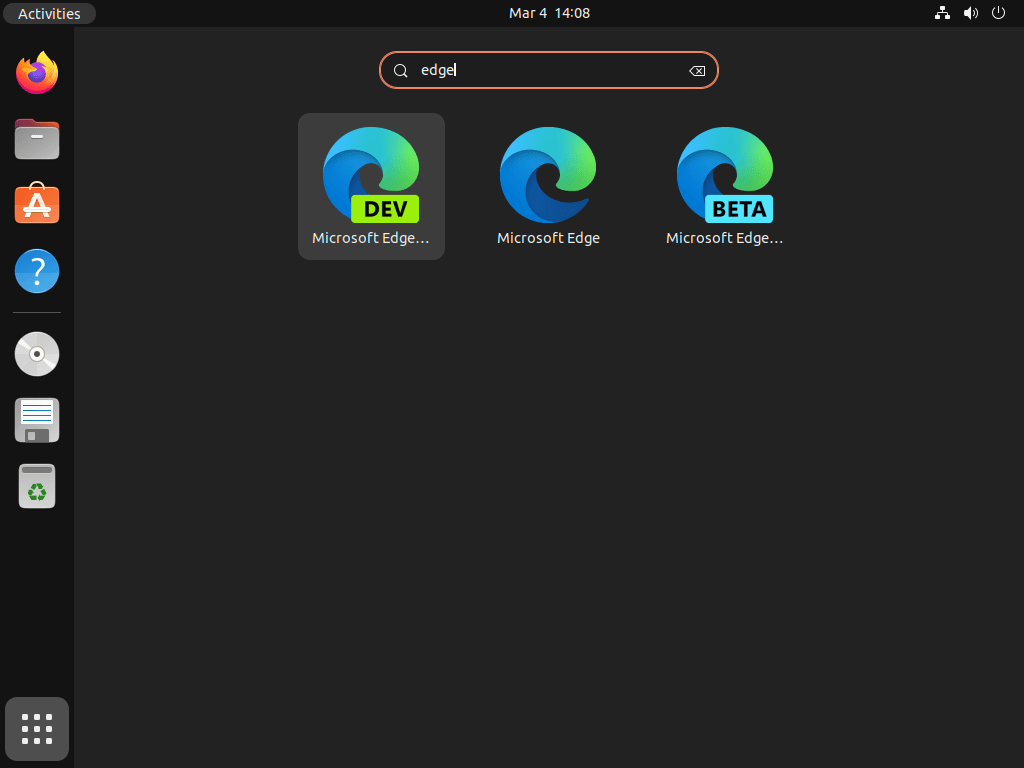
Open the Applications menu on your Ubuntu desktop, search for Microsoft Edge, and click the icon to launch the browser. If you installed multiple versions, each appears as a separate entry.
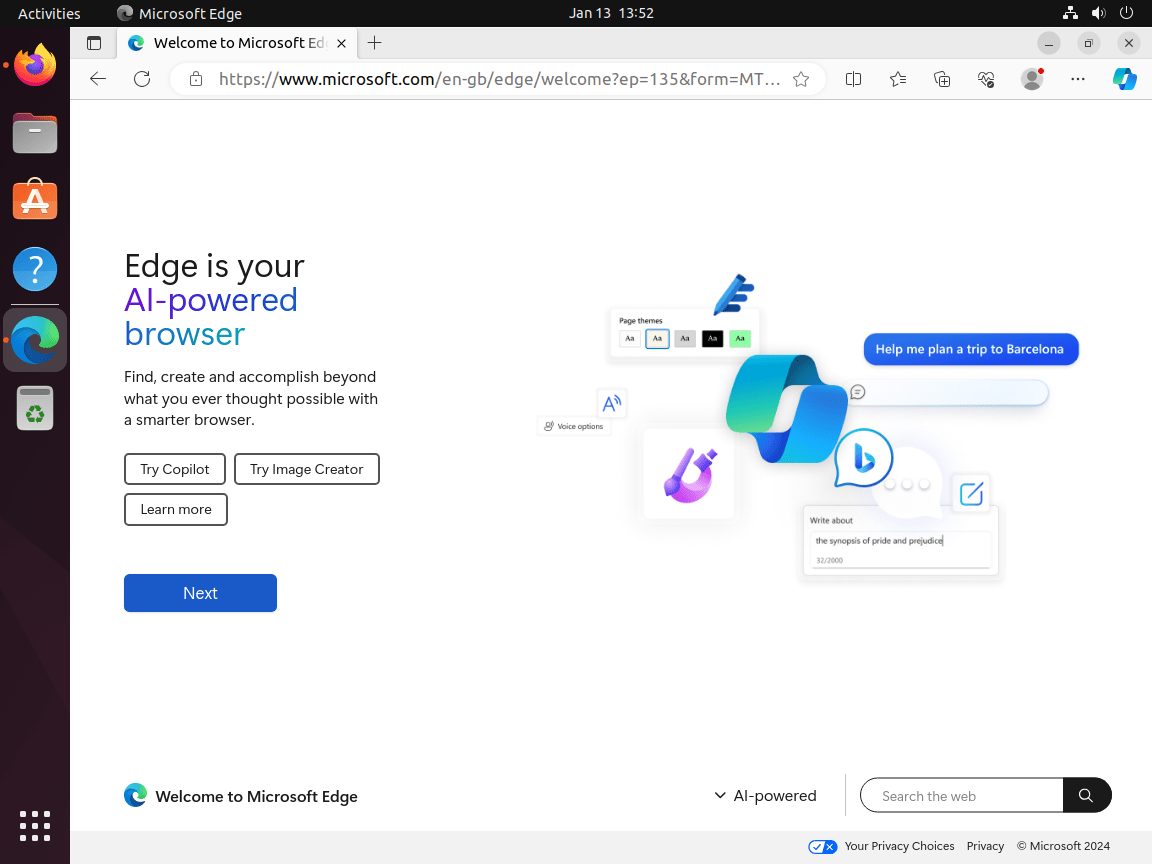
On first launch, you can optionally sign in with your Microsoft account to sync bookmarks, extensions, and settings across devices.
Configure Microsoft Edge on Ubuntu
After installation, you can configure Edge as your default browser and customize initial settings.
Set Edge as Default Browser
For GNOME and other XDG-aware desktop sessions, set the graphical default browser with xdg-settings:
xdg-settings set default-web-browser microsoft-edge.desktopVerify the desktop default:
xdg-settings get default-web-browserThe output should show the Edge desktop launcher:
microsoft-edge.desktop
If terminal tools that call x-www-browser still open another browser, set the command-line alternative separately:
sudo update-alternatives --config x-www-browserChoose the number that points to /usr/bin/microsoft-edge-stable if prompted.
Initial Browser Setup
When you first launch Microsoft Edge, the browser prompts you to complete initial setup:
- Microsoft account sync: Sign in to sync bookmarks, passwords, and settings across devices. This is optional, as Edge works without an account.
- Import data: Transfer bookmarks, passwords, and browsing history from Firefox, Chrome, or other installed browsers.
- Privacy settings: Choose tracking prevention level (Basic, Balanced, or Strict). Balanced is recommended for most users.
- Search engine: Set your preferred default search engine. Edge defaults to Bing but supports Google, DuckDuckGo, and others.
These settings can be changed later through Edge’s Settings menu (edge://settings/).
Update Microsoft Edge on Ubuntu
Keeping Microsoft Edge up-to-date ensures you have the latest security patches and features. Updates are delivered through APT like any other system package.
Update All System Packages
The simplest approach updates all software on your system, including Microsoft Edge:
sudo apt update
sudo apt upgrade
sudo apt updaterefreshes the package list to include the latest available versions from all configured repositories.sudo apt upgradeapplies updates to all installed software, including Microsoft Edge, if an update is available.
This approach keeps your entire system current, minimizing security vulnerabilities and software conflicts.
Update Microsoft Edge Only
To update only Microsoft Edge without upgrading other software, refresh your package lists first:
sudo apt updateThen upgrade only the version you have installed:
sudo apt install --only-upgrade microsoft-edge-stable   # stable
sudo apt install --only-upgrade microsoft-edge-beta     # beta
sudo apt install --only-upgrade microsoft-edge-dev      # dev
The --only-upgrade flag updates the package only if it is already installed, leaving other system packages unchanged. Run only the line matching your installed version.
Remove Microsoft Edge on Ubuntu
To uninstall Microsoft Edge completely, remove the packages, user data, and repository configuration.
Remove Microsoft Edge Packages
Uninstall the Edge packages. APT skips any channel package that is not installed:
sudo apt purge microsoft-edge-stable microsoft-edge-beta microsoft-edge-devPreview orphaned dependencies before removing them. This matters on reused desktop systems because autoremove can include old kernels, desktop libraries, or packages unrelated to Edge:
sudo apt autoremove --dry-runIf the preview lists only packages you expect to remove, run the cleanup:
sudo apt autoremoveRemove Microsoft Edge User Data
Uninstalling the package leaves residual user data such as browsing history, bookmarks, cookies, and cached files. To completely delete this data:
The following commands permanently delete your Microsoft Edge browsing data, including bookmarks, passwords, and browsing history. Back up any data you want to keep before proceeding.
rm -rf ~/.config/microsoft-edge
rm -rf ~/.config/microsoft-edge-beta
rm -rf ~/.config/microsoft-edge-dev
rm -rf ~/.cache/microsoft-edge*
This removes browsing profiles for all three channels and clears cached files. Skip any line for a version you did not install.
Remove the Microsoft Edge Repository
Remove the repository configuration to prevent APT from attempting to access Microsoft Edge packages in the future:
sudo rm -f /etc/apt/sources.list.d/microsoft-edge.sources
sudo rm -f /etc/apt/sources.list.d/microsoft-edge.list
sudo rm -f /etc/apt/sources.list.d/microsoft-edge-beta.sources
sudo rm -f /etc/apt/sources.list.d/microsoft-edge-dev.sources
sudo rm -f /usr/share/keyrings/microsoft-edge.gpg
sudo rm -f /usr/share/keyrings/microsoft-edge-beta.gpg
sudo rm -f /usr/share/keyrings/microsoft-edge-dev.gpg
Verify the repository was removed by refreshing the package cache:
sudo apt updateConfirm the Microsoft Edge repository is no longer recognized:
apt-cache policy microsoft-edge-stableThe output should show no repository URLs, confirming complete removal:
microsoft-edge-stable:
  Installed: (none)
  Candidate: (none)
  Version table:
Troubleshoot Microsoft Edge on Ubuntu
If you encounter problems installing or running Microsoft Edge, these solutions address the most common issues.
Repository Authentication Failures
If apt update fails with GPG errors about the Microsoft Edge repository, the GPG key may be missing or corrupted:
Err:1 https://packages.microsoft.com/repos/edge stable InRelease
  The following signatures couldn't be verified because the public key is not available: NO_PUBKEY EB3E94ADBE1229CF
Re-import the Microsoft GPG key to fix authentication:
curl -fsSL https://packages.microsoft.com/keys/microsoft.asc | sudo gpg --dearmor --yes -o /usr/share/keyrings/microsoft-edge.gpg
sudo apt update
The update should complete without GPG errors. If the error persists, verify the key file exists:
file /usr/share/keyrings/microsoft-edge.gpgThe output should confirm the file exists and contains a valid keyring:
/usr/share/keyrings/microsoft-edge.gpg: OpenPGP Public Key Version 4, Created Thu Jun 27 18:09:31 2024, RSA (Encrypt or Sign, 2048 bits); User ID; Signature; OpenPGP Certificate
Release File Is Not Valid Yet
If sudo apt update reports that the Microsoft Edge release file is not valid yet, APT is comparing the repository metadata timestamp against your system clock:
E: Release file for https://packages.microsoft.com/repos/edge/dists/stable/InRelease is not valid yet
Check your clock and time synchronization first:
timedatectl status --no-pagerIf the clock or network time synchronization is wrong, enable NTP and retry the update:
sudo timedatectl set-ntp true
sudo apt update
If your clock is already correct, the repository metadata is temporarily future-dated. Wait and rerun sudo apt update instead of disabling APT date checks permanently.
Dependency Installation Errors
If Microsoft Edge installation fails with unable to locate package microsoft-edge-stable, the Microsoft repository is not configured. Recheck the repository setup steps, verify the .sources file exists, and confirm sudo apt update completes without errors. If you see unmet dependency errors instead:
The following packages have unmet dependencies:
 microsoft-edge-stable : Depends: libnss3 (>= 3.26) but it is not installable
Fix broken packages before retrying installation:
sudo apt --fix-broken install
sudo apt update
sudo apt install microsoft-edge-stable
After installation completes, verify the package installed correctly:
microsoft-edge --versionEdge Requires –no-sandbox to Launch
If Microsoft Edge only launches with --no-sandbox or shows permission errors on startup, the SUID sandbox helper likely lost its required permissions. The --no-sandbox flag disables Chromium’s security sandbox entirely and should never be used as a permanent fix.
Check the sandbox binary permissions:
ls -la /opt/microsoft/msedge/msedge-sandboxThe output must show -rwsr-xr-x with root root ownership. The s in the permissions indicates the SUID bit, which the sandbox requires to create isolated process namespaces:
-rwsr-xr-x 1 root root 15368 Apr 24 14:19 /opt/microsoft/msedge/msedge-sandbox
If the SUID bit is missing (showing -rwxr-xr-x instead of -rwsr-xr-x), restore it with chmod:
sudo chmod 4755 /opt/microsoft/msedge/msedge-sandbox
sudo chown root:root /opt/microsoft/msedge/msedge-sandbox
Another common cause is running Edge as root during troubleshooting, which creates the profile directory with root ownership. Check for root-owned files in your Edge configuration:
ls -la ~/.config/ | grep microsoftIf the output shows root root instead of your username, fix the ownership:
sudo chown -R $USER:$USER ~/.config/microsoft-edgeAfter applying either fix, launch Edge normally without --no-sandbox. If the SUID bit and ownership are both correct but Edge still crashes, see the AppArmor sandbox section below:
microsoft-edgeSandbox Crash on Ubuntu 24.04 or 26.04
If Microsoft Edge crashes immediately with a credentials.cc error mentioning “Permission denied” or “Keine Berechtigung (13)”, check Ubuntu’s AppArmor user-namespace restriction and the shipped Edge profile:
FATAL:sandbox/linux/services/credentials.cc:131] Check failed: . : Permission denied (13)
Trace/breakpoint trap (core dumped)
Ubuntu 24.04 and 26.04 restrict unprivileged user namespaces through AppArmor by default. Current Ubuntu AppArmor packages include an msedge profile for this Chromium sandbox behavior, so first verify that the restriction and profile are present before changing anything manually:
sysctl kernel.apparmor_restrict_unprivileged_userns
dpkg -S /etc/apparmor.d/msedge
sudo aa-status | grep msedge
kernel.apparmor_restrict_unprivileged_userns = 1 apparmor: /etc/apparmor.d/msedge msedge
If the profile is missing or not loaded, reinstall Ubuntu’s AppArmor package and reload the shipped Edge profile:
sudo apt install --reinstall apparmor
sudo apparmor_parser -r /etc/apparmor.d/msedge
sudo aa-status | grep msedge
Ubuntu 22.04 usually reports kernel.apparmor_restrict_unprivileged_userns = 0 and is not affected by this restriction. If the msedge profile is loaded and Edge still crashes, return to the SUID sandbox and root-owned profile checks above. For broader profile management, see our AppArmor guide for Ubuntu.
microsoft-edgeGPU Process Crashes with Intel Graphics
If Edge launches but the GPU process crashes repeatedly with stack smashing detected and VA-API errors:
*** stack smashing detected ***: terminated
GPU process exited unexpectedly: exit_code=134
libva error: /usr/lib/x86_64-linux-gnu/dri/iHD_drv_video.so init failed
The iHD driver (Intel Media Driver) only supports Intel Broadwell (5th generation, 2014) and newer GPUs. Older Intel processors need the legacy i965 driver instead. Check your GPU generation:
lspci | grep -i vgaIf you have a pre-Broadwell Intel GPU, install the legacy driver. These VA-API packages are in Ubuntu’s Universe repository, so enable Universe first if APT cannot locate them:
sudo apt install i965-va-driver
sudo apt remove intel-media-va-driver
See our Ubuntu Universe repository guide if your installation does not already have that repository component enabled.
If your GPU is Broadwell or newer but the error persists, the driver may have a permission or initialization issue. Verify your user belongs to the video and render groups:
groups $USER | grep -E "(video|render)"If neither group appears, add your user to both and log out completely:
sudo usermod -aG video,render $USERAs a workaround, disable hardware video acceleration to bypass VA-API entirely:
microsoft-edge --disable-gpuMicrosoft Edge Won’t Launch on Ubuntu
If Microsoft Edge installs successfully but fails to start, check for missing library dependencies or graphics driver issues by launching from the terminal:
microsoft-edgeIf the terminal shows library errors, reinstall the package to ensure all dependencies are present:
sudo apt install --reinstall microsoft-edge-stableFor graphics-related crashes, try launching Edge with software rendering disabled:
microsoft-edge --disable-gpuIf Edge launches successfully with --disable-gpu, the issue is related to your graphics drivers. Keep the flag as a temporary diagnostic, then update your GPU drivers or create a per-user desktop launcher override. Avoid editing /usr/share/applications/microsoft-edge.desktop directly because package updates can overwrite that file.
Conclusion
Microsoft Edge installs on Ubuntu through Microsoft’s APT repository, with stable, beta, and dev channels available from the same source. Keep the generated source-file cleanup in place so APT updates stay quiet. For alternative Chromium-based browsers, see Opera or Ungoogled Chromium, and use our Ubuntu package update guide for routine system updates.


Dear Joshua James,
this the output if I start with the option –no-sandbox … it outputs the same with:
microsoft-edge-stable –no-sandbox
microsoft-edge –no-sandbox
*** stack smashing detected ***: terminated
[7909:7909:0215/132127.448115:ERROR:content/browser/gpu/gpu_process_host.cc:1041] GPU process exited unexpectedly: exit_code=134
*** stack smashing detected ***: terminated
[7909:7909:0215/132127.787191:ERROR:content/browser/gpu/gpu_process_host.cc:1041] GPU process exited unexpectedly: exit_code=134
*** stack smashing detected ***: terminated
[7909:7909:0215/132128.124108:ERROR:content/browser/gpu/gpu_process_host.cc:1041] GPU process exited unexpectedly: exit_code=134
libva error: /usr/lib/x86_64-linux-gnu/dri/iHD_drv_video.so init failed
Best regards
Axel
Axel, I owe you an apology. My previous reply was wrong. The SUID permissions and profile ownership were both fine on your system, and I should have dug deeper before responding.
The actual cause is Ubuntu 24.04’s AppArmor restriction on unprivileged user namespaces. The Chromium sandbox depends on user namespaces to isolate processes, and Microsoft Edge’s
.debpackage does not ship the required AppArmor profile (Google Chrome does). Without it, the sandbox fails atcredentials.cc:131with the “Keine Berechtigung” error you saw. This affects all Ubuntu releases from 24.04 onward. Create the missing profile:Verify the profile loaded with
sudo aa-status | grep msedge. Then launch Edge normally withmicrosoft-edge, not--no-sandbox.The
--no-sandboxcrashes you saw are a separate issue. Thelibva error: iHD_drv_video.so init failedmeans the Intel Media Driver cannot initialize on your GPU, and thestack smashing detectederrors are the GPU process crashing as a result. After applying the AppArmor fix above, if you still see GPU errors in the terminal, check your Intel GPU generation withlspci | grep -i vga. TheiHDdriver only supports Broadwell (5th gen) and newer. If yours is older, switch to the legacy driver withsudo apt install i965-va-driver && sudo apt remove intel-media-va-driver.One more thing: your config directory shows
www-dataas the group (drwx------ sabi www-data). While thedrwx------permissions mean the group cannot access it, fix the group to match your user for consistency:sudo chown -R $USER:$USER ~/.config/microsoft-edge. Thewww-datagroup likely came from one of your earlier installation attempts.The article now includes a dedicated troubleshooting section for this AppArmor sandbox issue and the GPU driver errors. Let me know if Edge launches after creating the profile.
Dear Joshuah,
thank you very much for this first class instruction and explanation. I learned a lot from it and now it works like a charm. Have a nice day and everlasting good wealth 🙂
שַׁבָּת שָׁלוֹם
Axel
Dear Joshua James,
this is what I get as output :
sabi@RWTH-SAP6:~$ microsoft-edge-stable
[3177:3177:0215/130744.669674:FATAL:sandbox/linux/services/credentials.cc:131] Check failed: . : Keine Berechtigung (13)
Trace/Breakpoint ausgelöst (Speicherabzug geschrieben)
1. I have to amend that I tried before your installation the installation of some very obscure MS-Edge from the Software Store of Ubuntu. That did not work and I uninstalled it.
2. Then I tried to install the official debian package from Microsoft, which had the same error like above mentioned. I uninstalled it.
3. Then I installed following your advices in your installation description.
Perhaps there is went something wrong with the uninstall process?
Best regards and thanks for your help and understanding
Axel
Hi community,
and I changed in usr/share/applications/.microsoft.Edge.desktop the exec command to:
Exec=/usr/bin/microsoft-edge-stable –no-sandbox %U
But this works only as root and is as insecure as the above mentioned commands …
How can I make it secure and working as normal user?
Best thanks and regards
Axel, your three comments paint a clear picture. The
--no-sandboxrequirement on Ubuntu 24.04 typically means the SUID sandbox helper lost its permissions, or Edge’s profile directory has root ownership from earlier troubleshooting. Both are fixable without disabling the sandbox.First, check the sandbox binary:
It must show
-rwsr-xr-x 1 root root. Thesis the SUID bit that the sandbox needs. If it shows-rwxr-xr-xinstead (nos), restore it:Second, since you ran Edge as root earlier, your profile directory likely has root ownership. Check with:
If it shows
root root, fix it:After both fixes, revert your
.desktopfile to the defaultExec=/usr/bin/microsoft-edge-stable %Uand launch Edge normally. You are right that--no-sandboxdisables critical security isolation. I have added a troubleshooting section to the article covering this. Let me know if the sandbox permissions were the cause.Dear Joshua James,
thank you very much for your help. I followed your instructions like so:
sabi@RWTH-SAP6:~$ ls -la /opt/microsoft/msedge/msedge-sandbox
-rwsr-xr-x 1 root root 15400 Feb 13 22:25 /opt/microsoft/msedge/msedge-sandbox
sabi@RWTH-SAP6:~$ ls -la ~/.config/ | grep microsoft
drwx—— 42 sabi www-data 4096 Feb 15 12:48 microsoft-edge
sabi is the ‘normal’ user. I (sabi) reverted the .desktop files to the default Exec=/usr/bin/microsoft-edge-stable %U and will launch Edge normally after restart. Just a moment please for the restart I shall report the effect.
Best thanks
Axel
Hi community,
excuse me … the Ubuntu version is 24.04 and I am able to run Edge as normal user too … but necessarily only wirth the option –no-sandbox
Best regards
Axel Arnold Aaron Bangert – Herzogenrath 14.02.2026
Hi community,
I installed Edge using your advises above. I am on Ubuntu 22.04 and the only way I can start from terminal is as root by the command:
microsoft-edge –no-sandbox
All other commands are leading to a no permission error. What could I optimize?
Best regards
Axel Arnold Aaron Bangert – Herzogenrath 14.02.2026