
LibreOffice helps you create professional documents, spreadsheets, presentations, and diagrams without licensing costs. Whether you need to write reports with Writer, analyze data with Calc, build slide decks with Impress, or design flowcharts with Draw, this office suite handles everyday productivity tasks while maintaining compatibility with Microsoft Office formats. Additionally, the suite includes Base for database management and Math for formula editing, making it a complete replacement for proprietary office software.
This guide covers three installation methods: Fedora’s default repository (DNF), direct RPM download from the LibreOffice website, and Flatpak via Flathub. Each approach offers different trade-offs between convenience, version freshness, and system integration. After completing these steps, you will have a fully functional LibreOffice installation ready for document creation and editing.
Choose Your LibreOffice Installation Method
Before installing, consider which method best fits your workflow. The table below summarizes the key differences between each approach.
| Method | Channel | Version | Updates | Best For |
|---|---|---|---|---|
| DNF (Fedora Repos) | Fedora Package | Stable (distro-tested) | Automatic via dnf upgrade | Most users who want simple maintenance |
| Direct RPM Download | LibreOffice Downloads | Latest stable | Manual re-download | Users who need the newest features immediately |
| Flatpak (Flathub) | Flathub | Latest stable | Automatic via flatpak update | Users who prefer sandboxed applications |
For most users, the DNF method is recommended because it integrates with your system’s package manager, receives security updates automatically, and requires minimal maintenance. Choose the direct RPM download if you need the absolute latest version before Fedora packages it, or use Flatpak if you prefer application sandboxing and isolation from system libraries.
Method 1: Install LibreOffice via DNF
Update System Packages
Before installing new software, first refresh your package cache and apply any pending updates. This step ensures you install the latest available version and avoids dependency conflicts.
sudo dnf upgrade --refreshThe --refresh flag forces DNF to check the repositories for updates rather than relying on cached metadata.
Install LibreOffice
Once the system is updated, install the LibreOffice suite from Fedora’s official repositories:
sudo dnf install libreoffice -yAs a result, DNF automatically resolves and installs all required dependencies, including Writer, Calc, Impress, Draw, Math, and Base components. The -y flag confirms the installation without prompting, which is useful for scripted deployments.
Verify Installation
After installation completes, confirm LibreOffice is accessible by checking its version:
libreoffice --versionExpected output:
LibreOffice 25.8.4.2 580(Build:2)
This version number confirms the installation succeeded. Your specific version may differ slightly depending on when Fedora packages updates.
Method 2: Install LibreOffice via Direct RPM Download
This method downloads the official RPM package directly from The Document Foundation, giving you access to the latest release before Fedora packages it. However, you must manually download and install updates when new versions are released.
Download LibreOffice RPM Package
First, ensure wget is installed, then navigate to a working directory and download the latest LibreOffice RPM archive. The following commands automatically detect the current stable version:
sudo dnf install wget -ycd ~/Downloads
VERSION=$(curl -s "https://download.documentfoundation.org/libreoffice/stable/" | grep -oE '[0-9]+\.[0-9]+\.[0-9]+' | sort -V | tail -1)
wget "https://download.documentfoundation.org/libreoffice/stable/${VERSION}/rpm/x86_64/LibreOffice_${VERSION}_Linux_x86-64_rpm.tar.gz"As a result, this command sequence fetches the version number from the LibreOffice download server and then constructs the correct download URL automatically.
If you prefer to choose a specific version, visit the LibreOffice download page and replace the
VERSIONvariable with your desired release number.
Extract the Archive
Once the download completes, extract the archive contents:
tar -xzf LibreOffice_*_Linux_x86-64_rpm.tar.gzThis extraction creates a directory containing the RPM packages needed for installation.
Install the RPM Packages
Next, navigate to the extracted RPMS directory and install all packages:
cd LibreOffice_*/RPMS/
sudo dnf install *.rpm -y
During this step, DNF handles the installation of all RPM files and resolves any system dependencies automatically.
If you have a previous LibreOffice version installed via DNF that conflicts with this installation, remove it first with
sudo dnf remove libreoffice*. This step is optional if you want to replace the repository version with the direct download version.
Verify Installation
Finally, confirm the installation by checking the version:
libreoffice --versionUpdate LibreOffice (Direct Download Method)
Since the direct download method does not receive automatic updates, you can use this script to check for and install newer versions:
The script below removes previous download files before fetching the new version. Review the commands before running to ensure they match your system setup.
#!/bin/bash
set -e

cd ~/Downloads

# Get current installed version
CURRENT=$(libreoffice --version 2>/dev/null | grep -oE '[0-9]+\.[0-9]+\.[0-9]+' | head -1 || echo "none")

# Fetch latest available version
LATEST=$(curl -s "https://download.documentfoundation.org/libreoffice/stable/" | grep -oE '[0-9]+\.[0-9]+\.[0-9]+' | sort -V | tail -1)

echo "Installed version: $CURRENT"
echo "Latest version:    $LATEST"

if [ "$CURRENT" = "$LATEST" ]; then
    echo "LibreOffice is already up to date."
    exit 0
fi

echo "Downloading LibreOffice $LATEST..."
rm -f LibreOffice_*_Linux_x86-64_rpm.tar.gz
wget -q "https://download.documentfoundation.org/libreoffice/stable/${LATEST}/rpm/x86_64/LibreOffice_${LATEST}_Linux_x86-64_rpm.tar.gz"

rm -rf LibreOffice_*/
tar -xzf LibreOffice_*_Linux_x86-64_rpm.tar.gz
cd LibreOffice_*/RPMS/
sudo dnf install *.rpm -y

echo "Updated to LibreOffice $LATEST"
To use this script, save it as update-libreoffice.sh and run it periodically to stay current with LibreOffice releases.
Method 3: Install LibreOffice via Flatpak
As an alternative, Flatpak provides a sandboxed installation that runs independently of your system libraries. This method is particularly useful if you want the latest LibreOffice version with automatic updates while keeping it isolated from your base system.
Enable Flathub Repository
Flatpak comes pre-installed on Fedora Workstation. If you are using a minimal Fedora installation, install Flatpak first with sudo dnf install flatpak -y. Next, add the Flathub repository if it is not already configured:
flatpak remote-add --if-not-exists flathub https://dl.flathub.org/repo/flathub.flatpakrepoIn this case, the --if-not-exists flag prevents errors if Flathub is already enabled. Additionally, on Fedora Workstation, you can enable Flathub through the Third-Party Repositories settings in GNOME Software.
Install LibreOffice from Flathub
With Flathub enabled, install LibreOffice:
flatpak install flathub org.libreoffice.LibreOffice -yDuring installation, Flatpak downloads the application and its required runtime libraries. The initial download may take several minutes depending on your connection speed, as it includes the runtime environment.
Verify Installation
Next, confirm the Flatpak installation by listing installed applications:
flatpak list --app | grep -i libreofficeExpected output:
LibreOffice org.libreoffice.LibreOffice 25.8.4.2 stable system
Troubleshoot Flathub Connection Errors
If you encounter an error stating Unable to load summary from remote flathub: Can't fetch summary from disabled remote 'flathub', the Flathub remote may be disabled. Re-enable it with:
flatpak remote-modify --enable flathubOnce enabled, retry the installation command.
Launch LibreOffice
Launch from Terminal
Once installed, the launch command varies depending on your installation method.
For DNF or direct RPM installations:
libreofficeFor Flatpak installations:
flatpak run org.libreoffice.LibreOfficeAlternatively, you can launch individual components directly: libreoffice --writer, libreoffice --calc, or libreoffice --impress.
Launch from Applications Menu
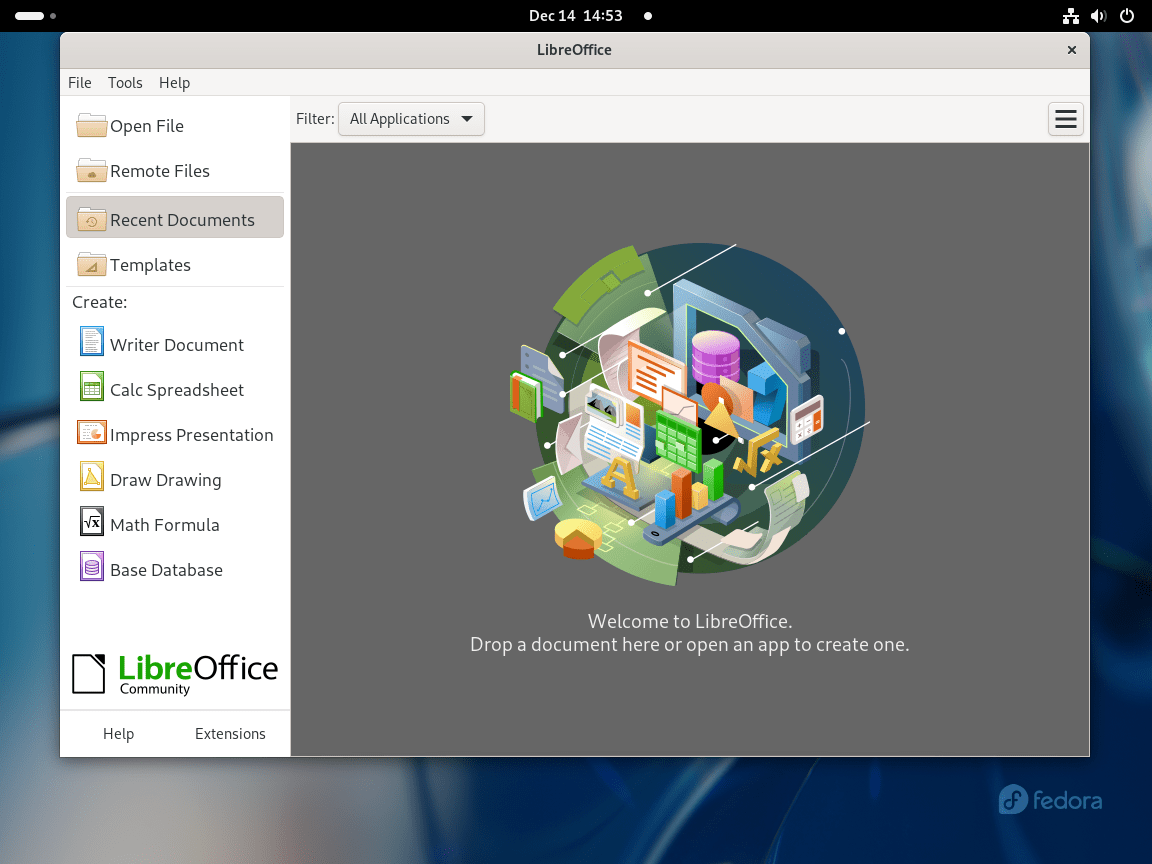
After installation, LibreOffice appears in your applications menu. To launch it:
- Open Activities by clicking the top-left corner.
- Type “LibreOffice” in the search bar.
- Click the LibreOffice icon or a specific component (Writer, Calc, Impress) to launch it.
From there, the applications menu shows all LibreOffice components, allowing you to open the specific tool you need directly.
Remove LibreOffice
If you later need to remove LibreOffice, use the appropriate command for your installation method.
Remove DNF or RPM Installation
Specifically, for installations made through DNF or the direct RPM method, run the following:
sudo dnf remove libreoffice* -y
sudo dnf autoremove -y
Here, the first command removes all LibreOffice packages. Subsequently, the autoremove command cleans up any dependencies that were installed alongside LibreOffice and are no longer needed by other applications.
To verify removal, run:
libreoffice --versionExpected output:
bash: libreoffice: command not found
Remove Flatpak Installation
Similarly, for Flatpak installations, use the following commands:
flatpak uninstall --delete-data org.libreoffice.LibreOffice -y
flatpak uninstall --unused -y
Here, the --delete-data flag removes application data stored in ~/.var/app/org.libreoffice.LibreOffice/. Meanwhile, the second command removes any runtime libraries that were installed for LibreOffice but are no longer used by other Flatpak applications.
Optional cleanup: LibreOffice stores user configuration and recent documents in
~/.config/libreoffice/for DNF/RPM installations. These files remain after uninstalling to preserve your settings. If you want a completely clean removal, delete this directory manually:rm -rf ~/.config/libreoffice/. Back up any important documents first, as this action cannot be undone.
Conclusion
LibreOffice now provides full office productivity capabilities on your Fedora system, including word processing, spreadsheets, presentations, and diagram creation. The DNF method offers the simplest maintenance path with automatic security updates, while Flatpak provides sandboxing and the latest upstream releases. To improve document compatibility when exchanging files with Microsoft Office users, install Microsoft fonts on Fedora. For related productivity tools, consider OnlyOffice on Fedora as an alternative suite, or explore DNF speed optimizations to make future package installations faster.

Formatting tips for your comment
You can use basic HTML to format your comment. Useful tags currently allowed in published comments:
<code>command</code>command<strong>bold</strong><em>italic</em><blockquote>quote</blockquote>