
KDE Plasma provides a highly customizable desktop environment with efficient resource management, making it an excellent choice for Debian users who want more control over their workspace appearance and behavior. By the end of this guide, you will have a fully functional KDE Plasma desktop with the SDDM display manager, ready for daily use with either Wayland or X11 display protocols.
This guide covers three installation options ranging from minimal to complete, along with optional enhancements, display manager configuration, and complete removal instructions.
Update Debian Before KDE Plasma Installation
Before installing KDE Plasma, ensure your Debian system has the latest package information and security updates. Running a full system update prevents dependency conflicts during the desktop environment installation.
Open a terminal and run the following command:
sudo apt update && sudo apt upgradeAfter the update completes, proceed to select your preferred KDE Plasma installation option.
Choose Your KDE Plasma Installation Option
Debian offers multiple KDE Plasma metapackages with different levels of included applications. The following table summarizes each option to help you choose the best fit for your system resources and workflow needs.
| Package | Includes | Approximate Size | Best For |
|---|---|---|---|
kde-plasma-desktop | Core Plasma desktop with minimal applications | ~1.0-1.5 GB | Users who prefer selecting individual applications |
kde-standard | Plasma desktop plus common KDE applications | ~1.5-2.0 GB | Most users seeking a balanced installation |
kde-full | Complete KDE software suite with all applications | ~4.0-5.0 GB | Users wanting the full KDE experience |
task-kde-desktop | Tasksel metapackage with LibreOffice, GIMP, print support | ~2.5-3.5 GB | Desktop users wanting productivity applications included |
For most users, kde-standard provides the best balance between functionality and disk usage. Choose kde-plasma-desktop if you prefer building your application collection manually, or kde-full if disk space is not a concern and you want every KDE application available.
Debian 13 (Trixie) users: Your installation includes Plasma 6, a major upgrade from the Plasma 5 series available on Debian 11 and 12. Plasma 6 features a refreshed visual design, improved Wayland support, and Qt 6 foundation. The installation commands remain identical across all versions.
Install KDE Plasma Desktop (Minimal)
The minimal installation includes only the core Plasma desktop and essential utilities. This option works well on systems with limited storage or when you want to hand-pick additional applications.
sudo apt install kde-plasma-desktopInstall KDE Standard (Recommended)
The standard installation includes the Plasma desktop along with commonly used KDE applications such as Dolphin file manager, Konsole terminal, and Kate text editor. This option provides a complete desktop experience without the overhead of specialized applications.
sudo apt install kde-standardInstall KDE Full (Complete Suite)
The full installation includes every KDE application in Debian’s repositories, from multimedia tools like Kdenlive to development environments like KDevelop. Choose this option if you have ample disk space and want immediate access to the entire KDE ecosystem.
sudo apt install kde-fullInstall Task KDE Desktop (Productivity Bundle)
The tasksel metapackage mirrors what the Debian installer provides when you select the KDE desktop during system installation. It includes kde-standard plus productivity applications like LibreOffice, GIMP, and print management utilities.
sudo apt install task-kde-desktopConfigure SDDM Display Manager
During installation, the system prompts you to select a display manager. SDDM (Simple Desktop Display Manager) integrates best with KDE Plasma, so select it when prompted. Press the TAB key to highlight the OK button, then press ENTER to confirm.
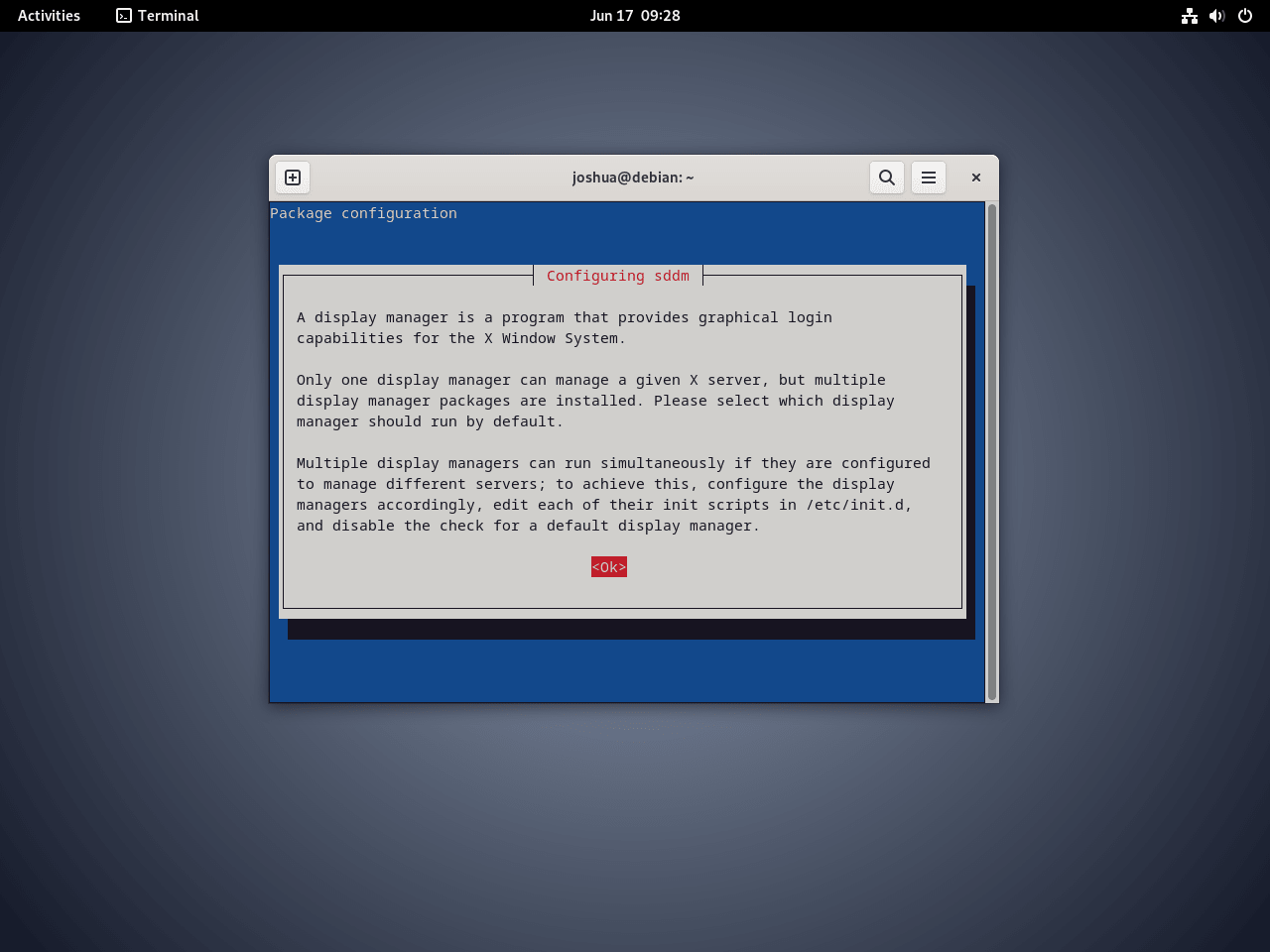
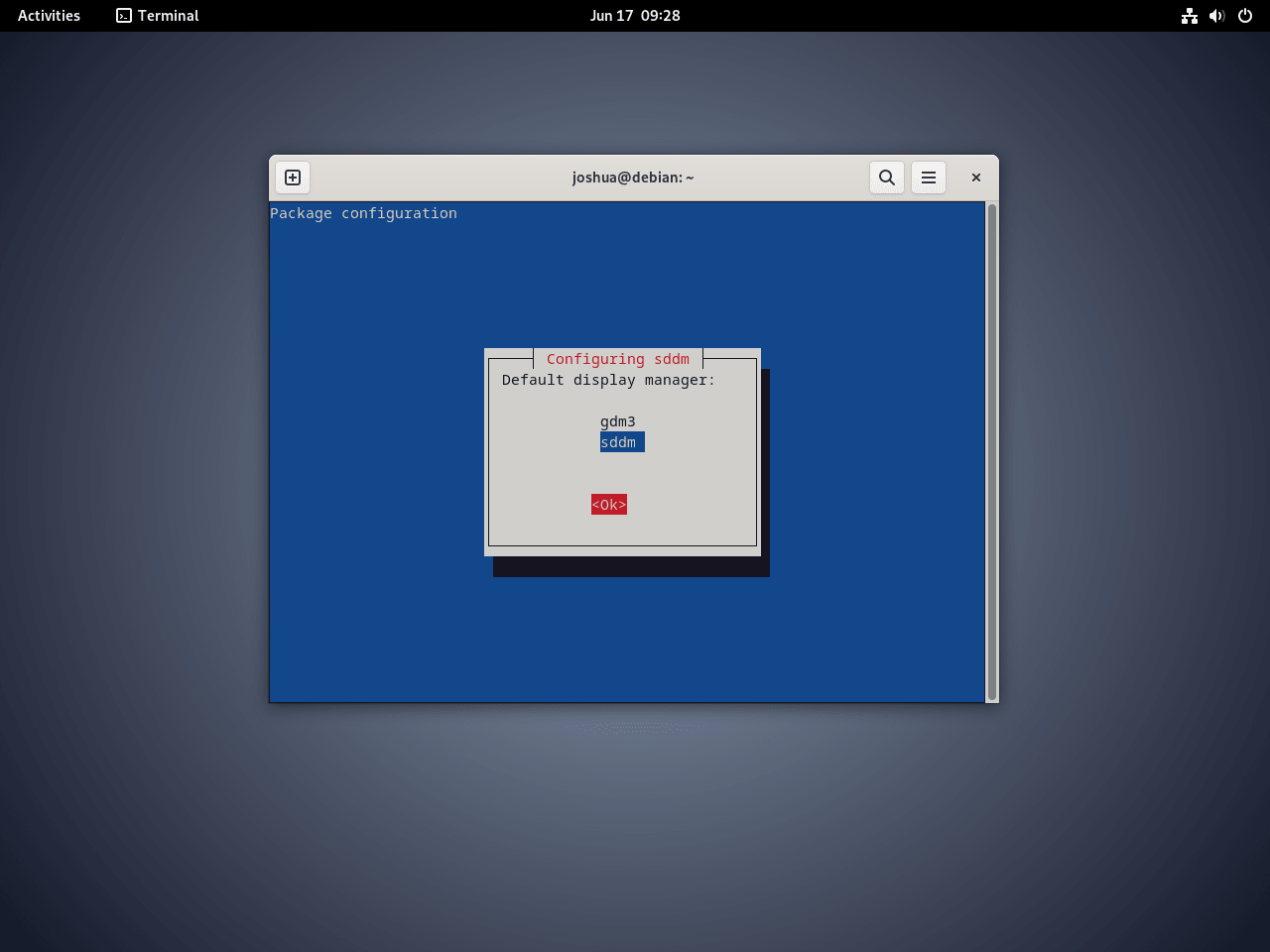
If the prompt does not appear or you need to change the display manager later, run the following command:
sudo dpkg-reconfigure sddmFix SDDM Virtual Keyboard in Virtual Machines
Virtual machine users may encounter an oversized on-screen keyboard covering the login screen after reboot. This occurs because SDDM enables virtual keyboard support by default, which some VM display drivers handle poorly.
Debian 13 users: SDDM version 0.21+ includes improved virtual keyboard handling. If you do not experience this issue, skip this section.
First, check if the SDDM configuration file exists:
cat /etc/sddm.confIf the file does not exist or lacks the InputMethod setting, add the configuration to disable the virtual keyboard:
echo -e "[General]\nInputMethod=" | sudo tee -a /etc/sddm.confReboot to Complete Installation
After the installation finishes, reboot your system to load the KDE Plasma desktop environment and SDDM login screen:
sudo rebootVerify KDE Plasma Installation
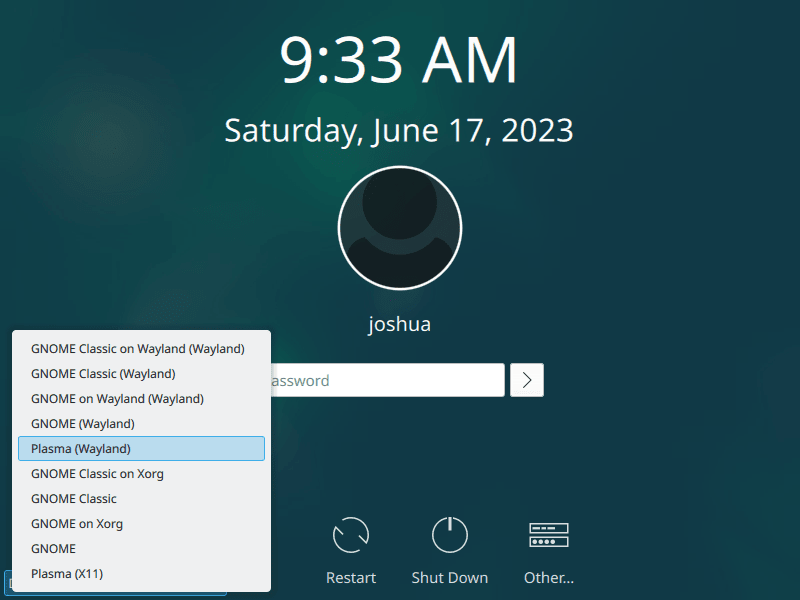
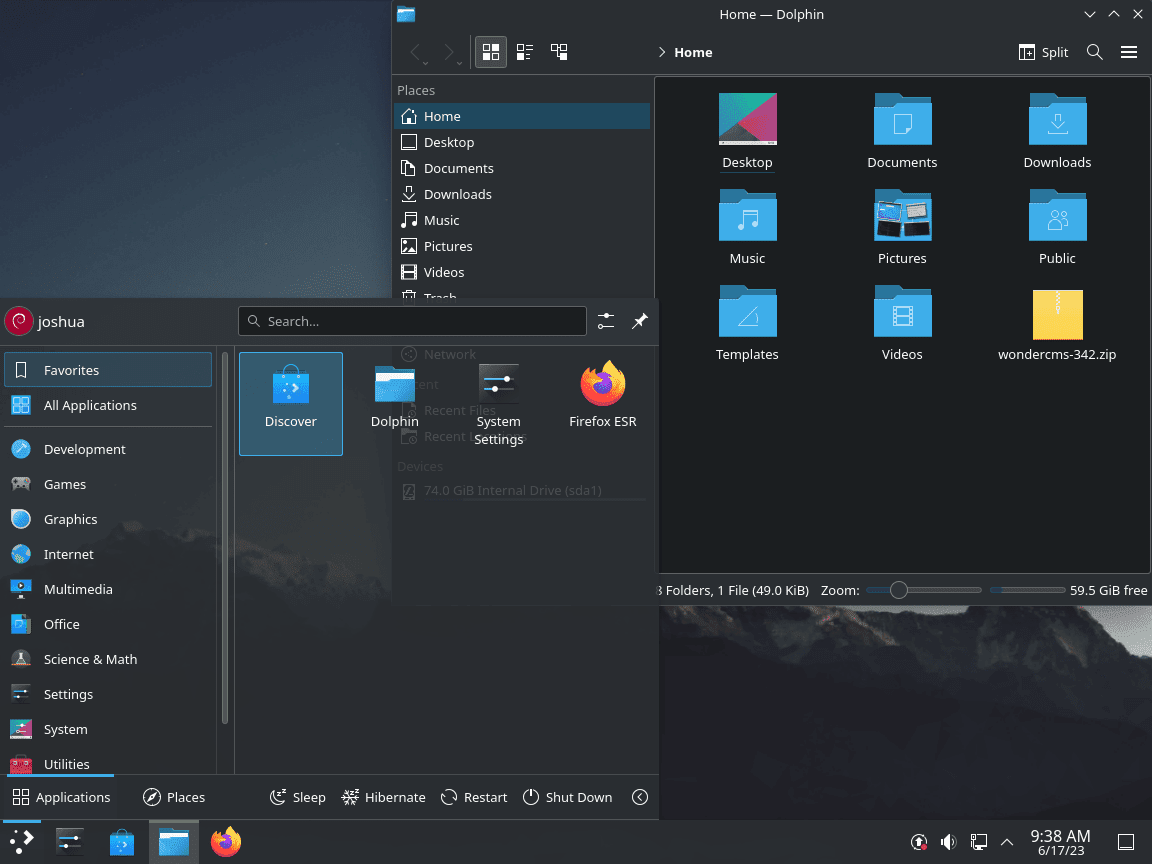
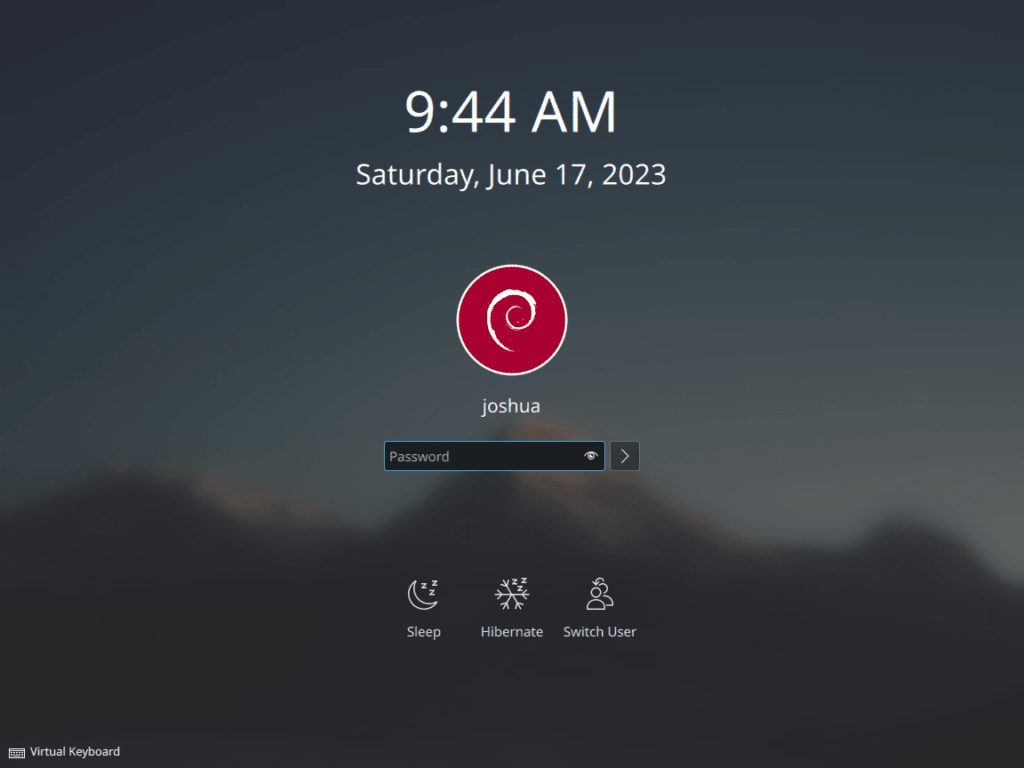
After rebooting, the SDDM login screen appears. Before entering your password, click the session selector in the bottom-left corner to choose between Plasma (Wayland) and Plasma (X11).
Choose Between Wayland and X11
KDE Plasma supports two display protocols, each with different strengths:
Plasma (Wayland)
- Modern display protocol with improved security and performance
- Better support for mixed DPI displays and fractional scaling
- Recommended for most users, especially on Debian 13 with Plasma 6
Plasma (X11)
- Legacy display protocol with broader application compatibility
- Required for some remote desktop applications (TeamViewer, some VNC clients)
- Better compatibility with older NVIDIA proprietary drivers
For more information about display protocols, visit the KDE Wayland status page.
Confirm Plasma Version
After logging in, verify your Plasma installation by checking the version. Open Konsole or another terminal and run:
plasmashell --versionExpected output varies by Debian version:
plasmashell 6.x.x    # Debian 13 (Trixie) - Plasma 6
plasmashell 5.27.x   # Debian 12 (Bookworm) - Plasma 5.27
plasmashell 5.20.x   # Debian 11 (Bullseye) - Plasma 5.20
Install Optional KDE Plasma Enhancements
Beyond the base installation, Debian provides additional Plasma components that extend functionality. The following packages are optional but enhance the desktop experience.
Browser Integration
The browser integration package enables Firefox, Chrome, and Chromium to interact with Plasma notifications, media controls, and download management:
sudo apt install plasma-browser-integrationAfter installation, install the corresponding browser extension from your browser’s extension store to complete the integration.
Additional Widgets
Install extra desktop widgets including system monitors, weather displays, and productivity tools:
sudo apt install plasma-widgets-addonsEncrypted Vault Storage
Plasma Vault creates encrypted containers for sensitive files directly from the system tray:
sudo apt install plasma-vaultFirewall Configuration (Debian 12 and 13)
Plasma Firewall provides a graphical interface for managing UFW or firewalld rules. This package is available on Debian 12 (Bookworm) and Debian 13 (Trixie) only.
sudo apt install plasma-firewallSoftware Management with Discover
Discover provides a graphical software center for browsing, installing, and updating applications. Install with optional Flatpak support:
sudo apt install plasma-discover plasma-discover-backend-flatpakManage KDE Plasma
Switch Display Managers
If you need to switch between SDDM and another display manager like GDM3 (for GNOME), use the dpkg-reconfigure command:
sudo dpkg-reconfigure sddmSelect your preferred display manager from the list, then reboot for the change to take effect.
Update KDE Plasma
KDE Plasma updates arrive through standard Debian package updates. To update only KDE-related packages without upgrading the entire system:
sudo apt update
sudo apt install --only-upgrade plasma-desktop kde-runtimeTroubleshoot KDE Plasma
Plasma Keeps Crashing or Freezing
If Plasma crashes repeatedly, the cache files may be corrupted. Log out to the SDDM screen, switch to a TTY with Ctrl+Alt+F3, log in, and clear the cache:
rm -rf ~/.cache/plasmashell*
rm -rf ~/.cache/plasma*
Then restart the display manager:
sudo systemctl restart sddmWayland Session Not Available
If Wayland does not appear in the session selector, ensure the Wayland session package is installed:
sudo apt install plasma-workspace-waylandAdditionally, NVIDIA users with proprietary drivers may need to enable DRM modesetting. Add the following kernel parameter to your bootloader configuration:
nvidia-drm.modeset=1Screen Tearing with X11
If you experience screen tearing in the X11 session, enable compositor sync. Navigate to System Settings → Display and Monitor → Compositor and set the rendering backend to OpenGL 3.1 with “Full screen repaints” enabled.
Remove KDE Plasma
If you no longer need KDE Plasma, follow these steps to remove it completely while preserving other desktop environments.
Switch Away from SDDM
Before removing KDE, switch to a different display manager to avoid login issues. If you have GNOME installed:
sudo dpkg-reconfigure sddmSelect GDM3 or LightDM from the list, then proceed with removal.
Remove KDE Packages
Remove all KDE and Plasma packages along with their configuration files:
sudo apt autoremove '^kde' '^plasma' --purgeThe regex patterns ^kde and ^plasma match all packages beginning with those prefixes. The --purge flag removes configuration files in addition to the packages.
Reinstall GNOME if Needed
Removing KDE may also remove some shared packages that GNOME depends on. To restore GNOME to a working state:
sudo apt install gnome gdm3 task-gnome-desktop --reinstallRemove User Configuration
Warning: The following commands permanently delete your KDE Plasma settings, including desktop layouts, widget configurations, and application preferences. Back up any custom configurations before proceeding.
Remove KDE configuration directories from your home folder:
rm -rf ~/.kde
rm -rf ~/.config/kde*
rm -rf ~/.config/plasma*
rm -rf ~/.local/share/plasma*
rm -rf ~/.cache/plasma*
Finally, reboot to apply all changes:
sudo rebootLearn More
Explore these resources to learn more about KDE Plasma and related desktop environments:
- KDE Project Homepage – Official documentation and community resources
- KDE Community Wiki – User guides, FAQs, and troubleshooting
- Install XFCE on Debian – Lightweight alternative desktop environment
- Install LXQt on Debian – Qt-based lightweight desktop
- Install Budgie on Debian – Modern, GNOME-based desktop
- Install Cinnamon on Debian – Traditional desktop layout
Conclusion
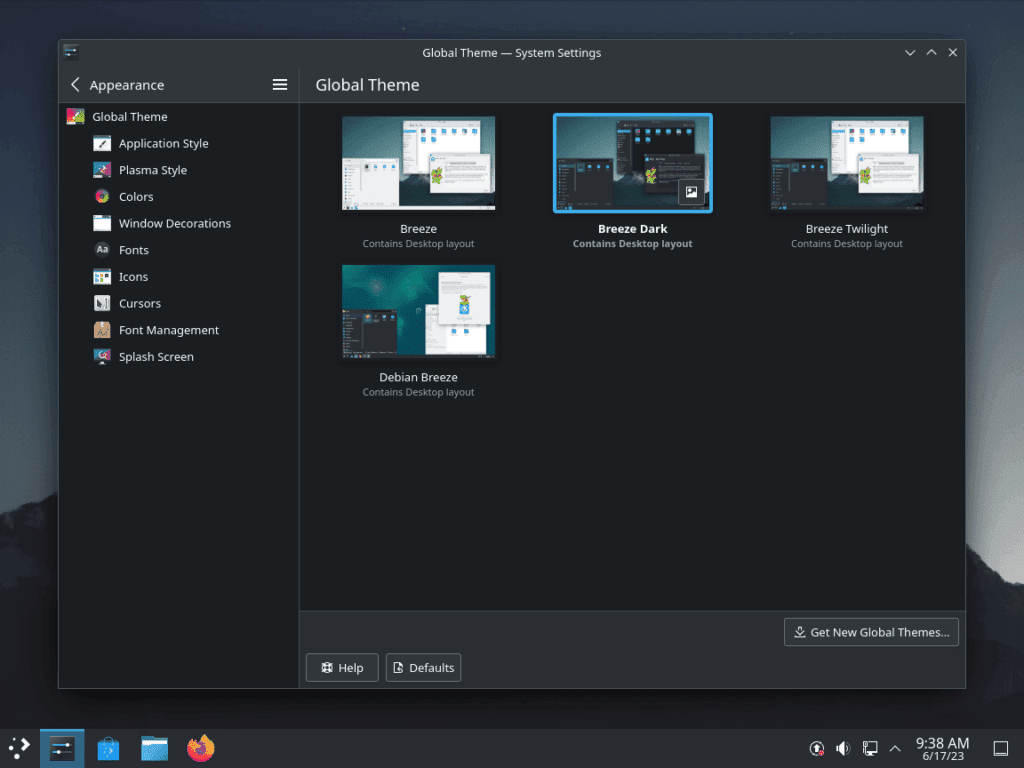
You now have KDE Plasma running on Debian with SDDM as your display manager. Take advantage of Plasma’s extensive customization options through System Settings to configure themes, widgets, and keyboard shortcuts. For ongoing maintenance, keep your system updated through regular apt update && apt upgrade commands to receive the latest Plasma improvements and security fixes.

Hi, thank you so much for this neat tutorial. It worked great.
Thank you. Installation was a snap (no pun intended) on Debian 12.6 on my Ryzen 7600 rig. I got tired of buggy Cinnamon (and never used GNOME — what a kludge). I like Plasma/Wayland; the graphics are a leap better than the predecessor (X11), so I’m pretty certain I’m going to stick to it.