
gThumb is an image viewer, editor, browser, and organizer designed for the GNOME desktop environment. With gThumb, you can browse photo libraries using thumbnails, perform basic editing tasks like cropping and color adjustments, organize images into catalogs, and view metadata such as EXIF and IPTC data. Additionally, the application supports common formats including JPEG, PNG, GIF, TIFF, RAW, and WebP, making it suitable for photographers and casual users who need a lightweight yet capable image management solution. For more advanced editing, consider pairing gThumb with a dedicated editor like GIMP.
This guide covers two installation methods: the Ubuntu default repository for a stable, tested version and Flatpak from Flathub for newer releases with sandboxing. By the end, you will have a working gThumb installation ready for browsing, organizing, and editing your images.
Choose Your gThumb Installation Method
Ubuntu offers multiple ways to install gThumb, and each method provides different trade-offs between version freshness, update mechanisms, and system integration. The table below summarizes your options.
| Method | Channel | Version | Updates | Best For |
|---|---|---|---|---|
| APT | Ubuntu Repos | Distribution default | Automatic via apt upgrade | Most users who prefer distro-tested packages |
| Flatpak | Flathub | Latest stable | Automatic via flatpak update | Users wanting newer releases with sandboxing |
For most users, the APT method is recommended because it provides a stable, well-tested version that integrates seamlessly with your system’s package management. However, choose Flatpak if you specifically need the latest features or prefer sandboxed applications.
Method 1: Install gThumb via APT
Update Package Lists
Before installing any software, first refresh your package lists and apply pending updates. This ensures you install the latest available version and helps avoid dependency conflicts.
sudo apt update && sudo apt upgradeInstall gThumb
Once your system is updated, install gThumb from the Ubuntu repositories with the following command:
sudo apt install gthumb -yAfter installation completes, verify that gThumb installed correctly by checking the version:
gthumb --versiongThumb Image Viewer, version 3.12.x
Method 2: Install gThumb via Flatpak
Flatpak provides sandboxed applications with their own dependencies, which allows access to newer versions than what Ubuntu repositories offer. As a result, the Flathub version of gThumb typically receives updates faster than the APT package.
Flatpak is not pre-installed on Ubuntu. If you have not set it up yet, install it with
sudo apt install flatpakand restart your session before continuing. For detailed setup including the Flathub repository, follow our Flatpak installation guide for Ubuntu.
Enable Flathub Repository
First, add the Flathub repository if you have not done so already. Flathub is the primary source for Flatpak applications and hosts the official gThumb package.
sudo flatpak remote-add --if-not-exists flathub https://flathub.org/repo/flathub.flatpakrepoInstall gThumb from Flathub
With Flathub enabled, install gThumb using the following command:
sudo flatpak install flathub org.gnome.gThumb -yOnce installed, verify the Flatpak version by checking the application info:
flatpak info org.gnome.gThumbgThumb Image Viewer - View and organize your images
ID: org.gnome.gThumb
Ref: app/org.gnome.gThumb/x86_64/stable
Origin: flathub
Version: 3.12.8.x
Launch gThumb
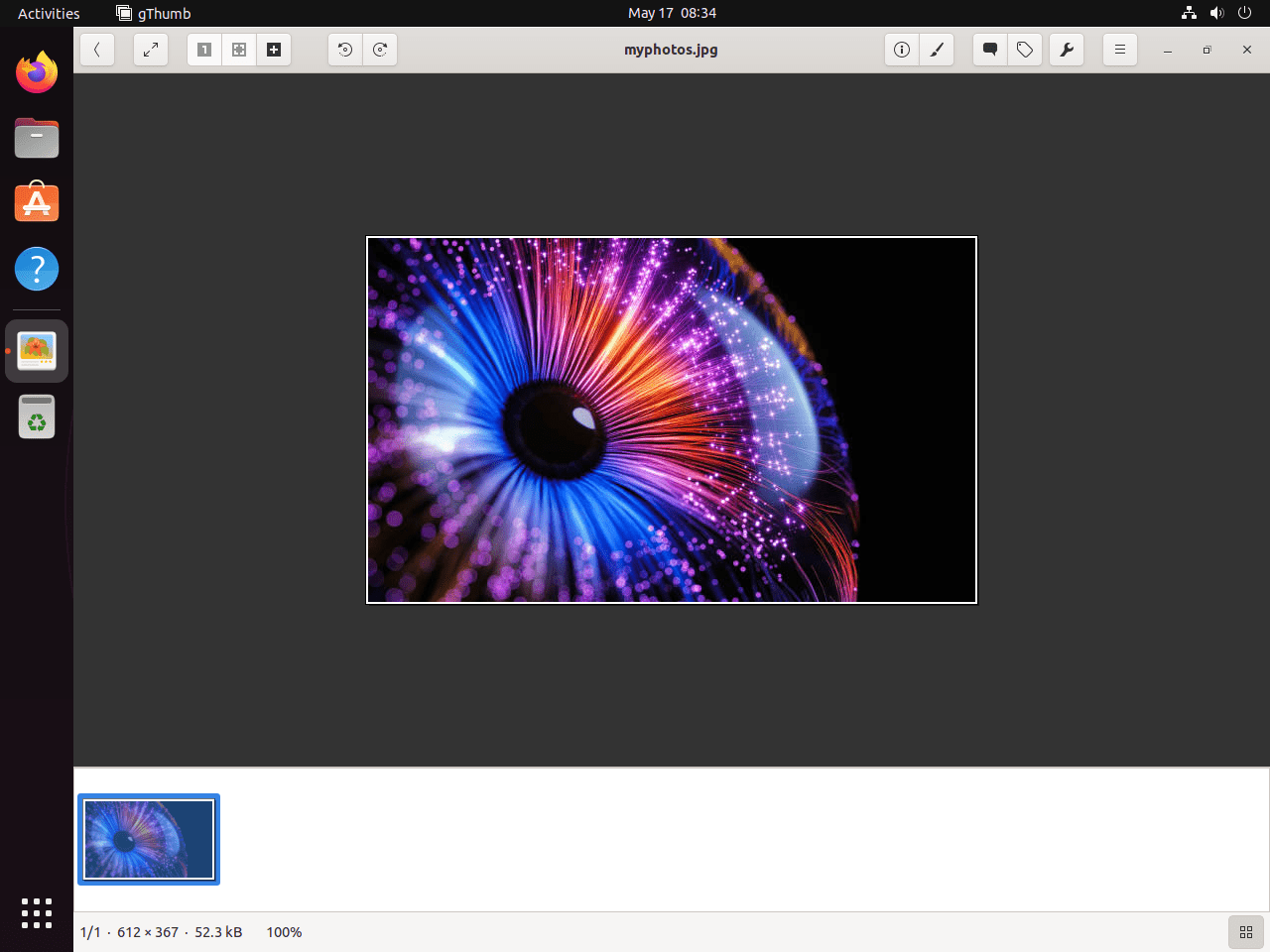
After installation, you can launch gThumb using either the terminal or the graphical applications menu. The launch method depends on how you installed the application.
Launch gThumb from Terminal
For APT installations, run the following command to start gThumb:
gthumbFor Flatpak installations, use the Flatpak run command instead:
flatpak run org.gnome.gThumbLaunch gThumb from Applications Menu
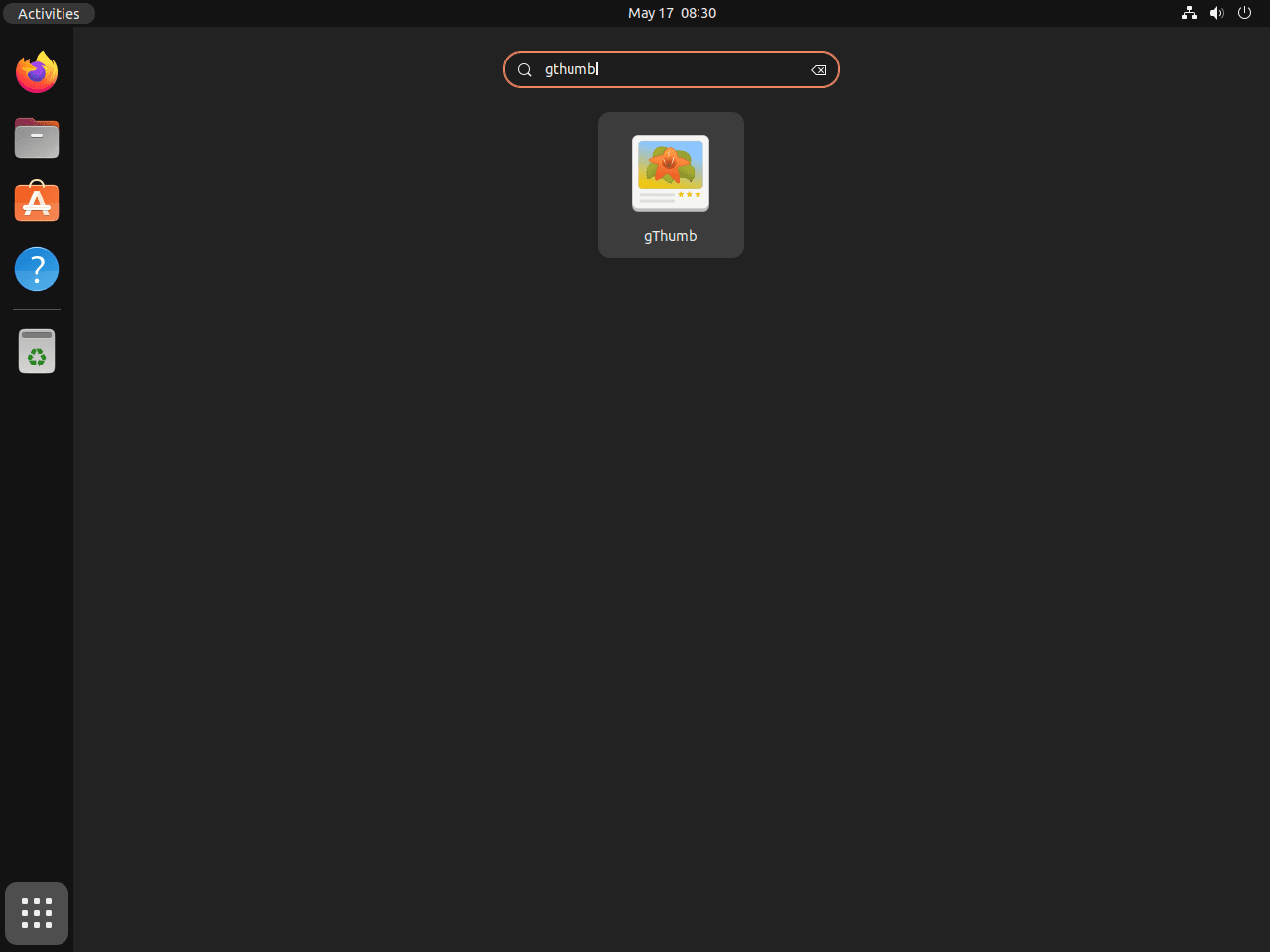
Alternatively, you can launch gThumb from your desktop environment’s application menu:
- Open the Activities overview by clicking the button in the top-left corner of your screen.
- Type “gThumb” in the search bar, or alternatively click Show Applications to browse installed applications.
- Click the gThumb icon to launch the application.
Manage gThumb
Update gThumb
Regular updates ensure you receive bug fixes and security patches, so the update process depends on your installation method.
Update APT Installation
For APT installations, gThumb updates automatically when you run system updates. However, to update only gThumb specifically, use the following command:
sudo apt update && sudo apt install --only-upgrade gthumbUpdate Flatpak Installation
For Flatpak installations, update all Flatpak applications including gThumb with the following command:
sudo flatpak updateRemove gThumb
If you no longer need gThumb, you can remove it along with any unused dependencies, and the removal process varies by installation method.
Remove APT Installation
For APT installations, remove gThumb and clean up orphaned dependencies with the following commands:
sudo apt remove gthumb -y && sudo apt autoremove -yRemove Flatpak Installation
Similarly, for Flatpak installations, remove gThumb using the uninstall command:
sudo flatpak uninstall org.gnome.gThumb -yAdditionally, to remove unused Flatpak runtimes and free up disk space, run:
sudo flatpak uninstall --unusedRemove User Configuration Files
Warning: The following commands permanently delete gThumb configuration files, catalogs, and cached thumbnails. If you have organized images into catalogs you want to keep, back up
~/.config/gthumbfirst.
After uninstalling, you can optionally remove user configuration and cache files:
rm -rf ~/.config/gthumb ~/.local/share/gthumb ~/.cache/gthumbSimilarly, for Flatpak installations, the sandboxed data is stored separately:
rm -rf ~/.var/app/org.gnome.gThumbFinal Thoughts
You now have gThumb installed on Ubuntu for viewing, editing, and organizing your image collection. Moreover, the application supports browsing with thumbnails, basic editing like cropping and color adjustments, and catalog organization for managing large photo libraries. Next, consider exploring gThumb’s import feature for transferring images from cameras or its slideshow mode for presentations. For additional image viewing options, you might also explore PhotoQt, which offers a lightweight alternative with keyboard-driven navigation. For more information about gThumb features and development, visit the official GNOME Wiki.

Formatting tips for your comment
You can use basic HTML to format your comment. Useful tags currently allowed in published comments:
<code>command</code>command<strong>bold</strong><em>italic</em><blockquote>quote</blockquote>