
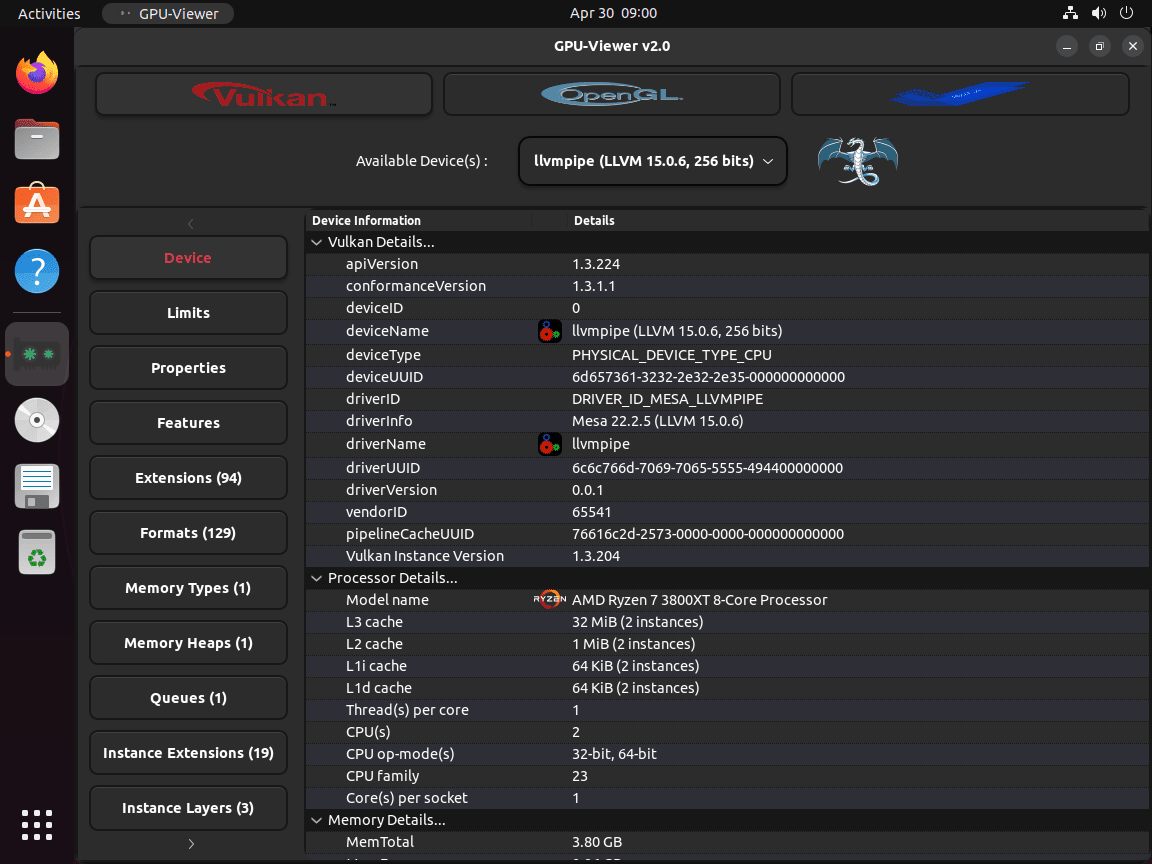
This guide shows you how to install GPU-Viewer on Ubuntu using either a community PPA or Flatpak. GPU-Viewer is a graphical front-end for glxinfo, vulkaninfo, clinfo, and es2_info that presents GPU information in a readable interface instead of raw terminal output. If you need to check your OpenGL version, verify Vulkan support, confirm driver installation, or troubleshoot graphics issues, GPU-Viewer consolidates all that data into tabbed panels you can browse without parsing command output. Both installation channels are maintained by the same developer, though Flathub typically ships newer releases.
The GPU-Viewer PPA supports Ubuntu 24.04 and 22.04. Ubuntu 26.04 users should use the Flatpak method, as the PPA does not yet publish packages for the resolute codename.
Choose Your GPU-Viewer Installation Method for Ubuntu
GPU-Viewer can be installed through a community PPA or through Flatpak. Your choice depends on your Ubuntu version and how you prefer to manage applications.
| Method | Channel | Version | Updates | Best For |
|---|---|---|---|---|
| Flatpak | Flathub | Latest stable | Automatic via Flatpak updates | Ubuntu 26.04 users (required), or anyone wanting the newest release |
| PPA | Launchpad | Older releases | Automatic via apt upgrades | Ubuntu 24.04/22.04 users who prefer native apt packages |
For most users, Flatpak is recommended. The PPA has not been updated since February 2024 and does not support Ubuntu 26.04. Flatpak provides the current release (3.23 at time of writing) and works across all supported Ubuntu versions.
Method 1: Install GPU-Viewer via PPA
This method works on Ubuntu 24.04 and 22.04 only. If you are running Ubuntu 26.04, skip to Method 2 (Flatpak).
The GPU-Viewer PPA provides native deb packages that integrate with apt. The PPA version varies by Ubuntu release: Ubuntu 24.04 receives version 3.02N2-1, while Ubuntu 22.04 receives version 2.30J1-1.
Add the GPU-Viewer PPA
Install the required dependency for adding PPAs, then add the repository:
sudo apt install software-properties-common -y
sudo add-apt-repository ppa:arunsivaraman/gpuviewer -y
Install GPU-Viewer from the PPA
After adding the PPA, install GPU-Viewer:
sudo apt update
sudo apt install gpu-viewer -y
Verify the PPA Installation
Confirm GPU-Viewer installed correctly by checking the package version:
apt-cache policy gpu-viewerExpected output on Ubuntu 24.04:
gpu-viewer:
  Installed: 3.02N2-1
  Candidate: 3.02N2-1
  Version table:
 *** 3.02N2-1 500
        500 https://ppa.launchpadcontent.net/arunsivaraman/gpuviewer/ubuntu noble/main amd64 Packages
        100 /var/lib/dpkg/status
Method 2: Install GPU-Viewer via Flatpak
Flatpak provides a sandboxed installation that works on all supported Ubuntu versions, including 26.04. GPU-Viewer on Flathub receives updates directly from the developer, typically ahead of the PPA. Your host system must have working GPU drivers installed for GPU-Viewer to read hardware data. The Flatpak sandbox can access the GPU through the host driver stack.
If Flatpak is not installed on your system, follow our guide on how to install Flatpak on Ubuntu first.
Enable Flathub and Install GPU-Viewer
Add Flathub as a system-wide remote (the first command is safe to run even if Flathub is already configured), then install GPU-Viewer:
sudo flatpak remote-add --if-not-exists flathub https://flathub.org/repo/flathub.flatpakrepo
sudo flatpak install -y flathub io.github.arunsivaramanneo.GPUViewer
The --if-not-exists flag ensures the command succeeds whether Flathub is already enabled or not. The -y flag auto-confirms the installation prompt.
Verify the Flatpak Installation
Confirm GPU-Viewer installed correctly:
flatpak info --system io.github.arunsivaramanneo.GPUViewerExpected output:
GPU-Viewer - A front-end to glxinfo, vulkaninfo, clinfo and es2_info

          ID: io.github.arunsivaramanneo.GPUViewer
         Ref: app/io.github.arunsivaramanneo.GPUViewer/x86_64/stable
        Arch: x86_64
      Branch: stable
      Origin: flathub
     Version: 3.23
     License: GPL-3.0-only
 Installation: system
Launch GPU-Viewer
Launch from the Terminal
If you installed GPU-Viewer via PPA, launch it with:
gpu-viewerIf you installed via Flatpak, use:
flatpak run io.github.arunsivaramanneo.GPUViewerLaunch from the Application Menu
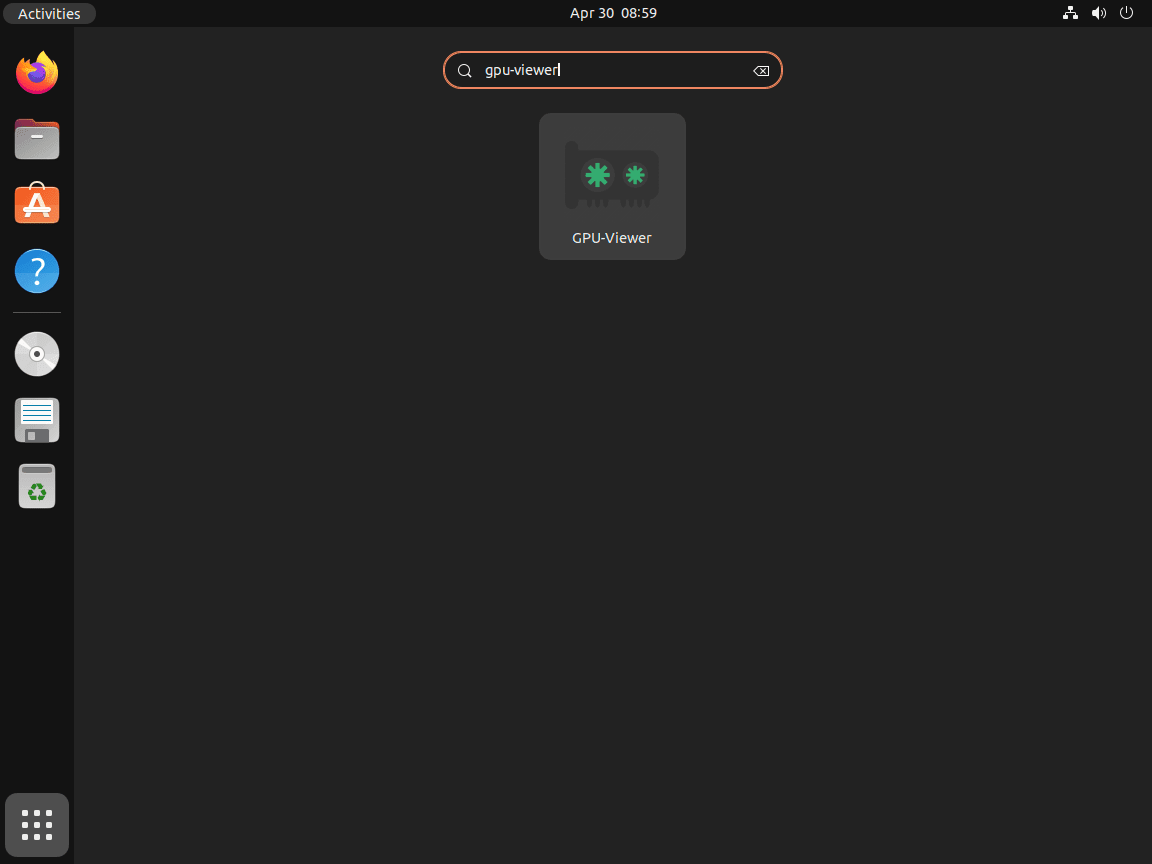
Click the Activities button in the top-left corner of your screen, then search for GPU-Viewer and click the icon to launch it. Alternatively, navigate to Activities > Show Applications and scroll to find GPU-Viewer.
Manage GPU-Viewer
Update GPU-Viewer
Keep GPU-Viewer current to receive the latest features and performance improvements. The update process depends on your installation method.
Update via PPA
GPU-Viewer installed via PPA updates automatically with your system packages. Manually update it by running:
sudo apt update
sudo apt install --only-upgrade gpu-viewer
Update via Flatpak
Update GPU-Viewer directly, or update all Flatpak applications at once (system-wide installs require sudo):
sudo flatpak update io.github.arunsivaramanneo.GPUViewerOr update all Flatpak applications:
sudo flatpak updateCheck Your Installed Version
You can confirm your installed version at any time using these commands:
Check the PPA Package
apt-cache policy gpu-viewerCheck the Flatpak Build
flatpak info --system io.github.arunsivaramanneo.GPUViewerRemove GPU-Viewer
Remove GPU-Viewer based on your installation method. You can also remove the PPA after uninstalling to keep your repositories list clean.
Remove from PPA
Uninstall the application and remove any orphaned dependencies:
sudo apt remove gpu-viewer
sudo apt autoremove
Optionally, remove the PPA repository to prevent accidental re-installation:
sudo add-apt-repository --remove ppa:arunsivaraman/gpuviewer -yVerify the package is removed:
which gpu-viewerNo output confirms successful removal.
Remove from Flatpak
Uninstall GPU-Viewer:
sudo flatpak uninstall io.github.arunsivaramanneo.GPUViewerTo also remove any cached data stored locally by the Flatpak sandbox:
rm -rf ~/.var/app/io.github.arunsivaramanneo.GPUViewerTroubleshooting Common Issues
GPU-Viewer Shows No Data or Won’t Launch
GPU-Viewer displays data from glxinfo, vulkaninfo, and clinfo. If these underlying tools cannot detect your GPU, GPU-Viewer will show blank panels or fail to start. Verify your driver stack is functional by running these diagnostic commands:
glxinfo -BIf this command fails with “command not found,” install the mesa-utils package:
sudo apt install mesa-utils -yA working OpenGL stack shows output like:
display: :0  screen: 0
direct rendering: Yes
OpenGL renderer string: NVIDIA GeForce RTX 3060/PCIe/SSE2
OpenGL core profile version string: 4.6.0 NVIDIA 555.58.02
For Vulkan verification:
vulkaninfo --summaryIf vulkaninfo is missing, install vulkan-tools:
sudo apt install vulkan-tools -yFor NVIDIA GPUs, also check the proprietary driver status:
nvidia-smiIf any of these commands fail or report missing drivers, your GPU drivers need attention before GPU-Viewer will work. For NVIDIA systems, follow our guide on installing NVIDIA drivers on Ubuntu. For AMD or Intel integrated graphics, ensure your Mesa drivers are current by following our Mesa driver upgrade guide for Ubuntu.
PPA Not Available for Ubuntu 26.04
If you see this error when adding the PPA on Ubuntu 26.04:
E: The repository 'https://ppa.launchpadcontent.net/arunsivaraman/gpuviewer/ubuntu resolute Release' does not have a Release file.
This means the PPA does not yet publish packages for Ubuntu 26.04 (resolute). Remove the broken PPA entry and use Flatpak instead:
sudo add-apt-repository --remove ppa:arunsivaraman/gpuviewer -y
sudo apt update
Then follow Method 2 to install via Flatpak.
Flatpak Installation Fails
If Flatpak commands fail, first verify Flatpak is installed and Flathub is configured:
flatpak --version
sudo flatpak remotes
Expected output:
Flatpak 1.14.x
Name    Options
flathub system
If Flatpak is not installed or Flathub is missing from the remotes list, follow our guide on installing Flatpak on Ubuntu to set it up properly.
Frequently Asked Questions
No. GPU-Viewer is a read-only information utility. It visualizes data from tools like glxinfo and vulkaninfo but has no capability to control hardware, adjust brightness, or modify fan curves.
GPU-Viewer relies on external command-line tools to fetch data. If tabs like OpenGL or Vulkan are empty, you likely need to install the underlying utilities (e.g., mesa-utils or vulkan-tools). It acts as a display layer, not a data generator.
No. It only reports which drivers are currently installed and active. It cannot download, install, or update drivers for NVIDIA, AMD, or Intel hardware. You must use Ubuntu’s “Additional Drivers” tool or terminal commands for driver management.
GPU-Viewer does not have a built-in export button. You can manually copy text from the interface, or run the underlying commands (e.g., glxinfo > logs.txt) in the terminal if you need a sharable file for support forums.
Conclusion
GPU-Viewer provides a convenient way to inspect OpenGL, Vulkan, and OpenCL capabilities without parsing raw terminal output from glxinfo and vulkaninfo. For Ubuntu 26.04 systems or anyone wanting the latest release, install via Flatpak. Ubuntu 24.04 and 22.04 users can choose between Flatpak or the PPA depending on how they prefer to manage packages. If GPU-Viewer shows blank data, the underlying issue is almost always missing or misconfigured GPU drivers, so start troubleshooting there.

Formatting tips for your comment
You can use basic HTML to format your comment. Useful tags currently allowed:
<code>command</code>command<strong>bold</strong><em>italic</em><blockquote>quote</blockquote>