
Interactive HTML5 ads and motion graphics are easier to build in a visual editor than by hand. Google Web Designer is still one of the few Linux packages aimed directly at that workflow. You can install Google Web Designer on Debian through Google’s official APT repository if you’re on Debian 12 (Bookworm) or Debian 11 (Bullseye). Debian 13 (Trixie) is currently blocked by Google’s outdated libappindicator1 dependency.
Debian’s own repositories do not include google-webdesigner, so use Google’s package source rather than a Debian archive package. The official Google Web Designer page still exposes a direct amd64 Debian/Ubuntu .deb, and Google notes that installing it adds the Google repository. Configuring that source as a DEB822 file first keeps the trust path auditable; after installation, remove the legacy source file Google’s package creates so future APT updates stay clean.
Install Google Web Designer on Debian
Google currently ships Google Web Designer for amd64 Debian systems only. The current package status differs by release:
| Debian Release | Status | Notes |
|---|---|---|
| Debian 13 (Trixie) | Not supported by the current Google package | google-webdesigner still depends on libappindicator1, which Trixie does not ship |
| Debian 12 (Bookworm) | Supported | Installs from Google’s APT repository after one duplicate-file cleanup step |
| Debian 11 (Bullseye) | Supported | Installs from Google’s APT repository after one duplicate-file cleanup step |
On Debian 12 and Debian 11, Debian provides libayatana-appindicator1 as the compatibility package that satisfies Google’s older libappindicator1 dependency. Debian 13 currently provides libayatana-appindicator3-1, but that GTK3 package does not satisfy the dependency in Google’s current package metadata.
Update Debian and Install the Required Packages for Google Web Designer
Refresh APT first, then install the tools needed to download Google’s signing key and write the repository file. The -y flag accepts the package prompt automatically.
sudo apt update
sudo apt install ca-certificates curl gpg -y
These commands use
sudofor tasks that need administrative privileges. If your account is not in the sudoers file yet, follow the guide on add a user to sudoers on Debian before continuing.
Import Google’s Signing Key for Google Web Designer
Download Google’s ASCII-armored key and convert it into the binary keyring format APT expects.
curl -fsSL https://dl.google.com/linux/linux_signing_key.pub | sudo gpg --dearmor --yes -o /usr/share/keyrings/google-web-designer.gpgThe curl command downloads the key, and gpg --dearmor converts it into a binary keyring APT can use. The extra --yes flag keeps the command rerunnable if the key file already exists.
Add the Google Web Designer Repository on Debian
Create a DEB822 .sources file so APT knows where the package lives and which key should trust it. The release and architecture checks write the source only on amd64 Debian 12 or Debian 11 because Debian 13 cannot satisfy the current package dependency set, and Google does not publish non-amd64 Debian packages for this app.
. /etc/os-release
arch="$(dpkg --print-architecture)"

if [ "$arch" != "amd64" ]; then
  printf '%s\n' 'Google Web Designer only provides an amd64 Debian package.' >&2
else
  case "${VERSION_CODENAME:-}" in
    bookworm|bullseye)
      printf '%s\n' \
      'Types: deb' \
      'URIs: https://dl.google.com/linux/webdesigner/deb/' \
      'Suites: stable' \
      'Components: main' \
      'Architectures: amd64' \
      'Signed-By: /usr/share/keyrings/google-web-designer.gpg' | sudo tee /etc/apt/sources.list.d/google-web-designer.sources > /dev/null
      ;;
    trixie)
      printf '%s\n' 'Google Web Designer does not currently install on Debian 13 because libappindicator1 is unavailable.' >&2
      ;;
    *)
      printf '%s\n' 'This repository method is validated for Debian 12 (bookworm) and Debian 11 (bullseye).' >&2
      ;;
  esac
fi
If the command prints an unsupported-release or unsupported-architecture message, stop here and use a supported amd64 Debian release for this package. On Debian 12 or Debian 11, the tee command writes the file with root privileges. A plain shell redirect such as > would still run as your normal user, even when the command starts with sudo.
Verify the Google Web Designer Repository on Debian
Refresh APT and confirm that Google’s repository is offering the package before you install it.
sudo apt update
apt-cache policy google-webdesigner
google-webdesigner:
Installed: (none)
Candidate: 14.2.4.0-1
Version table:
14.2.4.0-1 500
500 https://dl.google.com/linux/webdesigner/deb stable/main amd64 Packages
If Google publishes a newer build, the version number will change, but the source line should still point to Google’s Web Designer repository.
Install Google Web Designer on Debian with APT
Install the package once the repository is visible. The package also adds the /usr/bin/google-webdesigner launcher and a desktop entry for your applications menu.
sudo apt install google-webdesigner -yRelevant output includes:
The following NEW packages will be installed:
  fonts-liberation google-webdesigner libayatana-appindicator1 libayatana-indicator7 libdbusmenu-gtk4
Setting up google-webdesigner (14.2.4.0-1) ...
Remove the Duplicate Repository File for Google Web Designer on Debian
Google’s installer also writes a legacy /etc/apt/sources.list.d/google-webdesigner.list file. Leaving it in place makes later apt update and apt-cache policy commands fail with a Signed-By conflict because both files point at the same repository.
sudo rm -f /etc/apt/sources.list.d/google-webdesigner.list
sudo apt update
After this cleanup, future APT operations should finish without duplicate-source warnings.
Verify Google Web Designer Installation on Debian
Check the package state after the duplicate-file cleanup so you know both the install and repository configuration are healthy.
apt-cache policy google-webdesignergoogle-webdesigner:
Installed: 14.2.4.0-1
Candidate: 14.2.4.0-1
Version table:
*** 14.2.4.0-1 500
500 https://dl.google.com/linux/webdesigner/deb stable/main amd64 Packages
100 /var/lib/dpkg/status
When the Installed and Candidate lines match and the Google repository line is present, Google Web Designer is ready to launch and update through APT.
Launch Google Web Designer on Debian
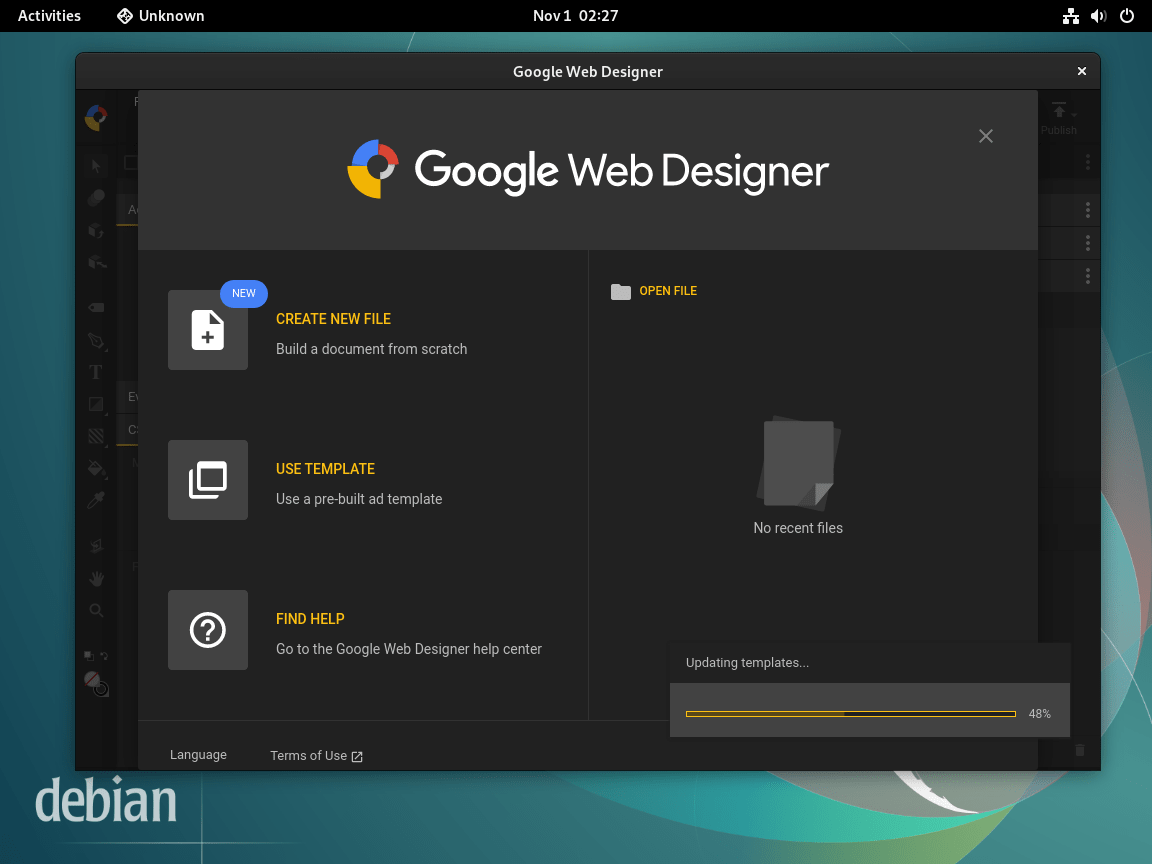
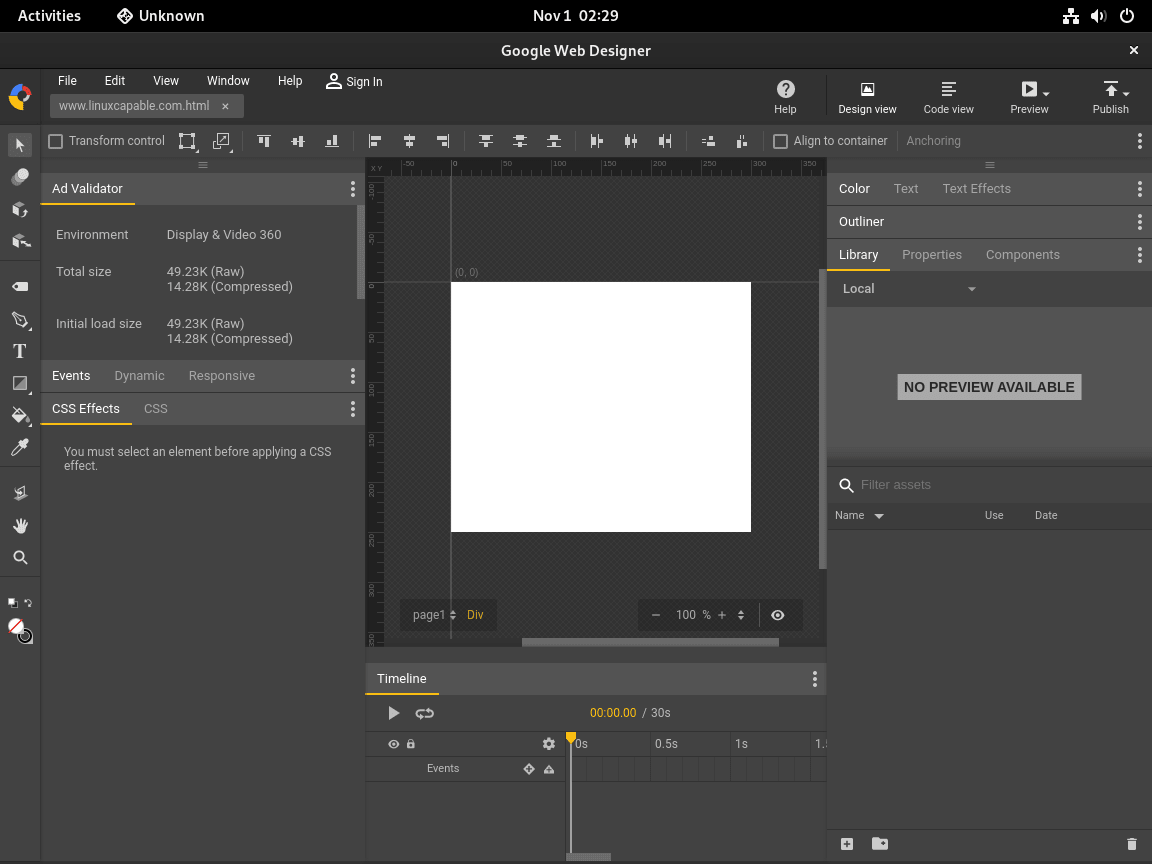
Google Web Designer is a desktop application, so you can install it from any terminal session you like but you still need an active graphical session to open it. Launch it from the applications menu or from a terminal window on the desktop.
Launch Google Web Designer from a Terminal on Debian
Run the launcher from a terminal in your desktop session if you want to see any runtime messages while the window opens.
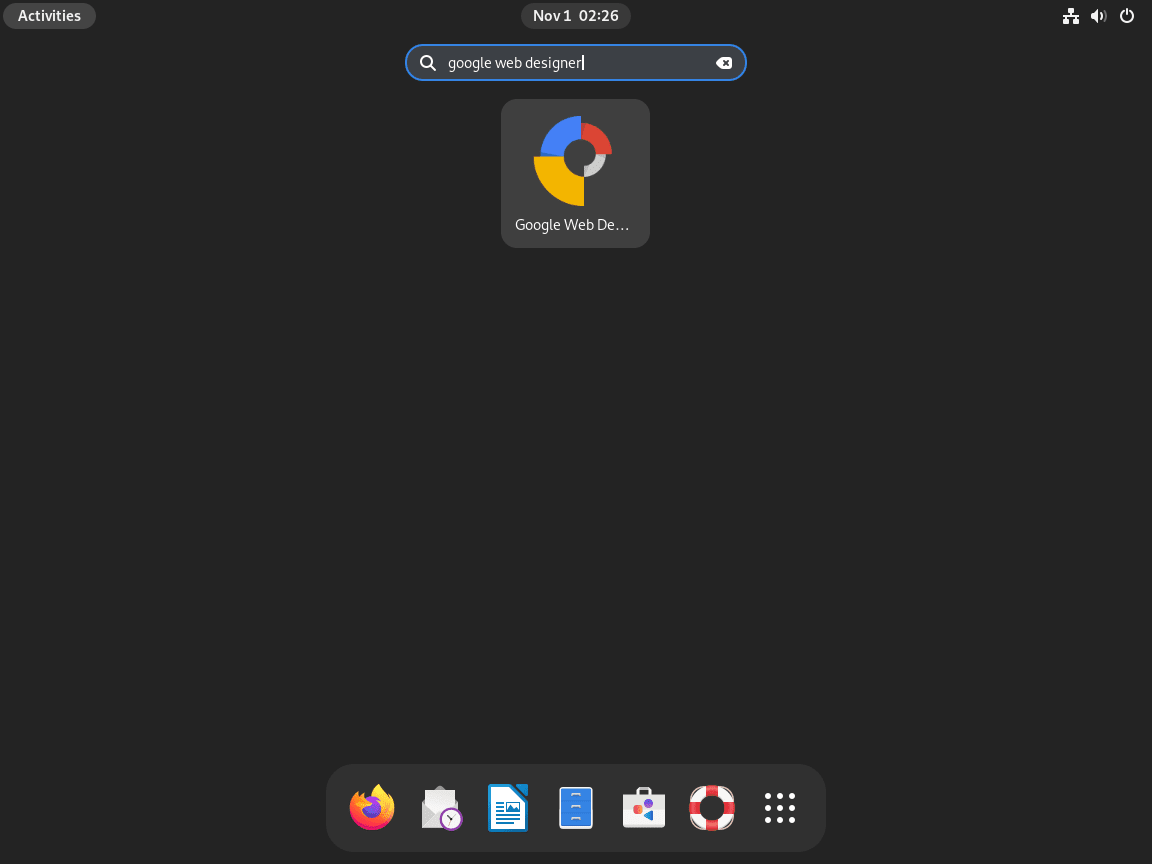
google-webdesignerDebian installs the desktop entry as Google Web Designer under the Graphics and Development categories, so searching for the application name from the menu works just as well.
Update or Remove Google Web Designer on Debian
Update Google Web Designer on Debian
Because Google Web Designer comes from a normal APT repository, you can update it with the rest of your system or target the package directly.
sudo apt update
sudo apt install --only-upgrade google-webdesigner
The --only-upgrade flag tells APT to upgrade the package only if it is already installed.
Remove Google Web Designer from Debian
Remove the package first, then decide whether you want to keep Google’s repository configured for later reinstallations.
sudo apt remove google-webdesigner -yIf APT later offers helper libraries such as fonts-liberation, libayatana-appindicator1, libayatana-indicator7, or libdbusmenu-gtk4 as unused packages, review sudo apt autoremove and remove them only if nothing else on your system still depends on them.
Verify the installed-state first. The package is removed when the status abbreviation does not start with ii; an rc result only means package metadata or residual config remains.
dpkg-query -W -f='${db:Status-Abbrev} ${binary:Package}\n' google-webdesigner 2>/dev/null || trueRefresh APT and confirm that the package is gone while the repository still remains available for a later reinstall.
sudo apt update
apt-cache policy google-webdesigner
google-webdesigner:
Installed: (none)
Candidate: 14.2.4.0-1
Version table:
14.2.4.0-1 500
500 https://dl.google.com/linux/webdesigner/deb stable/main amd64 Packages
100 /var/lib/dpkg/status
That state means the package has been removed, but APT can still reinstall it because the Google repository is still configured.
Remove the repository file and key if you want a full package-source cleanup. The command also removes package-created legacy source, trust, and defaults files if they remain after the package removal script runs.
sudo rm -f \
  /etc/apt/sources.list.d/google-web-designer.sources \
  /etc/apt/sources.list.d/google-webdesigner.list \
  /usr/share/keyrings/google-web-designer.gpg \
  /etc/apt/trusted.gpg.d/google-webdesigner.gpg \
  /etc/default/google-webdesigner
sudo apt update
apt-cache policy google-webdesigner
google-webdesigner:
Installed: (none)
Candidate: (none)
Version table:
14.2.4.0-1 -1
100 /var/lib/dpkg/status
If the remaining /var/lib/dpkg/status line appears, it is normal local package history after package removal.
Google Web Designer does not necessarily create per-user data until you actually launch it, so check your desktop account before deleting anything else.
find "$HOME/.config" "$HOME/.cache" "$HOME/.local/share" -maxdepth 2 \( -iname '*google*web*designer*' -o -iname '*webdesigner*' \) 2>/dev/nullNo output means that account has no extra Google Web Designer data in those common locations.
Troubleshoot Google Web Designer on Debian
The two Debian-specific problems that matter most here are the duplicate source file Google’s installer creates after installation and Debian 13’s unresolved dependency break.
Fix Duplicate Repository Warnings for Google Web Designer on Debian
If both the DEB822 file and Google’s legacy .list file are active at the same time, a normal APT refresh can report a Signed-By conflict.
sudo apt updateE: Conflicting values set for option Signed-By regarding source https://dl.google.com/linux/webdesigner/deb/ stable: /usr/share/keyrings/google-web-designer.gpg !=
Remove the legacy file and refresh APT. If you also use other Google desktop packages, keep one Google source file per product family so their repository entries do not collide.
sudo rm -f /etc/apt/sources.list.d/google-webdesigner.list
sudo apt update
If the conflict came from another Google package, review the shared repository setup before you install Google Chrome on Debian or other Google desktop apps on the same machine.
Understand the Debian 13 Install Error for Google Web Designer
Debian 13 currently cannot install Google’s package because the dependency list still requires libappindicator1. Trixie ships libayatana-appindicator3-1, but it does not provide the compatibility package name that Google’s current Debian package requests. If a source was added before the release guard or a direct package was used on Debian 13, the install step fails during dependency resolution.
sudo apt install google-webdesignergoogle-webdesigner : Depends: libappindicator1 but it is not installable
There is no clean repository-side fix to publish for Debian 13 today. Avoid pulling old libappindicator1 packages from Ubuntu or archived Debian releases, because that workaround mixes unsupported desktop libraries into the system. Use Debian 12 or Debian 11 for Google Web Designer, or wait for Google to rebuild the package against current Debian libraries.
Conclusion
Google Web Designer is installable on Debian 12 and Debian 11 through Google’s APT repository once the package-created legacy source file is removed. Keep the Debian 13 dependency limit in mind before upgrading a workstation that relies on the app. If you also use Google’s browser packages, review repository cleanup before you install Google Chrome on Debian.


The following packages have unmet dependencies:
google-webdesigner : Depends: libappindicator1 but it is not installable
E: Unable to correct problems, you have held broken packages.
Thanks for reporting this, Hrvoje. Google’s current
google-webdesignerpackage still listslibappindicator1as a dependency, so the result depends on the Debian release.Debian 12 and Debian 11 can satisfy that dependency through
libayatana-appindicator1, but Debian 13 currently cannot. If you are on Debian 12 or 11, first refresh APT and retry the install:If APT still reports the dependency on Debian 12 or 11, install the compatibility package and let APT finish the broken transaction:
On Debian 13, there is no clean repository-side fix at the moment because
libayatana-appindicator3-1does not provide the olderlibappindicator1dependency name that Google’s package requests. Avoid pulling old packages from Ubuntu or archived Debian releases; use Debian 12 or Debian 11 for Google Web Designer until Google updates the package.