
Google Chrome is available for Ubuntu 26.04, 24.04, and 22.04 through Google’s official APT repository, with a community-maintained Flatpak also available on Flathub. To download and install Google Chrome on Ubuntu from the command line, add Google’s repository, install the google-chrome-stable package with APT, and let future updates arrive through normal package upgrades. Chrome remains a common choice for Google Workspace access, web development testing, and sites tuned for the Blink rendering engine.
Google Chrome is not in Ubuntu’s default repositories, so apt install google-chrome-stable works only after you add Google’s repo. Google does not provide an Ubuntu PPA or Snap package, and Linux builds are limited to amd64 systems. The steps below cover the stable release first, then beta, unstable, canary, Flatpak, updates, removal, and troubleshooting.
| Method | Channel | Version | Updates | Best For |
|---|---|---|---|---|
| APT (Official repo) | Google APT Repository | Latest stable | Automatic via APT upgrades | Most users who want direct Google releases with all four channels |
| Flatpak | Flathub | Latest stable | Automatic via Flatpak updates | Users who prefer sandboxed applications or already use Flatpak |
Set Up the Google Chrome APT Repository on Ubuntu
Google Chrome requires adding Google’s official APT repository before installation. This section configures the GPG signing key and DEB822 repository file.
Update Ubuntu Package Lists
Refresh your system’s package index to ensure you install the latest versions of any prerequisites:
sudo apt updateThis guide uses
sudofor commands that need root privileges. If your user is not in the sudoers file yet, follow the guide on how to add and manage sudo users on Ubuntu.
Install Required Chrome Dependencies
Install the packages needed for secure downloads and GPG key management:
sudo apt install ca-certificates curl -yThe -y flag automatically confirms the installation prompt. This command installs certificate handling for HTTPS connections and the curl command for downloading files. Ubuntu includes the gpg command by default for GPG key operations.
Google Chrome Release Channels
Google publishes Chrome through four release channels. All channels are available from the same repository, so you can install multiple versions side-by-side.
| Channel | Package Name | Stability | Best For |
|---|---|---|---|
| Stable | google-chrome-stable | High | Daily browsing, production use |
| Beta | google-chrome-beta | Moderate | Preview features 4-6 weeks before stable |
| Unstable (Dev) | google-chrome-unstable | Low | Early development testing |
| Canary | google-chrome-canary | Very Low | Experimental builds updated daily |
Most users should install the stable channel. The beta, unstable, and canary channels receive updates more frequently and may contain bugs that make them unsuitable for daily use.
Import Google Chrome’s GPG Signing Key
APT requires a GPG key to verify the authenticity of packages downloaded from external repositories. Download Google’s public signing key, convert it to binary format, and store it in the system keyring directory:
curl -fsSL https://dl.google.com/linux/linux_signing_key.pub | sudo gpg --dearmor -o /usr/share/keyrings/google-chrome.gpgThe -fsSL flags tell curl to fail silently on HTTP errors, suppress progress output, and follow redirects. The --dearmor flag converts the key from ASCII-armored format to binary, which APT requires. Your system can now verify packages signed by Google during installation and updates.
Add the Google Chrome APT Repository
Create a repository configuration file using the modern DEB822 format, which is clearer and more maintainable than the legacy one-line format:
cat <<EOF | sudo tee /etc/apt/sources.list.d/google-chrome.sources
Types: deb
URIs: https://dl.google.com/linux/chrome/deb/
Suites: stable
Components: main
Architectures: amd64
Signed-By: /usr/share/keyrings/google-chrome.gpg
EOF
The cat <<EOF | sudo tee pattern writes everything between the two EOF markers into the target file with root permissions. You can paste this entire block into your terminal and it runs as a single command. Each line in this configuration serves a specific purpose:
- Types: deb specifies binary packages (not source packages)
- URIs points to Google’s package server
- Suites: stable is the repository branch (despite the name, all four Chrome channels are available from this branch)
- Architectures: amd64 limits packages to 64-bit (Google does not publish 32-bit Chrome packages)
- Signed-By links to the GPG key you imported earlier
The Google Chrome repository uses a universal package format that works on all current Ubuntu releases, including 26.04 LTS, 24.04 LTS, 22.04 LTS, and interim versions. Commands shown in this guide work identically regardless of your specific Ubuntu version.
Verify the Chrome Repository Configuration
Refresh your package lists to include the new repository:
sudo apt updateConfirm the repository is working by checking the package sources:
apt-cache policy google-chrome-stableThe output should show Google’s repository as the package source:
google-chrome-stable:
  Installed: (none)
  Candidate: 145.0.7632.116-1
  Version table:
     145.0.7632.116-1 500
        500 https://dl.google.com/linux/chrome/deb stable/main amd64 Packages
If you see the https://dl.google.com URL in the output, the repository is configured correctly. The version number will differ as Google releases updates.
Install Google Chrome on Ubuntu
With the repository configured, install your preferred Chrome channel using APT.
Install Google Chrome Stable
The stable version receives updates after thorough testing by Google’s quality assurance teams, making it the safest choice for daily browsing:
sudo apt install google-chrome-stableVerify the installation by checking the version:
google-chrome --versionGoogle Chrome 145.0.7632.116
Your version number will reflect the latest stable release at installation time. Chrome updates automatically through the repository, so the version may change after system updates.
Install Chrome Beta, Unstable, or Canary Builds
For early access to experimental features, install an alternate channel. Each channel installs as a separate application, so you can run multiple versions simultaneously:
Install the beta version (one to two major versions ahead of stable):
sudo apt install google-chrome-betaInstall the unstable (dev) version for active development testing:
sudo apt install google-chrome-unstableInstall the canary version for the absolute latest experimental builds:
sudo apt install google-chrome-canaryVerify your chosen channel with its specific version command:
google-chrome-beta --version
google-chrome-unstable --version
google-chrome-canary --version
The unstable and canary channels may contain bugs and stability issues unsuitable for production environments. Use the stable channel for daily browsing and reserve these channels for testing new features or web development.
Install Google Chrome with Flatpak on Ubuntu
Google Chrome is available as a community-maintained Flatpak on Flathub. This is an unofficial wrapper not verified by Google, but it receives regular updates and runs in a sandboxed environment that isolates Chrome from the rest of your system.
Flatpak must be installed with the Flathub repository enabled before proceeding. If Flatpak is not set up on your system, follow the Flatpak installation guide for Ubuntu to install the Flatpak framework and add the Flathub repository; this takes under five minutes.
Install Google Chrome Stable Flatpak on Ubuntu
Install the stable release of Google Chrome from Flathub at system scope:
sudo flatpak install flathub com.google.Chrome -yThe -y flag skips the interactive confirmation prompt. The sudo prefix installs at system scope, making Chrome available to all users on the machine.
Install Google Chrome Dev Flatpak on Ubuntu
For early access to development builds, install Google Chrome Dev (unstable channel) alongside or instead of the stable version:
sudo flatpak install flathub com.google.ChromeDev -yChrome Dev receives frequent updates with experimental features that may be less stable than the stable release.
Launch Google Chrome Flatpak on Ubuntu
Launch the Flatpak version from the terminal:
flatpak run com.google.ChromeFor Chrome Dev:
flatpak run com.google.ChromeDevBoth versions also appear in the GNOME Activities menu after installation. The Flatpak version runs in a sandbox with limited access to host system files by default.
Update Google Chrome Flatpak on Ubuntu
Update all Flatpak applications, including Chrome, with a single command:
sudo flatpak updateTo update only Chrome without affecting other Flatpak applications:
sudo flatpak update com.google.ChromeRemove Google Chrome Flatpak from Ubuntu
Uninstall the Chrome Flatpak and remove unused runtimes:
sudo flatpak uninstall com.google.Chrome
sudo flatpak uninstall --unused
For Chrome Dev:
sudo flatpak uninstall com.google.ChromeDevFlatpak stores user data separately from the application. To remove Chrome’s Flatpak data directory:
rm -rf ~/.var/app/com.google.Chrome
rm -rf ~/.var/app/com.google.ChromeDev
Launch Google Chrome on Ubuntu
Launch Google Chrome from Terminal
Launch Google Chrome Stable from the terminal:
google-chromeIf you installed other channels, launch them with their specific commands:
| Channel | Launch Command |
|---|---|
| Beta | google-chrome-beta |
| Unstable (Dev) | google-chrome-unstable |
| Canary | google-chrome-canary |
Launch Google Chrome from Applications Menu
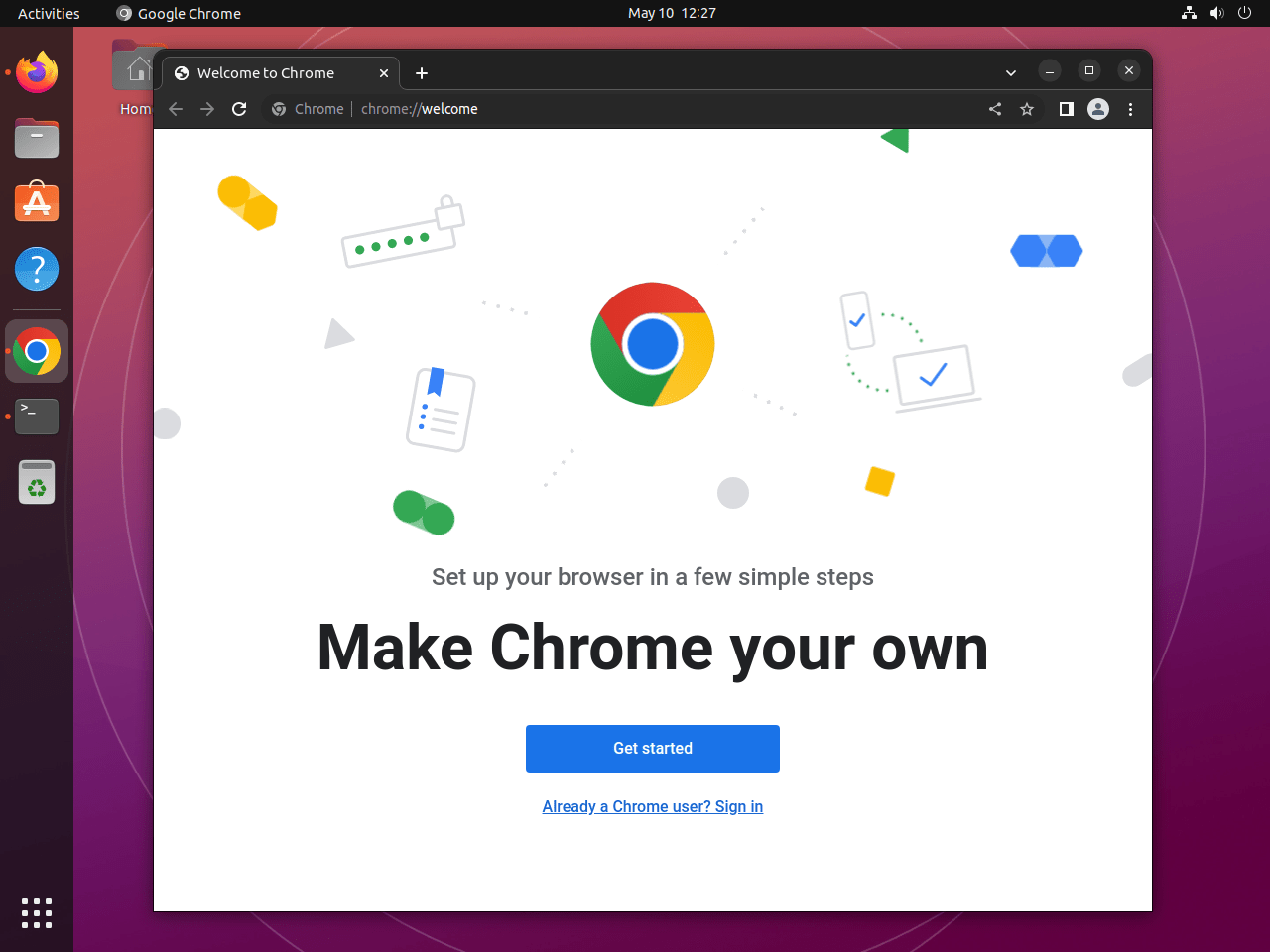
Open Chrome through the graphical interface:
- Click Activities in the top-left corner of your screen (or press the Super key).
- Type “Chrome” in the search field.
- Click the Google Chrome icon to launch. If you have multiple versions installed, they appear as separate entries: Google Chrome, Google Chrome (Beta), Google Chrome (Unstable), and Google Chrome (Canary).
Configure Google Chrome on Ubuntu
When you open Google Chrome for the first time on Ubuntu, several prompts help configure the browser for your preferences. These setup steps are optional but personalize your browsing experience.
Chrome Keychain Password Prompt on Ubuntu
Ubuntu may prompt you to set up or unlock a keychain password. The keychain stores passwords for websites and applications securely. Enter your user password or create a new keychain password, or click Cancel to skip keychain integration.
Set Google Chrome as Default Browser on Ubuntu
Chrome will ask whether you want to make it the default browser. Click “Set as Default” to replace your current default (usually Firefox on Ubuntu), or close the prompt to keep your existing default.
Chrome Usage Statistics and Crash Reports on Ubuntu
Chrome displays an option to send usage statistics and crash reports to Google, which helps improve the browser. Select or deselect the checkbox based on your privacy preferences.
Sign In to Google Chrome on Ubuntu
Chrome allows you to sign in with your Google account to sync bookmarks, history, passwords, and settings across devices. This is optional, and you can skip it by clicking the X in the sign-in tab or selecting “Continue without account.”
Update Google Chrome on Ubuntu
Keep Google Chrome Updated with APT
The APT repository you configured delivers Chrome updates automatically alongside your system packages. Refresh your package lists and upgrade all packages:
sudo apt update
sudo apt upgrade
To update only Chrome without upgrading other packages, use the --only-upgrade flag with the specific package name:
sudo apt install --only-upgrade google-chrome-stableReplace google-chrome-stable with google-chrome-beta, google-chrome-unstable, or google-chrome-canary to update a different channel.
Remove Google Chrome from Ubuntu
If you no longer need Google Chrome, remove it along with its repository configuration.
Uninstall Google Chrome Packages
Use the appropriate command based on the channel you installed. The purge option removes the package along with its system-level configuration files, unlike remove which leaves config files behind:
sudo apt purge google-chrome-stableFor other channels:
sudo apt purge google-chrome-beta
sudo apt purge google-chrome-unstable
sudo apt purge google-chrome-canary
Remove unused dependencies Chrome installed:
sudo apt autoremove --purgeRemove Chrome Repository and GPG Key
Delete the repository configuration file and GPG key to prevent APT from checking for Chrome updates:
sudo rm -f /etc/apt/sources.list.d/google-chrome.sources
sudo rm -f /etc/apt/sources.list.d/google-chrome.list
sudo rm -f /usr/share/keyrings/google-chrome.gpg
The second line removes a legacy .list file that Chrome’s installer may have created. Refresh your package lists:
sudo apt updateVerify the repository is no longer active:
apt-cache policy google-chrome-stableThe command should return empty output, confirming no repository provides the package.
Remove Chrome User Data (Optional)
The following commands permanently delete your Chrome profile data, including bookmarks, saved passwords, extensions, and browsing history. Back up these directories first if you want to preserve this data for a future Chrome reinstallation.
Remove all Chrome configuration and cache files from your home directory. The -rf flags force recursive deletion without prompting:
rm -rf ~/.config/google-chrome*
rm -rf ~/.cache/google-chrome*
rm -rf ~/.local/share/applications/google-chrome*.desktop
After running these commands, Google Chrome is fully removed with no residual configuration or cache files.
Troubleshoot Google Chrome on Ubuntu
Fix Chrome Duplicate Repository Warnings on Ubuntu
Google’s Chrome installer sometimes creates a legacy google-chrome.list file during package installation, even when you have already configured the modern .sources format. This causes duplicate repository warnings during apt update:
W: Target Packages (main/binary-amd64/Packages) is configured multiple times in /etc/apt/sources.list.d/google-chrome.list:1 and /etc/apt/sources.list.d/google-chrome.sources:1
Remove the duplicate file to resolve the warning:
sudo rm -f /etc/apt/sources.list.d/google-chrome*.list
sudo apt update
The .list files do not reappear during Chrome updates because Google’s installer creates them only on first install. A complete reinstallation would recreate them, requiring you to remove them again.
Fix Chrome Signed-By Conflicts on Ubuntu
If apt update fails with a Conflicting values set for option Signed-By error that mentions different key paths such as /var/lib/extrepo/keys/google_chrome.asc and /usr/share/keyrings/google-chrome.gpg, your system has more than one Chrome repository definition. This usually happens when an older or alternative Chrome source is still present and you then add another source for the same Google repository.
E: Conflicting values set for option Signed-By regarding source http://dl.google.com/linux/chrome/deb/ stable: /var/lib/extrepo/keys/google_chrome.asc != /usr/share/keyrings/google-chrome.gpg
E: The list of sources could not be read.
Check which Chrome source files are present before removing anything:
grep -Ril "dl.google.com/linux/chrome/deb" /etc/apt/sources.list.d 2>/dev/nullA conflicting setup usually shows two Chrome source files. One common example looks like this:
/etc/apt/sources.list.d/extrepo_google_chrome.sources
/etc/apt/sources.list.d/google-chrome.sources
If you are following this guide and want to keep the manual DEB822 setup, keep /etc/apt/sources.list.d/google-chrome.sources and remove the other Chrome source file shown in your output. One common cleanup command looks like this:
sudo rm -f /etc/apt/sources.list.d/extrepo_google_chrome.sources
sudo apt update
If you prefer to keep the older or alternative source instead, remove the manual source file and the manual keyring from this article, then refresh APT:
sudo rm -f /etc/apt/sources.list.d/google-chrome.sources
sudo rm -f /usr/share/keyrings/google-chrome.gpg
sudo apt update
After cleanup, recheck the Chrome source files and verify the package source. A healthy setup returns only one Chrome repository file and shows https://dl.google.com in the version table:
grep -Ril "dl.google.com/linux/chrome/deb" /etc/apt/sources.list.d 2>/dev/null
apt-cache policy google-chrome-stable
/etc/apt/sources.list.d/google-chrome.sources
google-chrome-stable:
Installed: (none)
Candidate: 145.0.7632.116-1
Version table:
145.0.7632.116-1 500
500 https://dl.google.com/linux/chrome/deb stable/main amd64 Packages
Fix Chrome GPU Errors on Ubuntu
Chrome may fail to start on systems with certain GPU configurations or when running in virtual machines. Launch Chrome with GPU sandboxing disabled to diagnose the issue:
google-chrome --disable-gpu-sandboxIf Chrome starts successfully with this flag, the issue is GPU-related. You can also disable GPU acceleration entirely:
google-chrome --disable-gpuFor a permanent fix, check Chrome’s GPU status by navigating to chrome://gpu in the address bar. This page shows which GPU features are enabled or disabled and any blocklist reasons.
Fix Chrome Crashes on Wayland Sessions on Ubuntu
Ubuntu 24.04 and newer default to Wayland sessions. If Chrome crashes or displays rendering issues, force Chrome to run in X11 mode:
google-chrome --ozone-platform=x11For better performance on modern hardware, force native Wayland mode instead:
google-chrome --ozone-platform=waylandTo make this setting permanent, edit Chrome’s desktop file or create a persistent launch configuration.
Fix Missing Fonts or Emoji in Chrome on Ubuntu
If web pages display placeholder boxes instead of characters or emoji, install additional font packages:
sudo apt install fonts-noto-color-emoji fonts-noto fonts-liberationRestart Chrome after installing the fonts for changes to take effect.
Fix Chrome Profile Locked Error on Ubuntu
If Chrome reports “Your profile could not be opened correctly” or displays a lock error, a previous Chrome process may have exited uncleanly. Remove the lock file:
rm ~/.config/google-chrome/SingletonLockRestart Chrome after removing the lock file.
Fix Chrome NO_PUBKEY GPG Error on Ubuntu
If apt update returns an error like NO_PUBKEY 32EE5355A6BC6E42, the GPG key is missing or corrupted. Re-import the key:
sudo rm -f /usr/share/keyrings/google-chrome.gpg
curl -fsSL https://dl.google.com/linux/linux_signing_key.pub | sudo gpg --dearmor -o /usr/share/keyrings/google-chrome.gpg
sudo apt update
The --dearmor flag converts the ASCII-armored key to binary format that APT requires. After re-importing, apt update should complete without GPG errors.
Google Chrome Resources and Documentation
These official resources provide additional information for managing and troubleshooting Chrome on Ubuntu:
- Google Chrome Release Blog: Updates on the latest stable, beta, and developer Chrome versions with changelogs and security fixes.
- Chrome Developer Release Notes: Developer-focused updates on new APIs, deprecations, and behavior changes.
- Google Chrome Help Center: Official guides for installation, troubleshooting, privacy settings, and browser optimization.
- Chrome Web Store: Extensions, apps, and themes to customize your browsing experience.
Frequently Asked Questions
No. Google only publishes Chrome for 64-bit x86 (amd64) systems on Linux. ARM64 users should install Chromium on Ubuntu instead, which shares the same Blink rendering engine and is available through Ubuntu’s repositories or as a Snap package.
No. Google does not maintain a PPA on Launchpad. The official installation method uses Google’s own APT repository at dl.google.com with a DEB822 .sources configuration file and GPG key verification.
No. Google does not publish Chrome as a Snap package. The only supported Linux installation method is through Google’s official APT repository. Chromium on Ubuntu is available as a Snap if you prefer a sandboxed browser from the Snap Store.
Chrome’s installer automatically creates a google-chrome.list file during package installation, even when a .sources file already exists. Both files point to the same repository, causing APT warnings. Remove the .list file with sudo rm -f /etc/apt/sources.list.d/google-chrome*.list to resolve this.
This happens when two Chrome repository definitions exist for the same Google source. APT sees different Signed-By key paths and stops. Keep only one Chrome source, remove the extra source file and key if needed, then run sudo apt update again.
Yes. A community-maintained Chrome Flatpak is available on Flathub as com.google.Chrome (stable) and com.google.ChromeDev (unstable). These are unofficial wrappers not verified by Google, but they receive regular updates and run in a sandboxed environment. Install with sudo flatpak install flathub com.google.Chrome -y after setting up Flatpak and Flathub.
Conclusion
Google Chrome is now installed on your Ubuntu system with automatic updates through either Google’s official APT repository or the Flatpak package from Flathub. The APT method provides DEB822 repository format with GPG key verification and access to all four release channels, while the Flatpak method runs Chrome in a sandboxed environment with isolated updates.
For alternative browsers, consider Chromium on Ubuntu as an open-source option, ungoogled-Chromium on Ubuntu for privacy, Brave Browser on Ubuntu for built-in ad blocking, Vivaldi on Ubuntu for deep customization, or Firefox ESR on Ubuntu for a non-Blink rendering engine.

E: Conflicting values set for option Signed-By regarding source http://dl.google.com/linux/chrome/deb/ stable: /var/lib/extrepo/keys/google_chrome.asc != /usr/share/keyrings/google-chrome.gpg
E: The list of sources could not be read.
when trying to update
any Ideas?
Mike, this usually means an older or alternative Chrome source is still present alongside the current one from the guide. APT sees the same Google repo twice with different signing keys, so
apt updatestops.List the Chrome source files first:
If you want to keep this guide’s setup, keep
/etc/apt/sources.list.d/google-chrome.sources, remove the other Chrome source file shown in that output, and runsudo apt updateagain. I added this conflict to the troubleshooting section today.I did this installation and everything worked without any error messages until the last command to get Google Chrome. Ubuntu looks great and will replace Windows. But I absolutely need the JW app from Google Chrome. I downloaded the APK from jw.org, but Ubuntu didn’t accept it and told me to get the DEB file. Please have some patience with me — I’m 79 years old and technology has always been my life. Years ago, I helped many friends switch from Windows 7 to 10. Now I’m thinking about moving many PCs to Linux. There are many people on this Earth with older PCs who can’t always afford the latest, so Linux would be better — and this can also be promoted. I look forward to the day when this works! Thank you for your understanding,
Michel
Thanks! I was getting this error when doing “sudo apt update”:
“The following signatures could not be verified because the public key is not available: NO_PUBKEY 32EE5355A6BC6E42
Failed to fetch http://dl.google.com/linux/chrome/deb/dists/stable/InRelease The following signatures could not be verified because the public key is not available: NO_PUBKEY 32EE5355A6BC6E42”
I had to do this before I was able to install Chrome again using the apt method outlined above.
sudo rm /etc/apt/sources.list.d/google.list*
Before that I had also deleted the chrome keys.
Thanks for sharing this, Ben. The
NO_PUBKEYerror indicates APT cannot verify the repository signature because the GPG key is missing or incorrectly configured. Your solution of removing the old repository files and keys, then re-importing fresh copies, is exactly the right approach.For others encountering this issue, follow the Import Google Chrome APT Repository section from the beginning. First, import the GPG key:
Then add the repository with the correct keyring reference:
This ensures APT can verify Google’s repository signatures and prevents the
NO_PUBKEYerror from recurring.Trying to install Chrome on a fresh Ubuntu-Unity 24.04.1 machine and while following the instructions for apt I keep getting this response, and I’m unable to install chrome.
$ sudo apt update
Hit:1 http://security.ubuntu.com/ubuntu noble-security InRelease
Ign:2 http://dl.google.com/linux/chrome/dev stable InRelease
Hit:3 http://archive.ubuntu.com/ubuntu noble InRelease
Hit:4 http://archive.ubuntu.com/ubuntu noble-updates InRelease
Hit:5 http://archive.ubuntu.com/ubuntu noble-backports InRelease
Err:6 http://dl.google.com/linux/chrome/dev stable Release
404 Not Found [IP: 172.217.169.46 80]
Reading package lists… Done
E: The repository ‘http://dl.google.com/linux/chrome/dev stable Release’ does not have a Release file.
N: Updating from such a repository can’t be done securely, and is therefore disabled by default.
N: See apt-secure(8) manpage for repository creation and user configuration details.
The IP address changes occasionally, which I assume is just different mirrors.
Any suggestions or obvious fixes?
Thanks for reporting this. The 404 error shows your repository configuration points to
http://dl.google.com/linux/chrome/devinstead of the correct pathhttp://dl.google.com/linux/chrome/deb/. Notice the difference:chrome/dev(incorrect) versuschrome/deb/(correct).Remove the incorrect repository file:
Then re-add the repository using the correct URL from the Import Google Chrome APT Repository section:
Update your package lists and Chrome should install successfully:
OK thx – still not working but will investigate further.
Hi Arnfinn,
Actually, maybe just run the ping command like:
ping dl.google.com
Also, you did install the initially required packages?
sudo apt install curl software-properties-common apt-transport-https ca-certificates -y
Re-tested using a VPN connection, works fine, it will be something minor i suspect.
Hope it works out.
Trying now and get:
curl -fSsL https://dl.google.com/linux/linux_signing_key.pub | gpg –dearmor | sudo tee /usr/share/keyrings/google-chrome.gpg > /dev/null
curl: (6) Could not resolve host: dl.google.com
gpg: no valid OpenPGP data found.
Thanks for reporting this. The
curl: (6) Could not resolve hosterror indicates your system cannot resolve dl.google.com through DNS. The GPG error follows because curl received no data to process.First, verify your network connection works and test DNS resolution with nslookup:
If nslookup fails, your DNS configuration needs attention. Check
/etc/resolv.conffor valid nameservers or temporarily switch to Google’s DNS (8.8.8.8) in your network settings. If you’re behind a corporate firewall or proxy, configure curl to use your proxy with the-xflag or set thehttp_proxyenvironment variable.Once DNS resolution works, retry the curl command from the guide. Let me know the nslookup output if the issue persists.