
GIMP (GNU Image Manipulation Program) is a free, open-source image editor for photo retouching, digital painting, and graphic design. It handles layers, masks, custom brushes, Python and Script-Fu automation, and formats including PSD, TIFF, and RAW. You will install GIMP on Ubuntu and learn to manage updates, troubleshoot issues, and remove it cleanly.
Choose Your GIMP Installation Method for Ubuntu
Ubuntu offers several ways to install GIMP, each with different trade-offs between stability, version freshness, and system integration. The table below summarizes your options:
| Method | Channel | Version | Updates | Best For |
|---|---|---|---|---|
| APT (Default) | Ubuntu Repos | Distribution default | Automatic via apt upgrade | Most users who want system-integrated stability |
| APT (PPA) | Launchpad PPA | Latest 2.10.x | Automatic via apt upgrade | Users on Ubuntu 22.04/24.04 wanting latest 2.10 features |
| Flatpak | Flathub | Latest 3.0.x | Manual via flatpak update | Users wanting GIMP 3.0 with sandboxed isolation |
For most users, the APT method is recommended because it provides automatic security updates and tight system integration. However, if you specifically need GIMP 3.0 features (non-destructive editing, improved CMYK support, new GTK3 interface), choose the Flatpak method. The PPA option is best for users on Ubuntu 22.04 or 24.04 who want the latest GIMP 2.10 release without upgrading to version 3.0.
Ubuntu 26.04 LTS ships with GIMP 3.0.x in the default repositories, while Ubuntu 22.04 LTS and 24.04 LTS provide GIMP 2.10.x. The ubuntuhandbook1 PPA supports Ubuntu 22.04 and 24.04 only. If you need GIMP 3.0 on older LTS releases, use the Flatpak method. Commands shown work identically across all supported LTS releases unless otherwise noted.
Install GIMP on Ubuntu via APT
Update Ubuntu Before GIMP Installation
Update the package index and upgrade installed packages so GIMP pulls in the latest dependencies:
sudo apt update && sudo apt upgradeThis guide uses
sudofor commands that need root privileges. If your user is not in the sudoers file yet, run the commands as root or follow the guide on how to add and manage sudo users on Ubuntu.
Choose Your GIMP APT Installation Option
Two APT sources are available for GIMP. The default repository provides distribution-tested stability, while the ubuntuhandbook1 PPA delivers newer 2.10.x builds:
Option 1: Install GIMP from Ubuntu Repository
The default Ubuntu repository provides a stable, distribution-tested GIMP package with automatic security updates through APT.
Install GIMP from the default repository:
sudo apt install gimpOnce the installation completes, verify the setup by checking the GIMP version:
gimp --versionThe output varies depending on your Ubuntu version:
Ubuntu 26.04 LTS:
GNU Image Manipulation Program version 3.0.6
Ubuntu 24.04 LTS:
GNU Image Manipulation Program version 2.10.36
Ubuntu 22.04 LTS:
GNU Image Manipulation Program version 2.10.30
Option 2: Install GIMP via PPA
The following method imports a well-known PPA maintained by ubuntuhandbook1, which provides the latest GIMP 2.10.x builds for Ubuntu LTS releases. This option is ideal if you want newer features and bug fixes than the default repository offers.
This PPA supports Ubuntu 22.04 LTS and 24.04 LTS only. Ubuntu 26.04 LTS already includes GIMP 3.0 in the default repositories, so the PPA is not needed. For GIMP 3.0 on older releases, use the Flatpak method instead.
First, import the PPA to your system:
sudo add-apt-repository ppa:ubuntuhandbook1/gimp -yAfter adding the PPA, run a quick update to sync the newly imported repository with your APT cache:
sudo apt updateNow install GIMP from the PPA. If you already have GIMP installed from the default repository, this command will upgrade it to the PPA version:
sudo apt install gimpOnce complete, verify the installation by checking the version:
gimp --versionGNU Image Manipulation Program version 2.10.38
Install GIMP on Ubuntu with Flatpak and Flathub
Flatpak provides a sandboxed environment that isolates GIMP from your system. Because Flatpak packages ship independently of your distribution, you can run the latest GIMP 3.0 release regardless of your Ubuntu version, making this method particularly useful on Ubuntu 22.04 or 24.04.
Flatpak is not pre-installed on Ubuntu. If you have not set it up yet, install it with
sudo apt install flatpakand restart your session before continuing. For detailed setup including the Flathub repository, follow our Flatpak installation guide for Ubuntu.
Enable Flathub Repository
Before installing GIMP through Flatpak, you must enable the Flathub repository, which serves as the primary source for Flatpak applications. To add Flathub, execute the following command:
sudo flatpak remote-add --if-not-exists flathub https://flathub.org/repo/flathub.flatpakrepoInstall GIMP from Flathub
With Flathub enabled, you can now install GIMP. Run the following command to download and install the latest version:
sudo flatpak install flathub org.gimp.GIMP -yAfter installation completes, verify GIMP is available by checking the Flatpak package info:
flatpak info org.gimp.GIMPGNU Image Manipulation Program - Create images and edit photographs
ID: org.gimp.GIMP
Ref: app/org.gimp.GIMP/x86_64/stable
Arch: x86_64
Branch: stable
Origin: flathub
Version: 3.0.6
Launch GIMP on Ubuntu
After successfully installing GIMP, you can launch it using either the terminal or the graphical application menu. The method depends on your preference and how you installed GIMP.
Launch GIMP from Terminal
If you installed GIMP via APT (default repository or PPA), launch it directly from the terminal:
gimpAlternatively, if you installed GIMP using Flatpak, use the following command instead:
flatpak run org.gimp.GIMPLaunch GIMP from Applications Menu
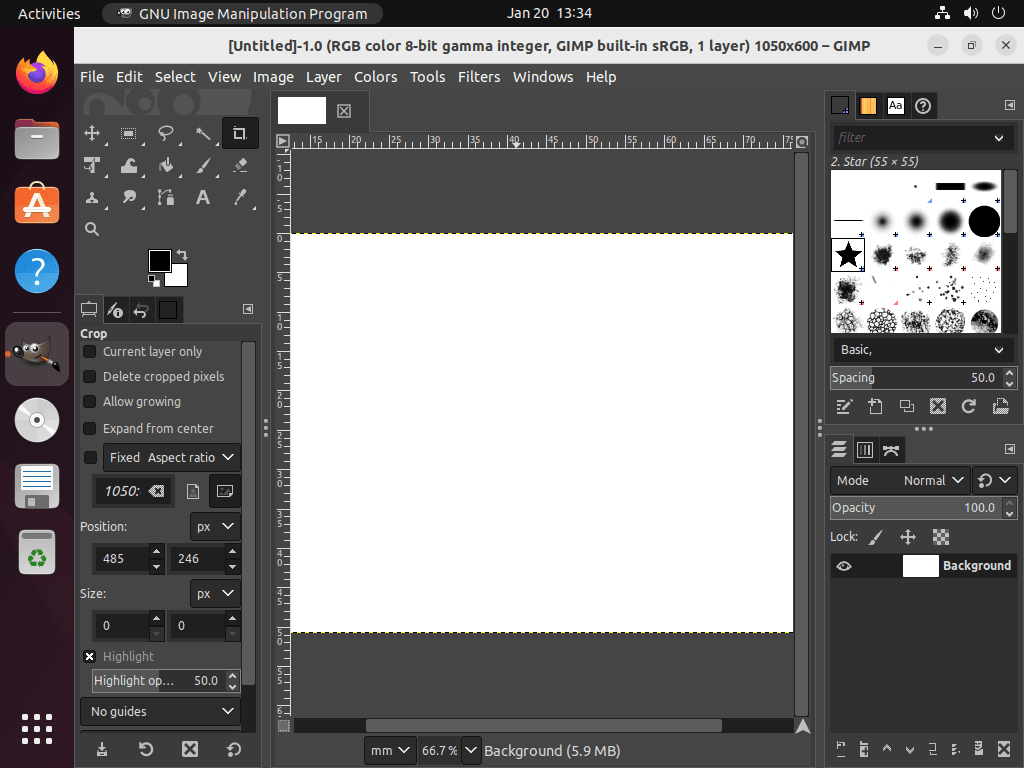
The most common way to launch GIMP is through your desktop environment’s application menu. To open GIMP using this method, follow these steps:
- Click on Activities in the top left corner of your screen.
- Select Show Applications (represented by a grid of dots) or type “GIMP” in the search bar.
- Locate the GNU Image Manipulation Program icon and click on it.
Manage GIMP on Ubuntu
Update GIMP
Keeping GIMP updated ensures you have the latest features, bug fixes, and security patches. Use the appropriate command based on your installation method.
Update GIMP with APT
To update GIMP installed via APT (including PPA installations), run the following commands:
sudo apt update && sudo apt install --only-upgrade gimpUpdate GIMP with Flatpak
To update GIMP installed via Flatpak, execute the following command:
sudo flatpak update org.gimp.GIMPRemove GIMP
If you no longer need GIMP on your system, uninstall it using the appropriate commands based on your installation method.
Remove GIMP with APT
Remove GIMP and clean up orphaned dependencies:
sudo apt remove gimp
sudo apt autoremove
If you imported the GIMP PPA, remove it to prevent future package conflicts:
sudo add-apt-repository --remove ppa:ubuntuhandbook1/gimp -yGIMP stores user settings and cache in
~/.config/GIMP/. These files remain after uninstalling the package. To remove them, runrm -rf ~/.config/GIMP/. Back up any custom brushes, scripts, or profiles before deleting this directory.
Remove GIMP with Flatpak
To uninstall GIMP installed via Flatpak, including its application data, execute the following command:
sudo flatpak uninstall --delete-data org.gimp.GIMP -yAdditionally, remove any unused Flatpak runtimes to free up disk space:
sudo flatpak uninstall --unusedTroubleshoot GIMP Installation on Ubuntu
GIMP 2.x Plugins Not Working After Upgrading to GIMP 3.0
Upgrading from GIMP 2.x to GIMP 3.0 (either via Ubuntu 26.04 or Flatpak) may cause some plugins and scripts to stop working. GIMP 3.0 introduced significant changes to the plugin architecture, so expect compatibility issues with older extensions.
Key changes in GIMP 3.0:
- Python-Fu replaced: The legacy Python-Fu (Python 2) has been replaced with a new Python 3-based API. Older Python plugins must be rewritten.
- Script-Fu updated: Script-Fu remains but has syntax changes that may break older scripts.
- Filter locations moved: Many filters have been reorganized into different menus.
To check which plugins are loaded, go to Filters → Python-Fu → Console (for Python plugins) or Filters → Script-Fu → Console (for Script-Fu). If a plugin you need is not available for GIMP 3.0, consider installing GIMP 2.10.x via the PPA on Ubuntu 22.04/24.04.
GIMP Fails to Start from Terminal
If running gimp in the terminal returns “command not found,” the installation may have failed or the binary may not be in your PATH. First, verify that APT installed the package:
dpkg -l | grep gimpIf no output appears, reinstall GIMP:
sudo apt install --reinstall gimpFor Flatpak installations, confirm that Flatpak configured the paths correctly by running:
flatpak list | grep -i gimpIf GIMP appears in the list but won’t launch, try running it with verbose output to see error messages:
flatpak run org.gimp.GIMP --verboseUseful GIMP Links and Resources
Explore these official resources to deepen your GIMP knowledge:
- GIMP Official Website: Download options, feature overviews, and the latest release news.
- GIMP Documentation: Comprehensive user manual covering all tools and features.
- GIMP Tutorials: Step-by-step guides for photo editing, digital painting, and graphic design.
- GIMP Developer Resources: Source code, development roadmap, and contribution guidelines.
- GIMP on Flathub: Flatpak package page with version history and installation instructions.
Frequently Asked Questions
GIMP 3.0 is not in the default Ubuntu 22.04 or 24.04 repositories, which ship GIMP 2.10.x. To run GIMP 3.0 on these releases, install it through Flatpak from Flathub. Ubuntu 26.04 LTS includes GIMP 3.0 in its default repositories.
The ubuntuhandbook1 GIMP PPA provides the latest GIMP 2.10.x builds for Ubuntu 22.04 and 24.04. It delivers newer bug fixes and features than the default repository version while staying on the stable 2.10 branch. The PPA does not provide GIMP 3.0.
GIMP 3.0 introduces non-destructive editing, improved CMYK support, a new GTK3-based interface, and a Python 3 plugin API replacing the legacy Python 2 system. Older Python-Fu and some Script-Fu plugins need to be rewritten for GIMP 3.0 compatibility.
Yes. Install GIMP 2.10 through APT (default repository or PPA) and GIMP 3.0 through Flatpak. The APT version launches with the gimp command, while the Flatpak version launches with flatpak run org.gimp.GIMP. Both maintain separate configuration directories.
Conclusion
GIMP is now installed on Ubuntu and ready to use. The default APT repository works for most users, the ubuntuhandbook1 PPA delivers the latest 2.10.x builds on older LTS releases, and Flatpak provides GIMP 3.0 with sandboxed isolation. Explore complementary tools like Inkscape for vector graphics, Krita for digital painting, Darktable for RAW photo editing, or ImageMagick for batch image processing.

Formatting tips for your comment
You can use basic HTML to format your comment. Useful tags currently allowed in published comments:
<code>command</code>command<strong>bold</strong><em>italic</em><blockquote>quote</blockquote>