

Firefox Beta on Debian lets you test upcoming browser features roughly four to six weeks before they reach the stable release. Each Beta cycle corresponds to a future stable version, giving you early access to new privacy controls, rendering engine changes, and developer tools while Mozilla collects crash reports and performance telemetry to catch regressions before general release.
Beta sits between the stable release and the more experimental Nightly builds in Mozilla’s release train. Unlike Nightly, which receives daily updates and can break unexpectedly, Beta updates roughly twice per week and undergoes more stability testing. However, by the end of this guide, you will have Firefox Beta installed from Mozilla’s official APT repository with automatic updates enabled.
Update Your Debian System
Before adding external repositories, synchronize your local package index with the Debian mirrors and upgrade any outdated packages. This ensures dependency resolution works correctly when you install Firefox Beta:
sudo apt update && sudo apt upgradeNext, install the packages required to securely fetch and verify the Mozilla repository. The curl utility downloads files over HTTPS, ca-certificates provides the root certificates needed to validate Mozilla’s servers, and gnupg handles GPG signature verification:
sudo apt install curl ca-certificates gnupg -yAdd the Mozilla APT Repository
Mozilla maintains an official APT repository at packages.mozilla.org that provides Firefox packages built and signed by Mozilla directly. Unlike the Firefox ESR packages in Debian’s repositories, which may lag behind and carry distribution-specific patches, Mozilla’s packages match the official releases exactly and update within hours of each new version.
Import the Mozilla GPG Key
APT uses GPG signatures to verify that packages come from their claimed source and haven’t been tampered with. Before adding Mozilla’s repository, you need to import their public signing key so APT can validate package authenticity.
Create the keyrings directory if it does not exist. The /etc/apt/keyrings directory is the standard location for third-party repository keys, keeping them separate from system keys:
sudo install -d -m 0755 /etc/apt/keyringsDownload Mozilla’s GPG signing key and save it to the keyrings directory:
sudo curl -fsSLo /etc/apt/keyrings/packages.mozilla.org.asc https://packages.mozilla.org/apt/repo-signing-key.gpgVerify the key fingerprint matches Mozilla’s published fingerprint. This step confirms you downloaded the legitimate key and not a malicious substitute:
gpg -n -q --import --import-options import-show /etc/apt/keyrings/packages.mozilla.org.asc | awk '/pub/{getline; gsub(/^ +| +$/,""); print}'The output should display:
35BAA0B33E9EB396F59CA838C0BA5CE6DC6315A3
If the fingerprint does not match, delete the key file with sudo rm /etc/apt/keyrings/packages.mozilla.org.asc and re-download it. Do not proceed with a mismatched key—this could indicate a man-in-the-middle attack or corrupted download.
Configure the Repository Source
Create the repository configuration file using the DEB822 format. This format separates each field onto its own line, making it easier to read and modify than the older single-line format. The Signed-By field restricts this key to only validate packages from this specific repository, which is more secure than adding keys to the global trusted keyring:
cat <<EOF | sudo tee /etc/apt/sources.list.d/mozilla.sources
Types: deb
URIs: https://packages.mozilla.org/apt
Suites: mozilla
Components: main
Signed-By: /etc/apt/keyrings/packages.mozilla.org.asc
EOF
Set APT Package Priority
Debian’s repositories include Firefox ESR, and without explicit priority rules, APT might prefer the Debian package over Mozilla’s. Consequently, the following pin configuration tells APT to always prefer Firefox packages from the Mozilla repository:
cat <<EOF | sudo tee /etc/apt/preferences.d/mozilla
Package: firefox*
Pin: release o=namespaces/moz-fx-productdelivery-pr-38b5/repositories/mozilla
Pin-Priority: 1000
EOF
A pin priority of 1000 is higher than the default priority of 500, ensuring Mozilla’s Firefox packages always win during dependency resolution. The release o= syntax matches the repository’s Origin field from its InRelease metadata, which APT uses for reliable pinning. This prevents situations where a system upgrade might unexpectedly switch you from Firefox Beta back to Debian’s Firefox ESR.
Install Firefox Beta
Refresh the package index to pull metadata from the newly added Mozilla repository, then install Firefox Beta:
sudo apt update
sudo apt install firefox-beta -y
The apt update output should include a line showing APT successfully contacted the Mozilla repository:
Get:6 https://packages.mozilla.org/apt mozilla InRelease
Verify the installation succeeded by checking the installed version:
firefox-beta --versionExpected output:
Mozilla Firefox 1xx.0bX
The version number will differ depending on the current Beta cycle. The b suffix indicates a Beta build, with the number after it representing the specific build within that cycle.
The Mozilla APT repository also provides
firefox(stable),firefox-esr(Extended Support Release),firefox-nightly, andfirefox-devedition. You can install multiple versions side by side and run them simultaneously since each uses a separate binary name and can maintain its own profile.
Install a Different Language Pack
Firefox Beta defaults to American English for the interface and spell-checking. Mozilla provides separate language packs that translate menus, dialogs, and built-in pages without requiring a full reinstall. To switch languages, install the corresponding localization package where CODE is the two-letter language code (e.g., de for German, fr for French, ja for Japanese):
sudo apt install firefox-beta-l10n-CODEAfter installation, open Firefox Beta’s settings and change the language under General → Language. You may need to restart the browser for all interface elements to update.
To see all available language packs:
apt-cache search firefox-beta-l10nLaunch Firefox Beta
Launch from Terminal
Run the browser directly from the command line. Furthermore, launching from the terminal is useful when you want to see console output for debugging web applications or diagnosing browser issues:
firefox-betaAdd the ampersand suffix to run Firefox Beta in the background and return control to your terminal session:
firefox-beta &Launch from Applications Menu
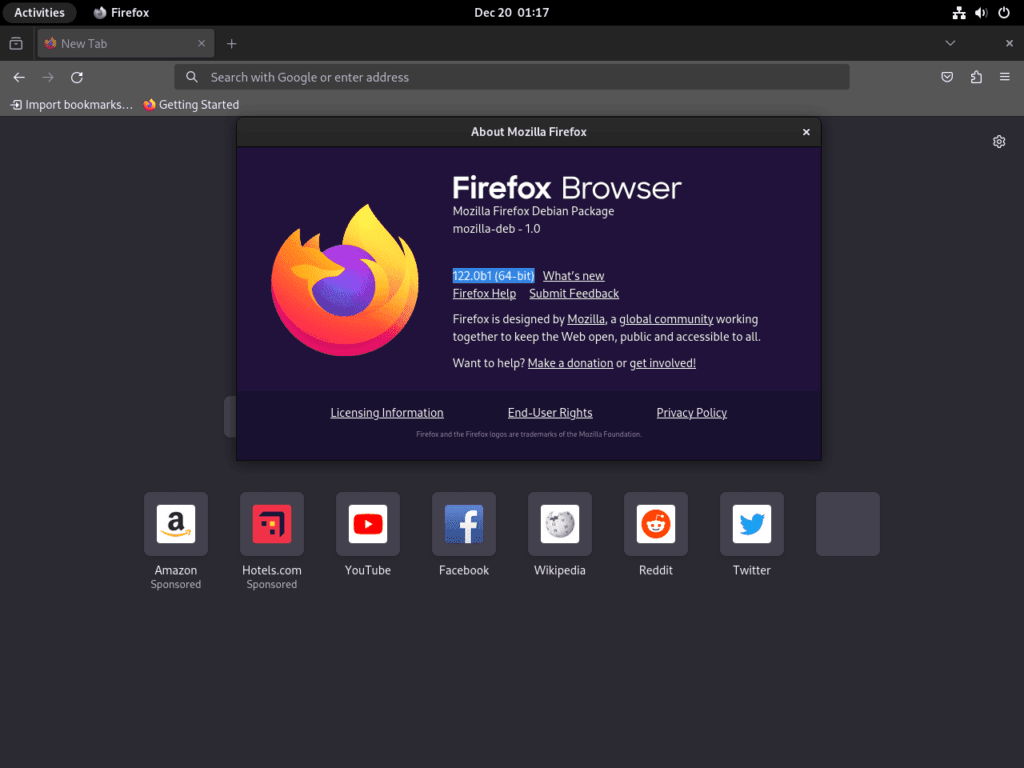
Open your desktop’s application menu, search for “Firefox Beta,” and click the icon to launch. The installation creates a desktop entry automatically, so the browser appears alongside your other applications without any additional configuration.
Manage Firefox Beta
Update Firefox Beta
Mozilla publishes Beta updates roughly twice per week, and sometimes more frequently when critical fixes are needed. Because Firefox Beta comes from an APT repository, updates arrive through your normal system update process rather than requiring manual downloads:
sudo apt update && sudo apt upgradeThe APT pin configuration you created earlier ensures that Firefox Beta updates always come from Mozilla’s repository, even if Debian’s repositories happen to contain a package with a higher version number. This prevents unexpected version changes during system upgrades.
Remove Firefox Beta
Uninstall Firefox Beta while keeping your profile data intact. This removes the browser binary and related files but preserves your bookmarks, history, passwords, and extensions in case you reinstall later:
sudo apt remove firefox-beta
sudo apt autoremove
If you no longer need any Firefox packages from Mozilla’s repository, remove the repository configuration, GPG key, and APT pin. Leaving orphaned repository files can cause warnings during future apt update operations if Mozilla changes their infrastructure:
sudo rm /etc/apt/sources.list.d/mozilla.sources
sudo rm /etc/apt/keyrings/packages.mozilla.org.asc
sudo rm /etc/apt/preferences.d/mozilla
After removing the repository files, refresh the package index so APT no longer looks for the Mozilla repository:
sudo apt updateKeep the Mozilla repository if you have other Firefox packages installed (stable, ESR, Nightly, or Developer Edition).
To remove your Firefox profile data including bookmarks, history, saved passwords, and extension configurations:
The following command permanently deletes your Firefox profile directory. Export bookmarks through Bookmarks → Manage Bookmarks → Import and Backup → Export Bookmarks to HTML and note any saved passwords you need before running this command. Firefox stores all user data in this directory, and deletion cannot be undone.
rm -rf ~/.mozilla/firefox/Firefox also stores crash reports and telemetry data in ~/.mozilla/. To remove everything Mozilla-related from your home directory:
rm -rf ~/.mozilla/Conclusion
You now have Firefox Beta installed from Mozilla’s official APT repository with GPG signature verification and automatic updates through APT. The repository pin ensures consistent updates from Mozilla regardless of what Firefox packages Debian’s repositories might offer. To provide feedback on bugs or regressions you encounter, use Help → Report Site Issue or visit Mozilla’s Bugzilla. For additional browser options on Debian, consider Firefox stable, Chromium, or Brave.

Formatting tips for your comment
You can use basic HTML to format your comment. Useful tags currently allowed:
<code>command</code>command<strong>bold</strong><em>italic</em><a href="URL">link</a><blockquote>quote</blockquote>