
Arduino IDE on Ubuntu turns a desktop session into a board-programming workspace for writing sketches, installing board cores, managing libraries, and uploading code over USB. The main choice is how you want updates handled: Ubuntu’s repository gives you the distro-tested IDE 1.8.x package, Snap and Flatpak keep the app isolated, and Flathub also offers the newer IDE 2.x branch.
The graphical Arduino IDE and Arduino CLI serve different workflows. If you need terminal-only board, library, and sketch automation, Arduino CLI is a separate tool with its own official Arduino CLI installation workflow.
Install Arduino IDE on Ubuntu
Use the table to choose a package source before running commands. The APT package is the most integrated option, while Flatpak IDE 2.x is the practical package-managed path for the modern interface.
| Method | Channel | Version | Updates | Best For |
|---|---|---|---|---|
| APT (Default Repository) | Ubuntu Repos | IDE 1.8.19 | Automatic via apt upgrade | Distro-tested package and USB helper script |
| Snap | Snapcraft | IDE 1.8.19 | Automatic background updates | Snap users who accept community-maintained packaging |
| Flatpak (IDE 1.x) | Flathub | IDE 1.8.x | Automatic via flatpak update | Flatpak users who prefer the classic IDE |
| Flatpak (IDE 2.x) | Flathub | IDE 2.x | Automatic via flatpak update | Modern IDE features without manual AppImage updates |
Arduino’s official Linux downloads are AppImage and ZIP archives from the Arduino software page, not an official DEB package. Those manual downloads are useful when you specifically want upstream binaries, but they do not update through APT, Snap, or Flatpak, so they are not the main flow below.
For most users, the APT method is the simplest starting point because it integrates with Ubuntu’s package management and includes the arduino-add-groups utility for USB permissions. If you need IDE 2.x features such as autocomplete, board manager improvements, and live debugging, choose Flatpak IDE 2.x or Arduino’s official AppImage or ZIP download instead.
These steps cover Ubuntu 26.04 LTS, 24.04 LTS, and 22.04 LTS. The Ubuntu repository package installed successfully on all three supported LTS releases during validation, with Arduino IDE 1.8.19 and release-specific Debian revision suffixes.
Install Arduino IDE via Ubuntu Repository
With the APT method, Arduino IDE installs directly from Ubuntu’s repository. This approach provides a stable package, tracks system updates, and includes helper scripts for configuring USB permissions.
Update Your System Packages
Before installing new software, first refresh your package index and upgrade existing packages. Doing so ensures you have the latest security patches and also prevents dependency conflicts:
sudo apt update && sudo apt upgradeIf your account cannot run
sudocommands yet, follow our guide to add a user to sudoers on Ubuntu before continuing.
Install Arduino IDE from APT
The arduino package comes from Ubuntu’s Universe component. Standard desktop installs usually have Universe enabled; on minimal systems, enable the Universe repository on Ubuntu first if APT cannot locate the package.
Install Arduino IDE and its dependencies with APT:
sudo apt install arduinoThis command installs Arduino IDE 1.8.19, Java libraries, and AVR board tooling such as avrdude, gcc-avr, and arduino-core-avr. ARM board cores are normally installed later through the IDE’s Boards Manager rather than by installing Ubuntu’s gcc-arm-none-eabi package manually.
The package also adds the arduino-add-groups utility for configuring USB permissions.
Configure USB Permissions
Arduino boards connect via USB serial ports, which require your user account to be a member of the dialout group. Without this permission, the IDE cannot upload sketches to your board. Run the included helper script to add your user to the required group:
sudo arduino-add-groupsAfter running this command, log out and log back in for the group membership to take effect. Alternatively, if you prefer the manual approach, you can add yourself to the dialout group:
sudo usermod -aG dialout $USERVerify the APT Installation
To confirm that Arduino IDE installed correctly, check which packages were installed:
apt-cache policy arduinoExpected output on Ubuntu 26.04 looks like this:
arduino:
  Installed: 2:1.8.19+dfsg1-5
  Candidate: 2:1.8.19+dfsg1-5
  Version table:
 *** 2:1.8.19+dfsg1-5 500
        500 http://au.archive.ubuntu.com/ubuntu resolute/universe amd64 Packages
        100 /var/lib/dpkg/status
The mirror hostname can differ by region. Ubuntu 26.04 currently uses the
-5revision, 24.04 uses-2, and 22.04 uses-1; all three provide Arduino IDE 1.8.19.
Install Arduino IDE via Snap
Snap provides a sandboxed installation that runs independently of your system libraries. This method is convenient if you prefer automatic background updates and application isolation.
Verify Snap Availability
By default, Ubuntu includes Snap on standard desktop installations. On minimal Ubuntu systems where the snap command is missing, install the Snap daemon first:
sudo apt install snapdInstall the Arduino Snap
Once Snap is available, install Arduino IDE using the following command:
sudo snap install arduinoTo verify the installation was successful, list installed Snap packages:
snap list arduinoExpected output:
Name     Version  Rev  Tracking       Publisher      Notes
arduino  1.8.19   85   latest/stable  snapcrafters*  -
The Snap version of Arduino IDE is community-maintained by Snapcrafters and may lag behind official Arduino releases. The stable channel currently provides Arduino IDE 1.8.19, so choose Flatpak IDE 2.x or Arduino’s official AppImage or ZIP download if you need the modern IDE.
Configure USB Permissions for Snap
The current Arduino snap auto-connects raw-usb, while serial-port remains disconnected unless a matching serial slot exists. Verify the interface state after installation:
snap connections arduino | grep -E 'raw-usb|serial-port'raw-usb arduino:raw-usb :raw-usb - serial-port arduino:serial-port - -
USB serial uploads still need your Ubuntu account in the dialout group:
sudo usermod -aG dialout $USEROnce you log out and back in, the group changes will take effect.
Install Arduino IDE via Flatpak
With Flatpak, Arduino IDE runs in a sandbox with its own runtime libraries. Flathub hosts both Arduino IDE 1.x for the classic interface and Arduino IDE 2.x for the modern interface.
Flatpak is not pre-installed on Ubuntu. If you have not set it up yet, follow our guide to install Flatpak on Ubuntu before continuing.
Enable the Flathub Repository
Add the Flathub repository at system scope if it is not already configured:
sudo flatpak remote-add --if-not-exists flathub https://dl.flathub.org/repo/flathub.flatpakrepoConfirm that the remote exists before installing the app:
flatpak remotes --columns=name,optionsflathub system
Install Arduino IDE 1.x with Flatpak
Arduino IDE 1.x provides the classic interface that many long-time users prefer. To install it, run:
sudo flatpak install flathub cc.arduino.arduinoide -yInstall Arduino IDE 2.x with Flatpak
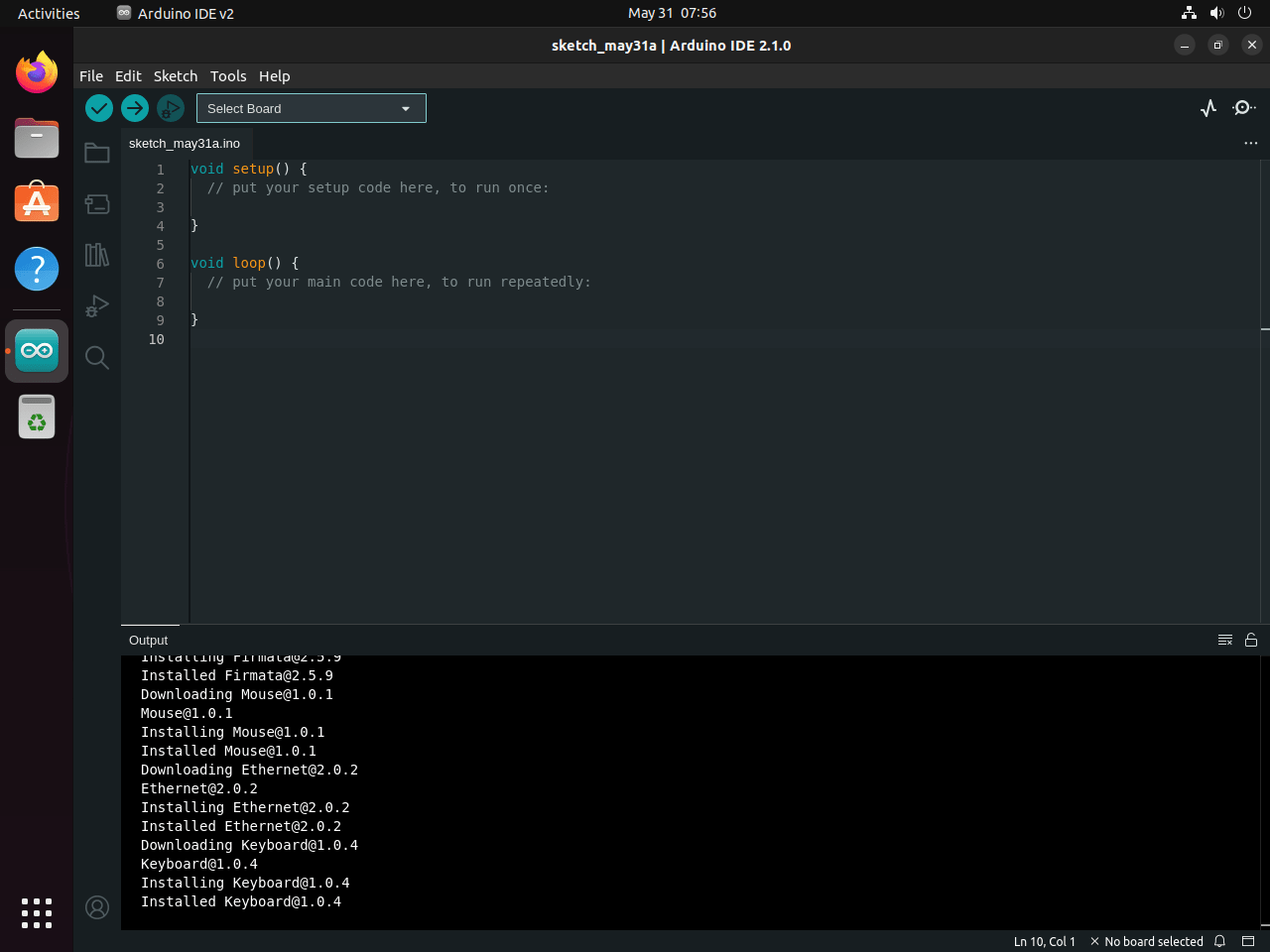
Arduino IDE 2.x is a complete rewrite with a modern interface, code autocompletion, syntax highlighting, and an integrated live debugger. To install it, run:
sudo flatpak install flathub cc.arduino.IDE2 -yThe Flatpak version of Arduino IDE 2.x is community-maintained and not officially supported by Arduino. For issues specific to the Flatpak wrapper, report them to the Flathub issue tracker rather than Arduino’s official support channels.
Configure USB Permissions for Flatpak
The Flathub manifests for both Arduino IDE 1.x and 2.x currently request devices=all, so do not add a redundant Flatpak device override. Your Ubuntu user still needs access to serial devices through the dialout group:
sudo usermod -aG dialout $USERAfter logging out and back in, verify the Flatpak installation:
flatpak list --app --columns=name,application,version,installation | grep -i arduinoExpected output for IDE 2.x:
Arduino IDE cc.arduino.IDE2 2.x.x system
Once group membership has refreshed, reconnect the board and select the detected port from the IDE.
Launch Arduino IDE
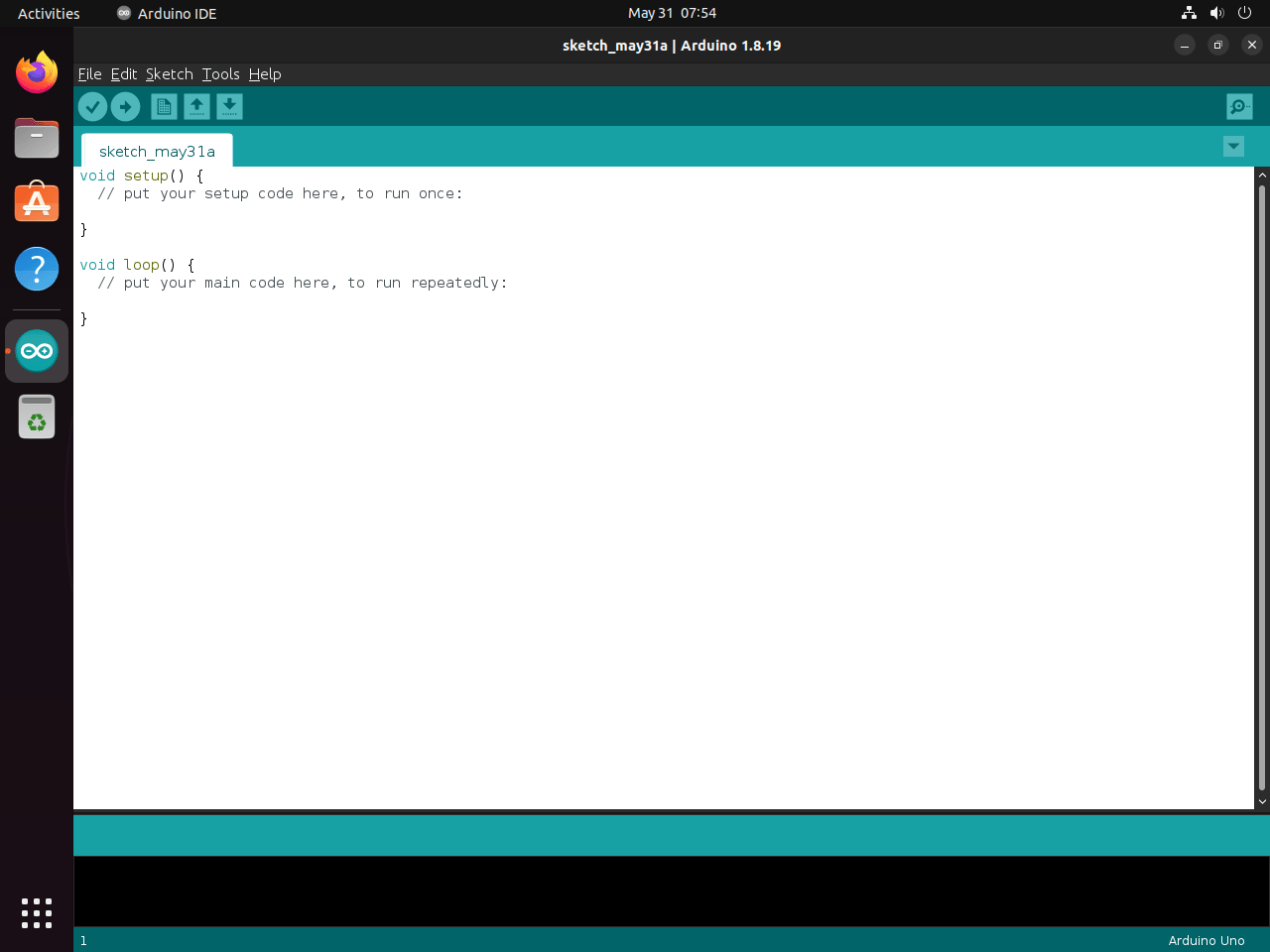
Once the installation completes, launch Arduino IDE from your desktop menu or with the terminal command that matches your installation method.
Launch from the Applications Menu
Open Activities, type “Arduino” in the search field, and click the Arduino IDE icon. If you installed both IDE 1.x and 2.x through Flatpak, you will see two entries; select the version you want to use.
Launch from Terminal
Alternatively, terminal launch commands vary by installation method:
APT installation:
arduinoSnap installation:
snap run arduinoFlatpak Arduino IDE 1.x:
flatpak run cc.arduino.arduinoideFlatpak Arduino IDE 2.x:
flatpak run cc.arduino.IDE2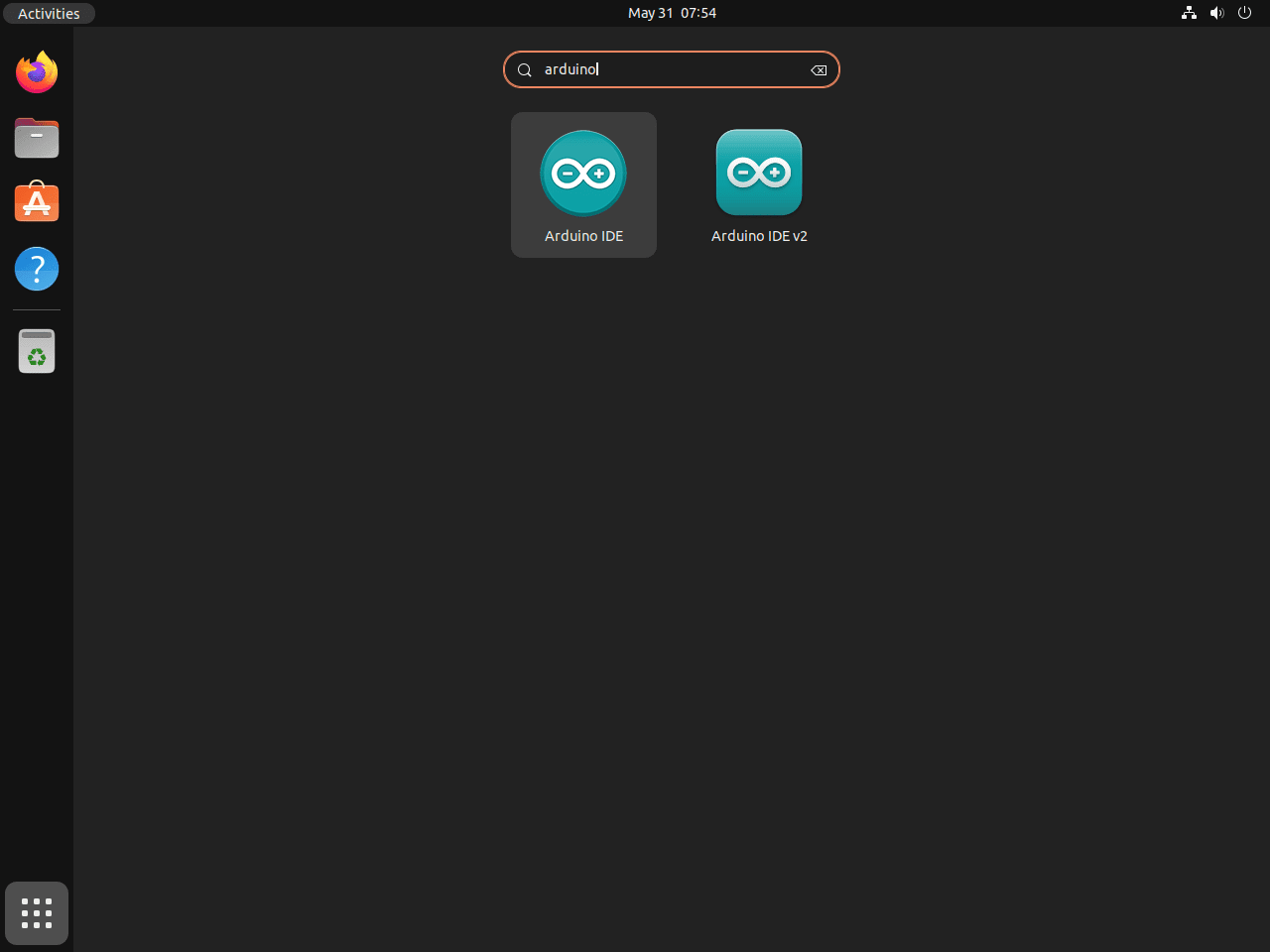
Troubleshooting Common Issues
Arduino Board Not Detected
When the IDE cannot detect your Arduino board, the most common cause is insufficient USB permissions. First, verify that your current login session includes the dialout group:
id -nG | tr ' ' '\n' | grep '^dialout$'dialout
If dialout does not appear in the output, add yourself to the group and log out:
sudo usermod -aG dialout $USERAfter logging back in, reconnect your Arduino board. Then, to verify the device is recognized, check the /dev directory:
ls /dev/ttyACM* /dev/ttyUSB* 2>/dev/null/dev/ttyACM0
If this command shows devices like /dev/ttyACM0 or /dev/ttyUSB0, then your board is connected and recognized by the system.
Upload Fails with Permission Denied
Even after adding yourself to the dialout group, uploads may fail if you have not started a new login session. Remember that group memberships only take effect after logging out completely. If you are using a graphical session, logging out and back in should resolve this. For terminal sessions, you can verify your current group membership:
idThe output should include dialout in the groups list:
uid=1000(username) gid=1000(username) groups=1000(username),20(dialout),27(sudo)...
If dialout is missing from the current session after you already added the group, log out completely and sign in again.
Serial Monitor Shows Garbage Characters
If the Serial Monitor displays unreadable characters instead of expected output, verify that the baud rate in your sketch matches the baud rate selected in the Serial Monitor. The default is often 9600, while many projects use 115200 for faster communication.
Manage Arduino IDE
Update Arduino IDE
Each installation method uses its own update path:
APT installation:
sudo apt update && sudo apt install --only-upgrade arduinoSnap installation:
sudo snap refresh arduinoFlatpak installation:
sudo flatpak update -yRemove Arduino IDE
Use the removal command that matches the installation method you chose.
APT removal:
sudo apt remove arduinoAfter removing the package, review unused dependencies before accepting the cleanup:
sudo apt autoremoveSnap removal:
sudo snap remove --purge arduinoFlatpak removal (IDE 1.x):
sudo flatpak remove cc.arduino.arduinoide -yFlatpak removal (IDE 2.x):
sudo flatpak remove cc.arduino.IDE2 -yArduino IDE stores sketches and libraries in your home directory at
~/Arduinoand~/.arduino15. Back up sketches you want to keep before deleting these directories.
To remove Arduino user data after backing it up, run:
rm -rf "$HOME/Arduino" "$HOME/.arduino15"Package removal does not undo the dialout membership you added for USB uploads. If Arduino was the only reason you needed serial-device access, remove your account from the group and start a new login session:
sudo gpasswd -d "$USER" dialoutFinally, clean up unused Flatpak runtimes after removing Flatpak apps:
sudo flatpak uninstall --unused -yConclusion
Arduino IDE is ready on Ubuntu once the package is installed, your account belongs to dialout, and the board appears as a serial device. Use APT when you want the distro-tested IDE 1.8.19 package and helper script, Snap when you already prefer Snap packages, or Flatpak IDE 2.x when you want the newer editor through package-managed updates.
For another Debian-family path, see our guide to install Arduino IDE on Debian Linux.
Useful Links
The following official resources provide additional documentation and community support:
- Arduino Official Website: hardware specifications, software downloads, and project inspiration
- Arduino Documentation: comprehensive guides for hardware setup and programming reference
- Arduino Forum: community discussions, troubleshooting help, and project sharing
- Arduino Project Hub: curated collection of community projects with step-by-step tutorials


Formatting tips for your comment
You can use basic HTML to format your comment. Useful tags currently allowed in published comments:
<code>command</code>command<strong>bold</strong><em>italic</em><blockquote>quote</blockquote>