
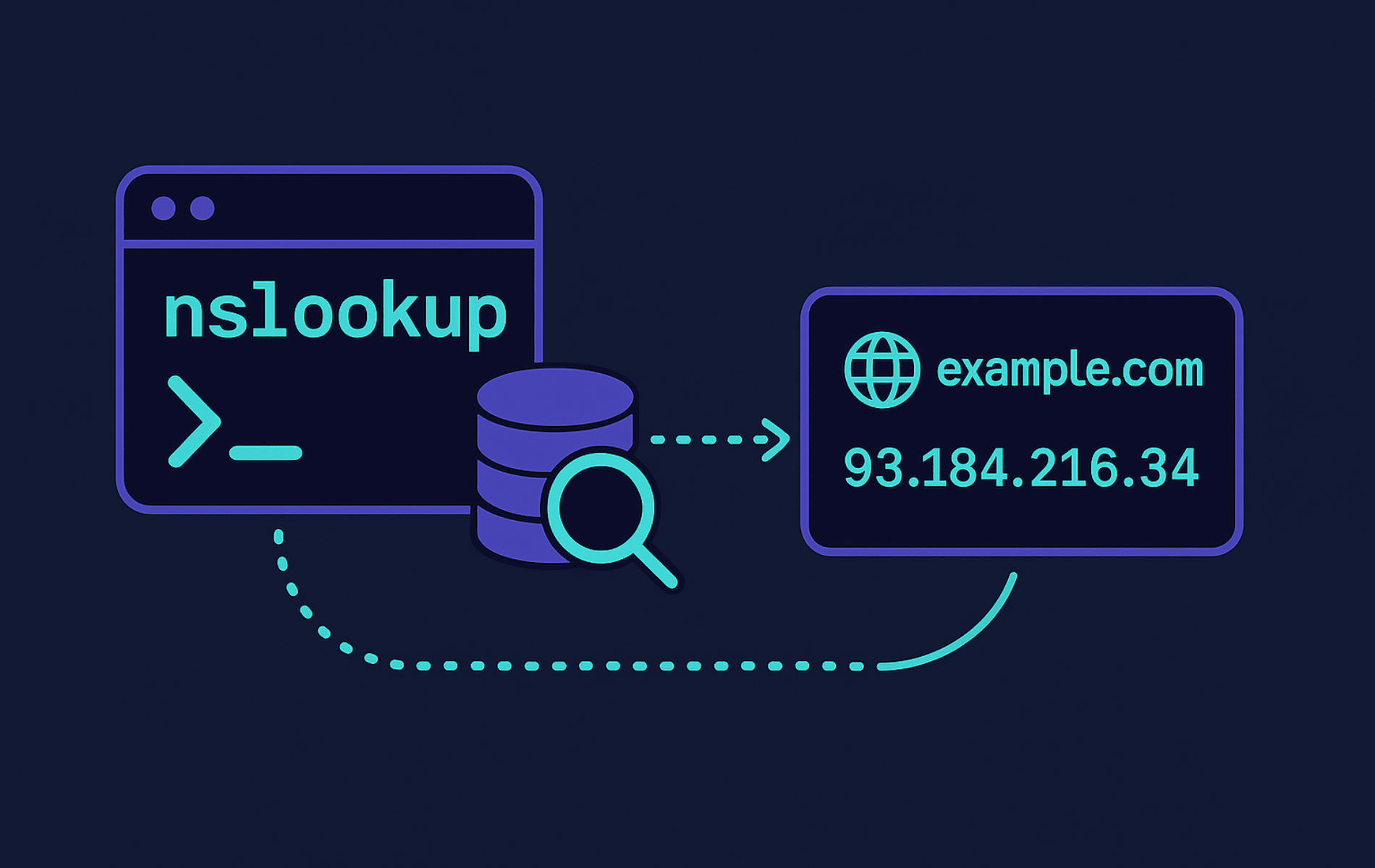
nslookup is a DNS troubleshooting utility for translating domain names to IP addresses and back. It queries mail server records, inspects delegation paths, and reveals what DNS servers publish for any domain. When a website fails to load, email stops flowing, or you need to verify DNS propagation after making changes, nslookup gives you direct answers from the source.
This guide covers forward and reverse lookups, specific record type queries, alternate DNS server testing, debug output, and interactive mode. You will learn to diagnose email delivery issues by checking MX records, verify SSL certificate authority permissions with CAA lookups, and compare resolver responses to identify caching problems. For related network diagnostics, pair nslookup with grep for filtering DNS output, nmap for network discovery, and tail to monitor DNS logs. If you encounter “could not resolve host” errors elsewhere, see our guide on fixing curl DNS resolution failures.
Understand the nslookup Command
Think of nslookup as a direct line to DNS servers. You ask a question about a domain, and it returns the answer from the authoritative source or your configured resolver. Unlike web-based DNS tools, nslookup runs locally, giving you control over which DNS server answers each query. The tool also reveals low-level record data that browser-based utilities often hide.
Basic Command Structure
The basic nslookup syntax follows this structure:
nslookup [option] [hostname] [server]- [option]: Optional flag that refines the query, such as
-type=mxor-debug. - [hostname]: Domain name or IP address you want to query. Examples:
example.com,93.184.216.34,subdomain.example.org. - [server]: Optional DNS server IP that replaces your default resolver. Examples:
8.8.8.8(Google DNS),1.1.1.1(Cloudflare DNS).
Quick Reference Table
This table organizes nslookup options by task. Use it to quickly find the right flag for your scenario:
| Task | Options | What They Do |
|---|---|---|
| Basic Lookups | nslookup domain, nslookup IP | Forward lookup (domain to IP) or reverse lookup (IP to domain) |
| Query Specific Records | -type=a, -type=aaaa, -type=mx, -type=ns, -type=txt, -type=soa, -type=cname, -type=caa | Retrieve A (IPv4), AAAA (IPv6), mail servers, name servers, TXT records, SOA details, CNAME aliases, or CAA certificate policies |
| Use Alternate DNS Server | nslookup domain 8.8.8.8 | Query Google DNS, Cloudflare DNS, or any specific resolver instead of your default |
| Debugging and Verbose Output | -debug | Show detailed query/response information, packet details, TTL values, and resolution process |
| Interactive Mode | nslookup (no arguments) | Enter interactive session for multiple queries without re-typing the command |
| Timeout Control | -timeout=N | Set query timeout in seconds (N) before aborting if no response |
Install or Verify nslookup Availability
Most Linux distributions include nslookup in their DNS utilities package. RHEL-based systems use bind-utils, Debian-based systems use dnsutils, and Arch-based distributions bundle it with the full bind package. Minimal server images and containers often omit DNS tools to save space, so verify availability first.
Verify nslookup Availability
Check whether nslookup is already installed:
command -v nslookup || echo "nslookup not found"If installed, you see the binary path:
/usr/bin/nslookup
If you see “nslookup not found”, install the appropriate package for your distribution below.
Ubuntu and Debian-Based Distributions
sudo apt install dnsutils -yFedora, RHEL, Rocky Linux, and AlmaLinux
sudo dnf install bind-utils -yArch Linux and Manjaro
sudo pacman -S bindopenSUSE
sudo zypper install bind-utilsAlpine Linux
Alpine includes a lightweight BusyBox implementation of nslookup by default. This version supports basic lookups and the -type= flag, which handles most common tasks. For the full BIND nslookup with all features including -debug mode, install the complete tools package:
sudo apk add bind-toolsGentoo
sudo emerge --ask net-dns/bind-toolsVoid Linux
sudo xbps-install -S bindCommon and Practical nslookup Command Examples
The following 15 examples cover frequent and specialized nslookup tasks. Each includes a description, the command, and expected output so you know what success looks like.
Example 1: Run a Basic Domain Name Query
Use a basic nslookup query whenever you need to confirm a domain resolves and see its IP address. This is typically the first DNS troubleshooting step. If the domain fails here, the issue lies with DNS records, network connectivity, or the domain itself.
nslookup google.comExpected output showing the DNS server that answered and the resolved IP addresses:
Server:		192.168.1.1
Address:	192.168.1.1#53

Non-authoritative answer:
Name:	google.com
Address: 142.250.124.138
Name:	google.com
Address: 142.250.124.113
Name:	google.com
Address: 142.250.124.101
The “Non-authoritative answer” label indicates the response came from a caching resolver rather than the domain’s authoritative name server. Multiple IP addresses are normal for large sites that use load balancing.
Example 2: Query a Specific DNS Server
When you troubleshoot DNS propagation or compare resolvers, bypass your default DNS server and query a specific one directly. This approach helps when you suspect cached ISP data or want to compare authoritative answers with public resolvers.
nslookup google.com 8.8.8.8Expected output showing Google’s DNS server answered the query:
Server:		8.8.8.8
Address:	8.8.8.8#53

Non-authoritative answer:
Name:	google.com
Address: 142.250.124.138
Name:	google.com
Address: 142.250.124.100
Compare this answer with your local resolver to see if caches differ. Different answers highlight propagation delays or stale caches. Common alternate DNS servers include 1.1.1.1 (Cloudflare), 9.9.9.9 (Quad9), and 8.8.4.4 (Google’s secondary).
Example 3: Query Mail Exchange (MX) Records
Before configuring a mail server or troubleshooting delivery, identify which hosts accept mail for the domain. MX records list those servers with priority values that control delivery order when multiple hosts exist.
nslookup -type=mx google.comExpected output showing the mail exchanger and its priority:
Server:		192.168.1.1
Address:	192.168.1.1#53

Non-authoritative answer:
google.com	mail exchanger = 10 smtp.google.com.

Authoritative answers can be found from:
The number before the mail server (10 in this example) is the priority. Lower numbers indicate preferred servers. When multiple MX records exist, mail delivery attempts the lowest priority first and falls back to higher numbers if needed.
Example 4: Perform a Reverse DNS Lookup
Reverse DNS reveals the domain name tied to an IP address. Use it when reading server logs that show only IP addresses or when tracking spam sources. Mail servers often require forward and reverse DNS to match (forward-confirmed reverse DNS), so check both directions when troubleshooting email delivery.
nslookup 8.8.8.8Expected output when a PTR record exists:
Server:		192.168.1.1
Address:	192.168.1.1#53

Non-authoritative answer:
8.8.8.8.in-addr.arpa	name = dns.google.

Authoritative answers can be found from:
If no PTR record exists, nslookup reports “server can’t find” with NXDOMAIN. Many residential ISP and cloud provider IP ranges lack reverse entries, which causes some mail servers to reject outgoing mail from those addresses.
Example 5: Query Name Server (NS) Records
Query NS records to learn which DNS servers are authoritative for a domain. Do this when migrating DNS hosting, troubleshooting delegation, or verifying that nameserver changes propagated after a registrar update.
nslookup -type=ns google.comExpected output showing all authoritative name servers:
Server:		192.168.1.1
Address:	192.168.1.1#53

Non-authoritative answer:
google.com	nameserver = ns2.google.com.
google.com	nameserver = ns3.google.com.
google.com	nameserver = ns4.google.com.
google.com	nameserver = ns1.google.com.

Authoritative answers can be found from:
Domains typically publish multiple name servers for redundancy. If you recently changed nameservers at your registrar, query different public DNS servers to verify the change propagated globally.
Example 6: Query Specific DNS Record Types
DNS stores many record types beyond A records. Each reveals different data useful for specific troubleshooting scenarios. The table below shows common record types and when to query them:
| Record Type | Command | When to Use It |
|---|---|---|
| CNAME | nslookup -type=cname www.example.com | Reveal whether a hostname is an alias pointing to another canonical name |
| TXT | nslookup -type=txt example.com | Read SPF/DKIM policies, domain ownership verification strings, and API validation tokens |
| AAAA | nslookup -type=aaaa example.com | Verify IPv6 addresses for dual-stack services |
| SOA | nslookup -type=soa example.com | Inspect zone serial numbers, refresh timers, and authoritative contacts |
| CAA | nslookup -type=caa example.com | Check which certificate authorities may issue TLS certificates for the domain |
If a record type does not exist for the queried domain, nslookup returns “No answer” or “can’t find”. Move to the next relevant type until you find the information you need.
Example 7: Run an Advanced Query with Debug Information
Use debug mode when a DNS query fails or returns unexpected data. It shows the query sent, the response received, packet details, and intermediate steps. That deeper view helps diagnose DNSSEC validation failures, incorrect TTL values, and mismatched resolver behavior.
nslookup -debug google.comExpected output showing detailed query information including TTL values:
Server:		192.168.1.1
Address:	192.168.1.1#53

------------
    QUESTIONS:
	google.com, type = A, class = IN
    ANSWERS:
    ->  google.com
	internet address = 142.250.124.138
	ttl = 258
    ->  google.com
	internet address = 142.250.124.113
	ttl = 258
    AUTHORITY RECORDS:
    ADDITIONAL RECORDS:
------------
Non-authoritative answer:
Name:	google.com
Address: 142.250.124.138
The TTL (time-to-live) values show how long resolvers cache the answer in seconds. Low TTLs mean frequent re-queries to authoritative servers, while high TTLs mean changes propagate slowly. This information helps when planning DNS migrations or troubleshooting caching issues.
Example 8: Query IPv6 Address (AAAA Record)
As IPv6 adoption grows, many services publish both A and AAAA records. Query AAAA records when troubleshooting IPv6 connectivity, verifying dual-stack deployments, or confirming that new IPv6 DNS entries exist.
nslookup -type=aaaa google.comExpected output when IPv6 records exist:
Server:		192.168.1.1
Address:	192.168.1.1#53

Non-authoritative answer:
Name:	google.com
Address: 2607:f8b0:4004:800::200e
If no AAAA record exists, nslookup returns “No answer”, meaning the domain is IPv4-only. Most modern clients prefer IPv6 when both record types exist, which can affect troubleshooting if IPv6 connectivity has issues but IPv4 works.
Example 9: Set Query Timeout
When you query slow or unreliable DNS servers, set a timeout so nslookup does not hang indefinitely. Timeouts help when testing distant servers, dealing with latency, or scripting predictable behavior.
nslookup -timeout=5 example.comExpected output when the query completes within the timeout:
Server:		192.168.1.1
Address:	192.168.1.1#53

Non-authoritative answer:
Name:	example.com
Address: 93.184.216.34
This sets a 5-second timeout, after which nslookup aborts if no response arrives. Use 5-15 seconds for manual work or 1-3 seconds for automation that needs fast failure detection. If the query times out, you see “;; connection timed out; no servers could be reached” instead.
Example 10: Use nslookup in Interactive Mode
Interactive mode speeds up repetitive DNS testing. Use it to run several queries, compare record types, or test multiple DNS servers without retyping commands. Once inside interactive mode, you can change settings with minimal keystrokes.
nslookupThis launches an interactive prompt. Type domain names directly to query them:
> google.com
Server:		192.168.1.1
Address:	192.168.1.1#53

Non-authoritative answer:
Name:	google.com
Address: 142.250.124.138

> set type=mx
> google.com
Server:		192.168.1.1
Address:	192.168.1.1#53

Non-authoritative answer:
google.com	mail exchanger = 10 smtp.google.com.

> server 8.8.8.8
Default server: 8.8.8.8
Address: 8.8.8.8#53

> exit
Common interactive commands include set type=mx to change record type, server 8.8.8.8 to switch DNS servers, help or ? to display all available commands, and exit to leave interactive mode.
Example 11: Check SOA Records
The Start of Authority (SOA) record lists the primary nameserver, admin contact, zone serial, and timing values. Check it when troubleshooting why secondary nameservers have not picked up zone changes or when verifying zone transfer configurations.
nslookup -type=soa google.comExpected output showing zone administration details:
Server:		192.168.1.1
Address:	192.168.1.1#53

Non-authoritative answer:
google.com
	origin = ns1.google.com
	mail addr = dns-admin.google.com
	serial = 864788645
	refresh = 900
	retry = 900
	expire = 1800
	minimum = 60

Authoritative answers can be found from:
Pay special attention to the serial number. It increments with each zone update. If the serial stays static after you make DNS changes, the zone file did not reload correctly on the primary server.
Example 12: Query TXT Records
TXT records store critical email authentication data and domain verification strings. They hold SPF entries that authorize mail servers, DKIM keys for email signing, and verification tokens for services like Google Workspace or Microsoft 365. DMARC policies live at _dmarc.example.com, and DKIM keys are at selector._domainkey.example.com.
nslookup -type=txt google.comExpected output showing various TXT records including SPF:
Server:		192.168.1.1
Address:	192.168.1.1#53

Non-authoritative answer:
google.com	text = "v=spf1 include:_spf.google.com ~all"
google.com	text = "google-site-verification=wD8N7i1JTNTkezJ49swvWW48f8_9xveREV4oB-0Hf5o"
google.com	text = "facebook-domain-verification=22rm551cu4k0ab0bxsw536tlds4h95"

Authoritative answers can be found from:
To query DMARC or DKIM entries, specify those subdomains directly:
nslookup -type=txt _dmarc.google.comExample 13: Find All Records Associated with a Domain
Query all record types when you need a complete snapshot of a domain’s DNS configuration. This helps during initial setups, migration planning, or security audits.
nslookup -type=any google.comExpected output showing multiple record types (results vary by DNS server):
Server:		192.168.1.1
Address:	192.168.1.1#53

Non-authoritative answer:
Name:	google.com
Address: 142.250.124.138
google.com	has AAAA address 2607:f8b0:4004:800::200e
google.com	mail exchanger = 10 smtp.google.com.
google.com	nameserver = ns1.google.com.
Many modern DNS servers limit -type=any responses for security and performance reasons (to prevent DNS amplification attacks). If you receive incomplete results or “HINFO” as the only response, query each record type individually for guaranteed accuracy.
Example 14: Run Non-Interactive Multiple Queries
Chain nslookup commands with semicolons when you need multiple DNS queries in a script or automation workflow. This keeps everything non-interactive yet sequential.
nslookup -type=mx google.com; nslookup -type=ns google.comExpected output showing both queries run sequentially:
Server:		192.168.1.1
Address:	192.168.1.1#53

Non-authoritative answer:
google.com	mail exchanger = 10 smtp.google.com.

Authoritative answers can be found from:
Server:		192.168.1.1
Address:	192.168.1.1#53

Non-authoritative answer:
google.com	nameserver = ns2.google.com.
google.com	nameserver = ns1.google.com.
google.com	nameserver = ns3.google.com.
google.com	nameserver = ns4.google.com.

Authoritative answers can be found from:
Each query runs independently and prints its own results. Use this pattern for simple automation or quick manual comparisons.
Example 15: Inspect Certificate Authority Authorization (CAA) Records
CAA records control which certificate authorities may issue TLS certificates for your domain. Checking them validates automation platforms like Let’s Encrypt, blocks rogue issuances, and confirms security policies.
nslookup -type=caa google.comExpected output when CAA records exist:
Server:		192.168.1.1
Address:	192.168.1.1#53

Non-authoritative answer:
google.com	rdata_257 = 0 issue "pki.goog"

Authoritative answers can be found from:
The output shows authorized CAs plus options like issuewild (for wildcard certificates) or iodef (for violation reports). If no CAA records exist, any CA may issue certificates for the domain, which is a security consideration worth addressing.
Troubleshooting Common nslookup Errors
When nslookup queries fail, the error messages indicate specific problems. This section covers common errors, their causes, and how to resolve them.
NXDOMAIN: Domain Does Not Exist
This error appears when the DNS server cannot find any records for the queried domain:
** server can't find nonexistent.example.com: NXDOMAIN
NXDOMAIN means the domain genuinely does not exist in DNS, or the nameservers are not responding. To diagnose:
nslookup nonexistent.example.com 8.8.8.8If multiple DNS servers return NXDOMAIN, the domain truly has no records. If your local resolver returns NXDOMAIN but Google DNS succeeds, your resolver may have stale cache or blocking rules. Common causes include typos in the domain name, recently expired domains, or DNS records that were deleted but not yet propagated.
Connection Timed Out
Timeout errors occur when the DNS server does not respond within the allowed time:
;; connection timed out; no servers could be reached
This indicates network connectivity issues between you and the DNS server. Check your network connection and verify the DNS server is reachable:
ping -c 3 8.8.8.8If ping works but DNS queries time out, a firewall may be blocking UDP port 53 (DNS). Try querying a different DNS server to isolate whether the problem is your network, your configured resolver, or the specific server you are testing.
SERVFAIL: Server Failure
SERVFAIL indicates the DNS server encountered an error while processing the query:
** server can't find example.com: SERVFAIL
Common causes include DNSSEC validation failures, misconfigured authoritative nameservers, or the authoritative server being unreachable. Test with a different resolver to see if the error is specific to one DNS server:
nslookup example.com 1.1.1.1If multiple resolvers return SERVFAIL, the problem lies with the domain’s authoritative nameservers. Contact the domain administrator or check the domain’s NS records to verify the nameservers are operational.
No Answer for Record Type
When querying a specific record type that does not exist, nslookup returns “No answer”:
Server:		192.168.1.1
Address:	192.168.1.1#53

Non-authoritative answer:
*** Can't find example.com: No answer
This is not an error but indicates the record type does not exist for that domain. For example, querying AAAA records on an IPv4-only domain returns “No answer”. This is expected behavior, not a failure.
Resolver Configuration Issues
If nslookup fails for all domains, your system’s DNS configuration may be broken. Check your resolver settings:
cat /etc/resolv.confVerify the listed nameservers are reachable. If /etc/resolv.conf is empty or contains invalid addresses, DNS lookups fail entirely. On systems using systemd-resolved, check the active configuration with resolvectl status.
Frequently Asked Questions
Both query DNS servers, but dig provides more detailed output by default and is preferred for scripting because its output format is easier to parse. nslookup offers a simpler interactive mode and is available on Windows, macOS, and Linux. For quick lookups, either works. For automation or detailed analysis, dig is generally better.
Browsers cache DNS results independently and may use DNS-over-HTTPS (DoH) to bypass your system resolver. nslookup queries your configured DNS server directly. If results differ, the browser may have cached an older response, or DoH is routing queries through a different resolver like Cloudflare. Clear browser DNS cache or disable DoH to align results.
You can query multiple public DNS servers (8.8.8.8, 1.1.1.1, 9.9.9.9) to sample propagation, but nslookup alone cannot verify global propagation. For comprehensive checks, use online tools like whatsmydns.net that query DNS servers worldwide. Propagation typically completes within 24-48 hours depending on TTL values.
PTR records for reverse DNS must be configured by whoever controls the IP address block, typically your hosting provider or ISP. Unlike forward DNS which you control through your domain registrar, reverse DNS requires contacting your IP provider. Many cloud providers offer PTR record configuration in their control panels. Without a PTR record, mail servers may reject email from your IP.
Add the DNS server IP address as the last argument: nslookup example.com 8.8.8.8. This queries Google DNS instead of your system default resolver. Common public DNS servers include 1.1.1.1 (Cloudflare), 9.9.9.9 (Quad9), and 208.67.222.222 (OpenDNS). Use this technique to compare results between resolvers or bypass a stale local cache.
Conclusion
nslookup provides direct access to DNS data for troubleshooting domain resolution, email delivery, and certificate issues. The key patterns to remember are -type= for querying specific record types, appending a server IP to bypass your default resolver, and -debug for detailed response analysis. With these tools, you can diagnose why websites fail to load, verify DNS propagation after changes, and confirm email authentication records are correctly configured.

Formatting tips for your comment
You can use basic HTML to format your comment. Useful tags currently allowed:
<code>command</code>command<strong>bold</strong><em>italic</em><a href="URL">link</a><blockquote>quote</blockquote>