
Waterfox Browser is a privacy-focused, open-source web browser built on Mozilla Firefox that removes telemetry and data collection while maintaining compatibility with legacy Firefox extensions. Common use cases include running legacy XUL extensions that Firefox no longer supports, syncing browsing data across devices without Mozilla telemetry, and customizing the browser interface with classic Firefox themes. This guide demonstrates installing Waterfox on Ubuntu using Flatpak from Flathub or direct tarball installation from the official GitHub releases. By the end, you will have Waterfox running with your preferred update method (automatic via Flatpak or manual control with tarball installations) and verified installation through version checks.
Previous versions of this guide documented a third-party APT repository (the OpenSUSE Build Service maintained by hawkeye116477). That repository is no longer maintained and has been removed from this guide. The Flatpak and tarball methods documented below are the currently supported options for installing Waterfox on Ubuntu.
Choose Your Waterfox Installation Method
Waterfox supports two installation methods on Ubuntu: Flatpak from Flathub and direct tarball installation from the official GitHub releases. Flatpak provides containerized installation with automatic sandboxing and updates, while the tarball method offers a portable installation that you can place anywhere on your system. Choose Flatpak if you prefer automatic updates and sandboxed applications, or the tarball method if you need a portable installation or want immediate access to the latest releases.
| Method | Channel | Version | Updates | Best For |
|---|---|---|---|---|
| Flatpak | Flathub | Latest stable | Automatic via flatpak update | Users wanting containerized installation with sandboxing and automatic updates |
| Tarball | GitHub Releases | Latest release | Manual (re-download tarball or use update script) | Users wanting portable installation or testing latest releases immediately |
For most users, the Flatpak method is recommended because it provides automatic security updates, sandboxed operation, and works identically across all Ubuntu versions. The tarball method works best when you need a portable installation, want to place Waterfox in a custom location, or need immediate access to new releases before they appear on Flathub.
Both installation methods work identically on Ubuntu 22.04 LTS, 24.04 LTS, and 26.04 LTS. Flatpak is distribution-agnostic, and the tarball method downloads universal Linux binaries directly from the Waterfox project.
Method 1: Install Waterfox via Flatpak and Flathub
Flatpak provides containerized deployment with automatic sandboxing, keeping Waterfox isolated from your system while maintaining access to necessary resources such as network, audio, and display. This isolation improves security because Waterfox runs with restricted access to your filesystem by default.
If Flatpak is not already installed on your system, follow our Flatpak installation guide for Ubuntu to set up the Flatpak framework and enable the Flathub repository. This typically takes under five minutes and only needs to be done once.
Enable Flathub Repository
Once Flatpak is installed, ensure Flathub is enabled as a remote repository. If you have not already enabled Flathub during the initial Flatpak setup, add it now with the following command. The --if-not-exists flag prevents errors if Flathub is already configured:
sudo flatpak remote-add --if-not-exists flathub https://flathub.org/repo/flathub.flatpakrepoInstall Waterfox via Flatpak
With Flathub enabled, install Waterfox using the following command. The -y flag automatically confirms the installation prompt:
flatpak install flathub net.waterfox.waterfox -yOnce the installation finishes, verify the installation succeeded by checking the installed version:
flatpak info net.waterfox.waterfox | grep VersionExpected output confirms the Flatpak installation:
Version: 6.6.7
Method 2: Install Waterfox via Tarball (Portable)
For those seeking maximum flexibility, the tarball method provides a portable installation of Waterfox that you can install to any directory on your system. This method uses the GitHub API to automatically detect and download the latest version, making it easy to stay current with releases. However, tarball installations do not update automatically; you must manually download new versions or use the provided update script.
Update Package Cache and Install Prerequisites
Before installing any packages, refresh your package cache to ensure you install the latest available versions. Then install the packages needed to download and extract the Waterfox tarball:
sudo apt update
sudo apt install curl tar bzip2 -y
The curl package downloads files from the web and queries the GitHub API, while tar and bzip2 handle tarball extraction. These packages are typically pre-installed on standard Ubuntu desktop images, but minimal installations or containers may lack them.
Download Latest Waterfox Tarball
Next, query the GitHub API to get the latest Waterfox version, then download the corresponding Linux tarball from the official CDN. The following commands automatically detect the current version and construct the download URL:
LATEST_VERSION=$(curl -s https://api.github.com/repos/BrowserWorks/Waterfox/releases/latest | grep -oP '"tag_name": "\K[^"]+')
echo "Latest version: $LATEST_VERSION"
DOWNLOAD_URL="https://cdn1.waterfox.net/waterfox/releases/${LATEST_VERSION}/Linux_x86_64/waterfox-${LATEST_VERSION}.tar.bz2"
curl -Lo waterfox-${LATEST_VERSION}.tar.bz2 "$DOWNLOAD_URL"Expected output showing the download progress:
Latest version: 6.6.7
% Total % Received % Xferd Average Speed Time Time Time Current
Dload Upload Total Spent Left Speed
100 82.4M 100 82.4M 0 0 15.2M 0 0:00:05 0:00:05 --:--:-- 17.8M
Extract Waterfox to System Directory
Once the download completes, extract the tarball to /opt/waterfox where system-wide applications are typically installed. This location makes Waterfox accessible to all users on the system. The -xjf flags tell tar to eXtract a bzip2-compressed (j) File:
sudo tar -xjf waterfox-${LATEST_VERSION}.tar.bz2 -C /optVerify the installation by checking the Waterfox directory contents:
ls -lh /opt/waterfox/waterfox
du -sh /opt/waterfox/Expected output confirming the installation:
-rwxr-xr-x 1 root root 730K Dec 9 15:43 /opt/waterfox/waterfox 297M /opt/waterfox/
Create Symbolic Link for System-Wide Access
After extraction, create a symbolic link in /usr/local/bin so you can launch Waterfox from anywhere without specifying the full path. This makes the waterfox command available system-wide. The -sf flags create a symbolic link and force-overwrite any existing link:
sudo ln -sf /opt/waterfox/waterfox /usr/local/bin/waterfoxVerify the symbolic link creation and test the command:
which waterfox
waterfox --versionExpected output showing successful installation:
/usr/local/bin/waterfox BrowserWorks Waterfox 6.6.7
Create Desktop Entry for Application Menu
Finally, create a desktop entry file so Waterfox appears in your application menu and launcher. This allows you to launch Waterfox through your desktop environment’s interface rather than typing the command every time:
sudo tee /usr/share/applications/waterfox.desktop > /dev/null << 'EOF'
[Desktop Entry]
Name=Waterfox
Comment=Privacy-focused web browser
Exec=/opt/waterfox/waterfox %u
Terminal=false
Type=Application
Icon=/opt/waterfox/browser/chrome/icons/default/default128.png
Categories=Network;WebBrowser;
MimeType=text/html;text/xml;application/xhtml+xml;application/xml;application/vnd.mozilla.xul+xml;x-scheme-handler/http;x-scheme-handler/https;
StartupNotify=true
StartupWMClass=Waterfox
EOFAfter creating the desktop entry, update the desktop database to register the new application:
sudo update-desktop-databaseOnce the desktop database updates, Waterfox will appear in your application menu alongside other installed browsers.
Launch Waterfox Browser
You can launch Waterfox from the terminal or through your desktop environment’s application menu, depending on your preference.
Launch Waterfox from Terminal
Launch Waterfox directly from the terminal using the appropriate command for your installation method.
Tarball installation:
waterfoxFlatpak installation:
flatpak run net.waterfox.waterfoxLaunch Waterfox from Applications Menu
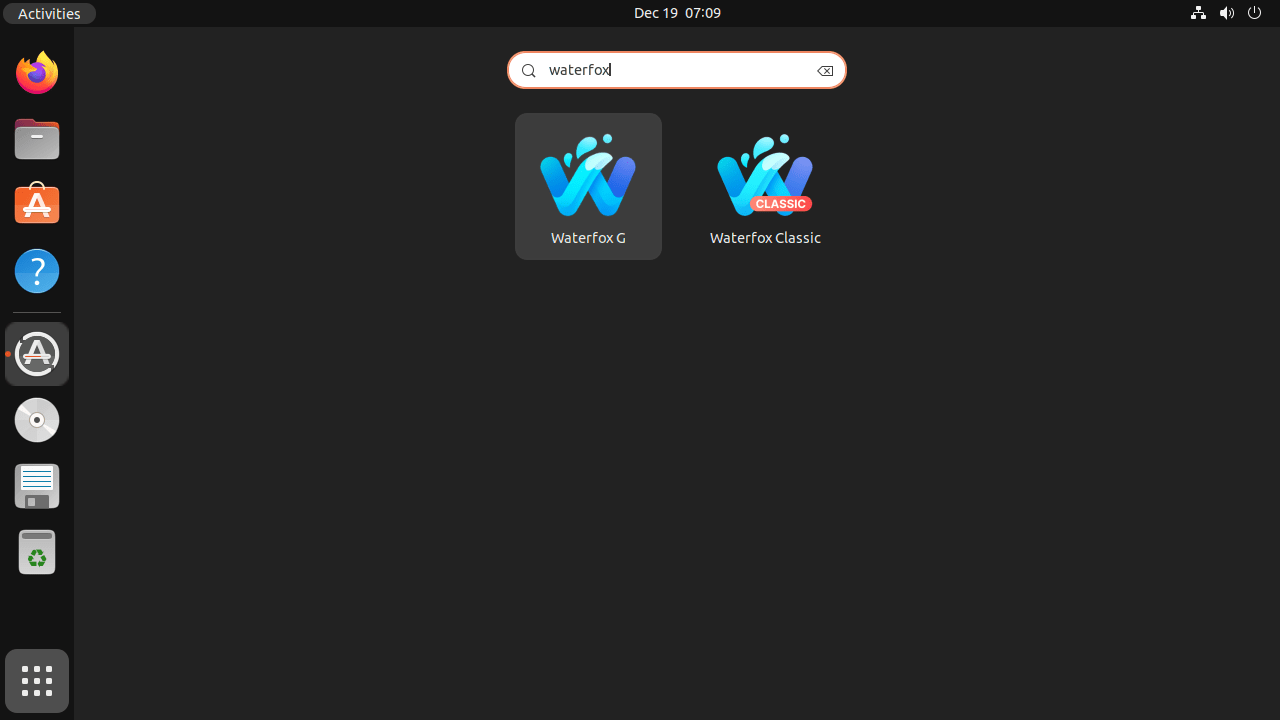
Waterfox appears in your desktop environment’s application menu after installation. Open your application launcher (the method varies by desktop environment, typically a grid icon or menu button), search for “Waterfox,” and click the icon to launch the browser.
Getting Started with Waterfox Browser
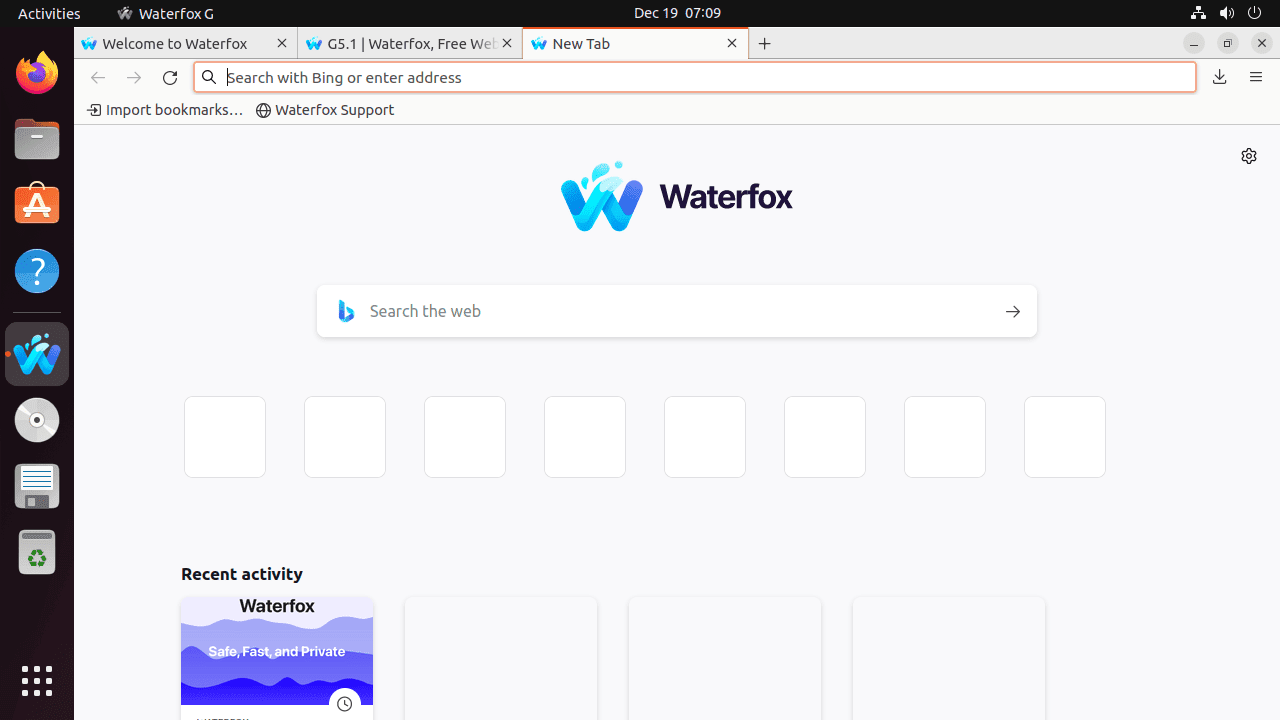
Waterfox removes telemetry and data collection by default, but you can further enhance privacy through the browser settings. On first launch, review the privacy settings to ensure they match your preferences. Additionally, Waterfox maintains compatibility with Firefox extensions from addons.mozilla.org, including legacy XUL extensions that standard Firefox no longer supports. Navigate to Menu > Add-ons to install extensions, or Menu > Preferences to adjust privacy settings like blocking trackers, managing cookies, and configuring DNS over HTTPS.
Manage Waterfox Browser
Keeping Waterfox updated ensures you receive the latest security patches and feature improvements. This section covers updating and removing Waterfox for both installation methods. For related browser management, see our guides on installing Brave Browser, Firefox Beta and Nightly channels, and Vivaldi Browser on Ubuntu.
Update Waterfox Browser
Keeping Waterfox up-to-date ensures you receive the latest security patches and features. However, update procedures differ between installation methods: Flatpak handles updates automatically through Flathub, while tarball installations require manual updates or use of the provided update script.
Update via Flatpak
For Waterfox installed via Flatpak, update all Flatpak applications with the following command:
flatpak updateThis updates all Flatpak applications, including Waterfox. Flatpak periodically checks Flathub for new releases in the background, so you typically receive update notifications through your desktop environment’s software center as well.
Update via Tarball (Manual Method)
Unlike Flatpak, tarball installations do not update automatically. To update Waterfox installed from a tarball, download the latest version using the same commands from the installation section, then extract it to /opt to replace the existing installation:
LATEST_VERSION=$(curl -s https://api.github.com/repos/BrowserWorks/Waterfox/releases/latest | grep -oP '"tag_name": "\K[^"]+')
DOWNLOAD_URL="https://cdn1.waterfox.net/waterfox/releases/${LATEST_VERSION}/Linux_x86_64/waterfox-${LATEST_VERSION}.tar.bz2"
curl -Lo waterfox-${LATEST_VERSION}.tar.bz2 "$DOWNLOAD_URL"
sudo tar -xjf waterfox-${LATEST_VERSION}.tar.bz2 -C /optThe extraction automatically replaces the existing /opt/waterfox directory with the new version. Afterward, verify the update succeeded by checking the version:
waterfox --versionUpdate via Tarball (Automated Script)
For easier updates, create a bash script that automates the download and installation process. Save the following script to ~/update-waterfox.sh. Unlike Flatpak, tarball deployments have no background update mechanism, so you must run this script manually when you want to check for updates:
cat > ~/update-waterfox.sh << 'EOF'
#!/bin/bash
set -e

echo "Checking for latest Waterfox version..."
LATEST_VERSION=$(curl -s https://api.github.com/repos/BrowserWorks/Waterfox/releases/latest | grep -oP '"tag_name": "\K[^"]+')

if [ -z "$LATEST_VERSION" ]; then
    echo "Error: Failed to fetch latest version"
    exit 1
fi

CURRENT_VERSION=$(waterfox --version 2>/dev/null | grep -oP '\d+\.\d+\.\d+' || echo "Not installed")
echo "Current version: $CURRENT_VERSION"
echo "Latest version: $LATEST_VERSION"

if [ "$CURRENT_VERSION" = "$LATEST_VERSION" ]; then
    echo "Waterfox is already up to date"
    exit 0
fi

echo "Downloading Waterfox $LATEST_VERSION..."
DOWNLOAD_URL="https://cdn1.waterfox.net/waterfox/releases/${LATEST_VERSION}/Linux_x86_64/waterfox-${LATEST_VERSION}.tar.bz2"
TEMP_DIR=$(mktemp -d)
cd "$TEMP_DIR"
curl -Lo waterfox.tar.bz2 "$DOWNLOAD_URL"

echo "Extracting to /opt/waterfox..."
sudo tar -xjf waterfox.tar.bz2 -C /opt

echo "Cleaning up temporary files..."
cd ~
rm -rf "$TEMP_DIR"

echo "Update complete! Waterfox $LATEST_VERSION is now installed"
waterfox --version
EOF
Once saved, make the script executable and run it to update Waterfox:
chmod +x ~/update-waterfox.sh
~/update-waterfox.sh
The script checks your current Waterfox version against the latest release, downloads and installs updates only when a new version is available, and automatically cleans up temporary files after installation. Run this script periodically to keep your tarball installation current; the script requires an active internet connection and sudo privileges.
Remove Waterfox Browser
If you no longer need Waterfox on your system, follow the appropriate removal steps for your installation method.
Remove via Flatpak
To uninstall Waterfox installed via Flatpak, run the following command:
flatpak uninstall net.waterfox.waterfoxThis removes the Waterfox application from your system. To also remove unused Flatpak runtimes and dependencies that were installed with Waterfox but are no longer needed, run:
flatpak uninstall --unusedRemove via Tarball
To remove a tarball installation, delete the Waterfox directory, remove the symbolic link, delete the desktop entry, and optionally clean up the update script:
sudo rm -rf /opt/waterfox
sudo rm /usr/local/bin/waterfox
sudo rm /usr/share/applications/waterfox.desktop
rm -f ~/update-waterfox.sh
Next, update the desktop database to remove Waterfox from your application menu:
sudo update-desktop-databaseOptionally, remove user-specific configuration and cache files stored in your home directory:
The following commands permanently delete your Waterfox browsing data, including bookmarks, history, saved passwords, and installed extensions. Back up
~/.waterfoxbefore proceeding if you want to preserve this data.
rm -rf ~/.waterfox
rm -rf ~/.cache/waterfox
Verify complete removal by checking that the command is no longer available:
which waterfoxExpected output confirming removal:
which: no waterfox in (/usr/local/sbin:/usr/local/bin:/usr/sbin:/usr/bin:/sbin:/bin)
Troubleshoot Common Waterfox Issues
This section covers common problems you may encounter when installing or running Waterfox on Ubuntu and explains how to resolve them.
Waterfox Fails to Launch with GPU Errors
If Waterfox crashes on launch with GPU-related errors, the issue typically relates to graphics driver incompatibility. First, check for error messages by launching Waterfox from the terminal:
waterfox 2>&1 | head -20A common error message looks like:
libGL error: failed to create dri screen
libGL error: failed to load driver: nouveau
To work around this, disable hardware acceleration temporarily by launching Waterfox with the following environment variable:
MOZ_DISABLE_GPU=1 waterfoxFor Flatpak installations, use the --env flag to pass the environment variable:
flatpak run --env=MOZ_DISABLE_GPU=1 net.waterfox.waterfoxIf this resolves the issue, you can disable hardware acceleration permanently through the browser settings: navigate to Menu > Preferences > General, scroll to Performance, and uncheck “Use recommended performance settings” followed by unchecking “Use hardware acceleration when available.”
Flatpak Version Shows Permission Errors
If the Flatpak version cannot access certain directories or files, you may need to grant additional permissions. First, check the current permissions to understand what access Waterfox has:
flatpak info --show-permissions net.waterfox.waterfoxExample output showing restricted filesystem access:
[Context]
filesystem=xdg-download;xdg-run/pipewire-0
To grant access to a specific directory (such as your Documents folder), use the flatpak override command. The --user flag applies the override to your account only:
flatpak override --user --filesystem=~/Documents net.waterfox.waterfoxAlternatively, install Flatseal from Flathub for a graphical interface to manage Flatpak permissions across all your applications.
Tarball Installation Has No Application Icon
If the Waterfox icon does not appear in your application menu after creating the desktop entry, ensure the icon path exists and refresh the icon cache:
ls -la /opt/waterfox/browser/chrome/icons/default/default128.png
sudo gtk-update-icon-cache -f /usr/share/icons/hicolor/
sudo update-desktop-database
If the icon file is missing, extract the tarball again to ensure all files were unpacked correctly.
Update Script Reports Version Already Installed
If the update script reports that Waterfox is already up to date when you know a newer version exists, the GitHub API may be rate-limited or cached. Wait a few minutes and try again. You can also verify the latest version manually by checking the GitHub releases page.
Closing Thoughts
You now have Waterfox installed on Ubuntu using either the Flatpak or tarball method. Flatpak offers containerized isolation with automatic updates through Flathub, making it the recommended choice for most users who want a set-and-forget installation. The tarball method gives you a portable installation with manual update control, ideal if you need to place Waterfox in a custom location or want immediate access to new releases. Regardless of your installation method, configure your privacy settings through the browser preferences and explore the extension library at addons.mozilla.org to customize your browsing experience.

Too many steps, much much easier to install on Mageia 9.
Thanks for the feedback, David. Different distributions handle third-party software differently. Mageia likely includes Waterfox in its native repositories, which simplifies installation to a single command. Ubuntu requires manual repository configuration because Waterfox uses the OpenSUSE Build Service rather than maintaining an Ubuntu-specific PPA.
The Flatpak method reduces steps if you already have Flatpak configured. The guide covers all available methods so readers can choose based on their preference for system integration, sandboxing, or portability.
This article should remove flatpak method since the waterfox version on flathub is extremely outdated it has a version that is 7 months old when i checked and its going to be full of vulnerabilities and even if they do update it to a newer version i would still say the flathub version can not be trusted to receive updates regularly.
Thanks for raising this security concern. You are absolutely right to be cautious about outdated browser packages. The update frequency of Flatpak packages depends on the maintainer, not the Waterfox developers, which can create delays.
Before choosing the Flatpak method, check the Flathub page to verify when the package was last updated. Compare the Flathub version against the latest release on GitHub. If the Flatpak version lags behind by more than a few weeks, use the APT repository method or tarball installation instead. The APT repository receives updates directly from the OpenSUSE Build Service, while the tarball method lets you install the latest release immediately.
For security-critical software like browsers, prefer installation methods with consistent update schedules.