

Fedora’s default media apps cover basic playback, but VLC still stands out for network streams, subtitle controls, playlist handling, and one interface that works across local files, discs, and remote URLs. Current Fedora releases include VLC in the standard repositories, so you can install VLC on Fedora with DNF and only reach for extra codec packages if a file format demands them.
Most readers can stop after the native DNF method. Flatpak is here if you prefer Flathub, and the codec section matters only when Fedora’s patent-limited multimedia stack still blocks H.264 or H.265 playback.
Install VLC on Fedora
Most Fedora desktops should start with the native DNF package. Flatpak is still useful if you prefer Flathub updates or want VLC isolated from the rest of the system.
| Method | Source | Updates | Best For |
|---|---|---|---|
| DNF | Fedora repositories | With regular system updates | Most Fedora desktops |
| Flatpak | Flathub | With Flatpak updates | Sandboxing or a separate app lifecycle |
Recommendation: Use the Fedora package unless you already prefer desktop apps from Flathub. It integrates cleanly with the system menu, PipeWire, and normal DNF maintenance.
Update Fedora before installing VLC
Refresh package metadata and install any pending updates first so VLC and its dependencies come from the current Fedora repositories:
sudo dnf upgrade --refreshThis guide uses
sudofor commands that need root privileges. If your account is not in the sudoers file yet, follow the guide on how to add a user to sudoers on Fedora.
Install VLC with DNF
Current Fedora releases ship VLC directly in the standard repositories, so the native install is a single command and does not require RPM Fusion just to get the player itself:
sudo dnf install vlcVerify that Fedora installed the player and that the binary is available from your shell:
vlc --version | head -1VLC version 3.0.23 Vetinari (3.0.23-2-0-g79128878dd)
Install VLC with Flatpak
Use the Flatpak build if you want VLC from Flathub with its own update cycle. Fedora Workstation already includes Flatpak, so you only need to add Flathub if it is not enabled yet.
sudo flatpak remote-add --if-not-exists flathub https://dl.flathub.org/repo/flathub.flatpakrepoNo output usually means the remote was added successfully. The command uses sudo because it registers Flathub as a system remote for every local user.
sudo flatpak install -y flathub org.videolan.VLCAfter the install finishes, confirm that the Flatpak build is present:
flatpak list --system | grep -i '^VLC'VLC org.videolan.VLC 3.0.23 stable
Improve VLC codec support on Fedora
The Fedora package installs VLC itself, but Fedora still ships the patent-limited ffmpeg-free stack by default. If H.264, H.265, AAC, or E-AC3 files refuse to play, add RPM Fusion and replace the limited FFmpeg build.
Add RPM Fusion repositories on Fedora
RPM Fusion on Fedora provides the multimedia packages Fedora does not ship in its default repositories. The $(rpm -E %fedora) expression expands to your current Fedora release number automatically.
sudo dnf install https://mirrors.rpmfusion.org/free/fedora/rpmfusion-free-release-$(rpm -E %fedora).noarch.rpm https://mirrors.rpmfusion.org/nonfree/fedora/rpmfusion-nonfree-release-$(rpm -E %fedora).noarch.rpmCheck that the main RPM Fusion repositories are enabled before you continue:
dnf repo list --all | grep -E '^rpmfusion-(free|nonfree)(-updates)?[[:space:]]'rpmfusion-free RPM Fusion for Fedora 43 - Free enabled rpmfusion-free-updates RPM Fusion for Fedora 43 - Free - Updates enabled rpmfusion-nonfree RPM Fusion for Fedora 43 - Nonfree enabled rpmfusion-nonfree-updates RPM Fusion for Fedora 43 - Nonfree - Updates enabled
Replace Fedora’s limited FFmpeg build
This swap removes ffmpeg-free and installs RPM Fusion’s full ffmpeg package in its place. The --allowerasing flag lets DNF remove the limited libraries that would otherwise block the transaction.
sudo dnf swap ffmpeg-free ffmpeg --allowerasingVerify that the RPM Fusion build is installed:
rpm -q ffmpegffmpeg-7.1.2-7.fc43.x86_64
If hardware-decoded video still looks wrong on AMD graphics after the FFmpeg swap, install RPM Fusion’s VA-API package with
sudo dnf install mesa-va-drivers-freeworldand verify it withrpm -q mesa-va-drivers-freeworld.
Launch VLC on Fedora
After installation, you can open VLC from the terminal or from Fedora’s application grid.
Launch VLC from the terminal
For the native Fedora package, run:
vlcFor the Flatpak build, use:
flatpak run org.videolan.VLCLaunch VLC from Fedora Activities
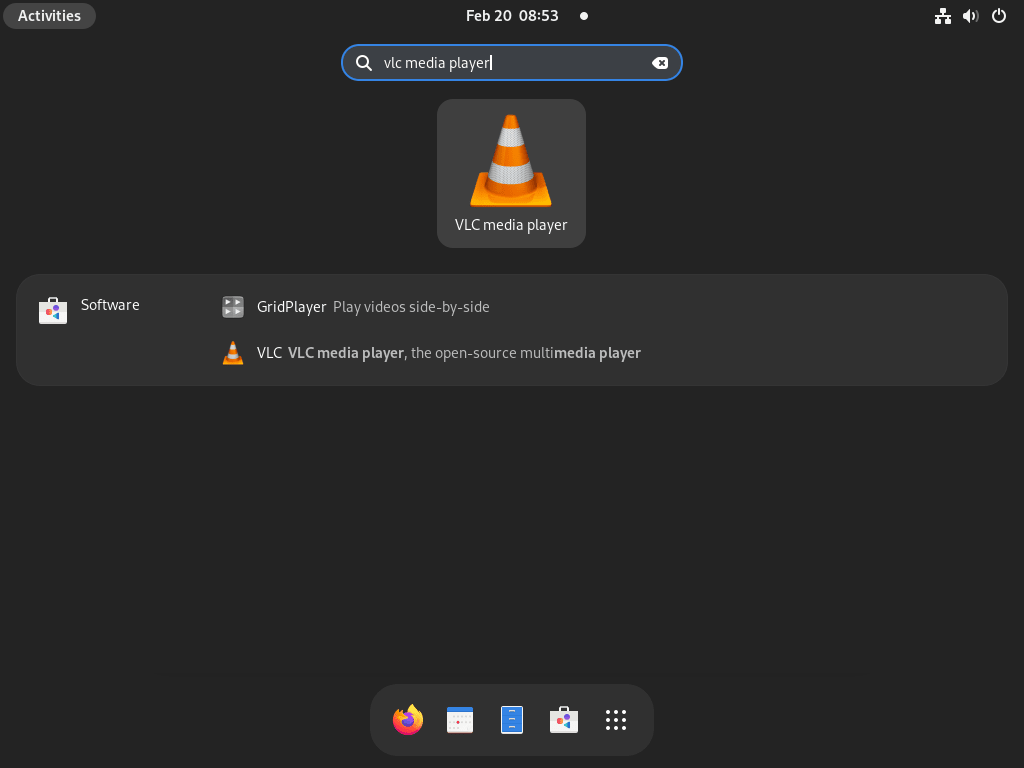
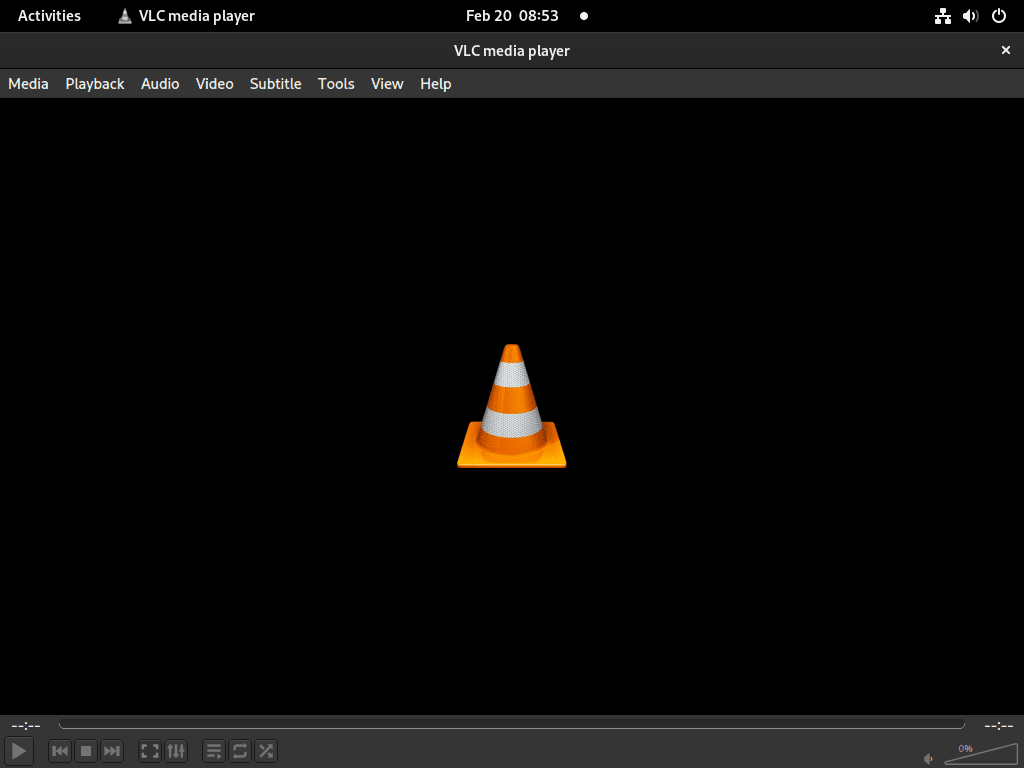
Open Activities, search for VLC, and launch the player from the search results or the application grid.
Update VLC on Fedora
Keep the native Fedora package current with the rest of your system:
sudo dnf upgrade --refreshIf you installed VLC from Flathub, update that build through Flatpak:
sudo flatpak update --system org.videolan.VLCTroubleshoot VLC on Fedora
Fix VLC codec errors on Fedora
If VLC opens but specific files still fail, Fedora’s limited multimedia libraries are usually the reason. HEVC playback failures often look like this:
Codec not supported:
VLC could not decode the format "hevc" (MPEG-H Part2/HEVC (H.265))
Check whether your system still uses Fedora’s default FFmpeg package set:
rpm -q ffmpeg ffmpeg-freepackage ffmpeg is not installed ffmpeg-free-7.1.2-4.fc43.x86_64
If you see ffmpeg-free but no ffmpeg, run the RPM Fusion swap from the codec section above:
sudo dnf swap ffmpeg-free ffmpeg --allowerasingThen verify the replacement package:
rpm -q ffmpegffmpeg-7.1.2-7.fc43.x86_64
Fix VLC audio problems on Fedora
If video plays but audio stays silent, check which sound server your session is using before changing VLC’s output module:
pactl info | grep "Server Name"Server Name: PulseAudio (on PipeWire 1.4.10)
On current Fedora desktops, PipeWire usually appears as PulseAudio (on PipeWire ...). In VLC, open Tools > Preferences > Audio, switch the output module if needed, save the change, and test playback again.
Fix hardware-decoded VLC video on AMD graphics
If codec support is fixed but hardware-decoded video still looks wrong on AMD graphics, install the RPM Fusion VA-API driver package:
sudo dnf install mesa-va-drivers-freeworldConfirm that Fedora installed the package:
rpm -q mesa-va-drivers-freeworldmesa-va-drivers-freeworld-25.3.6-1.fc43.x86_64
After that, sign out or reboot and test the same video again from your normal desktop session.
Let Flatpak VLC access external drives
The Flatpak build is sandboxed, so removable drives mounted under /run/media may stay hidden until you grant access explicitly:
flatpak override --user --filesystem=/run/media org.videolan.VLCVerify that the override is active for your user account:
flatpak info --show-permissions org.videolan.VLC | grep filesystemfilesystems=xdg-config/kdeglobals:ro;/run/media;host;xdg-run/gvfs;
Launch VLC again and try opening the file from the external drive.
Remove VLC from Fedora
Remove the Fedora package
Remove the native Fedora package with DNF:
sudo dnf remove vlcThen confirm that the package is gone:
rpm -q vlcpackage vlc is not installed
If you want to check for leftover per-user VLC settings before removing them manually, search the standard XDG locations first:
find ~/.config ~/.local/share -maxdepth 1 -type d -name vlc 2>/dev/nullIf the command prints a VLC directory on your account and you want a full reset, back it up or remove it manually after reviewing the path.
Remove the Flatpak build
Remove the system-wide Flatpak build with:
sudo flatpak remove --system org.videolan.VLCCheck whether the Flatpak build is still present:
flatpak list --system | grep -i '^VLC'No output means the system-wide Flatpak build has been removed.
The command
sudo flatpak remove --system --delete-data org.videolan.VLCalso deletes the Flatpak app data and preferences. Use it only if you do not want to keep any VLC settings for that sandboxed install.
Frequently Asked Questions
Yes. Current Fedora releases include vlc in the standard repositories, so the native install is a direct sudo dnf install vlc command. RPM Fusion is optional when you need broader codec coverage.
Fedora installs the patent-limited ffmpeg-free stack by default. If VLC reports codec errors for H.264, H.265, AAC, or E-AC3 media, add RPM Fusion and run sudo dnf swap ffmpeg-free ffmpeg --allowerasing to install the broader codec build.
Use DNF if you want VLC to behave like a normal Fedora package and update with the rest of the system. Use Flatpak if you prefer a sandboxed app from Flathub with a separate update cycle.
Conclusion
VLC fits into Fedora more cleanly now that the native package is available directly through DNF, while Flathub stays useful if you prefer a sandboxed desktop app. If codec limits still show up with H.264 or HEVC files, continue with RPM Fusion on Fedora or the wider multimedia tooling in FFmpeg on Fedora.

Formatting tips for your comment
You can use basic HTML to format your comment. Useful tags currently allowed:
<code>command</code>command<strong>bold</strong><em>italic</em><blockquote>quote</blockquote>