

MakeMKV converts DVDs and Blu-ray discs into MKV files, preserving the original video, audio tracks, chapters, and metadata without re-encoding. This makes it ideal for backing up physical media collections, creating digital archives of movies you own, or streaming decrypted content directly to media servers like Plex or Jellyfin. By the end of this guide, you will have MakeMKV installed on your Debian system using your preferred method, verified and ready to convert your first disc.
Choose Your MakeMKV Installation Method
MakeMKV can be installed on Debian through three different methods, each with distinct advantages. The following table summarizes the trade-offs to help you select the best approach for your needs.
| Method | Channel | Version | Updates | Best For |
|---|---|---|---|---|
| Third-Party Repository | Heyar Jerome Repository | Latest stable | Automatic via APT | Most users who want easy installation and updates |
| Flatpak | Flathub | Latest stable | Automatic via Flatpak | Users who prefer sandboxed applications |
| Source Compilation | Official Forum | Latest release | Manual recompilation | Advanced users needing custom builds or newest features |
For most users, we recommend the third-party repository method because it provides automatic security updates through APT and requires minimal maintenance. Alternatively, choose Flatpak if you prefer application sandboxing, or compile from source only if you need the absolute latest release or encounter compatibility issues with prebuilt packages.
Update Debian Before Installation
Before installing any new software, update your package index and upgrade existing packages to ensure you have the latest security patches and dependency versions. Open a terminal by searching for “Terminal” in Activities, then run:
sudo apt update && sudo apt upgradeReview the list of packages to be upgraded and confirm by pressing Y when prompted. Once complete, proceed with your chosen installation method below.
Method 1: Install MakeMKV via Third-Party Repository
The third-party repository maintained by Heyar Jerome provides prebuilt MakeMKV packages for Debian 11 (Bullseye), Debian 12 (Bookworm), and Debian 13 (Trixie). As a result, this method handles dependencies automatically and delivers updates through your regular system updates.
Install Required Packages
First, install the packages needed to add and verify the third-party repository:
sudo apt install ca-certificates curl gnupg lsb-release -ySpecifically, these packages provide SSL certificate validation (ca-certificates), file downloading (curl), GPG key handling (gnupg), and release detection (lsb-release) needed to securely add external repositories.
Import the Repository GPG Keys
Next, download the repository signing keys. The repository uses two keys to support all Debian versions, so download both and combine them into a single keyring file:
curl -fsSL https://ramses.hjramses.com/deb/hjmooses.pgp https://ramses.hjramses.com/deb/hjmooses-2025.pgp | sudo gpg --dearmor -o /usr/share/keyrings/makemkv.gpgThis command downloads both the original and the 2025 signing keys from the official repository, converts them to binary format, and saves the combined keyring to the system keyrings directory. The older key signs packages for Debian 11 and 12, while the 2025 key signs packages for Debian 13 and newer releases.
Add the MakeMKV Repository
With the keys in place, add the repository using the modern DEB822 .sources format, which keeps APT configuration consistent and readable:
cat <<EOF | sudo tee /etc/apt/sources.list.d/makemkv.sources
Types: deb
URIs: https://ramses.hjramses.com/deb/makemkv
Suites: $(lsb_release -cs)
Components: main
Architectures: $(dpkg --print-architecture)
Signed-By: /usr/share/keyrings/makemkv.gpg
EOF
Notably, the $(lsb_release -cs) command automatically detects your Debian release codename (bullseye, bookworm, or trixie), so this configuration works across all supported versions.
Refresh Package Index
After adding the repository, refresh your package index to include the new MakeMKV packages:
sudo apt updateYou should see output confirming APT fetched the MakeMKV repository successfully. However, if you encounter GPG errors, check that /usr/share/keyrings/makemkv.gpg exists to verify the key import succeeded.
Install MakeMKV Packages
Now install both the open-source components and the proprietary binary:
sudo apt install makemkv-oss makemkv-bin -ySpecifically, the makemkv-oss package contains the open-source GUI and libraries, while makemkv-bin includes the proprietary decryption components required to read protected discs.
Verify the Installation
Finally, confirm the installation succeeded by checking the installed version:
apt-cache policy makemkv-binThe expected output shows the installed version and confirms the package comes from the Heyar Jerome repository:
makemkv-bin:
  Installed: 1.18.2-1~deb12
  Candidate: 1.18.2-1~deb12
  Version table:
 *** 1.18.2-1~deb12 500
        500 https://ramses.hjramses.com/deb/makemkv bookworm/main amd64 Packages
        100 /var/lib/dpkg/status
The version number and release suffix (deb11, deb12, or deb13) in your output will reflect your specific Debian version. Importantly, what matters is confirming the package is installed and sourced from the MakeMKV repository.
Update MakeMKV in the Future
When new versions are released, update MakeMKV along with your other system packages:
sudo apt update && sudo apt upgradeAlternatively, update only the MakeMKV packages without upgrading everything else:
sudo apt update
sudo apt install --only-upgrade makemkv-oss makemkv-binMethod 2: Install MakeMKV via Flatpak
Flatpak provides a sandboxed installation that isolates MakeMKV from your system, which can improve security and simplify removal. Additionally, the Flathub repository maintains an up-to-date MakeMKV package.
Set Up Flatpak and Flathub
If Flatpak is not already installed on your system, follow our Flatpak installation guide for Debian to set up the Flatpak framework and add the Flathub repository. This typically takes under five minutes.
However, if Flatpak is already installed, ensure Flathub is configured as a remote source:
sudo flatpak remote-add --if-not-exists flathub https://flathub.org/repo/flathub.flatpakrepoInstall MakeMKV from Flathub
Once Flathub is available, install MakeMKV using the Flatpak command:
sudo flatpak install flathub com.makemkv.MakeMKV -yThe -y flag automatically confirms the installation prompts. Furthermore, Flatpak may download additional runtime dependencies (such as the KDE or GNOME platform libraries) on first install.
Verify the Flatpak Installation
After the installation completes, confirm MakeMKV appears in your Flatpak applications:
flatpak list --app | grep -i makemkvExpected output:
MakeMKV com.makemkv.MakeMKV 1.18.2 stable system
Note that Flatpak applications access optical drives through the host system. If MakeMKV cannot detect your DVD or Blu-ray drive, you may need to grant additional permissions using Flatseal or run the application with
--device=all.
Update MakeMKV via Flatpak
To update MakeMKV along with all other Flatpak applications, run:
sudo flatpak updateMethod 3: Compile MakeMKV from Source
Compiling from source gives you the newest release directly from the MakeMKV developers. However, this method requires more technical knowledge and manual updates, but ensures access to the latest features and bug fixes.
Install Build Dependencies
First, install the compilers, libraries, and development headers required to build MakeMKV:
sudo apt install build-essential pkg-config libc6-dev libssl-dev libexpat1-dev libavcodec-dev libgl1-mesa-dev qtbase5-dev zlib1g-dev -yIn particular, these packages provide the GNU compiler toolchain (build-essential), Qt5 GUI framework (qtbase5-dev), OpenSSL cryptography (libssl-dev), FFmpeg video processing (libavcodec-dev), and OpenGL rendering (libgl1-mesa-dev) that MakeMKV requires.
Download MakeMKV Source Archives
Rather than manually checking the forum for the latest version, you can automatically detect and download the current release. The following commands scrape the official MakeMKV Linux releases page to extract the version number, then download both required archives:
mkdir -p ~/makemkv-build && cd ~/makemkv-build
MAKEMKV_VERSION=$(curl -s 'https://forum.makemkv.com/forum/viewtopic.php?f=3&t=224' | grep -oE 'makemkv-bin-[0-9]+\.[0-9]+\.[0-9]+' | head -1 | sed 's/makemkv-bin-//')
echo "Detected MakeMKV version: $MAKEMKV_VERSION"
wget "https://www.makemkv.com/download/makemkv-oss-${MAKEMKV_VERSION}.tar.gz"
wget "https://www.makemkv.com/download/makemkv-bin-${MAKEMKV_VERSION}.tar.gz"
Expected output showing the detected version and successful downloads:
Detected MakeMKV version: 1.18.2
--2024-12-20 15:30:00--  https://www.makemkv.com/download/makemkv-oss-1.18.2.tar.gz
...
2024-12-20 15:30:02 (5.2 MB/s) - 'makemkv-oss-1.18.2.tar.gz' saved [12345678/12345678]
--2024-12-20 15:30:02--  https://www.makemkv.com/download/makemkv-bin-1.18.2.tar.gz
...
2024-12-20 15:30:04 (4.8 MB/s) - 'makemkv-bin-1.18.2.tar.gz' saved [12345678/12345678]
The version number in your output will reflect the current release available on the MakeMKV website. This automated approach ensures you always download the latest version without needing to check the forum manually.
Compile and Install the Open-Source Package
Extract and compile the makemkv-oss package first, as the binary package depends on it:
tar -xvzf "makemkv-oss-${MAKEMKV_VERSION}.tar.gz"
cd "makemkv-oss-${MAKEMKV_VERSION}"
./configure
make
sudo make install
During this step, the ./configure script checks for required dependencies and prepares the build. If it reports missing libraries, install the corresponding -dev package and run ./configure again.
Compile and Install the Binary Package
Once the open-source package finishes, return to the build directory and compile the binary package:
cd ~/makemkv-build
tar -xvzf "makemkv-bin-${MAKEMKV_VERSION}.tar.gz"
cd "makemkv-bin-${MAKEMKV_VERSION}"
make
sudo make install
During installation, you must accept the End User License Agreement (EULA) by typing yes when prompted. Afterward, the binary package installs the proprietary decryption libraries to /usr/lib.
Verify the Source Installation
Finally, confirm MakeMKV is installed and accessible from your PATH:
which makemkvExpected output:
/usr/bin/makemkv
Launch MakeMKV
After completing the installation, launch MakeMKV using either the command line or your desktop environment’s application menu.
Launch from Terminal
For APT or source installations, run:
makemkvAlternatively, for Flatpak installations, use the Flatpak run command:
flatpak run com.makemkv.MakeMKVLaunch from Applications Menu
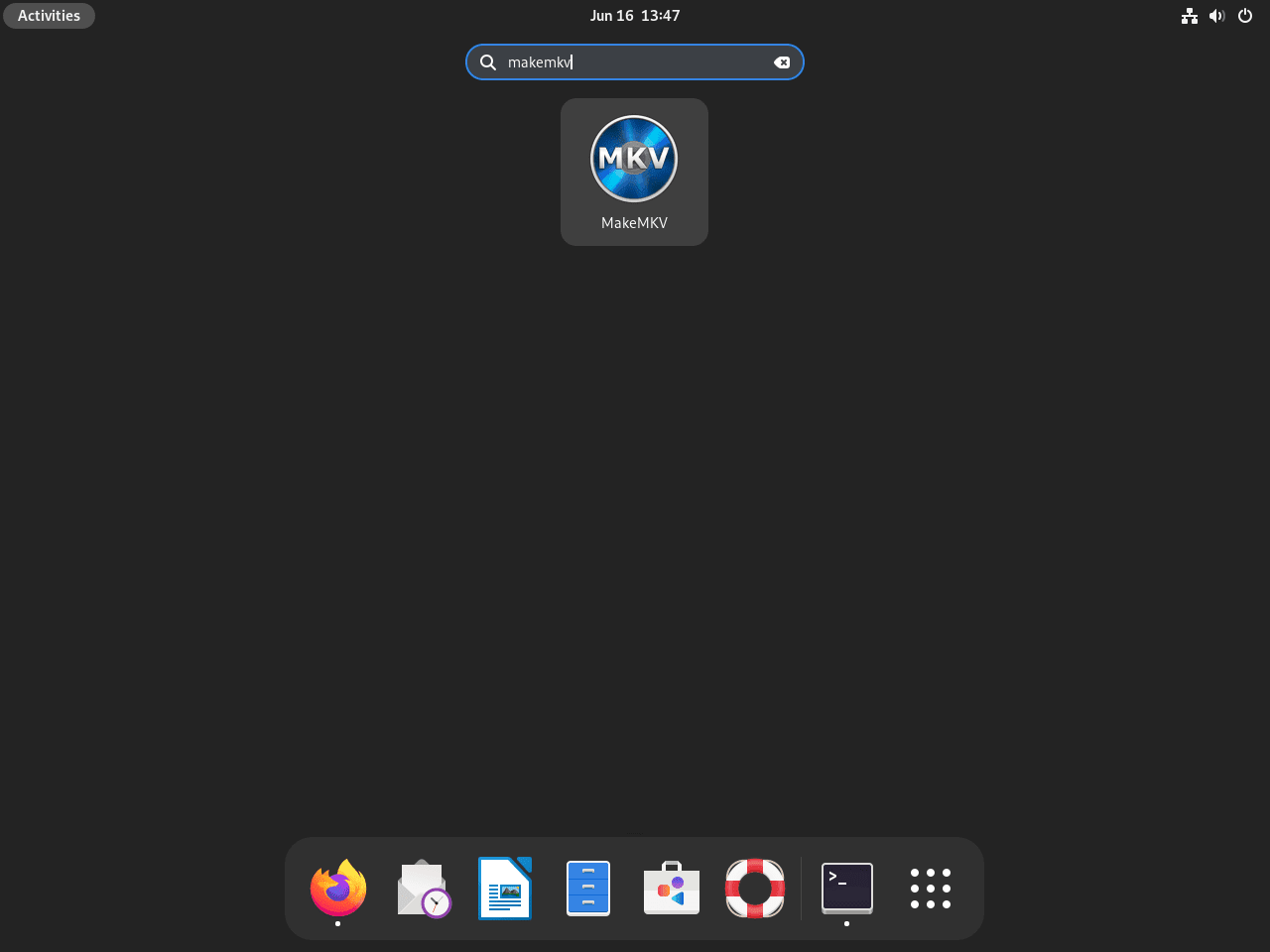
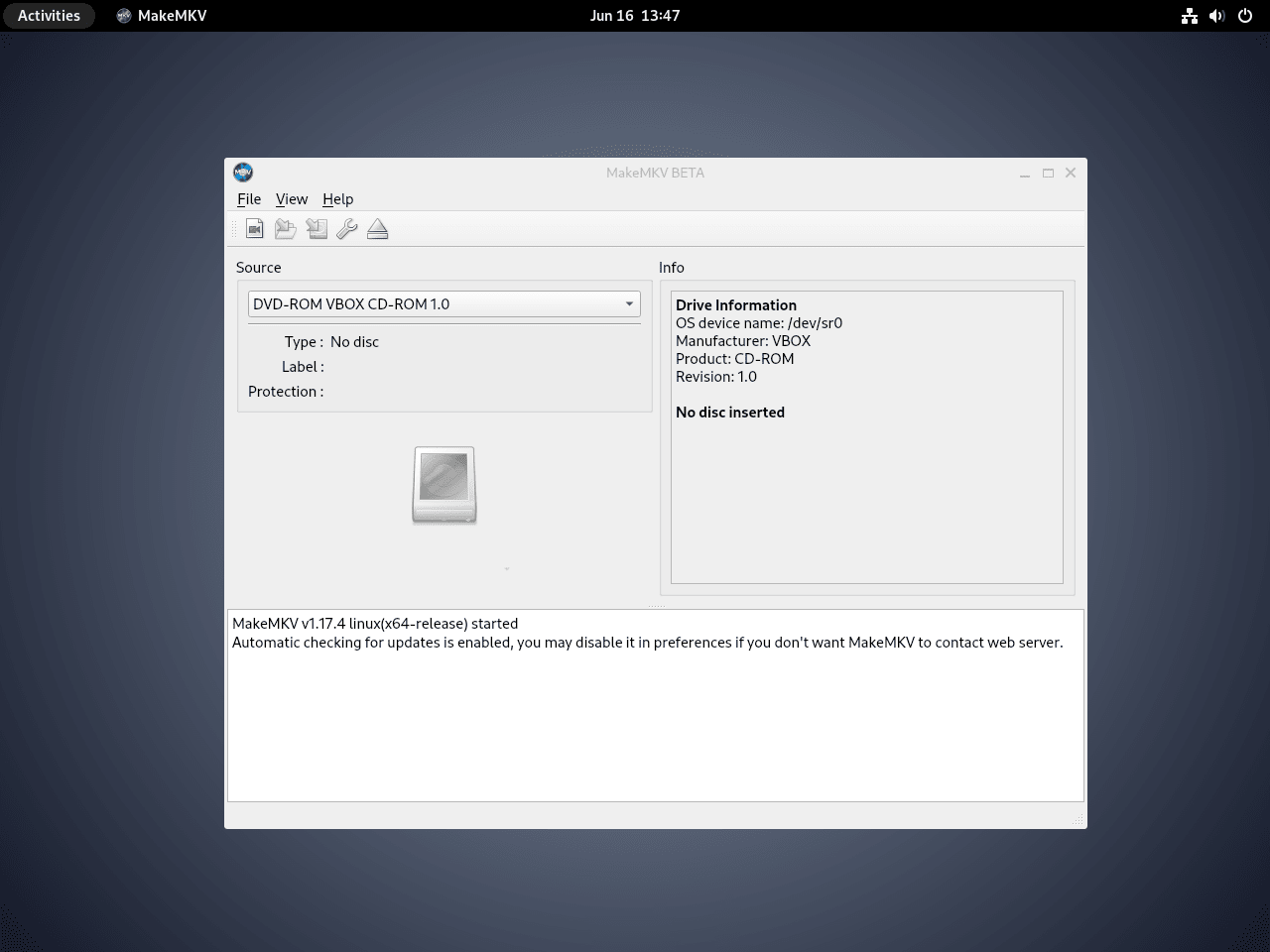
To use the graphical method, press the Super key (or click Activities) to open the application grid, then search for “MakeMKV” and click the icon to launch it.
Troubleshoot Common Issues
Optical Drive Not Detected
If MakeMKV does not detect your DVD or Blu-ray drive, first verify that your system recognizes the drive:
lsblk | grep -E 'sr|rom'Expected output showing a detected optical drive:
sr0 11:0 1 7.9G 0 rom
If no device appears, first check that your drive is properly connected. For USB drives, verify the connection with dmesg | tail -20 after plugging in the device.
If the drive appears but MakeMKV cannot access it, add your user to the cdrom group:
sudo usermod -aG cdrom $USERAfterward, log out and back in for the group change to take effect.
Beta Key Required Message
MakeMKV is free during beta but requires a registration key. Therefore, if you see a message about the beta period expiring, visit the MakeMKV beta key forum thread to obtain the current free beta key. Enter the key via Help → Register in the MakeMKV menu.
Flatpak Cannot Access Drive
Flatpak’s sandboxing may prevent MakeMKV from accessing optical drives by default. To resolve this, grant device access by running MakeMKV with explicit permissions:
flatpak run --device=all com.makemkv.MakeMKVAlternatively, you can install Flatseal to manage Flatpak permissions graphically and enable “All devices” for MakeMKV.
Remove MakeMKV
If you no longer need MakeMKV, follow the removal steps corresponding to your installation method.
Remove APT Repository Installation
First, uninstall the MakeMKV packages and remove orphaned dependencies:
sudo apt remove makemkv-oss makemkv-bin -y
sudo apt autoremove -y
Next, remove the repository configuration and GPG key:
sudo rm /etc/apt/sources.list.d/makemkv.sources
sudo rm /usr/share/keyrings/makemkv.gpg
After removing the repository files, refresh the package cache:
sudo apt updateThen verify APT no longer offers the packages from the removed repository:
apt-cache policy makemkv-binExpected output confirming complete removal:
N: Unable to locate package makemkv-bin
Remove Flatpak Installation
To remove the Flatpak version, uninstall MakeMKV and remove unused runtime dependencies:
sudo flatpak uninstall com.makemkv.MakeMKV -y
sudo flatpak uninstall --unused -y
Optional: Flatpak stores application data in
~/.var/app/com.makemkv.MakeMKV/. Delete this directory if you want to remove all MakeMKV settings and cached data.
Remove Source Compilation
Unlike packaged installations, source-compiled installations do not include an uninstaller. Therefore, remove the installed files manually:
Warning: The following commands permanently delete the MakeMKV binaries, libraries, and your build directory. This cannot be undone.
sudo rm -f /usr/bin/makemkv /usr/bin/makemkvcon /usr/bin/mmccextr /usr/bin/mmgplsrv
sudo rm -rf /usr/lib/libdriveio.so* /usr/lib/libmakemkv.so* /usr/lib/libmmbd.so*
sudo rm -rf ~/makemkv-build
After running these commands, verify removal by confirming the executable no longer exists:
which makemkvIf the command returns no output, then you have successfully removed MakeMKV.
Remove User Settings (Optional)
Additionally, MakeMKV stores user settings, registration keys, and cached data in a hidden directory within your home folder. Delete this directory to remove all personal configuration:
Warning: This permanently deletes your MakeMKV registration key, preferences, and any saved profiles. Export any settings you want to keep before proceeding.
rm -rf ~/.MakeMKVThis step is optional; therefore, leaving the directory in place preserves your settings if you reinstall MakeMKV later.
Conclusion
You now have MakeMKV installed on Debian and can convert DVDs and Blu-ray discs to MKV format while preserving original quality. The repository method provides the easiest maintenance with automatic updates, while Flatpak offers sandboxing for security-conscious users. For accessing the newest features immediately, source compilation remains an option for advanced users comfortable with manual upgrades. With MakeMKV configured, you can begin digitizing your physical media collection for playback on any device.

Is software-properties-common still a dependency?
Does this work with VLC or handbrake?
MakeMKV flatpak may work (stream to) with VLC flatpak if special VLC add-on included.
Even if it works, PPA or repository install is unlikely to survive update due to lack of maintenance,
due in turn to media cartel harassment.
Source install instructions rarely include all necessary details neatly organized in one place.
Debian 12.2
stop at install
message
The following packages have unmet dependencies:
makemkv-oss : Depends: libavcodec59 (= 7:5.1.3-1)
E: Unable to correct problems, you have held broken packages.
libavcodec59 installed.
Hi Igor,
Thanks for the message, I just re-installed MakeMKV fine on a fresh Debian 12 installation.
Did you refresh the package index after importing the gpg key and repository? Other things come to mind is it AMD64 system?
Can you actually check if libavcodec59 is present also,
apt search libavcodec59You could also try the following command:
apt policy libacodec59Should be on version libavcodec59 (= 7:5.1.3-1)
Seems like a step has not been done, or something else is missing or added that is affecting the installation, just need to go through the process.
Hi Joshua,
here a log from terminal
riv@client:~$ sudo apt install makemkv-oss makemkv-bin
Reading package lists… Done
Building dependency tree… Done
Reading state information… Done
Some packages could not be installed. This may mean that you have
requested an impossible situation or if you are using the unstable
distribution that some required packages have not yet been created
or been moved out of Incoming.
The following information may help to resolve the situation:
The following packages have unmet dependencies:
makemkv-oss : Depends: libavcodec59 (= 7:5.1.3-1)
E: Unable to correct problems, you have held broken packages.
riv@client:~$ sudo apt search libavcodec59
Sorting… Done
Full Text Search… Done
libavcodec59/stable-security,now 7:5.1.4-0+deb12u1 amd64 [installed,automatic]
FFmpeg library with de/encoders for audio/video codecs – runtime files
riv@client:~$ sudo apt install libavcodec59
Reading package lists… Done
Building dependency tree… Done
Reading state information… Done
libavcodec59 is already the newest version (7:5.1.4-0+deb12u1).
libavcodec59 set to manually installed.
0 upgraded, 0 newly installed, 0 to remove and 2 not upgraded.
riv@client:~$
I went exactly on steps, except one step sudo gpg –list-keys
instead I did gpg -k,
on step of adding a key, I got errors kinda there is not directory etc.
I have searched thought interned and gpg -k was a soludion and that created a folder etc.
I newbie in Linux, do know not much.
I just installed Debian core without gui and add Cinamonn Core.
Could I do anything to get makemkv installed ? it is very very helpfull tool, to save DVD disks library.
Any suggestions or help would be a much appreciated.
prev. message was truncated.
Hi Joshua,
Thanks a lot to helping me.
here is what I got.
iv@client:~$ sudo apt-get reinstall libavcodec59=7:5.1.3-1
Reading package lists… Done
Building dependency tree… Done
Reading state information… Done
Some packages could not be installed. This may mean that you have
requested an impossible situation or if you are using the unstable
distribution that some required packages have not yet been created
or been moved out of Incoming.
The following information may help to resolve the situation:
The following packages have unmet dependencies:
libavcodec59 : Depends: libavutil57 (= 7:5.1.3-1) but 7:5.1.4-0+deb12u1 is to be installed
E: Unable to correct problems, you have held broken packages.
riv@client:~$ sudo apt –fix-broken install
Reading package lists… Done
Building dependency tree… Done
Reading state information… Done
0 upgraded, 0 newly installed, 0 to remove and 0 not upgraded.
riv@client:~$
maybe is is important but version Debian on my side 12.2 bookworm.
meanwhile I tried to install makemkv on Linux Mint 21.2 Cinnamon (installed on ProxMox) with success.
the only but, it is without icon in GUI 🙁 it is now that big problem, but annoying.
I’m going to try to compile makemkv on Debian 12.2 and may you could help me how I can add icon to that installation ?
What is also interesting Mint does not have libavutil59 al all. it is not installed.
I would take your advice in order to get further. Should I try to compile makemkv on Debian 12.2 or may be there is any other way ?