
Calibre gives Fedora one place to read EPUB files, clean up metadata, and convert books for different devices without juggling separate tools. You can install Calibre on Fedora from the Fedora repositories for tighter system integration or from Flathub for a newer upstream build.
The Fedora package currently ships Calibre 8.14.x on Fedora 43, while Flathub carries 9.4.x. The update, removal, and cleanup paths differ slightly between the two methods once your library and settings are in place.
Install Calibre on Fedora
Both installation paths work well on Fedora. The Fedora package is the cleaner default for most desktops, while Flathub is the better fit when you want Calibre updates sooner.
| Method | Channel | Version | Updates | Best For |
|---|---|---|---|---|
| DNF | Fedora Repositories | 8.14.x | Included in dnf upgrade | Most users who want the Fedora-packaged build |
| Flatpak | Flathub | 9.4.x | Included in flatpak update --system | Readers who want the newer upstream release |
For most readers, the Fedora package is the right place to start. Flathub makes more sense when a newer Calibre feature matters more than matching Fedora’s package set.
Update Fedora Before Installing Calibre
Start with a normal package refresh so Fedora pulls the latest metadata before you add Calibre. If DNF feels slow on your system, the guide on increase DNF speed on Fedora covers the usual tuning steps.
sudo dnf upgrade --refreshThis guide uses
sudofor commands that change system packages or Flatpak remotes. If your account does not have sudo access yet, follow the guide on how to add a user to sudoers on Fedora.
Check Flatpak Availability for Calibre
Fedora Workstation includes Flatpak by default, but minimal or server installs may not. Check it before you use the Flathub method.
flatpak --versionFlatpak 1.16.3
If the command is missing, install Flatpak with:
sudo dnf install flatpakInstall Calibre from Fedora Repositories
The Fedora package keeps Calibre in the normal DNF workflow, which is usually the least surprising option on a Fedora desktop. If you want a broader refresher on package commands, see DNF5 install examples on Fedora.
sudo dnf install calibreVerify the Fedora package after the install finishes:
calibre --versioncalibre (calibre 8.14)
Install Calibre from Flathub
Flathub currently carries the newer Calibre build on Fedora 43, so this path is useful when you want upstream features sooner. Add Flathub as a system remote first.
sudo flatpak remote-add --system --if-not-exists flathub https://dl.flathub.org/repo/flathub.flatpakrepoThe --if-not-exists flag skips the change when Flathub is already configured, which keeps the command safe to rerun. The same system remote also works for applications such as install VLC media player on Fedora.
sudo flatpak install --system flathub com.calibre_ebook.calibreCheck the installed app ID after Flatpak finishes the download:
flatpak list --system --app | grep com.calibre_ebook.calibrecalibre com.calibre_ebook.calibre 9.4.0 stable
The grep filter matches Calibre’s app ID in the installed Flatpak list. The Linux command guide for grep command examples in Linux covers more filtering patterns if you use the command often.
Fix Flathub Connection Problems for Calibre
If Flatpak returns Unable to load summary from remote flathub, the remote is usually present but disabled. Re-enable it, then retry the install.
sudo flatpak remote-modify --system --enable flathubConfirm that the remote is enabled again before you retry the install:
flatpak remotes --system --columns=name | grep flathubflathub
Launch Calibre on Fedora
Once the package is in place, open Calibre from the terminal or from Fedora’s application launcher.
Launch Calibre from the Terminal on Fedora
The launch command depends on which package source you chose.
calibreflatpak run com.calibre_ebook.calibreLaunch Calibre from Activities on Fedora
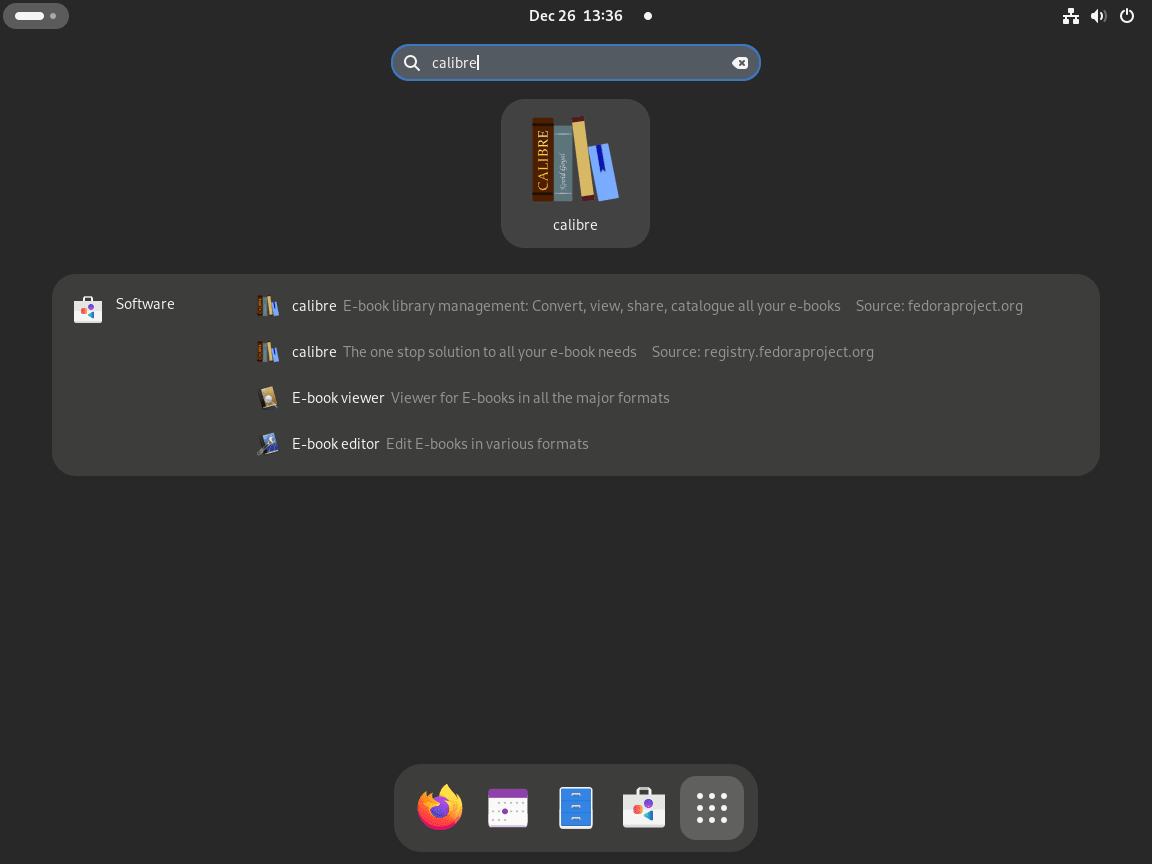
On Fedora GNOME, search for the app directly in Activities.
- Open Activities.
- Select Show Applications.
- Type Calibre in the search field.
- Open the Calibre launcher.
Complete the Calibre Setup Wizard on Fedora
The first launch wizard sets the library location and device profile. These choices are easy to change later, so accept the defaults if you just want to start reading and organizing books.
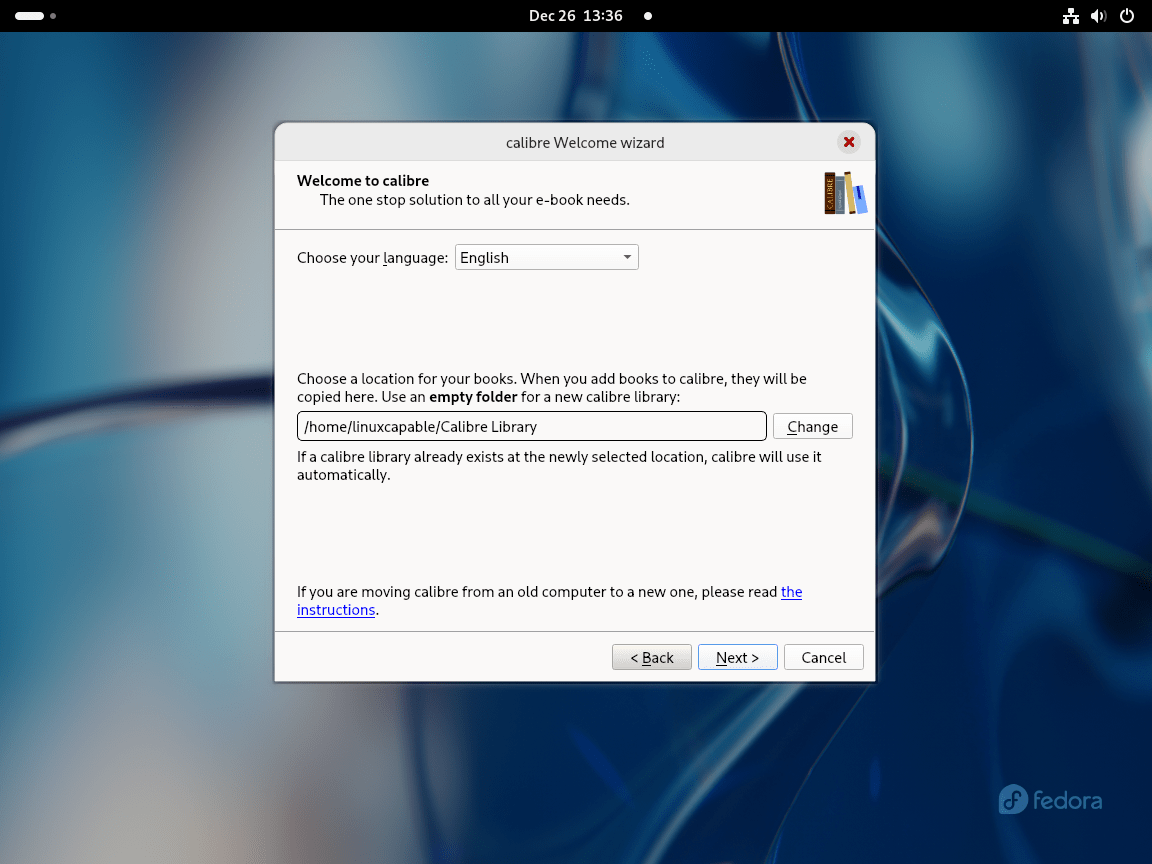
Choose the Calibre Library Directory on Fedora
Calibre’s standard library folder is ~/Calibre Library/. Keep that default if you want the simplest layout, or point the wizard at a different location if you already store books on another drive.
- Default folder: Use
~/Calibre Library/when you want Calibre to manage everything in one place. - Custom folder: Select Change, browse to the target location, and confirm the new path.
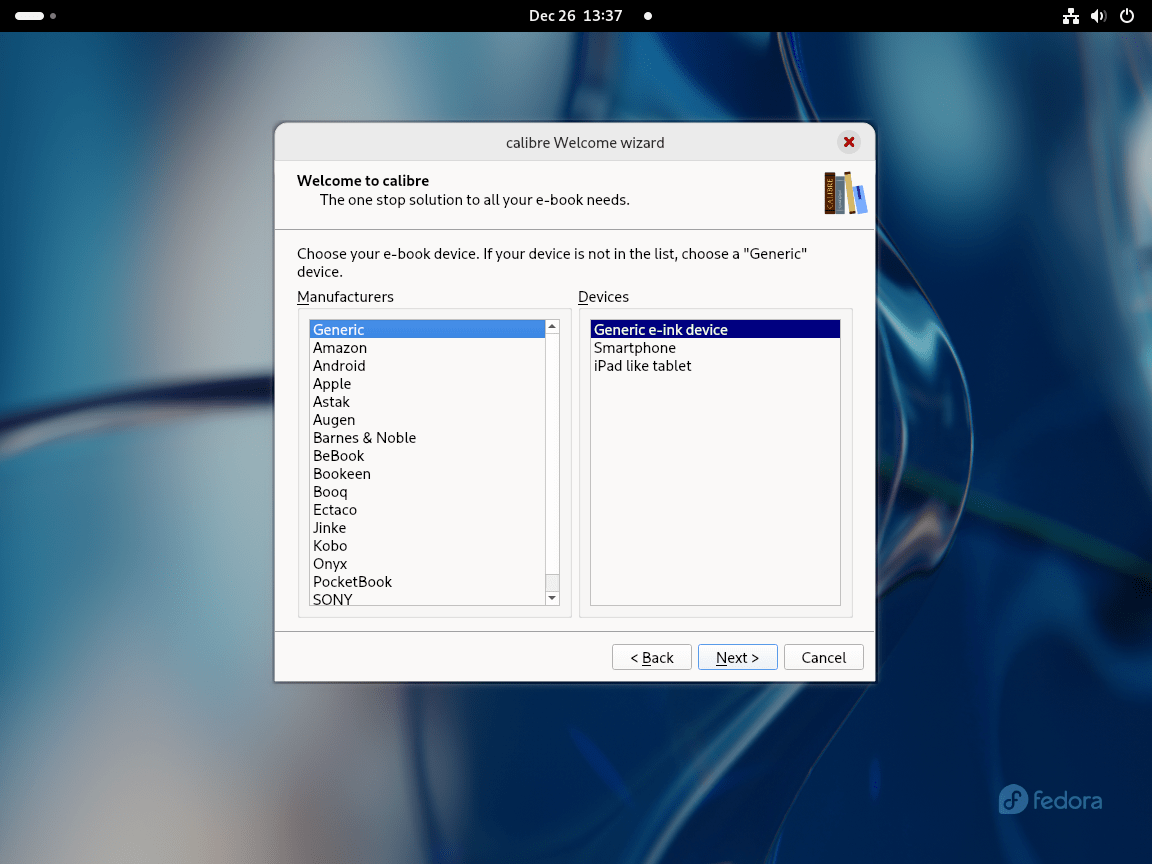
Select an E-Reader Profile in Calibre
The device list adjusts conversion defaults for readers such as Kindle, Kobo, and Nook. Pick your exact device when it appears in the list, or use the generic profile when you are not sure yet.
- Generic profile: Use it when you have not chosen a device or when your reader is not listed.
- Specific profile: Choose your exact reader to get better defaults for format conversion and syncing.
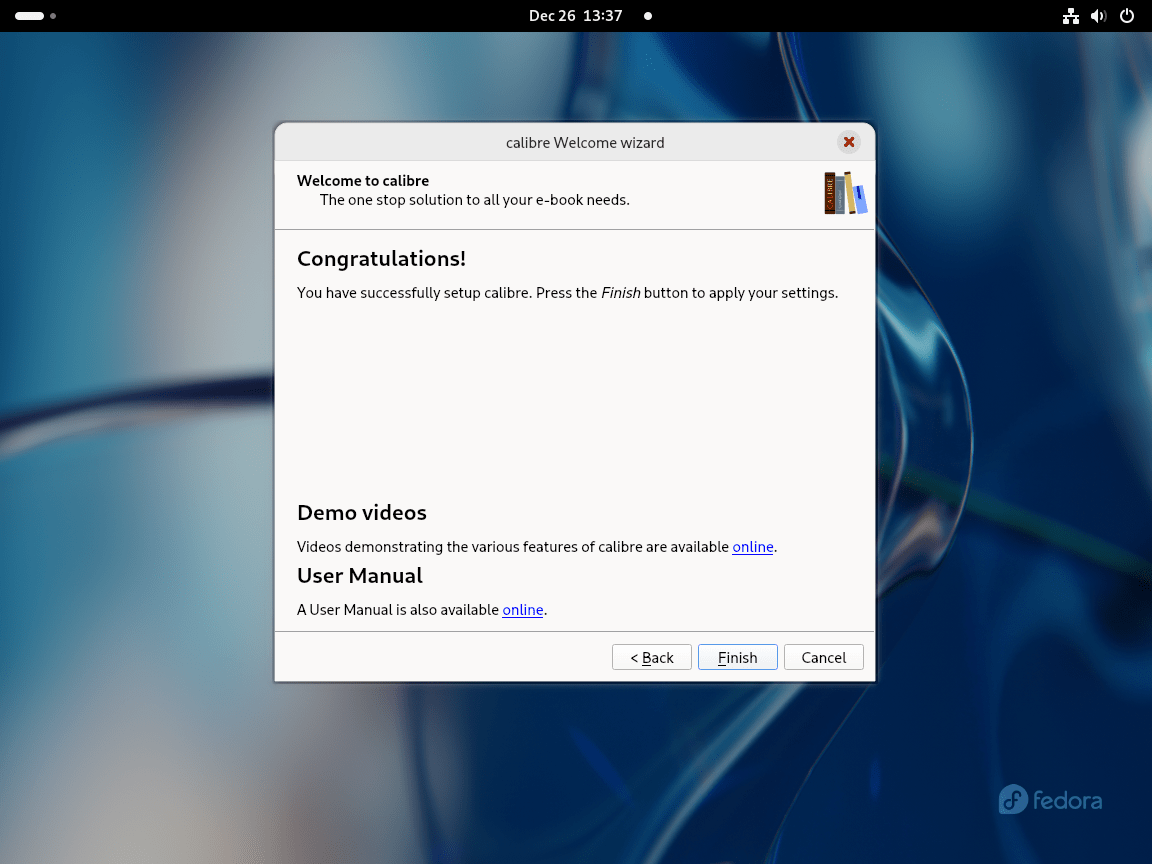
Finish the Calibre Setup Wizard
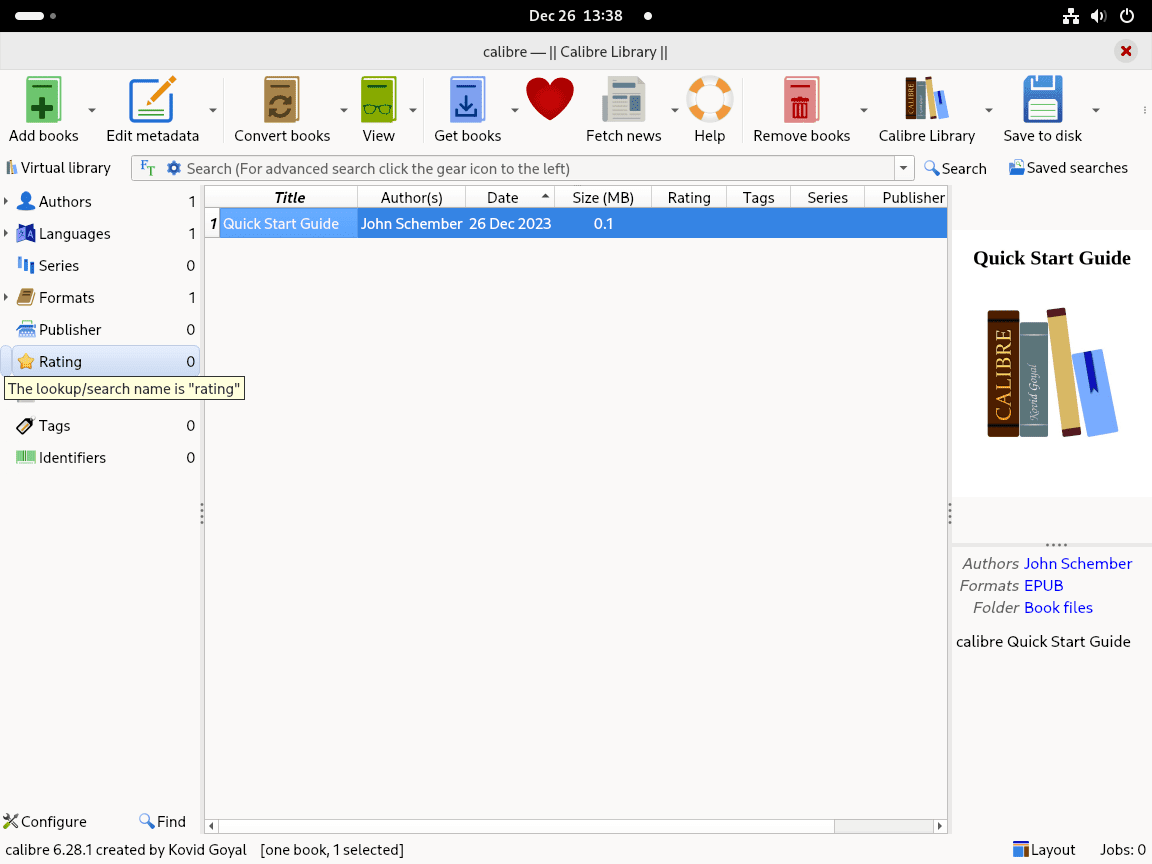
Review the summary, click Finish, and let Calibre open the main window. The bundled quick-start content in the library is useful if you want a fast tour of adding books, converting formats, and sending titles to a device.
Update Calibre on Fedora
Calibre updates through the same package source you used for the install, so the maintenance path stays simple.
Update the Fedora Package for Calibre
DNF updates Calibre with the rest of your Fedora packages.
sudo dnf upgrade --refreshUpdate the Flatpak Build of Calibre
The system-wide Flathub setup updates Calibre through Flatpak.
sudo flatpak update --system com.calibre_ebook.calibreRemove Calibre from Fedora
Remove the application with the same package manager you used to install it, then clean up the library or settings only if you no longer need them.
Remove the Fedora Package for Calibre
DNF removes the Fedora package and its unused dependencies in the same transaction.
sudo dnf remove calibreVerify that Fedora no longer sees the package:
rpm -q calibrepackage calibre is not installed
Remove the Flatpak Build of Calibre
This command matches the system-wide Flathub setup used earlier in the article. If you installed Calibre with a per-user Flatpak remote instead, remove sudo and add --user.
sudo flatpak remove --system --delete-data com.calibre_ebook.calibreCheck that the Flatpak app ID is gone:
flatpak info --system com.calibre_ebook.calibreerror: com.calibre_ebook.calibre/*unspecified*/*unspecified* not installed
After that, remove runtimes you no longer need:
sudo flatpak uninstall --unusedRemove Calibre Libraries and Settings on Fedora
Application removal does not delete your books automatically. Clean up the library or settings only after you confirm you no longer need the metadata database, covers, or imported books.
These commands permanently delete Calibre data. Back up any books or library folders you want to keep before you continue.
If your library is stored in ~/Calibre Library/, remove it with:
rm -rf ~/Calibre\ Library/The Fedora package stores its settings under ~/.config/calibre/.
rm -rf ~/.config/calibre/The Flatpak build stores sandbox data under ~/.var/app/com.calibre_ebook.calibre/.
rm -rf ~/.var/app/com.calibre_ebook.calibre/Frequently Asked Questions
Fedora 43 includes <code>calibre</code> in the standard repositories, where the current package is 8.14.x. Flathub currently carries 9.4.x. Use the Fedora package when you want tighter integration with DNF, or use Flathub when the newer release matters more.
The Fedora package stores settings in <code>~/.config/calibre/</code>. The Flatpak build stores sandbox data in <code>~/.var/app/com.calibre_ebook.calibre/</code>. If your books live in <code>~/Calibre Library/</code>, remove that folder separately when you want a full cleanup.
Yes. Use <code>calibre</code> for the Fedora package or <code>flatpak run com.calibre_ebook.calibre</code> for the Flathub build.
Calibre can do both. On Fedora it works as an EPUB reader, library manager, metadata editor, and format converter, so you do not need a separate reader just to open common e-book formats.
Conclusion
With Calibre installed on Fedora, you have one place to organize books, convert formats, and sync devices without piecing together extra tools. The Fedora package is still the cleaner default for most systems, while Flathub is the better fit when you want newer releases sooner. Keep an eye on the library path before cleanup so you do not delete the books with the application.

Formatting tips for your comment
You can use basic HTML to format your comment. Useful tags currently allowed in published comments:
<code>command</code>command<strong>bold</strong><em>italic</em><blockquote>quote</blockquote>