

Wrong timestamps make log reviews, cron jobs, and certificate checks harder than they need to be. The fastest way to set timezone on Debian is usually timedatectl, while Debian 13 (trixie), Debian 12 (bookworm), and Debian 11 (bullseye) still let you switch zones through dpkg-reconfigure tzdata or a desktop settings panel.
The Debian timezone setting lives in /etc/localtime on all three releases. Debian 12 and Debian 11 also keep /etc/timezone, while Debian 13 usually does not, so you can change the zone, verify it from the shell, and handle the common timedatectl edge cases without guessing which file still matters.
Set Timezone on Debian
Most readers should use the command-line method because it works the same way over SSH, on headless systems, and on desktop installs. The interactive tzdata menu and GNOME Settings are still useful when you want to browse locations instead of typing a Region/City name by hand.
| Method | Best For | Works Over SSH | Notes |
|---|---|---|---|
timedatectl | Fast command-line changes | Yes | Best default on normal systemd-based Debian installs |
dpkg-reconfigure tzdata | Interactive terminal selection | Yes | Useful when you want to browse regions and cities |
| GNOME Settings | Desktop point-and-click changes | No | Requires an active graphical session |
Use this quick pick if you are deciding between them:
- Use
timedatectlfor servers, remote shells, and scripts. - Use
dpkg-reconfigure tzdatawhen you want an interactive menu in the terminal. - Use GNOME Settings only when you are already working in Debian’s desktop session.
To change timezone on Debian from the command line, run sudo timedatectl set-timezone Region/City. To check the current Debian timezone first, run timedatectl status.
Check the Current Timezone on Debian
Check the current setting before you change anything. timedatectl status shows the active timezone and whether Debian is reading the hardware clock as UTC or local time.
timedatectl status Time zone: Australia/Perth (AWST, +0800)
RTC in local TZ: no
The Time zone line is the value you are changing. RTC in local TZ: no is the normal Linux default and means the hardware clock is stored in UTC.
List Available Timezones on Debian
Debian uses the standard IANA timezone database, so the name must follow the Region/City pattern. If the full list is too long, filter it with the grep command in Linux with examples to narrow the results.
timedatectl list-timezones | grep AmericaAmerica/Chicago America/Los_Angeles America/New_York
If you already know the exact name, you can skip straight to the next step. When you are unsure, start with a broad region such as America, Europe, Asia, or Australia.
Change the Timezone on Debian with timedatectl
This is the fastest way to change timezone on Debian from the command line. Replace America/New_York with the zone you want from the previous step.
These commands use
sudobecause timezone changes apply to the whole system. If your account does not have sudo access yet, follow how to add a user to sudoers on Debian. If you manage the machine remotely, make sure you can install SSH and enable it on Debian before you depend on shell-only administration.
sudo timedatectl set-timezone America/New_YorkThe change is immediate. Verify it from the shell:
timedatectl status | grep "Time zone"Time zone: America/New_York (EDT, -0400)
If you also want to confirm the underlying zoneinfo link, read /etc/localtime directly:
readlink -f /etc/localtime/usr/share/zoneinfo/America/New_York
Debian 12 and Debian 11 also update /etc/timezone when you change the zone this way. Debian 13 usually does not create that file, so use the next subsection if you want to see how your release stores the setting.
Check /etc/localtime and /etc/timezone on Debian
The authoritative setting is always /etc/localtime, but search traffic still shows a lot of people checking /etc/timezone, especially on Debian 12 and Debian 11. Use both commands below if you want to see how your release stores the current zone.
readlink -f /etc/localtime
cat /etc/timezone
/usr/share/zoneinfo/America/New_York cat: /etc/timezone: No such file or directory
That missing-file result is normal on Debian 13. On Debian 12 and Debian 11, the second command prints the zone name itself, such as America/New_York.
Change the Timezone on Debian with dpkg-reconfigure tzdata
Use the tzdata dialog when you want a guided menu instead of typing a region and city manually. It works well over SSH because the prompts stay inside the terminal.
sudo dpkg-reconfigure tzdataChoose your geographic area first, then the city or region that matches your local time.
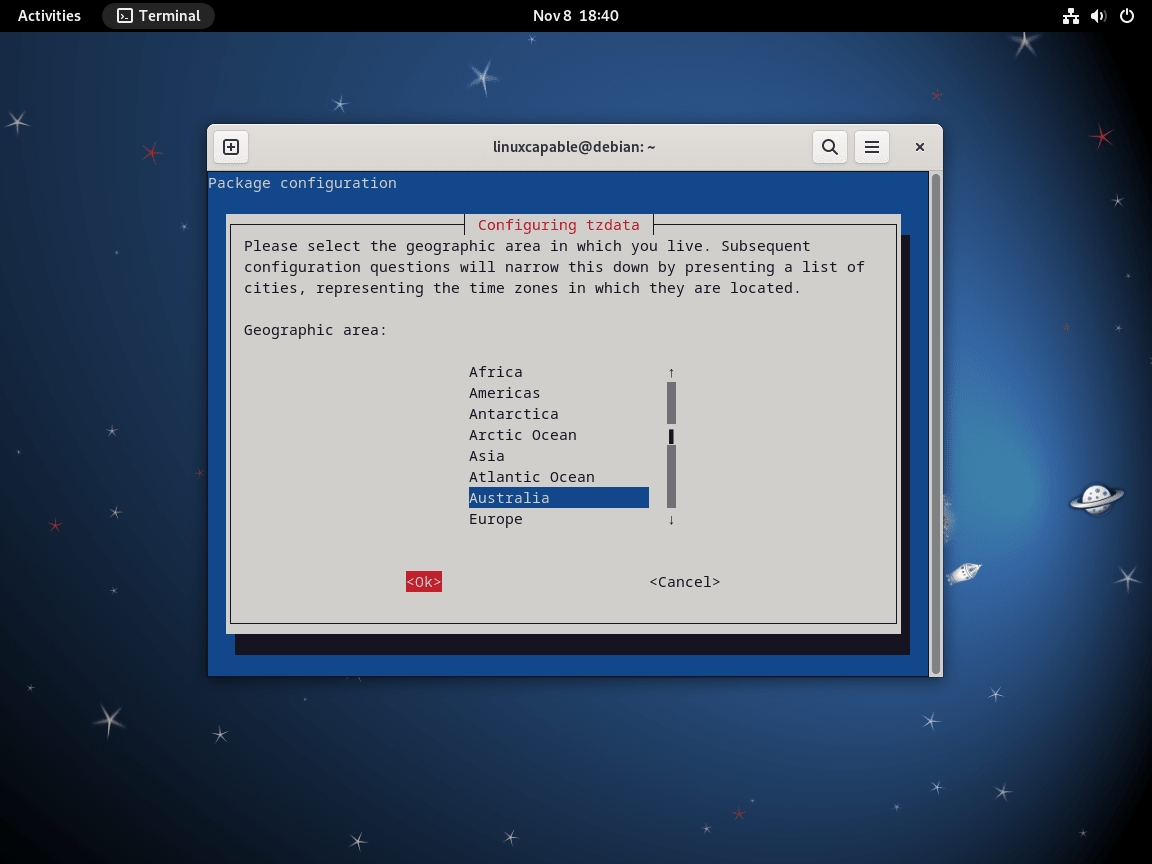
After you confirm the choice, Debian prints a short summary:
Current default time zone: 'Australia/Perth'
Local time is now:      Sun Mar 15 10:30:15 AWST 2026.
Universal Time is now:  Sun Mar 15 02:30:15 UTC 2026.
The city and abbreviation reflect the zone you selected. Confirm the shell sees the same result:
timedatectl status | grep "Time zone"Time zone: Australia/Perth (AWST, +0800)
Change the Timezone on Debian in GNOME
On a Debian desktop, GNOME lets you change the timezone without opening a shell. This method needs an active graphical session, so it is not useful on headless servers or SSH-only systems.
Open Settings, choose Date & Time, and turn off Automatic Time Zone if Debian keeps selecting the wrong location.
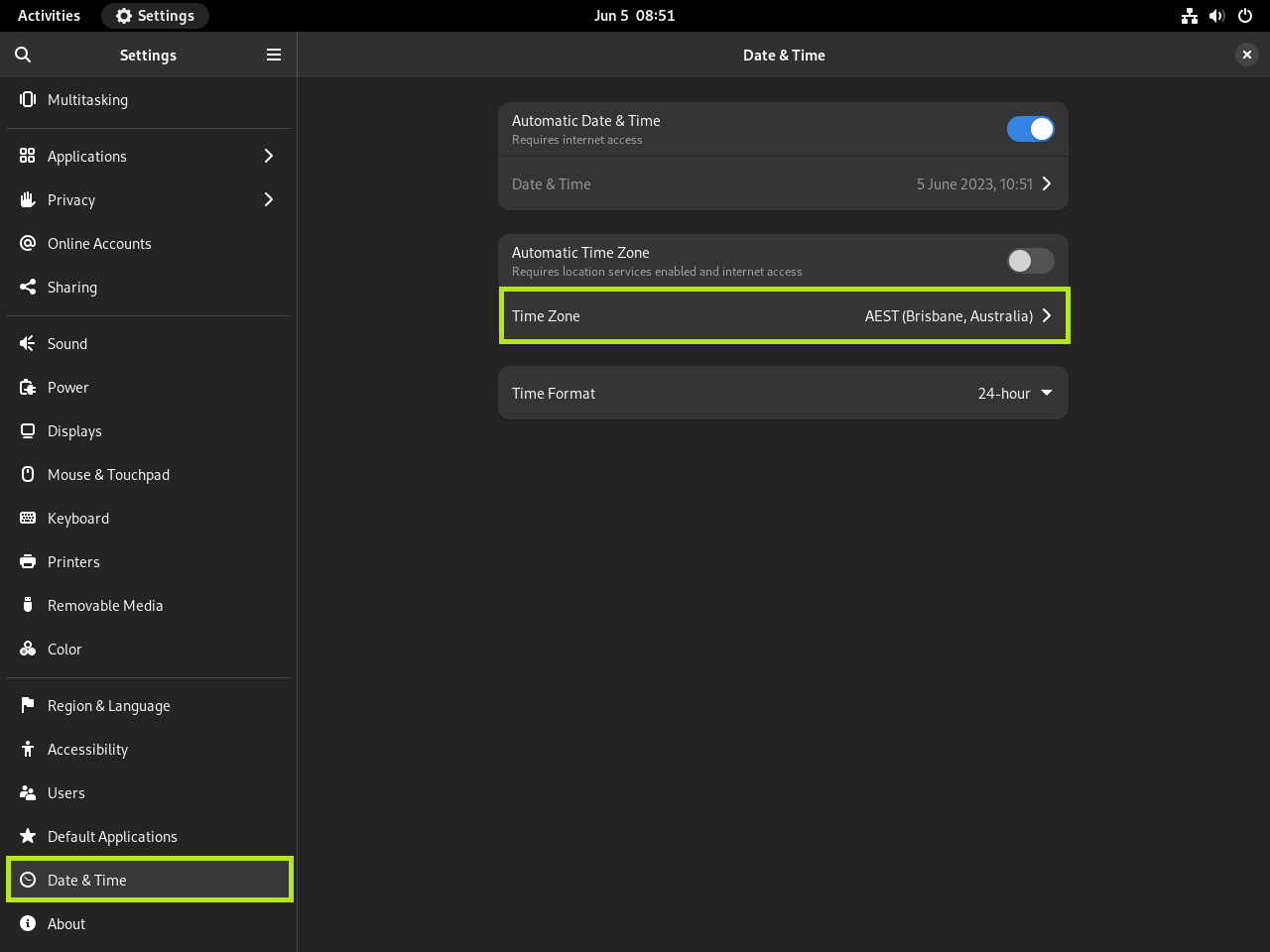
Select Time Zone, then click your city or the nearest major region on the map. GNOME applies the change as soon as you confirm the new location.
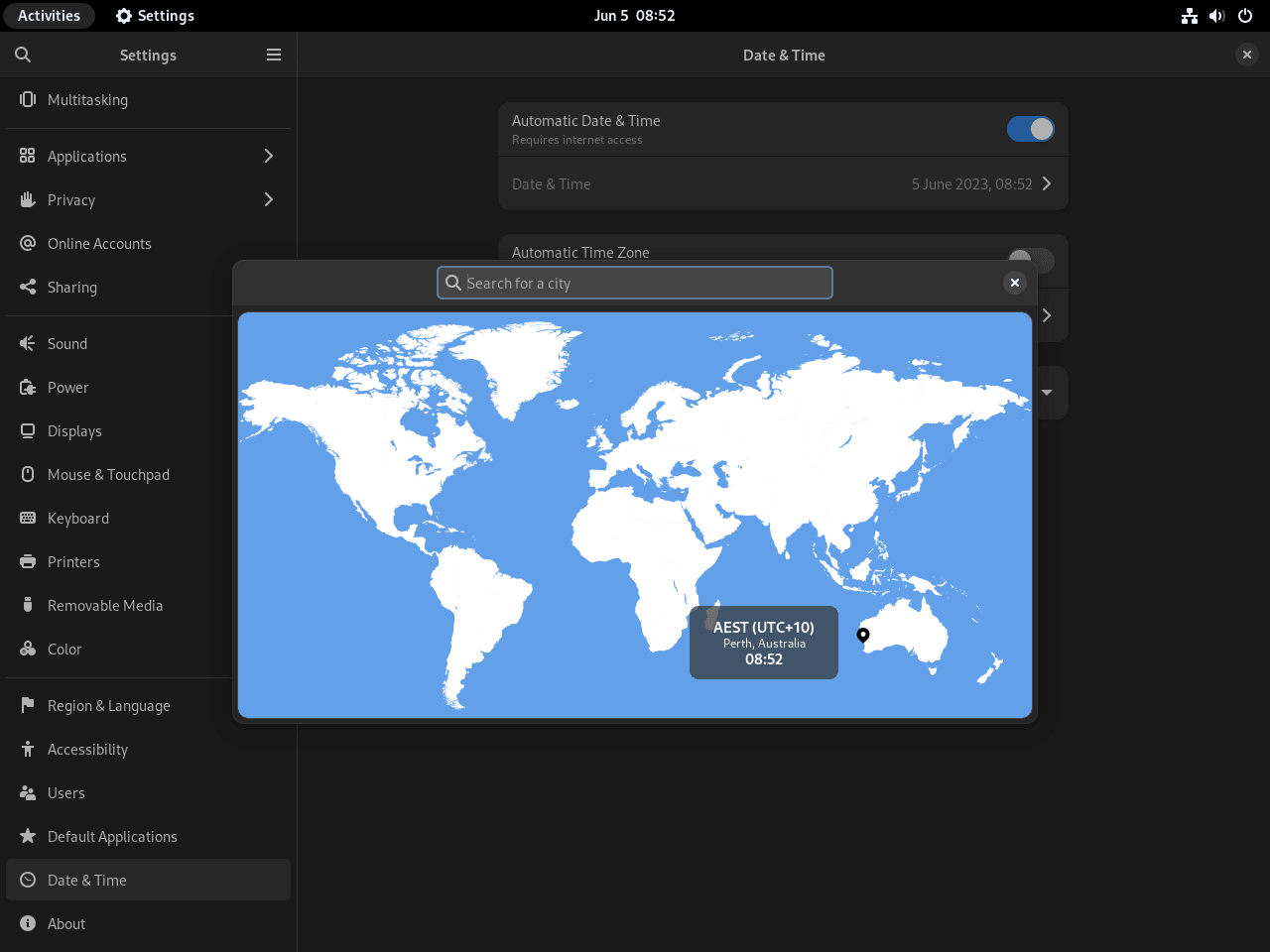
Open a terminal afterward so logs and scripts match what the desktop now shows:
timedatectl status | grep "Time zone"Time zone: Australia/Perth (AWST, +0800)
Fix Common Debian Timezone Problems
Most timezone issues on Debian come down to one of three cases: the command is missing, the system is not running systemd, or the clock source is wrong even though the timezone name is correct.
Fix timedatectl: command not found on Debian
On a standard Debian install, timedatectl is provided by the systemd package. Check the expected package ownership first:
dpkg -S /usr/bin/timedatectlsystemd: /usr/bin/timedatectl
If that file is missing, you are usually inside a stripped-down container, chroot, or other non-standard image. In that case, skip to the next subsection because the file-based method is more reliable than trying to force timedatectl into an environment that does not manage time through systemd.
Fix System has not been booted with systemd on Debian
That error means PID 1 is not systemd, so timedatectl cannot talk to the service it expects. Point /etc/localtime at the correct zone file directly and verify the result with date or readlink -f /etc/localtime.
sudo ln -sf /usr/share/zoneinfo/America/New_York /etc/localtimeIf you are on Debian 12 or Debian 11 and want the plain-text file to match, write the same value to /etc/timezone. The tee command is used here because a plain > redirection would still run as your unprivileged shell.
printf '%s\n' 'America/New_York' | sudo tee /etc/timezone > /dev/nullVerify the fallback method without timedatectl:
date
readlink -f /etc/localtime
Sat 14 Mar 2026 22:30:46 EDT /usr/share/zoneinfo/America/New_York
The timezone abbreviation from date should match the zone you picked. The second line confirms which file under /usr/share/zoneinfo/ is currently linked.
Fix the Wrong Time After Changing Timezone on Debian
If the city is correct but the hour is still wrong, the problem is usually the hardware clock or time synchronization rather than the timezone name itself. Dual-boot systems are the common exception because Windows often expects the RTC to use local time instead of UTC.
timedatectl status | grep "RTC in local TZ"RTC in local TZ: no
no is the normal Linux setting. If you intentionally need Windows-style local RTC behavior, switch it with the command below and then verify the change:
sudo timedatectl set-local-rtc 1
timedatectl status | grep "RTC in local TZ"
Warning: The system is now being configured to read the RTC time in the local time zone
This mode cannot be fully supported. It will create various problems
with time zone changes and daylight saving time adjustments. The RTC
time is never updated, it relies on external facilities to maintain it.
If at all possible, use RTC in UTC
Warning: The system is configured to read the RTC time in the local time zone.
This mode cannot be fully supported. It will create various problems
with time zone changes and daylight saving time adjustments. The RTC
time is never updated, it relies on external facilities to maintain it.
If at all possible, use RTC in UTC by calling
'timedatectl set-local-rtc 0'.
RTC in local TZ: yes
Use sudo timedatectl set-local-rtc 0 to return to the Linux default after testing. If the correct timezone still shows the wrong hour, the system clock itself needs to sync from NTP or your hypervisor rather than another timezone change.
Set Debian Timezone to UTC
UTC is the cleanest choice for servers, containers, and shared systems where logs need a single time base. To set Debian to UTC, use the same command-line method with UTC as the zone name.
sudo timedatectl set-timezone UTCVerify the result:
timedatectl status | grep "Time zone"Time zone: UTC (UTC, +0000)
If you prefer the interactive path, run sudo dpkg-reconfigure tzdata, choose Etc, and then select UTC.
Debian Timezone FAQ
Debian 13 usually stores the active zone through the /etc/localtime symlink and no longer creates /etc/timezone by default. Debian 12 and Debian 11 still keep /etc/timezone, so a missing file on Debian 13 is expected rather than a broken configuration.
No. On a normal Debian install, timedatectl is provided by the systemd package. If the command is missing, you are usually on a stripped-down container, chroot, or other non-standard environment rather than a full Debian desktop or server install.
Yes. Point /etc/localtime at the correct file under /usr/share/zoneinfo/ and verify the result with date or readlink -f /etc/localtime. On Debian 12 and Debian 11, you can also keep /etc/timezone in sync with the same zone name.
No. Changing the timezone only changes how Debian displays local time. If the hour is still wrong after you choose the correct zone, the system clock, NTP sync, or the hardware clock setting still needs attention. The RTC in local TZ line from timedatectl status is the first thing to check on dual-boot systems.
Conclusion
The timezone on Debian is set the way you want it, whether you changed it with timedatectl, the tzdata dialog, or GNOME Settings. To keep timezone data current, configure unattended upgrades on Debian. If this system is managed remotely, make sure you can install SSH and enable it on Debian before you rely on shell-only administration.

Formatting tips for your comment
You can use basic HTML to format your comment. Useful tags currently allowed in published comments:
<code>command</code>command<strong>bold</strong><em>italic</em><blockquote>quote</blockquote>