
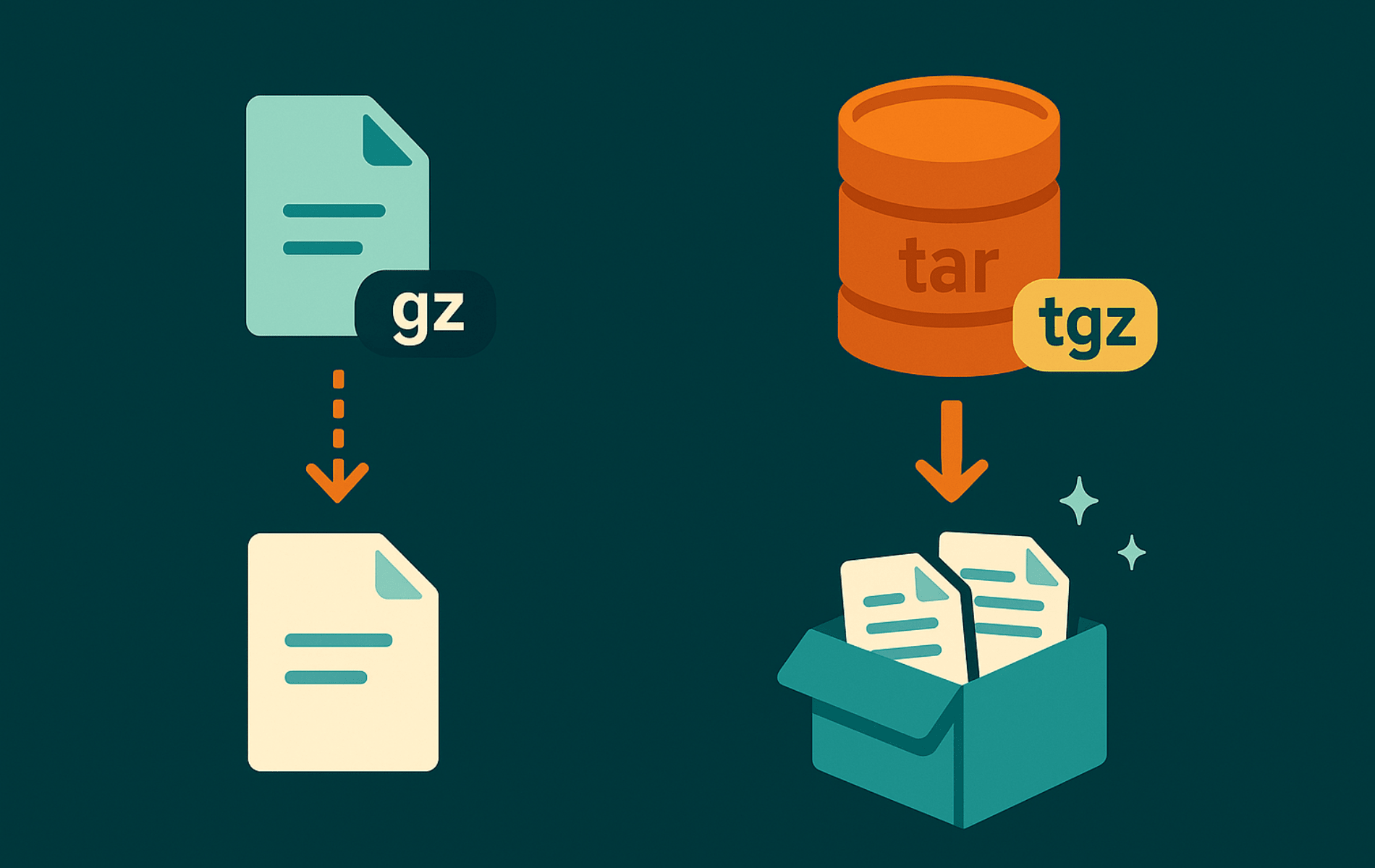
Learning how to open .gz and .tgz files in Linux is essential for managing source code releases, restoring system backups, and unpacking log bundles. Whether you’re extracting a downloaded software archive, analyzing compressed logs from remote servers, or deploying applications from tarball distributions, tar and gzip handle the heavy lifting. You will learn how to inspect archives before extraction, restore files safely to clean directories, extract specific files by pattern, and create your own compressed backups with proper permissions.
Understand GZ and TGZ Archives
If you are new to these archives, think of tar as the tool that bundles files together and gzip as the shrink wrap that squeezes the bundle down for faster transfers. TGZ files are simply tar archives that have been compressed with gzip, so you always touch both utilities when working with them.
tar [OPTIONS] -f ARCHIVE.tar.gz [PATHS...]- tar: Runs the archiving program that packs or unpacks files.
- [OPTIONS]: Common flags include
-c(create),-x(extract),-z(gzip compression),-v(verbose), and-C(change directory). - -f ARCHIVE.tar.gz: Points tar to the archive you want to use. The
.tar.gzand.tgzextensions are interchangeable. - [PATHS…]: Optional list of files or directories to add or extract. Leaving this blank tells tar to include or extract everything.
The simplest extraction looks like tar -xzvf archive.tar.gz, which unpacks the archive into your current directory while printing each file name. Swap -x for -c to create a new archive instead.
gzip [OPTIONS] FILE- gzip: Compresses or decompresses individual files.
- [OPTIONS]: Use
-dto decompress,-kto keep the original file, and-rto recurse into directories. - FILE: The file you want to compress or restore. The command adds
.gzwhen compressing and removes it when decompressing.
At its simplest, run gzip example.log to compress a single log and gunzip example.log.gz to bring it back.
| Task | Options | What They Do |
|---|---|---|
| Inspect a tar archive | tar -tzf archive.tar.gz | Lists files without extracting, so you can confirm paths first. |
| Extract a tar archive | tar -xzvf archive.tar.gz | Unpacks everything into the current directory while showing progress. |
| Extract to another location | tar -xzvf archive.tar.gz -C /tmp/app | Restores the archive into a different directory that you specify. |
| Decompress a single file | gunzip example.log.gz | Recreates the original file and removes the compressed copy. |
| Keep the compressed copy | gunzip -k example.log.gz | Writes the decompressed file but preserves the .gz version for later. |
In day-to-day administration you will often receive a single .gz file, such as a compressed log, or a .tgz archive that holds an entire project. The rest of this guide walks through both scenarios.
Check That Tar and Gzip Are Installed
Most Linux distributions ship with GNU tar and gzip pre-installed, but minimal containers or stripped-down servers might omit them. Check whether the binaries already exist before installing anything:
tar --version
gzip --version
If both tools are installed, you should see version output similar to:
tar (GNU tar) 1.35
Copyright (C) 2023 Free Software Foundation, Inc.

gzip 1.12
Copyright (C) 2018 Free Software Foundation, Inc.
If either command returns “command not found,” install or update the tools with your distribution’s package manager.
Ubuntu and Debian-based distributions:
sudo apt update
sudo apt install tar gzip
Fedora, RHEL, AlmaLinux, and Rocky Linux:
sudo dnf install tar gzipArch Linux, Manjaro, and other pacman-based systems:
sudo pacman -Syu tar gzipopenSUSE Leap and Tumbleweed:
sudo zypper install tar gzipAlpine Linux:
sudo apk add tar gzipVoid Linux:
sudo xbps-install -S tar gzipGentoo Linux:
sudo emerge --ask app-arch/tar app-arch/gzipWork with Single GZ Files
.gz files store one compressed file. You can peek at the contents or decompress them outright.
Preview Data without Extracting
Use the gzip helper utilities when you want to inspect a compressed file quickly without extracting it permanently:
- Display contents:
zcat example.log.gzstreams the decompressed output to stdout. - Page through long files:
zless example.log.gzopens the file with the familiarlessinterface. - Search inside:
zgrep -i error example.log.gzscans the compressed file without unpacking it first.
For example, to view the contents of a compressed log file and search for errors:
# View entire compressed log
zcat /var/log/syslog.1.gz

# Search for error messages
zgrep -i "error" /var/log/syslog.1.gz
These gzip utilities (zcat, zless, zgrep) work with any .gz file and are perfect for quick inspections. zcat can pipe output to other tools like head or grep, while zgrep supports full regex patterns for advanced searches. For more on using grep patterns and searches, see our dedicated guide.
Decompress a GZ File
gunzip restores the original file and removes the compressed copy. Use -k when you want to keep both versions.
# Restore the original file and delete example.log.gz
gunzip example.log.gz

# Restore the file but keep a compressed copy
gunzip -k example.log.gz
You can achieve the same effect with gzip -d and combine it with globbing to decompress several files in one command:
# Decompress every .gz file in the current directory
gzip -dk *.gz
Extract TGZ (tar.gz) Archives
Tar archives can hold entire directory trees. Combine tar with gzip to shrink those archives for faster downloads or backups.
List the Archive Contents First
Always check what is inside before extracting to avoid overwriting files unexpectedly.
# Show files in the archive with permissions and ownership
tar -tzvf archive.tar.gz
This prints each file with its permissions, owner, size, and modification date:
drwxr-xr-x root/root         0 2026-02-02 10:30 project/
-rw-r--r-- root/root        12 2026-02-02 10:30 project/readme.txt
-rw-r--r-- root/root        14 2026-02-02 10:30 project/config.yaml
For long archives, add | less to page through the output or | grep pattern to filter for specific files.
Extract to the Current Directory
Use the -x (extract), -z (gzip), -v (verbose), and -f (file) flags together to unpack the archive.
# Extract everything into the working directory
tar -xzvf archive.tar.gz
The -v flag prints each file as it is extracted, so you see output similar to:
project/
project/readme.txt
project/config.yaml
Tar preserves file permissions by default. Run the command with sudo if you need to restore ownership for root-owned files.
Extract to a Different Location
The -C flag changes the extraction directory. Create the target folder ahead of time if it does not exist.
mkdir -p /srv/backups/app
tar -xzvf archive.tar.gz -C /srv/backups/app
For more details on creating directories with the -p flag, see our mkdir command guide.
Extract Only Specific Files
Combine tar -x with a file path to extract a single item. Use --strip-components when you want to discard leading directory levels from the archive path.
# Pull one file out of the archive without restoring the entire tree
tar -xzvf archive.tar.gz --strip-components=2 path/in/archive/config.yaml
This approach is handy when an archive contains a long prefix such as project-1.0.0/ and you only need a single configuration file.
Extract Files by Pattern
When you need to extract multiple files matching a specific pattern, use the --wildcards option. This is useful for pulling out all files of a certain type without listing them individually.
# Extract all .txt files from the archive
tar -xzvf archive.tar.gz --wildcards '*.txt'
Always quote the wildcard pattern to prevent the shell from interpreting it before tar processes the command.
Extract Archives with a GUI
If you prefer a graphical interface, most Linux desktop environments ship archive managers that understand .tar.gz files.
- Right-click the archive in your file manager (Nautilus, Dolphin, Thunar, or similar tools work the same way).
- Choose “Extract Here” to unpack in the current directory, or “Extract to…” to send the files elsewhere.
- The archive manager creates a folder named after the archive and restores the files while preserving permissions.
This approach is convenient for occasional tasks, though command-line extraction scales better on servers or in scripts.
Extract from Standard Input
Piping a remote download straight to tar lets you unpack files without storing the archive first, which saves disk writes on remote hosts.
# Download and extract using wget
wget -qO - https://example.com/archive.tar.gz | tar -xz

# Or with curl
curl -s https://example.com/archive.tar.gz | tar -xz
Modern GNU tar auto-detects compression when extracting from a file, but when piping from stdin the -z flag is required because tar cannot detect the compression type from a stream. For more advanced wget or curl download techniques, see our dedicated command guides.
Troubleshooting Common Issues
Even with the right commands, you might encounter errors when working with GZ and TGZ files. Here are solutions to frequent problems.
- Archive not recognized: If
tarsays “This does not look like a tar archive,” the file might be corrupted, not gzip-compressed, or have the wrong extension. Check withfile archive.tar.gzto identify the actual format. If it turns out to be a ZIP or other archive type, use the appropriate tool (e.g.,unzipfor ZIP files). On minimal systems, you may need to install thefileutility first withsudo apt install fileor equivalent for your distribution. - Not in gzip format: For single GZ files,
gziporgunzipmight report “not in gzip format.” Verify the file type withfile example.gzor test the compressed file withgzip -t example.gz, which exits silently on success or reports an error if the file is invalid. If the file is not actually compressed, you may not need to decompress it at all. - Permission denied: Extraction fails with permission errors if you lack write access to the target directory or if the archive contains root-owned files. Use
sudofor system-wide extractions or extract to a user-writable location with-C /path/to/dir. - Insufficient disk space: Large archives might fail to extract if there is not enough space. Check available space with
df -hand free up room or extract to another filesystem. For more on analyzing disk usage with the du command, see our dedicated guide. - Corrupted archive: If extraction stops midway or produces gibberish, the file may be damaged. Redownload if possible, or use
tar -tzf archive.tar.gzto test integrity without extracting. For single GZ files, usegzip -t filename.gzto check whether the compression is intact.
Create Your Own TGZ Archives
Use tar’s create flag (-c) alongside gzip compression when you want to package files for backup or distribution.
# Create archive.tar.gz from the contents of the project directory
tar -czvf archive.tar.gz project/
Place the -C flag before the directory name if you want to change into another location during archive creation:
# Change to /var/www first, then archive the app directory
tar -czvf app-backup.tgz -C /var/www app
Tar supports exclusions to skip directories like Git metadata and large cache folders when building release archives. Place --exclude flags before the source path, as GNU tar processes arguments in order:
tar -czvf app-release.tgz --exclude='project/.git' --exclude='project/tmp' project/Verify and Maintain Archives
After creating or downloading archives, a few quick checks prevent surprises later.
Test Archive Integrity
Use tar -tzf to verify that an archive can be read without extracting it. If the archive is corrupted, tar reports an error immediately:
# Test a tar.gz archive
tar -tzf archive.tar.gz

# Test a single gz file
gzip -t example.log.gz
A successful test produces no output for gzip -t or lists the archive contents for tar -tzf. Any error message indicates the file is damaged.
Identify Unknown File Types
If you encounter a file with an unclear extension, use file to identify its actual format:
file archive.tar.gzarchive.tar.gz: gzip compressed data, was "archive.tar", last modified: Sun Feb 2 10:30:00 2026
Verify Downloads with Checksums
When downloading software releases, publishers often provide checksum files (SHA256, MD5) so you can verify the download is complete and unmodified:
# Generate a checksum for your downloaded file
sha256sum archive.tar.gz

# Compare against the published checksum
echo "expected_checksum_here  archive.tar.gz" | sha256sum --check
A successful check prints archive.tar.gz: OK. If the checksum does not match, the file may be corrupted or tampered with, and you should redownload from a trusted source.
Differences Between Archive Formats
While .gz and .tgz are common in Linux, understanding how they compare to other formats helps you choose the right tool for backups or data transfer.
- TAR: Archives multiple files without compression. Preserves permissions and metadata but doesn’t reduce size.
- GZ: Compresses a single file using gzip. Efficient for logs or text files, but not for bundling multiple items.
- TGZ/TAR.GZ: Combines tar archiving with gzip compression. Ideal for software distributions and backups, balancing size and structure.
- ZIP: Cross-platform format that archives and compresses files individually. Common on Windows, supports encryption but may create larger archives than TGZ for some data types.
- BZ2/TAR.BZ2: Uses bzip2 compression, often better for large files but slower than gzip.
- XZ/TAR.XZ: High compression with xz, great for space-constrained environments, though extraction can be slower.
For most Linux tasks, TGZ strikes the best balance of speed, compression, and compatibility. When working with other formats, use the appropriate tar flag: -j for bzip2 (.tar.bz2) and -J for xz (.tar.xz). Modern GNU tar can also auto-detect compression when extracting, so tar -xvf archive.tar.xz works without specifying the compression flag.
Frequently Asked Questions
Standard tar and gzip utilities do not support encryption. To secure an archive, use gpg for symmetric encryption (gpg -c archive.tar.gz) or switch to the zip format with the -e flag if cross-platform compatibility is a priority.
Use the split command to break the archive into chunks. For example, to create 1GB parts: tar -czvf - data/ | split -b 1G - archive.tar.gz. To restore, concatenate and extract: cat archive.tar.gz.* | tar -xzvf -.
The standard gzip tool is single-threaded, meaning it uses only one CPU core. For faster compression on multi-core systems, install pigz (Parallel Implementation of GZip). It works as a drop-in replacement: tar -I pigz -cvf archive.tar.gz dir/.
Conclusion
Opening and managing .gz and .tgz files with tar and gzip gives you reliable control over software releases, system backups, and compressed logs. By inspecting archives before extraction with tar -tzf, extracting safely to specific directories with -C, pulling individual files by pattern with --wildcards, and creating your own releases with proper exclusions and permissions, you can handle upstream distributions, automated deployments, and support bundles without surprises. Keep these command patterns close at hand and you will confidently manage any compressed archive that crosses your path.
For extracting other archive formats like zip, see our unzip commands guide.

Formatting tips for your comment
You can use basic HTML to format your comment. Useful tags currently allowed:
<code>command</code>command<strong>bold</strong><em>italic</em><blockquote>quote</blockquote>