

Zoom’s browser client drops features like breakout rooms, local recording, and reliable screen sharing, so most regular meeting users are better off with the desktop app. To install Zoom on Debian, you grab the official .deb package from Zoom’s download center or the Flatpak build from Flathub. Both work on Debian 13, 12, and 11 on x86_64 hardware.
Install Zoom on Debian
Choose between a direct .deb download or a sandboxed Flatpak install. If you run Debian on ARM hardware, use the browser client instead since Zoom’s Linux packages target x86_64 only.
| Method | Channel | Version | Updates | Best For |
|---|---|---|---|---|
| Official .deb Package | Zoom Download Center | Latest | Manual re-download | Users who want direct vendor packaging and native menu integration |
| Flatpak | Flathub | Latest | Managed with Flatpak | Users who prefer sandboxing and simple system-wide updates |
The official .deb package is the better default for most Debian desktop users. Flatpak is a strong alternative if you want tighter app isolation or smoother Wayland screen sharing.
Method 1: Install Zoom on Debian with the Official .deb Package
Update Debian Before Installing Zoom
sudo apt update && sudo apt upgradeThis guide uses
sudofor commands that need elevated privileges. If your account is not configured for sudo yet, follow how to add a user to sudoers on Debian.
Install Zoom Dependencies on Debian
Install the required dependencies first, especially on minimal Debian installs where X11 libraries may be missing.
sudo apt install wget libegl1 libxcb-cursor0 libxcb-xtest0Download Zoom .deb Package on Debian
wget https://zoom.us/client/latest/zoom_amd64.debFor advanced download flags such as resume support or a custom output filename, see wget command examples.
Install Zoom .deb Package on Debian
sudo apt install ./zoom_amd64.debExpected output:
Setting up zoom (6.7.5.6891) ...
Verify Zoom .deb Installation on Debian
dpkg -l zoomExpected output:
ii zoom 6.7.5.6891 amd64 Zoom Workplace
Method 2: Install Zoom on Debian with Flatpak
If Flatpak is not installed yet, complete Flatpak setup on Debian first so the commands below work as shown.
Add Flathub on Debian for Zoom Flatpak
sudo flatpak remote-add --system --if-not-exists flathub https://flathub.org/repo/flathub.flatpakrepoInstall Zoom Flatpak on Debian
sudo flatpak install --system flathub us.zoom.Zoom -yExpected output ends with:
Installation complete.
Verify Zoom Flatpak Installation on Debian
sudo flatpak list --app --system | grep -i zoomExpected output:
Zoom us.zoom.Zoom 6.7.5.6891 stable system
Launch Zoom on Debian
Launch Zoom from Debian Terminal
For the official .deb install method, run:
zoomFor the Flatpak method, run:
flatpak run us.zoom.ZoomLaunch Zoom from Debian Applications Menu
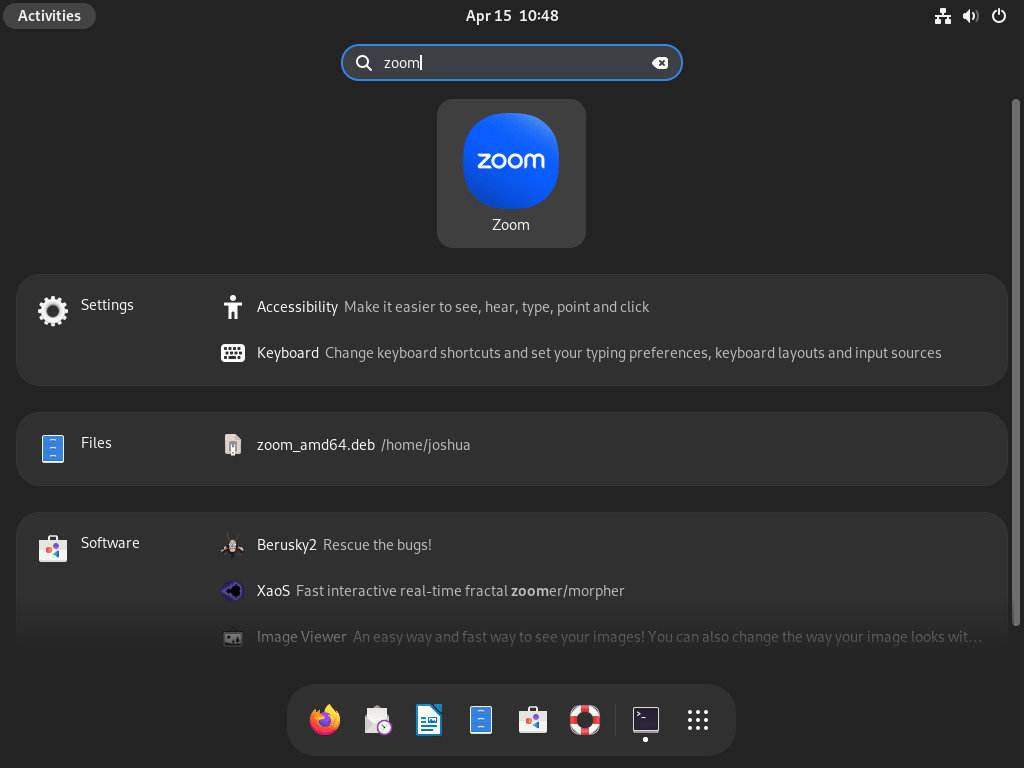
- Open the Activities menu with your mouse or press the Super key.
- Search for Zoom in the application list.
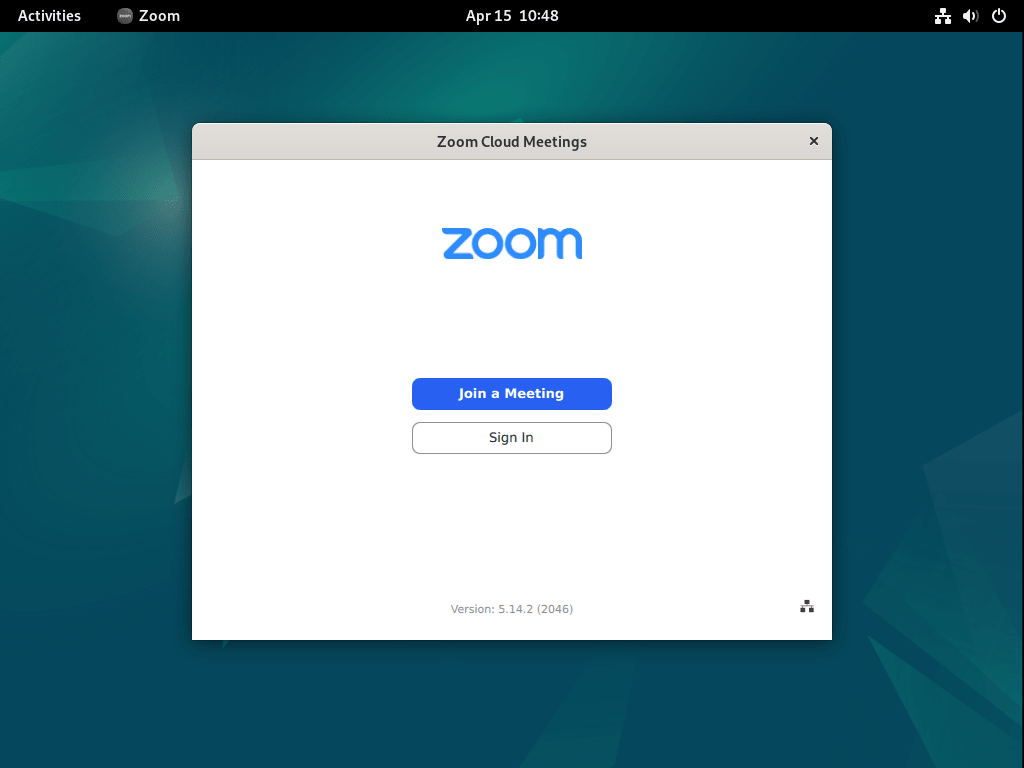
- Select the Zoom icon and sign in to join or schedule meetings.
Troubleshoot Zoom on Debian
Fix Missing libxcb-xtest0 Error in Zoom on Debian
If Zoom fails during package install, the most common cause is missing X11 dependencies on minimal systems.
Typical error:
zoom depends on libxcb-xtest0; however:
	Package libxcb-xtest0 is not installed.
Install the dependency set, then reinstall Zoom:
sudo apt install wget libegl1 libxcb-cursor0 libxcb-xtest0
sudo apt install ./zoom_amd64.deb
Verify again:
dpkg -l zoomii zoom 6.7.5.6891 amd64 Zoom Workplace
Fix Zoom Camera Detection on Debian
Check that Debian detects your camera before adjusting Zoom settings.
ls /dev/video*Expected output:
/dev/video0
If no device appears, reconnect the webcam or test another USB port. If the device exists but Zoom still cannot use it, close other apps that may already hold camera access.
Fix Zoom Microphone Issues on Debian
If people cannot hear you, Debian is usually selecting the wrong input device or a muted source.
sudo apt install pavucontrolOpen pavucontrol, check Input Devices, then switch to Recording while Zoom is active to confirm Zoom is attached to the correct microphone.
Improve Zoom Screen Sharing on Debian Wayland
Wayland restricts which windows and screens apps can capture, so Zoom may only share individual windows instead of the full desktop. The Flatpak build handles Wayland portals better in most cases, while X11 remains the fallback when you need predictable full-screen sharing.
If the GNOME X11 session is missing on Debian 13, install it, log out, then choose GNOME on Xorg from the login gear menu.
sudo apt install gnome-session-xsessionManage Zoom on Debian
Update Zoom on Debian
Use the command set that matches your install method.
Flatpak update path:
sudo flatpak update --systemTypical output when everything is current:
Looking for updates...

Nothing to do.
Official .deb update path:
Zoom installed from a downloaded .deb file does not add a persistent vendor APT repository on Debian, so standard apt upgrade runs do not automatically pull newer Zoom builds. Reinstalling the latest .deb package is the reliable update path.
wget https://zoom.us/client/latest/zoom_amd64.deb
sudo apt install ./zoom_amd64.deb
Typical output when you already have the current release:
zoom is already the newest version (6.x.x).
Use a Bash Script to Update Zoom .deb on Debian
If you use the official .deb method long-term, this script gives you one repeatable command for Debian 13, 12, and 11 systems using amd64 architecture.
Create the script file:
nano ~/update-zoom-debian.shPaste the following script, then save and exit:
#!/usr/bin/env bash
set -euo pipefail

if [ "$(id -u)" -eq 0 ]; then
	echo "Run this script as a regular user, not root."
	exit 1
fi

ARCH="$(dpkg --print-architecture)"
if [ "$ARCH" != "amd64" ]; then
	echo "Zoom .deb packages target amd64. Detected architecture: $ARCH"
	exit 1
fi

if sudo fuser /var/lib/dpkg/lock-frontend; then
	echo "APT is currently busy. Wait for package tasks to finish, then run the script again."
	exit 1
fi

WORK_DIR="$HOME/Downloads"
DEB_FILE="$WORK_DIR/zoom_amd64.deb"

echo "Downloading the latest Zoom .deb package..."
mkdir -p "$WORK_DIR"
wget -q -O "$DEB_FILE" https://zoom.us/client/latest/zoom_amd64.deb

echo "Installing or updating Zoom..."
sudo apt-get install -y "$DEB_FILE"

echo -n "Installed package: "
dpkg -l zoom | awk '/^ii/{print $2, $3, $4, $5}'

echo "Update complete."
Make the script executable, then run it:
chmod +x ~/update-zoom-debian.sh
~/update-zoom-debian.sh
Expected output when your installed package is already current:
Downloading the latest Zoom .deb package...
Installing or updating Zoom...
zoom is already the newest version (6.7.5.6891).
Installed package: zoom 6.7.5.6891 amd64 Zoom
Update complete.
If you see the message
APT is currently busy, another package task is running. Wait for that task to finish, then run the script again.
Remove Zoom from Debian
Remove Zoom .deb Package on Debian
sudo apt remove zoom
sudo apt autoremove
Verify the package is gone:
dpkg -l zoom | grep "^ii"No output from this command means the Zoom package is no longer installed.
Remove Zoom User Data on Debian (Optional)
The next command permanently deletes Zoom local settings, history, and locally stored meeting data in your home directory. Back up any recordings in
~/Documents/Zoom/first if you want to keep them.
rm -rf ~/.zoom ~/.config/zoomus.confRemove Zoom Flatpak on Debian
sudo flatpak uninstall --system --delete-data us.zoom.Zoom -yVerify the Flatpak app is removed:
sudo flatpak list --app --system | grep -i zoomNo output from the command above means the Zoom Flatpak app has been removed from the system installation scope.
Frequently Asked Questions About Zoom on Debian
No. Zoom is not packaged in Debian default repositories. Install it with the official Zoom .deb package or the Flathub Flatpak app.
The zoom package name is not available in default Debian repositories, so apt cannot resolve it directly. Download zoom_amd64.deb first, then run sudo apt install ./zoom_amd64.deb.
Yes. The current Zoom Linux package and Flathub app install on Debian 13, Debian 12, and Debian 11 when required dependencies are present.
For the official .deb method, no automatic repository-based updates are configured by default. Reinstall the latest Zoom .deb package manually or use the script in this guide. For Flatpak installs, use sudo flatpak update --system.
Current Zoom Linux desktop builds on the official download page and Flathub are published for x86_64 architecture. ARM64 Debian systems need alternatives such as browser access.
Zoom does not provide an APT repository for Debian. The official Linux package is a standalone .deb download from zoom.us/download, so updates require re-downloading the latest file. For automatic updates, use the Flatpak from Flathub instead.
Run wget https://zoom.us/client/latest/zoom_amd64.deb to download the current Zoom .deb package, then install it with sudo apt install ./zoom_amd64.deb. This always fetches the most recent build from Zoom’s servers.
Conclusion
Zoom is running on Debian through either the official .deb package or Flatpak, ready for calls, recordings, and screen sharing. For other communication and remote-access tools on Debian, check out installing Slack on Debian, installing Discord on Debian, installing TeamViewer on Debian, or installing AnyDesk on Debian.

I’ve downloaded the deb version with the link for the latest one, but it still downloads a previous version. I’ve downloaded the latest version from the official site.
Thanks for mentioning this, caco. You are right that Zoom’s “latest” URL can sometimes serve an older cached version during rollout periods. Their CDN does not always update instantly when new versions release. If you need to verify you have the newest version, the Zoom Download Center page shows the current version number before you download.
Alternatively, after downloading, you can check the package version without installing:
If it does not match the version shown on the download page, try again later or download directly from the website as you did.
Thanks for the tuto,
Do you know how to enable screen sharing on zoom installed through flatpak?
Thanks for the question, Mabrada. Screen sharing on Flatpak Zoom requires a couple of adjustments, especially on Wayland systems.
First, open Zoom settings, go to Share Screen, then Advanced, and change “Screen capture mode on Wayland” from “Auto Mode” to Pipewire Mode.
Second, ensure the required xdg-desktop-portal packages are installed for your desktop environment:
The xdg-desktop-portal service handles the secure screen capture dialog on Wayland and communicates with PipeWire to stream the content. Without the correct portal backend for your desktop environment, Zoom cannot access screen sharing permissions.
If screen sharing still fails after these changes, you can also adjust Flatpak permissions using Flatseal. Install it with
flatpak install flathub com.github.tchx84.Flatseal, open the Zoom entry, and ensure D-Bus session bus access is enabled.Very good!
I always turn to this site to solve little issues.
Thanks, guys, for your great contribution.
Cheers! 😊