

Wine lets you run Windows applications directly on your Debian system without dual-booting or virtual machines. Whether you need to run legacy business software, use Windows-only productivity tools like Microsoft Office, or play games that lack native Linux support, Wine provides a compatibility layer that translates Windows API calls on-the-fly. This guide covers adding the official WineHQ repository for the latest stable release, using extrepo for simplified repository management, configuring Wine for both 32-bit and 64-bit applications, and setting up Winetricks to install additional Windows components. By the end, you will have a fully functional Wine environment ready to run Windows software like Notepad++, Adobe Reader, or legacy applications.
Choose Your Wine Installation Method
Wine is available through multiple channels on Debian. The WineHQ repository provides the latest stable and development releases, extrepo offers a simplified way to enable the WineHQ repository, while Debian’s default repositories offer a more conservative version. Additionally, Flatpak provides a sandboxed alternative with automatic updates through Flathub.
| Method | Channel | Version | Updates | Best For |
|---|---|---|---|---|
| WineHQ Repository | WineHQ Builds | Latest stable | Automatic via apt upgrade | Most users who need current features and compatibility |
| Extrepo | Extrepo Data | Latest stable | Automatic via apt upgrade | Users who prefer Debian-managed repository configuration |
| Debian Repository | Debian Packages | Distribution default | Automatic via apt upgrade | Users preferring distro-tested packages |
| Flatpak | Flathub | Latest stable | Automatic via flatpak update | Users wanting sandboxed installation |
For most users, the WineHQ repository method is recommended because it provides the latest stable version with improved application compatibility and regular updates. The Debian repository version works well if you prefer distribution-tested packages, though it may lag behind on newer Windows application support.
Install Wine from WineHQ Repository
The WineHQ repository provides the latest Wine releases for Debian, ensuring access to improved application compatibility and recent bug fixes. This method works across Debian 11 (Bullseye), Debian 12 (Bookworm), and Debian 13 (Trixie).
Update Your System
First, update your package database and installed packages:
sudo apt update && sudo apt upgradeInstall Required Packages
Next, install the packages needed to download and verify the WineHQ repository:
sudo apt install curl gnupg lsb-release -yThe
lsb-releasepackage provideslsb_release -csused to detect your Debian version automatically. While installed by default on most systems, minimal installations or containers may lack it.
Enable 32-bit Architecture Support
Most Windows applications, especially games, require 32-bit libraries. Since modern Debian installations run on 64-bit systems, you need to enable i386 architecture support:
sudo dpkg --add-architecture i386This step is essential for running most Windows software. Without 32-bit support, many applications will fail to launch or exhibit missing dependency errors.
Import WineHQ GPG Key
Then, download and store the WineHQ signing key to verify package authenticity:
curl -fsSL https://dl.winehq.org/wine-builds/winehq.key | sudo gpg --dearmor -o /usr/share/keyrings/winehq.gpgAdd WineHQ Repository
Now create the repository configuration file using the modern DEB822 format:
cat <<EOF | sudo tee /etc/apt/sources.list.d/winehq.sources
Types: deb
URIs: https://dl.winehq.org/wine-builds/debian/
Suites: $(lsb_release -cs)
Components: main
Signed-By: /usr/share/keyrings/winehq.gpg
EOF
The command automatically detects your Debian version using
lsb_release -cs, which returns bullseye, bookworm, or trixie depending on your installation.
After adding the repository, refresh your package database:
sudo apt updateVerify the WineHQ repository is active and providing packages:
apt-cache policy winehq-stablewinehq-stable:
Installed: (none)
Candidate: 10.x.x~[release]-1
Version table:
10.x.x~[release]-1 500
500 https://dl.winehq.org/wine-builds/debian [release]/main amd64 Packages
Confirm the package source shows
dl.winehq.orgin the output. Your output will show your actual Debian release codename (bullseye, bookworm, or trixie) and the current Wine version. If no candidate appears or the source differs, revisit the repository setup steps.
Install Wine Stable
With the repository configured, install the stable release along with recommended packages:
sudo apt install --install-recommends winehq-stableOnce complete, verify the installation:
wine --versionwine-10.0
Alternative: Install Wine Staging or Development
Beyond the stable release, WineHQ offers two additional tracks for users who need newer features or want to test upcoming changes.
Wine Staging
- Contains experimental patches not yet in stable
- Better compatibility with some applications and games
- Generally stable for daily use
sudo apt install --install-recommends winehq-stagingWine Development
- Bi-weekly releases with the newest features
- May contain bugs or regressions
- Best for developers and testers
sudo apt install --install-recommends winehq-develInstall Wine Using Extrepo
Extrepo is a Debian tool that simplifies managing third-party repositories by handling GPG keys and sources configuration automatically. This method provides the same WineHQ packages as the manual repository setup but with less configuration steps.
First, install extrepo from the default repositories:
sudo apt install extrepoNext, enable 32-bit architecture support for Windows application compatibility:
sudo dpkg --add-architecture i386Then enable the WineHQ repository using extrepo:
sudo extrepo enable winehqThis command downloads the GPG key and creates the repository configuration in /etc/apt/sources.list.d/ automatically. Now refresh your package database:
sudo apt updateVerify the WineHQ repository is active:
apt-cache policy winehq-stablewinehq-stable:
Installed: (none)
Candidate: 10.x.x~[release]-1
Version table:
10.x.x~[release]-1 500
500 https://dl.winehq.org/wine-builds/debian [release]/main amd64 Packages
Finally, install Wine stable with recommended packages:
sudo apt install --install-recommends winehq-stableVerify the installation:
wine --versionwine-10.0
Extrepo also supports staging and development builds. Use
sudo apt install --install-recommends winehq-stagingorwinehq-develif you need experimental features.
Install Wine from Debian Repository
Alternatively, if you prefer packages maintained by the Debian project instead of WineHQ, you can install Wine directly from the default repositories. However, the version available depends on your Debian release:
- Debian 13 (Trixie): Wine 10.x
- Debian 12 (Bookworm): Wine 8.x
- Debian 11 (Bullseye): Wine 5.x
First, enable 32-bit architecture if not already done:
sudo dpkg --add-architecture i386
sudo apt update
Then install both 64-bit and 32-bit Wine packages:
sudo apt install wine64 wine32Finally, verify the installation:
wine --versionwine-8.0 (Debian 8.0~repack-4)
The version number varies by Debian release: Wine 10.x on Debian 13 (Trixie), Wine 8.x on Debian 12 (Bookworm), or Wine 5.x on Debian 11 (Bullseye). The Debian repository version may lag behind WineHQ by several releases.
Install Wine via Flatpak
Flatpak provides a sandboxed Wine installation that runs independently of your system libraries, simplifying installation and automatically handling dependencies. This method is particularly useful if you want isolation or prefer automatic updates through Flathub. If Flatpak is not installed on your system, see our guide on how to install Flatpak on Debian which covers installing the framework and adding the Flathub repository (typically takes under five minutes).
Since Debian does not configure Flathub by default, add the Flathub remote before installing applications:
flatpak remote-add --if-not-exists flathub https://dl.flathub.org/repo/flathub.flatpakrepoThen, use the following command to install Wine from Flathub:
flatpak install flathub org.winehq.WineOnce installed, launch Wine through Flatpak using:
flatpak run org.winehq.Wine winecfgThe Flatpak version includes Winetricks. Access it with:
flatpak run --command=winetricks org.winehq.Wine
Configure Wine After Installation
After installation, regardless of which method you chose, run the configuration tool to set up your Wine environment and install required components like Wine Mono for .NET application support.
winecfg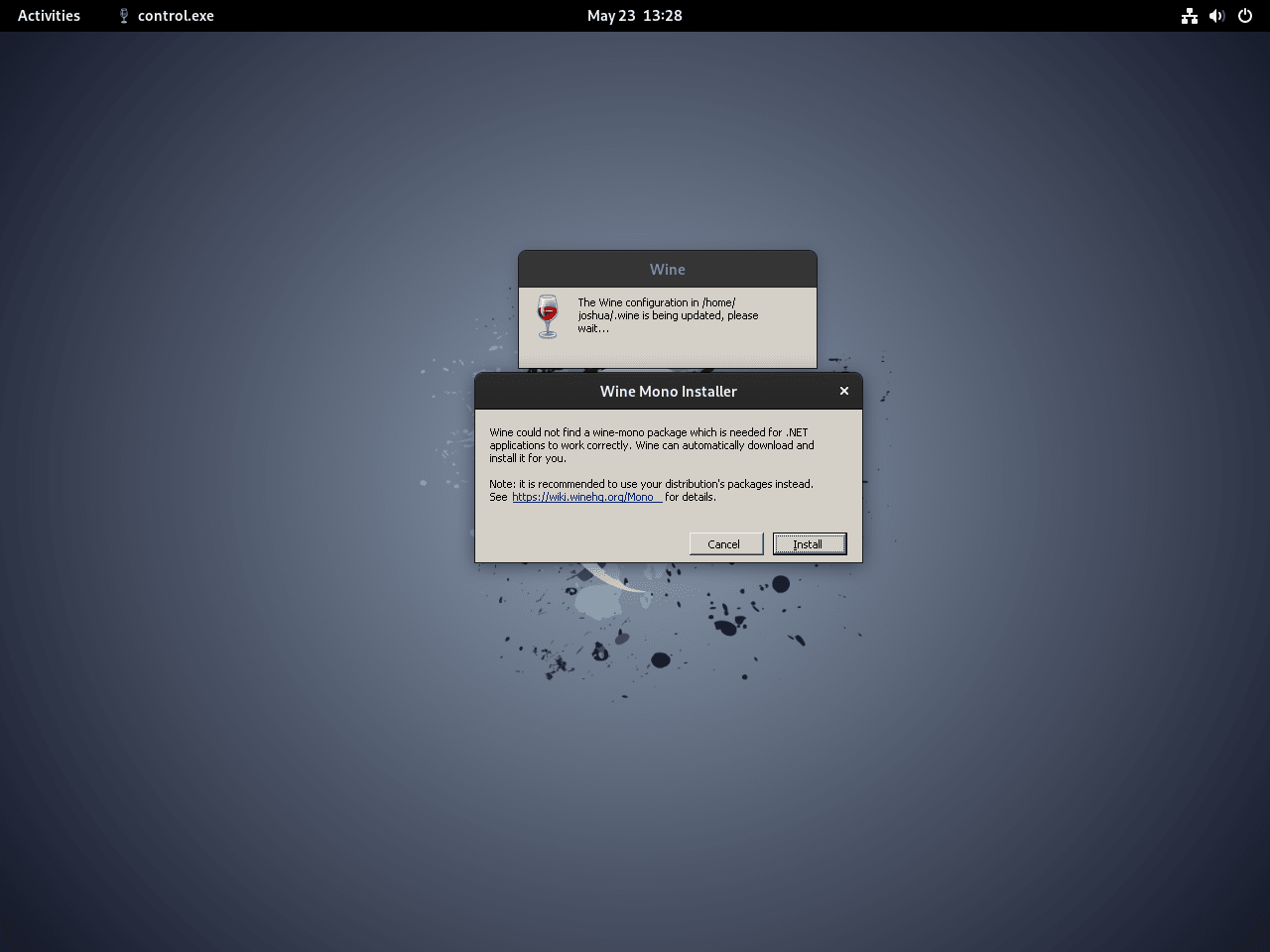
When prompted, click “Install” to download Wine Mono. Once the download completes, the Wine Configuration window appears where you can adjust settings.
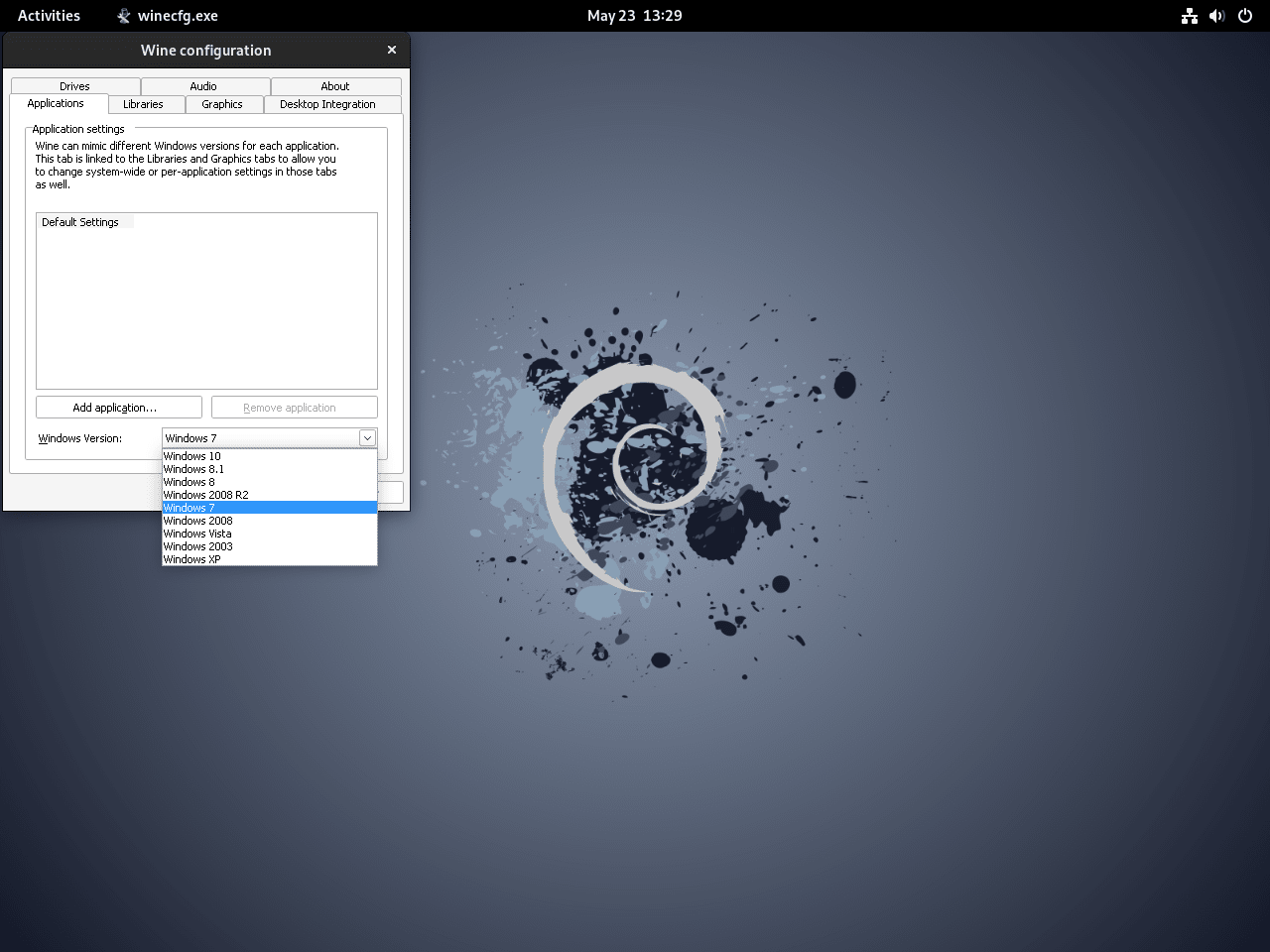
The default Windows version setting (Windows 7) works for most applications. However, some newer software may require Windows 10, which you can select from the dropdown menu. Close the window to save your settings.
Install Winetricks for Additional Components
Winetricks simplifies adding Windows libraries, fonts, and runtime components that many applications require. Since winetricks is located in the contrib repository rather than main, ensure your system has contrib enabled. For details, see our guide on enabling contrib and non-free repositories on Debian.
With contrib enabled, install winetricks:
sudo apt install winetricksVerify winetricks installed correctly:
winetricks --version20XXXXXX - sha256sum: [checksum-hash]
The version number reflects the release date (YYYYMMDD format). Any output confirms winetricks is functional.
Since many Windows applications expect Microsoft fonts for proper text display, use Winetricks to download them:
winetricks allfontsAlternatively, launch the Winetricks graphical interface to browse available packages:
winetricks --gui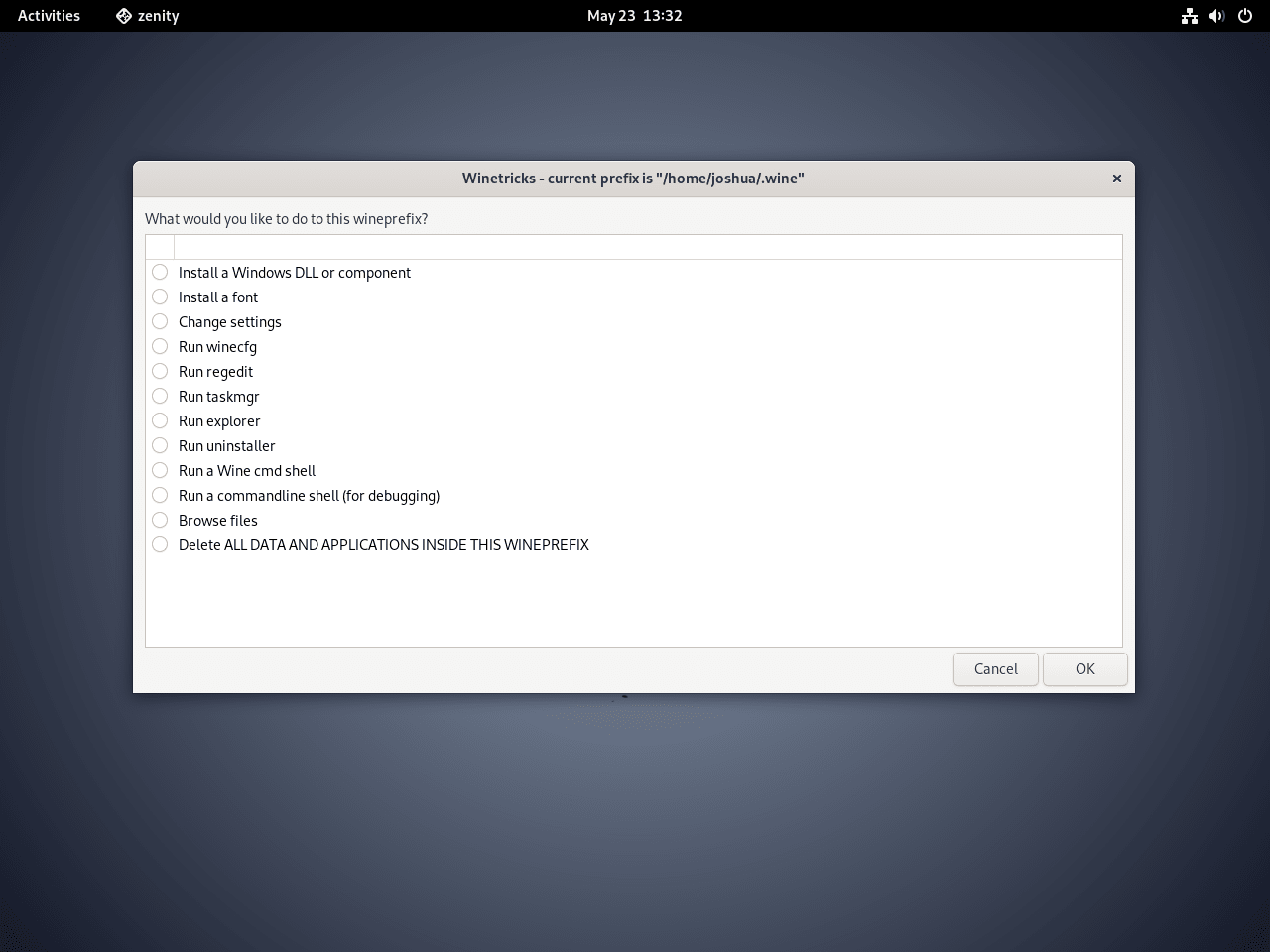
Run Windows Applications with Wine
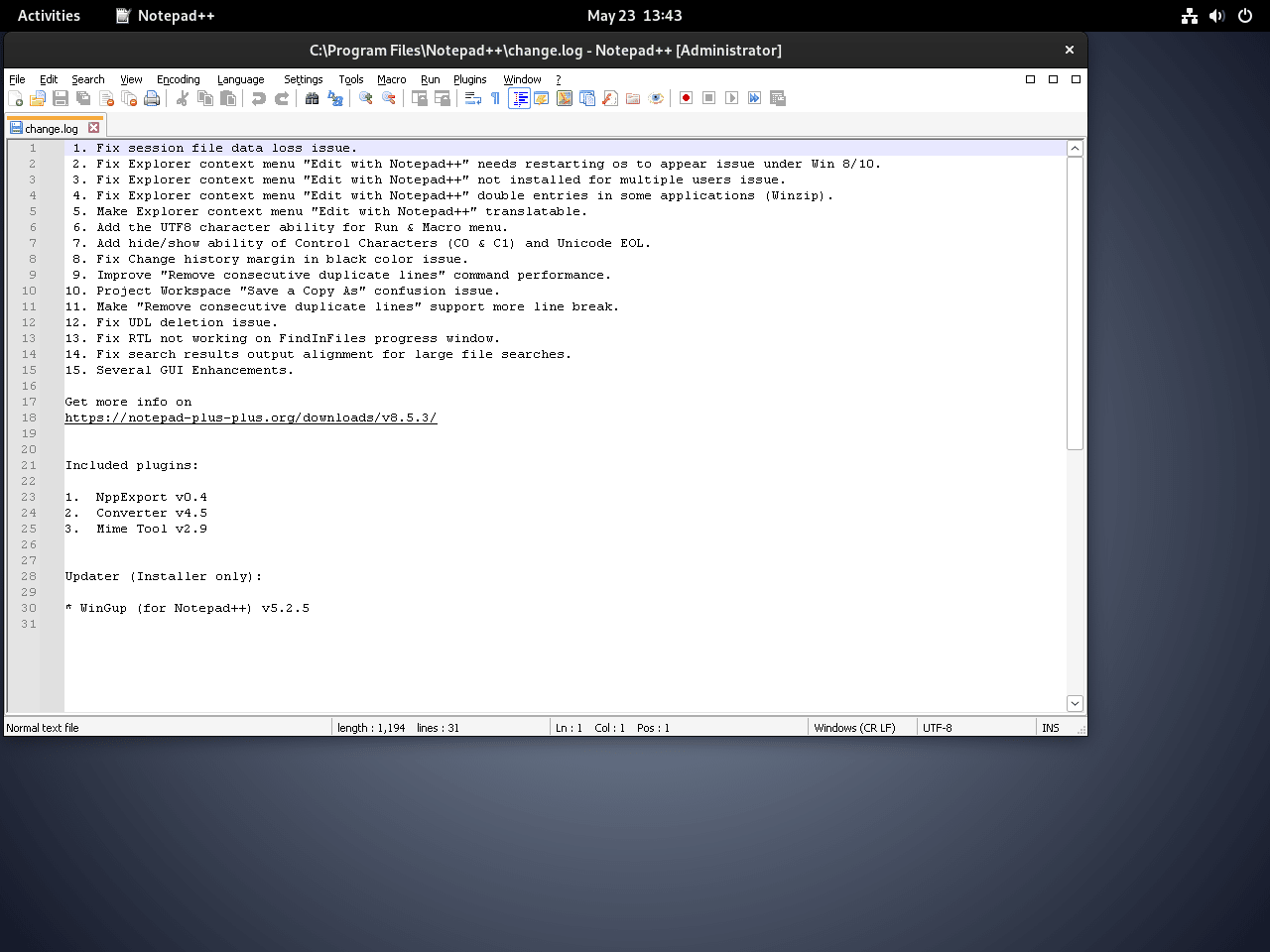
Now that Wine is configured, you can run Windows executables directly. The following example demonstrates the process using Notepad++, a popular Windows text editor.
- Download the application: Visit the Notepad++ website and download the Windows installer (.exe file).
- Run with Wine: Right-click the downloaded .exe file, select “Open With Other Application,” and choose Wine Windows Program Loader.
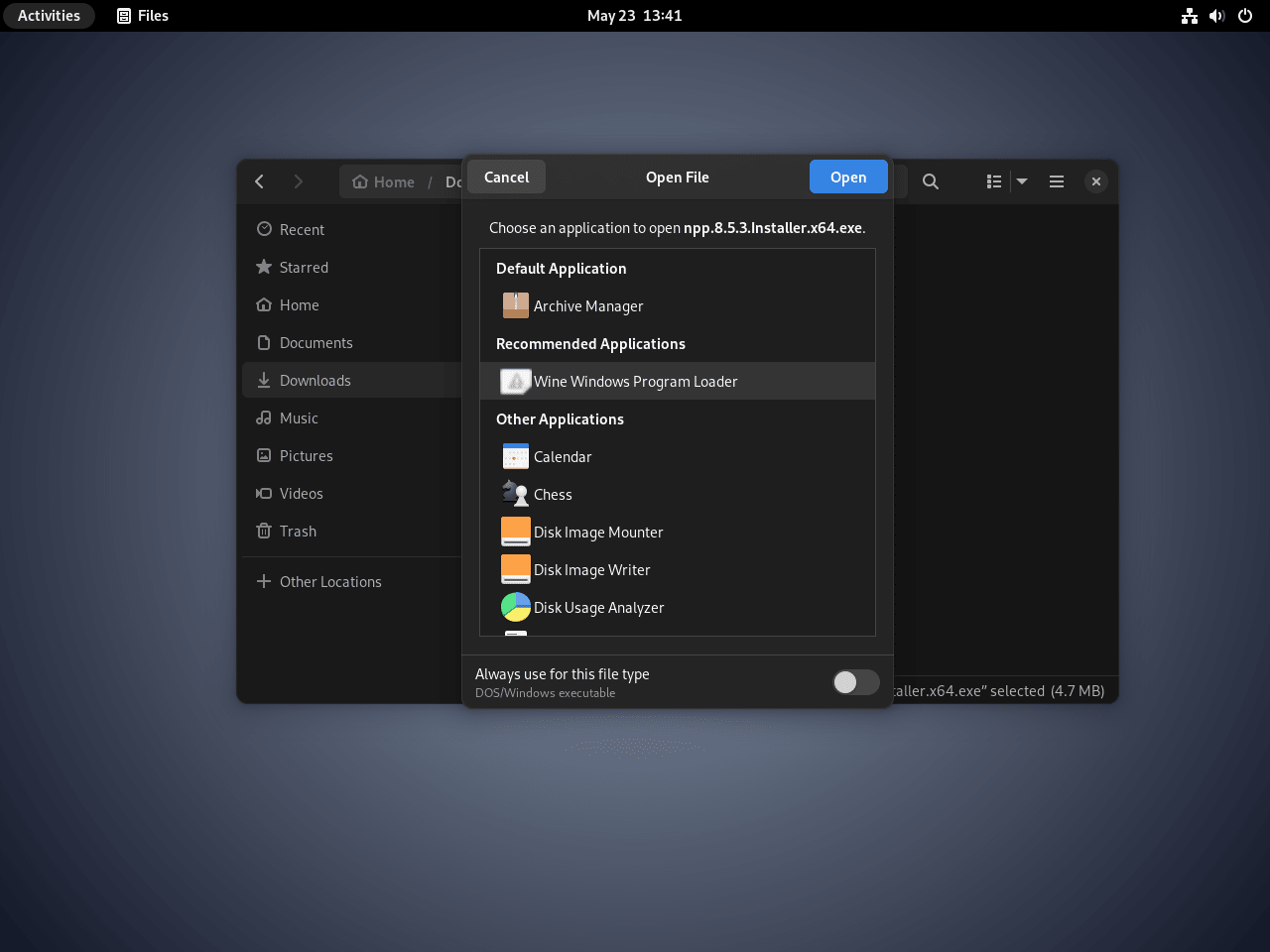
As an alternative, you can also run executables directly from the terminal. Replace the filename with your downloaded installer:
wine ~/Downloads/npp.X.X.X.Installer.x64.exeSubstitute
X.X.Xwith the actual version number from your download. Check the Notepad++ downloads page for the current release.
Before installing any Windows software, it’s wise to check its compatibility using the WineHQ Application Database, which contains user reports and configuration tips for thousands of applications.
Manage Wine Installation
Create a 32-bit Wine Prefix
Certain legacy applications require a pure 32-bit Wine environment instead of the default 64-bit setup. To accommodate these programs, create a separate Wine prefix:
WINEARCH=win32 WINEPREFIX=~/.wine32 winecfgAfterward, run applications within the 32-bit prefix by specifying the WINEPREFIX variable:
WINEPREFIX=~/.wine32 wine /path/to/application.exeWine Command Reference
Run a Windows executable:
wine /path/to/program.exeOpen Wine Configuration:
winecfgAccess Wine Registry Editor:
wine regeditConvert paths between Windows and Unix format:
winepath -w /home/user/file.txtZ:\home\user\file.txt
Kill all Wine processes:
wineserver -kUpdate Wine
Wine receives updates through your normal system update process. For a complete system refresh, a full upgrade updates all packages at once:
sudo apt update && sudo apt upgradeAlternatively, to update only Wine without touching other packages, use the single-package update command based on your installation method:
WineHQ or Extrepo installation:
sudo apt update && sudo apt install --only-upgrade winehq-stableDebian repository installation:
sudo apt update && sudo apt install --only-upgrade wine64 wine32Flatpak installation:
flatpak update org.winehq.WineThe
--only-upgradeflag skips installation if the package is not already installed, making it safe for targeted updates.
Troubleshoot Common Wine Issues
Missing 32-bit Libraries
While running 32-bit Windows applications, Wine may report errors like:
it looks like wine32 is missing, you should install it.
multiarch needs to be enabled first
Diagnostic: Check if i386 architecture is enabled:
dpkg --print-foreign-architecturesi386
Fix: If the output is empty or i386 is not listed, add it and reinstall Wine:
sudo dpkg --add-architecture i386
sudo apt update
sudo apt install --reinstall winehq-stable
Verify: Confirm 32-bit support is active:
dpkg --print-foreign-architecturesi386
Application Requires Specific Windows Version
Applications that check Windows version may display errors like:
This program requires Windows 10 or later
Diagnostic: Check your current Wine Windows version:
wine cmd /c verMicrosoft Windows 7 [Version 6.1.7601]
Fix: Open Wine Configuration and change the Windows version:
winecfgNavigate to the Applications tab, add the application executable, and set its Windows version to Windows 10. For per-application settings, click “Add application” and select the .exe file.
Verify: Check the version changed:
wine cmd /c verMicrosoft Windows 10 [Version 10.0.19043]
Graphics or DirectX Issues
Games may show graphical glitches, black screens, or display errors like:
err:d3d:wined3d_check_gl_call <<<< GL_INVALID_OPERATION
fixme:d3d:wined3d_texture_update_map_binding
Fix: Install DXVK to translate DirectX calls to Vulkan for better GPU compatibility:
winetricks dxvkSpecifically, DXVK translates DirectX 9/10/11 calls to Vulkan, delivering better performance on modern graphics cards. If you have an NVIDIA GPU, ensure the proprietary drivers are installed for optimal results.
Verify: Check that DXVK installed in your prefix:
ls ~/.wine/drive_c/windows/system32/d3d11.dll/home/user/.wine/drive_c/windows/system32/d3d11.dll
Remove Wine from Debian
If you no longer need Wine, follow the steps below that match your installation method to completely remove it from your system.
Remove WineHQ Installation
Start by removing the Wine package that matches your installation:
sudo apt remove --purge winehq-stableIf you installed staging or development versions instead, use the appropriate command:
sudo apt remove --purge winehq-stagingsudo apt remove --purge winehq-develNext, clean up orphaned dependencies that are no longer needed:
sudo apt autoremoveThen remove the WineHQ repository configuration and GPG key:
sudo rm /etc/apt/sources.list.d/winehq.sources
sudo rm /usr/share/keyrings/winehq.gpg
Finally, refresh the package database and verify the removal:
sudo apt updateConfirm Wine packages and repository are removed:
apt-cache policy winehq-stable && which winewinehq-stable: Installed: (none) Candidate: (none) Version table:
The empty version table confirms the WineHQ repository was removed successfully.
Remove Extrepo Installation
If you installed Wine using extrepo, first remove the Wine packages:
sudo apt remove --purge winehq-stable
sudo apt autoremove
Then disable the WineHQ repository managed by extrepo:
sudo extrepo disable winehq
sudo apt update
Remove Debian Repository Installation
sudo apt remove --purge wine64 wine32
sudo apt autoremove
Remove Flatpak Installation
flatpak uninstall org.winehq.Wine
flatpak uninstall --unused
Remove Wine User Data
The following commands permanently delete your Wine configuration and all installed Windows applications. Back up any important data from
~/.winebefore proceeding.
Start by deleting Wine prefixes containing your Windows applications and settings:
rm -rf ~/.wine ~/.wine32Wine also creates cache files and desktop integration entries. Clear these additional locations as well:
rm -rf ~/.cache/wine
rm -rf ~/.cache/winetricks
rm -f ~/.local/share/applications/wine-*
rm -rf ~/.local/share/desktop-directories/wine-*
Finally, if you installed Wine via Flatpak, delete the Flatpak-specific user data:
rm -rf ~/.var/app/org.winehq.WineThe Flatpak data directory may contain Windows applications, save files, and configurations separate from the native Wine prefix.
Conclusion
At this point, you have Wine installed and configured on your Debian system, ready to run Windows applications without dual-booting or virtual machines. The WineHQ repository ensures access to the latest stable release with ongoing compatibility improvements, while the extrepo method provides a simpler alternative that automates repository configuration. Winetricks lets you add common runtime libraries like Visual C++ redistributables and .NET Framework components that many Windows applications require. For gaming enthusiasts, consider pairing Wine with Steam and Proton on Debian, which builds on Wine technology to provide optimized gaming performance with minimal configuration. Additionally, Discord on Debian provides voice chat for multiplayer gaming sessions.

Just installed WINE on my laptop running MX Linux (23.5, deb 12.9). Went without a hitch. There is always one program that you just need, and this makes it possible for me to run it on Linux.
Also installed WINE on Mint (21.3) with that tutorial. Fantastic there too.
Unfortunately, the described procedure on my Debian 11 leads to a lot of unmet dependencies:
The following packages have unmet dependencies:
dbus-user-session: Depends on: dbus (>= 1.12.28-0+deb11u1), Depends on: libpam-systemd but it will not be installed, Depends on: systemd, Recommends: systemd-sysv
evince: Depends on: libevdocument3-4 (= 3.38.2-1) but it will not be installed, Depends on: libevview3-3 (= 3.38.2-1) but it will not be installed, Depends on: libgnome-desktop-3-19 (>= 3.17.92) but it will not be installed, Depends on: libnautilus-extension1a (>= 3.28) but it will not be installed
libcurl3-gnutls: Depends on: libgssapi-krb5-2 (>= 1.17) but it will not be installed
libdbus-1-3:i386: Depends on: libsystemd0
, Recommends: dbus
libgtk-3-0: Depends on: libcolord2 (>= 0.1.10) but it will not be installed, Depends on: libcups2 (>= 1.7.0) but it will not be installed, Depends on: librest-0.7-0 (>= 0.7) but it will not be installed, Recommends: libgtk-3-bin
libneon27-gnutls: Depends on: libgssapi-krb5-2 (>= 1.17) but it will not be installed
libpulse0:i386: Depends on: libsystemd0
librdf0: Depends on: librasqal3 (>= 0.9.31) but it will not be installed
libsoup2.4-1: Depends on: libgssapi-krb5-2 (>= 1.17) but it will not be installed
libwebkit2gtk-4.0-37: Depends on: gstreamer1.0-plugins-good but it will not be installed, Depends on: libgstreamer-gl1.0-0 (>= 1.14.0) but it will not be installed, Depends on: libmanette-0.2-0 (>= 0.1.2) but it will not be installed, Recommends: gstreamer1.0-gl but it will not be installed, Recommends: xdg-desktop-portal-gtk, Recommends: gstreamer1.0-libav but it will not be installed, Recommends: gstreamer1.0-plugins-bad but it will not be installed
yelp: Depends on: libyelp0 (= 3.38.3-1) but it will not be installed, Depends on: python3-distro but it will not be installed
E: Error: Interruptions caused by pkgProblemResolver::Resolve; this could be caused by held packages.
Thanks for reporting this, Ralph. The dependency errors you encountered suggest package conflicts on your Debian 11 system, possibly from mixed package sources or held packages. The article has since been rewritten with updated instructions.
For Debian 11, first check for held packages:
If any packages appear, unhold them with
sudo apt-mark unhold package-name. Then run a full system update before attempting the Wine installation:If conflicts persist, check for third-party sources that might provide conflicting library versions by reviewing
/etc/apt/sources.list.d/. The errors involving systemd and libdbus suggest fundamental library mismatches that a clean system update should resolve.sudo apt -f install ?
Thanks for jumping in, jfang. Your suggestion is a good first step for dependency issues. The
-fflag tells APT to attempt fixing broken dependencies:For the severity of errors Ralph reported (core libraries like libsystemd and libdbus), this command would either resolve the conflicts automatically or provide more specific error messages to guide further troubleshooting.