

Waterfox is a privacy-focused web browser built on the Mozilla Firefox codebase that prioritizes user control and customization. Unlike mainstream browsers, Waterfox disables telemetry and data collection by default, routes DNS-over-HTTPS through privacy-respecting relays, and includes built-in cookie banner rejection. Whether you want a Firefox alternative without tracking, need a browser that respects your privacy settings, or prefer deeper customization options, Waterfox delivers these features while maintaining compatibility with Firefox extensions. By the end of this guide, you will have Waterfox installed and running on your Debian system with automatic updates configured.
Choose Your Waterfox Installation Method
Debian users can install Waterfox through three methods, each with distinct advantages. The following table summarizes your options:
| Method | Channel | Version | Updates | Best For |
|---|---|---|---|---|
| APT Repository | OBS Repository | Latest stable | Automatic via apt upgrade | Most users who want direct system integration |
| Flatpak | Flathub | Latest stable | Automatic via flatpak update | Users who prefer sandboxed applications |
| Tarball | GitHub Releases | Latest release | Manual (re-download tarball or use update script) | Users wanting portable installation or testing latest releases |
For most users, the APT repository method is recommended because it integrates directly with your system’s package management, receives updates through standard system upgrades, and provides the best desktop integration. Choose Flatpak if you prefer application sandboxing or want to avoid adding external repositories. The tarball method works best when you need a portable installation or want to test the latest release immediately after it becomes available. If you need a more mainstream browser alongside Waterfox, consider installing Google Chrome on Debian as well.
Update Debian Before Installation
Before installing Waterfox, update your system’s package index and upgrade existing packages. This ensures you have the latest security patches and prevents potential dependency conflicts during installation:
sudo apt update && sudo apt upgradeMethod 1: Install Waterfox via APT Repository (Recommended)
The APT repository method provides direct system integration and automatic updates through your standard package management workflow. Specifically, this method uses the community-maintained OpenSUSE Build Service repository which packages Waterfox for multiple Debian versions.
Install Required Dependencies
First, install the packages needed to securely add external repositories:
sudo apt install curl gnupg ca-certificates -yThese packages provide secure file downloads (curl), GPG key handling (gnupg), and SSL certificate validation (ca-certificates).
Import the GPG Key
Next, download and convert the repository’s GPG signing key. This key verifies that packages genuinely come from the Waterfox maintainer:
curl -fsSL https://download.opensuse.org/repositories/home:hawkeye116477:waterfox/Debian_12/Release.key | sudo gpg --dearmor -o /usr/share/keyrings/waterfox.gpgThe GPG key URL uses
Debian_12but the key itself is identical across all Debian versions. You can use this same key regardless of whether you run Debian 11, 12, or 13.
Add the Waterfox Repository
Now add the repository configuration using the modern DEB822 .sources format. Choose the command that matches your Debian version:
Debian 13 (Trixie):
cat <<EOF | sudo tee /etc/apt/sources.list.d/waterfox.sources
Types: deb
URIs: https://download.opensuse.org/repositories/home:/hawkeye116477:/waterfox/Debian_Testing/
Suites: /
Signed-By: /usr/share/keyrings/waterfox.gpg
Architectures: amd64
EOF
Debian 12 (Bookworm):
cat <<EOF | sudo tee /etc/apt/sources.list.d/waterfox.sources
Types: deb
URIs: https://download.opensuse.org/repositories/home:/hawkeye116477:/waterfox/Debian_12/
Suites: /
Signed-By: /usr/share/keyrings/waterfox.gpg
Architectures: amd64
EOF
Debian 11 (Bullseye):
cat <<EOF | sudo tee /etc/apt/sources.list.d/waterfox.sources
Types: deb
URIs: https://download.opensuse.org/repositories/home:/hawkeye116477:/waterfox/Debian_11/
Suites: /
Signed-By: /usr/share/keyrings/waterfox.gpg
Architectures: amd64
EOF
Debian 11 users: Bullseye is in LTS (Long Term Support) mode until August 31, 2026. While security updates continue, consider upgrading to Debian 12 or 13 for full support and newer software versions.
Debian 13 users: The OpenSUSE Build Service currently uses the
Debian_Testingrepository path for Trixie. This works correctly now that Trixie is stable, and continues receiving updates.
Refresh Package Index
After adding the repository, refresh your package index so APT recognizes the new source:
sudo apt updateIf successful, the output should include a line showing the Waterfox repository was fetched:
Get:4 https://download.opensuse.org/repositories/home:/hawkeye116477:/waterfox/Debian_12  InRelease [1564 B]
Get:5 https://download.opensuse.org/repositories/home:/hawkeye116477:/waterfox/Debian_12  Packages [8574 B]
Verify Repository Configuration
Before installing, verify that APT can find the Waterfox package from the new repository:
apt-cache policy waterfoxYou should see output similar to this, showing the package is available:
waterfox:
  Installed: (none)
  Candidate: 6.x.x
  Version table:
     6.x.x 500
        500 https://download.opensuse.org/repositories/home:/hawkeye116477:/waterfox/Debian_12 Packages
Install Waterfox
With the repository configured, install Waterfox using the standard APT command:
sudo apt install waterfoxAPT then downloads and installs Waterfox along with its dependencies. Typically, the installation takes 1-2 minutes depending on your connection speed.
Verify Installation
Finally, confirm Waterfox installed correctly by checking its version:
waterfox --versionExpected output:
Waterfox 6.x.x
Method 2: Install Waterfox via Flatpak
Flatpak provides a sandboxed installation that runs independently of your system libraries. This method is ideal if you prefer application isolation or want to avoid adding external APT repositories. The Waterfox Flatpak is officially published on Flathub.
Set Up Flatpak and Flathub
If Flatpak is not already configured on your system, install it and add the Flathub repository. For detailed instructions, see our Flatpak installation guide for Debian.
Quick setup commands:
sudo apt install flatpak -y
sudo flatpak remote-add --if-not-exists flathub https://flathub.org/repo/flathub.flatpakrepo
After adding Flathub for the first time, you may need to log out and back in (or reboot) for the Flatpak integration to work properly with your desktop environment.
Install Waterfox from Flathub
With Flatpak configured, install Waterfox from Flathub:
sudo flatpak install flathub net.waterfox.waterfox -yFlatpak then downloads the application and any required runtimes. Note that the first installation may take longer as it downloads shared runtime libraries.
Verify Flatpak Installation
To confirm Waterfox is installed, list your Flatpak applications:
flatpak list --app | grep -i waterfoxExpected output:
Waterfox net.waterfox.waterfox stable system
Method 3: Install Waterfox via Tarball (Portable)
For those seeking maximum flexibility, the tarball method provides a portable installation of Waterfox that you can install to any directory on your system. This method uses the GitHub API to automatically detect and download the latest version, making it easy to stay current with releases. However, tarball installations do not update automatically; you must manually download new versions or use the provided update script.
Install Prerequisites for Tarball Extraction
First, install the packages needed to download and extract the Waterfox tarball. The curl package downloads files from the web, while tar and bzip2 handle tarball extraction:
sudo apt install curl tar bzip2 -yDownload Latest Waterfox Tarball
Next, query the GitHub API to get the latest Waterfox version, then download the corresponding Linux tarball from the official CDN. The following commands automatically detect the current version and construct the download URL:
LATEST_VERSION=$(curl -s https://api.github.com/repos/BrowserWorks/Waterfox/releases/latest | grep -oP '"tag_name": "\K[^"]+')
echo "Latest version: $LATEST_VERSION"
DOWNLOAD_URL="https://cdn1.waterfox.net/waterfox/releases/${LATEST_VERSION}/Linux_x86_64/waterfox-${LATEST_VERSION}.tar.bz2"
curl -Lo waterfox-${LATEST_VERSION}.tar.bz2 "$DOWNLOAD_URL"Expected output showing the download progress:
Latest version: 6.6.6
% Total % Received % Xferd Average Speed Time Time Time Current
Dload Upload Total Spent Left Speed
100 82.4M 100 82.4M 0 0 15.2M 0 0:00:05 0:00:05 --:--:-- 17.8M
Extract Waterfox to System Directory
Once the download completes, extract the tarball to /opt/waterfox where system-wide applications are typically installed. This location makes Waterfox accessible to all users on the system:
sudo tar -xjf waterfox-${LATEST_VERSION}.tar.bz2 -C /optVerify the installation by checking the Waterfox directory contents:
ls -lh /opt/waterfox/waterfox
du -sh /opt/waterfox/Expected output confirming the installation:
-rwxr-xr-x 1 root root 730K Dec 9 15:43 /opt/waterfox/waterfox 297M /opt/waterfox/
Create Symbolic Link for System-Wide Access
After extraction, create a symbolic link in /usr/local/bin so you can launch Waterfox from anywhere without specifying the full path. This makes the waterfox command available system-wide:
sudo ln -sf /opt/waterfox/waterfox /usr/local/bin/waterfoxVerify the symbolic link creation and test the command:
which waterfox
waterfox --versionExpected output showing successful installation:
/usr/local/bin/waterfox BrowserWorks Waterfox 6.6.6
Create Desktop Entry for Application Menu
Finally, create a desktop entry file so Waterfox appears in your application menu and launcher. This allows you to launch Waterfox through your desktop environment’s interface:
sudo tee /usr/share/applications/waterfox.desktop > /dev/null << 'EOF'
[Desktop Entry]
Name=Waterfox
Comment=Privacy-focused web browser
Exec=/opt/waterfox/waterfox %u
Terminal=false
Type=Application
Icon=/opt/waterfox/browser/chrome/icons/default/default128.png
Categories=Network;WebBrowser;
MimeType=text/html;text/xml;application/xhtml+xml;application/xml;application/vnd.mozilla.xul+xml;x-scheme-handler/http;x-scheme-handler/https;
StartupNotify=true
StartupWMClass=Waterfox
EOFAfter creating the desktop entry, update the desktop database to register the new application:
sudo update-desktop-databaseAfter creating the desktop entry, Waterfox will appear in your application menu alongside other installed browsers.
Launch Waterfox
After installation, you can launch Waterfox using either the terminal or your desktop's application menu.
Launch from Terminal
If you installed via APT or tarball, run:
waterfoxAlternatively, if you installed via Flatpak, run:
flatpak run net.waterfox.waterfoxLaunch from Applications Menu
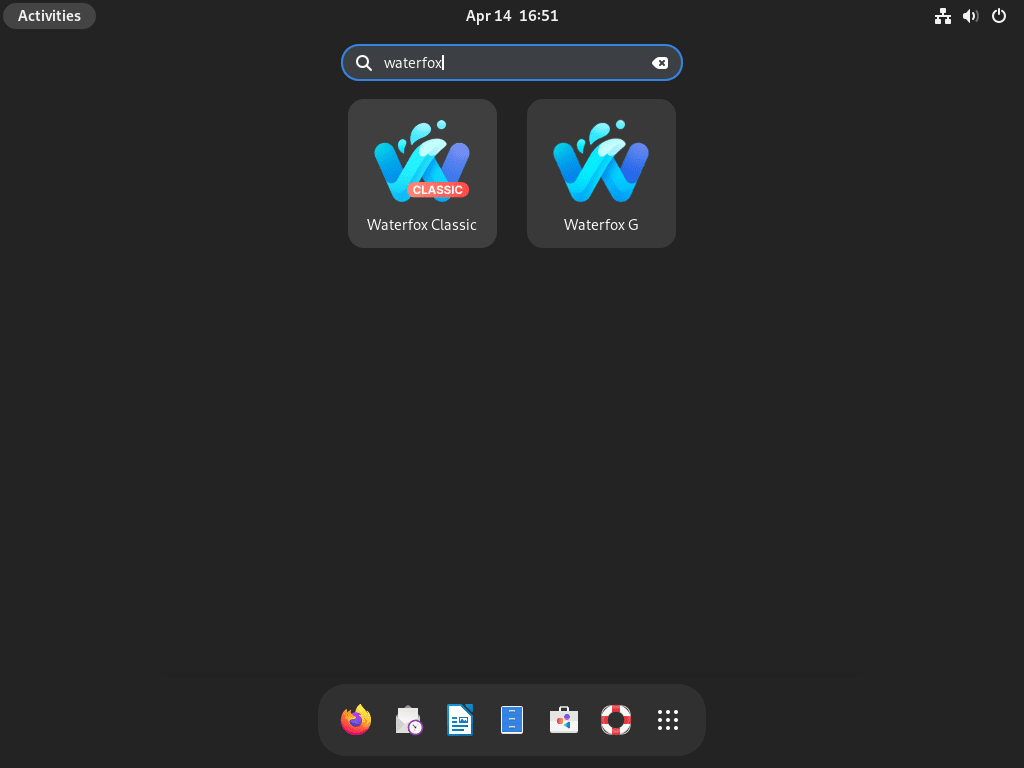
All three installation methods create a desktop entry. To launch Waterfox graphically:
- Open your desktop's Activities view or application menu.
- Search for "Waterfox" in the search bar.
- Click the Waterfox icon to launch the browser.

Manage Waterfox
Update Waterfox
Waterfox receives regular updates with security patches and new features. The update method depends on how you installed the browser.
For APT installation:
With the APT method, Waterfox updates automatically when you run your regular system updates. However, to check for and install updates manually, run:
sudo apt update && sudo apt install --only-upgrade waterfoxFor Flatpak installation:
sudo flatpak update net.waterfox.waterfoxFor tarball installation (manual method):
Unlike APT and Flatpak, tarball installations do not update automatically. To update Waterfox installed from a tarball, download the latest version using the same commands from the installation section, then extract it to /opt to replace the existing installation:
LATEST_VERSION=$(curl -s https://api.github.com/repos/BrowserWorks/Waterfox/releases/latest | grep -oP '"tag_name": "\K[^"]+')
DOWNLOAD_URL="https://cdn1.waterfox.net/waterfox/releases/${LATEST_VERSION}/Linux_x86_64/waterfox-${LATEST_VERSION}.tar.bz2"
curl -Lo waterfox-${LATEST_VERSION}.tar.bz2 "$DOWNLOAD_URL"
sudo tar -xjf waterfox-${LATEST_VERSION}.tar.bz2 -C /optThe extraction automatically replaces the existing /opt/waterfox directory with the new version. Afterward, verify the update succeeded by checking the version:
waterfox --versionFor tarball installation (automated script):
For easier updates, create a bash script that automates the download and installation process. Save the following script to ~/update-waterfox.sh:
Unlike APT or Flatpak installations, tarball deployments require manual intervention to check for and install updates. This script automates version checking and download but still requires you to run it manually. There is no background update mechanism for tarball installations.
cat > ~/update-waterfox.sh << 'EOF'
#!/bin/bash
set -e

echo "Checking for latest Waterfox version..."
LATEST_VERSION=$(curl -s https://api.github.com/repos/BrowserWorks/Waterfox/releases/latest | grep -oP '"tag_name": "\K[^"]+')

if [ -z "$LATEST_VERSION" ]; then
    echo "Error: Failed to fetch latest version"
    exit 1
fi

CURRENT_VERSION=$(waterfox --version 2>/dev/null | grep -oP '\d+\.\d+\.\d+' || echo "Not installed")
echo "Current version: $CURRENT_VERSION"
echo "Latest version: $LATEST_VERSION"

if [ "$CURRENT_VERSION" = "$LATEST_VERSION" ]; then
    echo "Waterfox is already up to date"
    exit 0
fi

echo "Downloading Waterfox $LATEST_VERSION..."
DOWNLOAD_URL="https://cdn1.waterfox.net/waterfox/releases/${LATEST_VERSION}/Linux_x86_64/waterfox-${LATEST_VERSION}.tar.bz2"
TEMP_DIR=$(mktemp -d)
cd "$TEMP_DIR"
curl -Lo waterfox.tar.bz2 "$DOWNLOAD_URL"

echo "Extracting to /opt/waterfox..."
sudo tar -xjf waterfox.tar.bz2 -C /opt

echo "Cleaning up temporary files..."
cd ~
rm -rf "$TEMP_DIR"

echo "Update complete! Waterfox $LATEST_VERSION is now installed"
waterfox --version
EOF
Once saved, make the script executable and run it to update Waterfox:
chmod +x ~/update-waterfox.sh
~/update-waterfox.sh
The script checks your current Waterfox version against the latest release, downloads and installs updates only when a new version is available, and automatically cleans up temporary files after installation. Therefore, run this script periodically to keep your tarball installation current.
Remove Waterfox
If you decide to remove Waterfox from your system, follow the instructions below that match your installation method.
Remove APT Installation
First, uninstall the Waterfox package and its orphaned dependencies:
sudo apt remove waterfox
sudo apt autoremove
Next, remove the repository configuration and GPG key:
sudo rm /etc/apt/sources.list.d/waterfox.sources
sudo rm /usr/share/keyrings/waterfox.gpg
sudo apt update
Finally, verify the package is no longer available from the repository:
apt-cache policy waterfoxExpected output after removal:
N: Unable to locate package waterfox
Remove Flatpak Installation
sudo flatpak uninstall net.waterfox.waterfoxAdditionally, to remove unused Flatpak runtimes:
sudo flatpak uninstall --unusedRemove Tarball Installation
To remove a tarball installation, delete the Waterfox directory, remove the symbolic link, delete the desktop entry, and clean up any remaining configuration files:
sudo rm -rf /opt/waterfox
sudo rm /usr/local/bin/waterfox
sudo rm /usr/share/applications/waterfox.desktop
Then, update the desktop database to remove Waterfox from your application menu:
sudo update-desktop-databaseVerify complete removal by checking that the command is no longer available:
which waterfoxExpected output confirming removal:
which: no waterfox in (/usr/local/sbin:/usr/local/bin:/usr/sbin:/usr/bin:/sbin:/bin)
Remove User Data (Optional)
Warning: The following commands permanently delete your Waterfox profile data including bookmarks, saved passwords, browsing history, and custom settings. Export any data you want to keep before proceeding.
With the APT method, Waterfox stores user data in your home directory:
rm -rf ~/.waterfox
rm -rf ~/.cache/waterfox
In contrast, Flatpak installations store user data in a sandboxed location:
rm -rf ~/.var/app/net.waterfox.waterfoxTroubleshooting
Repository Fetch Fails with GPG Error
If apt update displays a GPG signature error like the following:
W: GPG error: https://download.opensuse.org/repositories/home:/hawkeye116477:/waterfox/Debian_12 InRelease: The following signatures couldn't be verified because the public key is not available: NO_PUBKEY 1234567890ABCDEF
This error indicates the GPG key may be missing or corrupted. To fix this, re-download the key:
sudo rm /usr/share/keyrings/waterfox.gpg
curl -fsSL https://download.opensuse.org/repositories/home:hawkeye116477:waterfox/Debian_12/Release.key | sudo gpg --dearmor -o /usr/share/keyrings/waterfox.gpg
sudo apt update
Package Not Found After Adding Repository
If apt install waterfox returns "Unable to locate package waterfox," verify your repository configuration:
cat /etc/apt/sources.list.d/waterfox.sourcesFirst, confirm the file contains valid DEB822 format with the correct repository URL for your Debian version. Then, verify the Signed-By path points to an existing key file:
ls -la /usr/share/keyrings/waterfox.gpgIf the key exists, you should see output similar to this:
-rw-r--r-- 1 root root 2794 Dec 21 10:15 /usr/share/keyrings/waterfox.gpg
Waterfox Crashes on Launch
If Waterfox crashes immediately after launching, try starting it from the terminal to see error messages:
waterfox --safe-modeSafe mode disables extensions and custom themes, which helps identify if an extension causes the crash. If safe mode works, then disable extensions one by one to find the problematic one.
Import Data from Firefox
Waterfox can import bookmarks, history, and settings from Firefox. If you previously used Firefox on Debian, open Waterfox and navigate to Settings > Import browser data to transfer your data.
Conclusion
You now have Waterfox installed on Debian using either the APT repository, Flatpak, or tarball method. The APT repository provides seamless system integration with automatic updates, Flatpak offers containerized isolation with sandboxing, and the tarball method gives you a portable installation with manual update control. Regardless of your installation method, the browser provides privacy-focused defaults including disabled telemetry, DNS-over-HTTPS, and built-in tracking protection while maintaining full Firefox extension compatibility. For APT and Flatpak installations, updates arrive automatically through regular system updates, while tarball installations require periodic manual updates using the provided script or re-downloading the latest release.

Unfortunately, the instructions for Debian 13 (Trixie) don’t work because the libc6 package that is included with Trixie is 2.41-12 and the Waterfox install package in the Debian_Testing repository requires libc6 (>= 2.42).
I had to change the repository to Debian_12 in order to successfully install Waterfox.
waterfox-g is now waterfox