

If you write code on Linux Mint, Visual Studio Code handles everything from Python scripts to full-stack web projects with IntelliSense, built-in Git support, and a huge extension marketplace. To install VSCode on Linux Mint, you have two solid options: Microsoft’s official APT repository for tight system integration, or Flatpak for a sandboxed setup. Both handle updates automatically.
Choose Your VSCode Installation Method on Linux Mint
Two installation methods cover different needs. The table below compares them so you can pick the right fit before getting started.
| Method | Channel | Stability | Best For |
|---|---|---|---|
| Microsoft APT Repository | Official upstream | Tested stable releases | Most users who want seamless system integration |
| Flatpak | Flathub | Frequent updates | Users who prefer sandboxed applications |
For most users, the Microsoft APT repository is recommended because it integrates directly with the system package manager and provides the fastest access to new releases. Choose Flatpak if you prefer application sandboxing or need to isolate VSCode from system dependencies.
The Microsoft repository uses a universal package format that works across all current Linux Mint releases, including 21.x (Ubuntu 22.04 base) and 22.x (Ubuntu 24.04 base). The steps in this guide are identical for both versions.
Install Visual Studio Code via Microsoft APT Repository on Linux Mint
Microsoft publishes Visual Studio Code in their own APT repository. Adding it to Linux Mint gives you system-wide access and automatic updates through your regular package manager.
Update System Packages Before Installing VSCode
Open a terminal from the applications menu and refresh your package lists before adding external repositories:
sudo apt update && sudo apt upgradeIf your user account does not have
sudoprivileges, see our guide on creating and adding users to sudoers on Linux Mint before continuing.
Install Required Dependencies for VSCode
Install wget and gpg so you can download and verify the Microsoft signing key:
sudo apt install ca-certificates wget gpg -yImport the Microsoft VSCode GPG Key
Download Microsoft’s GPG signing key so APT can verify that packages are authentic and untampered:
wget -qO- https://packages.microsoft.com/keys/microsoft.asc | sudo gpg --dearmor -o /usr/share/keyrings/microsoft.gpgThe pipe downloads the ASCII key and converts it to binary format with gpg --dearmor, writing the result straight to /usr/share/keyrings/ without temporary files.
Create the VSCode Repository Configuration
Add the Microsoft repository using the DEB822 .sources format, which ties the signing key directly to this repo instead of trusting it system-wide:
cat <<EOF | sudo tee /etc/apt/sources.list.d/vscode.sources
Types: deb
URIs: https://packages.microsoft.com/repos/code
Suites: stable
Components: main
Architectures: $(dpkg --print-architecture)
Signed-By: /usr/share/keyrings/microsoft.gpg
EOF
The $(dpkg --print-architecture) command automatically detects your system architecture (typically amd64 for 64-bit systems), ensuring the correct packages are fetched.
During installation, VSCode adds a header comment to this file noting that it is “automatically configured.” This is normal behavior; the file remains functional and does not conflict with your manual configuration.
Install Visual Studio Code
Update APT so it picks up the new repository, then install VSCode:
sudo apt update
sudo apt install code
Microsoft also offers an insiders build for users who want early access to new features. The insiders build updates daily and may contain experimental features or regressions. Install it only if you specifically need to test upcoming features or develop VSCode extensions:
sudo apt install code-insidersYou can install both
codeandcode-insidersside by side. The stable build runs with thecodecommand, while the insiders build runs withcode-insiders. Settings and extensions are stored separately, so you can switch between them without conflicts.
Verify the VSCode Installation
Confirm Visual Studio Code installed correctly by checking the version:
code --versionExpected output:
1.109.5
072586267e68ece9a47aa43f8c108e0dcbf44622
x64
Your version number will likely differ since VSCode ships monthly updates. As long as you see three lines (version, commit hash, architecture), the install worked.
Install Visual Studio Code via Flatpak on Linux Mint
Flatpak runs VSCode in a sandbox, completely isolated from your system libraries. If you already use Flatpak for other desktop apps or want that extra layer of separation, this is the simpler path.
Verify the Flathub Repository for VSCode
Linux Mint includes Flatpak with Flathub enabled by default on all desktop editions, so this step is usually unnecessary. The following command verifies the Flathub repository is configured, adding it only if somehow missing:
sudo flatpak remote-add --if-not-exists flathub https://flathub.org/repo/flathub.flatpakrepoOn most Linux Mint systems, this command will report that the remote already exists. If you’re running a minimal installation or have previously removed Flathub, the command adds it back.
If you need the latest Flatpak version for compatibility with newer applications, see our guide on upgrading Flatpak on Linux Mint.
Install VSCode from Flathub
Install Visual Studio Code system-wide from the Flathub repository:
sudo flatpak install flathub com.visualstudio.code -yThe -y flag automatically confirms the installation prompts. Flatpak downloads the application and any required runtime dependencies (such as the freedesktop platform).
Verify the VSCode Flatpak Installation
Confirm the installation succeeded by listing installed Flatpak applications:
flatpak list --app | grep -i codeExpected output:
Visual Studio Code com.visualstudio.code 1.109.5 stable system
The system scope in the last column means VSCode is available to all user accounts on the machine, not just yours.
The Flatpak version of VSCode is a community repackaging, not officially supported by Microsoft. Some features requiring deep system integration (like the integrated terminal accessing system tools) may have limitations. Refer to the Flathub page for configuration notes specific to the Flatpak version.
Launch Visual Studio Code on Linux Mint
VSCode launches from both the terminal and the graphical applications menu. The terminal approach is faster when you want to open a specific project folder directly.
Launch VSCode from Terminal
After installing via APT, launch VSCode by typing:
codeIf you installed the insiders build instead, use:
code-insidersFlatpak installations require the full application ID when launching from the terminal:
flatpak run com.visualstudio.codeYou can also open a specific folder or file directly by passing the path as an argument:
code ~/Projects/my-projectPassing a directory path opens that folder as a workspace, skipping the file browser entirely.
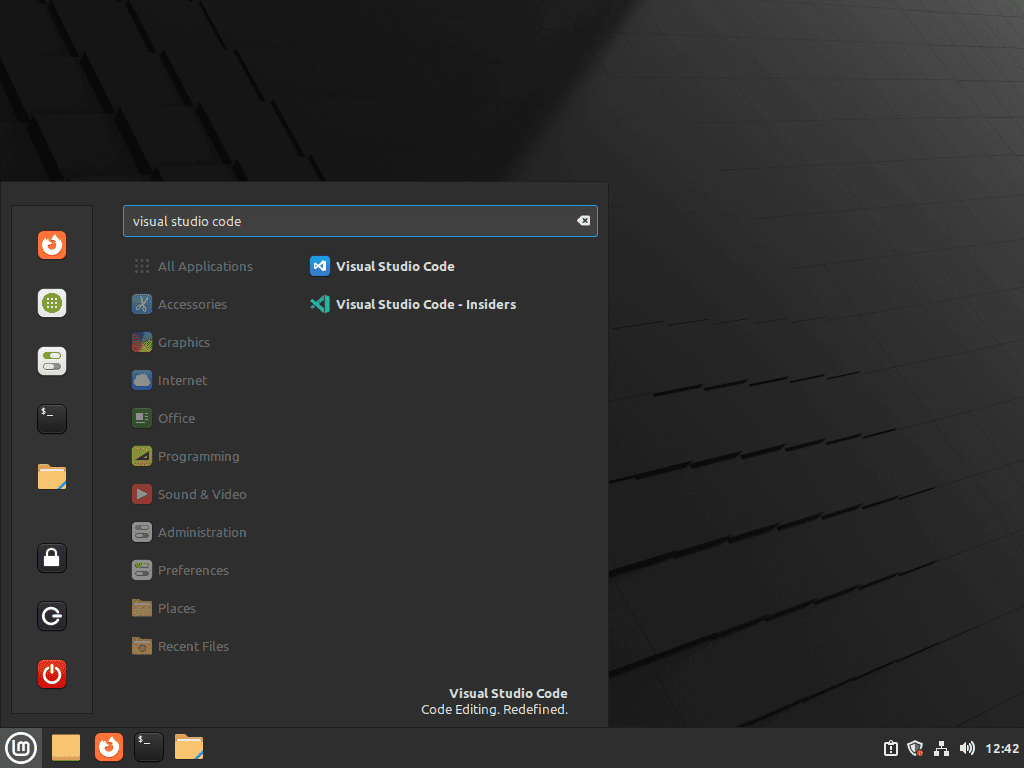
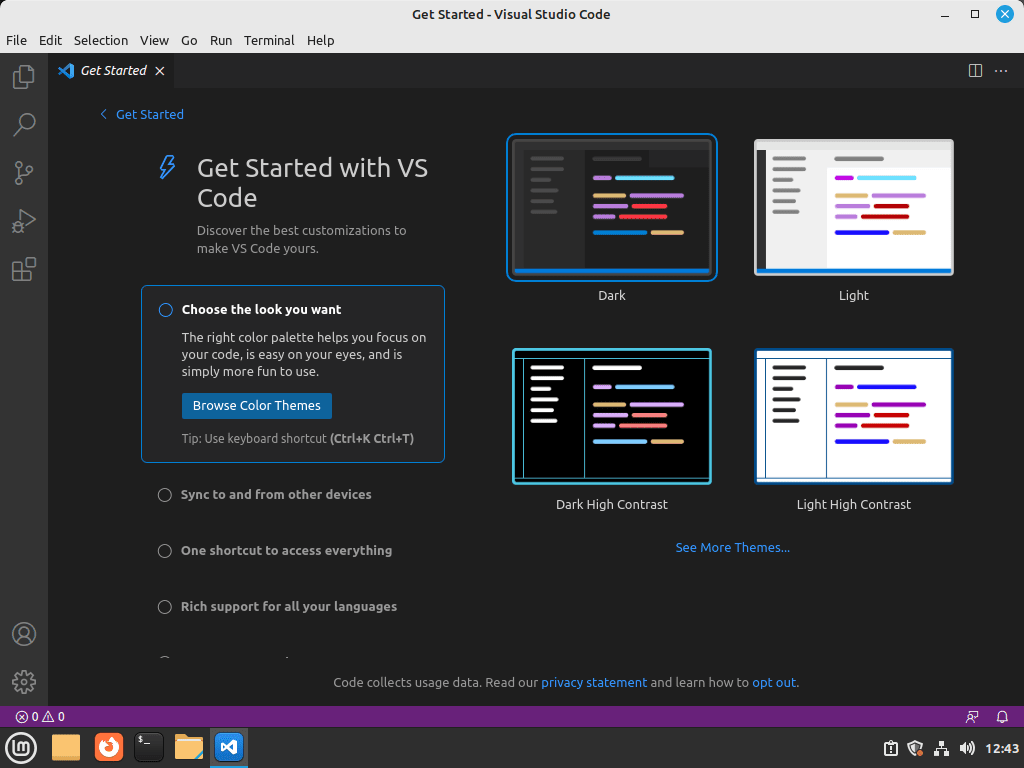
Launch VSCode from the Applications Menu
From the desktop, open VSCode through the applications menu:
Menu > Programming > Visual Studio Code
Update Visual Studio Code on Linux Mint
VSCode releases monthly updates with new features and security fixes. How you update depends on your installation method.
Update VSCode via APT
VSCode updates through the system package manager alongside your other packages:
sudo apt update && sudo apt upgradeFor a targeted update that only upgrades VSCode without touching other packages, use:
sudo apt install --only-upgrade codeUpdate VSCode via Flatpak
Flatpak handles its own updates separately from APT:
sudo flatpak updateRemove Visual Studio Code from Linux Mint
Match the removal commands to your original installation method. A clean uninstall covers the application itself, the repository configuration, and optionally your personal settings and extensions.
Remove VSCode APT Installation
First, uninstall VSCode and optionally the insiders build:
sudo apt remove code code-insidersNext, remove any orphaned dependencies that were installed alongside VSCode:
sudo apt autoremoveFinally, remove the Microsoft repository and GPG key to complete the cleanup:
sudo rm /etc/apt/sources.list.d/vscode.sources
sudo rm /usr/share/keyrings/microsoft.gpg
Verify the removal completed successfully:
code --versionbash: code: command not found
Remove VSCode Flatpak Installation
For Flatpak installations, run the uninstall command:
sudo flatpak uninstall com.visualstudio.codeFlatpak may prompt you to remove unused runtimes. You can clean up orphaned runtimes with:
sudo flatpak uninstall --unusedRemove VSCode User Configuration Data
The following commands permanently delete your VSCode settings, extensions, and workspace data. Export any settings or snippets you want to keep before proceeding. VSCode stores settings in JSON files under
~/.config/Code/User/, which you can back up manually.
To completely remove VSCode configuration directories from APT installations:
rm -rf ~/.config/Code
rm -rf ~/.vscode
rm -rf ~/.cache/Code
For the insiders build, remove its separate configuration directories:
rm -rf ~/.config/Code\ -\ Insiders
rm -rf ~/.vscode-insiders
For Flatpak installations, remove the sandboxed data directory:
rm -rf ~/.var/app/com.visualstudio.codeTroubleshoot Common VSCode Issues on Linux Mint
The following troubleshooting steps apply to Linux Mint 21.x and 22.x (Ubuntu 22.04/24.04 base) with VSCode installed via APT or Flatpak.
GPG Key Errors During apt update
When running sudo apt update, you may occasionally encounter a GPG signature error:
W: GPG error: https://packages.microsoft.com/repos/code stable InRelease:
The following signatures couldn't be verified because the public key is not available: NO_PUBKEY EB3E94ADBE1229CF
The key file is either missing or corrupted. Check whether it exists:
ls -la /usr/share/keyrings/microsoft.gpgExpected output when the key exists:
-rw-r--r-- 1 root root 640 Mar 1 07:46 /usr/share/keyrings/microsoft.gpg
If the file is missing or you see a “No such file or directory” error, re-import the key:
wget -qO- https://packages.microsoft.com/keys/microsoft.asc | sudo gpg --dearmor -o /usr/share/keyrings/microsoft.gpgConfirm the fix with a clean apt update:
sudo apt updateVSCode File Watcher Limit Reached
When working with large projects containing many files (such as Node.js projects with extensive node_modules directories), you may see this notification in VSCode:
Visual Studio Code is unable to watch for file changes in this large workspace. Please follow the instructions link to resolve this issue.
Linux caps the number of filesystem watchers per user, and large projects can blow past that limit. Check your current cap:
cat /proc/sys/fs/inotify/max_user_watchesDefaults vary (8192, 65536, or 524288) depending on your kernel version. If your project has more files than this number, VSCode stops tracking changes.
To increase the limit permanently, add a sysctl configuration:
echo "fs.inotify.max_user_watches=524288" | sudo tee /etc/sysctl.d/60-inotify-watches.conf
sudo sysctl --system
This approach creates a dedicated configuration file in /etc/sysctl.d/ rather than appending to /etc/sysctl.conf, which is the recommended method for modern systemd-based distributions.
Verify the new limit is active:
cat /proc/sys/fs/inotify/max_user_watches524288
Restart VSCode for the change to take effect. The file watcher warning should no longer appear for most projects.
VSCode Flatpak Terminal Integration Issues
Because the Flatpak version runs in a sandbox, the integrated terminal may not see your system compilers, SDKs, or custom environment variables.
To allow the Flatpak version to access host system tools, grant file system permissions:
flatpak override --user --filesystem=host com.visualstudio.codeFor development workflows requiring access to system SDKs or compilers, the APT installation method generally provides better integration than Flatpak.
Duplicate Repository File Warning
After installing VSCode via the DEB822 .sources file, you may notice apt update warns about a duplicate source:
W: Target Packages (main/binary-amd64/Packages) is configured multiple times in
/etc/apt/sources.list.d/vscode.list:1 and /etc/apt/sources.list.d/vscode.sources
The VSCode installer creates a legacy .list file alongside your existing .sources configuration. Other Microsoft products like Edge on Linux Mint do the same thing. Remove the duplicate:
sudo rm /etc/apt/sources.list.d/vscode.listVerify the warning is resolved:
sudo apt updateFrequently Asked Questions About VSCode on Linux Mint
VS Code includes Microsoft telemetry and proprietary features like Settings Sync and some extensions. VSCodium is a community build of the same source code with telemetry disabled and Microsoft-specific features removed. Both editors share the same core functionality and extension ecosystem.
The APT method is recommended for most users because it integrates directly with system tools, the integrated terminal, and development SDKs. Flatpak runs VS Code in a sandbox, which can limit access to system compilers, debuggers, and SDK paths unless you manually grant filesystem permissions.
The VS Code installer automatically creates a legacy .list file alongside any existing .sources configuration. Both files point to the same Microsoft repository. You can safely remove the .list file at /etc/apt/sources.list.d/vscode.list if it appears, since the DEB822 .sources file handles repository access.
Conclusion
VSCode is running on Linux Mint with automatic updates handled by APT or Flatpak. From here, you can pair it with Git on Linux Mint for version control, add GitHub Desktop on Linux Mint for a visual Git workflow, or try VSCodium on Linux Mint if you want the same editor without Microsoft telemetry.

Thanks! Saved me a ton of time.
<3
Great explanation and guide to install VS Code