
TeXworks is a lightweight LaTeX editor with an integrated PDF viewer that connects directly to your TeX distribution to compile documents. The side-by-side layout displays your LaTeX source on the left and the compiled PDF on the right, with SyncTeX navigation linking source lines to their rendered output. This makes TeXworks practical for academic papers, technical documentation, and professional typesetting without the complexity of full-featured IDEs like TeXstudio or Overleaf.
This guide covers three installation paths: the default Ubuntu repository for stability, the official TeXworks PPA for latest releases, and Flatpak for sandboxed installations. By the end, you will have a working TeXworks environment ready to compile LaTeX documents into professional PDFs.
Prerequisites: Install TeX Live
TeXworks is an editor, not a compiler. Without a TeX distribution installed, TeXworks can open and edit files but cannot compile them into PDFs. The compilation button triggers external tools like pdflatex that convert your LaTeX source into output documents. Install TeX Live before proceeding with TeXworks installation.
For most users, the recommended package provides common LaTeX classes and fonts without excessive disk usage:
sudo apt update
sudo apt install texlive-latex-recommended
Verify that the TeX distribution installed correctly by checking for the pdflatex compiler:
pdflatex --versionThe output confirms TeX Live is available:
pdfTeX 3.141592653-2.6-1.40.25 (TeX Live 2023/Debian)
kpathsea version 6.3.5
Copyright 2023 Han The Thanh (pdfTeX) et al.
For comprehensive LaTeX support including all available packages and fonts, install
texlive-fullinstead. This metapackage pulls in approximately 5 GB of data and is useful when you need obscure packages without hunting for them individually. For minimal setups or limited disk space,texliveprovides basic functionality.
Choose Your Installation Method
Ubuntu provides multiple installation paths with different trade-offs. The comparison table below summarizes each option:
| Method | Source | Best For |
|---|---|---|
| Ubuntu Repository | Distribution default | Simplest setup, stability over features |
| TeXworks PPA | Launchpad stable | Latest features (Ubuntu 22.04/24.04 only) |
| Flatpak | Flathub | Sandboxed installation, all Ubuntu versions |
Default TeXworks Versions by Ubuntu Release
TeXworks versions in the default Ubuntu repositories vary by release. Older Ubuntu versions ship older TeXworks builds:
| Ubuntu Release | Default TeXworks | Notes |
|---|---|---|
| 26.04 LTS (Resolute) | 0.6.10 | Matches upstream stable release |
| 24.04 LTS (Noble) | 0.6.8 | Two releases behind upstream |
| 22.04 LTS (Jammy) | 0.6.6 | Consider PPA for newer version |
If you need the latest TeXworks features on Ubuntu 22.04 or 24.04, the PPA provides version 0.6.10. Ubuntu 26.04 users already receive the current release from the default repository.
Install TeXworks on Ubuntu
Method 1: Install from Default Ubuntu Repository
The default repository provides the simplest installation path without external dependencies. While versions may lag behind upstream releases on older Ubuntu versions, packages receive testing from Ubuntu maintainers and integrate with system updates automatically.
sudo apt update
sudo apt install texworks
Verify the installation by checking the package status:
dpkg -s texworks | grep -E '^(Package|Version|Status)'The output confirms TeXworks is installed:
Package: texworks
Status: install ok installed
Version: 0.6.8-3build4
The version number varies by Ubuntu release (see the version table above).
Method 2: Install via TeXworks PPA
The official TeXworks PPA delivers newer releases directly from the development team. Unlike the default repository, which may ship older versions due to Ubuntu’s release cycle, the PPA tracks upstream development more closely. You receive bug fixes, performance improvements, and new features soon after the team releases them.
The TeXworks PPA currently supports Ubuntu 24.04 (Noble) and 22.04 (Jammy). Ubuntu 26.04 users should use Method 1 (default repository) or Method 3 (Flatpak) instead, as the PPA does not yet have builds for Resolute.
Add the Stable PPA
The TeXworks project maintains two PPAs: stable for production-ready releases and development for nightly builds. For most users, the stable PPA is the correct choice:
sudo add-apt-repository ppa:texworks/stable -yThe -y flag automatically confirms adding the repository without prompting.
Install TeXworks from PPA
After adding the PPA, refresh the package index to make the new packages available, then install TeXworks:
sudo apt update
sudo apt install texworks
Verify the PPA version installed correctly:
dpkg -s texworks | grep -E '^(Package|Version|Status)'The output shows the PPA version:
Package: texworks
Status: install ok installed
Version: 0.6.10~202502131350~git~73809410-1noble
The version string includes a timestamp and git commit hash, indicating this build comes from the PPA rather than the default repository.
The development PPA (
ppa:texworks/ppa) provides nightly builds for testing new features and contributing feedback. Only use it if you need bleeding-edge functionality and accept potential instability.
Method 3: Install via Flatpak
Flatpak packages TeXworks with all dependencies in an isolated container. This approach prevents conflicts with system libraries and ensures consistent behavior across all Ubuntu versions, including 26.04 where the PPA is unavailable. However, the sandbox restricts file access by default, requiring explicit permission grants to read your LaTeX projects.
If Flatpak is not installed on your system, follow How to Install Flatpak on Ubuntu to set up the Flatpak framework and add the Flathub repository. This typically takes under five minutes.
Enable Flathub Repository
Add the Flathub repository if it is not already configured:
flatpak remote-add --if-not-exists flathub https://flathub.org/repo/flathub.flatpakrepoThe --if-not-exists flag prevents errors if Flathub is already configured.
Install TeXworks from Flathub
Install TeXworks from Flathub:
flatpak install flathub org.tug.texworks -yVerify the installation:
flatpak info org.tug.texworks | grep -E '^(Ref|Version|Origin)'The output confirms TeXworks installed from Flathub:
Ref: app/org.tug.texworks/x86_64/stable
Version: 0.6.10
Origin: flathub
The Flatpak version of TeXworks can use a bundled TeX distribution instead of your system TeX Live installation. To use Flathub’s TeX Live extension, run:
flatpak install org.freedesktop.Sdk.Extension.texlive//23.08. This provides a self-contained LaTeX environment within the Flatpak sandbox.
Launch TeXworks
After installation, launch TeXworks from the terminal or application menu.
Terminal Launch Commands
For APT installations (Methods 1 and 2):
texworksFor Flatpak installations:
flatpak run org.tug.texworksGraphical Launch
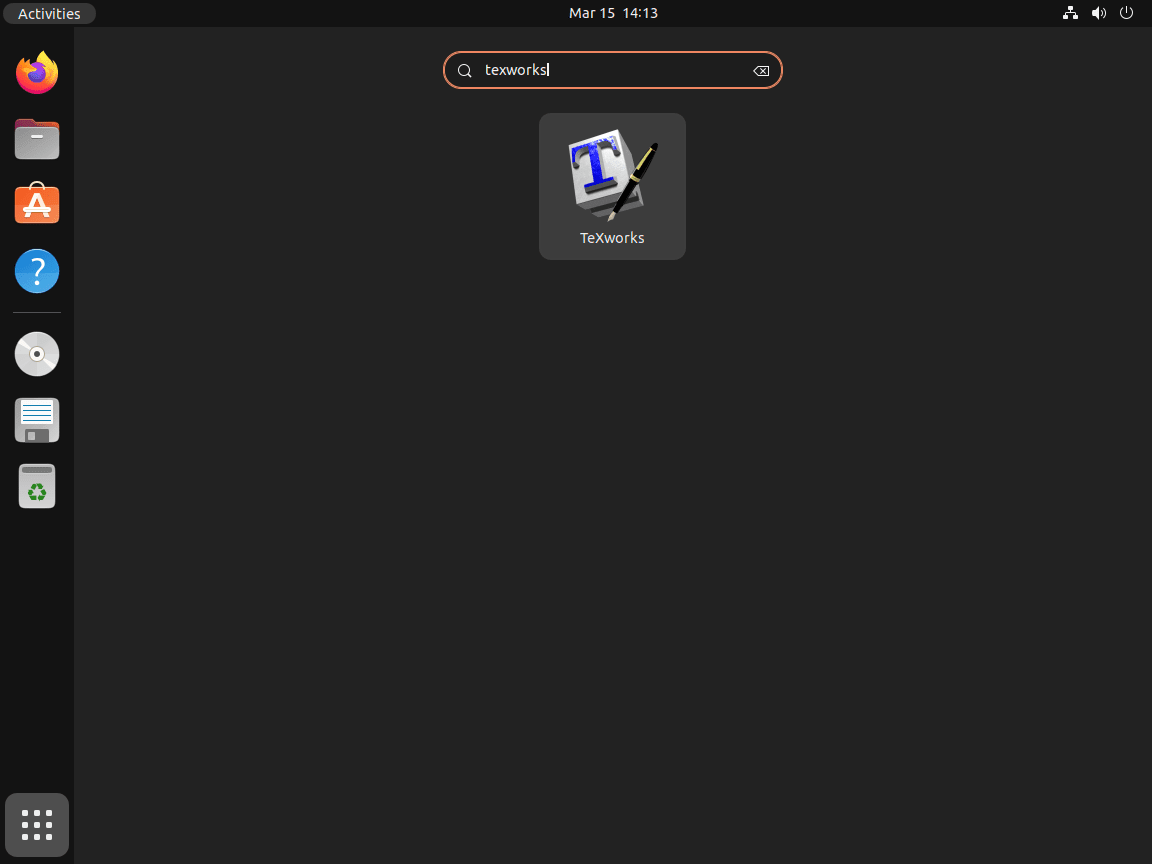
Open the Activities overview by clicking the top-left corner or pressing the Super key, type “TeXworks” in the search bar, and click the application icon.
Basic TeXworks Workflow
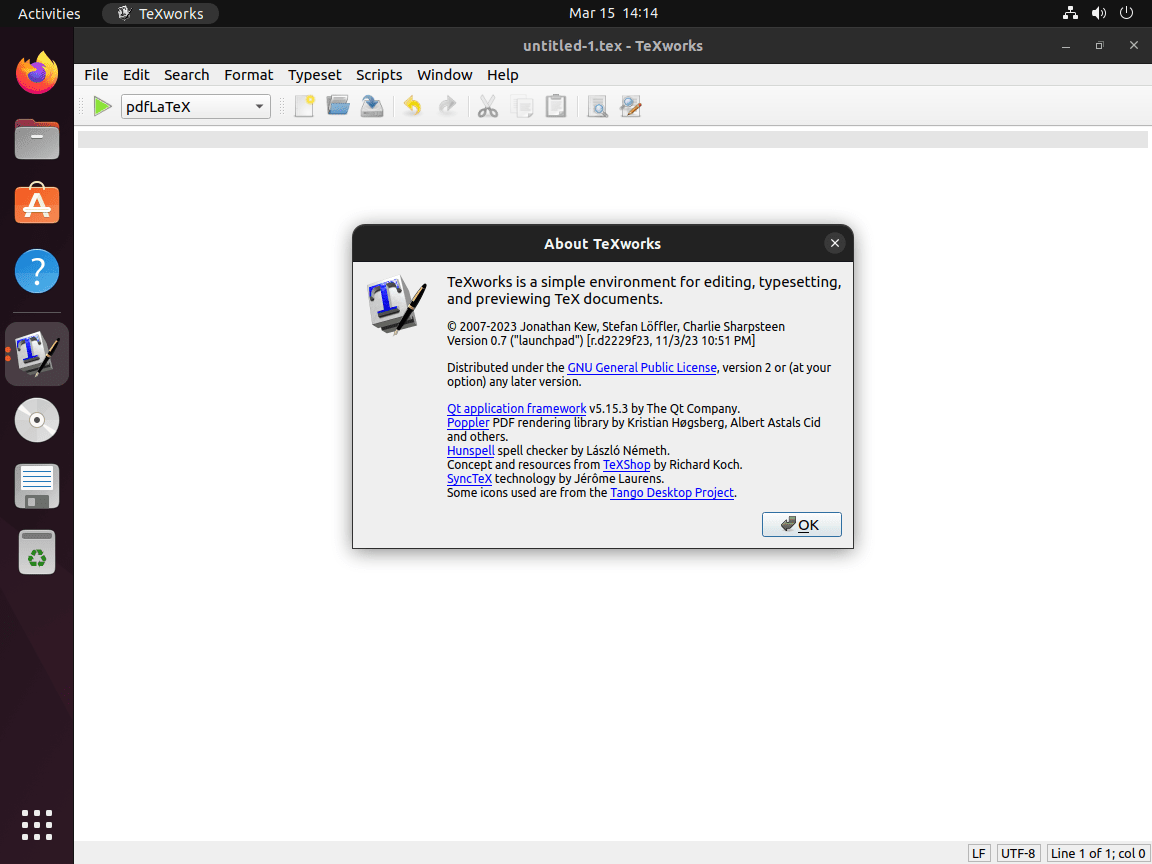
The TeXworks interface splits into two main sections: the source editor on the left where you write LaTeX code, and the PDF preview on the right displaying compiled output. This side-by-side arrangement lets you see changes immediately after compilation without switching windows.
Create Your First Document
Create a new document with File, New or press Ctrl+N. Start with a minimal LaTeX template to verify your setup works:
\documentclass{article}
\begin{document}
Hello, LaTeX world!
\end{document}
Save the file with a .tex extension before compiling.
Compile and Preview
Click the green play button in the toolbar or press Ctrl+T to compile. TeXworks runs pdflatex by default, which handles most standard documents. The compiled PDF appears in the preview pane within seconds for simple documents. The compilation log in the bottom panel shows errors, warnings, or informational messages that help diagnose formatting issues or missing packages.
Navigate with SyncTeX
TeXworks uses SyncTeX to connect source code with PDF output bidirectionally. This navigation becomes valuable when editing large documents or debugging formatting issues. Hold Ctrl and click any line in the editor to jump to the corresponding location in the PDF preview. Similarly, Ctrl+Click anywhere in the PDF highlights the source line that produced that output. This eliminates manual searching through long documents when locating specific paragraphs or troubleshooting layout problems.
Manage TeXworks
Update TeXworks
APT installations (Methods 1 and 2) update automatically with your system packages. To check for updates manually:
sudo apt update && sudo apt upgradeFor Flatpak installations:
flatpak update org.tug.texworksRemove TeXworks
To uninstall TeXworks and remove unused dependencies that were installed alongside it:
sudo apt remove --autoremove texworksIf you installed via the PPA and do not plan to reinstall, remove the repository to prevent APT from checking it during updates. For detailed guidance on managing PPAs, see How to Remove a PPA from Ubuntu.
Remove the stable PPA:
sudo add-apt-repository --remove ppa:texworks/stable -yFor Flatpak installations:
flatpak uninstall org.tug.texworksRemoving TeXworks does not remove TeX Live. If you also want to remove the TeX distribution, run
sudo apt remove --autoremove texlive-latex-recommended(or whichever texlive package you installed). Your LaTeX source files remain untouched in your home directory.
Troubleshooting
Compilation Fails with “pdflatex not found”
When TeXworks launches successfully but cannot compile documents, the TeX distribution is missing or incomplete. TeXworks depends on external LaTeX compilers to convert source files into PDFs. Without these tools, TeXworks functions as a text editor only.
Verify that TeX Live installed correctly:
which pdflatexIf the command returns no path, install TeX Live:
sudo apt install texlive-latex-recommendedThe expected output after installation:
/usr/bin/pdflatex
PDF Viewer Shows Blank or Stale Content
The integrated PDF viewer normally refreshes automatically after each successful compilation. When the preview stays blank or displays outdated content, compilation likely failed or encountered errors that prevented PDF generation.
Check the compilation log panel at the bottom of the window for error messages indicating missing packages, incorrect commands, or syntax problems. If the log shows package-related errors, install the missing components:
sudo apt install texlive-fonts-recommended texlive-latex-extraThese packages provide additional fonts and commonly used LaTeX extensions that many documents require.
Flatpak Version Cannot Access Documents
Flatpak’s security model restricts applications from accessing arbitrary filesystem locations by default. The Flatpak version of TeXworks may fail to open LaTeX files stored outside permitted directories, typically limited to Downloads and specific XDG directories.
When you encounter permission errors or cannot browse to your project folders, grant explicit filesystem access. For a graphical approach, install Flatseal and enable home directory access through its interface. Alternatively, run TeXworks with expanded permissions:
flatpak run --filesystem=home org.tug.texworksThe --filesystem=home flag grants read and write access to your entire home directory for that session.
SyncTeX Navigation Not Working
If Ctrl+Click navigation between source and PDF does not work, verify that a .synctex.gz file appears alongside your compiled PDF. This file stores the mapping between source lines and PDF positions. Most modern TeX Live installations enable SyncTeX automatically, but older or custom configurations may disable it.
Check the compilation log for SyncTeX-related messages. If SyncTeX is disabled, add \synctex=1 to your document preamble or pass --synctex=1 to the compiler through TeXworks’ typeset menu configuration.
Conclusion
TeXworks provides a lightweight LaTeX editor with integrated PDF preview, syntax highlighting, and SyncTeX navigation. The installation covered PPA setup for latest releases on Ubuntu 22.04/24.04, default repository options for stability on all versions, and Flatpak for sandboxed installations. Your system now runs an editor that compiles LaTeX documents into professional PDFs for academic papers, technical documentation, and typesetting work.

Formatting tips for your comment
You can use basic HTML to format your comment. Useful tags currently allowed in published comments:
<code>command</code>command<strong>bold</strong><em>italic</em><blockquote>quote</blockquote>